.png)
This guided scenario shows a lawyer recording 1.5 hours for a client matter using the Acumin.desktop Timesheet. It includes best practices for descriptions, validation, and submitting or posting.
Use Case
You, the lawyer, spent 1.50 hours reviewing opposing counsel’s email and drafting a response for client ABC Corporation on the “General Commercial” matter. You will enter, validate, and either submit to your assistant or post yourself.
Before You Start (One-time helpful setup)
-
Favourites: Add frequently used clients/matters to speed selection.
-
Auto‑text replace: Define 3–5 common narrative snippets (e.g., uCC → “conference call with”).
-
Timesheet view: Right‑click header > Customize to hide low‑value columns and widen Description.
Step-by-Step Scenario
1) Open the Timesheet
From the task bar, select Activities > Timesheet. The grid opens with a new row ready for input.
2) Confirm Working Member
The Member field typically defaults to you. If not, click the ellipsis (…) in the Member cell, search by your name, and select it.
3) Select the Client
-
Type the client code if known (e.g., 169), then Tab, or
-
Click the ellipsis (…) and pick from Favourites or search by name (e.g., “ABC”); select ABC Corporation.
4) Select the Matter
-
Type the matter code, then Tab, or
-
Click the ellipsis (…) to search. Because the client is set, results filter to that client’s matters. Select General Commercial.
If a matter exists but is not yet active, you can select it to begin the entry; you’ll need the matter active to post. If the matter has not been created yet, you may type a placeholder in Matter and submit to your assistant to resolve later.
5) Verify the Date
The Date defaults to today. Adjust if work was done on a different day.
6) Choose the Time Code (Activity)
-
Enter a known code (e.g., BL for Blank), or
-
Click the ellipsis (…) to pick a code from your favourites or the full list.
If your firm allows no-code entries, you can leave this blank while drafting. Before posting, click Insert Codes to apply the firm’s Blank code to all missing entries in one step.
7) Enter Hours
In Hours, type 1.50. Tab past Rate and Value; they will auto-calculate on Validate/Post based on matter rates.
8) Check Chargeability
The Charge column defaults from the matter/code rules. Confirm it shows Chargeable for billable work. Authorized users can adjust if needed.
9) Write a Clear Description
In Description, type a client-ready narrative, for example:
Review of opposing counsel’s email; drafted response to client regarding strategy and next steps.
-
Use auto‑text replace to speed entry (e.g., typing
uCC+ Space inserts “conference call with”). -
Press Spacebar or the ellipsis (…) in Description to open the edit box for longer text, spell check, and see character count guidance (yellow = too short; green = good; red = too long).
10) Validate
Click Validate at the bottom. Acumin calculates Rate/Value and highlights missing or invalid content in yellow (e.g., empty code if required, inactive matter).
11) Fix Any Highlights
-
Use Insert Codes to apply Blank to entries missing a time code (if your firm uses a blank code).
-
Activate or select the correct matter if “inactive” was flagged.
-
Ensure Hours > 0 and Description meets length rules.
12) Submit or Post
-
Submit: Click the green Submit arrow to route all unposted entries to the person listed below (usually your assistant by default). Submitted entries move off your timesheet and appear on theirs.
-
Post: If you post your own time, click Post (bottom-right). Entries become WIP and rates/values are finalized per firm controls.
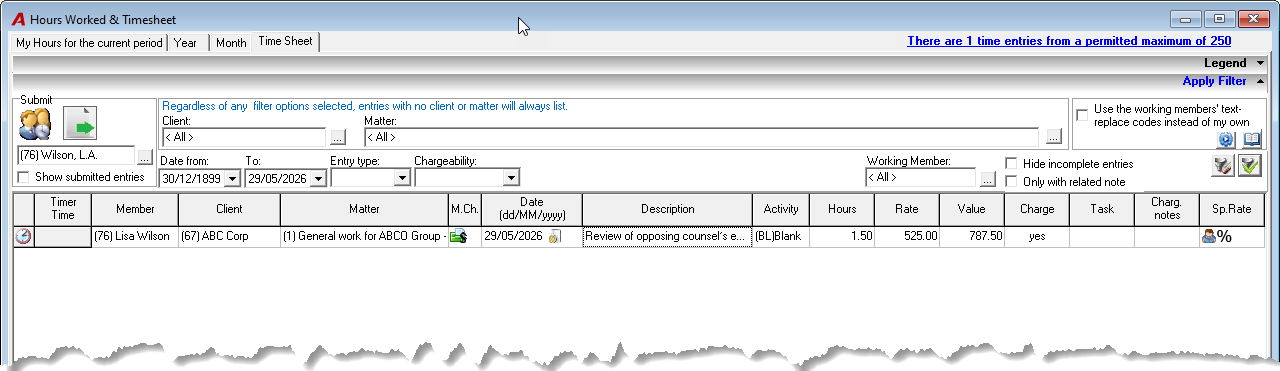
Example: Completed Entry
-
Member:
-
Client: ABC Corporation
-
Matter: General Commercial
-
Date: Today
-
Time Code: BL (Blank)
-
Hours: 1.50
-
Charge: Chargeable
-
Description: “Review of opposing counsel’s email; drafted response to client regarding strategy and next steps.”
Pro Tips and Good Practices
-
Enter time the same day. Use the Timer for long tasks; it saves in your Timesheet automatically when stopped.
-
Write narratives as if the client will read them; avoid jargon and internal shorthand.
-
Group several quick related actions under one clear description if firm policy allows.
-
Use Text Edit (bottom-right) to spell-check all entries at once before posting.
-
Use Filter by Working Member to view just your entries when your assistant also enters time for you.