.png)
Reporting Dimensions and Filters
Scope and Purpose
The purpose of this document is to highlight the options of the multi-dimensional filter form used to generate non-financial reports.
Its scope extends to how these dimensions and filters leverage key actors involved in work-product-related transactions - the member and the matter; as well as provide insight on how to use these filter options to achieve multi-faceted results from different perspectives.
Highlights
The multi-dimensional report filter form includes three main tabs.
The pre-select tab includes general options, for example who the report is being generated for; report specific options for alternate presentations on the same number of columns; as well as date fields to set the date parameters for the reported results.
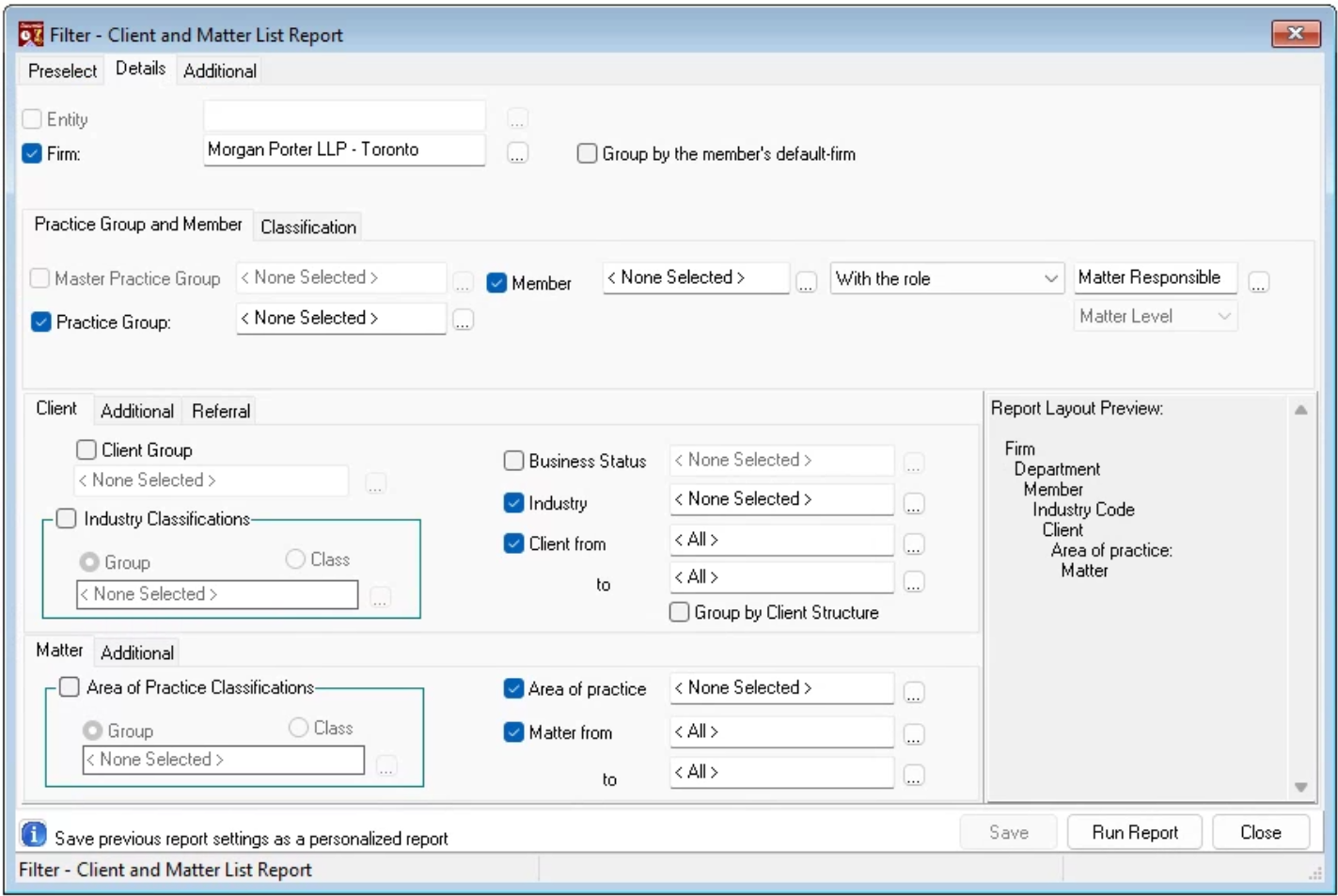
The details tab includes the reporting dimensions that the firm is licensed for, in context of attributes for firms, members, clients and matters. Check-marked dimensions without a specific attribute selected act as grouping variables. Unchecked, the reporting dimension is ignored.
Reporting dimensions shown grayed-out indicate that the report was not designed to capture and report under the disabled context, or that the organization is not using the reporting dimension affected.
The tab separates the reporting dimensions for members, from those for clients, and/or matters. Each subsection carries sub-tabs offering additional context or filter options for each.
The additional tab offers report-specific filter options and requirements, for example the selection of an aging scheme when generating an Aged AR or Aged WIP report; as well as the ability to summarize the results to the lowest reporting dimension selected on the details tab.
The Multi-Dimensional Filter
The Pre-Select Tab
General Content:
Every pre-select tab includes the option to select and show who the report is being generated for, the option to change the default language, and visibility of the lowest level of detail offered for the report.
Report Specific Options:
The bottom of the pre-select tab can include report specific options. For example, the pre-select tab for Aged Accounts Receivable report has the options to “Include Interest” and to “Suppress Client/Matter Name”. Other reports may not have these options or have other report-specific options, using a similar checkbox and position.
Dates
Date Range
The most important option of the pre-select tab is the date range.
Reports for balance sheet measures, for example the “Accounts Receivable Analysis” report, will default to the current date without a from-date. As these are “as of” historical reports, it is possible to back date them to re-state a position. For example, the aged accounts receivable can be back-dated to December 31st, to show the balance outstanding for invoices December 31st or older even if they were subsequently paid, credited or written-off.
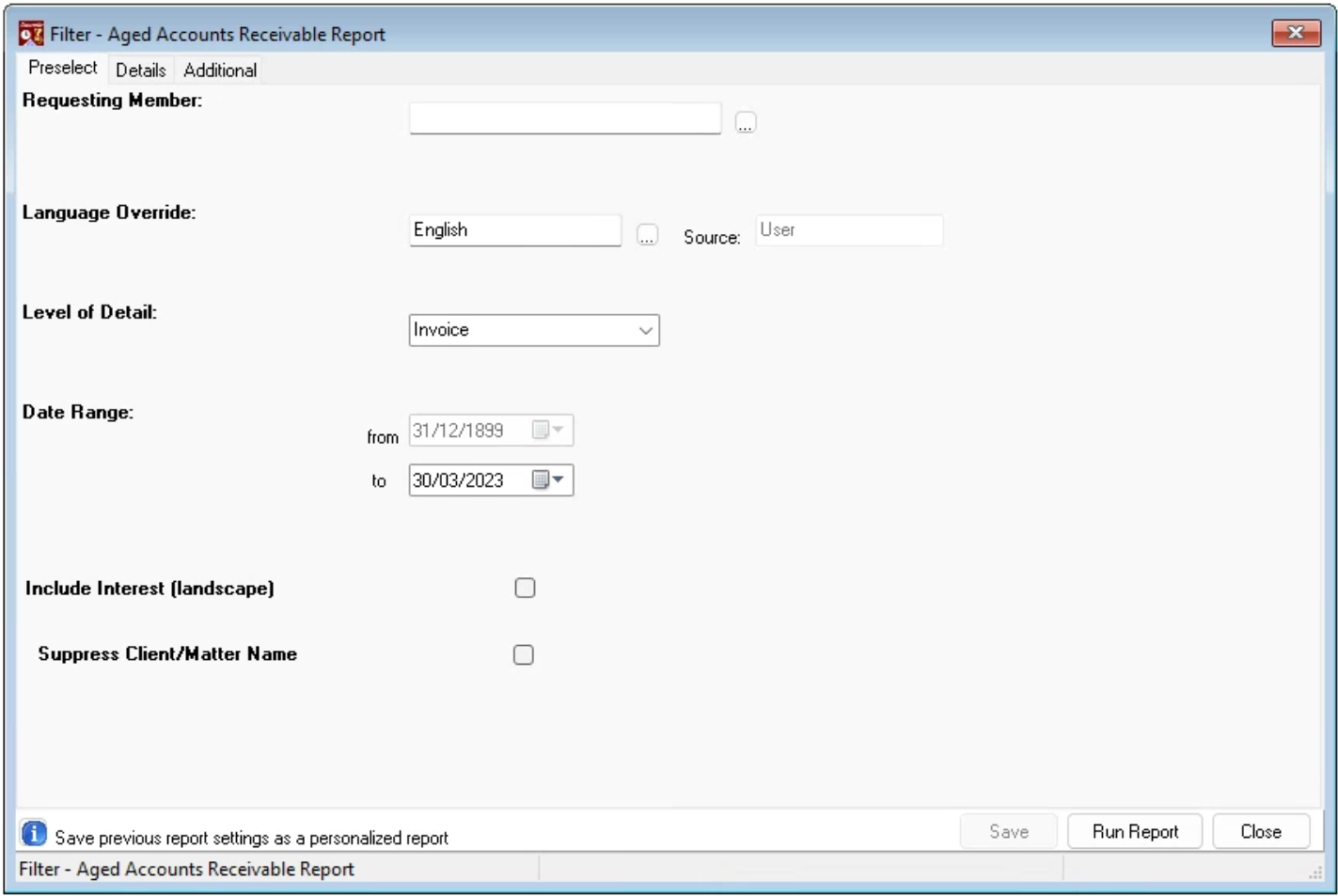
Reports for period measures, will default the from-date to the beginning of the current month or current fiscal year, and the to-date to the current date. Both the “from-date” and the “to-date” remain available for modification, for example the “Fees Billed, Credited and Collected” report. Period reports can also be back dated subject to their historical attributes, and many of them can be generated with a date-range that crosses the fiscal year end.
Change of Perspective
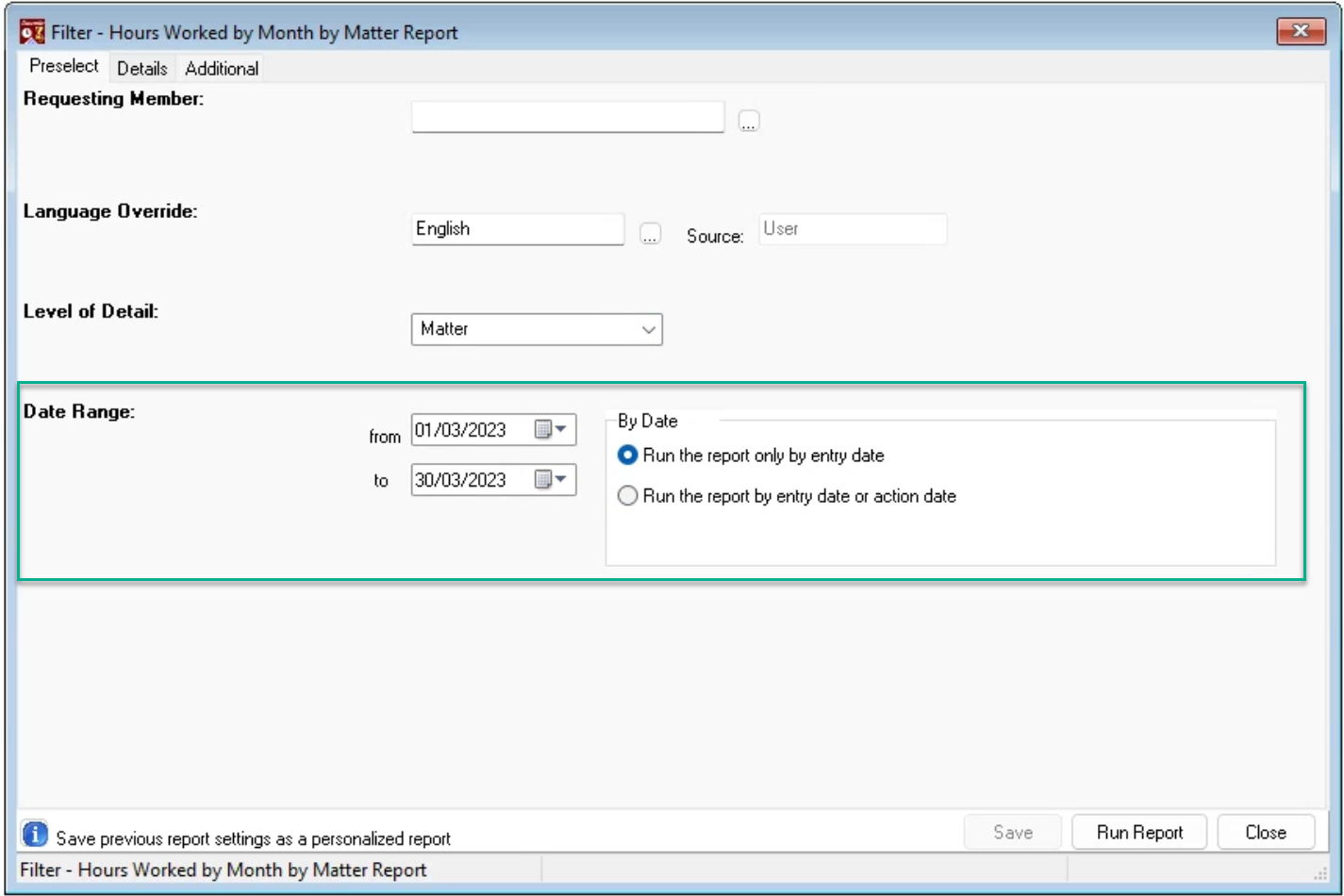
Some reports offer more than one perspective based on the date-range selected. These are usually presented to the right of the date filter.
For example, the hours Worked by Month by Matter Report includes multiple measures reflecting the status of the hours worked. However, inclusion can be based on the date of the entry, or the date of the action taken on the entry, each providing a different perspective.
If the report is executed by entry date, the hours billed, and hours written-off measures presented in the report would be for entries with an entry date in the period selected that has the status billed or written-off.
Alternatively, if the report is executed by entry date or action date, then the hours billed, and hours written-off measures presented in the report would be for entries billed or written-off in the period selected, regardless of the date of the entry.

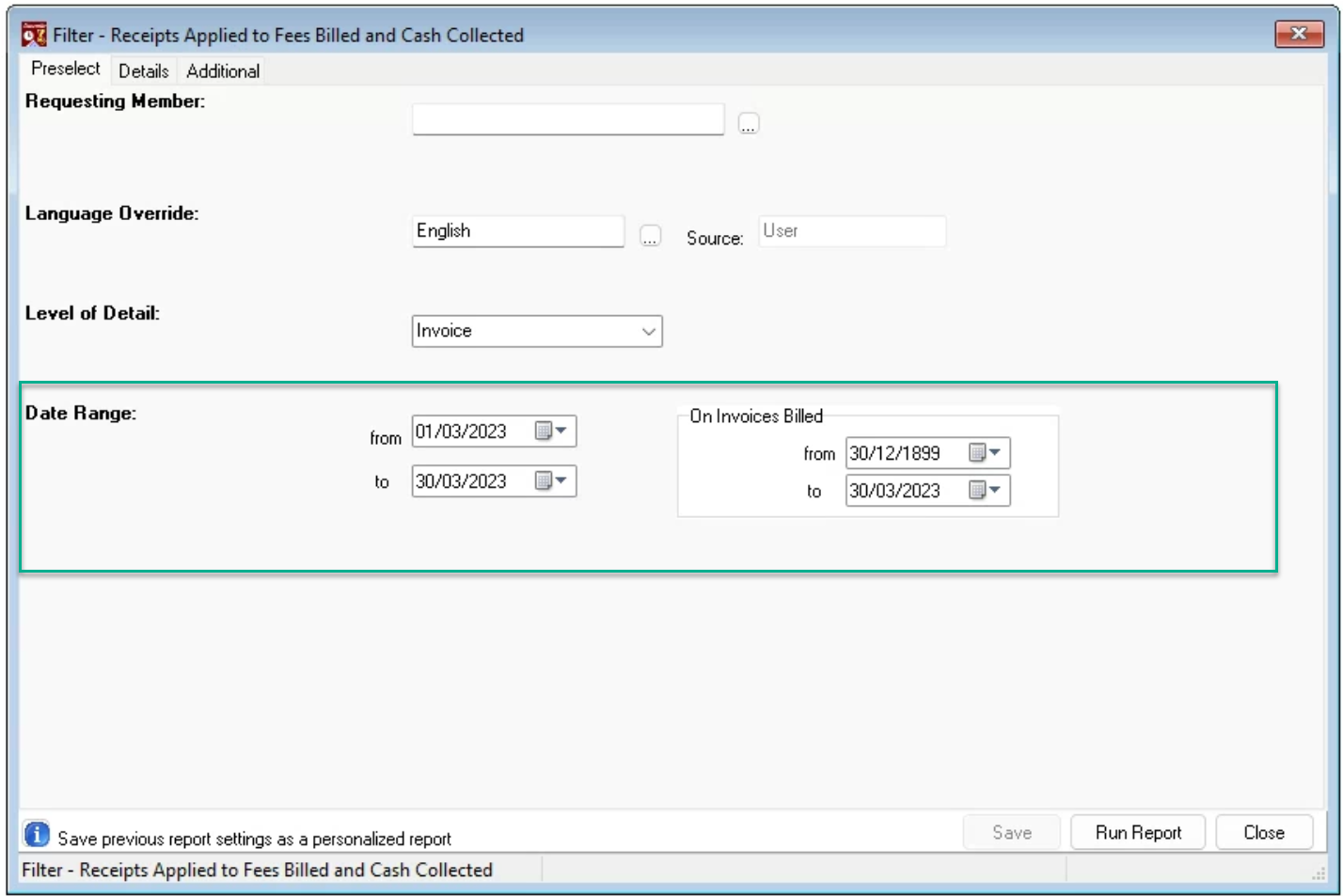
The Receipts Applied to Fees Billed report, is a double date-range report which also changes the perspective depending on the combination of the date ranges selected.
If the report is executed using the default dates, the resulting measures would be for fees collected in the current month regardless of when the fees were generated (when the worked value was billed). However, a change to the second filter from the default position to the previous fiscal year – 01-01-2022 to 31-12-2022; would result in collected fee measures in the current month – March 2023 - for fees billed in the prior fiscal year only.
The Details Tab
The details tab is divided into four sections.
Firm
The upper section of the form organizes the options available for the firm as the reporting dimension. To report across all firms without grouping by firm, remove the checkmark to the left of the “Firm”. To report across all firms and group the results by firm checkmark “Firm” but leave the field content as <None selected>.
The firm is a both a member and matter attribute. When reporting by firm, the results are in context of the firm of the matter – as a default; however, the checkbox option “Group by the member’s default firm” changes the perspective, so the firms’ results will present measures in context of the firm of the member instead.
Member
The “Practice Group” is a firm-defined member level attribute and reporting dimension used to group members into responsibility groups or legal departments - for example Corporate, Bankruptcy, Insurance Defense, Employment. As members belong to one practice group at any one time, members are assigned to the practice group representing the types of law that the member practices most, so that at the user’s discretion, the report can be generated taking the effective date of the member’s changes in practice group, into consideration.
Regardless of Practice Group membership, members practice law across many areas of practice (AOP). Therefore, to elevate the relationship between the member and the areas of practice, organizations match their Areas of Practice Groups to their Practice Groups. This provides stakeholders and practice group leaders with an understanding of what areas of practice, the practice group as a whole and/or its individual members, are practising in; as well as with visibility of how much work is being done outside their Practice Group’s scope.
The “Master Practice Group” is a firm-defined practice group attribute and reporting dimension that groups the more granular practice groups – for example Business Law to group Corporate and Bankruptcy.
The “Member” reporting dimension (1) has multiple perspectives which list within the drop-down box that defaults to “With the role” – “Matter Responsible” or equivalent, matter level. Depending on the report, the list o perspectives can include “Working Member”, “Invoice Signatory”, “Creator” etc. as well as licensed shareable roles, for example “Owner”. To change the default role used for the option “With the role” to another matter or client level role, users wilk press on the ellipsis button to the right of the role field (2). Based on the selection made the grayed-out field defaulted to “Matter level” will change to “Client Level”.
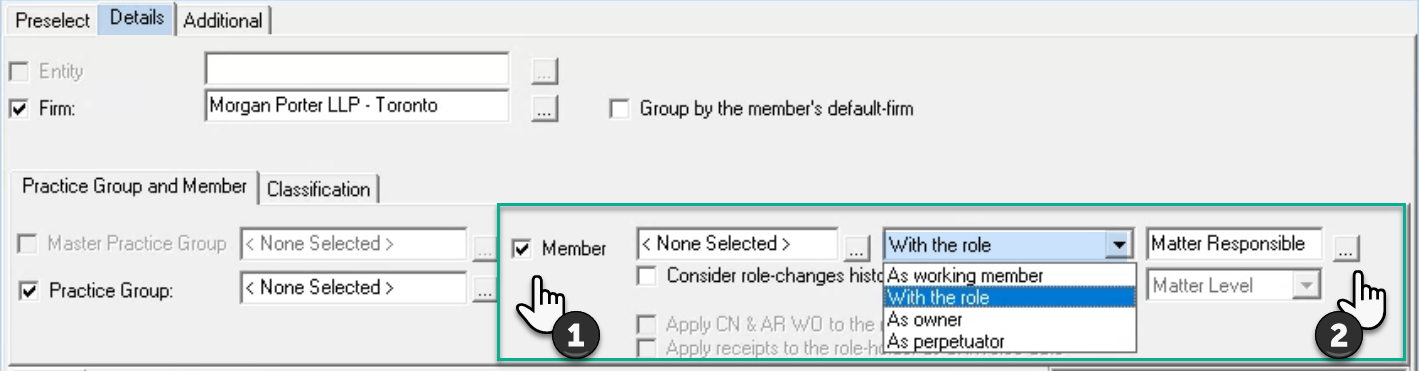
With the role: Reports executed by client level team role, show total measures for the client grouped under the client role-holder regardless of who did the work that supports the measure. Reports executed by matter level team role, show total measures for the matter grouped under the matter role-holder, regardless of who did the work that supports the measure.
Working member: The working member is not a stated client or matter role, but a native reporting dimension based on the member’s work product.
Beyond the time-spent related measures of hours worked and worked values; reports executed by working member, show measures by the allocated-to member in context of the allocation decisions made for the invoice, credit note, payment or ARWO. Allocated-to fee measures differ from the occasional presentation of working member fee measures that are proportionately shared across timekeepers based on worked values. Licensed organizations also have access to distributed fees billed, credited, collected or written-off measures which are calculated outside of allocation schemes or manual allocations. Unlike allocated fees which can be applied to members with no-time on the invoice, distributed measures are applicable to timekeepers only.
Allocation Schemes are used to allot fees billed, credited collected and written-off in context of firm-defined formulas. Most firms work with a pro-rata allocation scheme based on working-member worked values (credit work) to allot fee related credits, however Acumin supports as many allocation schemes as needed by the firm. Authorized users can override the firm’s default allocation scheme at the client, matter, and invoice level.
The allocation process starts with the use of the allocation scheme of the affected invoice to allot fees billed to the working member. Authorized users can complete a manual override on the formula based allocated fees resulting in the working member being more of an allocated-to member if he or she is getting more or less allocated fees than those based on pro-rated worked values. Fees credited, collected, or written-off are first allocated following the final allocation of the corresponding invoice, however each can also be manually overridden by an authorized member.
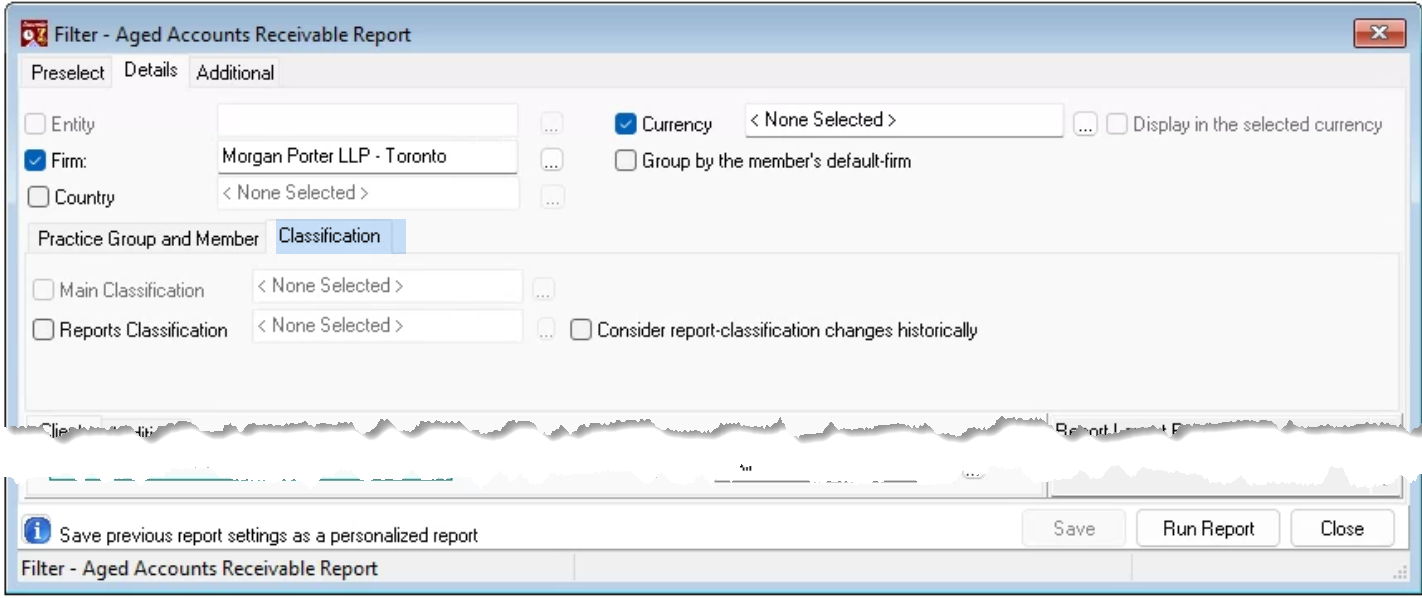
The “Reporting Classification” is a firm-defined member level attribute and reporting dimension used to group members into titles such as Partner, Associate, Student etc.; created in context of how the firm is organized. This reporting group is historical; therefore the results can be generated taking the effective date of reporting group changes into consideration.
The “Main Classification” is also a firm-defined member level attribute and reporting dimension that is usually less granular – for Timekeepers, Non-Timekeepers.
Client
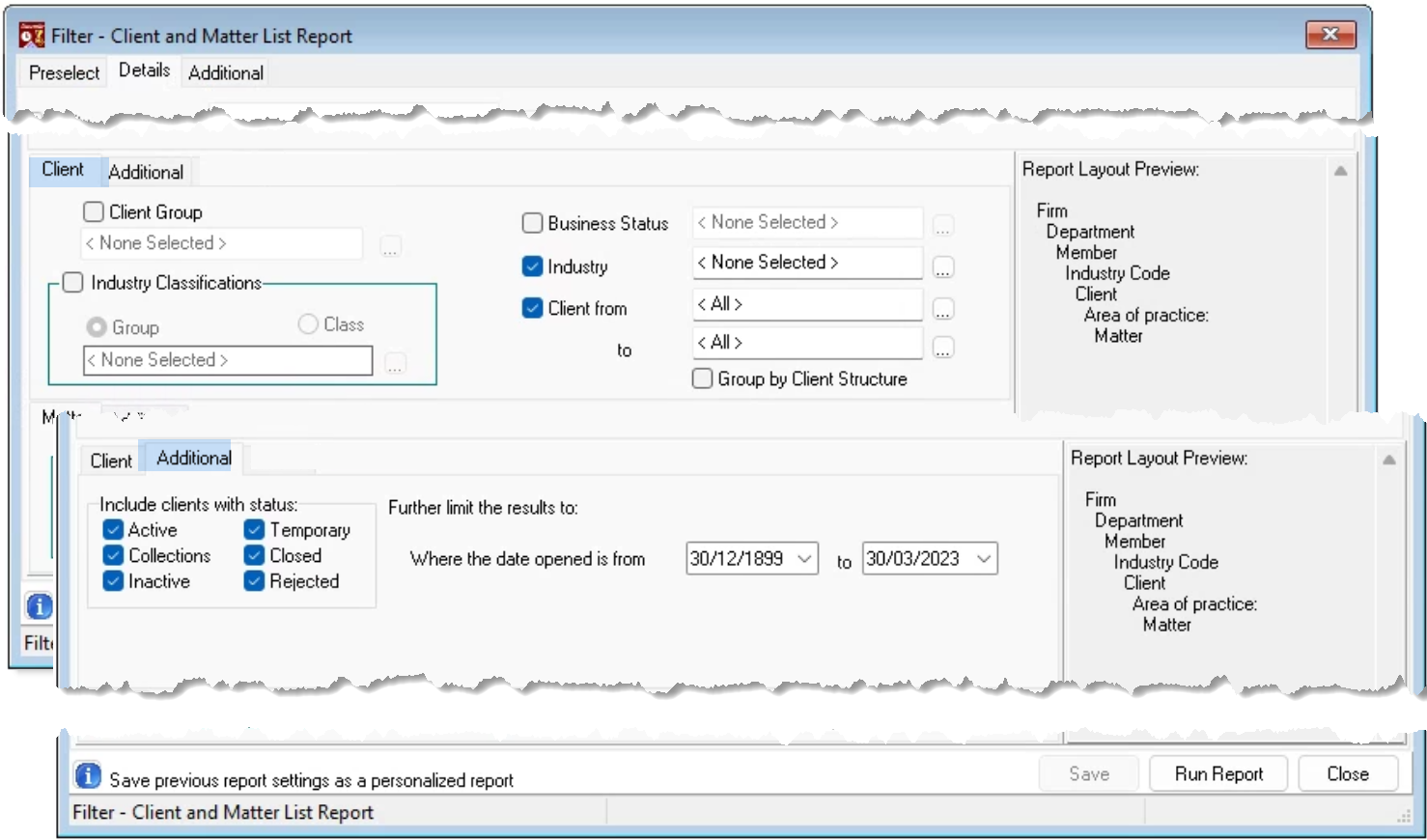
The “Industry”, “Business Status” and “Client Group” are licensed firm-defined client level attributes and reporting dimensions used to classify clients to gain different reporting perspectives. For example, the client group can be used to classify clients into geographical locations or annual revenue – net worth ranges.
The “Industry Group” and “Industry Class” are both industry attributes and reporting dimensions that consolidate the more granular industry into broader reporting categories. For example, “Water Transportation”, “Air Transportation” and “Rail Transportation” could be grouped under industry group “Transportation” and industry class “Private or Publicly Traded”; whereas “Oil and Gas” and “Mining” could be grouped under industry group “Environment” and also “Industry class ““Private or Publicly Traded” adding additional dimension to the results.
The Client’s Additional Sub-Tab includes client status and date opened filters.
Matter
The “Area of Practice” is a firm-defined matter level attribute and reporting dimension used to classify the work created in context of the types of law services the firm offers. For example, “Residential Real Estate”, “Trademark Renewals”
The “Area of Practice Group” and “Area of Practice Class” are both Area of Practice attributes and reporting dimensions that consolidate the more granular Area of Practice (AOP) into broader reporting categories. For example, “Residential Real Estate”, “Commercial Real Estate” and “Leases” could be grouped under Area of Practice Group “Real Estate” and Area of Practice Class “Transactional and Recurring”; whereas “Trademark Renewals” could be grouped under Area of Practice Group “Intellectual Property” and Area of Practice Class “Transactional and Recurring” yet “Patent Litigation” would be grouped under Area of Practice Group “Intellectual Property” but “Industry class “Litigation”. This extends the perspective on what type of work we do.
Members and Areas of Practice - Impact on Reporting:
The multiple dimensional filter form supports the use of the Practice Group (Member Attribute) and Area of Practice Group (AOP Attribute) to provide visibility to stakeholders how much work is executed outside the types of law managed by the practice group’s leadership. For example, practice group results can be generated by member by area of practice group to gain an understanding of type of work practiced by its members. Alternatively, stakeholders can assess when a member should be moved to another more relevant practice by generating the practice group results by area of practice group by member. This level visibility can extend beyond hours worked or worked value measures by timekeeper, to measures by matter or client level role holders, for all practice groups across all firms (offices).
The Matter’s Additional Sub-Tab includes matter status, date opened and date closed filters.
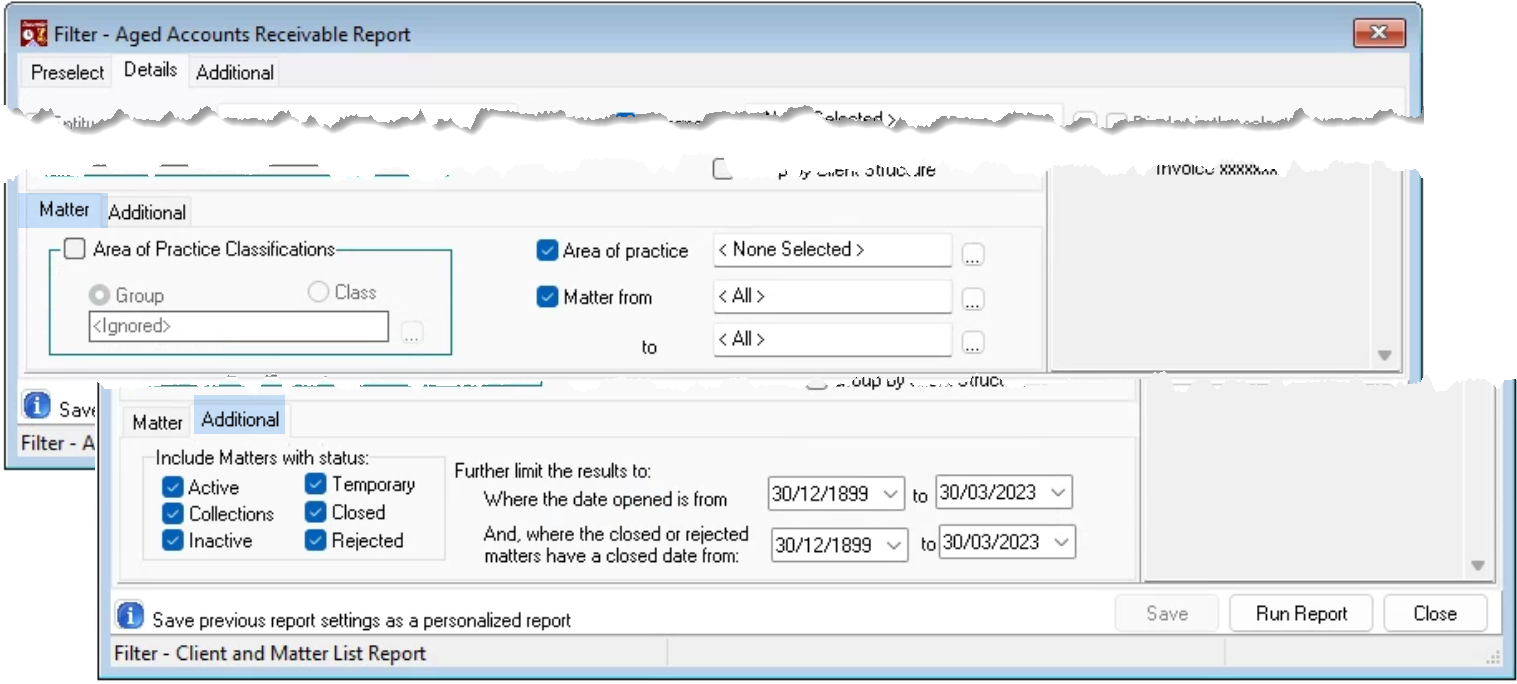
The Additional Tab
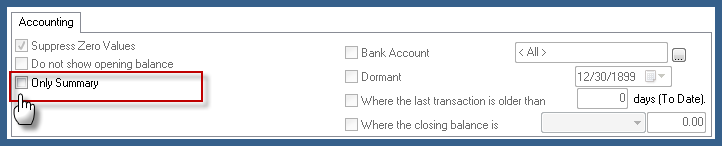
The additional tab offers supplementary filter options specific to the report, the ability to summary the results to the lowest reporting dimension selected on the details tab, as well as report-specific requirements, for example the selection of an aging scheme when generating an Aged AR or Aged WIP report.
Select the “only summary option” in the accounting sub tab to summarize the results to the lowest grouping level selected in the details tab.
The Page Breaks & Sort Order form
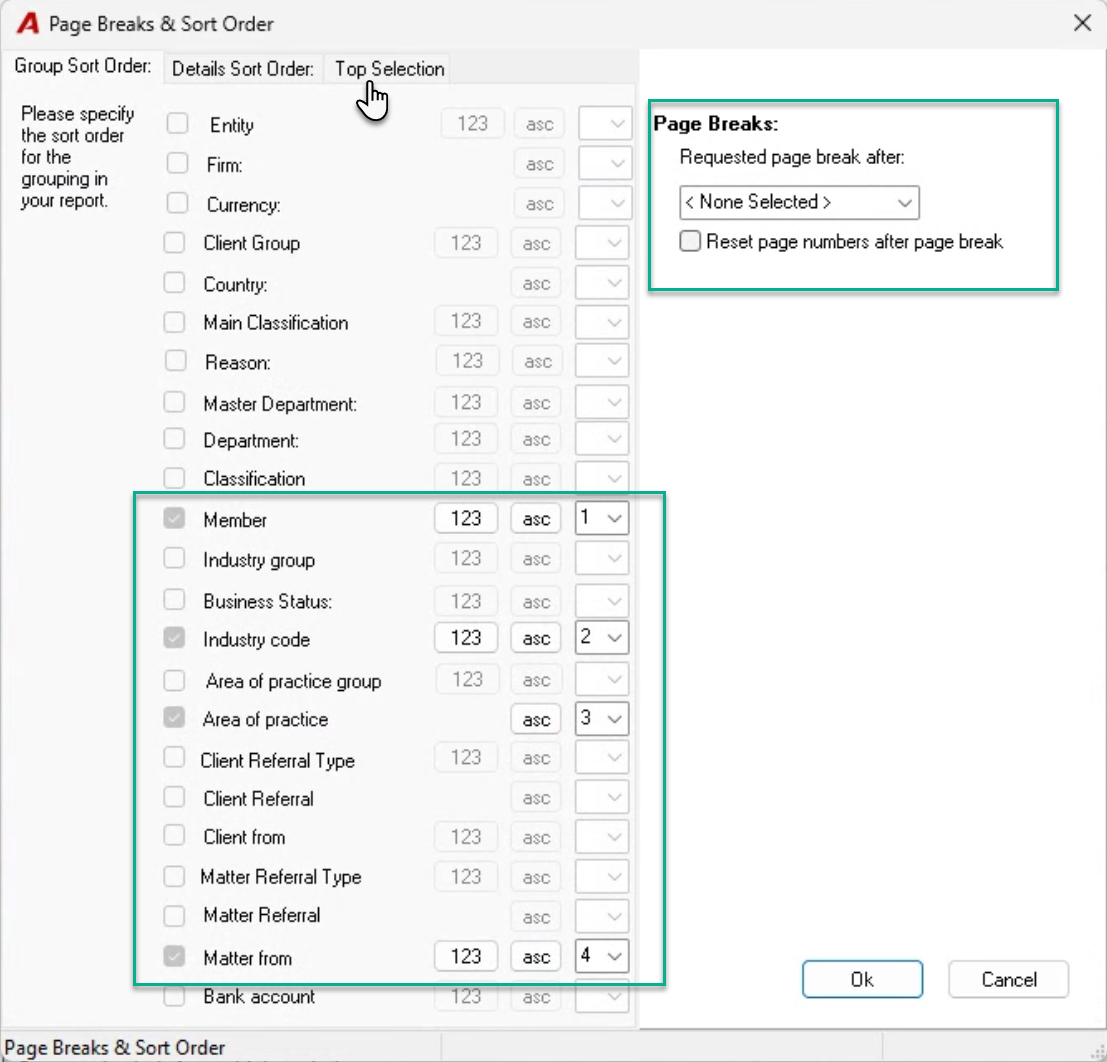
Users can select to page-break on any of the grouping dimensions selected on the details tab, as well as reset the page numbers.
Some reports also offer the ability generate a “Top Selection”. This option is presented in the form of a tab.
In addition to having the option to change the sort order presentation of the reporting dimensions selected from numeric by code (123) to alphabetic (ABC) and/or from ascending (asc.) to descending (desc.), users can also change the perspective of the report by reordering the groups. For example, instead of executing the report by industry by Area of Practice by client, a change of group between client and AOP, would provide the results by Industry, by Client, By AOP.