.png)
Scope and Purpose
The purpose of this document is to highlight best practices when invoicing single fee or recurring fee matters.
Its scope extends across recommendation for invoicing contingency matters, single fee transactional matters and recurring matters with pre-set fees as well as for decentralizing the disbursement of funds to match the decentralization level for invoice preparation, that reduce the number of steps in the process without compromising control.
Context
The best practices identified facilitate the preparation of single fee or recurring fee matters. These best practices leverage multiple tools to make it easier for users to complete as many steps as possible prior to invoice creation without compromising profitability measures.
The best practices identified facilitate the preparation of the invoice for contingency matters (plaintiff-based matters, class actions etc.), as well as single invoice (real estate closings, wills, etc.) and recurring (annual returns) transactional matters, by leveraging tools that make it easier for users to complete as many steps as possible before the invoice is generated and for single fee contingency or transactional matters
Contingency Matters
Contingency Settlement & Other
Contingency matters can accumulate significant WIP values across fiscal periods before they are invoiced, therefore their grouping or exclusion on reported measures provides a current realizable WIP value for non-contingency matters with which the firm can estimate realizable revenue and profitability for the period.
Matters identified as contingent can be grouped within most WIP reports, for example, Aged WIP, WIP, Trust and AR, graphed separately when presenting hours worked measures as well as calculated separately for presentation on member activity reports.
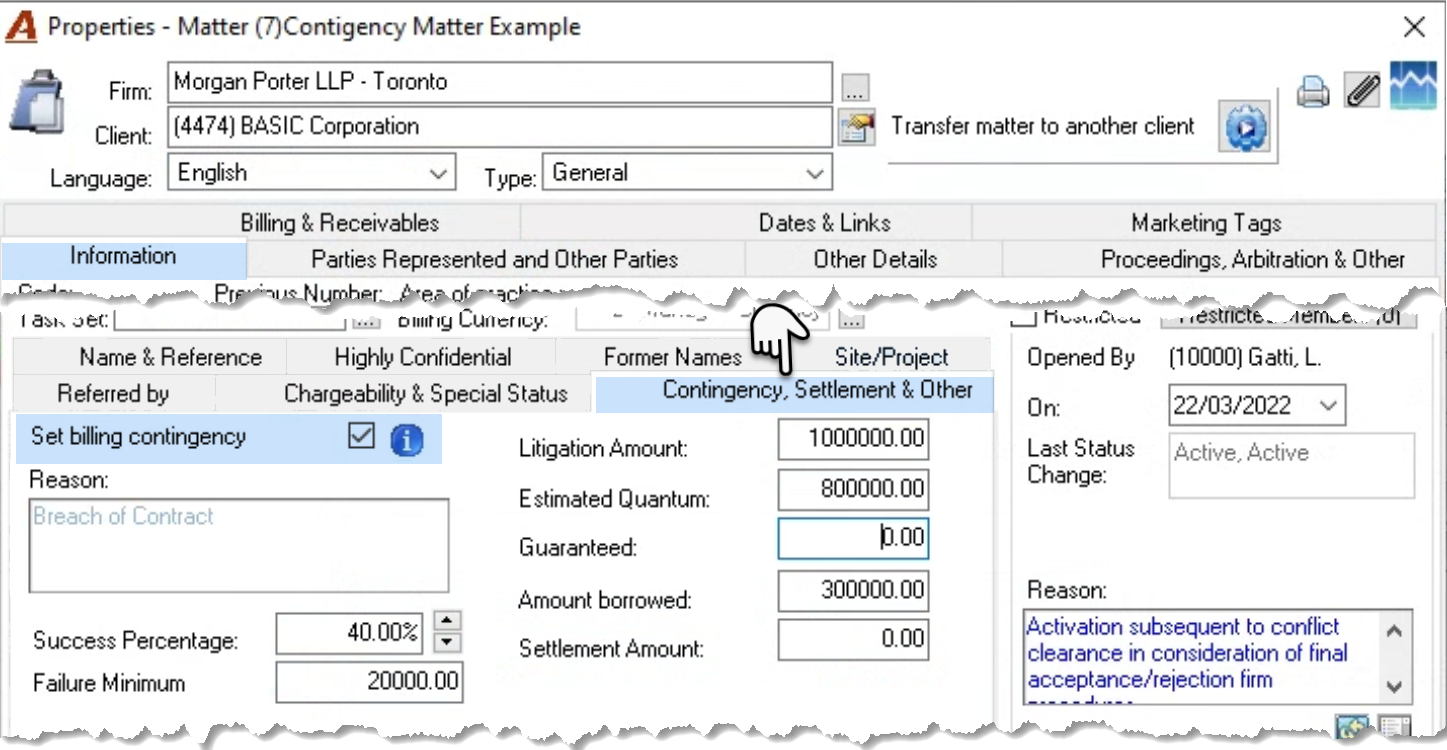
Identify contingency matters- matters crossing multiple fiscal periods and are billed on settlement or closing - by check marking the “Set billing contingency” checkbox option found within the “Information - Contingency, Settlement and Other” subtab in matter properties.
Contingency matters will provide visibility of the impact of accumulated WIP values on period-based measures across the fiscal periods during their life cycle. They will also continue to list on the e-WIP statement (to bill tab) with the as "Deferred", showing accumulated unbilled time and disbursements values, and a billing frequency of “Contingency Matter – N/A” until the process for settlement is initiated.
The “Information - Contingency, Settlement and Other” subtab in matter properties includes other fields for firms to capture contingency matter related measures.
Billing Frequency
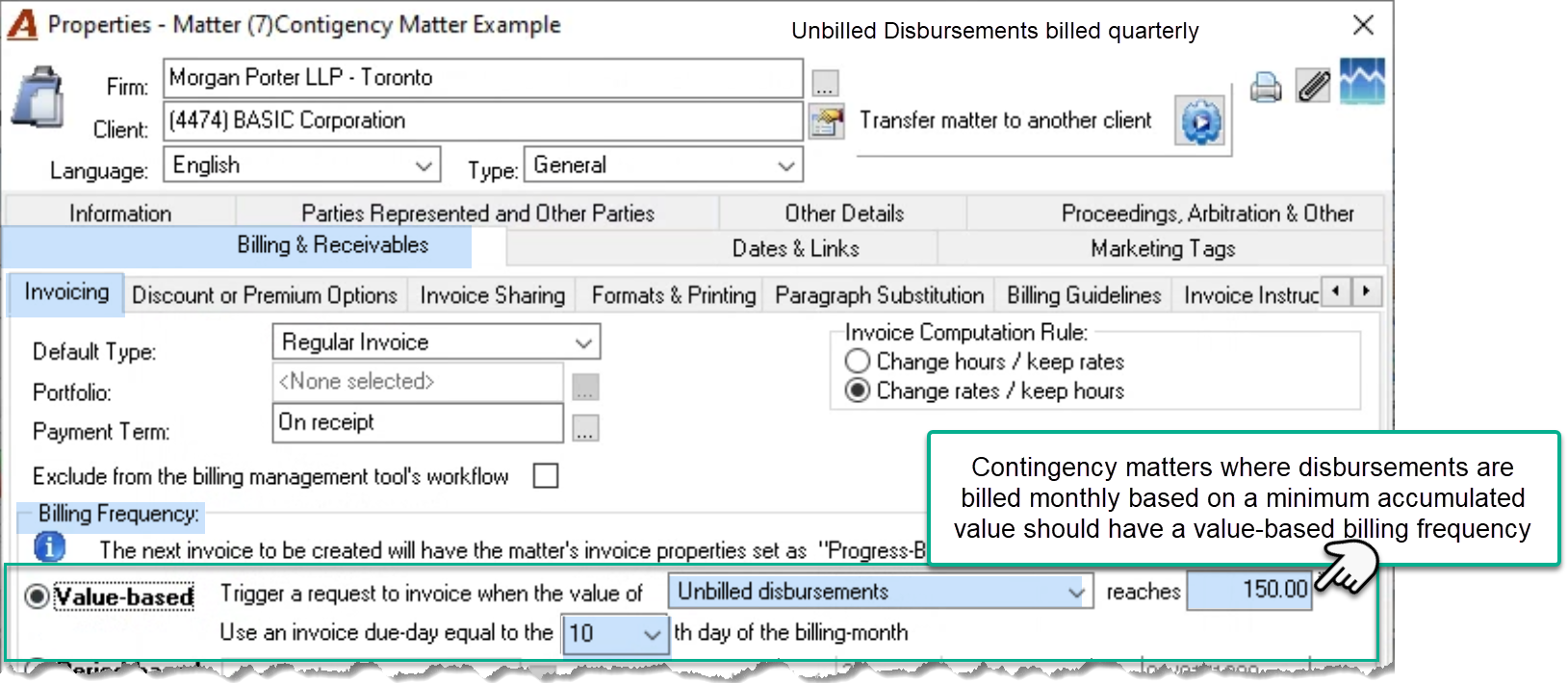
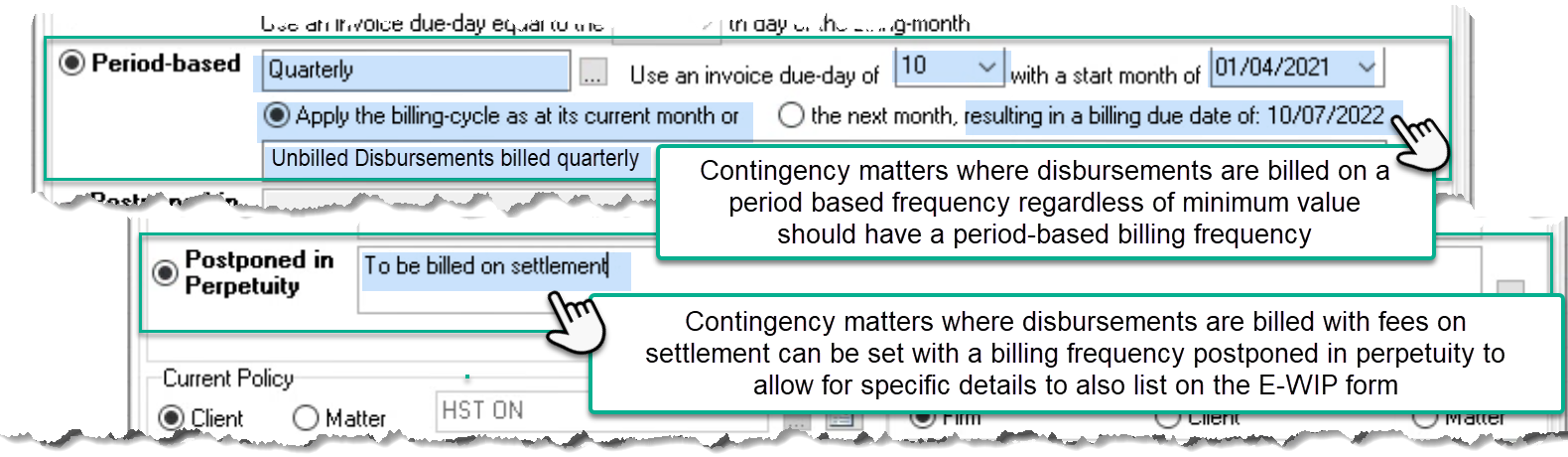
In addition, when contingency matters are combined with a billing frequency, the billing action and billing frequency description on the E-WIP Statement (To Bill Tab) are indicative of the matter’s billing requirements, for example the requirement to invoice unbilled disbursements monthly based on minimum value.
Presentation on the E-WIP Statement (To Bill Tab)
If a due day is selected, along with a billing frequency, the calculated due date will show in an active colour when the matter has the billing action calculated as “To Bill”, else it will show in Gray.
The highlighted text and values are variables indicative of selections made or narrative entered in corresponding fields.
|
Billing Frequency |
Billing Action |
Presentation on the E-WIP Statement (To Bill Tab) |
|
Value Based |
To Bill - criteria met |
Contingency Matter - Value of unbilled disbursements reaches 150.00 in the billing period |
|
Deferred - criteria not met |
||
|
Billing Frequency |
Billing Action |
Presentation on the E-WIP Statement (To Bill Tab) |
|
Period Based |
Not Classified – until start month |
Contingency Matter - Quarterly |
|
To Bill - criteria met |
||
|
Deferred - criteria not met |
||
|
Period Based 0 months |
Not Classified |
Contingency Matter - Review WIP and bill at the end of the transaction |
|
Postponed in Perpetuity |
Deferred |
Contingency Matter – To be billed on Settlement |
|
None |
Deferred |
Contingency Matter - N/A |
Single Invoice Transactional Matters
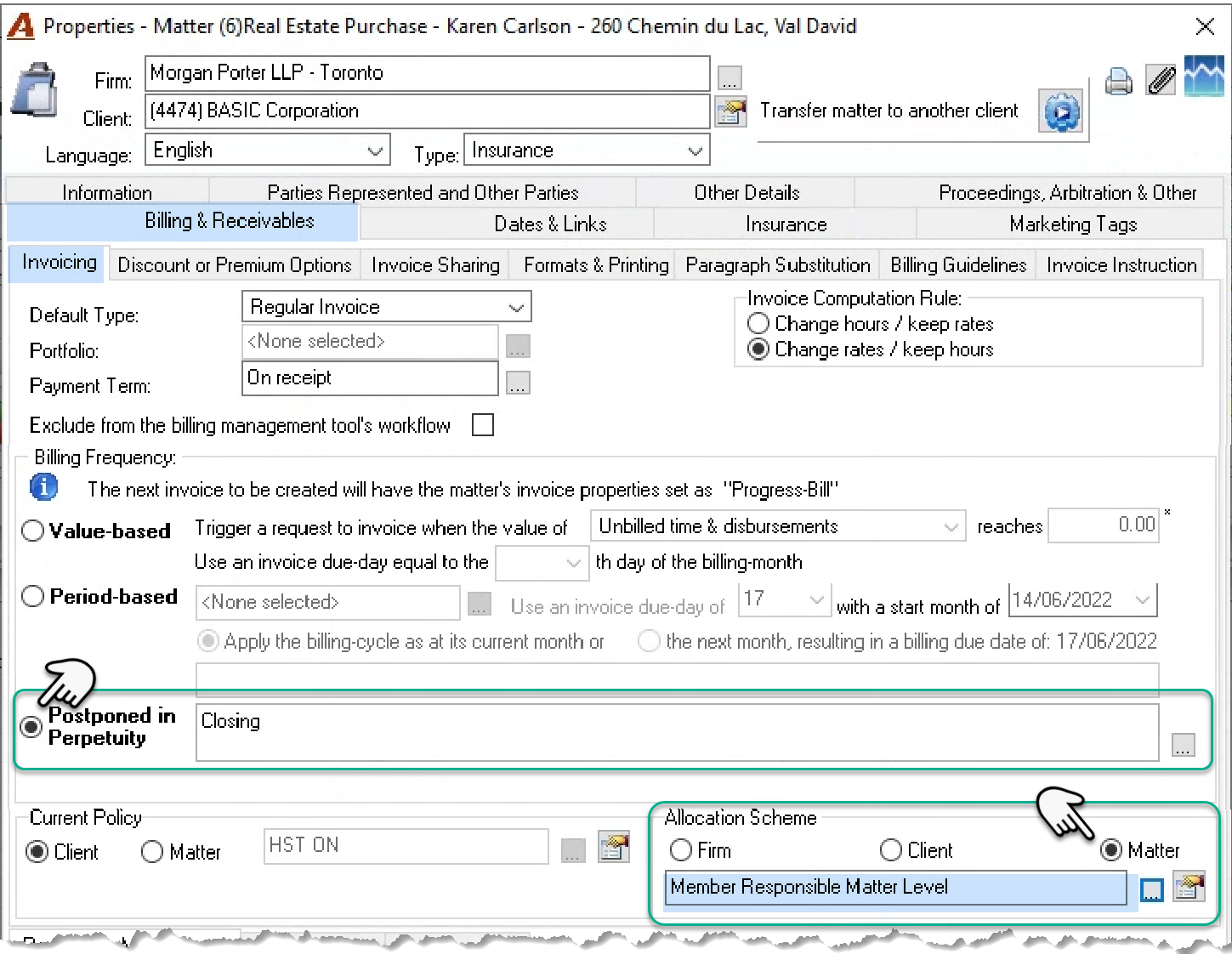
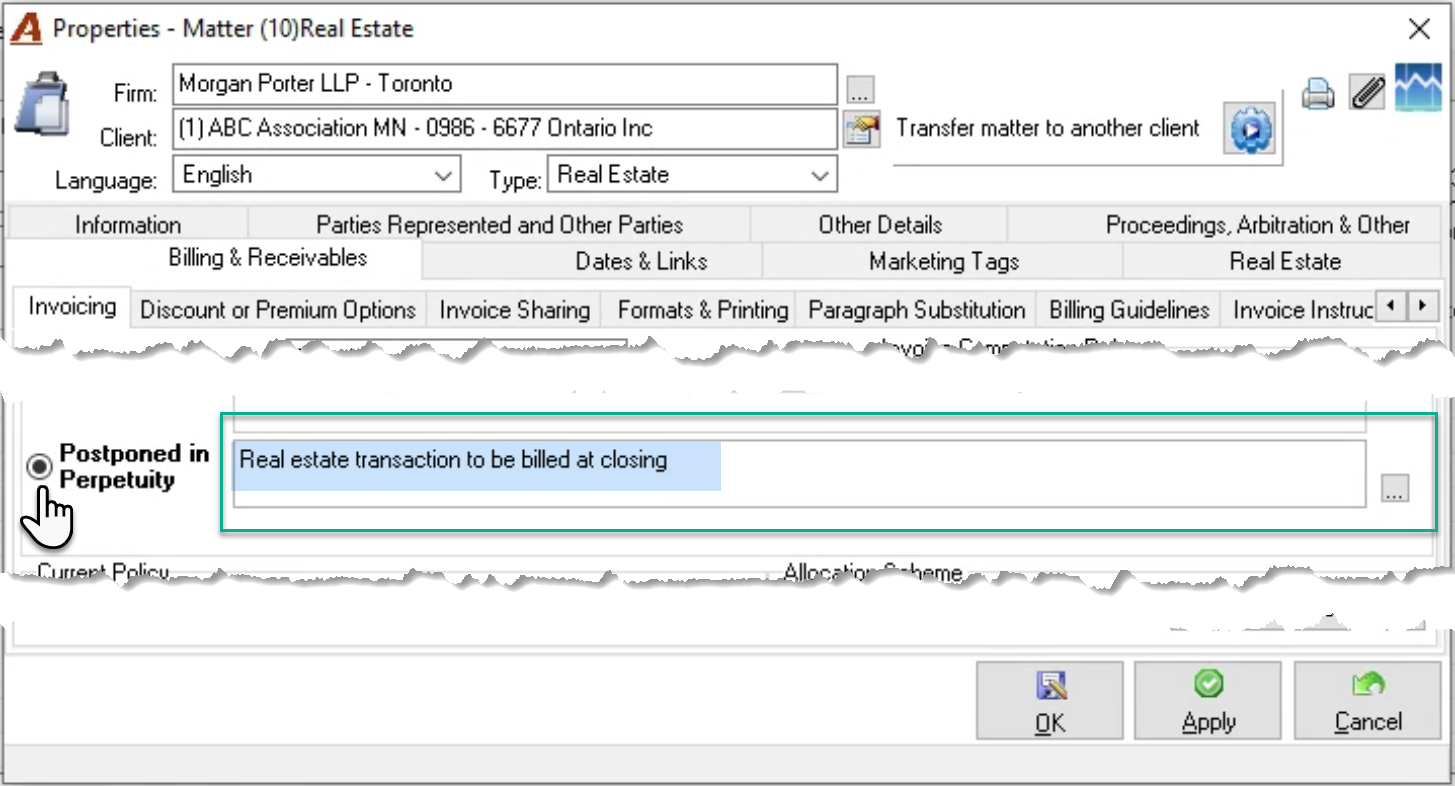
Single invoice transactional matters generally close within regular business cycles, therefore they bear a billing frequency of postponed in perpetuity”, often with information as to when the matter should be billed – for example “Real estate transaction to be billed at closing.”
This set-up provides visibility of accumulated WIP values on the E-WIP statement (To Bill Tab), a billing action of “Deferred” as well as matter specific narrative to provide a clear directive of when to invoice.
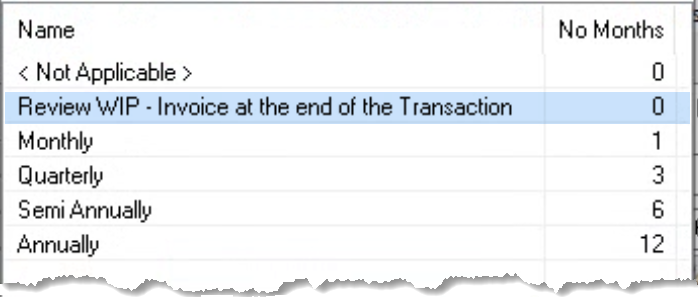
Alternatively, create a 0-month period-based billing frequency with a caption that indicative of what is expected from the billing decision maker, for example “Review WIP – Invoice at the end of the Transaction”. If used, the single invoice transactional matter will show on the E-WIP Statement (To Bill Tab) with a billing action of “Not Classified” and a billing frequency containing the caption of the billing frequency and anything else added by the person setting up the matter.
Recurring Transactional Matters
Recurring transactional matters (for example annual returns or trademark renewals) are invoiced as the recurring task is executed, therefore the typically have a period-based billing frequency with a start date that matches the period for the recurring task.
During matter set-up, create an important date with an action date one month before the first recurring task due date, and set a personalized important date report for the person responsible for the task, to generate once a month with the list of tasks to complete due the ensuing month.
If there is no expectation that time will be recorded, create a “No Time Recorded” time entry in the timesheet dated the last of the month and right-click copy to generate as many rows as there are matters affected with a task due date in the following month. If there is an expectation that time will be recorded with the working member, complete the same process using the member code of the working member that wil complete the work. This step will ensure visibility to stakeholders that the work is due on their E-WIP Statement (To Bill Tab).
Process
Using the information received confirming that the contingency matter is settled, or the real estate matter closed etc., access the client matter dashboard to trigger the disbursement of funds and invoice process.
Kick-Off
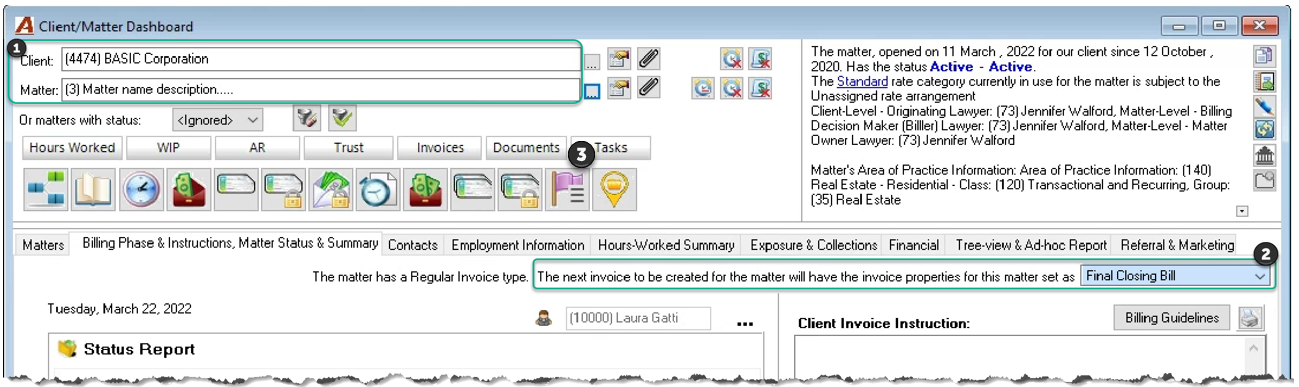
Enter the matter to be billed (1).
Where applicable, set the next invoice to be created as “Final Closing Bill” (2) to trigger matter inactivation after posting and improve the preparation for close process.
For recurring transactional matters, create the next important date with the recurring task’s next action and due dates.
Disbursement of funds
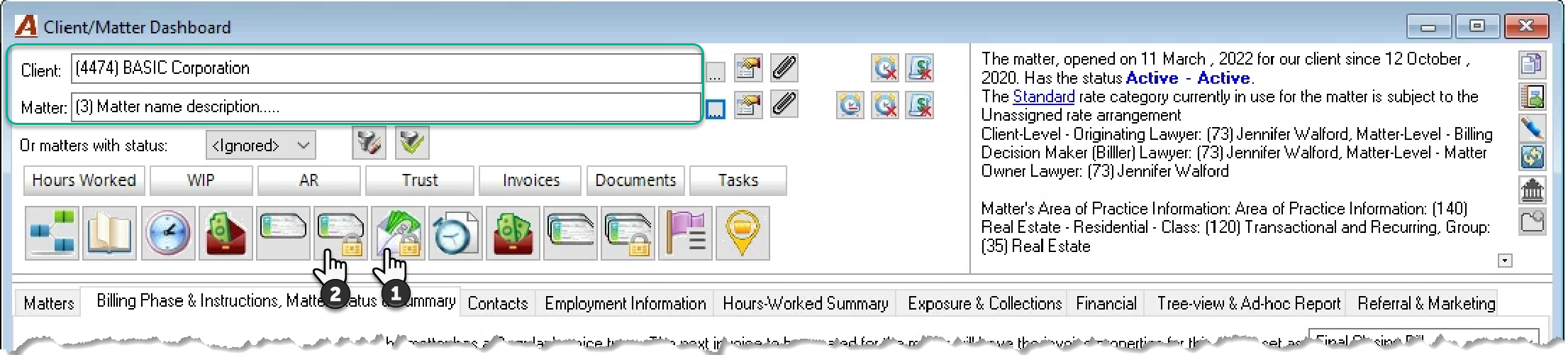
Complete the trust deposit slip request (1) - the yellow book - and submit to accounting along with the funds (the cheque) or proof of the funds (direct deposit). When this option is taken from within the client matter dashboard, the matter is already pre-selected.
Complete the trust payment requests (2).
By proving the accounting team with the trust deposit and disbursement of funds requests at the start of the process, the accounting team can execute the transactions while the invoice is being prepared.
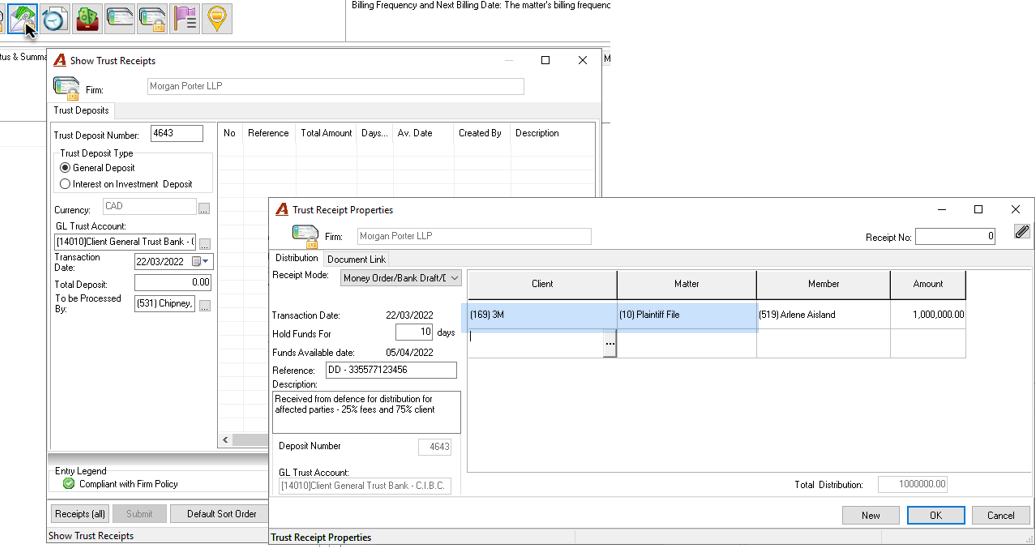
Controls:
The Receipt Mode selected, will automatically assign the corresponding number of days that the funds will be held. Only authorized users can override this value pre-set in system settings.
Although the yellow book deposit slip is a request to deposit funds which cannot be posted until it is processed by accounting, the value entered adds to the pool of available funds from which to request disbursement of trust funds to the client and other parties. As a result, both the deposit request, the trust payment requests and the transfer to pay the invoice from trust can be requested simultaneously without compromising accounting controls.
Complete the trust payment requests for the client and other parties and submit to accounting. The funds included in the deposit request are included in the availability of funds for making a trust payment request.
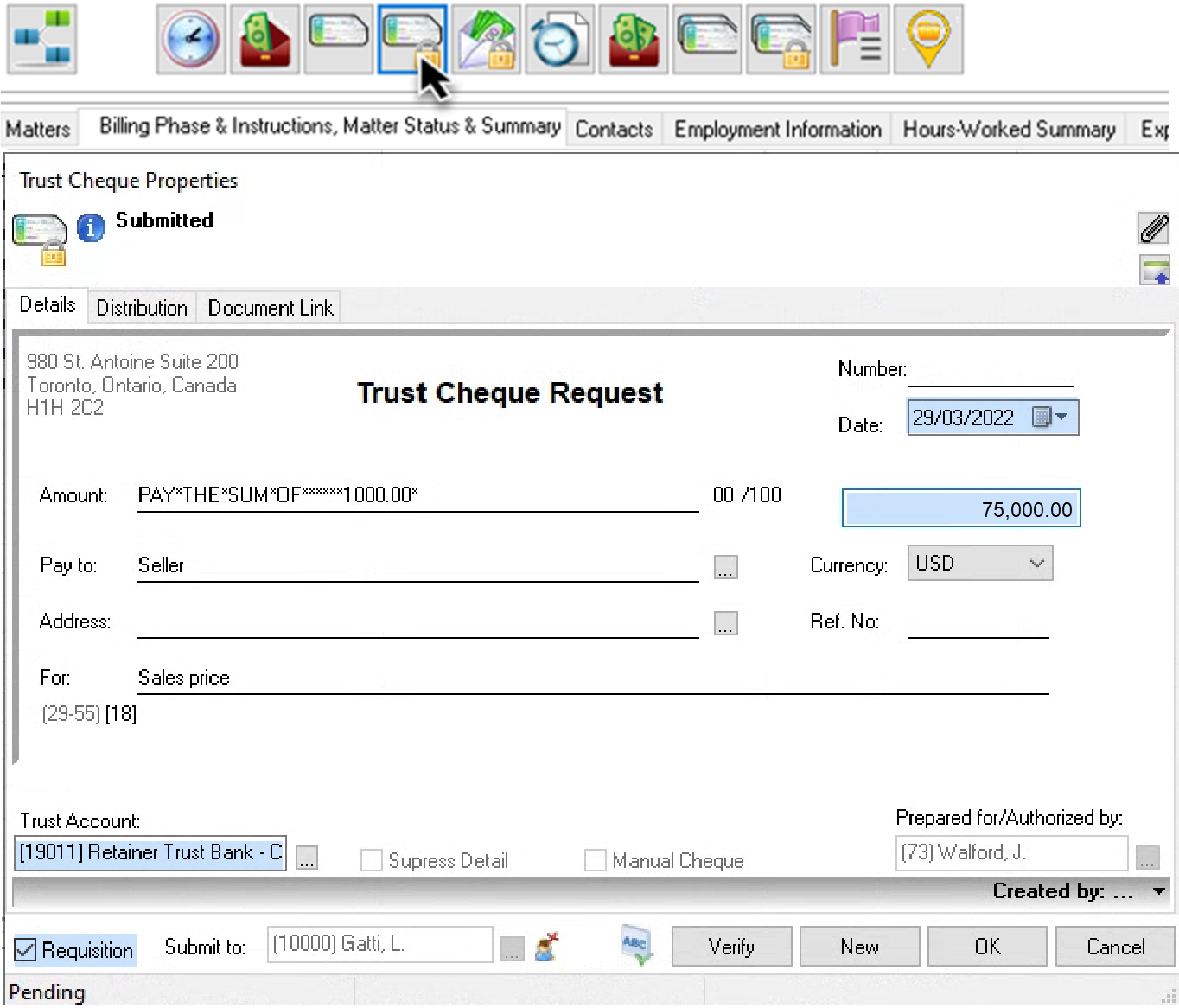
Controls:
If the funds needed to support the trust payment request are held to a given date, future date the trust payment request to the expected date of release and submit. Accounting will have visibility of when to process the request.
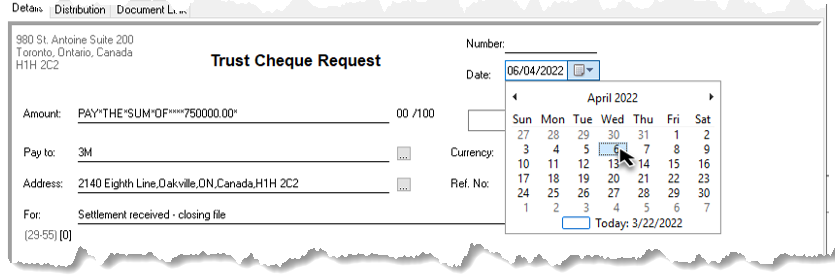
It is not possible to generate the trust payment request if the funds are not available for this action.
Where Time is not Expected to be Recorded
Although time recording is the basis for realization and effective rate measures as well as to calculate matter profitability, if the firm has areas of practice where time is not expected to be recorded, make a “No Time Recorded” time entry that can be tracked and reported on.
Confirm the Need for the No Time Entry
Where time is not expected to be recorded against the matter, confirm the requirement by pressing on the WIP button. Close the Inquiry WIP form and return the client matter dashboard.
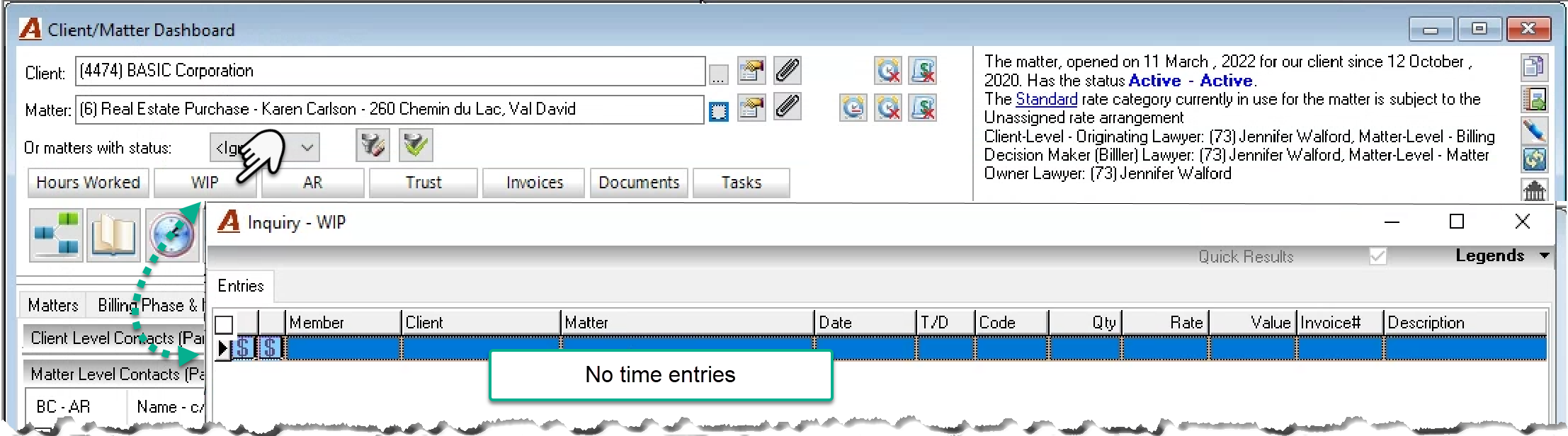
Make a “No Time” Entry
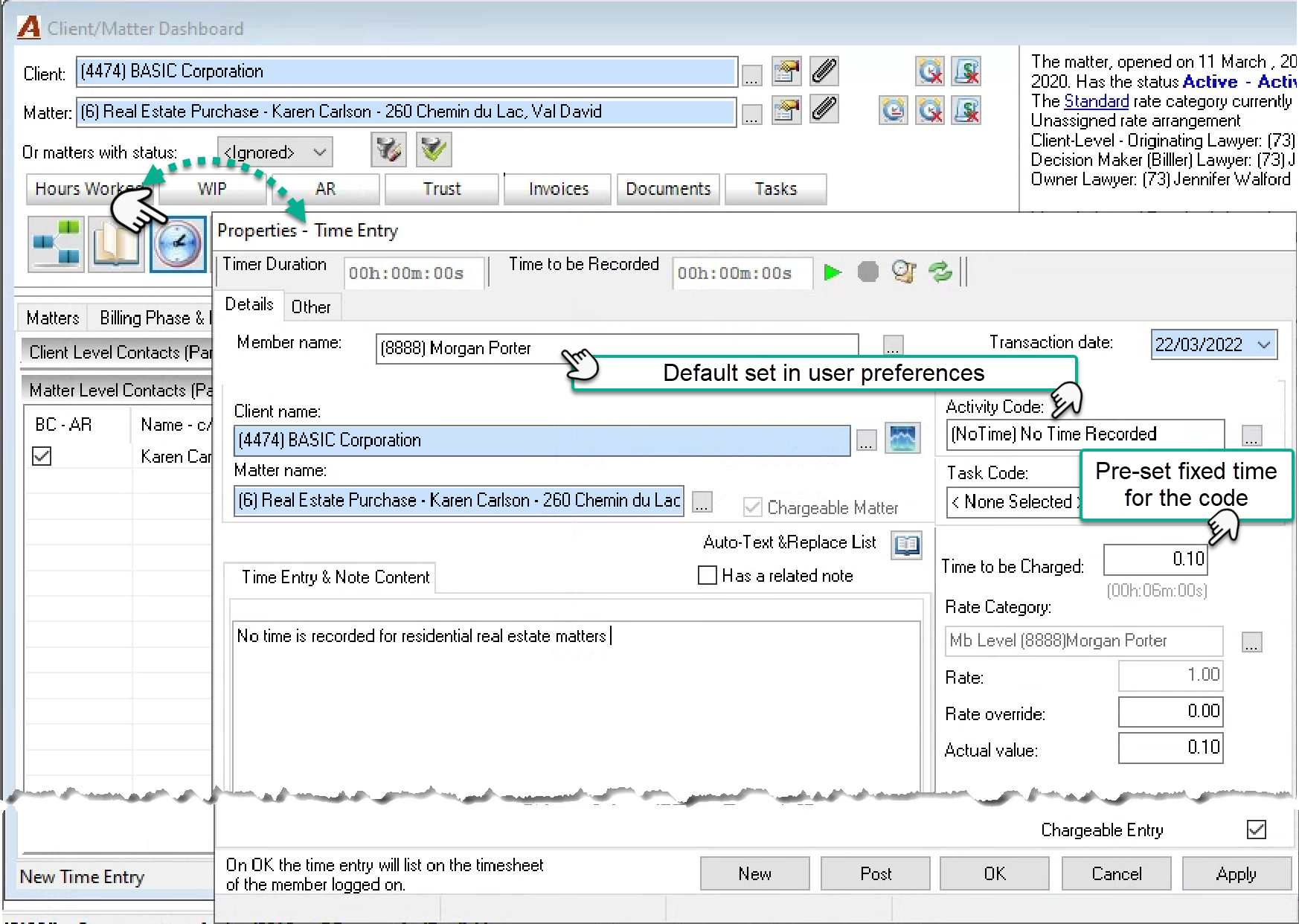
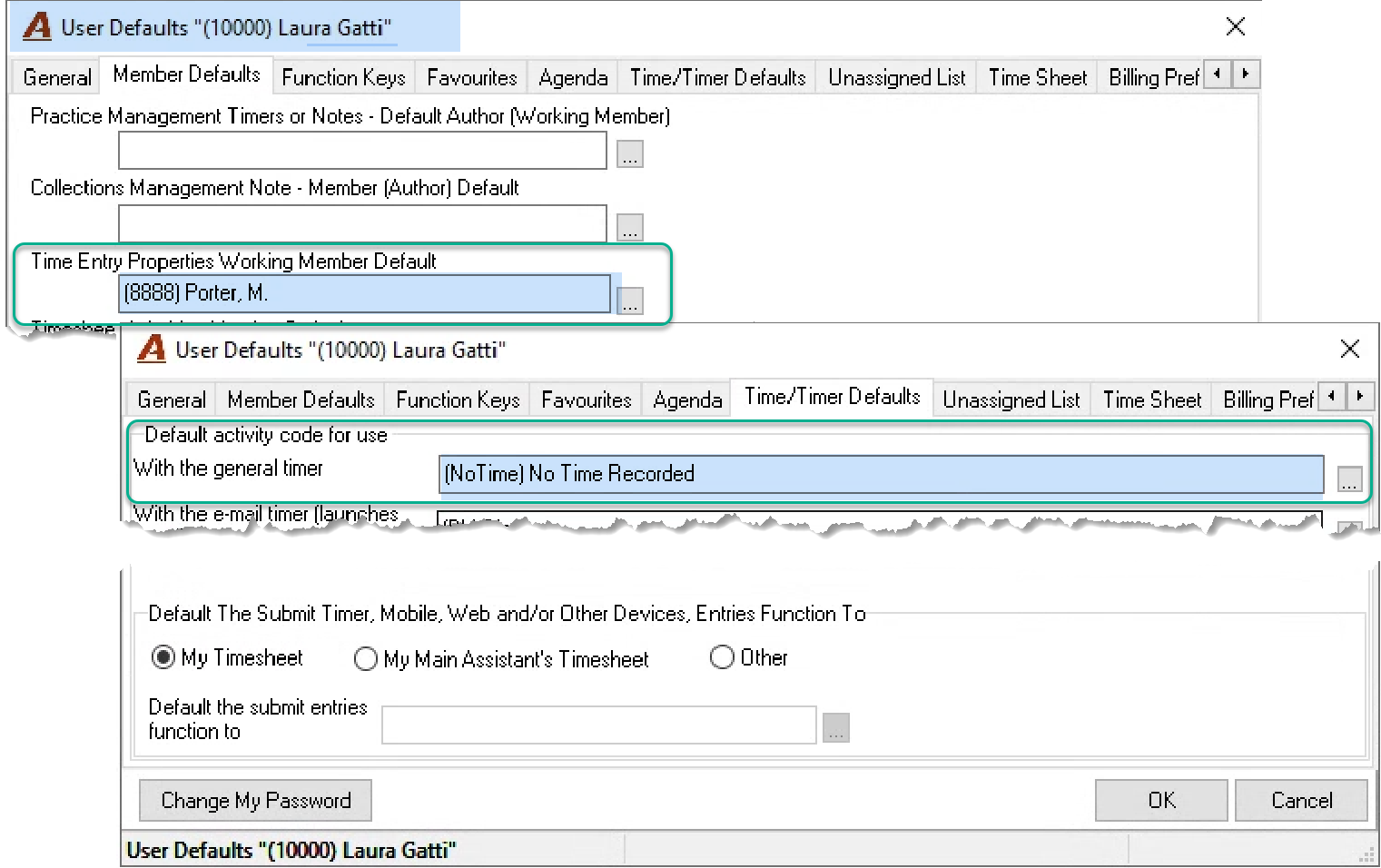
If there is not time recorded, press on the clock icon to launch the time entry properties form. If the invoice preparer is not the timekeeper, the entry is created for the firm-lawyer using the “No Time Recorded” time code. Non-timekeepers can pre-set this code in user defaults to create
No Time Recorded” entries with all fields populated (see additional time savers). Press Post and move to invoice creation.
Draft Detailed Invoice Report and Invoice Properties
Invoice Creation
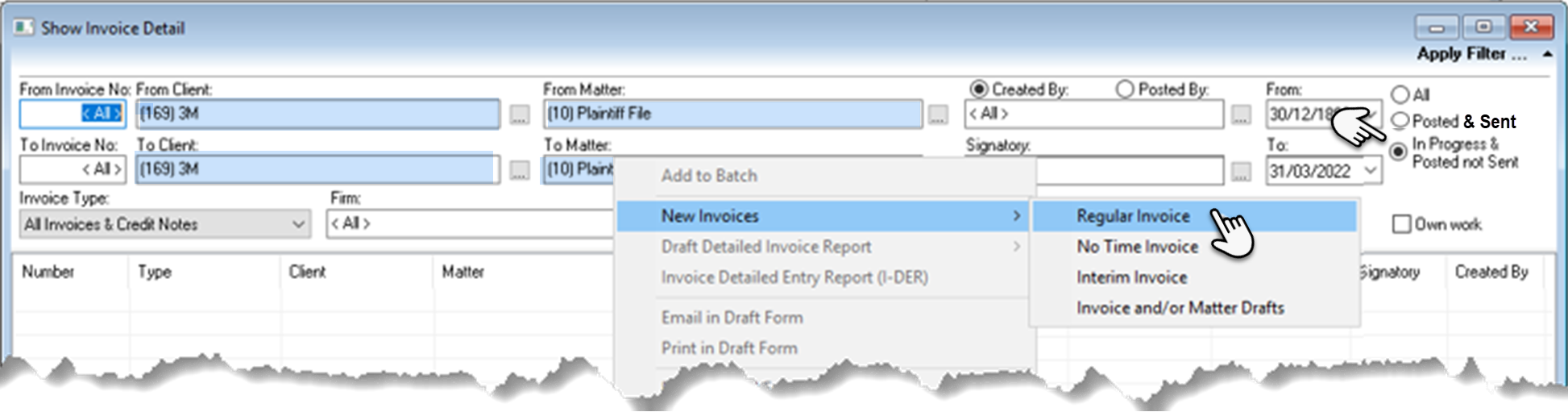
Press on the invoice button to launch the show invoice detail filter

The Show Invoice Detail filter and list view will be prepopulated with the client and matter.
Change the filter from “Posted & Sent” to “In Progress & Posted and not yet Sent” and then right-click to select “New – Regular Invoice” from the right-click contextual menu.
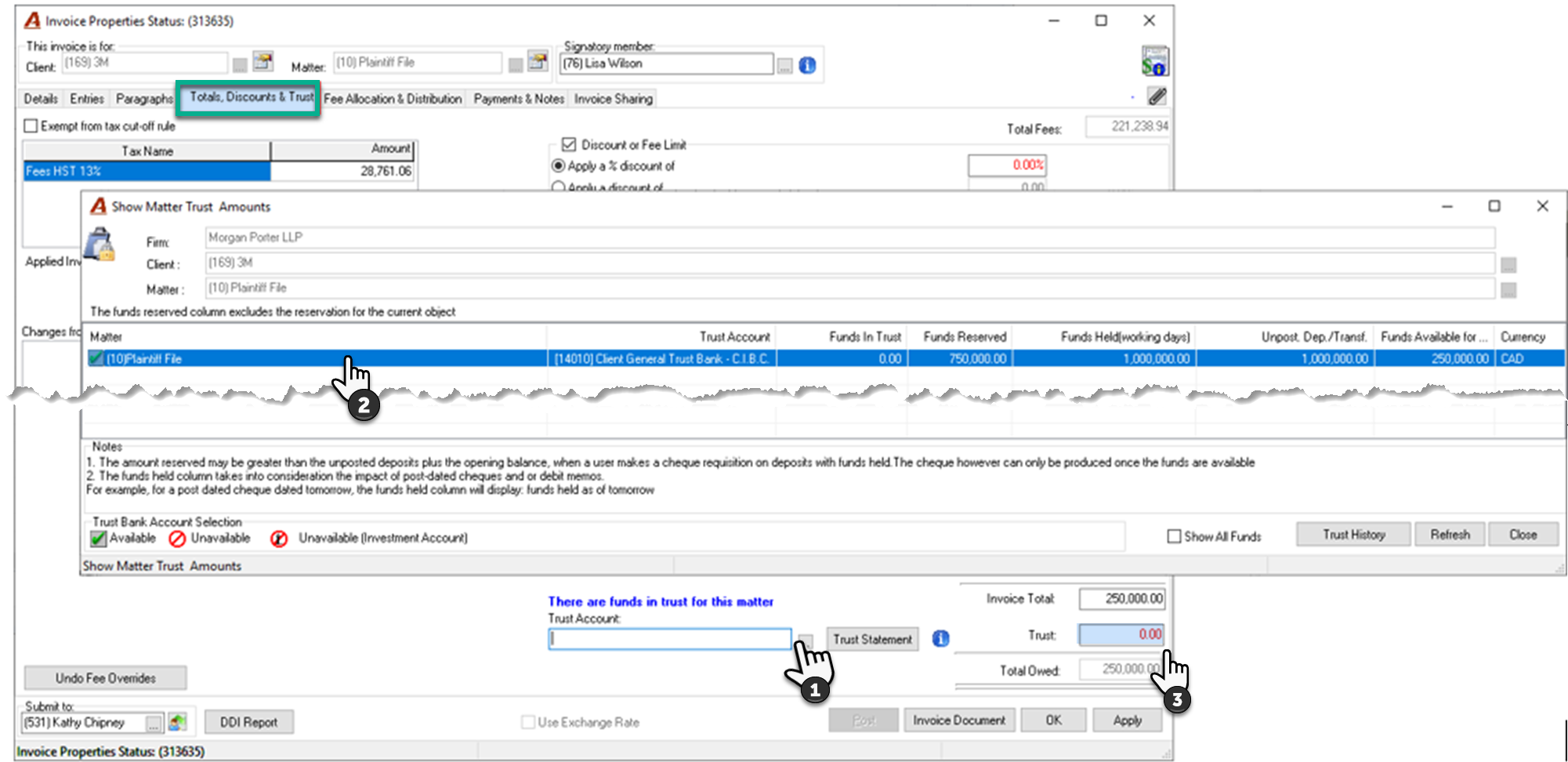
Complete the details, entries, and paragraphs tabs. Once on the “Totals, Discounts and Trust” tab: Press on the ellipsis button to the right of the trust account field (1); Double click to select the trust GL account (2); and enter the amount of trust needed to pay the invoice (3).
Impact of Trust Selected
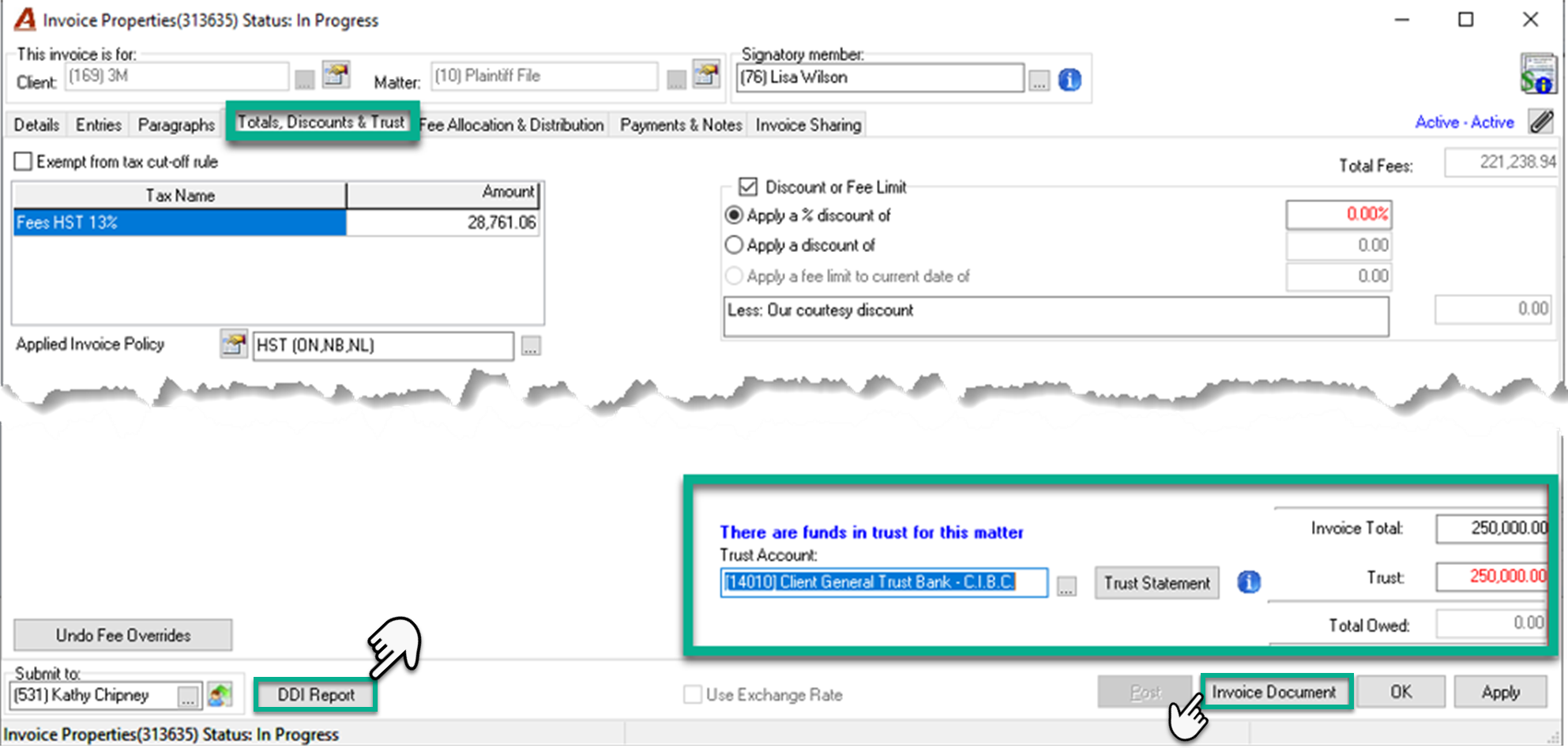
The payment of invoice from trust selected will print on the invoice document as well as the DDI, if generated from within invoice properties. These funds are reserved so they can be used to pay the invoice once the latter is posted by accounting. This value will also be presented on the trust statement as a payment of trust for the invoice.
Minimizing Steps
Once the invoice is posted, the funds will be added to an open payment request controlled by accounting and specific for this purpose. Once the trust payment request to pay included invoices is processed and posted, it will trigger the general deposit slip to complete the payment of invoice for trust process.
Invoice Content Review
Depending on paperwork required by the billing decision maker in context of the client’s needs, generate the DDI report or press on the invoice document button to generate the invoice – in draft or final form. Invoices generated in final form will include the e-signature if used as well as be saved as a linked document.
The billing decision maker can use anyone of these documents to review, request modifications and/or approve. However, with the use standard paragraph substitution to generate the invoice document for transactional matters and the Fee Only invoice layout used for generating the invoice for contingency-based matters, the invoice document in draft or final form is a more relevant presentation of what the client will get, and a more effective review document for the billing decision maker.
Next Steps
Once the invoice or DDI is approved, generate a new invoice document in final form (this may be the first time or the second time depending on your process).
Submit the invoice properties to accounting along with required supporting documents (typically the document approved by the billing decision maker).
Accounting will post the invoice and trigger the payment of invoice from trust workflow.
Sending the Invoice
If accounting is required to resubmit the invoice properties back to the invoice preparer to send by email or by Post, leave the email intention in the billing contact properties form for these matters unchecked. In this case, once posted, all invoices must be submitted to the user that will send them so they can be identified as sent by email or sent by post to complete the cycle and be removed from the “in-progress, posted and not yet sent” filtered results. Batch the invoices per submitted-to recipient to transfer their ownership.
Additional Time Savers
Where Time is not Expected to be Recorded
The No Time Recorded Time Code
Some practice groups do not expect their working members to record time, however, to leverage the native benefits of the regular invoice at least one time entry is required. To complete this type of time entry with minimal effort, and measure its use case, create a new time code labeled “No Time Recorded” with a fixed time element of 0.10.
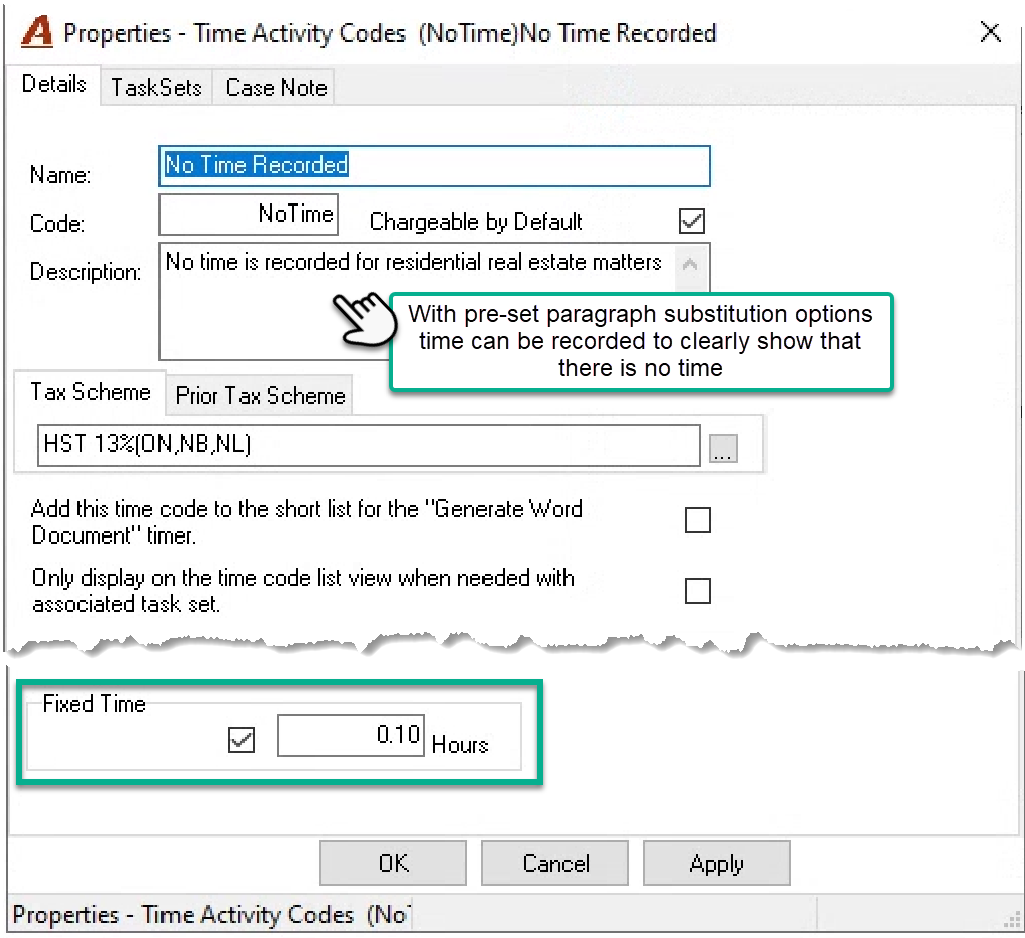
Invoice preparers that are not timekeepers, can set their user defaults profile so the time entry properties form is launched with the firm-lawyer as the default timekeeper and the fixed time code as the default one. The firm lawyer generally has a rate of $1.00.
Special Chargeable Matter Status
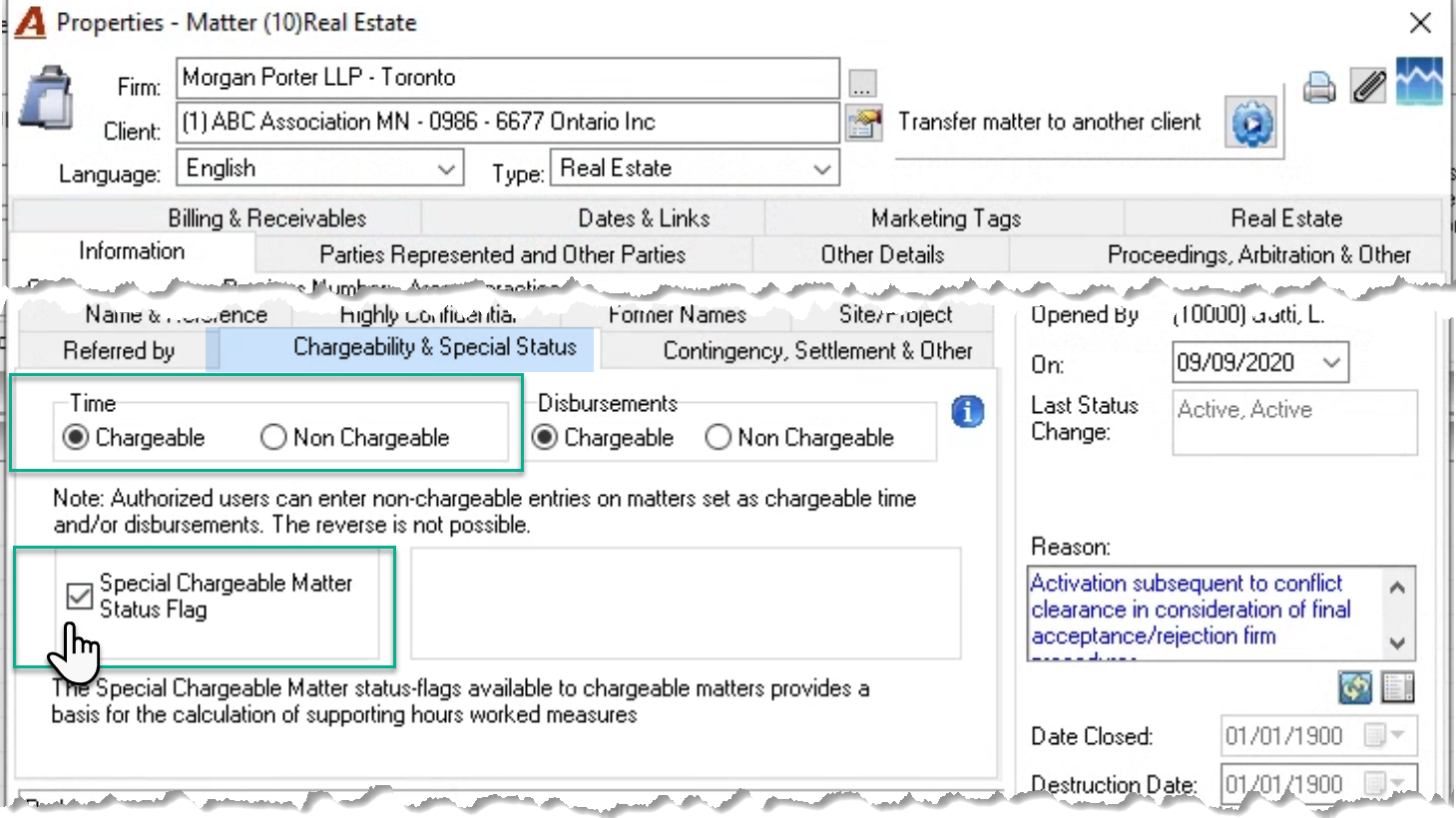
Identify matters not expected to have any time recorded as having “Special Chargeable Matter Status”. These matters will report separate measures in the hours worked graphs and member activity results and will highlight timekeepers that recorded time as working members on these matters providing a different perspective when analysing these matters as a group or areas of practice where this grouping option can provide greater insight.
Use of Standard Paragraphs
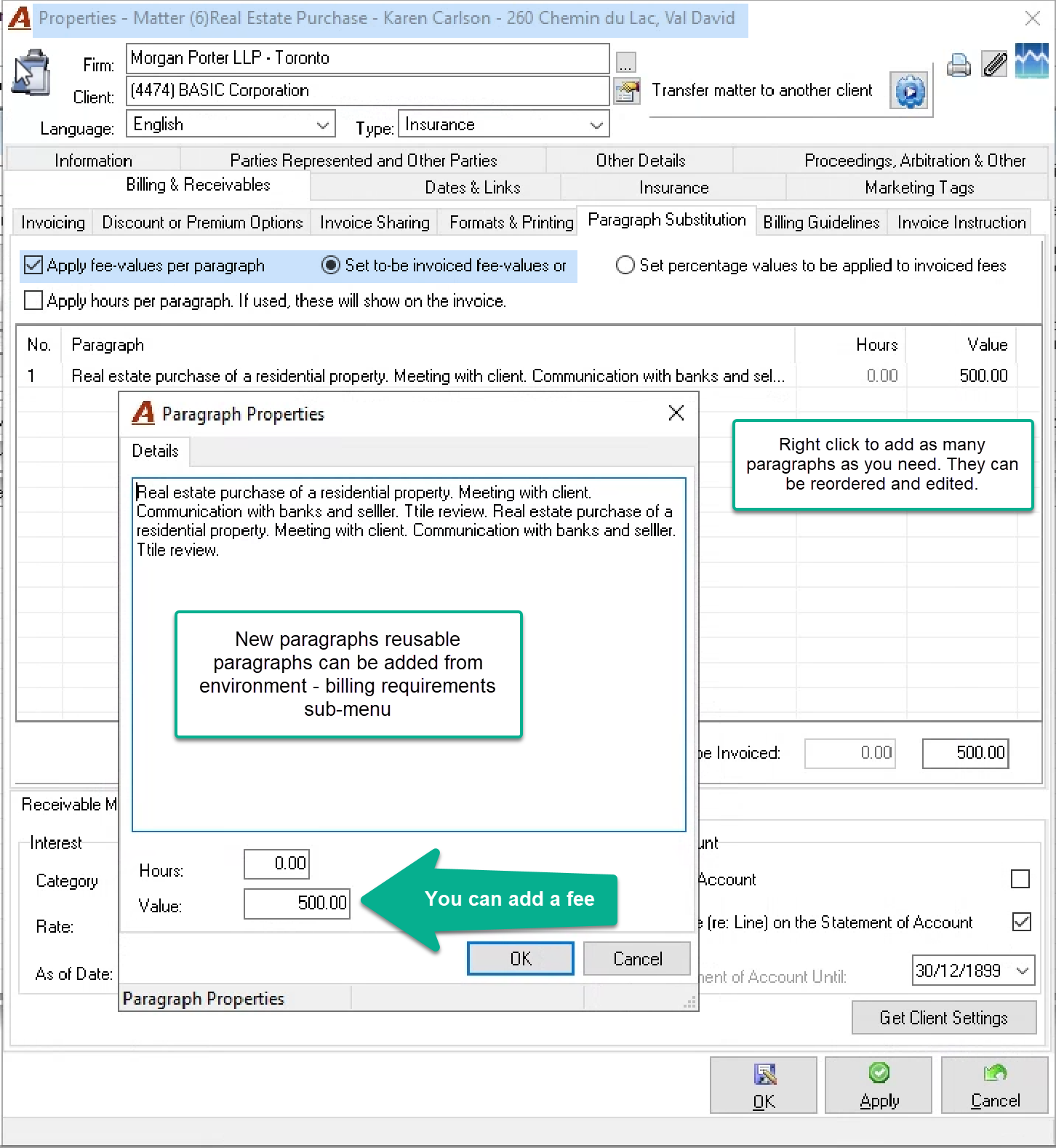
Access the standard paragraphs option from the environment – billing requirements sub-menu to create new reusable paragraphs which can be pre-set in matter properties during the start of the engagement or inserted into the invoice paragraph tab during the invoice preparation process.
Once inserted within a matter or invoice they can be further modified or amended to include the fee to trigger a fee override during the invoice process.
Many real estate and corporate departments pre-set paragraphs and their transactional fee at the beginning – when the file is opened – to have as much as possible of the process completed in advance, facilitating readiness on the transaction’s closing date.
Use of Special Allocation Schemes
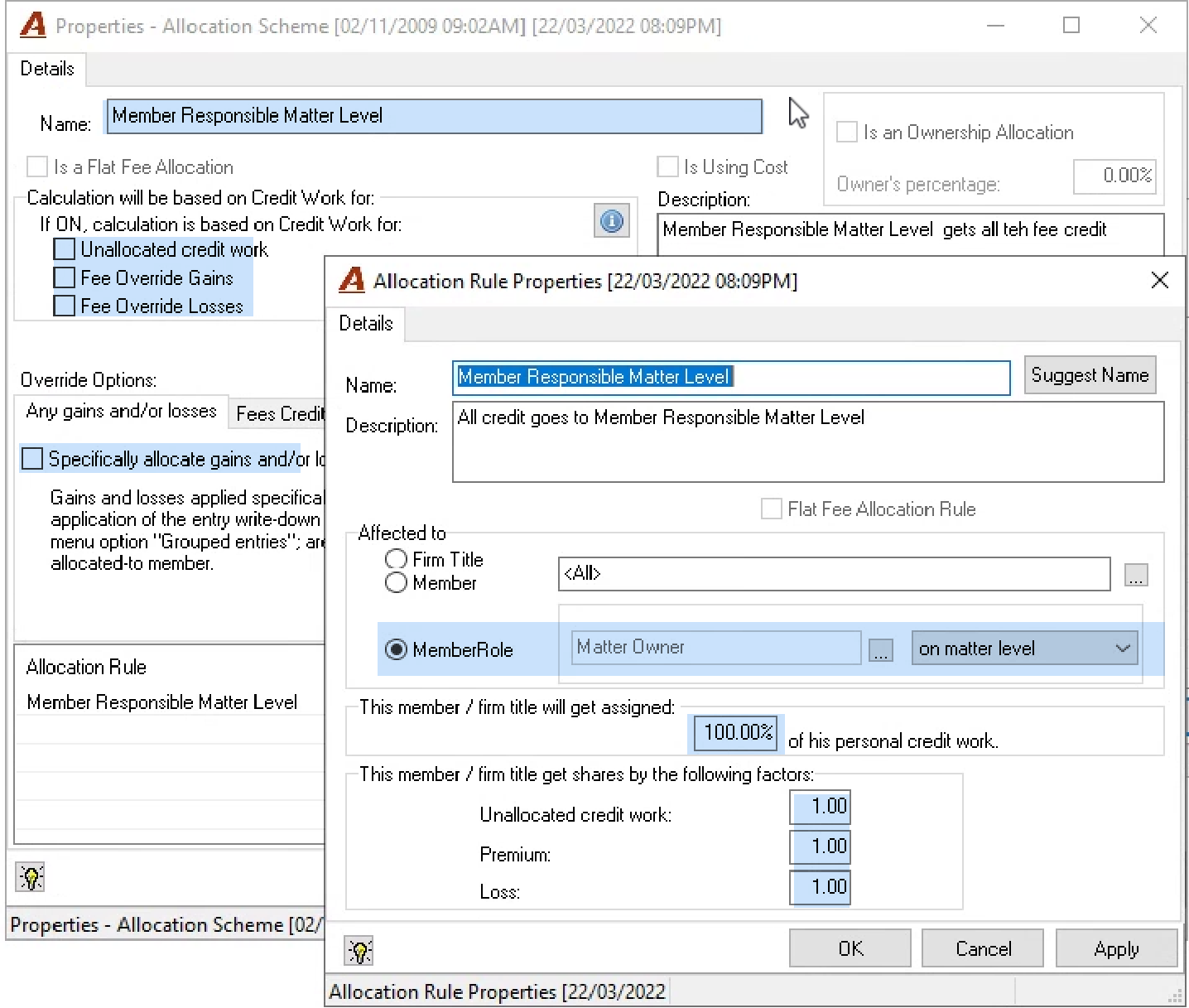
Transactional matters not expected to have time records often have special fee allocation requirements, for example all fee is allocated to the matter responsible lawyer. In this case, instead of doing manual overrides during invoice preparation, many firms create a responsible lawyer allocation scheme and rule (or equivalent) and associate it to the matter while they set the billing guidelines and frequencies.
This is an example of an allocation scheme with a rule where the responsible lawyer gets all the credit.
Allocation Scheme and Billing Frequency Set-up
The special allocation scheme can be assigned to the matter during matter set-up for standard paragraph and pre-set fee use-cases, billing frequencies, as well as special matter or contingency status. The allocation scheme can also be selected during the invoice preparation process.