.png)
Scope and Purpose
The purpose of this document is to capture a best practice workflow process in context of required internal controls, efficiency gains and quality outcomes.
Its scope extends across the process contributions made by accounting, assistants, or billing departments, as well as the matter-role-holders responsible for billing decisions and approvals.
Billing Cycle and Process Timeline
Unless there is a required client billing frequency, most firms bill monthly for work completed on the previous month (e.g., October for September time). The invoice process starts on the second business day each month. The first business day is granted so timekeepers can finalize their time entries. A desirable invoice process target timeline to completion should take no more than five (5) business days.
Time and Disbursements
Time Entry Options to Facilitate Time Entry
Acumin System Setting Defaults
-
Option to record time 100ths of an hour for greater granularity to build worked values and supporting measures. Option to bill in 10ths capturing the difference as variances to worked values instead of missing out on actual time spent.
-
Minimum time requirement. Default of 0.10 can be modified. Clients can have a specific minimum time requirement (or excluded from it) in client properties.
-
Minimum time entry character count content to mitigate posting time with insufficient content (time-entry content used as a marker). Client-specific minimum and/or maximum character count requirements set in client priorities take priority.
-
List of non-permitted words. On post entries with non-permitted words will be held back and shown in red. Client-specific non-permitted words requirements set in client properties take priority.
-
List of non-permitted words and their replacement words. On post entries with non-permitted words will be held back and shown in red. Client-specific non-permitted words requirements set in client properties take priority.
-
Use of "BL" – blank code – to auto-populate the time activity field when prescribed activity codes are not required
Use of Tools
-
Matter favourites to populate the initial list of matters and facilitate selection
-
User-specific matter nickname (alias) to facilitate direct entry in the matter field instead of using the client-matter codes or unique matter code.
-
Auto-text replace codes – shorthand. Available for all and/or user-specific
-
Spell check, text replace and edit capability without having to open each individual time entry.
-
Submission process between timekeepers and legal assistants to separate entry from edit.
-
Personalize the timesheet in Acumin.desktop by hiding unnecessary columns
-
Timers and timesheet combination. Acumin.desktop. Acumin.web and/or Acumin.mobile
-
Use of "BLNC" – blank code non-chargeable – to record non-chargeable time in chargeable matters
-
Use of WIP Dashboard's text-edit options to correct time entry content on a weekly basis
User Defaults
-
Option to auto-trigger spell check as part of posting process
-
Further personalize the timesheet in Acumin.desktop to match individual use by:
-
Changing the order column
-
Setting the right default for the creation of each new row and the transaction date
-
-
Options to auto build and maintain your list of matter favourites.
Client Matter Defaults
-
Minimum and/or maximum character count requirements
-
Minimum time requirement
-
List of non-permitted words and/or list of non-permitted words and their replacement words.
-
Standard paragraph substitution with or without associated fees.
Options to Facilitate Disbursement Capture
-
Use of general payment requests and expense reports
-
Use of special rates for zero-rated internal disbursements (non-chargeable)
-
Percentage of fee disbursements during the invoice preparation process
-
Pre-billed or anticipated disbursements during the invoice preparation process
-
Text edit options within all disbursement capture tools
Tools for Timekeeping Compliance
These concepts are covered during the go-live phase as they build on the basics covered during the implementation phase.
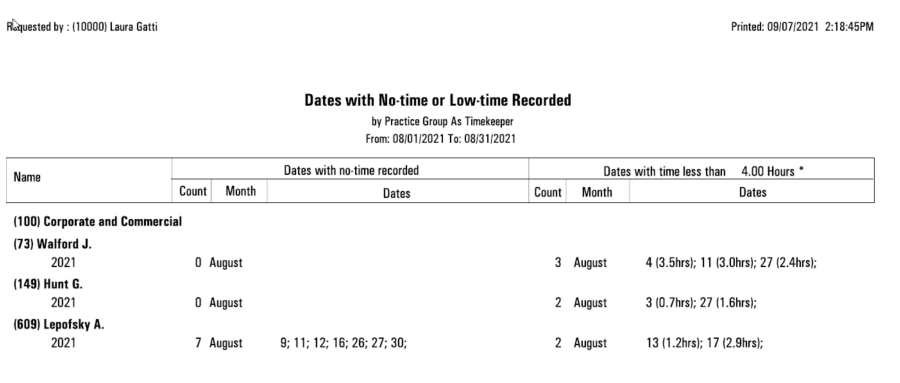
No Time / Low Time Report:
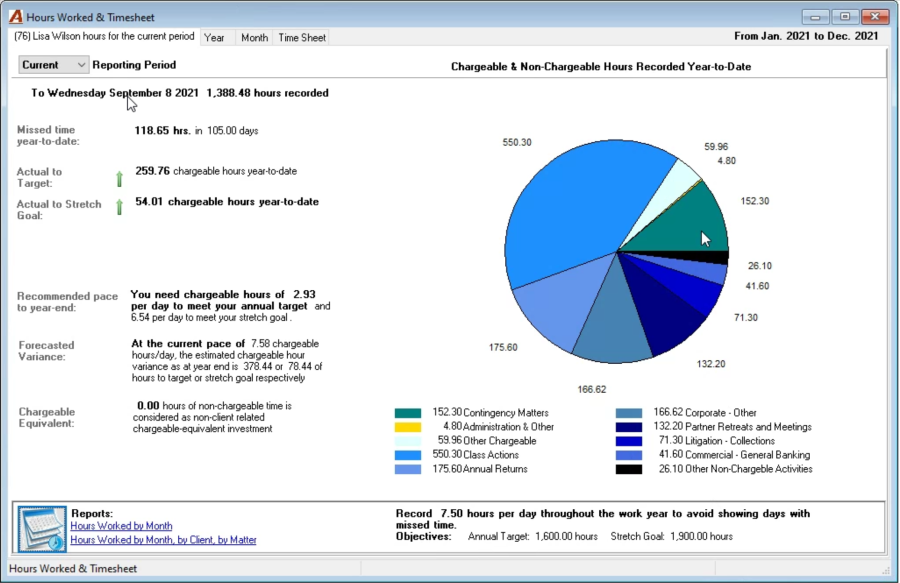
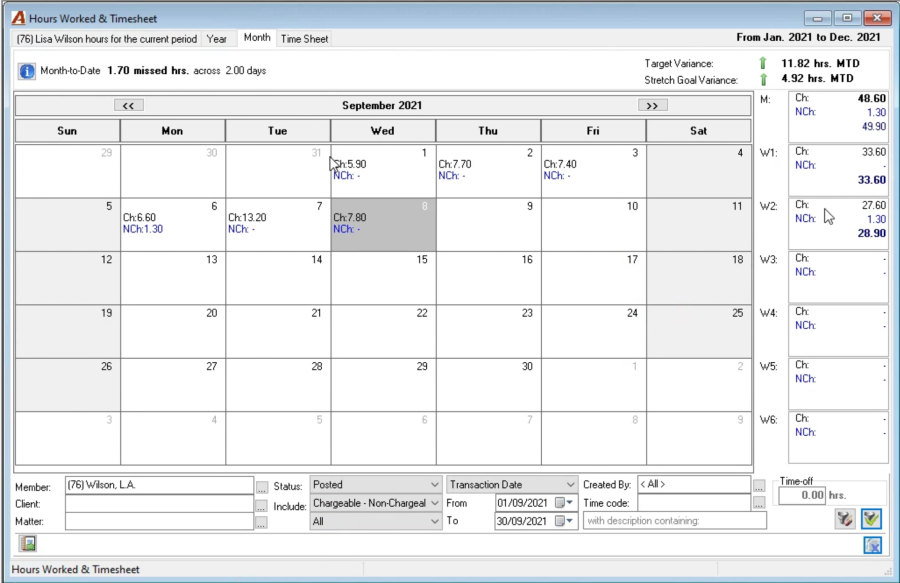
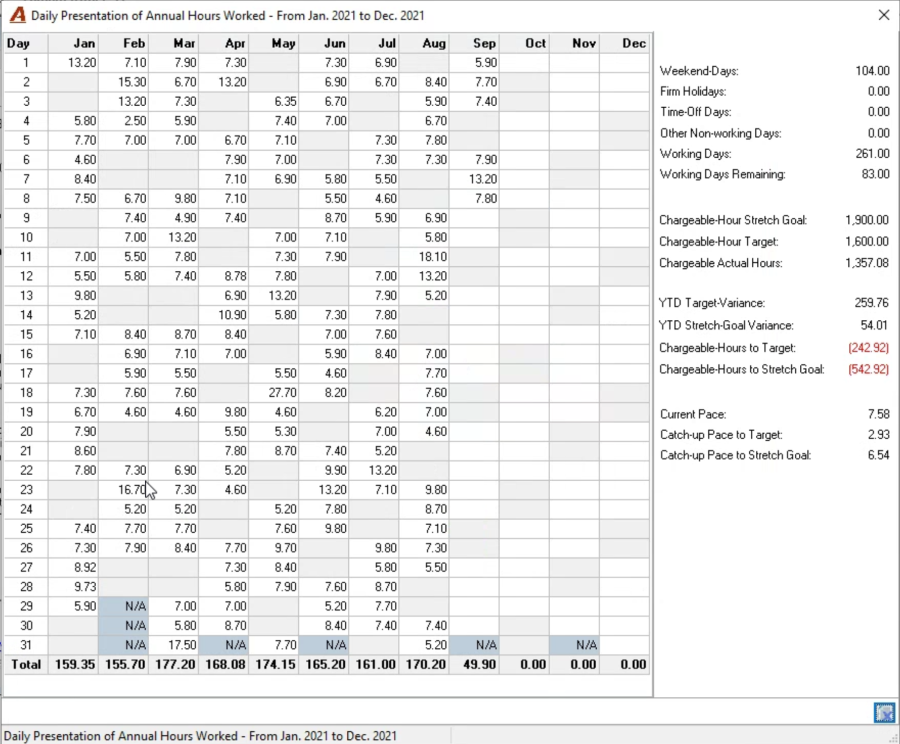
The purpose of this report is to ensure that time is accurately captured for the billing period affected. The scope extends to showing the working days with no-time or low-time for timekeepers for the month, allowing the reader to focus on missed timekeeping compliance which affects the efficiency of the billing cycle. In addition to on-demand access to their hours worked dashboard. The no-time – low-time report is favoured by timekeepers as it helps ensure that all their time for the month is captured.
Access to the Hours Worked Dashboard
Roles, Billing Frequencies and Billing Instructions
Roles and Signatory:
Primary Role:
Used as a role to identify the person responsible for reviewing the matter content to be billed, and for making resulting billing decisions. This role can be labeled to describe the responsibility, for example "Billing Review and Modification". The "Billing Review and Modification" role can be captured during the file intake process or added later if not known.
Secondary Role:
The secondary role is used to provide visibility to the person responsible for the matter who may not always be the same as the "Billing Review and Modification" lawyer. The role holder with a vested interested in the docket to collected cycle potentially in context of compensation agreements.
Signatory:
If the invoices are signed and the role holder that will sign the invoices is not the same as the primary role holder, you will be able to set a different role or specific member as the default signatory of the invoice.
Billing Frequency:
Most firms set a monthly "default" billing frequency. During the file intake process this is modified to reflect client-required billing frequencies as well as alternate billing frequencies to better match the workflow of the matter. For example, if the matter is transactional a better billing frequency may be when the time and disbursement values reach a specific amount in context of the expected total fee for the transaction.
Examples of typical billing instructions managed by Acumin:
-
Use of billing frequencies and/or due dates to show the billing intention, deferral and/or level of urgency on the WIP list. For example, invoices are due on the 10th of the month, and they should only be issued quarterly,
-
Invoices should be emailed,
-
Auto-replace word "budget" with "financial plan" in the description and set a minimum of 200 and a maximum of 500 characters,
-
The presentation of time must include time and time value but not rate as well as include a lawyer summary,
-
A discount of 15% is applicable on all invoices for the life of the matter,
-
An Area of Practice specific rate structure is applied to the matter,
-
Although the invoice goes to Joan Campbell the statement of accounts on unpaid balances goes to the Accounts Payable department,
-
Annual return matters must be billed with a standard paragraph and pre-set fee of 300.00,
-
Availability of retainer funds. Client pre-authorized trust to pay the invoice.
Billing Management Tool, Retainers and Allocation
Billing Management Tool - Filter Options
Date Filters:
-
Most firms set the entry filter to the end of the month (time and Disbursements' filter option) with last entry date set to the last day of the month, where the entries are greater than 0.00.
-
The default invoice date should be populated with the best day in the new month. Users working on invoices will be able to override to accommodate their specific requirements. For example, if the invoice includes entries to the end of September, typically the default transaction date is set in October. A firm expecting that their invoice process takes five business days would likely choose October 8th or 9th to accommodate the timeline and weekends.
If the invoices are signed it is possible for the signatory to equal a different role holder than the one used to review and modify the content of the invoice.
Workflow Kickoff
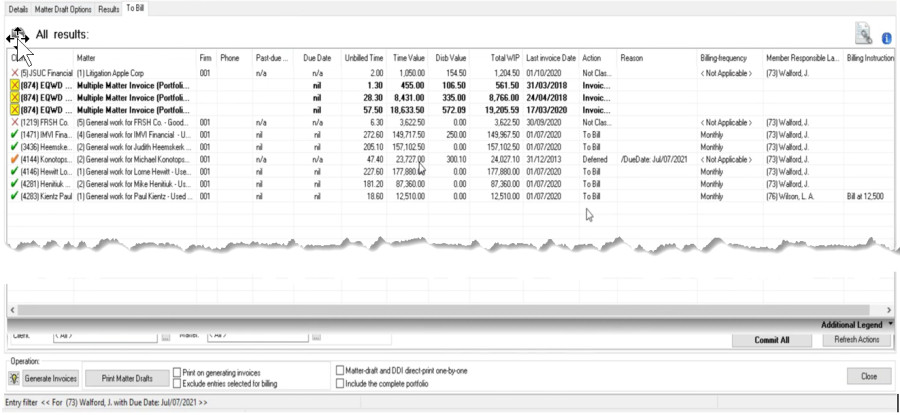
The billing clerk or the assistant of the person responsible for invoice review, decisions and modifications will initiate the invoice process from the corresponding E-WIP form (member's to-bill tab).
Depending on their experience and relationship with work on the matter, they will:
-
Generate the invoice properties form right away to complete known corrections and updates before they forward the draft invoice in final form to the person responsible to review, modify, and/or accept, AND
-
Generate the draft detailed invoice reports (DDIs) for other matters where initial intervention does not make sense.
The DDIs along with the WIP list – a report that shows the matters that should be considered for billing, along with their invoice process status that includes visibility of draft invoices in progress being worked on, which they will receive for their input, are emailed to the person responsible for invoice content review and modification.
Retainer In Trust:
The benefits and set-up requirements are covered during the trust management sessions - implementation and go-live phase
Most firms use the retainer in trust concept to identify funds to be used to pay for invoiced services and disbursements during the receipt process. Trust funds identified in this manner provide greater visibility of use in dashboards and reports.
Fee Allocation:
The Fee Allocation formula is the driver for the Allocated Fee Measures across the billed-to-collected business cycle. The invoice properties form will automatically allocate the fees billed, which can be manually overridden by the authorized user. It is possible to have many different allocation formulas to support different type of matters or compensation arrangements for role holders as well as titled and working members.
Billing Process and Workflow
Workflow Chart
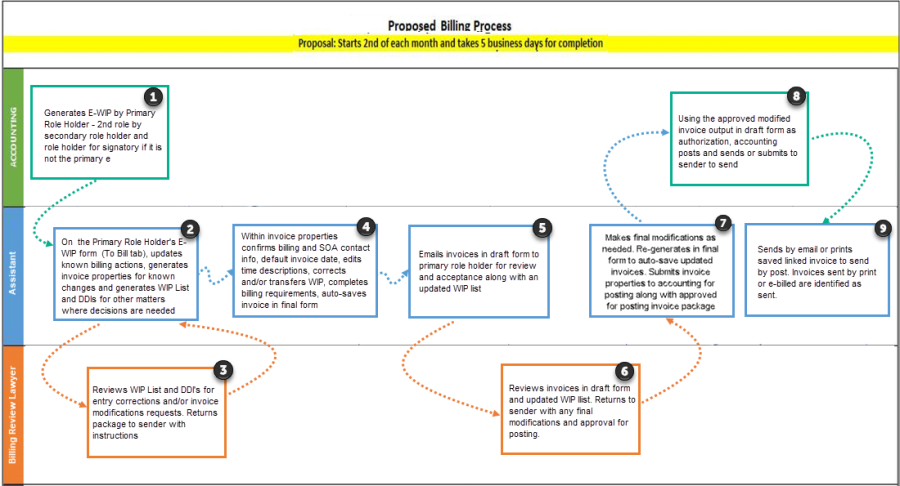
WIP Review – Billing Decisions – Prepare Invoice – Approval – Post Invoice – Send Invoice
Accounting executes the billing management tool by role holders set as the primary one.
On the second day of the month, accounting triggers the billing request by executing the billing management tool for entries to the end of the previous month by the role holder intended to review and modify the invoice.
As part of this process, the assistant and primary role holder will receive a notification when they log into Acumin.
Recommendation: Set to-bill tab access on the personalized tool bar
Assistant Generates a Working Invoice Properties or DDI with an Updated WIP List.
The assistant or billing clerks will generate the invoice properties for the matters where he or she is able to move the content forward for the primary role holder and DDI reports in PDF for the others. The DDI's and the updated WIP list (with the matters identified as being worked on by the assistants or billing clerks) are sent to the primary role holder.
The Primary Role Holder Reviews the DDI for the Matters not being Worked on by the Assistant or Billing Clerk.
The primary role holder reviews the WIP list – it will have the matters that are being worked on by the assistant or billing clerk as well as the ones for which the DDI was generated. The primary role holder uses PDF tools or a printed paper process to capture WIP corrections and billing decisions on the DDI. The marked up DDIs are sent back to the assistant or billing clerk.
The Assistant Generates the Additional Invoice Properties to Continue the Invoice Preparation Process.
The assistant or billing clerk generates the additional invoice properties to continue the invoice preparation process involving the activities highlighted below. Once the invoice is considered ready it will be generated in final form, to automatically save as a linked document. Where required the final invoice form should include the signature of the signatory. This eliminates the need for invoices to be printed signed and scanned prior to be emailed, or individually signed when they are sent by post. This step in the workflow optimizes batched functionality and generates significant efficiencies in the billing business cycle.
WIP corrections:
WIP corrections include entry splits, transfer of entries to other matters, change description content, apply text edit options (spell check, text replace), add missed time, change the time spent if incorrect (0.50 was meant to be recorded as 5.0) etc.
Billing decisions:
Billing decisions include write down of entries to 0.00 or some other value, increase or decrease the total fee, add anticipated (pre-billed) disbursements not yet billed, join time to a single line time entry for presentation purposes only, apply pre-set to new paragraphs and/or pre-set fees and/or discounts, change the fee allocation etc.
WO versus Write-Down:
Discuss the implications of a write-down to 0.00 versus an unbilled entry WO. Use of write-down to 0.00 unless the file has a few missed values in which case WO, inactive and close request.
Use of Word Merge:
Use of Word Merge to make changes outside of the system should be exceptional as it will negatively impact the efficiency and effectiveness of the billing business cycle.
Assistant or Billing Clerk Emails Finalized Invoice in Draft Form to the Primary Role Holder.
The assistant or billing clerk sends the finalized invoice in draft form to the primary role holder to approve. To trigger this action as a single PDF document with finalized detail content of all invoices generated, the owner of the affected invoice property forms, filters the content of their Show Invoice Details list for regular matter invoices to organize the results by the Saved Document column. Multiple select and insert records with a saved invoice link ,into their batch. From within the batch, the user can email the results to the member responsible for review and approval. Multiple Matter and/or client invoices need to be emailed in draft form individually.
The Primary Role Holder Reviews the Finalized Invoice in Draft Form, Approves and Returns to Sender.
The primary role holder reviews the finalized invoice in draft form to approve or make additional modifications. The package is returned physically or by email to sender.
Assistant or Billing Clerk Submits to Accounting for Posting.
The assistant or billing clerk will complete any last modifications on affected invoice records to re-generate the invoice in final form and save it. This process overrides the previously saved invoice before the invoice record is submitted to accounting for posting.
Most firms require that along with the Acumin submission process to accounting, the package of invoices sent to the primary role holder for approval or equivalent is also sent to accounting to quality control the posting process.
Accounting Posts the Invoice
Using the supporting documents decided by the stakeholders and the filtered WIP list as the control sheet, accounting posts the invoice.
Accounting is Responsible for Sending the Invoice:
If accounting is responsible for sending the invoice, it is possible to workflow the email function to follow the posting action using the email intention field. When invoked, this workflow triggers visibility of the email button immediately after post, so these invoices can be emailed to the client and automatically identified as sent by email. The rest of the matter invoices can be filtered, organized by posted not-yet-sent status and batched, so they can be printed and sent by post (which are also batched functions). Multi-matter and client invoices need to be printed and sent by post individually.
If someone other than accounting sends the invoice, do not use the email intention field when creating billing contacts. Instead, only add the email address. The absence of the email intention will ensure that the email button is not triggered after the invoice is posted, eliminating two additional clicks. When someone other than accounting sends the invoice, accounting filters the show invoice details list by matter invoice by creator (preparer), organizes the results by posted not-yet-sent status and batches these invoices to submit them to the person responsible for the send function.
E-Bills:
Once generated and submitted to their corresponding website, E-billed invoices must be individually identified as "Sent the E-Bill" to be considered as complete.
Someone Other than Accounting Sends the Invoice
The Sender:
-
Filters the show invoice list by matter invoice and uses the email address column to order the results, to add the invoices to be sent by email OR by post into the otherwise clear batch:
-
If the batch contains the invoices with an email address, the user executes the option to "Email saved invoices in final form else new generated ones". These invoices will be automatically emailed using a firm defined email template and their properties identified as sent by email at which point, they will be removed from the batch.
-
If the batch contains the invoices without an email address, the user executes the option to "Print saved invoices in final form else new generated ones". These invoices will be printed, and their properties identified as "Posted and Printed".
-
-
Once the printed invoices are sent, the user returns to the batch and executes the option to "Sent by Post". These invoice properties will be identified as sent by post at which point, they will be removed from the batch.
Hint: The Show invoice detail form, once organized between the ones to be emailed and the ones to be sent by post, can be printed in excel - "print listview" set to excel - and used as a control sheet. As they are sent by email or by post they can be ticked off the list. After the billing cycle is complete the sender can filter for invoices posted and sent for the billing period completed (date filter) to confirm everything that they wanted to send, has been sent.