.png)
What is the Dexco Support Portal? This is where you can go to open a new support ticket, or manage an existing one. Of course, you can still contact us the old-fashioned way (😎) at support@dexco.com
Where is the Portal? You can find it here, but please read the instructions on how to register first.
Alright, let’s get started!
Once logged in, you’ll see the homepage:
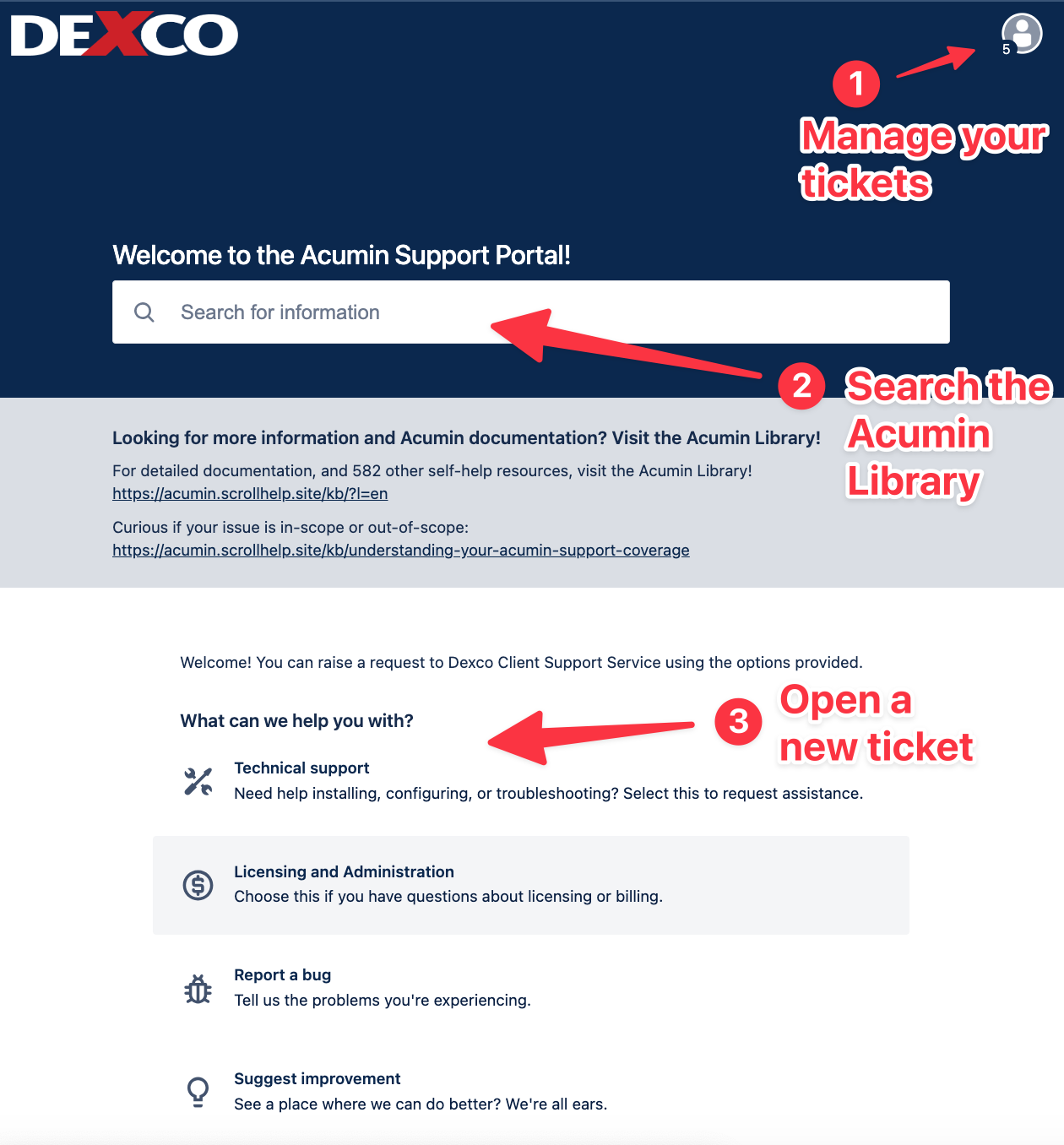
Features of the Homepage (from top to bottom)
-
Request Management (the person icon in the top right): Here you can manage your tickets (more on this below) or update your profile settings (change password, etc).
-
Search: This allows you to search the entire Acumin Library for answers to your questions. It will display results within the home page. In our testing, we found the search to be fairly impressive.
-
Open Tickets: There are four different categories, each will go straight to our support environment and one of our analysts will get back to you as soon as possible.
Request Management
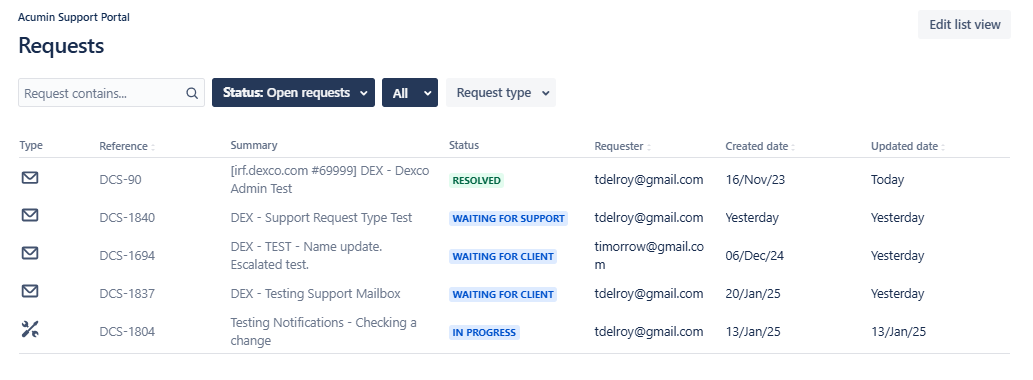
On the Request page, you can see all the support tickets that you or your organization have opened. Because some firms have a long history with us, there could be dozens of tickets, so you can search or filter the results. Clicking on any of the ticket names will bring you to the Ticket Details Page.
Ticket Details Page
On the ticket details page, you can manage pretty much every aspect of your ticket. Please note that this page does not auto-update, meaning you will need to refresh it to see changes. Here are a few of the most important parts:
-
Status: This shows the current status of your ticket.
-
Comment Box (At the bottom of this screenshot): Commenting here is the same as sending us an email, or replying to the email that you received when opening the ticket. It goes directly to us.
-
Escalate this issue: This button is only available when the status is “Waiting for Support.”
-
Resolve this issue: If you are satisfied with our response, and we’ve solved your issue, feel free to press this and let us know.
-
Respond to support: This will open a comment box.
-
Cancel request: If you’ve resolved the issue or created a ticket by mistake, press this and it’ll take the request out of our queue.
-
Share: You can share this ticket (it will add them to the ticket, so they get updates as well) with other people within your organization. The person must be registered in our support environment. If they are not, please email timothy@dexco.com to have them added.
Profile Page
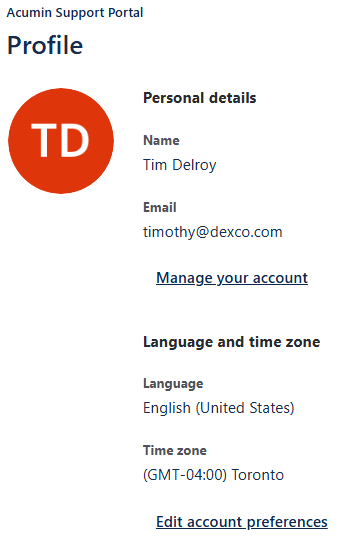
On the profile page, you can change your password or update the name associated with your account. Prefer to be called ‘Tim’, not ‘Timothy’… update it here. If your name is not Tim, submit a ticket; we’ll see what we can do 😎