.png)
Introduction
Scope and Purpose
The purpose of this document is to introduce the tools available for generating electronic invoices in Legal Electronic Data Exchange Standard (LEDES) format.
Its scope extends to the task-set, client, and matter requirements for implementing a LEDES format, as well as for completing and managing affected time and disbursement entries.
LEDES formats and UTBMS System
The LEDES Oversight Committee (LOC) is an international non-profit organization that is tasked with creating and maintaining the open standard formats for the electronic exchange of billing and other information between corporations and law firms.
The Uniform Task Based Management System (UTBMS) is a codification system used to classify legal services performed by a legal vendor in an electronic invoice submission.
Law firms use the UTBMS (Task set) to classify their entries and then generate their invoices using one of the LEDES formats (e-billing format) in an output accepted by their e-billing client.
The available LEDES formats in Acumin are:
-
LEDES 98B
-
LEDES 98BI (V2 and V5)
-
LEDES 2000
-
LEDES XML 2.0
Process Overview
The system can have an unlimited number of task-sets with UTBMS codes used to classify legal services at the point of time and disbursement entry.
Activity codes are used with time entries. They use the Acumin’s native activity (time) code environment variable which includes an association to relevant task sets. Task codes are created within task sets. Timekeeping tools prompt the user with Activity (time) codes as well as task codes specific to the task set applied to the corresponding matter.
Expense codes are used with disbursement entries. These expense codes are created within respective task sets and mapped to the firm’s corresponding disbursement code. Disbursement capture, quick payment and AP tools prompt the user with Expense code options available to the disbursement code used, in context of the task set applied to the matter.
The UTBMS task set applied to the client and its matters includes the e-invoice format that will be used to generate the output, therefore once the client and matter have their corresponding task set, the client, matter, and participant properties forms will include an e-billing tab for the user to complete format specific information
The application leverages the data found at the most granular level available of the client – matter – participant hierarchy.
Dexco supports standard LEDES formats, therefore if an e-billing client requires specific information beyond the standard offering, customization services will be required. For more information, please contact Dexco.
Environment set-up
At a minimum, the following must be in place before implementing any LEDES format. Additional set-up may follow are a result of the LEDES format selected.
The “Specifications” document provided by your client. This document has information for users to know how to populate the fields in the e-billing tab of the affected client. matter and/or participant properties forms.
A sample of an invoice file output provided by your client that includes time entries, disbursements, and sales tax where relevant. This is crucial as the specification document maybe unclear or non-existent. For example, the output must include specific labels for sales taxes, and this is not stated in the documentation, etc.
Any other document from the client related to the implementation of the e-billing format.
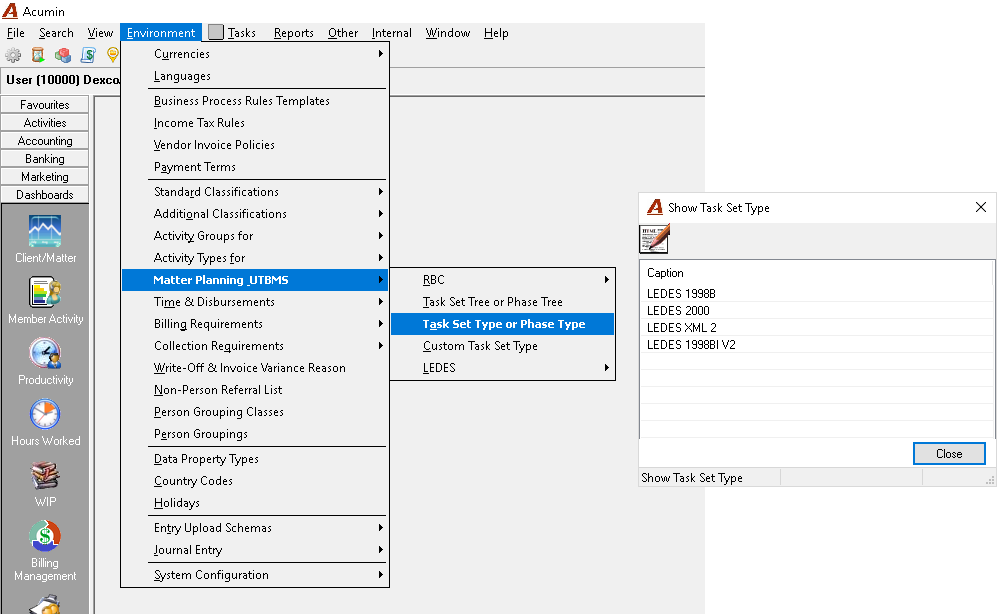
Task Set Type (LEDES format)
The firm must be licensed for the LEDES format required. If the format is not listed, please contact us to inquire on licensing requirements.
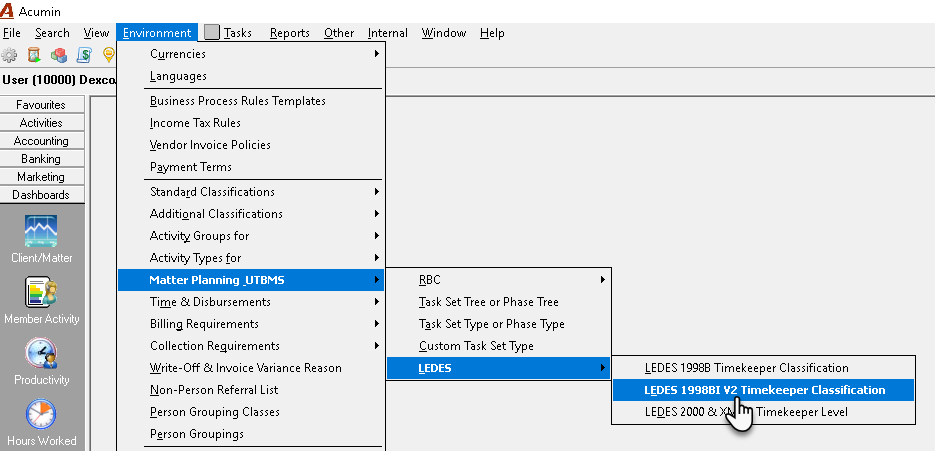
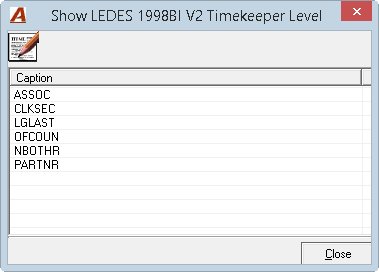
Timekeeper Classification:
Confirm or set-up the Timekeeper Classifications for the affected LEDES format. These classifications should be in the specification document submitted by your client or on the LEDES.org web site.
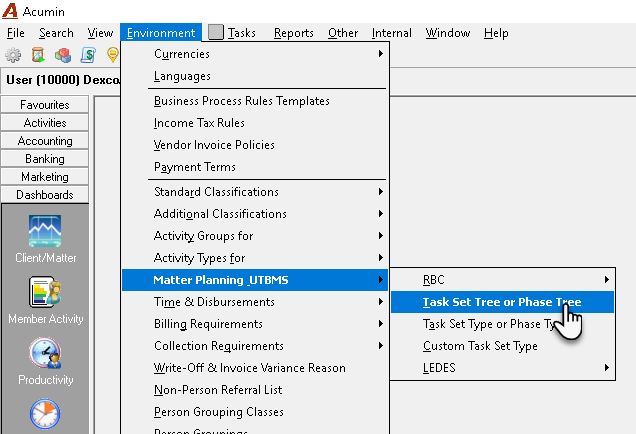
Task Set Tree:
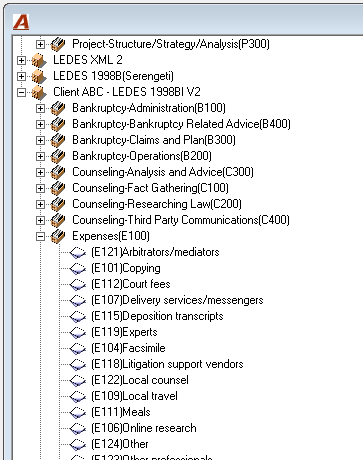
A task-set is a list of activity, task and expense codes used when entering time and disbursements, respectively. Its content will vary depending on the client. Task codes and expense codes are created within the task set, however activity codes are created as native activity time codes and then associated to corresponding task sets. Expense codes are associated to their corresponding disbursement codes.
The required activity, task and expense codes for the task set must be created to enable the user to complete time and disbursement entries for matters subject to task set effectively.
Use the Copy with properties option to create new task set. It is considered best practice to a create a standard task set with commonly used task codes, activity codes, and expense codes associated to disbursement codes as a start point for the Copy with properties option, so once the new task set is created as its copy, the user will only need to make minor modifications.
If you used the “Copy with Properties”, the time and disbursement codes will already be set up in the new task set thus requiring you to modify it if it is necessary.
Client and Matter Properties Set up
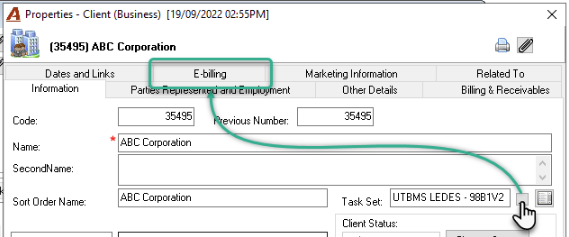
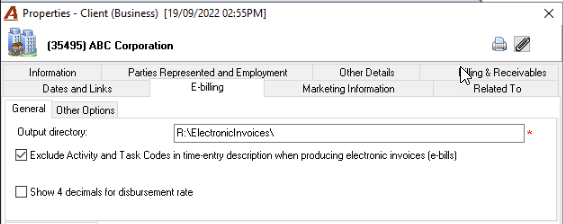
Once the environment set up is complete, set up your Client and Matter Properties. Select the task set in client properties to access the corresponding E-billing tab and fill-in the field required for the electronic invoice in Acumin.
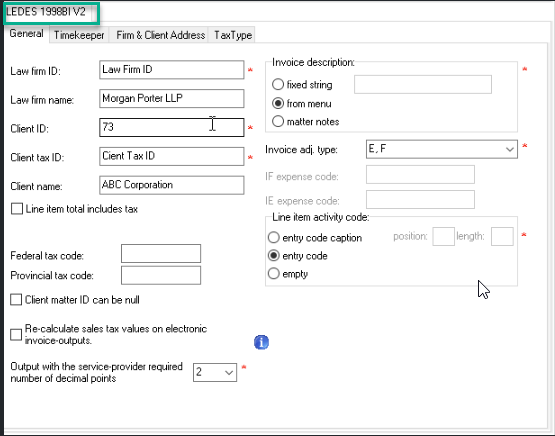
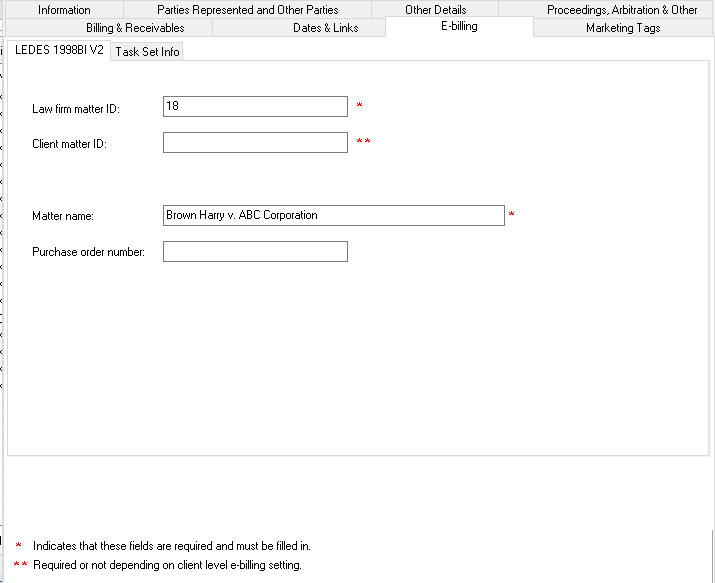
All fields are required when marked by a red asterisk (*).
The general section is common for all LEDES formats. The format specific sub-tab will bear the name of the LEDES format selected.
The next step is to set up the matter properties for the client.
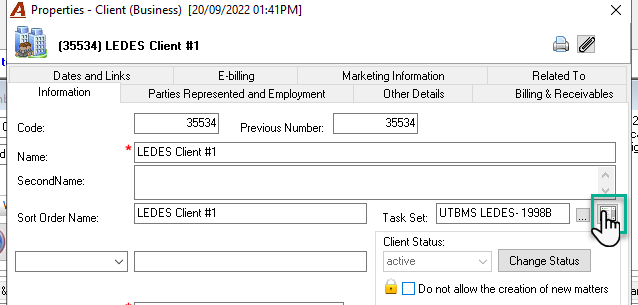
To directly have access to the e-billing matter list from within the client properties, press the List icon button beside the Task Set field.
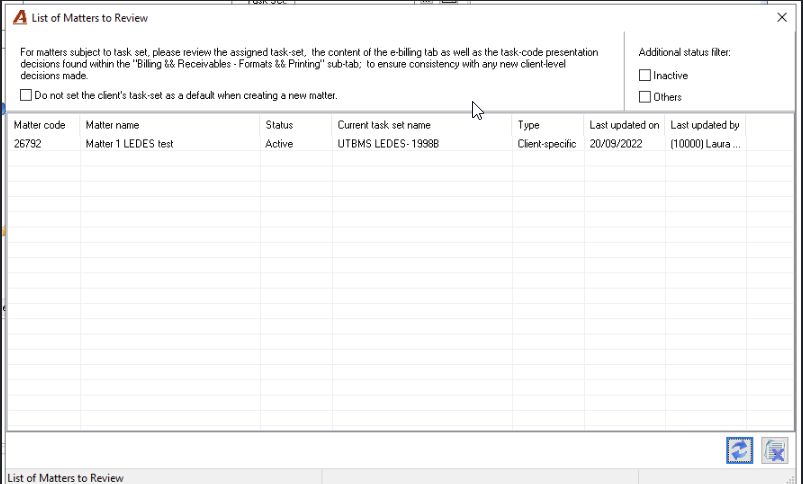
In the “List of Matters to Review” form, the system will present by defaults all matters having the status “Active” and “Temporary”. The user can directly access the properties of each matter to select the task set and complete the set-up. On exit, the list will be updated with the task set selected, etc.
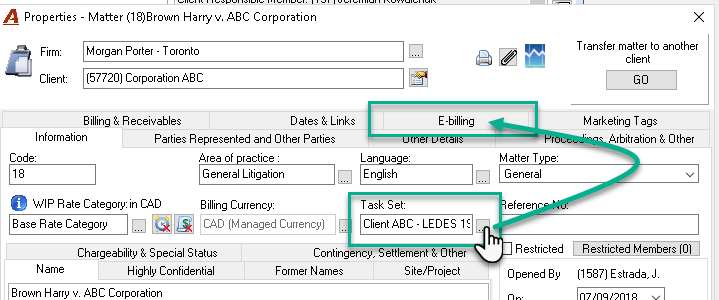
In matter properties, press on the ellipsis button to set it as subject to the same task set as that of its client. Complete its E-billing tab.
Time and Disbursement Entry
The user completing a time entry will be required to enter or select an activity (time) code from a list associated to the corresponding task-set of the matter, as a task code.
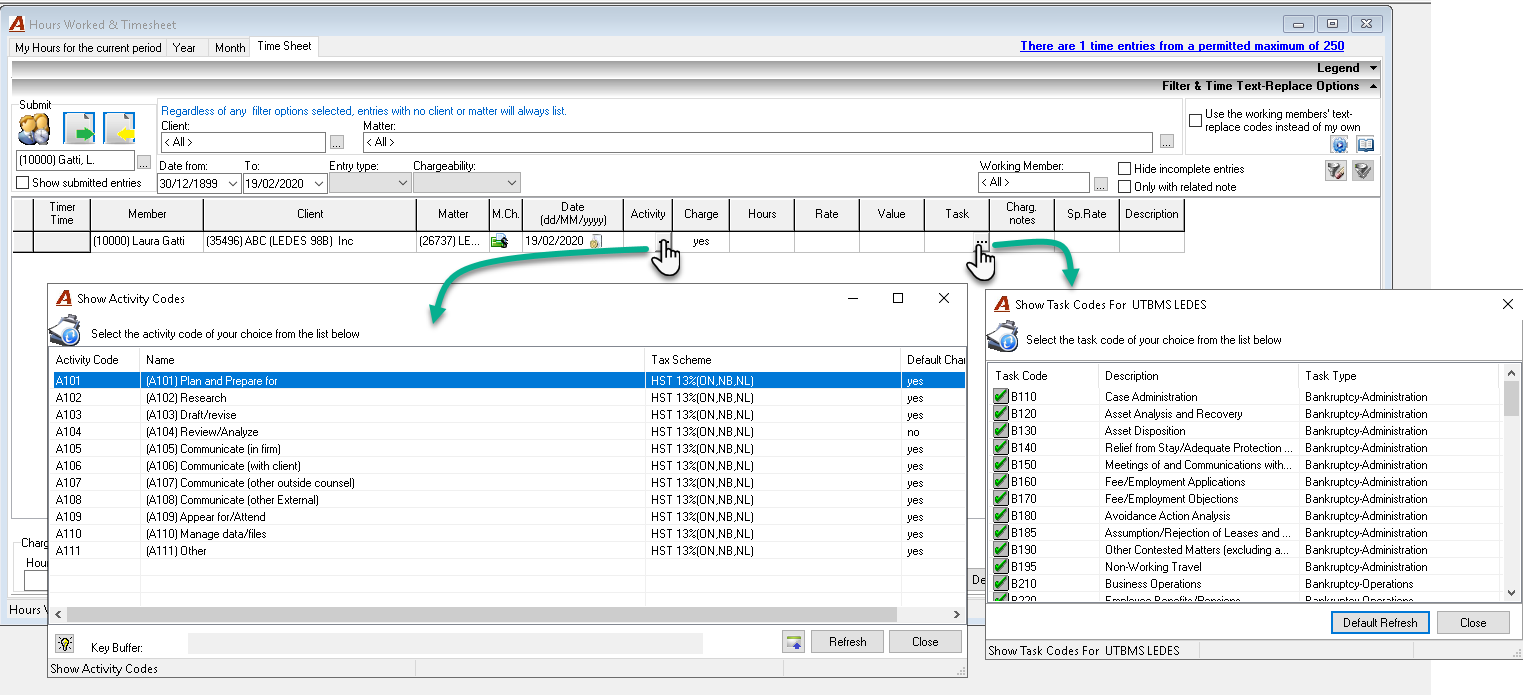
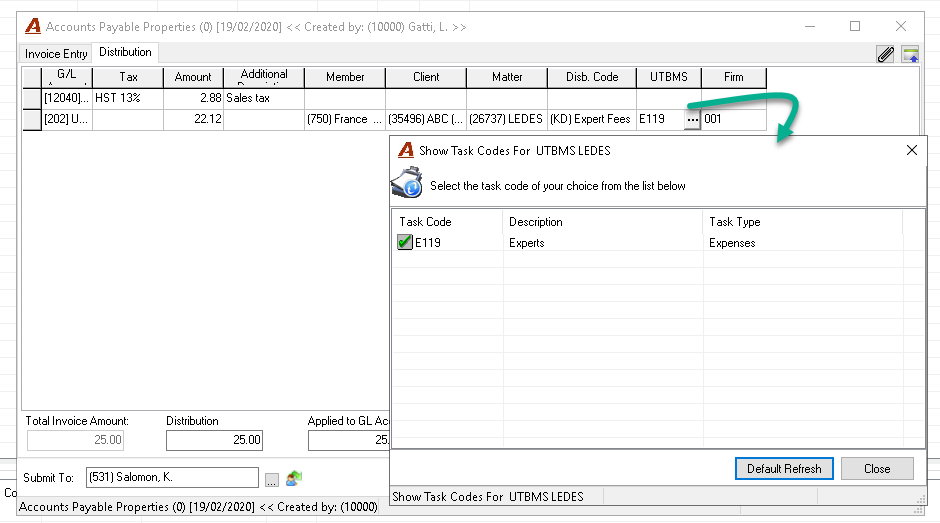
The user completing a disbursement entry will be required to enter or select an expense code from a list associated to the disbursement code selected. The use of Disbursement codes not associated to an expense code for the task set of the matter will not be permitted. The expense code is automatically added when the disbursement code has a one-to-one relationship with the expense code.
E-bill Output
Invoice properties for matters subject to task set are processed in the same way as any other invoice. Once the process is complete, the user must select an option from the “Electronic Invoices – E-bills” sub-menu in the “Show Invoice Detail” form. Sub-menu options are the result of the LEDES format selected.
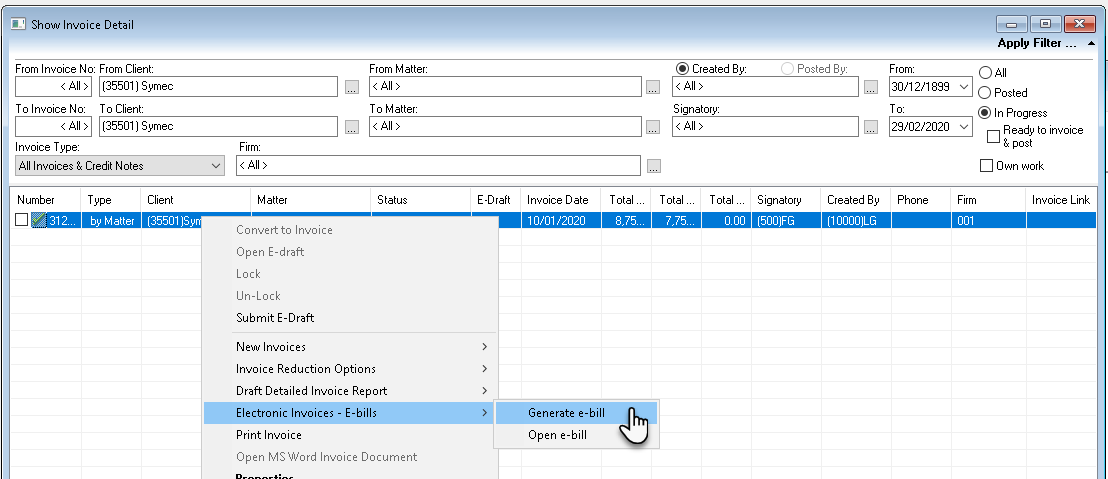
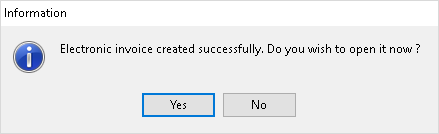
Once created, the user will receive a confirmation message with the option to open it. At this point the text or html file is saved in the folder specified in the client properties, and it is ready to be uploaded to the client web site.
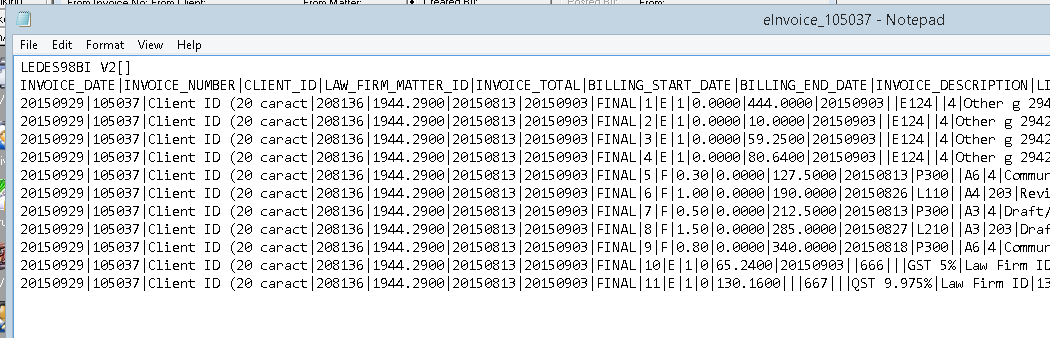
Electronic Invoice File Upload to the Client’s System
This part is very specific to each client and the system they are using.
It is common for two clients using the same LEDES format to be set-up completely different, however most require the law-firm to set-up authorized members (timekeepers) and their rates, within their LEDES System.
It is possible that the initial submission of an electronic invoice for a new client or program, is rejected. The rejection message is usually sent back to the firm with information of what is missing or needed, at which point adjustments must be made in context of feedback until the electronic invoice is accepted.