.png)
Introduction
LEDES (Legal Electronic Data Exchange Standard) Oversight Committee (LOC) is an international non-profit organization that is tasked to create and maintain the open standard formats for the electronic exchange of billing and other information between corporations and law firms.
The UTBMS (the Uniform Task Based Management System) is a series of codes used to classify legal services performed by a legal vendor in an electronic invoice submission.
Law firms will use the UTBMS system (Task set) to classify their entries and then convert their invoices using one of the LEDES formats (e-billing format) into an output accepted by their e-billing client. The LEDES formats available are:
-
LEDES 98B Format
-
LEDES 98BI Format (V.2 and V.5)
-
LEDES 2000 Format
-
LEDES XML Ebilling ver 2.0 Format
-
LEDES XML Ebilling ver. 2.1. Format
LEDES XML 2.0 format (1)
LEDES XML 2.0 was an update to the LEDES 2000 format. This new format was including complex calculation of taxes and other related enhancements, the ability to bill alternate fee arrangements and the ability to credit and debit on matters among other changes.
LEDES XML 2.0 is a XML file including 153 data elements within 15 segments. It is more and more used due to specific tax requirements in several countries. This format was revised substantially in 2008 with ratification of the LEDES XML 2.1 format.
The format documentation was revised in August, 2014 to the extent that timekeeper classifications are referenced in the document.
For more information, please visit www.ledes.org
(1)Ledes.org, “LEDES XML Ebilling ver. 2.0 Format | LEDES.org”, http://ledes.org/ledes-xml-ebilling-ver-2-0-format/, 2014.
Functionality in Acumin
The system captures UTBMS codes used to classify legal services at the point of time and disbursement entry. Users are prompted, based on the time and/or disbursement codes selected, with a list of possible expense and/or activity codes. Expense and activity codes must be mapped to the firm’s own code prior to posting of the entries. These specific settings can be completed within the task set section within Acumin and/or through the time and disbursement codes section in the environment menu. (For more information on time and disbursement entries, please contact Dexco in order to request the related documentation.)
The second part of the set-up relates to the specific format of LEDES XML 2.0. While building the UTBMS task set in Acumin, the user will have to determine the format the e-invoice will be generated with in order to be accepted by the client’s system. Depending on the format selected, a tab will display listing specific information that this format needs.
Based on the client requirements, the responsible member will be required to complete the e-billing tab in client properties, matter properties and, depending on the format being used, Share Info properties of participants found at the client level, at the matter level and/or at the invoice level.
IMPORTANT: Dexco maintains what is considered standard LEDES formats. It may happen that an e-billing client requires specific information not included requiring the creation of a custom format. For more information in this regard, please contact Dexco.
General Environment Set-up
Task Set Type
The user needs to ensure that the LEDES format XML 2.0 your UTBMS client requires is available in Acumin.
To view the task set type, go under:
Environment – Matter Planning UTBMS – Task Set Type or Phase Type
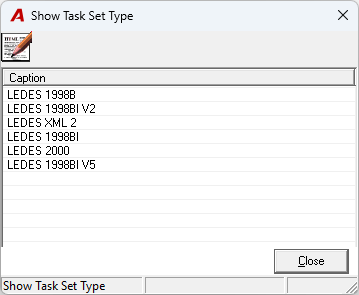
If the format needed is not in the list, please contact the Dexco team.
Timekeeper Classification
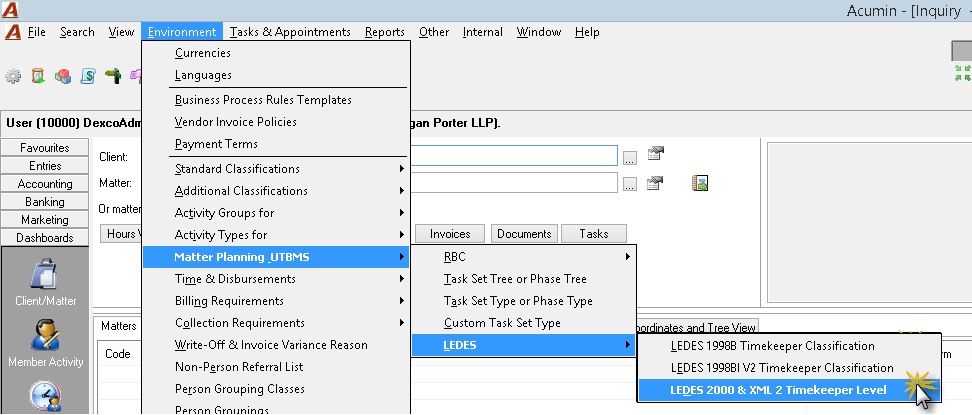
Verification as to whether Timekeeper Classifications for LEDES XML 2.0 are set up in the environment is required. They can be found under:
Environment - Matter Planning UTBMS - LEDES - LEDES 2000 & XML 2 Timekeeper level as below.
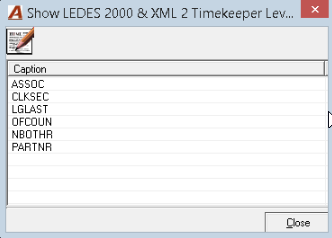
These classifications should be found in the specifications submitted by your client or on the LEDES.org web site.
Note: New Timekeeper classifications have been introduced for all LEDES formats as of August 2014. Please refer to the link below for more information.
http://ledes.org/revised-timekeeper-classification-codes-august-2014/
You can Add, Modify or Delete as needed:
Task Set Tree
To create a new Task Set in Acumin (or open an existing Task Set), go to:
Environment – Matter planning UTBMS – Task Set Tree or Phase Tree
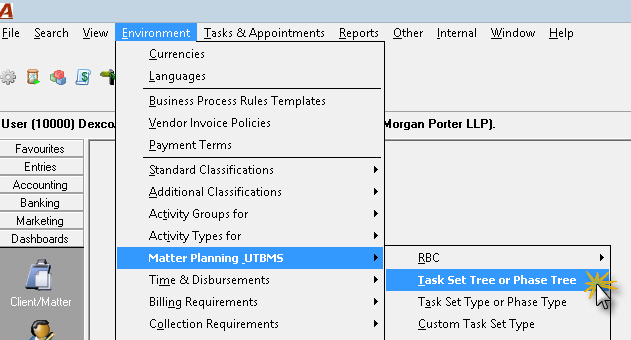
If the necessary task set does not exist, a new task set can be created by either using a task set “Standard” or if suitable the properties of an existing task set.
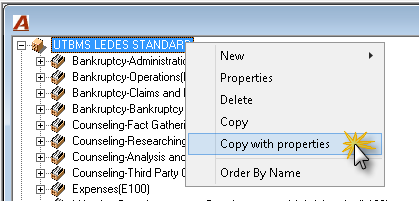
In order for users to efficiently use the Copy with properties functionality, our recommendation is for a standard task set to be created with commonly used expense and task codes already linked. When the Copy with properties option is used, the basic set-up will already be complete and the user will only have to make minor modifications to it and finalize the new task set where necessary.
Open the right-click contextual menu and select Copy (to have only the name of the previous task set) or Copy with Properties (to have an exact copy of the existing task set, task codes included with all existing mapping). This copy can be easily updated. In both cases, the new task set name will be followed by “(copy)”.
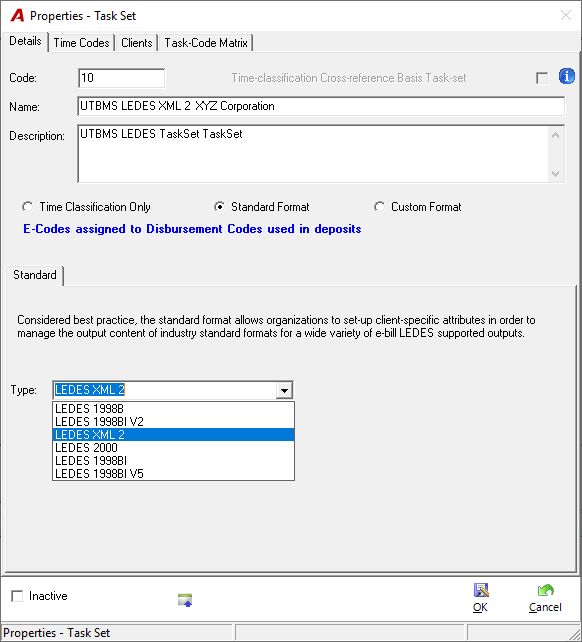
In the Task Set Properties of your new task set, rename the Task Set accordingly and choose the task set type, in this case LEDES XML 2.0. Click OK:
The Custom format option should be selected when the format is specifically customized by Dexco. Typically, the firm has a minimal or no set up to do. Everything is done programmatically by the system when generating the e-invoice. Any changes in the custom format should be requested and completed by Dexco.
The Matter only task set with no e-billing template option is used when the firm wants to implement task sets to restrict the use of time and disbursement entry codes on a particular client-matter combination. E-bills cannot be generated. (For more information about this topic, please contact Dexco for documentation).
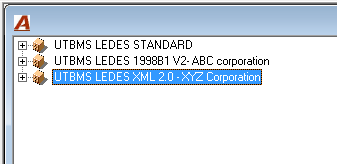
If you used the “Copy with Properties”, please ensure that the Task Type (Task Code and Expense Codes) matches with what you received as specifications from your client.
Time and Disbursement Codes
While entering time or disbursement entries for clients set with a UTBMS task set, the user will have access to a specific list of Time Activity codes (A codes) and Expense codes (E codes). These lists need to be set up when implementing the task set for the client.
If not already created in your environment, these lists should be found in the specifications submitted by your client or on the LEDES.org web site.
Time Codes
To link the Time Activity code with a specific task set, go to:
Environment – Time & Disbursements - Time Activity Codes:
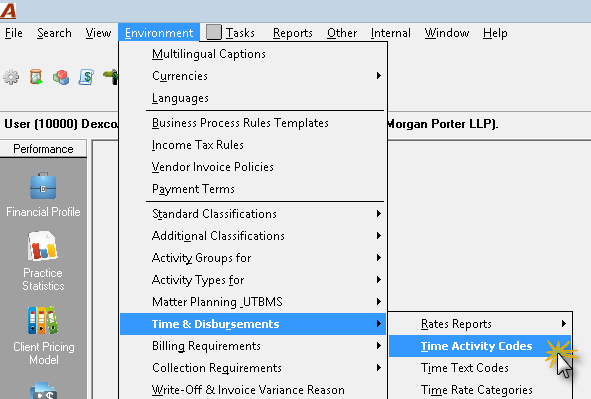
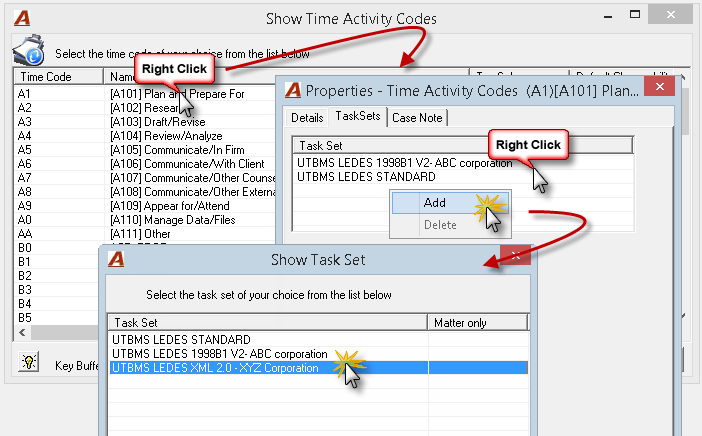
The time codes (A codes) must be linked to your LEDES XML 2.0 Task Set. An Activity code can be linked to more than one task set.
Please note that if you used the “Copy with Properties” the time codes will already be set up if our recommendation was followed, thus requiring you only to modify them if necessary.
To link an A code with the task set:
-
Select the A code and right click, select Properties;
-
In the Properties – Time Activity Codes window, click on the Task Set tab;
-
Right click and select Add;
-
In the Show Task Set window, select the specific task set;
Disbursement Codes
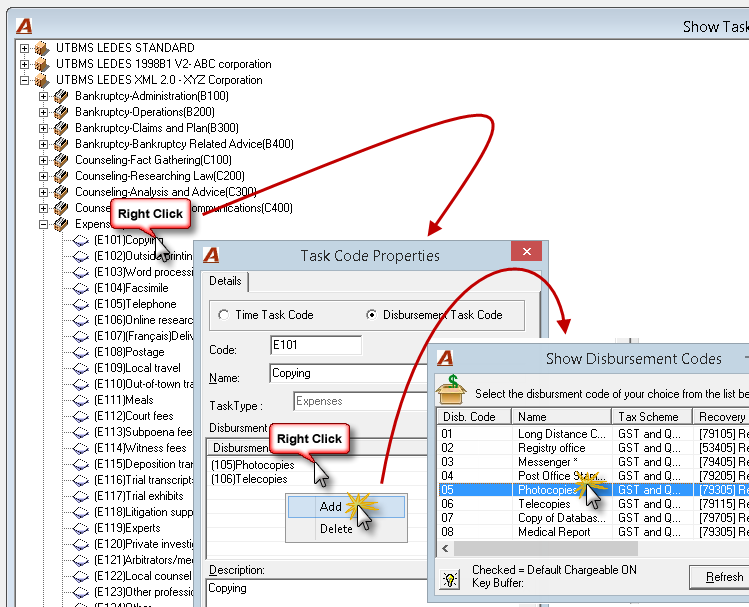
Each E code (expense disbursements) must be linked to your firms’ disbursement codes.
To map them, go to:
Environment – Matter planning UTBMS – Task Set Tree or Phase Tree
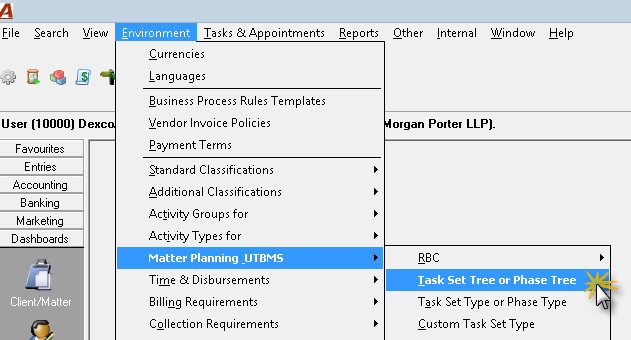
Note: If you used the “Copy with Properties” the disbursement codes will already be set up, thus requiring you only to modify them if necessary.
To link an expense code with a disbursement code:
-
Select an expense code and right click, select Properties;
-
In the Task Code Properties window, right click and select Add;
-
In the Show Disbursement code window, select the disbursement code;
Activity and Task codes visibility
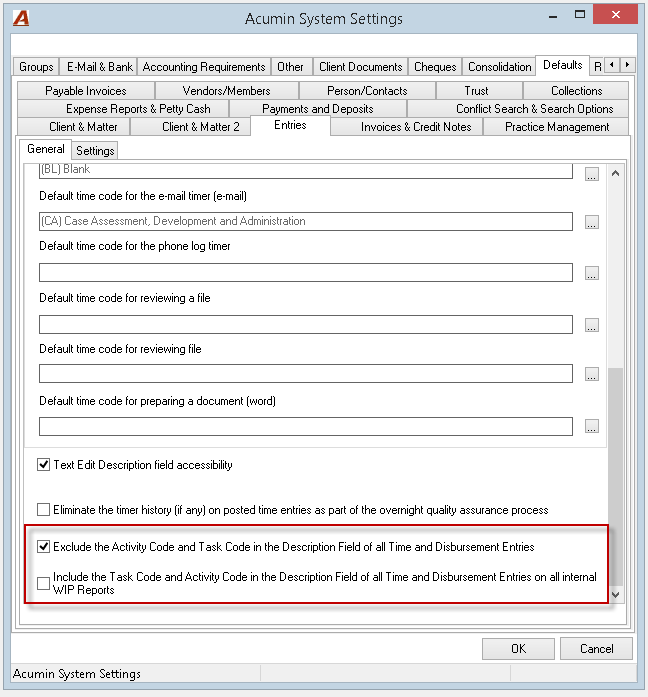
The firm will have the ability to decide if they want to include or exclude the task code and activity code in the description of an entry in Acumin.
For firms that have decided to not include the task code and activity code in their description have the ability to show them on all internal WIP reports (such as DDI, Matter Draft, All DERs, Entry Summary, Standard Detail Entry reports, etc.)
IMPORTANT: If one of your e-billing clients requires to have the activity and task codes in the entry description, you should not enable these options. This will supersede the related option in the Client properties - E-billing Tab.
To proceed with the setup, go to:
Environment – System Configuration – System settings
In the Acumin System Settings window, Defaults – Entries – General tab
Non-chargeable entries on UTBMS matters
Firms have the ability, depending on their client’s requirements, to allow non-chargeable entries (time and/or disbursement) to be included in UTBMS matters.
To proceed with the set up, go to:
Environment – System Configuration – System settings
In the Acumin System Settings window, Other tab
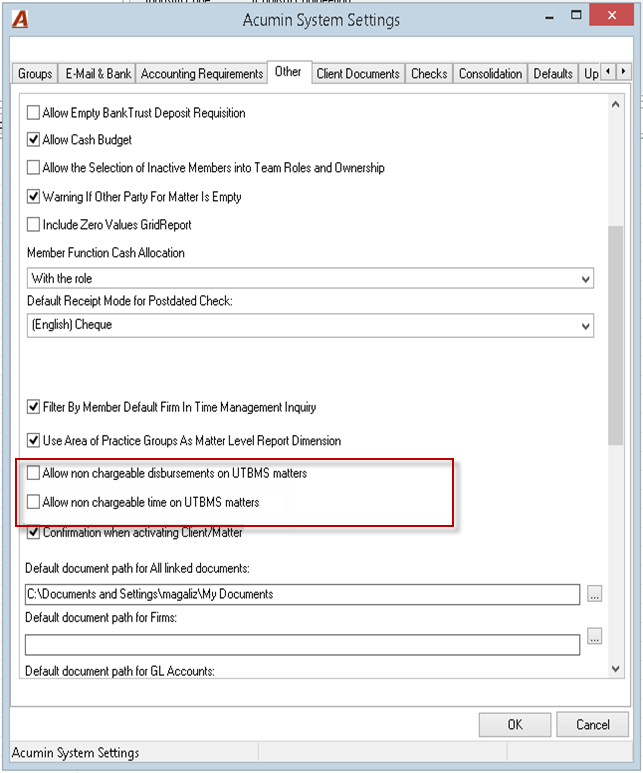
If the option related to time entries is unchecked (OFF), the user will not be able to post non-chargeable time entries in matters link with a task set. He will received this message instead.

Environment settings specific to LEDES XML 2.0
Jurisdiction Classification
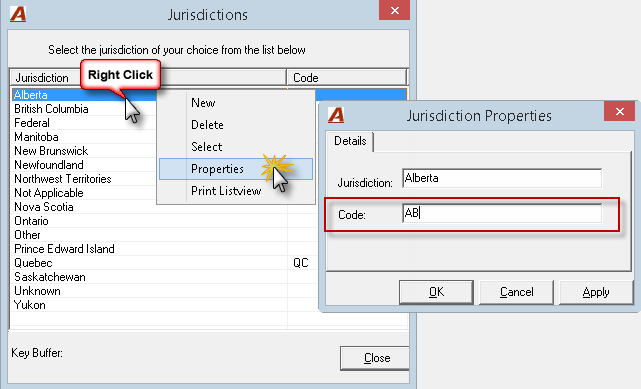
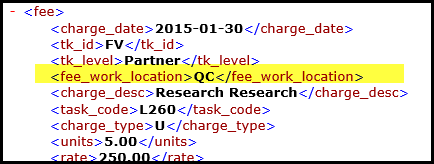
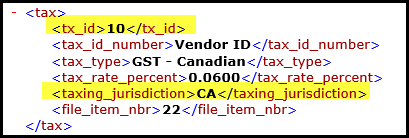
The UTBMS LEDES 2.0 format needs what we call a Jurisdiction code to appear in the e-bill output depending on the tax rule used. This code will have to be link to a tax rule.
To set up the Jurisdiction code, go to:
Environment - Standard Classifications - Jurisdictions
-
Use acceptable abbreviations for provinces.
-
Do not abbreviate countries and spell them out based on the “Valid T360 Country” name list.
-
If “Federal” is included as a Jurisdiction, insert the jurisdiction code “CA”.
To enter a jurisdiction code:
-
Select a Jurisdiction and right click, select Properties;
-
In the Tax Rule Properties window, enter the tax code in the Code field;
Tax Code
The UTBMS LEDES 2.0 format needs Tax codes to be used as Tax ID in Ledes XML 2 output file.
The user is allowed to use as tax code any number or string. For example, for the GST tax, the tax code could be “10” or “GST”.
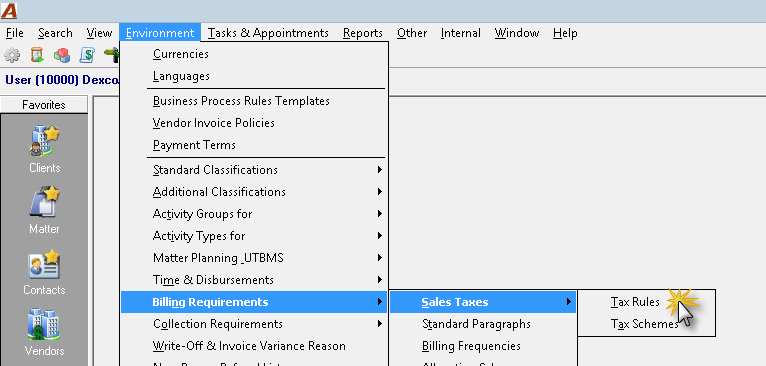
To set-up the tax code, go to:
Environment - Billing Requirement - Sales Taxes - Tax Rules
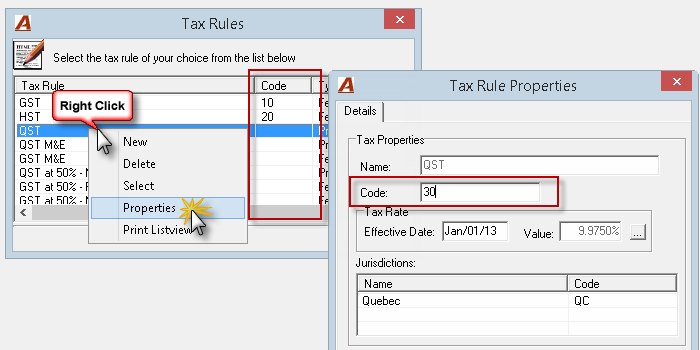
To enter the tax code:
-
Select a Tax rule and right click, select Properties;
-
In the Tax Rule Properties window, enter the tax code in the Code field;
To link the Jurisdiction to a tax rule:
-
In the Tax Rule Properties window, right click and select the Add option;
-
In the Jurisdiction window, select the jurisdiction;
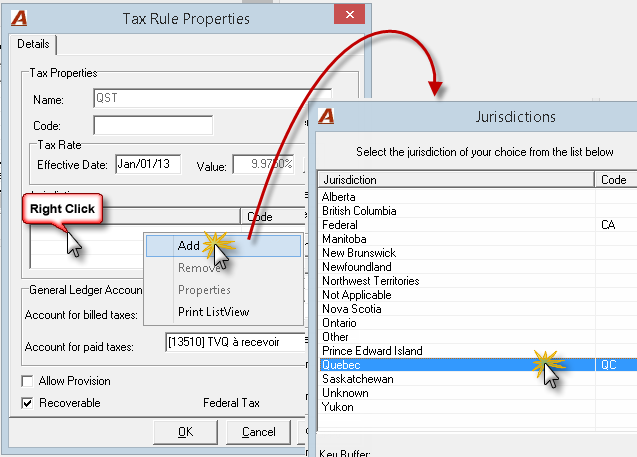
Note: It is important to only add 1 jurisdiction per tax rule
Currency code (ISO code)
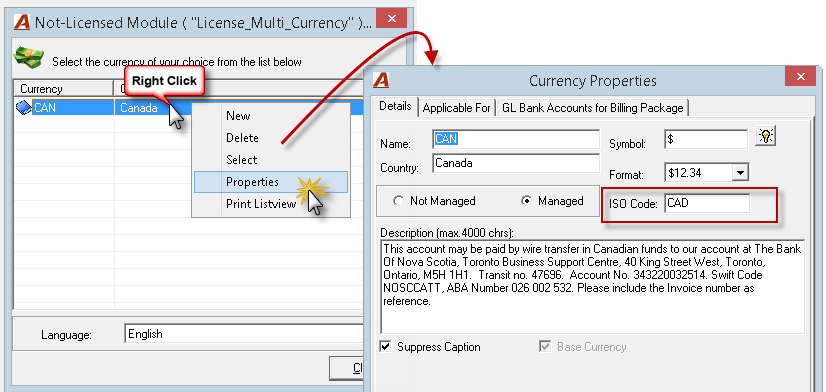
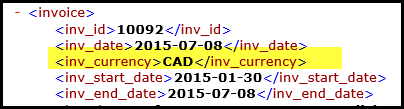
The LEDES XML 2.0 format requires to set up an ISO code for currency to appear in the e-bill output. The submission currency by the law firm should contain the 3-character ISO currency code (ISO 4217), if an other code is assigned, the invoice will be rejected.
To set up the Currency ISO code, go to:
Environment – Currencies
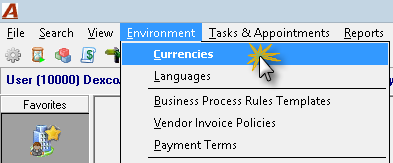
To enter the ISO code for currency:
-
Select a currency and right click, select Properties;
-
Enter the ISO code for the currency in the ISO code field.
Client Properties Set up
Once the environment is set up, the next step is to set up your Client Properties.
You will find part of the information in the specification document received from your client You should also use as you complete the set-up, a sample of an e-invoice provided by your client. This will help you validate what the end result should be.
When this part is completed, we suggest uploading a test invoice (ask your client if you can have access to a testing section (sandbox)) and see if you receive errors. This will tell you what section needs adjustments if any.
Client properties - Information Tab
In the client properties, select the new task set linked to the e-billing system. A new tab called E-billing will appear.
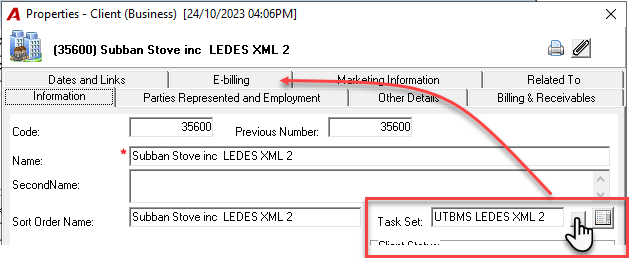
Select the E-billing tab and fill-in the fields required for the electronic invoice in Acumin.
All fields are required when marked by a red asterisk (*).
E-billing Tab – General sub tab
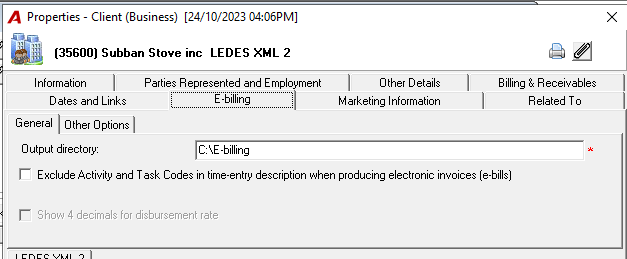
Output directory (mandatory)
Specify the path where all electronic invoices should be saved when an electronic invoice is generated for this specific client.
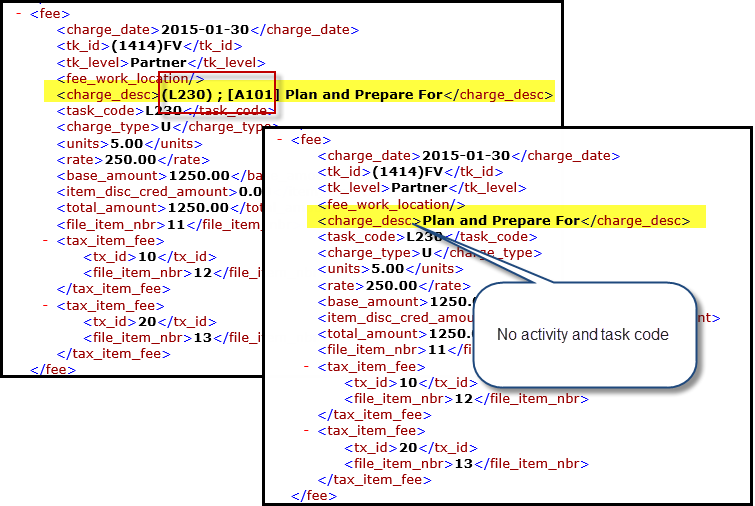
Exclude Activity and Task Codes in time-entry description when producing electronic invoices (e-bills)
Enable this option if you need to exclude the Activity Time Code and Task Code from the description. This will apply to this client only.
Show 4 decimals for disbursement
It is not applicable with this standard LEDES format. This option works with the custom format option.
Other Options subtab
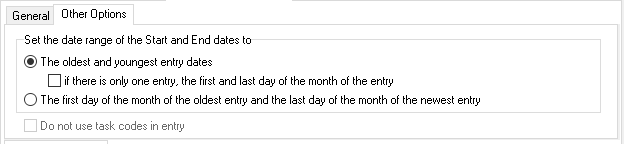
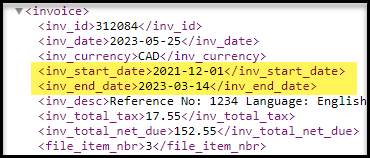
Set the date range of the start and End Dates to – column “F” and “G” in Excel
Select the option to set the date range of the Start and End date based on your client’s requirements:
-
The oldest and youngest entry dates: this is the defaulted position. The system will present in the
-
BILLING_START_DATE: the oldest entry date;
-
BILLING_END_DATE: The newest entry date
-
Use the option “if there is only one entry, the first and last day of the month of the entry” when the client’s system will not accept the same date as the Start and End date. This can happen when there is only 1 entry in the electronic invoice.
-
-
The first day of the month of the oldest entry and the last day of the month of the newest entry: The system will present in the
-
BILLING_START_DATE: the first day of the month of the oldest entry;
-
BILLING_END_DATE: the last day of the month of the newest entry;
-
Do not use task codes in entry
It is not applicable with this standard LEDES format. This option works with the custom format option
Firm Subtab
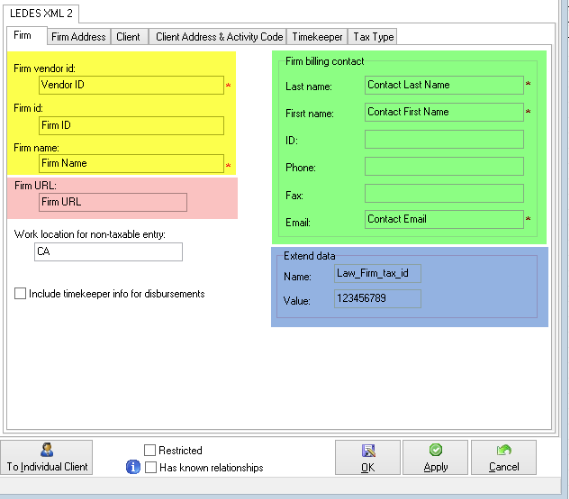
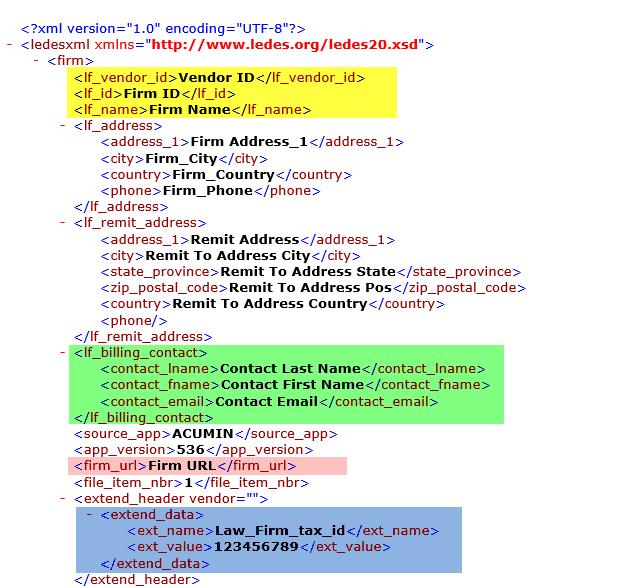
Law Firm Section – (@Firm Segment)
Firm Vendor ID (mandatory) – if_vendor_id
Enter the Law firm’s code assigned by the client. Typically, it is the Law Firm’s Tax number.
Firm name (mandatory)- If_name
Enter the name of the firm.
Remaining fields (Optional)
The firm can omit or complete the remaining fields since they are optional unless the firm specifically requires to populate them.
Other section
Work location for non-taxable entry (optional)
Every entry must be assigned a work location. Acumin takes this information based on the tax rules properties. Consequently, for non-taxable entry, the work location code should be entered in this field.
If the law firm is located in Canada, the word location code will be CA.
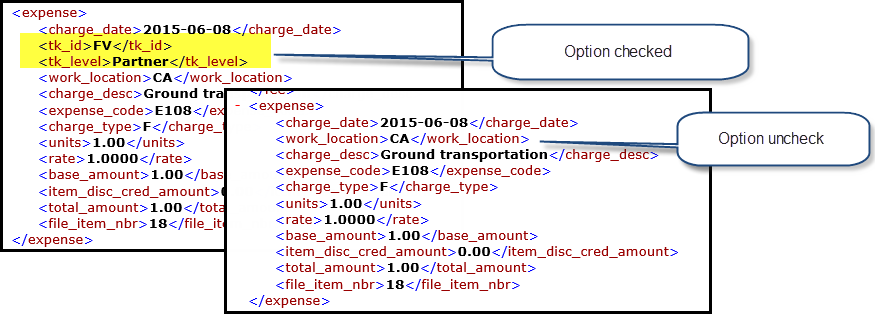
Include timekeeper info for disbursements (optional)
Enable this option if the client requires the member identifiers as part of the expense entry for the timekeeper.
Firm billing contact section – (@Contact Info segment)
Last name (mandatory) – contact_lname
The last name of the contact
Contact name (mandatory) – contact_fname
The first name of the contact
Email (mandatory) – contact_email
The email address of the contact
Remaining fields (Optional)
The firm can omit or complete the remaining fields since they are optional unless the firm specifically requires to populate them.
Firm Extend Data
Name and Value (optional)
The firm can omit these fields since they are optional unless the firm specifically requires to populate them.
Firm Address Subtab
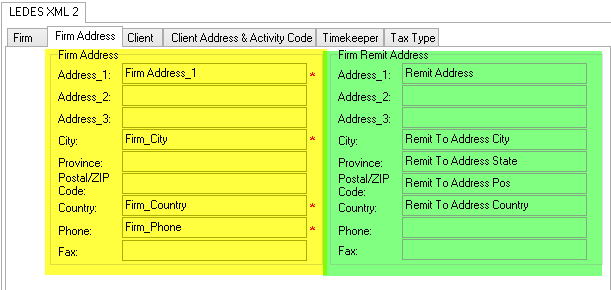
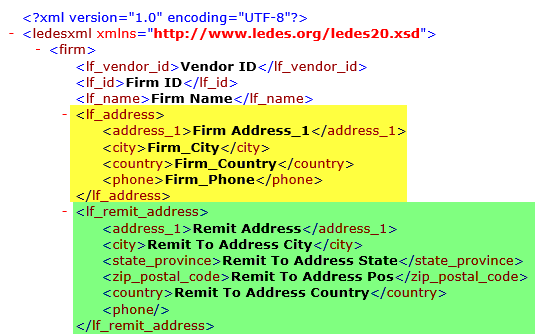
Firm Address section – (@Address_info segment)
Address_1 (mandatory) – Address_1
Enter the Law firm’s address.
City (mandatory) – city
Enter the Law Firm’s city.
Country (mandatory) – country
Enter the Law Firm’s country. Do not abbreviate except for USA.
Phone (mandatory) – phone
Enter the Law Firm’s phone number.
Remaining fields (optional)
The firm can omit or complete the remaining fields since they are optional unless the firm specifically requires to populate them.
Firm remit address section – (@Address_info segment)
All fields (optional)
The firm can omit or complete these fields since they are optional unless the firm specifically requires to populate them.
Client Subtab
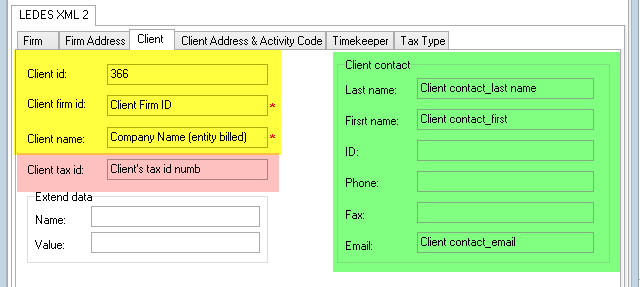
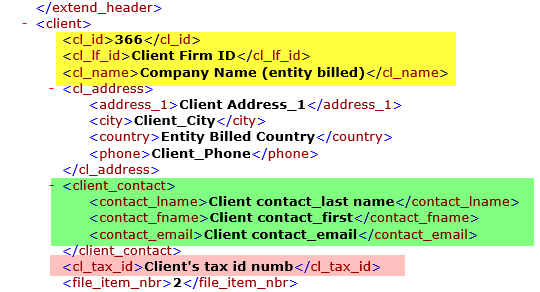
Client Information section – (@Client segment)
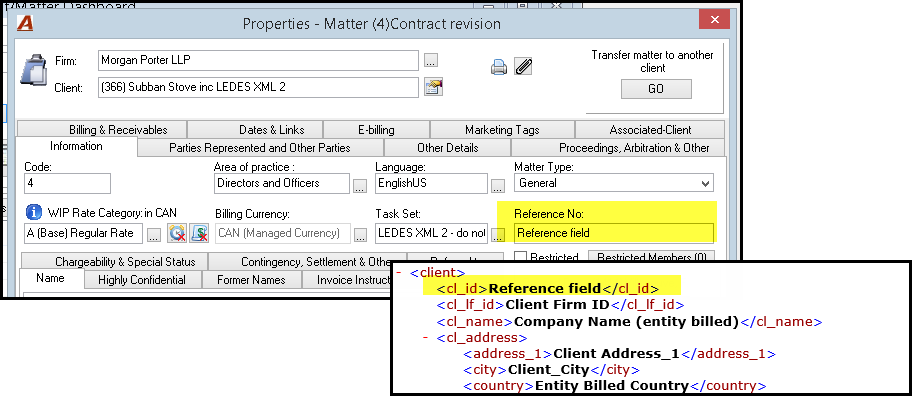
Client id (optional)- cl_id
Enter the Acumin client code if desired. Note that if the reference field is populated in the matter properties, the system will insert the content automatically.
Client firm id (mandatory) – cl_if_id
Enter the Law Firm id as specified by the client. Can be the Law Firm tax registration number.
Client tax id (Conditional) – cl_tax_id
Enter the client’s tax id number to which the law firm taxes are charged.
Remaining fields (optional)
The firm can omit or complete the remaining fields since they are optional unless the firm specifically requires to populate them.
Firm Extend Data
Name and Value (optional)
The firm can omit these fields since they are optional unless the firm specifically requires to populate them.
Client Contact section – (@Contact_Info segment)
All fields (optional)
The firm can omit to complete this section since the fields are optional unless the firm specifically requires to populate them. However, if used, the Law firm must include all required fields which are last name, first name and email.
Client Address & Activity Code Subtab
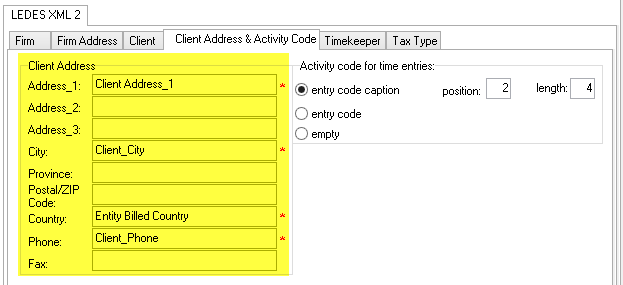
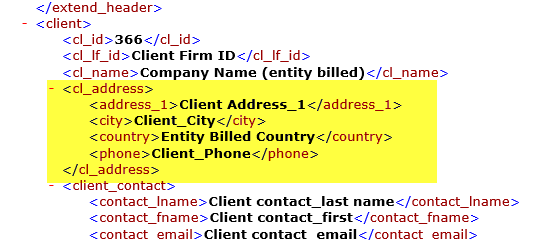
Client Address section – (@Address_Info segment)
Address_1 (mandatory) – Address_1
Enter the Client’s address.
City (mandatory) – city
Enter the Client’s city.
Country (mandatory) – country
Enter the Client’s country. Do not abbreviate except for USA.
Phone (mandatory) – phone
Enter the Client’s phone number.
Remaining fields (optional)
The firm can omit or complete the remaining fields since they are optional unless the firm specifically requires to populate them.
Activity code for time entries
Line item activity code (mandatory) – task_activity
Select the activity code format accepted in the electronic invoice. These options are dependent on how your Time Activity codes are set up in Acumin.
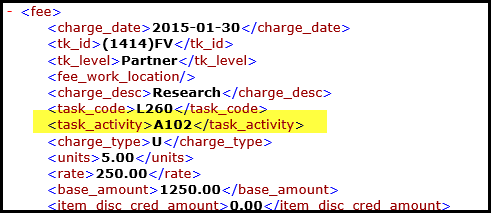
Entry code caption position X length X. : If your Time Activity Codes are set up as “[A101] Plan and Prepare For” and the format accepted is A101 in the Line Item Activity Code field, then you need to specify the position of the actual code “A101” in the description (in this case position 2 for a length of 4 characters).
For example, in the following description: “[A102] Research”, we want the system to read the activity code “A102” without the brackets. Position 2 means go to the second position “A” and length “4”: read the 4 characters = A101.
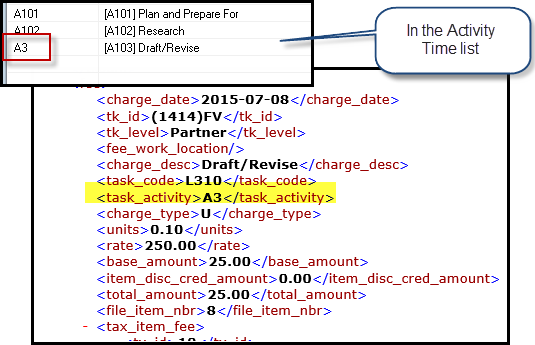
Entry code: The system will take the time code instead of looking in the description. For example: The format accepted is A3 instead of A103 and your time code are set with A3.
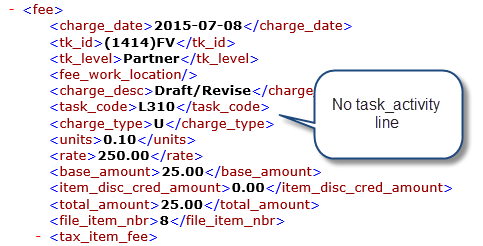
Empty (no activity code): used by clients that do not want to see a <task_activity> line (rarely used).
Timekeeper Subtab
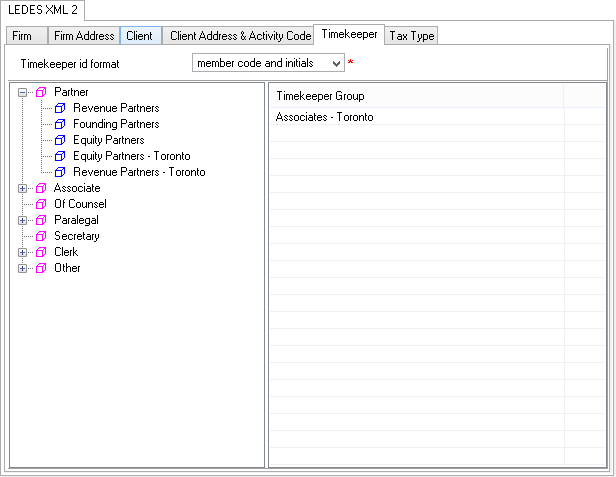
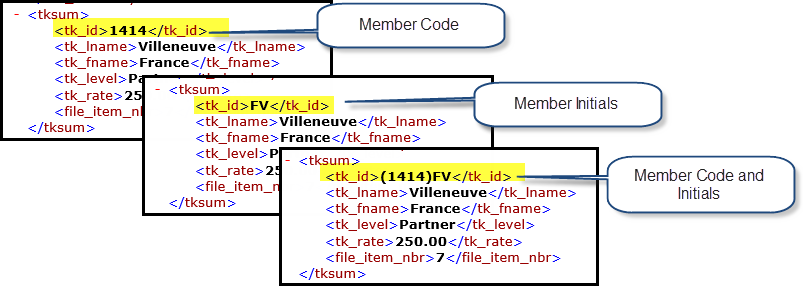
Timekeeper ID Format (mandatory) – tk_id
Select the correct Timekeeper ID format accepted in the e-invoice.
-
Member Code
-
Member Initials
-
Member Code and Initials
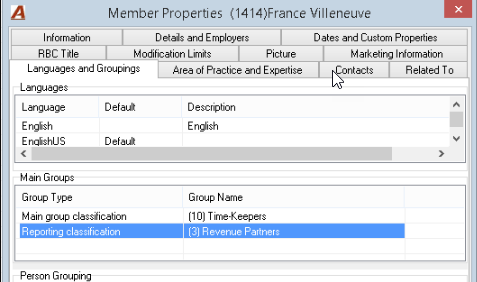
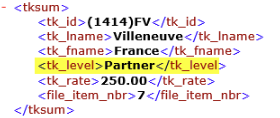
Timekeeper level classification section (mandatory) – tk_level
Drag and drop the Timekeeper Group into the left tree view, choose the corresponding Timekeeper Level, until no items are left in the right list view under Timekeeper Group.
Note: the Timekeeper groups are in fact the Second Reporting Dimensions you can find under Environment – Basic Classification – Member Reporting Dimension. All members are linked with a Second Reporting Dimension. You can find this information in the Member properties – Languages and Groupings TAB - Main Groups section – Reporting classification.
Tax Type Subtab
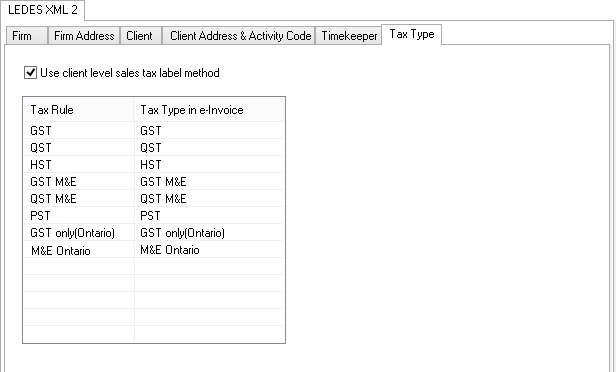
Use client level sales tax label method (option) – tax type
Enable this option if you want to customize the tax type content.
Note: As certain users may have had some tax codes already customized in the past for LEDES XML 2, this flag controls whether the client uses any new tax type label or remains with the previously customized ones. By default the flag will be disabled, meaning that the client would follow any pre-established tax code naming convention, so the user must simply activate the flag to enable the client’s new tax type labels defined under the “Tax Type” sub-tab.
Tax Type Customization section – (Optional) – Tax_type
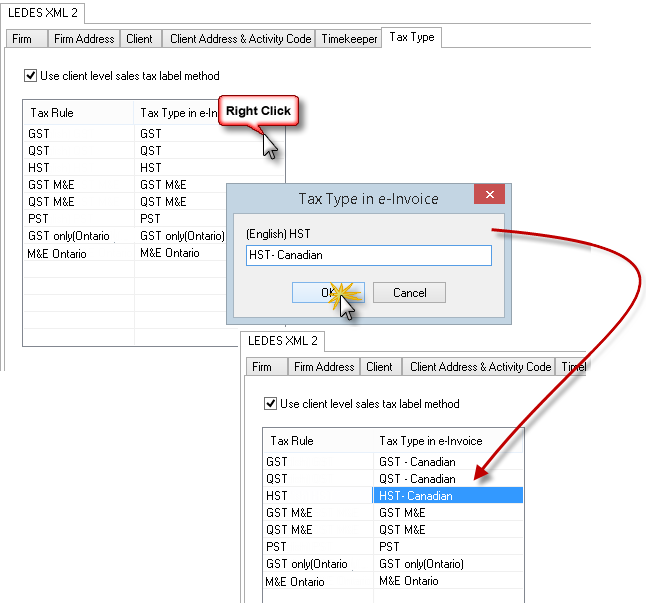
The user is allowed to customize the tax type content to be included to the e-bill output.
-
Select a tax rule
-
Right click and select Properties
-
In the Tax Type in e-Invoice window, enter the accepted label
-
Click on OK
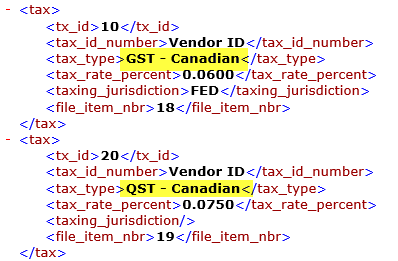
Now if an e-invoice which uses this tax type code is generated for the client, the file’s <tax_type> field will be populated with the new customized label.
Matter Properties Set up
The next step is to set up the matter properties for the client.
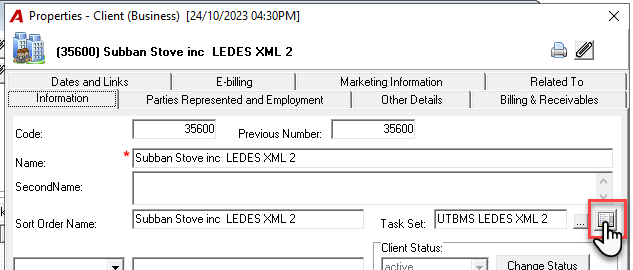
To directly have access to the e-billing matter list from within the client properties, press the List icon button beside the Task Set field.
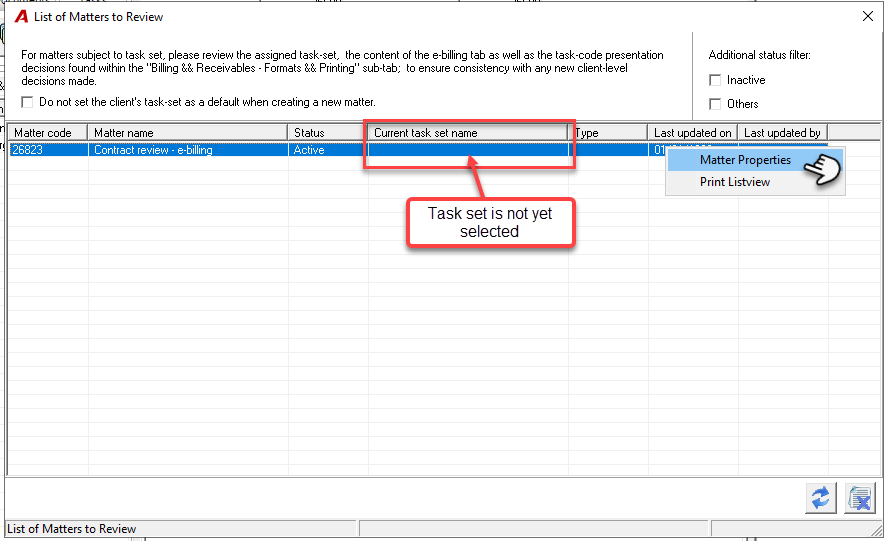
In the “List of Matters to Review” form, the system will present by defaults all matters having the status “Active” and “Temporary”. The user can directly access the properties of each matter to select the task set and complete the set-up in the E-billing subtab. On exit, the list will be updated with the task set selected, etc.
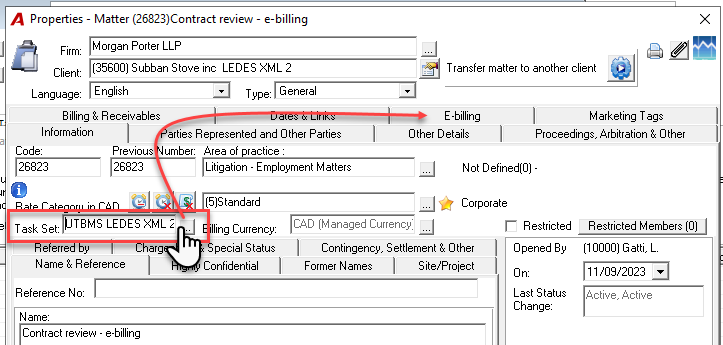
In the matter properties, select a task set for the matter. In the list, the task set selected at the client level will be displayed. A new tab called E-billing will appear.
Detail Subtab
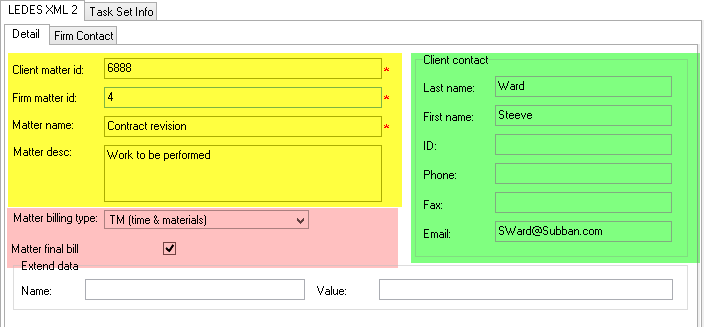
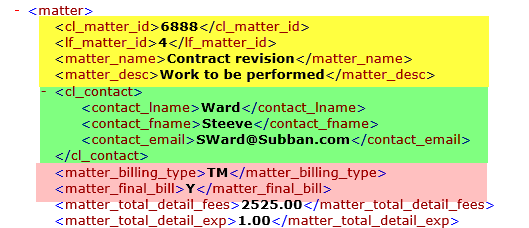
Matter information section – (@matter segment)
Client matter id (mandatory) – cl_matter_id
Enter the code of the matter provided by your client
Firm matter if (mandatory) – If_matter_id
The system is populating automatically this field with the Acumin matter code
Matter name (mandatory) – matter_name
The system is populating this field automatically with the content of the Acumin matter name field.
Matter Desc (optional) – matter_desc
Enter the work to be performed if desired.
Matter billing type (optional) – matter_billing_type
Select the type corresponding on how the matter will be billed.
-
TM (time & materials)
-
FF (flat fee)
-
CT (contingency)
-
Fs (fee sharing)
Matter final bill (mandatory) – matter_final_bill
Enable the option if this is the final bill for the matter
Client contact section –cl_contact (@Contact info segment)
All fields (optional)
The firm can omit to complete this section since the fields are optional unless the firm specifically requires to populate them. However, if used, the Law firm must include all required fields which are last name, first name and email.
Matter Extend Data
Name and Value (optional)
The firm can omit these fields since they are optional unless the firm specifically requires to populate them.
Firm contact subtab
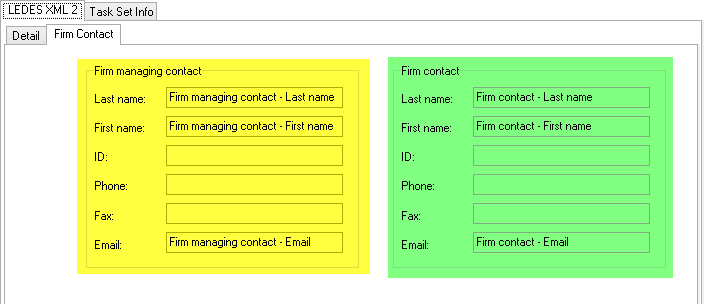
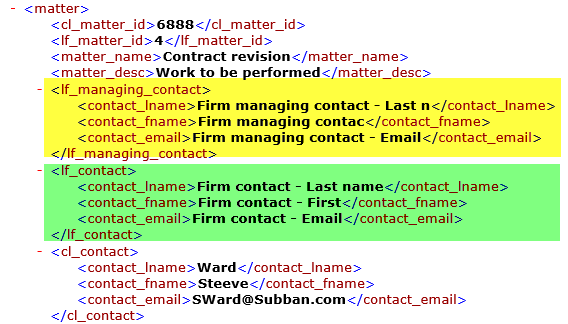
Firm managing contact section – if_managing_contact (@contact_Info segment) -
All fields (optional)
The firm can omit to complete this section since the fields are optional unless the firm specifically requires to populate them. However, if used, the Law firm must include all required fields which are last name, first name and email.
Firm Contact section – if_contact (@contact_Info segment) -
All fields (optional)
The firm can omit to complete this section since the fields are optional unless the firm specifically requires to populate them. However, if used, the Law firm must include all required fields which are last name, first name and email.
Generating the Invoice
In order to generate an e-bill the user must proceed with a regular invoice – an invoice with at least one time entry. Furthermore, as part of invoice properties functionality, Acumin includes options to facilitate fixed fee task based billing (fee override) and exclusion of non-desired entries (write-down to 0.00 right-click Delete/Internal).
After completing the invoice, the user can generate the e-invoice by going to:
Entries – Invoices – Show Invoice Details
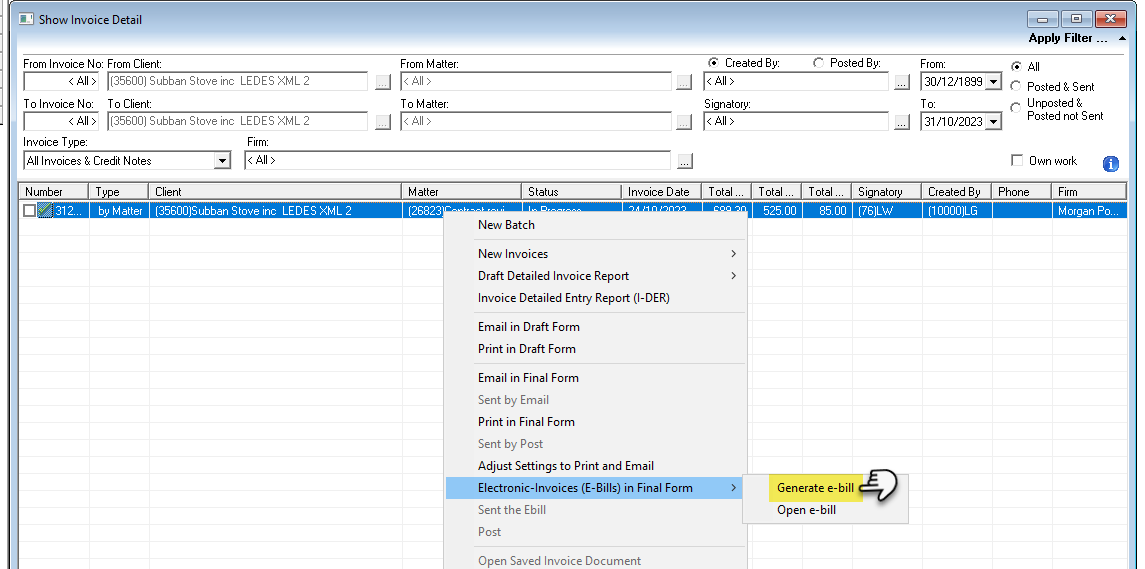
Menu option
To generate the e-invoice (xml file), highlight the invoice, right-click, select the Electronic-Invoices (E-Bills) in Final Form option and Generate e-bill option in the contextual menu.
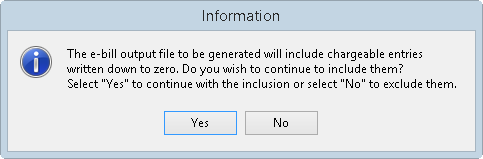
Users generating the e-bill for clients subject to task sets using XML2 formats which have entries written down to zero will be prompted with the following message, “'The e-bill output file to be generated will include chargeable entries written down to zero. Do you wish to continue to include them? Select "Yes" to continue with the inclusion or select "No" to exclude them”. This added functionality allows users to present contracted fees using a regular invoice in a manner consistent with client-specific presentation requirements.
The system will prompt a message to either confirm the creation of the XML file and if the user wants to open the XML file.
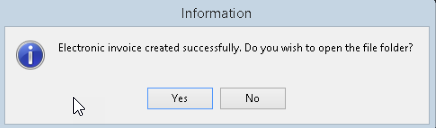
As soon as the user receives this message, the XML file is saved in the folder specified in the client properties. It is ready to be uploaded to the client web site.
For verification purposes and to see the data only, the XML file can be opened with Internet Explorer or any other program that reads this type of file. Note that to modify the XML file itself, the user needs another type of program.
-
If the user has to regenerate the same XML file, we recommend deleting the first one before proceeding.
-
We recommend not to post the invoice until it is accepted by your client’s system. This way, the user still has the ability to make changes in the invoice in the case where the invoice is rejected.
-
To create an e-bill with a contracted fee (e.g. R-code), the users should record the time (single or multiple time entry) with the appropriate activity code or codes, classify the latter with the appropriate task code (R code), include the latter in a regular invoice, overriding the fee to equal the contracted fee and if any non-corresponding task code activities were written down, responding to the message based on the presentation requirements of the client.
Fields in Acumin for LEDES XML 2.0
|
Segment Reference |
Field Name |
Configurable |
Where |
|
@FIRM Segment |
lf_vendor_id |
|
|
|
|
lf_id |
|
|
|
|
lf_name |
|
|
|
|
@lf_address |
|
|
|
|
@lf_remit_address |
|
|
|
|
@lf_billing_contact |
|
|
|
|
source_app |
|
|
|
|
app_version |
|
|
|
|
firm_URL |
|
|
|
|
file_item_nbr |
|
|
|
|
@extend_header |
|
|
|
Segment Reference |
Field Name |
|
|
|
@TAX Segment |
tx_id |
|
|
|
|
tax_id_number |
|
|
|
|
tax_type |
|
|
|
|
tax_rate_percent |
|
|
|
|
taxing_jurisdiction |
|
|
|
|
file_item_nbr |
|
|
|
Segment Reference |
Field Name |
|
|
|
@CLIENT Segment |
cl_id |
|
|
|
|
cl_lf_id |
|
|
|
|
cl_name |
|
|
|
|
@cl_address |
|
|
|
|
@client_contact |
|
|
|
|
cl_tax_id |
|
|
|
|
file_item_nbr |
|
|
|
|
@extend_header |
|
|
|
Segment Reference |
Field Name |
|
|
|
@INVOICE Segment |
inv_id |
|
|
|
|
inv_date |
|
|
|
|
inv_due_date |
|
|
|
|
inv_currency |
|
|
|
|
inv_start_date |
|
|
|
|
inv_end_date |
|
|
|
|
inv_desc |
|
|
|
|
inv_payment_terms |
|
|
|
|
inv_total_tax |
|
|
|
|
inv_total_tax_other_iso |
|
|
|
|
inv_total_net_due |
|
|
|
|
inv_total_net_due_other_iso |
|
|
|
|
file_item_nbr |
|
|
|
|
@extend_header |
|
|
|
Segment Reference |
Field Name |
|
|
|
@MATTER Segment |
cl_matter_id |
|
|
|
|
lf_matter_id |
|
|
|
|
matter_name |
|
|
|
|
matter_desc |
|
|
|
|
@lf_managing_contact |
|
|
|
|
@lf_contact |
|
|
|
|
@cl_contact |
|
|
|
|
matter_billing_type |
|
|
|
|
matter_final_bill |
|
|
|
|
matter_total_detail_fees |
|
|
|
|
matter_total_detail_exp |
|
|
|
|
matter_disc_credit_fees |
|
|
|
|
matter_disc_credit_exp |
|
|
|
|
matter_disc_cred_total |
|
|
|
|
matter_perc_shar_fees |
|
|
|
|
matter_perc_shar_exp |
|
|
|
|
matter_tax_on_fees |
|
|
|
|
matter_tax_on_exp |
|
|
|
|
matter_net_fees |
|
|
|
|
matter_net_exp |
|
|
|
|
matter_total_due |
|
|
|
|
file_item_nbr |
|
|
|
|
@extend_header |
|
|
|
Segment Reference |
Field Name |
|
|
|
@TAX_SUMMARY Segment |
tx_id |
|
|
|
|
tax_total_detail_fees |
|
|
|
|
total_tax_on_fees |
|
|
|
|
tax_total_detail_expense |
|
|
|
|
total_tax_on_expense |
|
|
|
|
file_item_nbr |
|
|
|
Segment Reference |
Field Name |
|
|
|
@MATTER_DISC_CRED Segment |
disc_cred |
|
|
|
|
disc_cred_note |
|
|
|
|
disc_cred_type |
|
|
|
|
disc_cred_category |
|
|
|
|
discount_percent |
|
|
|
|
disc_cred_amount |
|
|
|
|
file_item_nbr |
|
|
|
|
@extend_header |
|
|
|
Segment Reference |
Field Name |
|
|
|
@TAX_MATTER_DISC_CRED Segment |
tx_id |
|
|
|
|
file_item_nbr |
|
|
|
Segment Reference |
Field Name |
|
|
|
@TKSUM Segment |
tk_id |
|
|
|
|
tk_lname |
|
|
|
|
tk_fname |
|
|
|
|
tk_level |
|
Timekeeper level classification section (mandatory) – tk_level |
|
|
tk_rate |
|
|
|
|
file_item_nbr |
|
|
|
|
@extend_header |
|
|
|
Segment Reference |
Field Name |
|
|
|
@FEE Segment |
charge_date |
|
|
|
|
tk_id |
|
|
|
|
tk_level |
|
Timekeeper level classification section (mandatory) – tk_level |
|
|
fee_work_location |
|
|
|
|
charge_desc |
|
|
|
|
task_code |
|
|
|
|
task_activity |
|
|
|
|
charge_type |
|
|
|
|
units |
|
|
|
|
rate |
|
|
|
|
base_amount |
|
|
|
|
item_disc_cred_amount |
|
|
|
|
total_amount |
|
|
|
|
file_item_nbr |
|
|
|
|
@extend_header |
|
|
|
Segment Reference |
Field Name |
|
|
|
@FEE_ITEM_DISC_CRED Segment |
disc_cred |
|
|
|
|
disc_cred_note |
|
|
|
|
disc_cred_type |
|
|
|
|
discount_percent |
|
|
|
|
disc_cred_amount |
|
|
|
|
file_item_nbr |
|
|
|
Segment Reference |
Field Name |
|
|
|
@TAX_ITEM_FEE Segment |
tx_id |
|
|
|
|
file_item_nbr |
|
|
|
Segment Reference |
Field Name |
|
|
|
@EXPENSE Segment |
charge_date |
|
|
|
|
tk_id |
|
|
|
|
tk_level |
|
Timekeeper level classification section (mandatory) – tk_level |
|
|
work_location |
|
|
|
|
charge_desc |
|
|
|
|
task_code |
|
|
|
|
expense_code |
|
|
|
|
charge_type |
|
|
|
|
units |
|
|
|
|
rate |
|
|
|
|
base_amount |
|
|
|
|
item_disc_cred_amount |
|
|
|
|
total_amount |
|
|
|
|
file_item_nbr |
|
|
|
|
@extend_header |
|
|
|
Segment Reference |
Field Name |
|
|
|
@EXPENSE_ITEM_DISC_CRED Segment |
disc_cred |
|
|
|
|
disc_cred_note |
|
|
|
|
disc_cred_type |
|
|
|
|
disc_cred_percent |
|
|
|
|
disc_cred_amount |
|
|
|
|
file_item_nbr |
|
|
|
Segment Reference |
Field Name |
|
|
|
@TAX_ITEM_EXPENSE Segment |
tx_id |
|
|
|
|
file_item_nbr |
|
|
|
Segment Reference |
Field Name |
|
|
|
@ADDRESS_INFO Segment |
address_1 |
|
|
|
|
address_2 |
|
|
|
|
address_3 |
|
|
|
|
city |
|
|
|
|
state_province |
|
|
|
|
zip_postal_code |
|
|
|
|
country |
|
|
|
|
phone |
|
|
|
|
fax |
|
|
|
Segment Reference |
Field Name |
|
|
|
@CONTACT_INFO Segment |
contact_lname |
|
|
|
|
contact_fname |
|
|
|
|
contact_id |
|
|
|
|
contact_phone |
|
|
|
|
contact_fax |
|
|
|
|
contact_email |
|
|
|
Segment Reference |
Field Name |
|
|
|
@EXTEND_HEADER Segment |
vendor |
|
|
|
|
app |
|
|
|
|
sequence |
|
|
|
|
date |
|
|
|
|
@extend_data |
|
|
|
Segment Reference |
Field Name |
|
|
|
@EXTEND_DATA Segment |
ext_name |
|
|
|
|
ext_value |
|
|
Qualification
The maintenance of an error free standard e-billing format library and related e-billing engine are the responsibility of Dexco and is within the scope of support; however as with all client data, any changes and or maintenance of the tasks sets, task codes and/or client and matter properties remains the clients’ responsibility. In other words, the analysis and resolution of any errors or rejections resulting from data sources - e.g.: missed information, set up errors, etc. - and / or client-specific requirements beyond the standard model, and/or changes in requirements by the e-billing client, as well as any ensuing work thereof; is considered out-of-scope and may result in supplementary charges.
Other available options (Paid for items)
For the XML 2.0, we have 2 additional options. To inquire those, please contact Dexco.
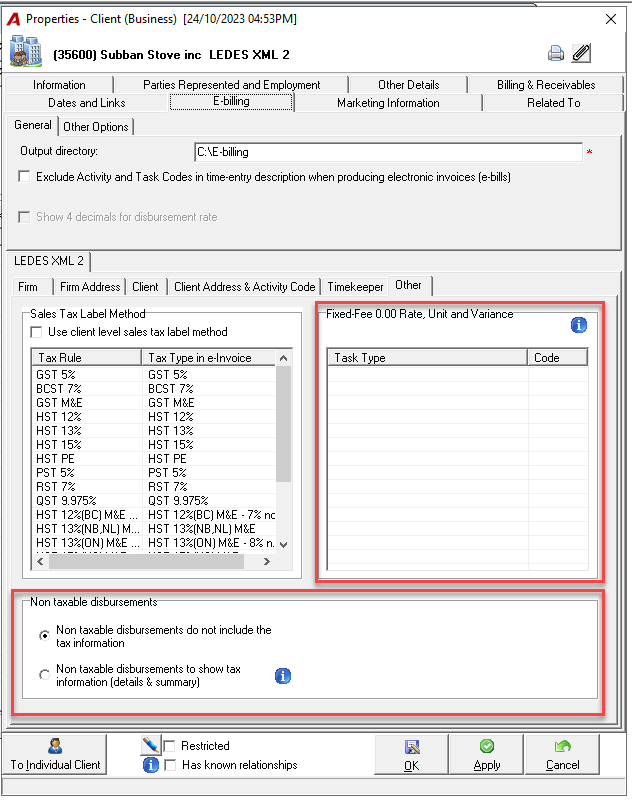
Non Taxable Disbursement Configutaiton options.
This option is applicable for client having non-taxable disbursement that needs a special code like “Tax – Exempt” code.
Task-Based Fixed-Fee presented with 0 rate, unit and Variance
This option is applicable for clients where the e-bill service provider will process entries differently depending of the task type code. For those entries, the system will present the rate, unit and variance at 0.00.