.png)
LEDES (Legal Electronic Data Exchange Standard) Oversight Committee (LOC) is an international non-profit organization that is tasked to create and maintain the open standard formats for the electronic exchange of billing and other information between corporations and law firms.
The UTBMS (the Uniform Task Based Management System) is a series of codes used to classify legal services performed by a legal vendor in an electronic invoice submission.
Law firms will use the UTBMS system (Task set) to classify their entries and then convert their invoices using one of the LEDES formats (e-billing format) into an output accepted by their e-billing client. The LEDES format available are:
-
LEDES 98B Format
-
LEDES 98BI Format
-
LEDES 2000 Format
-
LEDES XML Ebilling ver 2.0 Format
LEDES 98BI V2 format (1)
LEDES 1998B-Internatinal was developed based on the standard version 1998B format by a UK based group called LITIG to integrate the international requirements in the ebilling standard like taxes or currency for example.
LEDES 1998BI V2 is an ASCII, pipe delimited format containing 51 fields. It is not intended that the LEDES 1998BI V2 format will be modified in the future.
The format documentation was revised in August, 2014 to the extent that timekeeper classifications are referenced in the document.
For more information, please visit www.ledes.com
(1)Ledes.org, “LEDES 98BI Format | LEDES.org”, https://ledes.org/ledes-98bi-format/
Functionality in Acumin
The system captures UTBMS codes used to classify legal services at the point of time and disbursement entry. Users are prompted, based on the time and/or disbursement codes selected, with a list of possible expense and/or activity codes. Expense and activity codes must be mapped to the firm’s own code prior to posting of the entries. These specific settings can be completed within the task set section within Acumin and/or through the time and disbursement codes section in the environment menu. (For more information on time and disbursement entries, please contact Dexco in order to request the related documentation.)
The second part of the set-up relates to the specific format of LEDES 1998BI V2. While building the UTBMS task set in Acumin, the user will have to determine the format the e-invoice will be generated with in order to be accepted by the client’s system. Depending on the format selected, a tab will display listing specific information that this format needs.
Based on the client requirements, the responsible member will be required to complete the e-billing tab in client properties, matter properties and, depending on the format being used, Share Info properties of participants found at the client level, at the matter level and/or at the invoice level.
Specific to LEDES 98BI V2, the same information can be entered at the client level, matter level and participant level. Acumin will use data populated at the most granular level available – first participants entered at the invoice level, then matter level, and then client level. Matter Properties and lastly Client Properties are subsequently also verified in order for the system to determine which information to populate the file with.
Note that Dexco maintains what are considered standard LEDES formats. It may happen that an e-billing client requires specific information not included requiring the creation of a custom format. For more information in this regard, please contact Dexco.
Setting up the environment
Task Set Type
The user needs to ensure that the LEDES 1998BI V2 format the client requires is available in the UTBMS format library in Acumin.
To view the task set typem available, go under:
Environment – Matter Planning UTBMS – Task Set Type or Phase Type
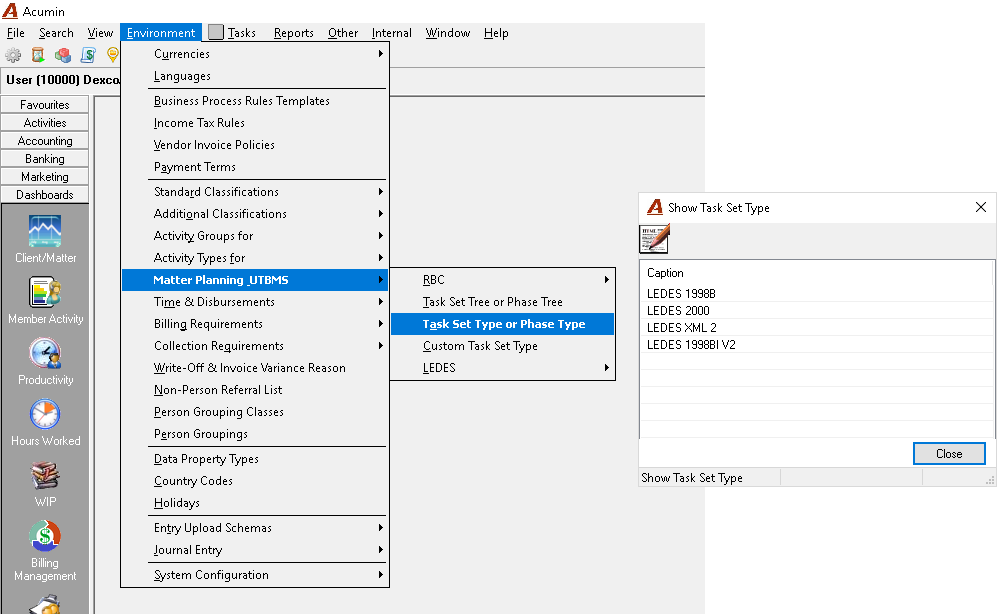
If the format needed is not in the list, please contact the Dexco team.
Timekeeper Classification
Verification as to whether Timekeeper Classifications for LEDES 1998BI V2 are set up in the environment is required. They can be found under:
Environment – Matter Planning UTBMS – LEDES - LEDES 1998BIV2 Timekeeper Classification as below.
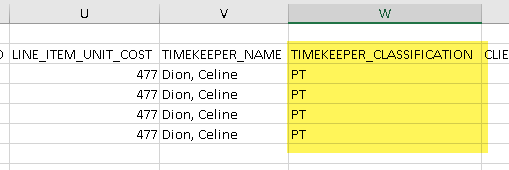
These classifications should be found in the specifications document submitted by your client or on the LEDES.org web site. You can also look into the text file sample sent by the client opening it in Excel in column “W”.

Note: New Timekeeper classifications have been introduced for all LEDES formats as of August 2014. Please refer to the link below.
http://ledes.org/revised-timekeeper-classification-codes-august-2014/
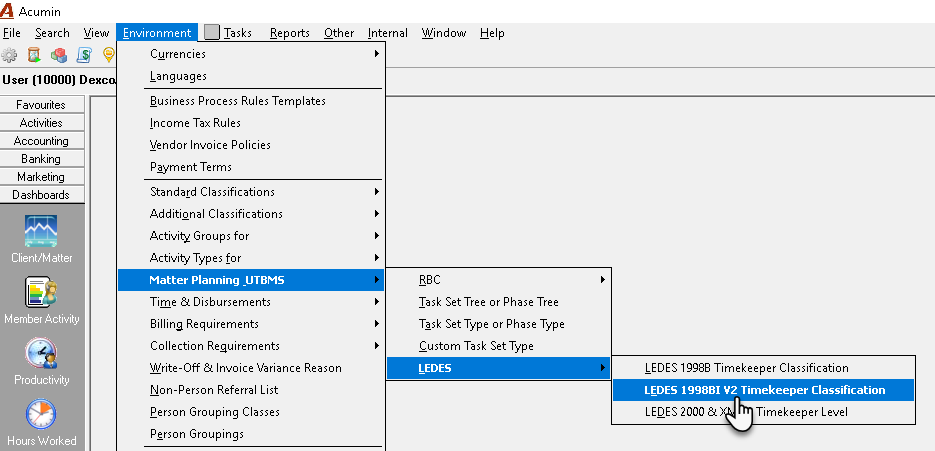
You can Add, Modify or Delete as needed:
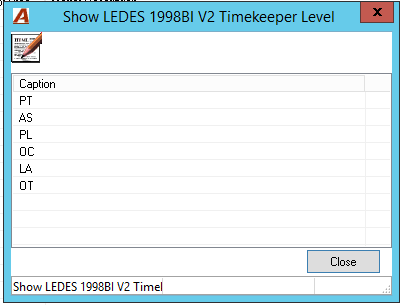
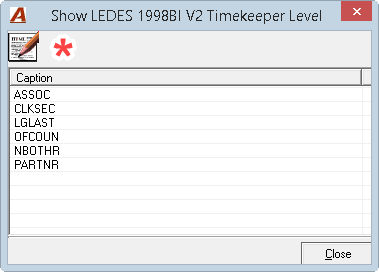
Current list of Timekeeper level. *This is the revised Timekeeper Classifications
IMPORTANT NOTE: It is possible to enter both lists if one of your e-billing client requires the current list and another the revised one. All Timekeeper level codes will then show in the Timekeeper Classification tab in your Client Properties, E-billing tab. You will have to classify each reporting classification in the Timekeeper level codes accepted by the client you are setting up.
Task Set Tree
To create a new Task Set in Acumin (or open an existing Task Set), go to:
Environment – Matter Planning UTBMS – Task Set Tree or Phase Tree
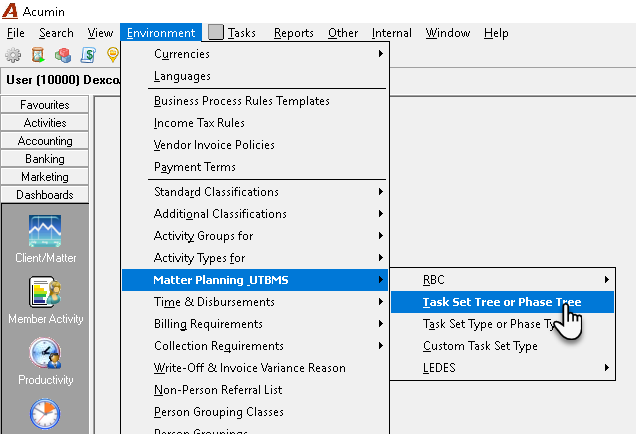
If the necessary task set does not exist, a new task set can be created by either using a task set “shell” or if suitable the properties of an existing task set.
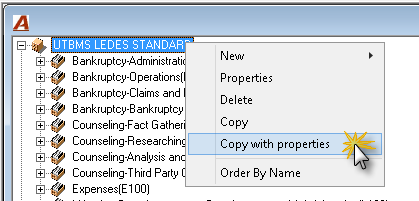
In order for users to efficiently use the Copy with properties functionality, our recommendation is for a standard task set to be created with commonly used expense and task codes already linked. When the Copy with properties option is used, the basic set-up will already be complete and the user will only have to make minor modifications to the new task set where necessary.
Open the right-click contextual menu and select Copy (to have only the name of the previous task set) or Copy with Properties (to have an exact copy of the existing task set, task codes included with all existing mapping). This copy can be easily updated. In both cases, the new task set name will be followed by “(copy)”.
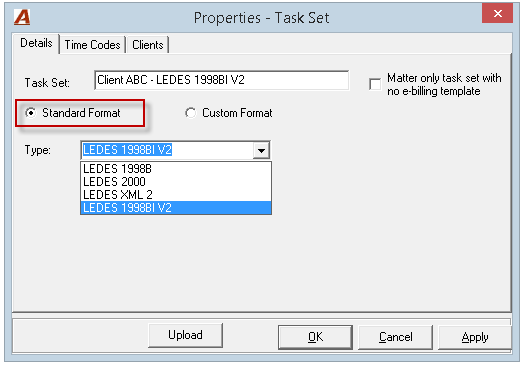
In the Task Set Properties of your new task set, rename the Task Set accordingly and choose the task set type, in this case LEDES 1998BI V2. Click OK:
The Custom format option should be selected when the format is specifically customized by Dexco. Typically, the firm has no set-up to do. Everything is done programmatically by the system when generating the e-invoice. Any changes in the custom format should be requested and completed by Dexco.
The Matter only task set with no e-billing template option is used when the firm wants to implement task set to restrict the use of time and disbursement entry codes on a particular client-matter combination. E-bills cannot be generated. (For more information about this topic, please contact Dexco for documentation).
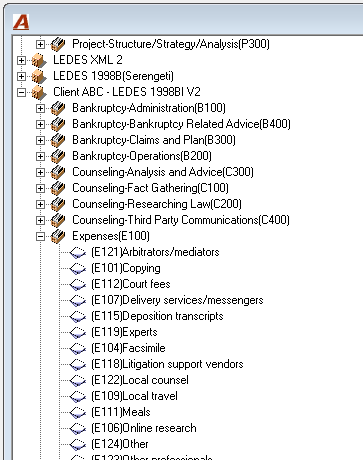
If you used the “Copy with Properties”, please ensure that the Task Type (Task Code and Expense Codes) matches with what you received as specifications from your client.
Time and Disbursement Codes
While entering time or disbursement entries for clients set with a UTBMS task set, the user will have access to a specific list of Time Activity codes (A codes) and Expense codes (E codes). These lists need to be set up when implementing the task set for the client.
Time Codes
To link the Time Activity code with a specific task set, go to:
Environment – Time & Disbursements - Time Activity Codes:
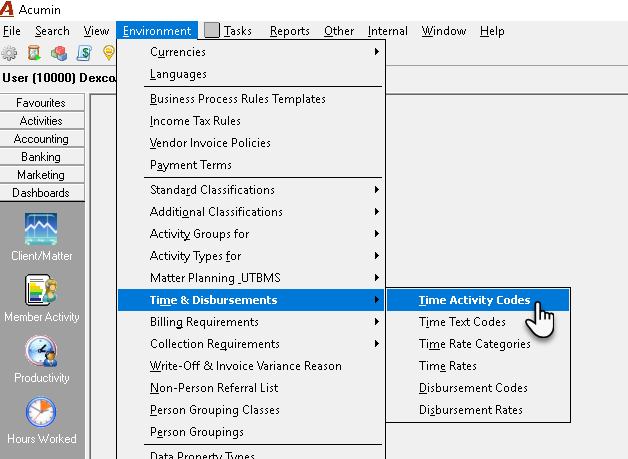
The time codes (A codes) must be linked to your LEDES 1998BI V2 Task Set. An Activity code can be linked to more than one task set.
Please note that if you used the “Copy with Properties” the time codes will already be set up, thus requiring you only to modify them if necessary.
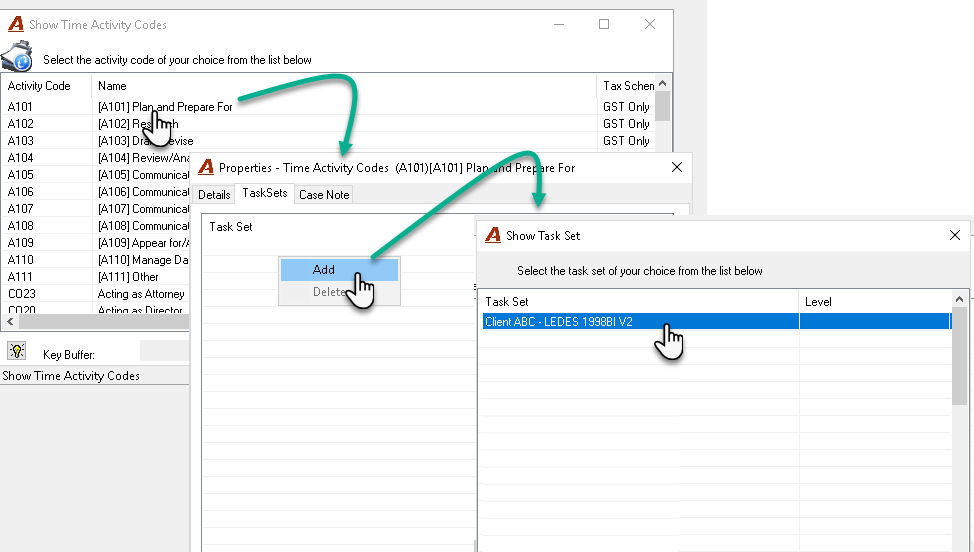
To link an A code with the task set:
-
Select the A code and right click, select Properties;
-
In the Properties – Time Activity Codes window, click on the Task Set tab;
-
Right click and select Add;
-
In the Show Task Set window, select the specific task set;
Disbursement Codes
Each E code (expense disbursements) must be linked to your firms’ disbursement codes.
To map them, go to:
Environment – Matter Planning UTBMS –Task Set Tree or Phase Tree
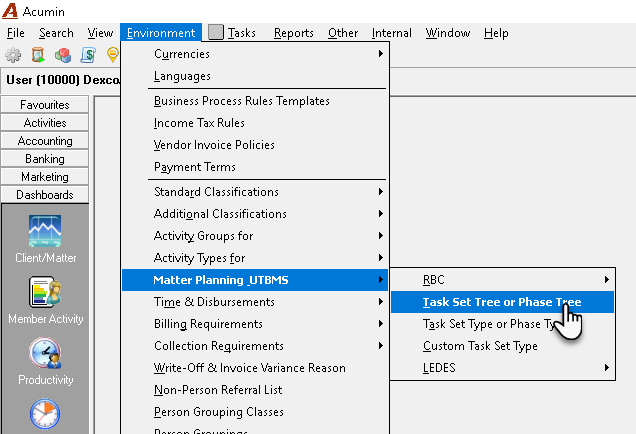
Note: If you used the “Copy with Properties” the disbursement codes will already be set up, thus requiring you only to modify them if necessary.
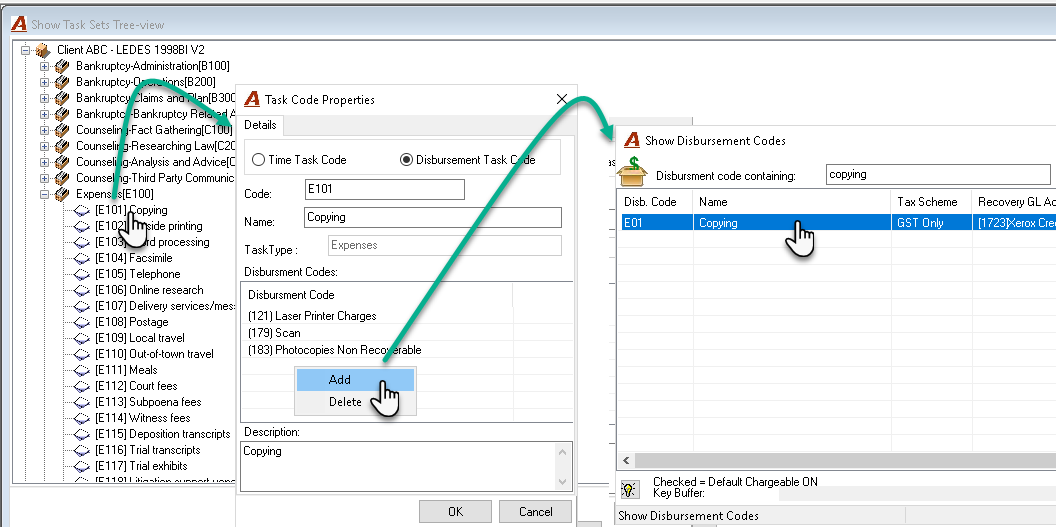
To link an expense code with a disbursement code:
-
Select an expense code and right click, select Properties;
-
In the Task Code Properties window, right click and select Add;
-
In the Show Disbursement code window, select the disbursement code;
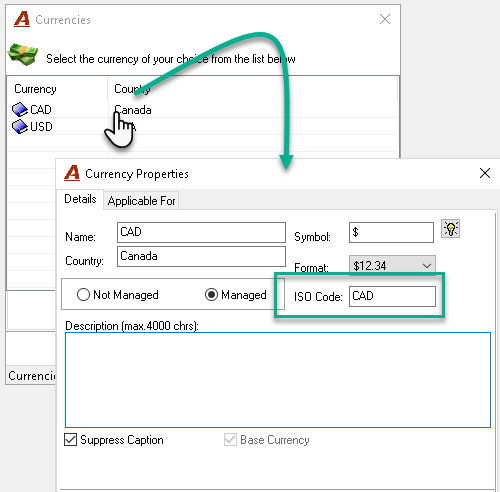
Currency Properties – ISO code
The firm has to enter the ISO code of each currency that will be used in the e-billing process. The submission currency by the law firm should contain the 3 characters ISO currency code (ISO 4217). If other code or no code is assigned, the invoice will be rejected.
To enter the ISO code, go to:
Environment – Currency
To complete the setting:
-
Select the desired currency, right click Properties
-
In the ISO code field, type the ISO code;
-
Click on the OK button
Client Properties Set up
Once the environment is set up, the next step is to set up your Client Properties.
We recommend to work with a sample of an invoice file provided by your client and open it with Excel. This will help you to visually determine what exactly is required in each colomn. (Ask for our document on how to open a text file in Excel.). You can then confirm with the specification document for each field that can also be provided by your client.
We have added at the end of each section below the letter of the corresponding Excel column for ease of use.
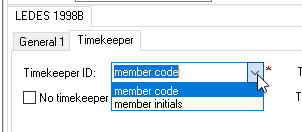
For example, if in the text file opened with excel you see in the TIMEKEEPER_ID column (“R”) a number, you can assume that they want to see the member code in this field. If you see letters, you can then assume it will be the member initials.
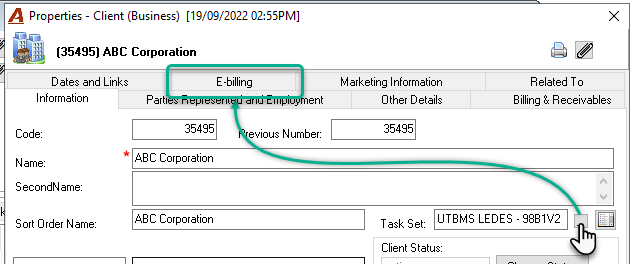
In the client properties, select a new task set linked to the e-billing system. A new tab called E-billing will appear.
Select the E-billing tab and fill-in the fields required for the electronic invoice in Acumin.
All fields are required when marked by a red asterisk (*).
General section
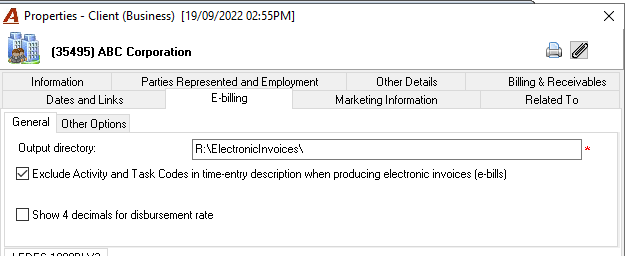
Output directory
Specify the path where all electronic invoices should be saved when an electronic invoice is generated for this specific client.
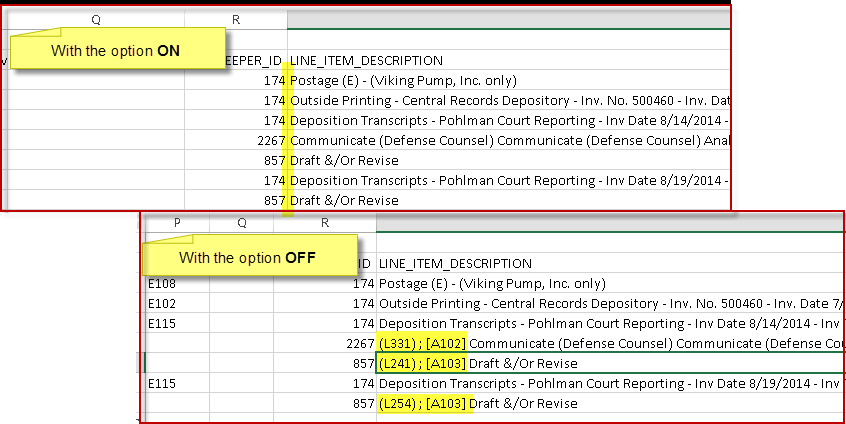
Exclude Activity and Task Codes in time-entry description when producing electronic invoices (e-bills) - column “S” in Excel
This flag will include/exclude the Activity Time Code and Task Code from the description field in the LEDES98BI V2 file only.
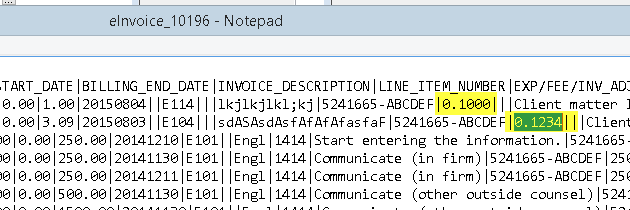
Show 4 decimals for disbursement rate – column “U” in Excel
If enabled, for disbursements set as “Cost per unit”, the e-bill output generated will show 4 decimals in the LINE_ITEM_UNIT_COST field.
Other Option tab
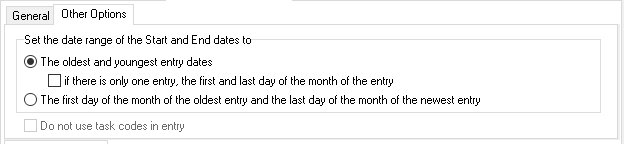
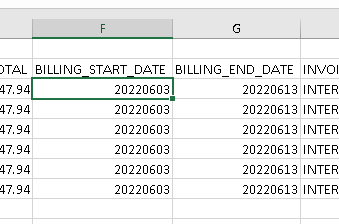
Set the date range of the start and End Dates to – column “F” and “G” in Excel
Select the option to set the date range of the Start and End date based on your client’s requirements:
-
The oldest and youngest entry dates: this is the defaulted position. The system will present in the
-
BILLING_START_DATE: the oldest entry date;
-
BILLING_END_DATE: The newest entry date
-
Use the option “if there is only one entry, the first and last day of the month of the entry” when the client’s system will not accept the same date as the Start and End date. This can happened when there is only 1 entry in the electronic invoice.
-
-
The first day of the month of the oldest entry and the last day of the month of the newest entry: The system will present in the
-
BILLING_START_DATE: the first day of the month of the oldest entry;
-
BILLING_END_DATE: the last day of the month of the newest entry;
-
Do not use task codes in entry
It is not applicable with this standard LEDES format. This option works with the custom format option
General tab
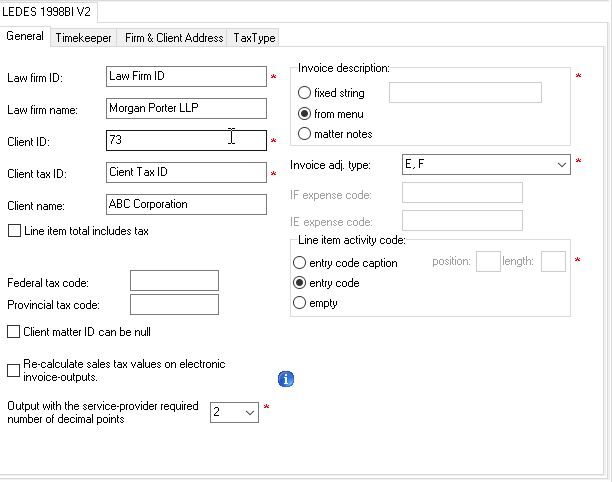
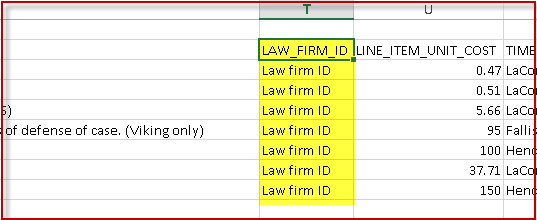
Law firm ID – column “T’ in Excel
Enter the Law Firm ID accepted in the electronic invoice: typically the tax registration number of the firm. This information is usually provided by the e-billing client.
Law firm name – column “AH” in Excel
Automatically populated by Acumin from the “Name” field in the firm properties. It can be modified if required.
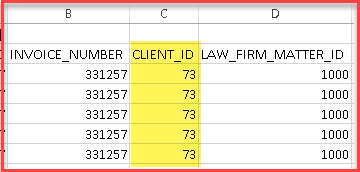
Client ID – column “C” in Excel
Enter the client ID accepted in the electronic invoice: typically the client number in Acumin.
-
The client ID is limited to 20 characters
-
It can also be used to store user defined text as needed;
Client Tax ID – column “Z” in Excel
Enter the tax number of the client.
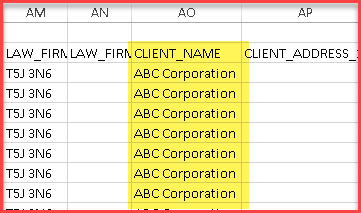
Client name – column “AO”
Automatically populated by Acumin from the client’s name field. It can be modified if required.
Line item total include tax - column “M” in Excel
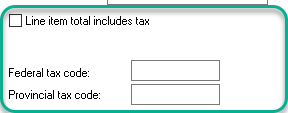
“Line item total include tax” disabled (OFF) (defaulted position):
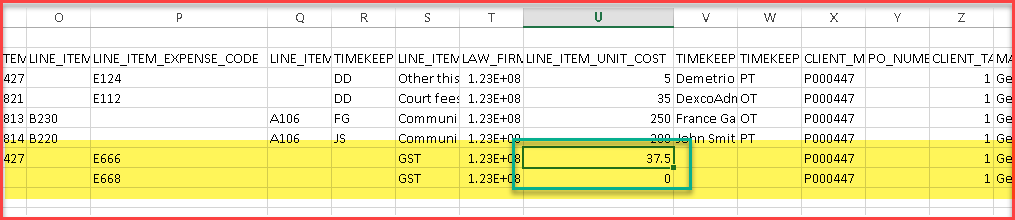
1 or 2 lines will be created at the end of the file displaying the tax amounts. The total per tax type (line) will display in the LINE_ITEM_UNIT_COST column.
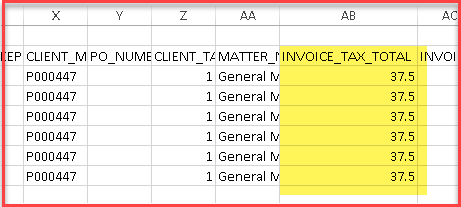
The total tax for the invoice will appear on each line in the INVOICE_TAX_TOTAL column.
-
The 1 or 2 line created will use a specific Expense code for each tax type. Those codes are usually provided by the client. Most important, they need to be created in your task set tree, in the expense section as E codes.
-
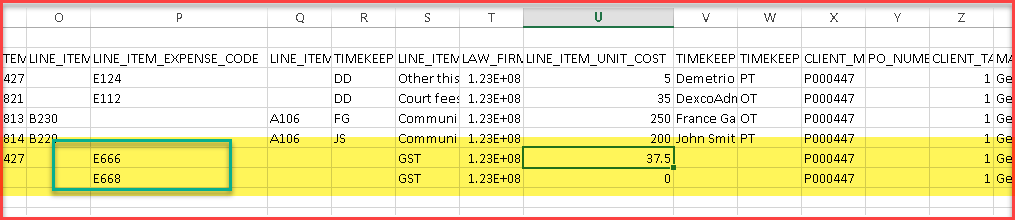
Federal Tax Code - column “P” in Excel
This field will become enable if the option “Line item total include tax” is NOT enabled. If populated, additional lines will be added at the end of the e-invoice using the related expense code.
Enter the expense code if the client requires a specific expense code for federal taxes (e.g. E666, E668 or EVAT).
-
Provincial Tax Code – column “P” in Excel
This field will become enable if the option “Line item total include tax” is NOT enabled. If populated, additional lines will be added at the end of the e-invoice using the related expense code.
Enter the expense code if the client requires a specific expense code for provincial taxes (e.g. E667)
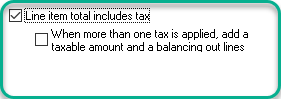
“Line item total include tax” enabled (ON):
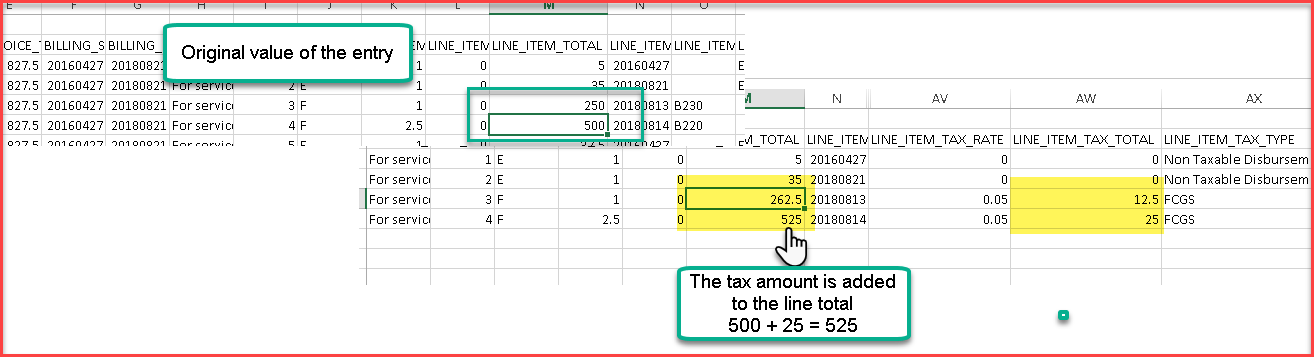
If enabled, this option will include the tax amount found in the LINE_ITEM_TAX_TOTAL column for each line to the total displayed in the LINE ITEM_TOTAL column of each line.
The system will apply the total tax percentage regardless if there is 1 or more than 1 tax applied.
For exemple:
-
12% for “HST 12%” in Ontario or,
-
12% for “GST 5%/PST 7%” for British Columbia.
“When more than one tax is applied, add a taxable amount and a balancing out lines.”enabled (ON):
This option is applicable only if the invoice combine more than 1 level of taxes and the client’s system requires to see the tax amount per tax type.
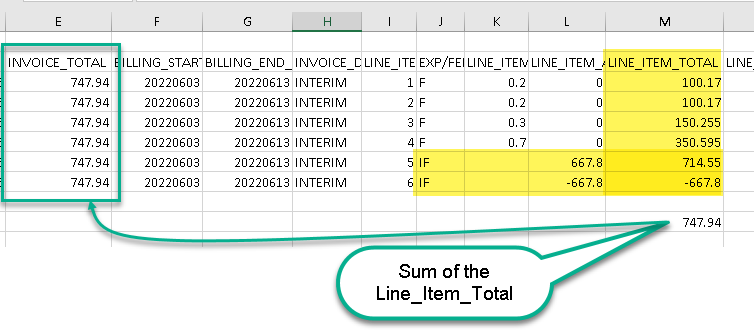
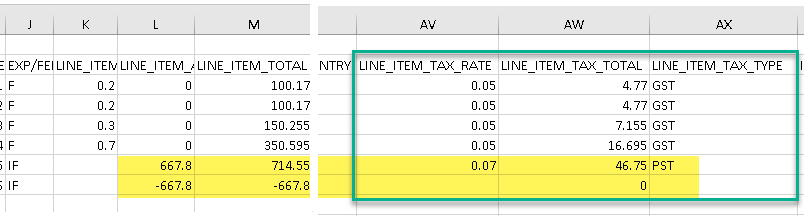
When enabled, the system will first include the tax amount of the first level of tax to the total displayed in the LINE_ITEM_TOTAL column of each line and all other tax related columns.
For the second level of taxes, 2 IF lines per entry type will be created at the end of the file.
-
First row: will show the total amount of Fees or Expenses including the total of the second level tax in the LINE_ITEM_TOTAL column. The tax rate, amount and label will be presented in the LINE_ITEM_TAX RATE, LINE_ITEM_TAX_TOTAL and LINE_ITEM_TAX_TYPE;
-
Second row will show the total amount net of taxes in negative in the LINE_ITEM_TOTAL column;
The sum of all amounts in the LINE_ITEM_TOTAL including the 2 IF lines should equal the invoice total (INVOICE_TOTAL).
Client cannot be null – column “X”
Select this option if the Client Matter ID in the Matter Properties - E-Billing TAB is not required.
Re-calculate sales tax values on electronic invoice outputs – column “AW” and “AY” in Excel
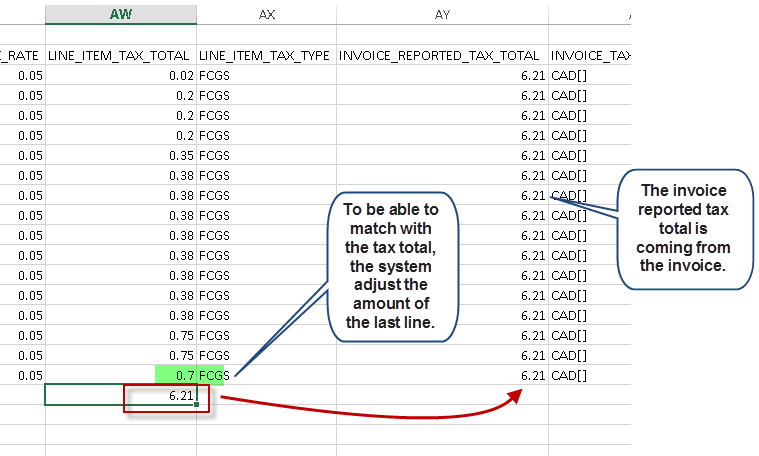
As shown below, the tax total in the INVOICE_REPORTED_TAX_TOTAL field is coming from Acumin which doesn’t calculate the tax per line while the tax amount displayed in the LINE_ITEM_TAX_TOTAL field is calculated per line at the time of the output generation.
Sometimes, because of the tax number of decimals, there will be a difference between both so to make the total of the LINE_ITEM_TAX_TOTAL fields and the total INVOICE_REPORTED_TAX_TOTAL field to be equal, the system will adjust the tax amount of the last line accordingly.
This calculation process will be generally accepted by the provider’s e-billing software if it reads only the INVOICE_REPORTED_TAX_TOTAL field. (not the content of the LINE_ITEM_TAX_TOTAL fields).
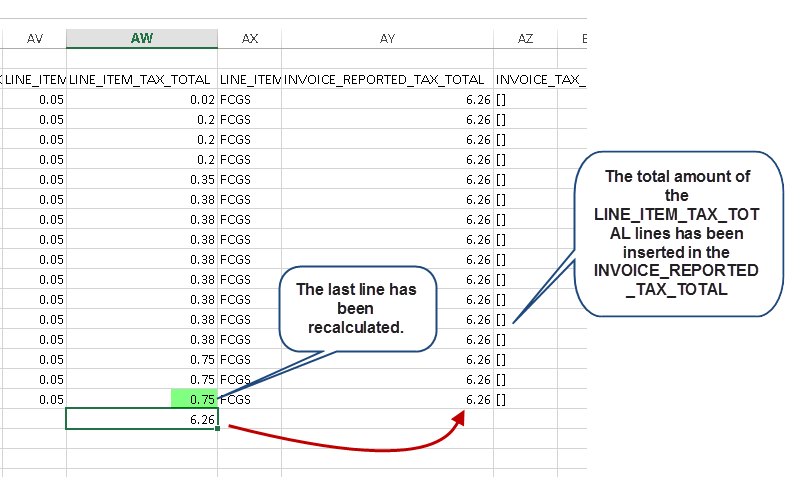
For those that read and compare both fields, we have those 2 options that will recalculate the tax of the last line as the other lines. It will also put the total amount of the LINE_ITEM_TAX_TOTAL fields in the INVOICE_REPORTED_TAX_TOTAL field. In other words, the system will not read the total tax amount coming from the invoice as shown below:
Important Note: Enabling this option can potentially cause a discrepancy in the amount submitted to the service provider compared to the amount within the invoice properties in Acumin. Depending on the situation, the variance can either be written off or dealt with as an overpayment.
Output with the service-provider required number of decimal points
In order to accommodate the requirements of different service providers, the following columns will adjust to accommodate the number of decimals specified in the drop-down menu:
-
Invoice_Total;
-
Line_Item_Adjustment_Amount;
-
Line_Item_Total;
-
Line_Item_Unit_Cost;
-
Invoice_Tax_Total;
-
Invoice_Net_Total;
-
Line_Item_Tax_Total;
-
Invoice_Reported_Tax_Total
Note that the Line_Item_Tax_Rate will always display up to five decimals and the Line_Item_Number_of_Units 2 decimals.
Invoice Description – column “H” in Excel
Enter or select the invoice description accepted in the invoice description field in the electronic invoice:
Fixed string: Enter a string of characters that will appear in the Invoice Description field.
From the menu: The system will populate the Invoice Description field with the menu item selected by the user when generating the e-invoice. (e.g. “Initial”, “Interim”, “Final”…)
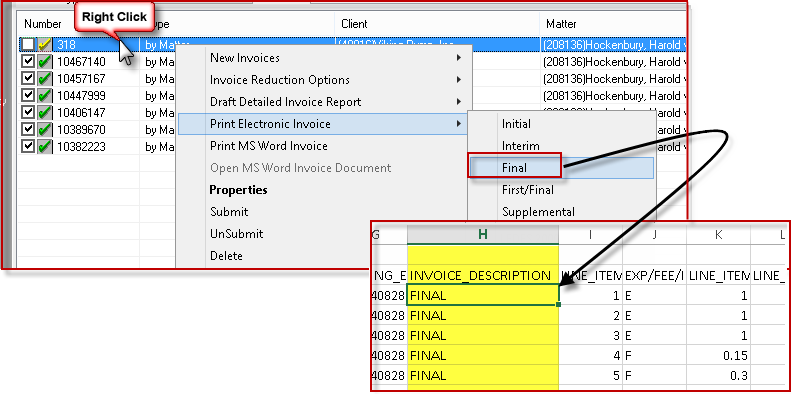
Matter notes: When selected, the content of the Description field in the matter properties will be displayed in the Invoice Description field in the e-bill output.

Warning: If this option is used, be sure that there is no return carriage in this field. This will corrupt the file and when uploaded will be rejected.
Invoice adj. type – column “J” in Excel
Select the type of adjustment accepted in the electronic invoice:
-
E, F (for expenses and fees): if selected, will not show any invoice adjustment on fees and disbursements.
-
E, F, IE, IF (IF = Invoice level Adjustment): if selected, will show invoice adjustment for fees and expenses on an IE of IF line.
In Acumin,
-
Pre-billed (anticipated) disbursement, presentation only time and disbursements, write-up and write-downs are considered as adjustments. The corresponding amount will display in the Line Item Adjustment amount field regardless of the option selected.
-
Discount is considered as an invoice level adjustment. If the client requires to see the discount as an IF line (with or without an IF expense code) in the e-invoice, the firm has to select the “E, F, IE, IF” option. If not selected, there will be no IF line, however, the invoice total will include the discount.
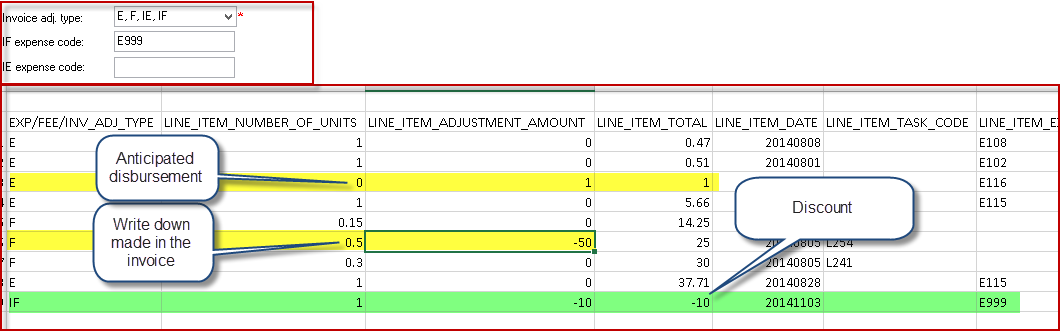
IF expense code
Enter a code to be used in the electronic invoice as an invoice level adjustment for fees (IF) if the client requires a specific expense code for Invoice Adjusted Fees.
Note: This code doesn’t need to be created in your task set tree. This field will be enabled if the Invoice adjustment type “E, F, IE, IF” is selected.
IE ex pense code (N/A)
Enter a code to be used in the electronic invoice as an invoice level adjustment for expenses (IE) if the client requires a specific expense code for invoice adjusted expenses.
Note: There is no invoice adjustment for expense (IE) created at this point.
Line item activity code – column “Q” in excel
Select the activity code format accepted in the electronic invoice. These options are dependent on how your Time Activity codes are set up in Acumin.
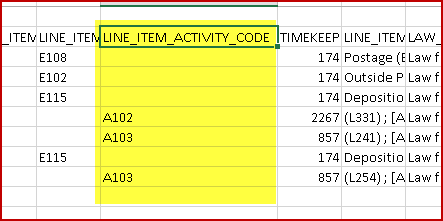
Entry code caption position X length X. : If your Time Activity Codes are set up as “[A101] Plan and Prepare For” and the format accepted is A101 in the Line Item Activity Code field, then you need to specify the position of the actual code “A101” in the description (in this case position 2 for a length of 4 characters).
For example, in the following description: “[A101] Plan and Prepare For”, we want the system to read the activity code “A101” without the brackets. Position 2 means: go to the second position “A” and length “4”: read the 4 characters = A101.
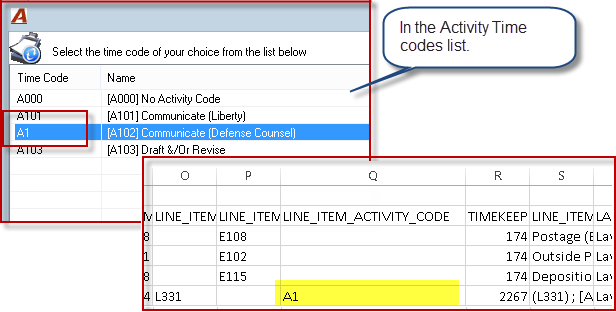
Entry code: The system will take the time code instead of looking in the description. For example: The format accepted is A1 instead of A101 and your time code are set with A1.
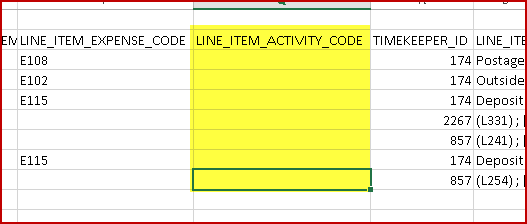
Empty (no activity code): used by clients that do not want to see anything under the Line Item Activity Code field (rarely used).
Timekeeper Tab
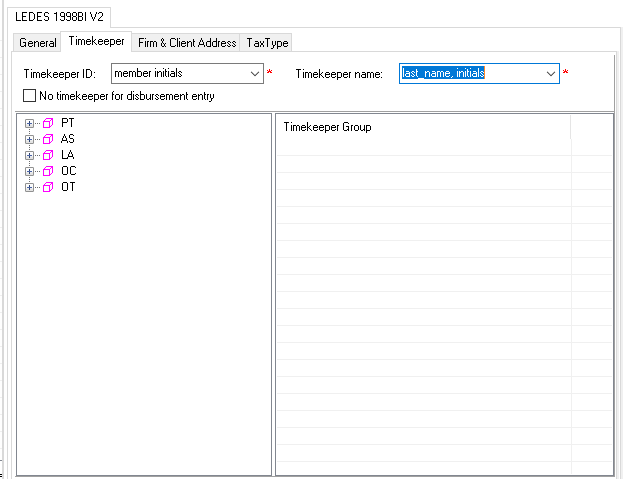
Timekeeper ID – column “R” in excel
Select the correct Timekeeper ID format accepted in the e-invoice.
-
Member Code
-
Member Initials
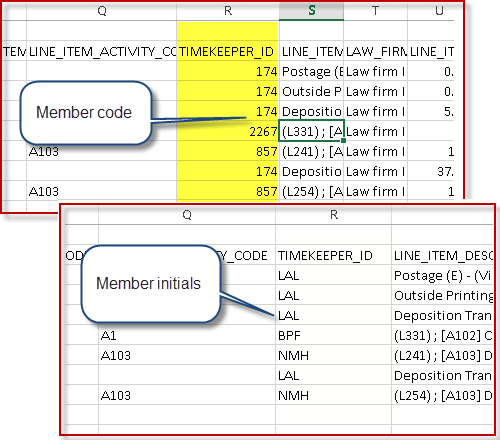
No timekeeper for disbursement entry - column “R” in excel
Select this option if the system accepts only the disbursement entry with no timekeeper in the Timekeeper ID field.
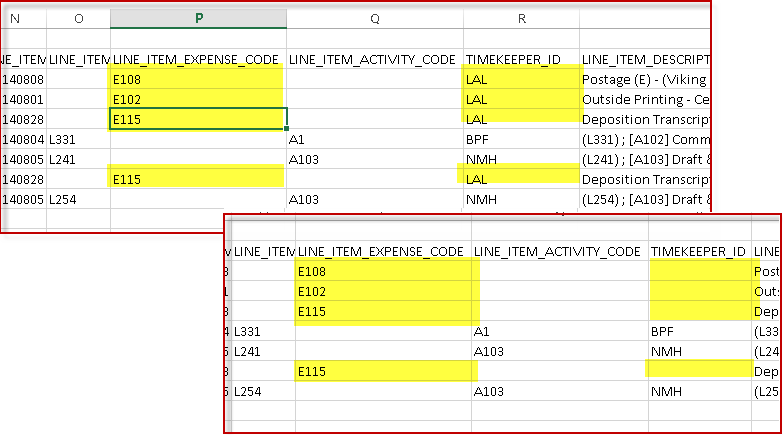
Timekeeper name – column “V” in excel
Select the correct timekeeper name format accepted in the Timekeeper name field in the e-invoice.
-
Last_name, first_name (i.e. “Dion, Celine”)
-
First_name last_name (i.e. “Celine Dion”)
-
Last_name, initials (i.e. “Dion, C.)
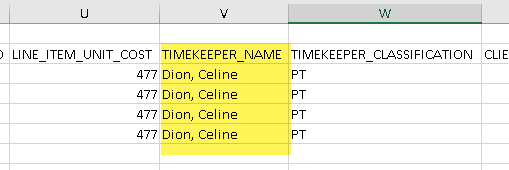
Timekeeper level classification section – column “W” in excel
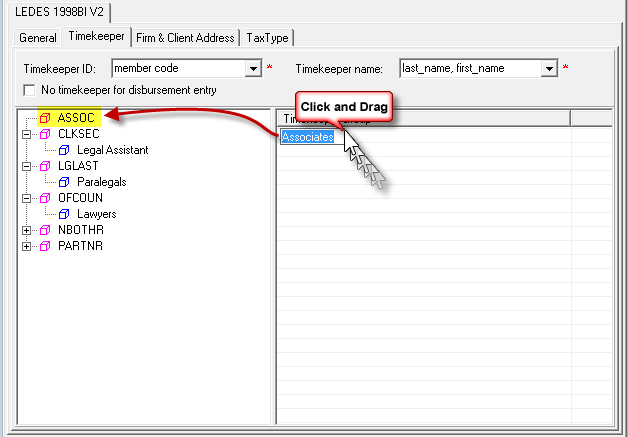
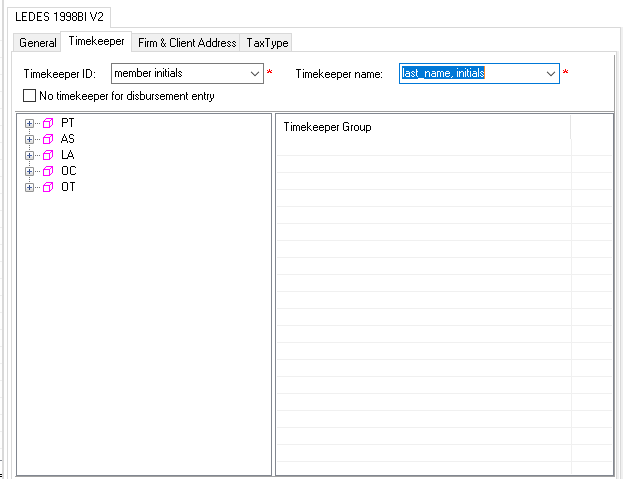
Drag and drop the Timekeeper Group into the left tree view, choose the corresponding Timekeeper Level, until no items are left in the right list view under Timekeeper Group.
There is 2 set of Timekeeper Classification codes available. Make sure to use the one accepted by the client.
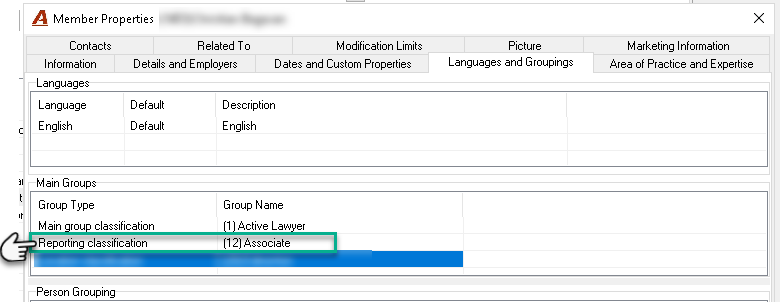
Note: the Timekeeper groups are in fact the Second Reporting Dimensions you can find under Environment – Basic Classification – Member Reporting Dimension. All members are linked with a Second Reporting Dimension. You can find this information in the Member properties – Languages and Groupings TAB - Main Groups section – Reporting classification.
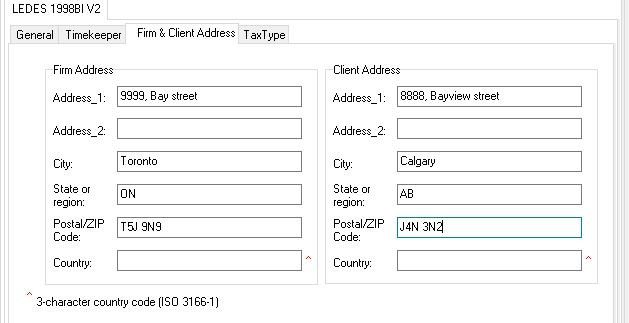
Firm & Client Address tab
This section has to be populated with the Firm’s address and the Client’s Address.
-
Firm Address: automatically populated from the Information tab, Coordinates section in the Firm properties window. Columns “AI” to “AN” in excel.
-
Client Address: automatically populated from the Information tab, Coordinates subtab in the Client properties window. Columns “AP” to “AU” in excel.
If the information for the firm or the client is different then modify it as needed.
Make sure to use the 3-character country code (ISO) in the country field. (ex: CAD)
Tax Type tab – column “AX” in excel
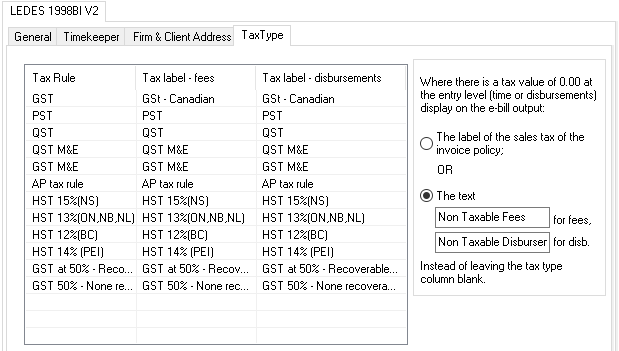
Invoice Policy Tax Labels Modification
This feature serves to accommodate clients who request specialized tax type codes to appear on their uploaded e-invoice. Under the “Tax Type” sub-tab, users can create new tax type code labels for fees and disbursements which will automatically replace the default text under the “LINE_ITEM_TAX_TYPE” column of the LEDES 1998BI V2 file. The tax type "name" listed by default in this list is the tax rule name which is specific to the firm thus not necessarily the name the client provider will recognize and/or accept.
Through this method, users can easily modify the presentation of the tax type code themselves in order to avoid the possible rejection of some e-invoices.
Here, the user can right-click on the desired tax type code and choose to customize the displayed tax type label for fees only, disbursements only , or both.
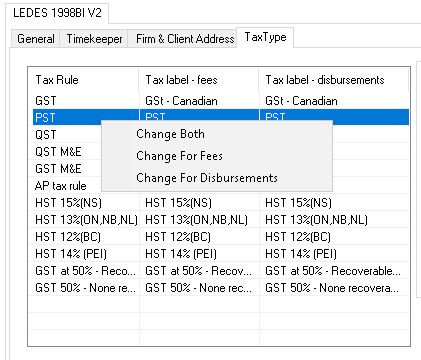
After the user enters the changes into the text field and selects “OK,” the new tax type code label will appear into its corresponding “Tax label” row.
When a user generates an e-invoice for a client whose matter uses this tax type code, the file’s “LINE_ITEM_TAX_TYPE” column will be populated with the new customized label for disbursements, fees, or both.

In the case where the invoice presents 2 levels of tax, the “LINE_ITEM_TAX_TYPE” column will be populated with the 2 corresponding tax labels separated by a comma. If the 2 tax labels are the same, it will be merged and only presented once.
Invoice Policy Tax label replacement for non-taxable entries
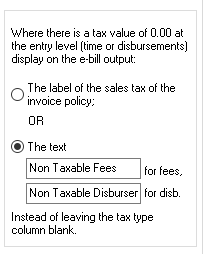
Allows the firm to specify tax type labels to be populated for non-taxable time and disbursement entries in the generated e-invoice. Typically, non-taxable entries have no tax type uploaded into the e-invoice’s “LINE_ITEM_TAX_TYPE” column leaving the column blank for entries with $0.00 tax value; yet, in the event that a client requires this column to be populated with a tax type, Acumin offers a method to meet this request.
The user can define the tax type label to be populated in the e-invoice’s “LINE_ITEM_TAX_TYPE” column for nontaxable entries. The section offers two radio buttons and two text fields for user-input.
-
Activating the first radio button will cause entries with a $0.00 tax value on the e-invoice to be assigned the tax type label of the invoice’s tax policy.
-
Activating the second radio button allows the user to define unique tax type labels for both time and disbursement entries on the e-invoice by inputting the desired labels in the text fields. If the text fields are left blank, the nontaxable entries will be assigned no tax type labels in the e-invoice’s “LINE_ITEM_TAX_TYPE” column. By default this second radio button is active and the two text fields are left blank, thereby respecting the traditional functionality.
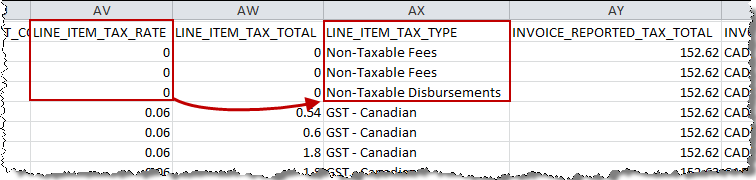
In the example provided here, the user has opted to define unique tax type labels for time and disbursement entries. So when generating the client’s e-invoice, the entries with a value of 0 under the “LINE_ITEM_TAX_RATE” column have the defined tax type labels populated into the “LINE_ITEM_TAX_TYPE” column instead of leaving the column blank.
Matter Properties Set up
The next step is to set up the matter properties for the client.
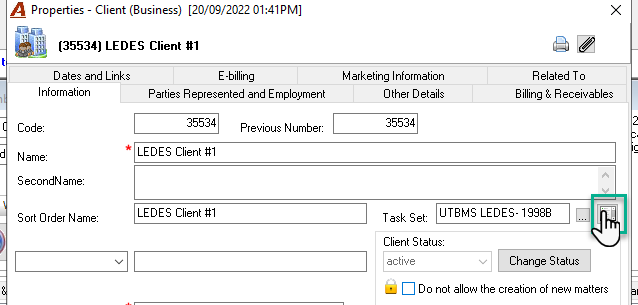
To directly have access to the e-billing matter list from within the client properties, press the List icon button beside the Task Set field.
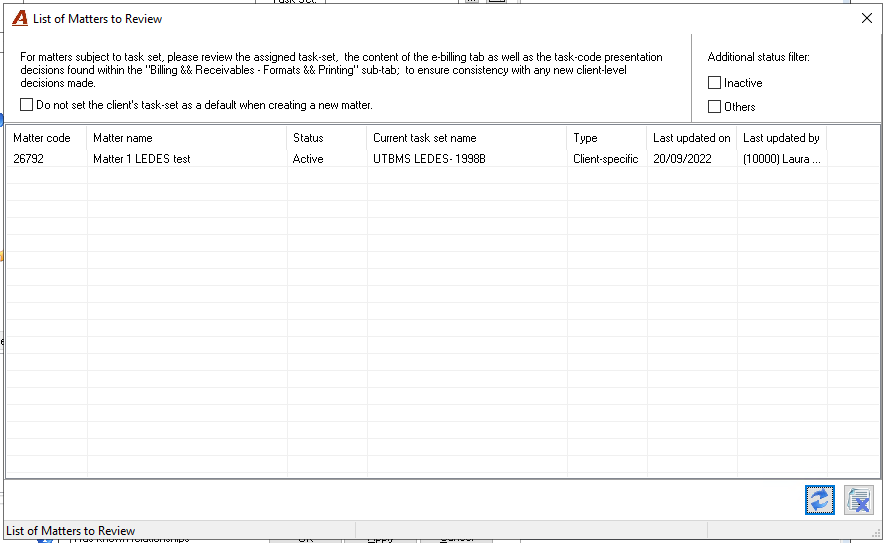
In the “List of Matters to Review” form, the system will present by defaults all matters having the status “Active” and “Temporary”. The user can directly access the properties of each matter to select the task set and complete the set-up. On exit, the list will be updated with the task set selected, etc.
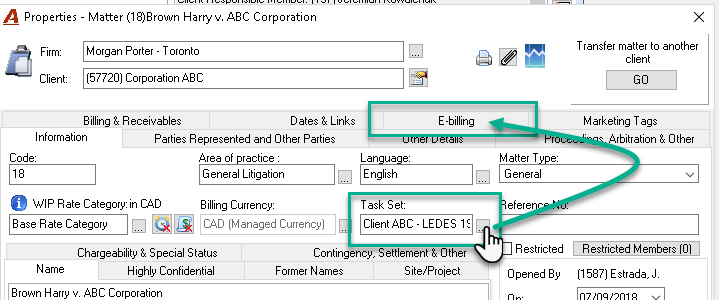
In the matter properties, select a task set for the matter. In the list, the task set selected at the client level will be displayed. A new tab called E-billing will appear.
LEDES 1998BI V2 tab
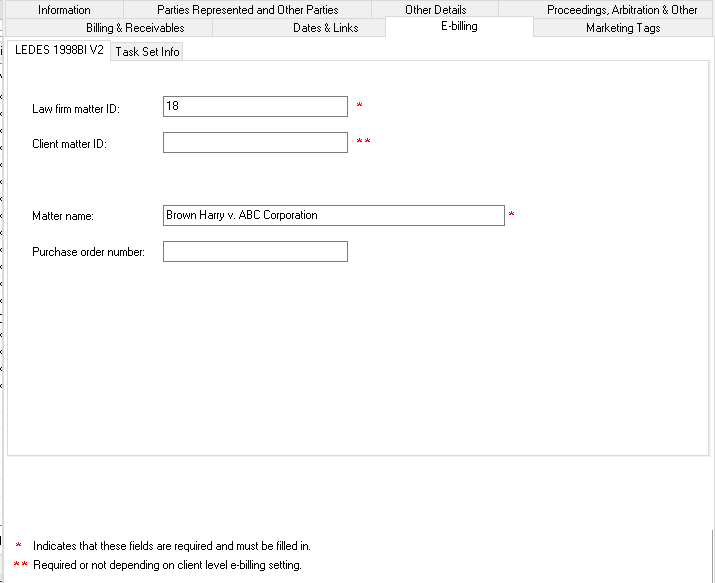
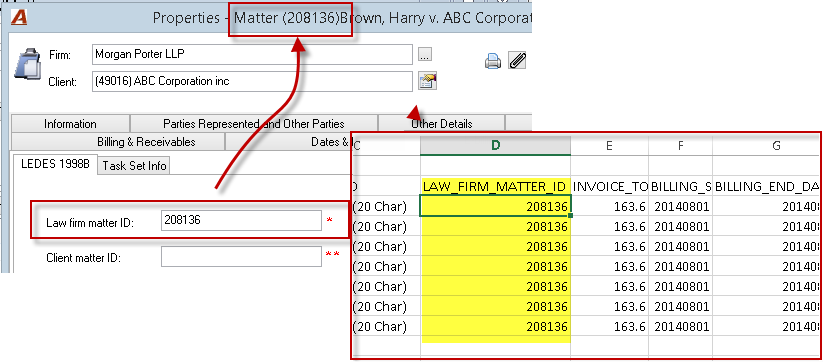
Law firm matter ID – column “D” in excel
The system pre-populates this field with the Acumin matter number.
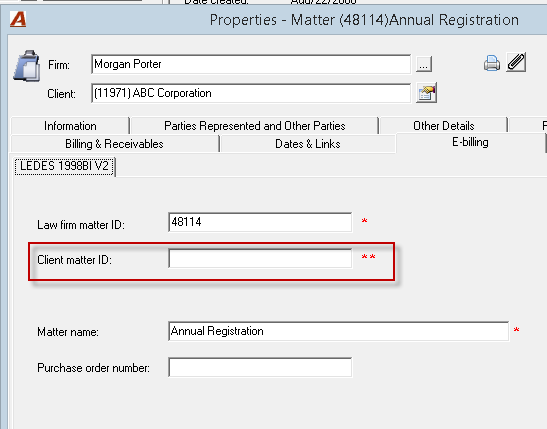
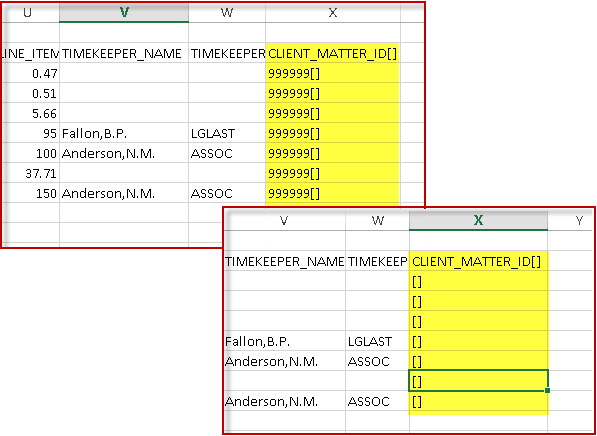
Client Matter ID – column “X” in excel
Enter the Matter ID accepted in the electronic invoice. Typically, this number is provided by the client.
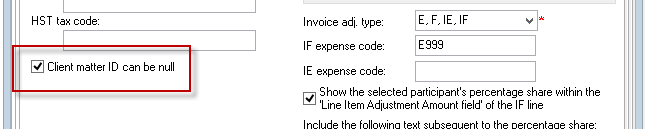
Note: For clients that do not require or do not have a “Client Matter ID”, user should check the box “Client matter ID can be null” in client properties.
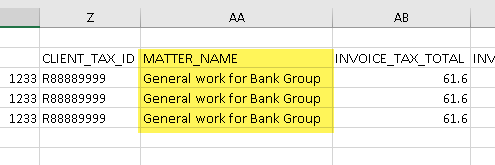
Matter name – column “AA” in excel
Automatically populated by Acumin with the Matter Name content in the matter properties. If the matter is modified after the matter’s e-billing set-up, this field will not be updated.
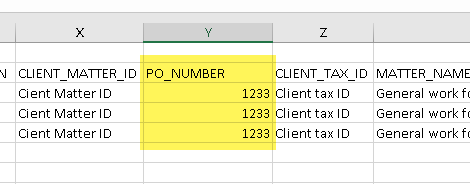
Purchase Order Number – column “Y” in excel
Enter the purchase order number provided by your client if required.
The e-bill output
At this stage, the user will prepare the invoice as it usual does for any other regular invoices. The only differences will be that each entry will present an activity and task code for fees and an expense code for disbursements. If they are missing, they still ban be
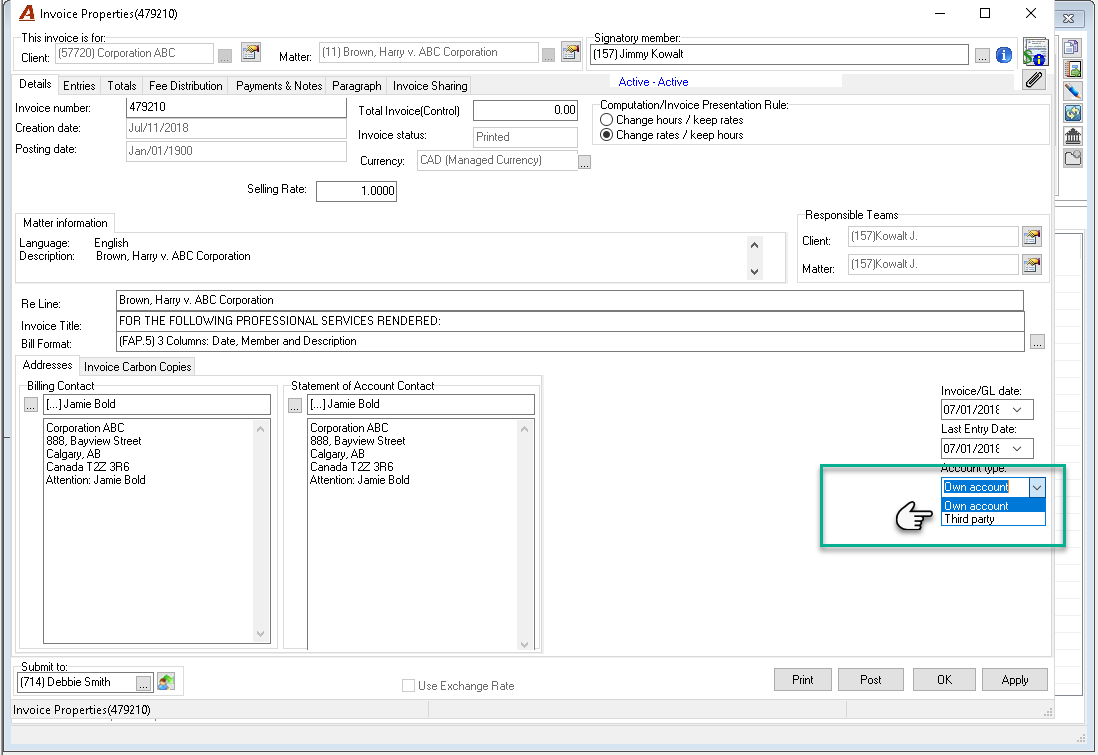
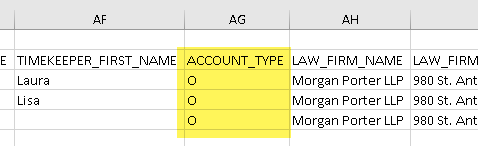
Account type selection – column “AG” in excel
Before generating the e-bill output from the invoice, the user has to select the correct Account type in the Details tab in the invoice properties.
-
Own account (“O”);
-
Third party (“T”);
Generating the e-bill output from the invoice
After completing the invoice as usual, the user can generate the e-invoice by going to:
Entries – Invoices – Show Invoice Details
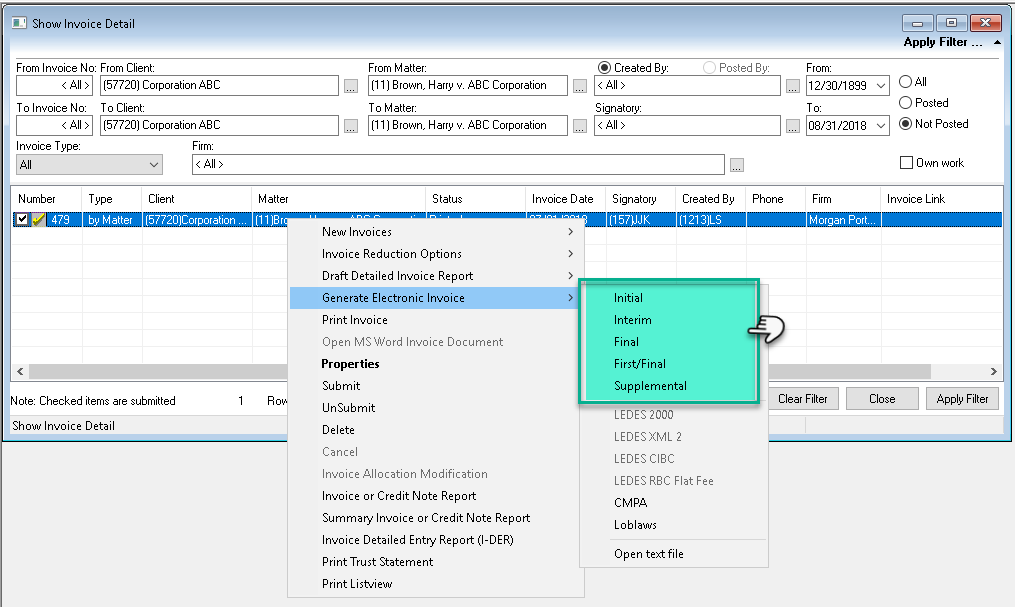
Menu option
To generate the e-invoice (text file), highlight the invoice, right-click and select one of the menu options in the contextual menu.
The user can select any of the first 5 options: Initial, Interim, Final, First/Final or Supplemental unless the “Invoice Description Shows’ option in the client properties is set at “E-bill output menu option selected”. In this case, the user will have to select the one accepted by the client. (See section Invoice Description for more details.)
Creation of the text file (.txt)
The system will prompt a message to either confirm the creation of the text file and if the user wants to open the text file.
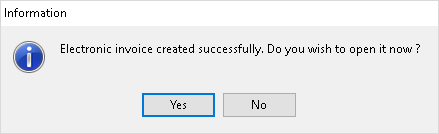
As soon as the user receives this message, the text file is saved in the folder specified in the client properties. It is ready to be uploaded to the client web site.
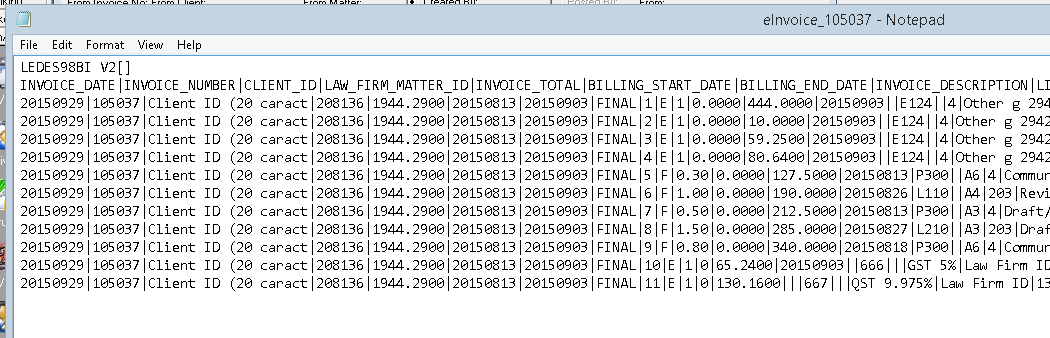
If the submitted electronic invoice is rejected, it is possible to open the text file with Excel to see the data in a more comprehensive manner. Ask for our documentation on how to open a LEDES text file in Excel.
It may happen that when opening a .txt file in Excel, the amount 1.40 (2 decimals) will show as 1.4 instead. This is related to the settings of Excel. In the .txt file itself, both (or more) decimals will show as is. To see the original file, you can open it with Notepad.
-
We do not recommend saving the text file using Excel. The electronic LEDES file needs to have “pipes” as delimiters. Ask for our documentation on how to proceed to manually modify a LEDES text file.
-
If the user has to regenerate the same text file, we recommend to physically delete the first one before proceeding.
IMPORTANT: We recommend NOT to post the invoice until it is accepted by your client’s system. This way, the user still has the ability to make changes in the invoice in the case where the invoice is rejected.
Other Information
The line order in the e-invoice is always from lowest to highest value because of the rounding functionality related to taxes. The system will always put the accumulated rounding difference into the last entry which is the biggest one.
Special options available for this LEDES format
Acumin supports the standard 1998BI V2 format but sometimes, Specuial had to be developed in order to fulfill non-standard requests. Those options are paid-for items. Please contact Dexco if you believe your client’s system requires one.
Fields in Acumin for LEDES 1998BI V2
|
|
LEDES 1998BI V2 Field |
Configurable |
Where |
|
|
INVOICE_DATE |
|
|
|
1 |
INVOICE_NUMBER |
|
|
|
2 |
CLIENT_ID |
|
|
|
3 |
LAW_FIRM_MATTER_ID |
|
|
|
4 |
INVOICE_TOTAL |
|
Output with the service-provider required number of decimal points |
|
5 |
BILLING_START_DATE |
|
|
|
6 |
BILLING_END_DATE |
|
|
|
7 |
INVOICE_DESCRIPTION |
|
|
|
8 |
LINE_ITEM_NUMBER |
|
|
|
9 |
EXP/FEE/INV_ADJ_TYPE |
|
|
|
10 |
LINE_ITEM_NUMBER_OF_UNITS |
|
Output with the service-provider required number of decimal points |
|
11 |
LINE_ITEM_ADJUSTMENT_AMOUNT |
|
Output with the service-provider required number of decimal points |
|
12 |
LINE_ITEM_TOTAL |
|
Output with the service-provider required number of decimal points |
|
13 |
LINE_ITEM_DATE |
|
|
|
14 |
LINE_ITEM_TASK_CODE |
|
|
|
15 |
LINE_ITEM_EXPENSE_CODE |
|
|
|
16 |
LINE_ITEM_ACTIVITY_CODE |
|
|
|
17 |
TIMEKEEPER_ID |
|
|
|
18 |
LINE_ITEM_DESCRIPTION |
|
|
|
19 |
LAW_FIRM_ID |
|
|
|
20 |
LINE_ITEM_UNIT_COST |
|
Output with the service-provider required number of decimal points |
|
21 |
TIMEKEEPER_NAME |
|
|
|
22 |
TIMEKEEPER_CLASSIFICATION |
|
|
|
23 |
CLIENT_MATTER_ID |
|
|
|
24 |
PO_NUMBER |
|
|
|
25 |
CLIENT_TAX_ID |
|
|
|
26 |
MATTER_NAME |
|
|
|
27 |
INVOICE_TAX_TOTAL |
|
Output with the service-provider required number of decimal points |
|
28 |
INVOICE_NET_TOTAL |
|
Output with the service-provider required number of decimal points |
|
29 |
INVOICE_CURRENCY |
|
|
|
30 |
TIMEKEEPER_LAST_NAME |
|
|
|
31 |
TIMEKEEPER_FIRST_NAME |
|
|
|
32 |
ACCOUNT_TYPE |
|
|
|
33 |
LAW_FIRM_NAME |
|
|
|
34 |
LAW_FIRM_ADDRESS_1 |
|
|
|
35 |
LAW_FIRM_ADDRESS_2 |
|
|
|
36 |
LAW_FIRM_CITY |
|
|
|
37 |
LAW_FIRM_STATEorREGION |
|
|
|
38 |
LAW_FIRM_POSTCODE |
|
|
|
39 |
LAW_FIRM_COUNTRY |
|
|
|
40 |
CLIENT_NAME |
|
|
|
41 |
CLIENT_ADDRESS_1 |
|
|
|
42 |
CLIENT_ADDRESS_2 |
|
|
|
43 |
CLIENT_CITY |
|
|
|
44 |
CLIENT_STATEorREGION |
|
|
|
45 |
CLIENT_POSTCODE |
|
|
|
46 |
CLIENT_COUNTRY |
|
|
|
47 |
LINE_ITEM_TAX_RATE |
|
|
|
48 |
LINE_ITEM_TAX_TOTAL |
|
Re-calculate sales tax values on electronic invoice outputs and Output with the service-provider required number of decimal points |
|
49 |
LINE_ITEM_TAX_TYPE |
|
|
|
50 |
INVOICE_REPORTED_TAX_TOTAL |
|
Re-calculate sales tax values on electronic invoice outputs and Output with the service-provider required number of decimal points |
|
51 |
INVOICE_TAX_CURRENCY[] |
|
|
Qualification
The maintenance of an error-free standard e-billing format library and related e-billing engine are the responsibility of Dexco and is within the scope of support; however as with all client data, any changes and or maintenance of the tasks sets, task codes and/or client and matter properties remains the clients’ responsibility. In other words, the analysis and resolution of any errors or rejections resulting from data sources - e.g.: missed information, set up errors, etc. - and / or client specific requirements beyond the standard model, and/or changes in requirements by the e-billing client, as well as any ensuing work thereof; is considered out of scope and may result in supplementary charges.