.png)
Overview
Although task-sets' are primarily used to support e-billing requirements, they are often used to restrict the use of time and disbursement entry codes on a particular client-matter combination.
Usually outlined by the organization's client, the task-set is a list of authorized-user defined task codes and expense codes with additional properties for the inclusion of the e-billing format to be used as well as other task-set level information (i.e. caption, etc.). Once the task-set is built:
-
The relevant time code properties-forms for affected time-codes must be updated with the applicable task-set or task sets. This set-up requirement will trigger the required outcome and use cases as end-users record time for the affected matter;
-
The expense codes must be updated with their applicable disbursement code. This set-up requirement will trigger the required outcome and use cases as end-users record disbursements for the affected matter;
-
The applicable client and matters are updated with the new task-set and their corresponding mandatory property fields completed.
From a practical perspective, once the task-set is completed and properly implemented in accordance with version requirements, the final end-user outcome will be as follows:
-
When entering time into one of these matters the end-user will be forced to enter or select a time code (often referred to as an activity code) associated to the assigned task-set task set as well as complete the content for the task-code field with a valid task code;
-
When entering disbursements into one of these matters the end-user will be forced to enter or select the accompanying expense code associated to assigned task-set task. Disbursement codes without the association will not be permitted and the user will be forced to select another.
The process
The following summarizes the various steps required to create, implement and use UTBMS task sets:
-
Evaluate if the task set required by the e-billing client is standard, near to standard or far from the standard UTBMS task set.
-
If it is standard, create the new task set selecting an existing one and use the "Copy with properties" option;
-
If near of standard, create the new task set selecting an existing one in your "Show Task Sets" form and use the "Copy with properties" option and modify what needs to be modified;
-
If far from standard, select the New option and create the new task set.
-
-
Complete a new task set properties and include the required task types, task codes and expense codes.
-
Identify existing time codes that can be used with the task set. To these insert the new task-set within the affected time-code properties form.
-
Create new time codes where needed. To these insert the new task-set within the affected time-code properties form.
-
Link the expense codes to existing disbursement codes. One expense code can be linked to multiple disbursement codes.
-
Assign the task-set to the affected client and matters.
Invoices for matters subject to task-set are created and processed without additional requirements, however, where the task-set is used for e-billing purposes the invoice is also generated in its corresponding electronic format.
The Task set and Related Components
Creation of a new Task set
Access
To work in this area, users need the permission "#275 - Task Set Full Access". Note that only the deletion of a task set tree will require having administration rights otherwise the user will receive a permission message #999.
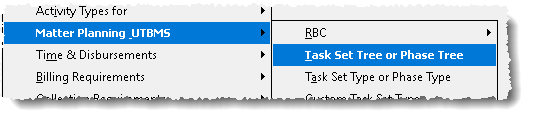
From the Environment menu, launch the Matter Planning UTBMS sub-menu option, to select the Task Set Tree or Phase Tree sub-menu option.
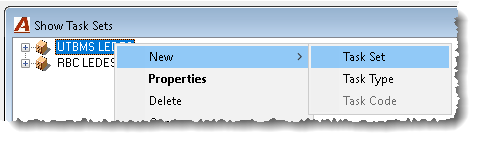
Select any of the existing Task trees, right-click and select NEW – Task Set to launch a new task-set property form.
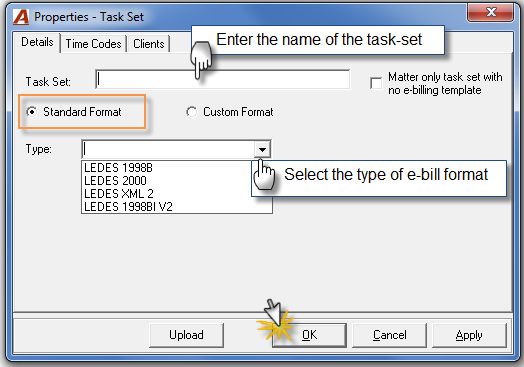
Properties
-
Enter the name of the task set. We recommend entering the client code and name with the e-billing format. For example, Client ABC – 1998B;
-
Keep the default "standard format" on. Custom format implies that a deployment of a custom format and related options was concluded within your organization;
-
Select the type of e-bill format. If the format type is not listed, please contact Dexco.
-
Press OK to accept and exit. The time codes and clients are added elsewhere.
Organizations working with task sets without the requirement to e-bill should checkmark the checkbox "Matter only task set with no e-billing requirement".
The Task Types and Task codes
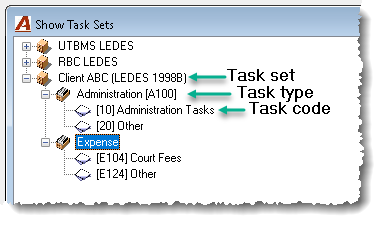
Highlight the new or existing Task-set and right-click to create required Task-types – a process typically defined by the organization's client unless the task set is for internal use-case matters.
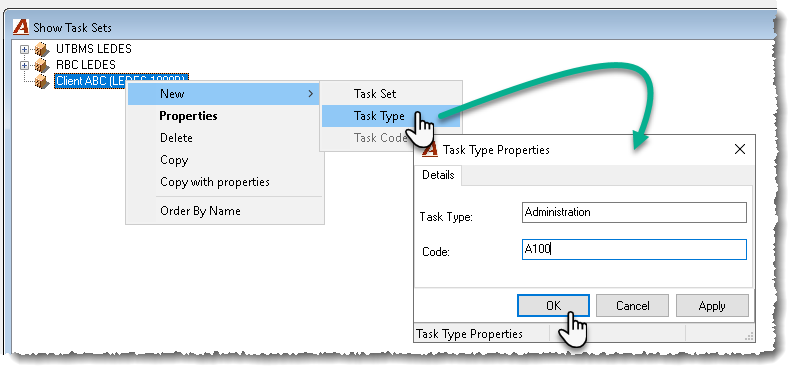
Highlight the new Task-type and right-click to create required Task-codes – a process typically defined by the organization's client unless the task set is for internal use-case matters.
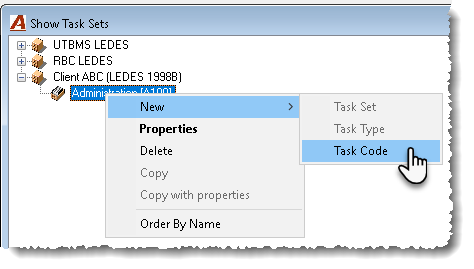
Task Codes – Applicable to time entries:
Task codes applicable to time entries are a second type of classification typically required by the organization's client. When a task-set is created for a client requiring specific time codes and disbursement codes with no requirement for further classification of time within specified tasks, the authorized user may still need to create a time applicable task code – a time-entry use-case requirement when the option "Matter only task set with no e-billing requirement" is not used within the applied task-set for the affected matter.
-
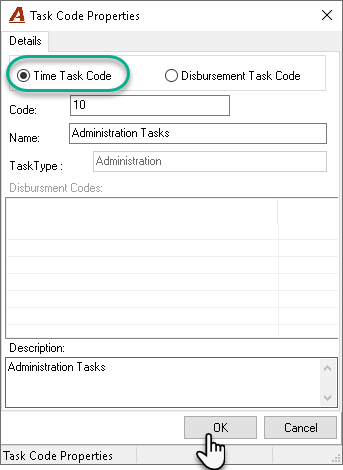
Start by completing the task codes applicable to time entries, therefore keep the "Time Task Code" option default ON;
-
Complete the code and name field – a process typically defined by the organization's client unless the task set is for internal use-case matters;
-
The description field can be used to describe the use-case for the code;
-
Press OK to accept and exit. The actual time codes are handled elsewhere.
Task Codes – Applicable to disbursement entries:
Task codes applicable to disbursement entries are a way in which the organization can re-use existing disbursement codes to restrict use cases within the affected client and matter as well as to use terminology required by the same client. When a task-set is created for a client requiring specific disbursement codes, the authorized user will need to create at least one disbursement-applicable task code and associate to the latter all of the existing disbursement codes which will be permitted for use.
-
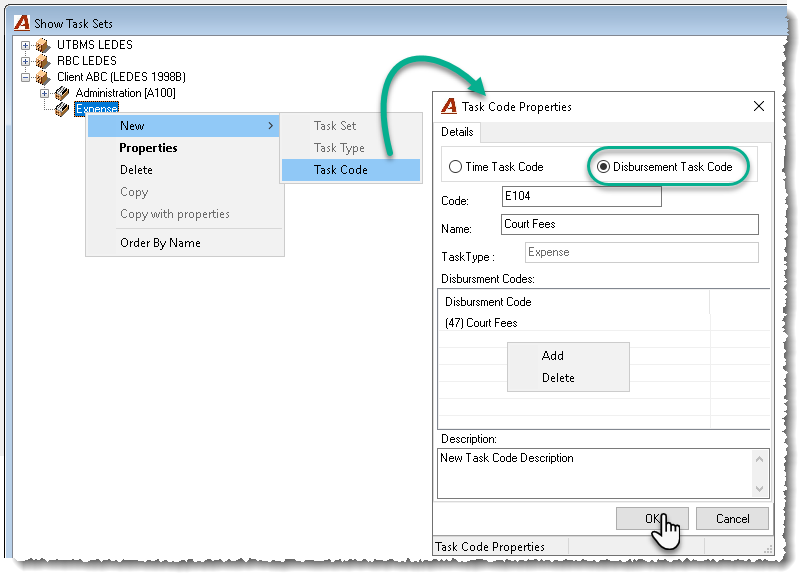
Change the "Time Task Code" default to "Disbursement Task Code";
-
Complete the code and name field – a process typically defined by the organization's client unless the task set is for internal use-case matters;
-
Add applicable disbursement codes to the "Disbursement-code" list;
-
Press OK to accept and exit.
Final Outcome:
Impact of Task-sets on Time Codes
In order to ensure that end users are limited to the selection of approved client specified time codes (often referred as activity codes) the affected time codes properties will need to be modified to include an association to the applicable task sets. As it is typical for a client specified time code to equal that for another client, the same time code properties form can be associated to an unlimited number of task sets.
Access to Time Code Properties
From the Environment menu, launch the Time & Disbursements sub-menu option, to select Time Activity Codes.

Modifications to Time Code Properties
-
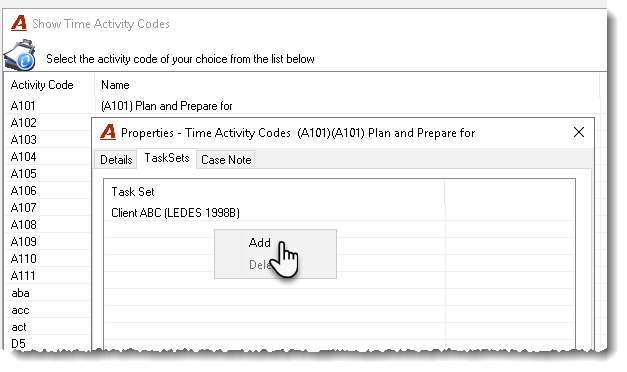
Highlight the affected time-code and right click to select "properties" and launch the properties form;
-
Click on the "Task-sets" tab to view the list of associated task sets – if any.
-
Right-click to "Add" a new one or highlight an existing one to select "Deselect";
-
Press OK to accept and exit.
The time code is now associated to the task sets included in the list, ensuring the time entries recorded into affected matters are coded with permitted time codes only.
Setting-up the client and matter
Access the client properties to associate the desired task set.
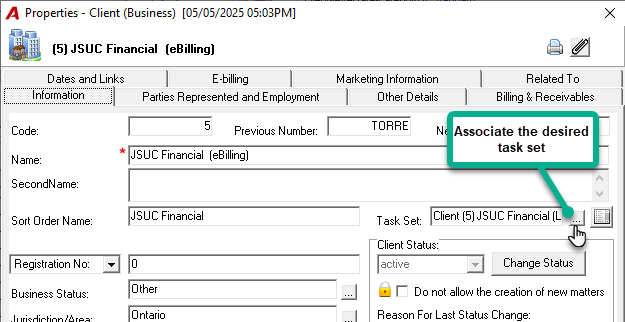
Dependent of the type of e-bill format associated to the affected task-set, the end-user will be required to complete mandatory fields found within client properties. Ask Dexco for the format specific documentation.
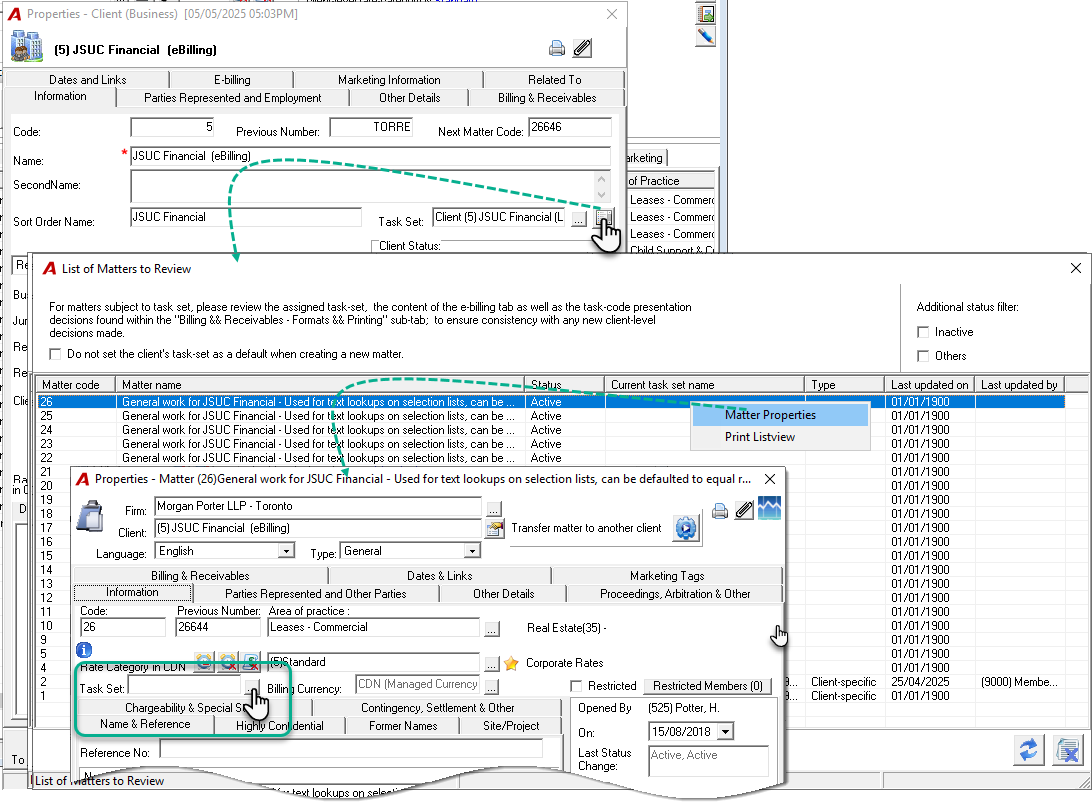
Access the matter properties from within the client to associate the same task set selected for the client.
-
New matters created for clients with an associated task-set will have the same task-set automatically assigned;
-
Existing matters for affected clients will need to be updated. Once the update is complete unbilled time and disbursement entries recorded prior to set-up and implementation will need to be individually assessed for modification, therefore it is recommended that all entries recorded prior to the set-up be billed before the new process is implemented.
Dependent of the type of e-bill format associated to the affected task-set, the end-user will be required to complete mandatory fields found within matter properties.
Use case
-
End-users recording time for a matter subject to task will be required to comply with applicable task set rules for time entries which may include the selection of an approved time code (often referred to as an activity code) as well as a task-code (a new time entry attribute);
-
End-users recording disbursements for a matter subject to task – through disbursement entry, quick payments or accounts payable - will be required to comply with applicable task set rules for disbursements which may include the selection of a corresponding approved expense code. Where the disbursement code selected does not have a corresponding expense code, the latter is considered unapproved therefore the end-user will be required to select another disbursement code;
-
The time and disbursement entry requirements of a task set affect the transfer of entries. In other words, it is not possible to transfer entries from one matter to another if their codification requirements are not compliant within source and destination.