.png)
Environment Overview
Acumin is a client server application. The client is a windows executable, and the server is a MS SQL database server. A windows share is required to host the application, and where common files will be stored. The Acumin application is launched from each user’s workstation through a shortcut to the executable, whose folder structure can be located on the windows share.
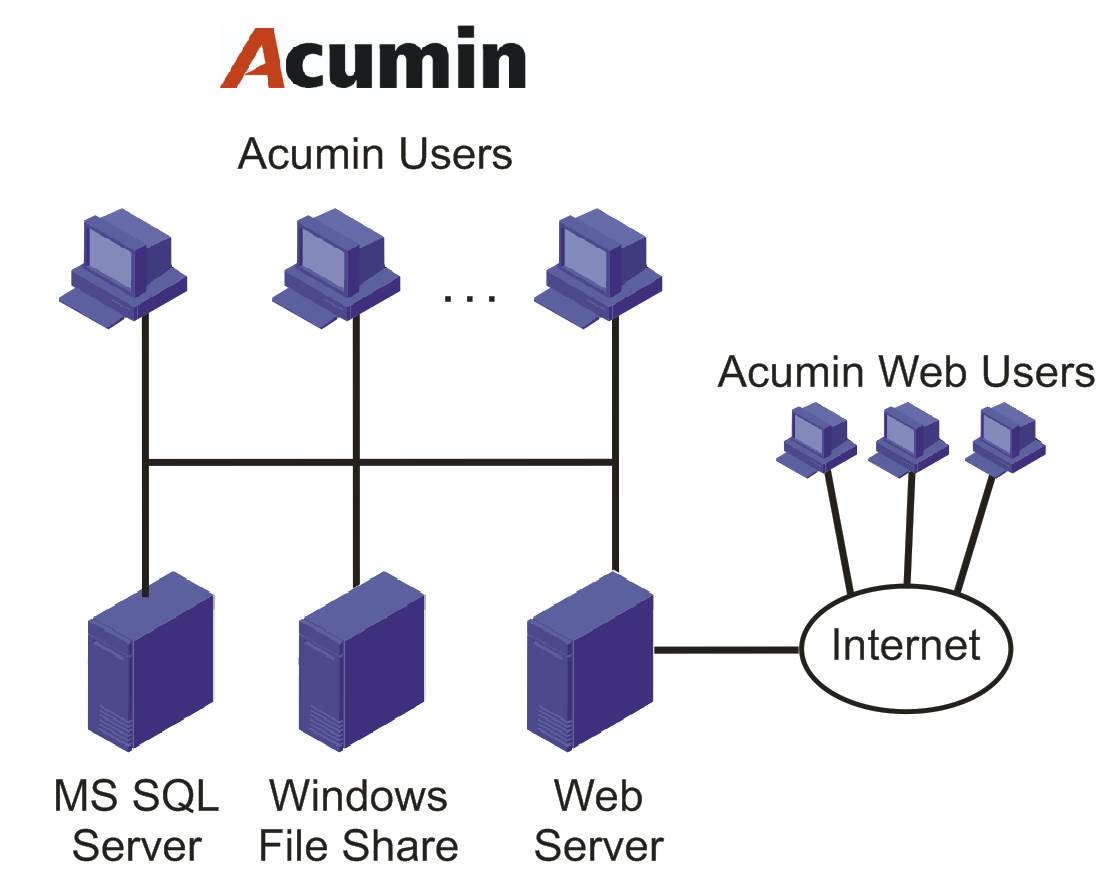
If there is more than one office location within the organization’s structure, there are two common scenarios to accommodate remote connectivity to the centralized server(s): The use of thin client/remote access products through Citrix, Terminal Services, etc. or the use of secondary file/application server.
Acumin does not run on Mac OS or Linux operating systems.
If Acuminweb has been licensed, then IIS is required. IIS will need a secure connection to the database server.
For support purposes Dexco requires a secured VPN connection with access to the database server to meet expectations under our Support model. In addition, there will be additional access requirements during the implementation process, including remote desktop access to the Acumin application/database servers and two dedicated workstations.
Application/Database Server
Note that the size of the server required is completely client dependent but does need to house four variations of the production database for various uses. These databases will be set up by the Dexco conversion and deployment teams.
|
Operating System |
Windows Server 2016 with SQL Server 2017 |
|
Processor |
For VM environments, we recommend starting with a 4 vCPU and increasing the amount if the processor queue length exceeds 10. For physical server environments, manex recommends Intel Xeon E5 or higher, or the equivalent AMD CPU |
|
Server RAM |
For Microsoft SQL Server 2017 we recommend a minimum of 32GB and increasing by 2GB per user over 10 users |
|
SSD/Hard Disk |
SQL Server 2017 requires 6GB of available hard-disk space alone to install. In addition, there must be enough room for the database as well enough to allow for future expansion. The recommended minimum for Acumin is 1TB of hard disk drive space. For best performance, we recommend the use of solid-state drives (SSD) |
In smaller environments, it might be cost effective to have the windows share on the MS SQL server. There is no constraint on where the windows share is if it is on the same physical network as the Acumin client workstations.
Client Workstations
|
Operating System |
Windows 10 Professional |
|
Processor |
For VM Environments we recommend a minimum of 2vCPU for user machines. For physical machines we recommend a minimum of at least 7th Gen i5 or higher, or equivalent AMD CPU |
|
RAM |
Minimum Acumin requirements for user machines VM or physical is 8GB for basic functionality and 16GB for demanding functions (invoicing) |
|
SSD/Hard Disk |
Acumin requires a minimum of 250GB hard disk drive space on user machines. For best performance, solid state drives (SSD) will be required for certain demanding functions (invoicing) |
These recommendations relate to the use of Acumin’s Window client only and therefore should be adjusted in accordance with other software requirements as needed.
In addition to the above, we require check printers that support MICR printing.
If output to Word and/or Excel are a requirement the versions supported are MS Office versions 2013, 2016 and Office 365.
Steps to Installation
Please refer to and complete the worksheet: “Install and Setup Checklist” as reference for the following setup steps – see reference with corresponding line item for each required action. Once completed to line 20, please return the checklist back to Dexco to proceed with subsequent steps.
Create external access to database server. (VPN or Port Forwarding) Provide Dexco instructions for connection – Ref line 2 of Checklist
For ongoing support, our development team will need to connect the development environment on their personal workstations directly to the client database. They will then have access to all the tools needed to properly trace and investigate many, often high priority, issues.
Note: During implementation phases, additional VPN accounts are requested. See step 4, 5.
If port forwarding is used, e.g. after implementation, the port can be opened on request and/or restricted to Dexco’s public IP (24.37.54.230)
Requirements during SQL Server Install. As part of this process please complete the tab: “Server” on the Checklist – Ref line 3-11 of Checklist
Provide user credentials with administrator rights to the SQL server.
If a new SQL instance will be created, please name it Acumin
Proceed with a default installation of MS SQL, the collation is required to be "SQL_Latin1_General_CP1_CI_AS".
-
As part of the installation the following features should be included:
-
Database Engine Services
-
SQL Server Replication
-
Full-Text Search
-
-
Client Tools Connectivity
-
Client Tools Backwards Compatibility
-
Management Tools – Basic
-
Management Tools - Complete
-
SQL server and Windows authentication are required
-
During SQL setup Dexco recommends as per best practices to have the data and logs on separate drives and neither on the C drive.
-
The client may choose to configure the server differently - if this is the case, we ask that the client specifies their choice.
-
-
-
Create and Share an Executables folder – Ref line 12-16 of Checklist
If multiple locations and/or use of Terminal Services or Citrix: The “Executables” folder must be replicated and shared using the same name and network drive for all users regardless of location.
Specify the mapped drive in the “Server” tab of the Checklist
-
Full share permissions for ALL users to be granted to the shared folder by the converting organization: Each user needs a mapped drive pointing to the “Executables” folder on the Acumin server. There is no preference to the drive letter selected but everyone using Acumin needs the same mapping regardless of location.
-
The “Executables” folder structure (including all but one sub-folder) must be set with “Read Only” security permissions for ALL users, except Dexco’s “Acumin” user who needs full control
-
Creation of “ERS” Folder within the “Executables” Folder:
-
-
The converting organization must create an empty subfolder labeled “ERS” and that ERS folder must have its inheritance broken from its parent and be set to “Full Control” security access for everyone. This sub-folder is used to transition client and matter file status information to the electronic disbursement software.
-
Where there are multiple locations and/or Terminal Services or Citrix is being used (i.e multiple application servers with multiple “Executables” folders) there must be only one ERS folder created in a location accessible from all application servers. A different mapped letter than the ones for the multiple executables folder should be used.
Creation of “Invoice” Folder within the “Executables” Folder that has read/write/modify permissions for all users.
-
Setup of VPN for all applicable users highlighted in the “VPN Users” tab of the checklist – Ref line 17 of Checklist
-
Access via RDP to two workstations for testing of client documents and continued setup throughout the golive process as well as a second station used for training exclusively, Acumin system setup connection and legacy software connection. This RDP access should have – Ref line 18-20 of Checklist
-
SQL access
-
Administrator rights on the workstation
-
Installation of MS Office
-
Access to the legacy application with user name and password to connect
-
Complete information tab on “RDP” and “MS Office” in Checklist
-
-
-
-
Set the trusted location in MS Word to (“Executables\Merge” folder)– Ref line 21 of Checklist.
The following configuration settings are required to be done within MS Word “Trust Center” on each workstation.
File – Options – Trust Center – Trust Center Settings – Trusted Locations.
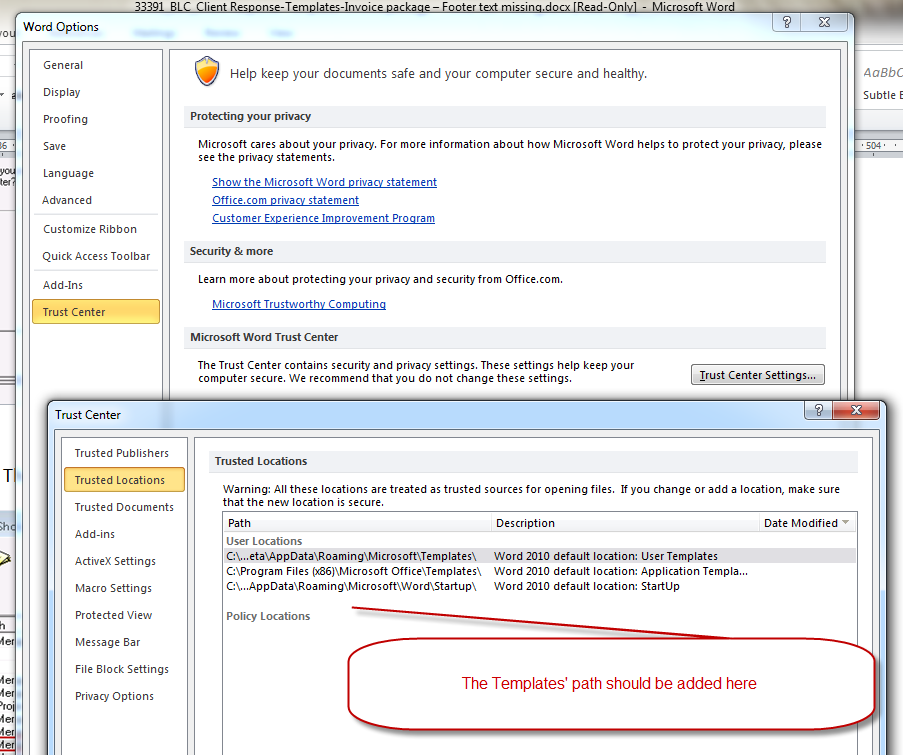
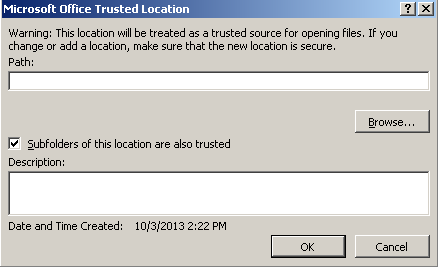
Select “Add New Location” and enter the Acumin server path of the Acumin\Merge folder and select the “Subfolders of this location are also trusted” option
-
Client to test all connection methodologies above including: VPN, RDP over VPN and SQL server management studio over VPN – Ref line 22 of Checklist:
-
The checklist and all related tabs need to be completed and sent back to Dexco to proceed to coordinate the testing of credentials – Ref line 23 of Checklist:
-
If no VPN connection is required, confirmation that the Dexco IP address (24.37.54.230) has been added to the client firewall as an allowable address.
-
-
Dexco will verify all installation, setup and connectivity based on the above.
-
If successful, the deployment team will install Acumin on the test workstation (through RDP) and the Acumin Test environment (database and executable) will be delivered.
-
Complete the installation and testing process for all workstations with the “AcuminClient Setup” found under the Acumin mapped drive setup folder. This can only occur if the Setup is run/installed with a minimum of Local Administrator rights to the PC.
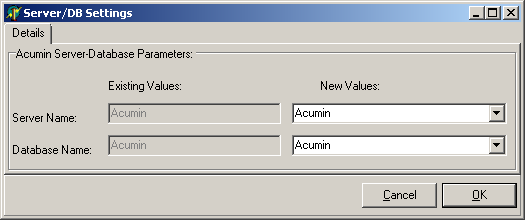
Manual Installation Process
During the installation of the Acumin Client, a component labeled “Acumin” will be installed which can be verified within the PC’s Control Panel - Add/Remove Programs section. Once the client is successfully installed, executable updates are centrally managed without further requirements for the client workstation.
From within the affected client workstation navigate to the mapped Acumin drive (“Drive letter”:\SETUP\AcuminClientSetup).
Highlight the “Setup.exe” and double click to “Execute”. The set-up process will install the necessary files and prerequisites without any user intervention.
As the set-up process does not create the Acumin shortcut, the authorized user should complete this task. The shortcut to “Acumin.exe” must point to the same mapped drive as in point 1.
Automatic Installation Process
Most clients elect to implement various methods of automated process for the distribution of the Acumin Client across their network, including the use of MSI, Active Directory and login scripts. Given the multitude of variables involved, incorporating these (or other) types of processes is left solely to the discretion and responsibility of the converting organization. Direct or indirect consultative assistance with respect to the deployment of the client setup across a network is beyond the scope of Dexco Corporation’s mandate and service offering.
Complete the workstation testing indicated in the “Test – Requirements and Instructions” documentation. Population of the workstation testing worksheet is optional.
Confirm completion of the install and testing process to Dexco by the key date indicated in the Project Key Dates documentation.
Process Following Initial Installation & Testing
Following the delivery of the test database two additional updates will be scheduled in the deployment phase:
-
The implementation database will be delivered with an updated executable based on the key date document provided. Note that in the case where a database and executable are being delivered, Dexco handles the delivery of both.
-
Similarly, the Go-Live database will be delivered with an updated executable.
Once in the Support phase (post Go-live), converting organizations will be expected to:
-
Manage deployment/updates of executable deliveries themselves through the use of an FTP link.
-
Manage the frozen database and previous software application. It is Dexco’s recommendation that the previous application database and executable be maintained for 6 months post go-live.
-
The remote desktop connection to the test workstation can be disabled post go-live.
-
Prescribed access to the SQL Server is required during the post-go-live phase for the Dexco support team to execute appropriate support and maintenance requirements, in accordance with established Dexco service protocols.