.png)
Change of Database
System Settings
Security
Users require permission #705 in the source database to be able to change accessibility to another database.
Process
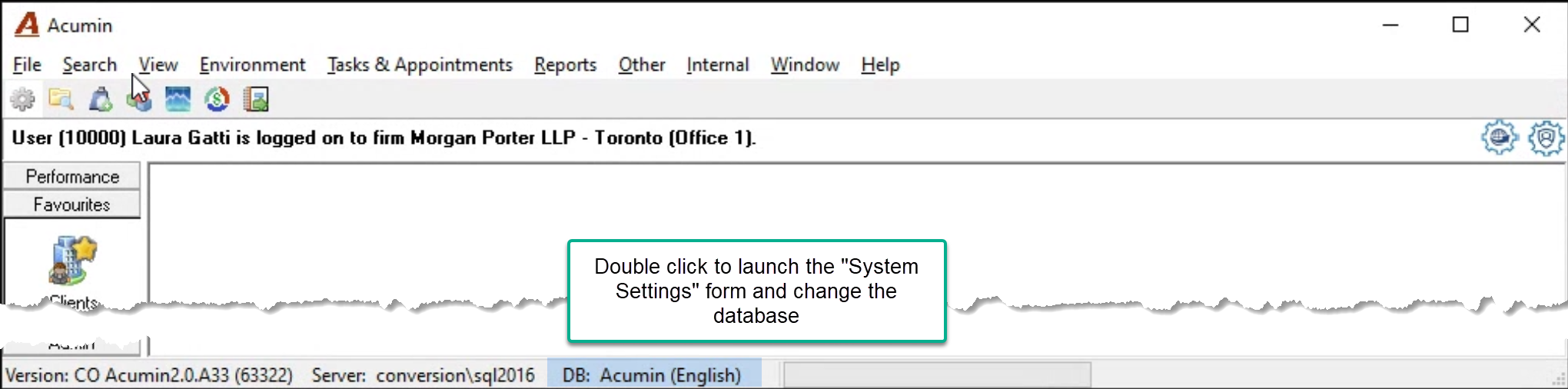
Double click on the bottom section of the main Acumin form - database name to access the “System Settings” form.
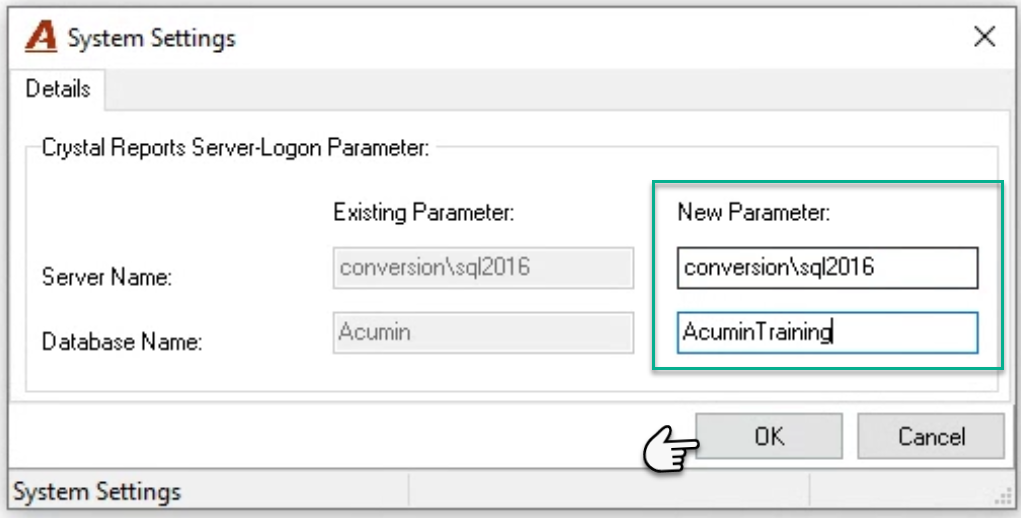
Server Name: Enter the server’s name where the database is located (if different) or tab through to change the database name;
Database Name: Enter the name of the database to be accessed – i.e. Acumintraining.
Press OK to accept.
Exit the current session of Acumin.
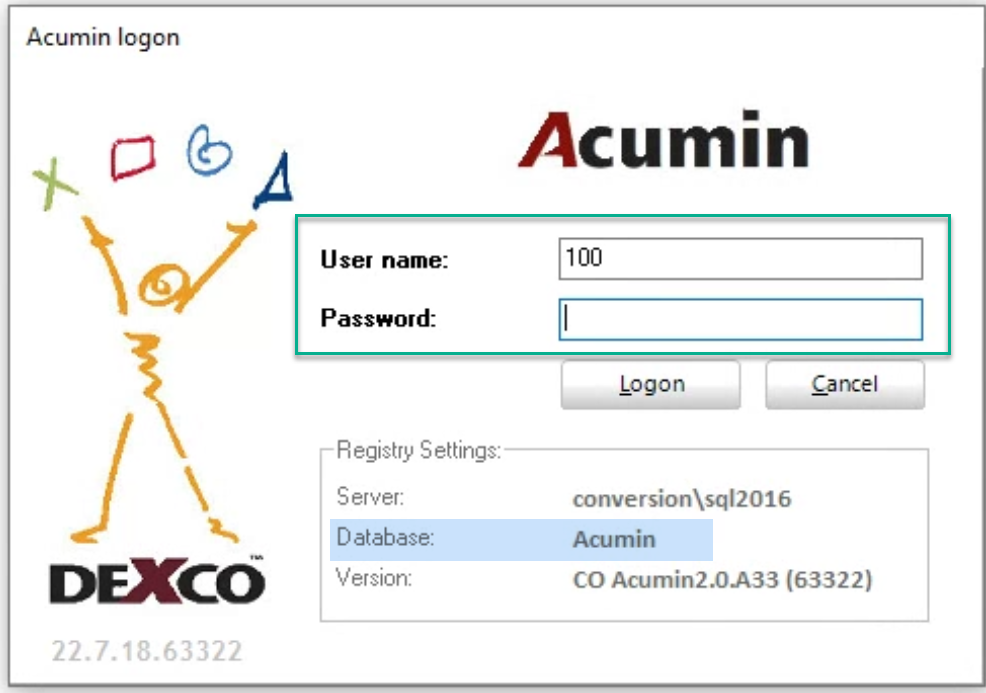
Log-back into Acumin using the normal process unless there are instruction to access the database with a different executable. The Acumin logon form will show the server’s name and database name the user will be logging into.
Enter the required username and password to log into the database. Although not typical, it is possible for a user to have a different username and or password for different databases.
Confirm the server and database – bottom of the main form.

Very Important Note
Repeat the process to return to the production database and when logging in, always confirm what database is being accessed to avoid costly mistakes.
Users toggling across databases should have permission #705 in all the affected databases.
USERNAME and Password:
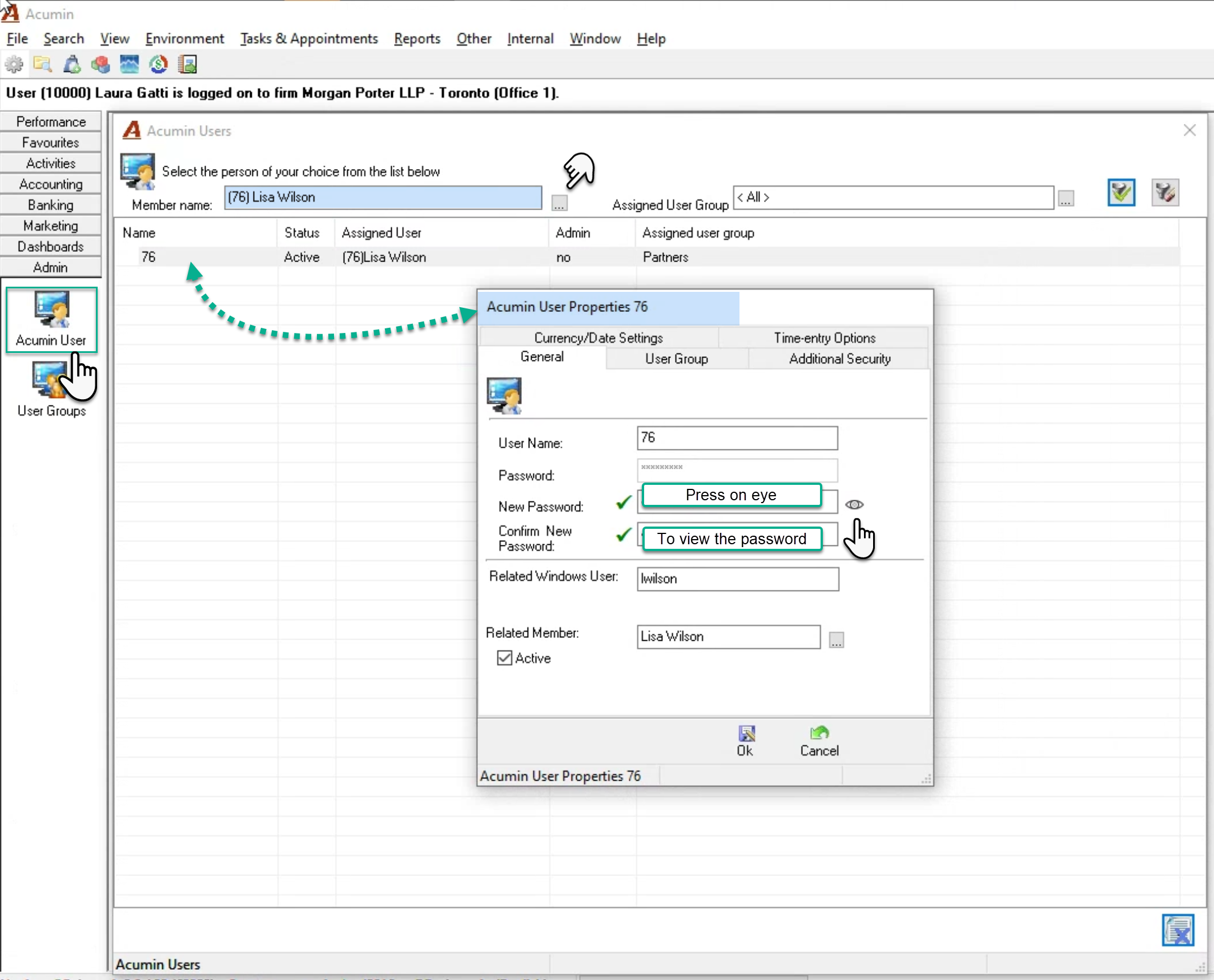
To verify or change a user’s password, press on the Acumin User icon found within from the “Admin” task bar section of the affected database. Search for and select the member and press apply to see the user-record. Open its properties to see and/or modify the user properties content which includes the user’s name and password for the database that the system administrator is logged into.