.png)
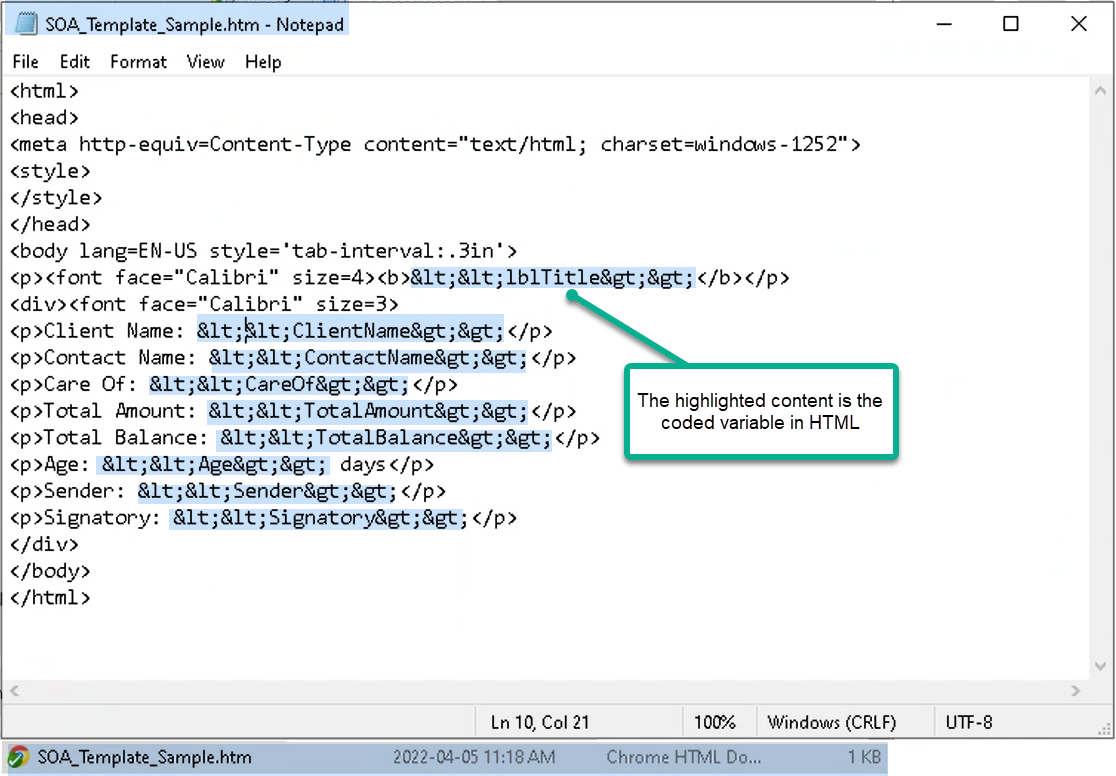
Statement of Account Email Template Variables
Opened with Note Pad the HTML email template has the below content. The items highlighted in blue are the variables included in the sample template – file name at the bottom. In notepad the HTML code is visible. This is how the variables need to show on client created email templates opened with note pad.
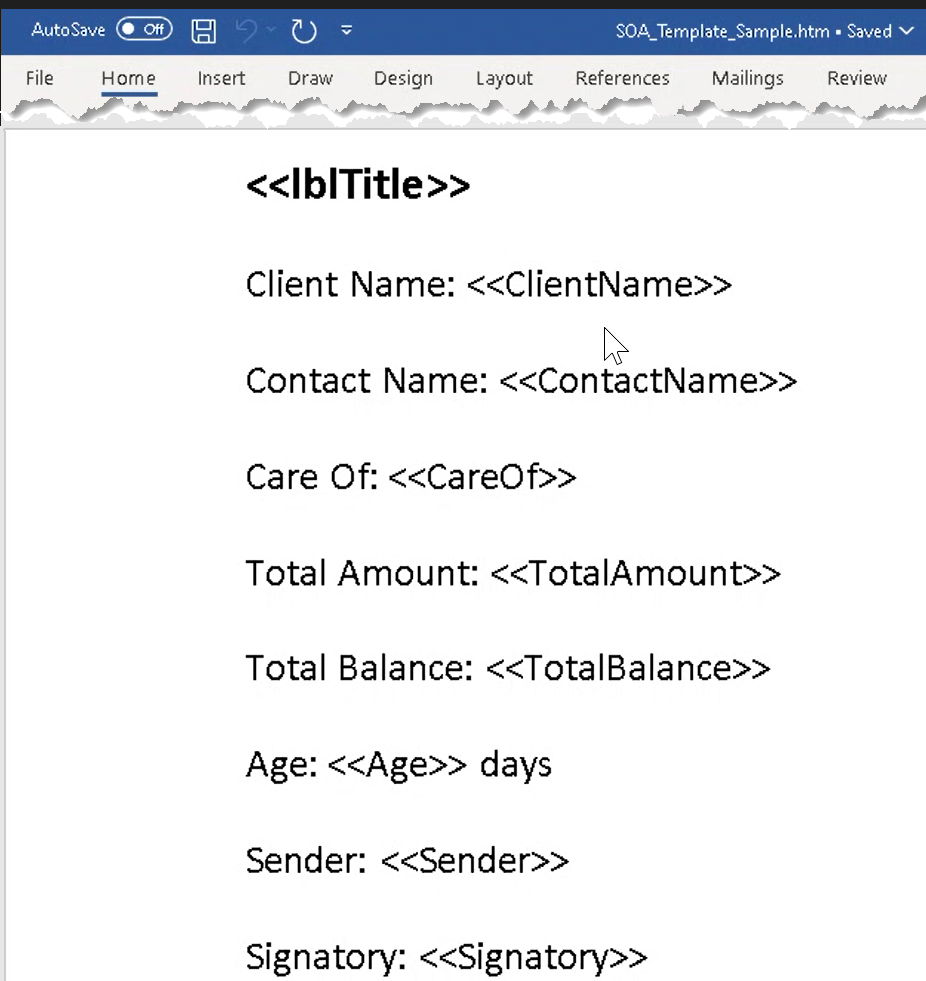
Opened with MS Word the HTML code is not visible.
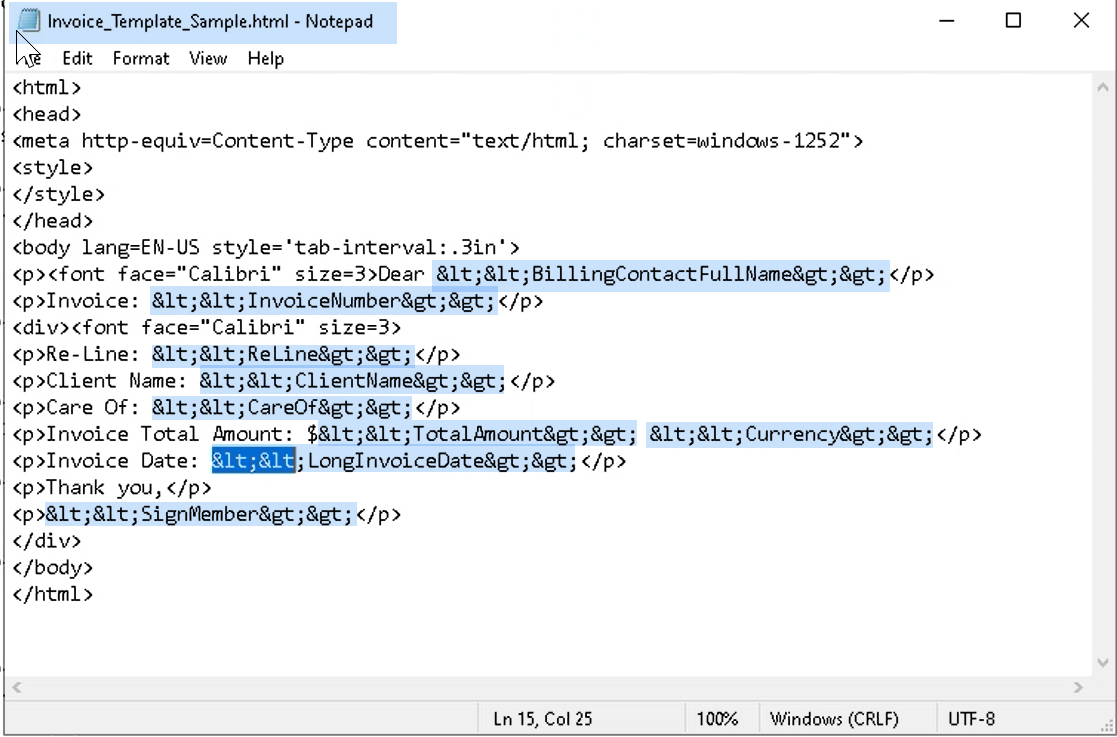
Invoice Email Template Variables
Creation of a New Template:
To create a new template users may start with a copy of the sample, saved as a new HTML file. It is possible to open the new HTML file with MSWord to make the modifications, instead of notepad.
If the variable in word is left exactly as is, it is generally successfully saved with its HTML code intact. However, it is possible that while working in MSWord the HTML code is unintentionally modified. When this occurs, the variable is not known so will not be replaced during the email creation process.
To confirm the variable as exact, and/or correct it, open the template causing the issue with Note Pad. As MSWord adds a lot of unnecessary codes, the content will be much heavier, than the sample one. Once opened look for the variables causing the issue. Once found, replace them with a precise copy of the same variable included in the original sample. Use the note pad screenshot with the variables highlighted as a reference guide to make sure you copy from where it starts to where it ends.
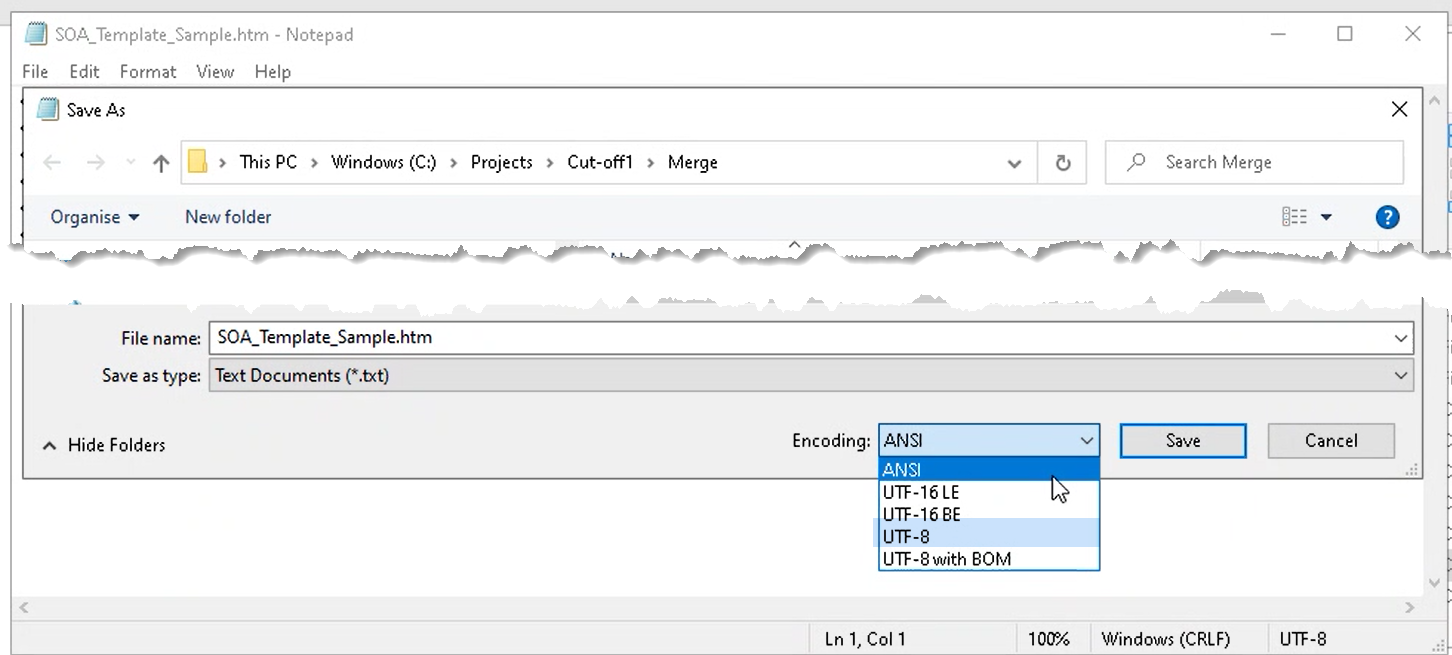
Once the modifications are made save in ANSI or UTF - 8