.png)
Acumin Web – Technical Specification & Installation Guide
🖥️ Server Side
Overview
A web server running IIS and other software requirements are required to host the Acumin Web Portal, which is a web application developed with ASP.NET that is applied to a properly configured IIS.
Acumin.Web client devices (PC/Tablet/Smartphone) must be able to communicate with the IIS server hosting Acumin.Web over TCP/IP on HTTP/S ports and require a JavaScript-enabled browser.
The Acumin Web Portal itself does not add significant resource requirements on the system; meeting the recommended system requirements for Windows and the software requirements as defined by their respective vendors. However, resources should be scaled appropriately in consideration of number of user and/or simultaneous sessions to provide acceptable performance as defined by the client.
Guidelines
The web server must have a registered domain name and a static IP address to ensure the Web Portal can be publicly accessible through the internet.
The domain name can be a sub-domain of your existing domain (i.e., acuminweb.mydomain.com) or an altogether different name.
The Web Portal will also need to be able to communicate with the Acumin SQL Database Server (represented as “Internal Servers” in the following diagram) in a secure manner.
A typical high level architecture diagram is as follows:
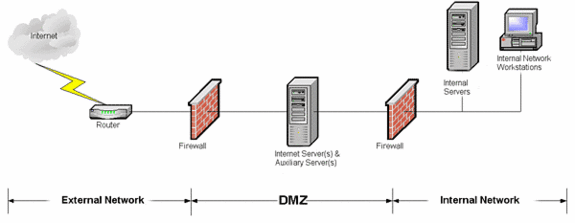
High level “best practice” requires that the Web Server should be contained within an isolated network, apart from the Local Area Network and care taken to ensure that appropriate routers and firewall configurations are in place to ensure adequate security.
It is not recommended to deploy Acumin Web as part of a load balanced cluster unless the cluster implements Sticky Sessions
Due to the variety of options and variables involved, considerations on how to implement the web server within the existing network architecture to ensure a secure environment is left solely to the discretion and responsibility of the client.
Software Requirements
The Server requirements are as follows:
Net Framework version 4.7
https://dotnet.microsoft.com/download/dotnet-framework
Crystal Report Redistributable 13 sp32 Runtime (64-bit))
https://www.tektutorialshub.com/crystal-reports/how-to-download-and-install-crystal-report-runtime/
Microsoft Report Viewer 2015 Redistributable Runtime Package
https://www.microsoft.com/en-us/download/details.aspx?id=45496
-
IIS version 10 with ASP.NET 4.7 installed
-
SSL certificate for the website
-
Access to the Acumin MSSQL database server.
-
For IIS server minimum requirement please refer to the Microsoft website.
The extra IIS hardware resources required to run Acumin.Web:
Minimum:
-
Additional memory: 4GB
-
Free space on hard drive: 150MB
Recommended:
-
Additional memory: 8GB
-
Free space on hard drive: 250MB
Deploying AcuminWeb on IIS
-
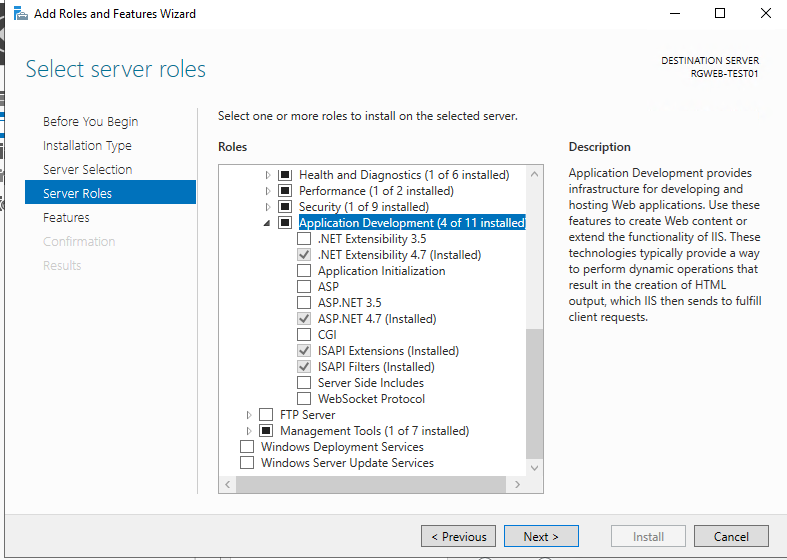
Setup IIS server Roles and Features
-
Default settings are used, but please ensure these features under Application Development are enabled on your IIS server
-
-
Ensure all Runtimes listed in “Software Requirements” above are installed.
-
Create the folder and subfolder C:\webapps\Acumin\
-
Download AcuminWeb.zip file from our ftp server, or provided link, and extract contents to C:\webapps\Acumin
-
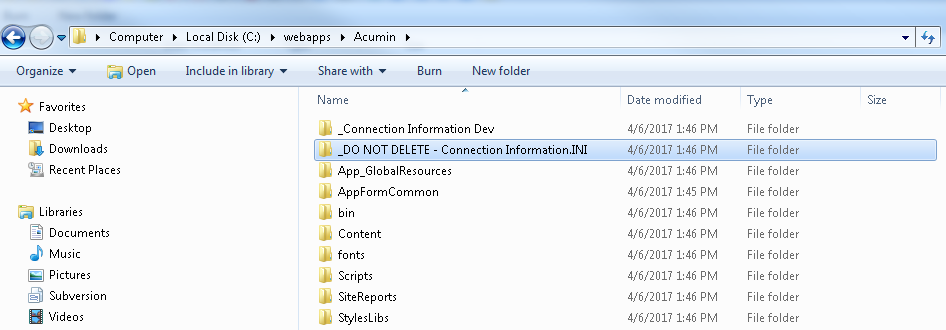
Remove the extension “.INI” from the folder named “_DO NOT DELETE - Connection Information.INI”, so that it is named _DO NOT DELETE - Connection Information.
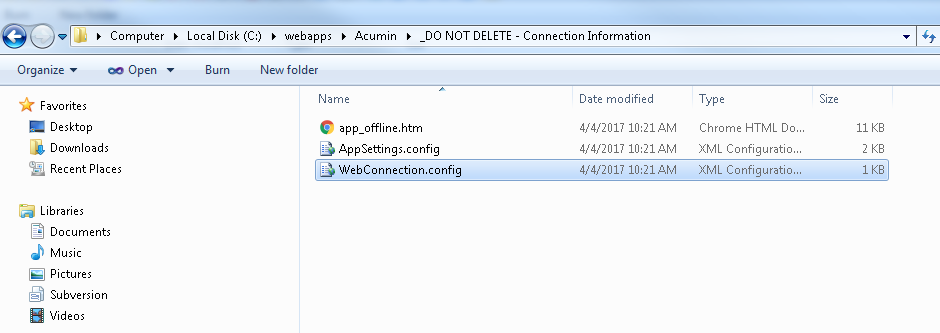
Using a text editor like Notepad, open the file “WebConnection.config” under the folder C:\webapps\Acumin\_DO NOT DELETE - Connection Information
-
Find “Data Source” within the <connectionStrings> section, and replace the highlighted values with the appropriate names:
-
As Data Source, replace “ServerName” with your database server name
-
As Initial Catalog, replace “DatabaseName” with your Acumin database name
-

Be sure to save the file with the .config extension, not .txt
(Optional) How to modify the session Timeout value for AcuminWeb
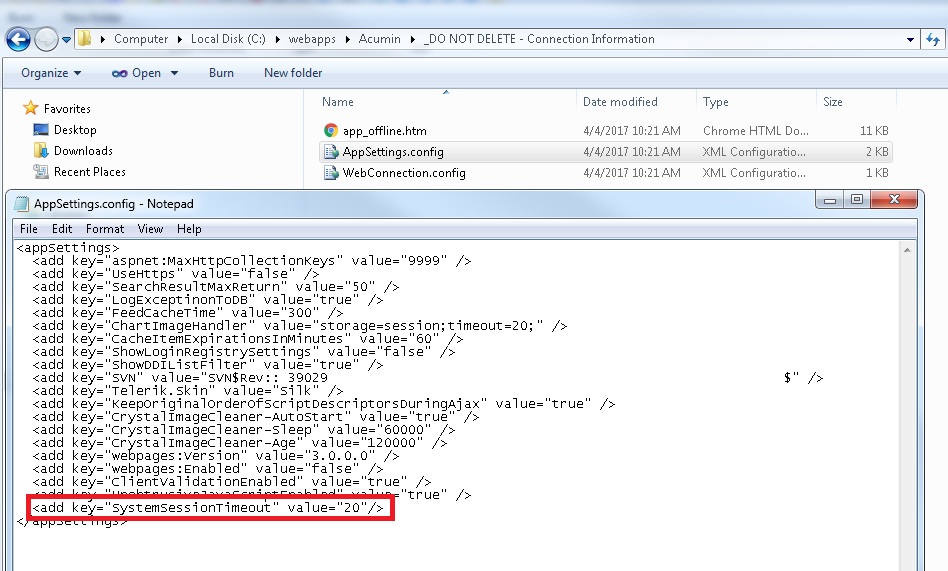
A user’s session in AcuminWeb will time out after a period of inactivity. After this time, any attempt to continue using the application will be redirected to the login page. The default timeout setting for the web session is “20” minutes. If you wish to increase/decrease the session period timeout, this can be achieved with the following steps:
-
Using a text editor like Notepad, open the file “AppSettings.config” under the folder C:\webapps\Acumin\_DO NOT DELETE - Connection Information
-
Modify with the new value to replace number “20” (measured in minutes) in the line highlighted in the screenshot below.
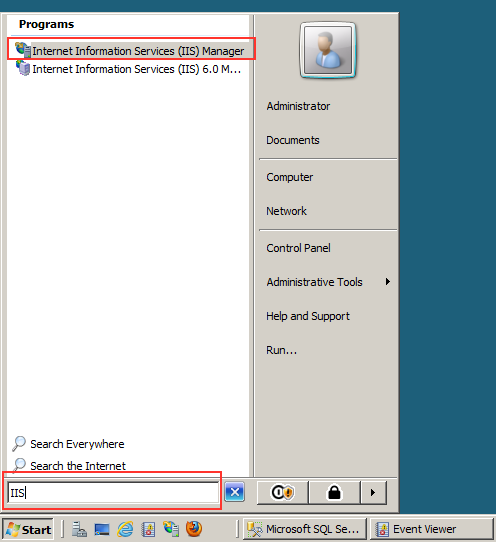
To open IIS Manager, click “Start menu” - > type “IIS” in search box - > click “Internet Information Services (IIS) Manager”
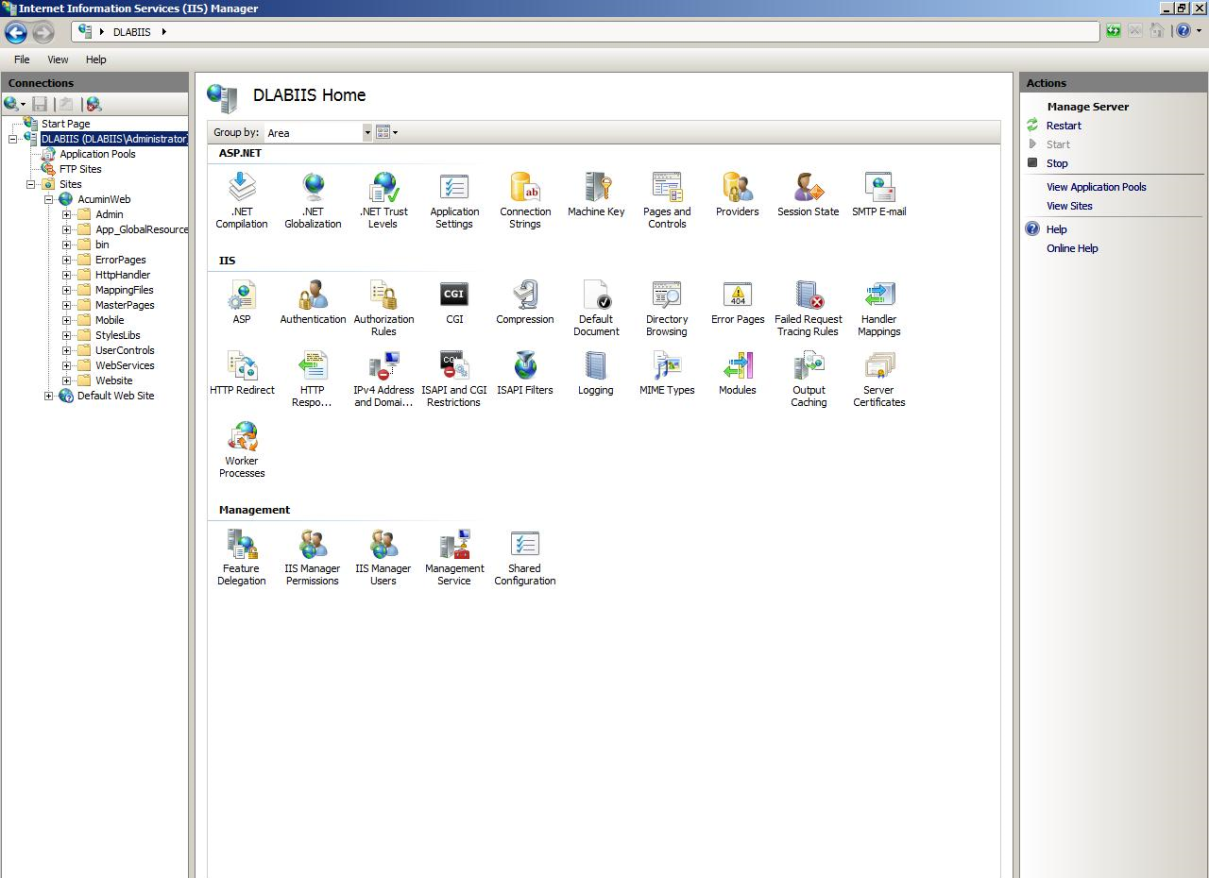
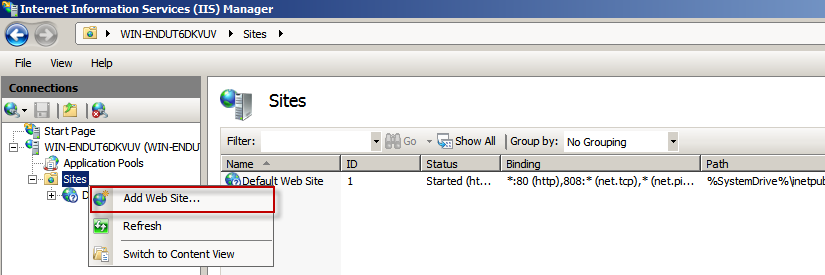
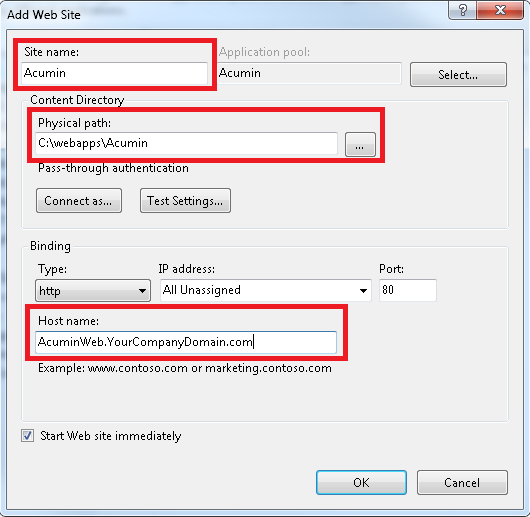
Right-click on “Sites” node in the left panel; right-click and select “Add Web Site…”
This will open the window to configure the AcuminWeb application. Input the following values using the table below as a guide and select “OK” once done.
|
Field name |
Value |
|
Site name |
Acumin |
|
Physical path |
c:\webapps\Acumin |
|
Host Name |
Enter the registered domain name that has been associated to this site |
|
Binding Type |
Select https if SSL certificate has been used. |
-
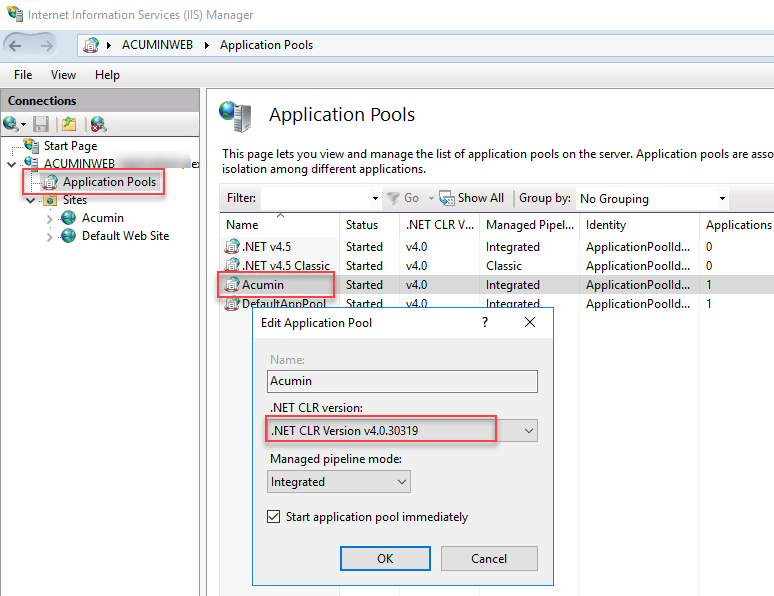
Click on the “Application Pools” node, and then double click “Acumin” within the list.
-
This will prompt the “Edit application pool” form. Verify that .Net Framework version is the version required.
-
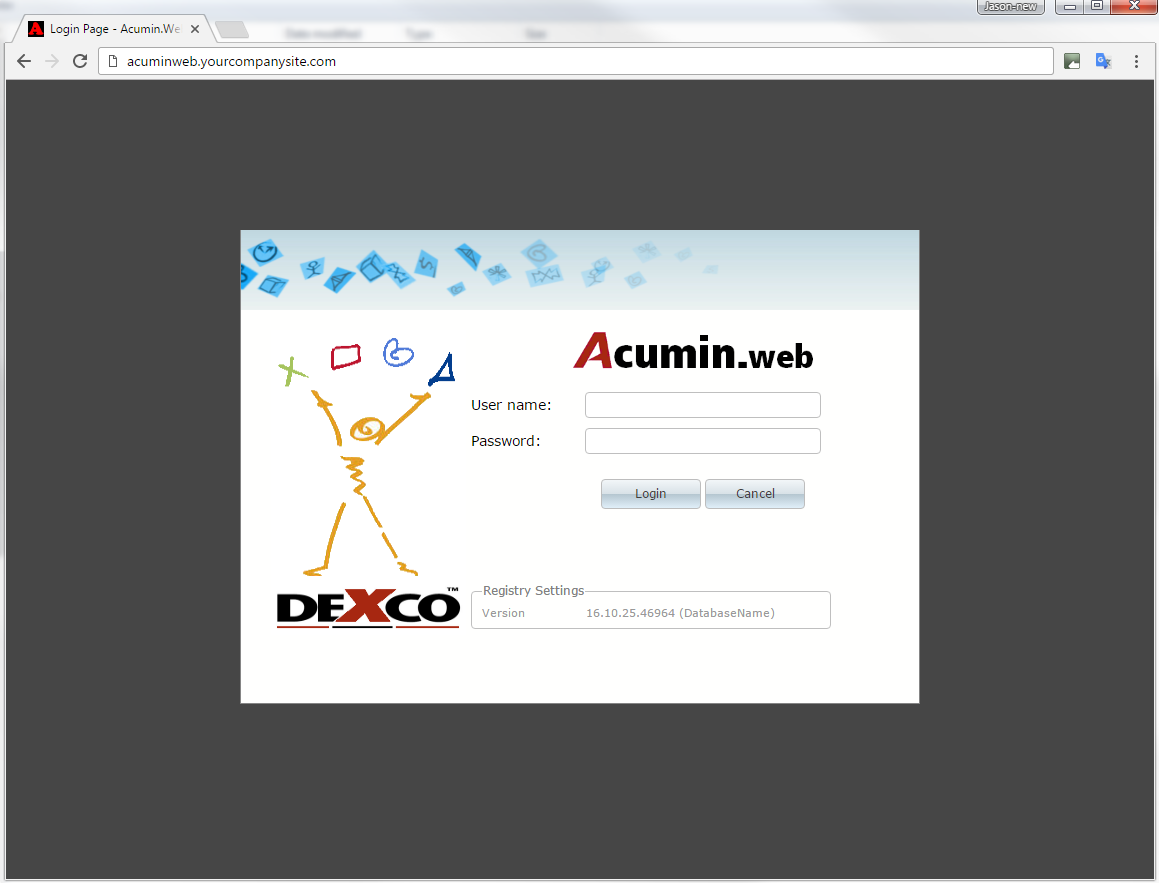
Open a web browser and input the application’s URL (the host name which you setup in step 11). If the web application has been configured correctly, you will see the login
Note 1: AcuminWeb users will need to enter their Acumin username and password. For security reasons AcuminWeb does not use Active Directory authentication or single-sign-on (SSO)
Note 2: The Acumin.web product can function (i.e., will not produce errors or require a log out and back in) with temporary lapses in internet connection (i.e., an undocking of a laptop for example), however, to be able to continue to complete functions as expected it will require a connection to internet.
Note 3:
If the Crystal Report web viewer is not working or you’re experiencing issues with the viewer, it is possible that ‘apsnet_client’ folder is missing or not configured correctly.
You can try creating the folder or configuring it as a virtual directory in IIS.
Here is the steps to create the virtual directory in IIS:
-
Open the IIS Manager.
-
Select the website or application where you want to configure the virtual directory.
-
Right-click on the website or application and select "Add Virtual Directory" from the context menu.
-
In the "Add Virtual Directory" dialog box, enter "aspnet_client" in the "Alias" field.
-
In the "Physical path" field, enter the path to the aspnet_client folder on your server. By default, the folder is located in the wwwroot directory, so the path would be something like: %SystemDrive%\inetpub\wwwroot\aspnet_client.
-
Click the "OK" button to create the virtual directory.
The virtual directory should now be created, and you should be able to access the aspnet_client folder from your application.
How to take the website offline for maintenance
1. Go to C:\webapps\Acumin\_DO NOT DELETE - Connection Information
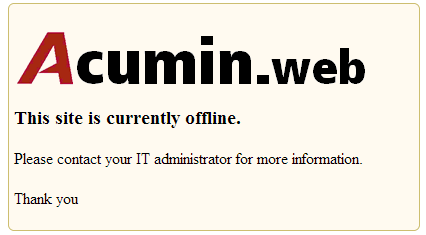
2. Copy “app_offline” to C:\webapps\Acumin. The default message is as follows:
-
(Optional): It is possible to customize the text portion of the message for clarity (for example, you want to indicate when the site is expected to be available).
-
If you want to customize the text, please customize the “app_offline” under C:\webapps\Acumin\_DO NOT DELETE - Connection Information folder, this will prevent next update from override your changes.
-
Note: Please ensure that you have made a copy of the original file as backup in case you accidentally overwrite required html code within the text.
If you want to edit the existing message, open the file “app_offline” using a text editor like Notepad, and replace the indicated text with your own.
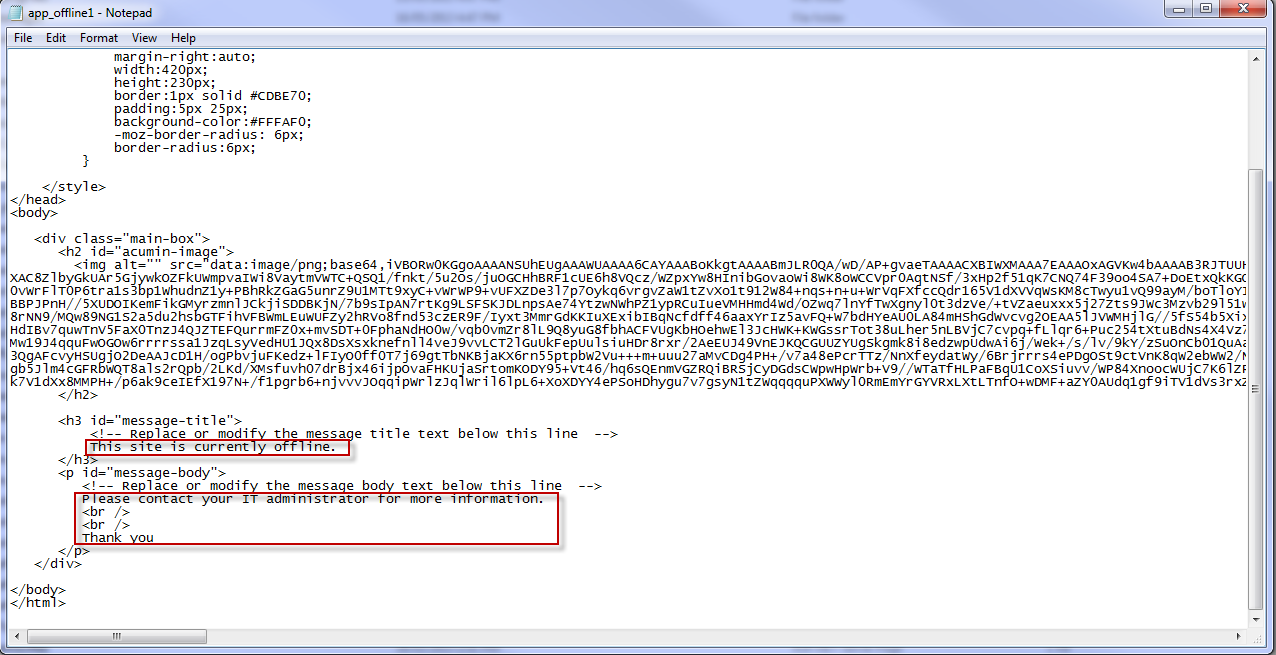
4. To bring the site back online, delete the file “app_offline” under C:\webapps\Acumin folder.
🖥️ Client Side Requirements
Windows
Supported browsers:
-
Google Chrome (latest version)
-
Microsoft Edge (latest version)
Mobile(Android/ iOS)
Supported browsers:
-
Google Chrome (latest version)