.png)
Acumin has been migrated to an AWS hosting environment. Below are the steps to connect and access the new environment:
Connect to your workspace
Access
-
The first time that you run the client application, you are prompted for your registration code, which will be provided by your IT Manager with your username and password.
-
Enter your sign-in credentials in the login screen and choose Sign In.
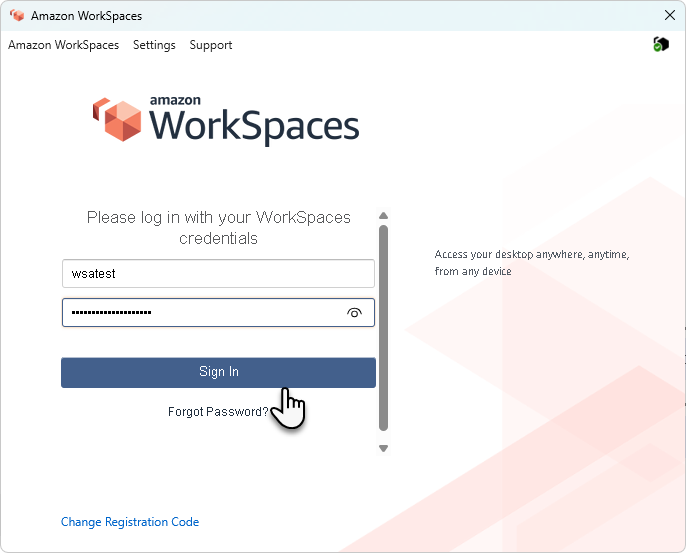
For security purposes, saving your password is not permitted. Additionally, the "Forgot Password" option will not function. If you need to retrieve your password, please contact your IT Manager for assistance.
After the client application connects to your WorkSpace, your WorkSpace desktop is displayed.
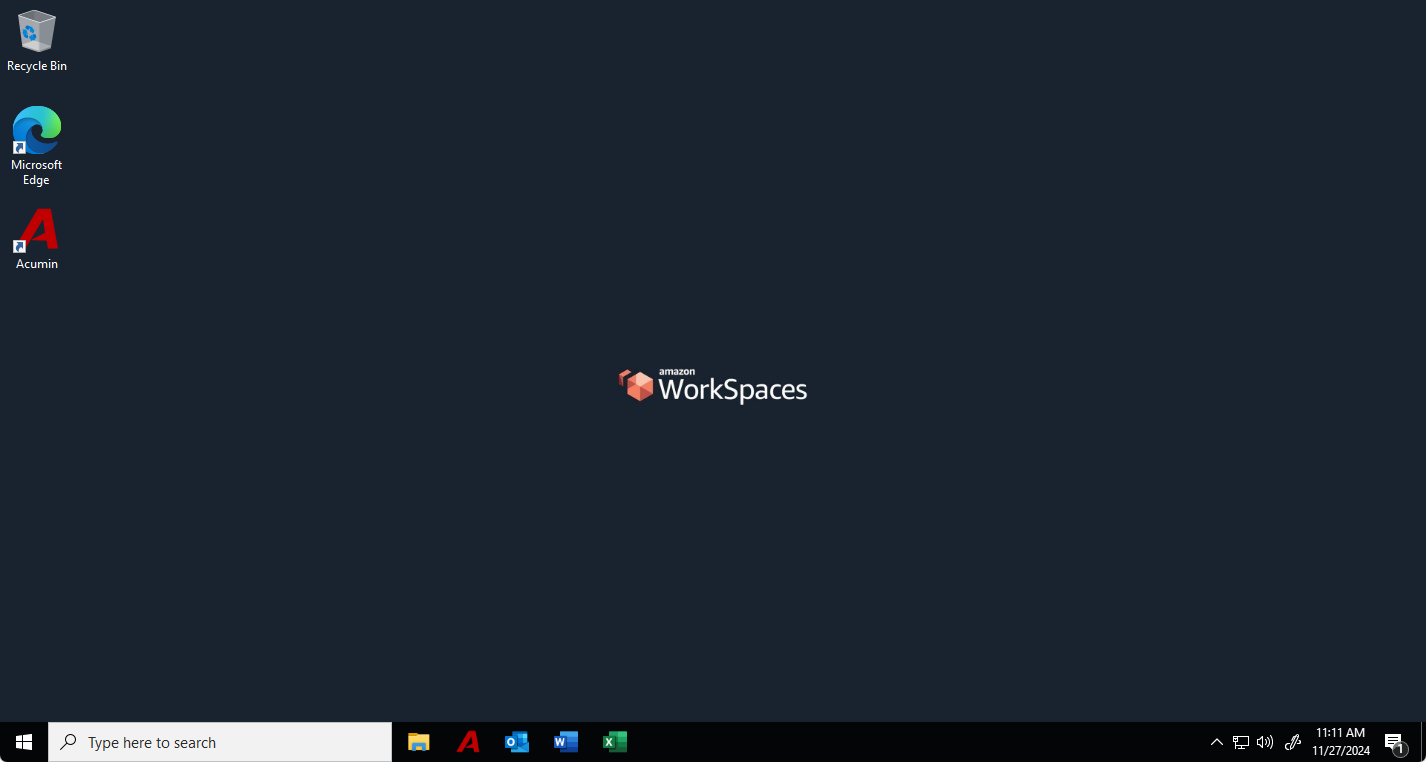
IMPORTANT: An interruption of network connectivity causes an active session to be disconnected. This can be caused by events such as closing the laptop lid, or the loss of your wireless network connection. The WorkSpaces client application for Windows attempts to reconnect the session automatically if network connectivity is regained within a certain amount of time.
Client Views
You can switch to full screen mode by choosing View, Enter Full Screen in the client application menu.
While in full screen mode, you can switch back to window mode by moving the pointer to the top of the screen. The client application menu is displayed, and you can choose View, Leave Full Screen in the client application menu.
You can also toggle full screen mode by pressing Ctrl+Alt+Enter.
Command Shortcuts
The WorkSpaces Windows client supports the following command shortcuts:
-
Ctrl+Alt+Enter—Toggle full screen display
-
Ctrl+Alt+F12—Disconnect session
File Transfer
You can upload and download files on your local computer and your My Storage folder.
You can do the following with your My Storage folder:
-
Open and edit files and folders that you store in your My Storage folder.
-
Upload and download files between your local computer and your My Storage folder.
To upload and download files between your local computer and your My Storage folder
In the Amazon WorkSpaces client application, in the menu bar, choose File Transfer. A My Storage window will appear.
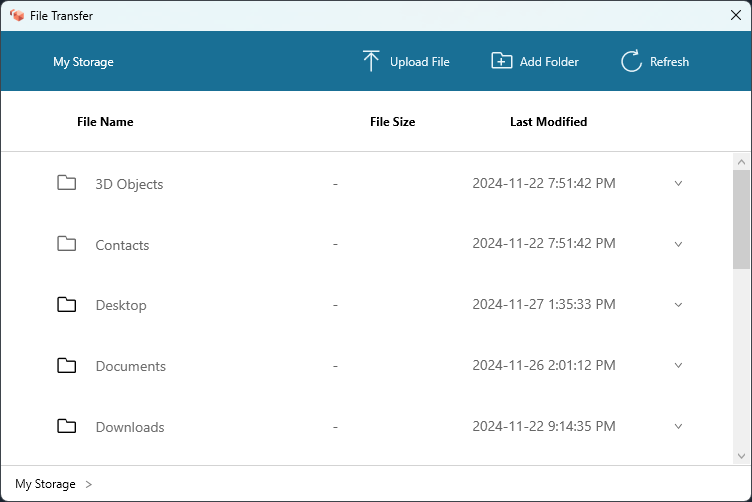
Navigate to an existing folder and select it or choose Add Folder to create a new folder.
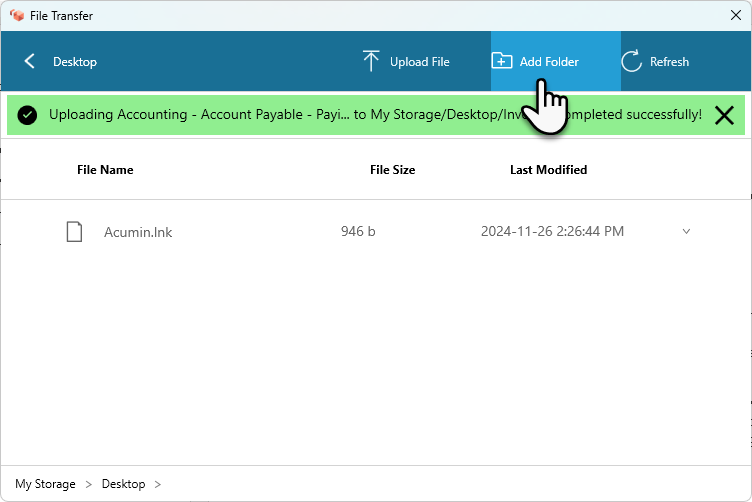
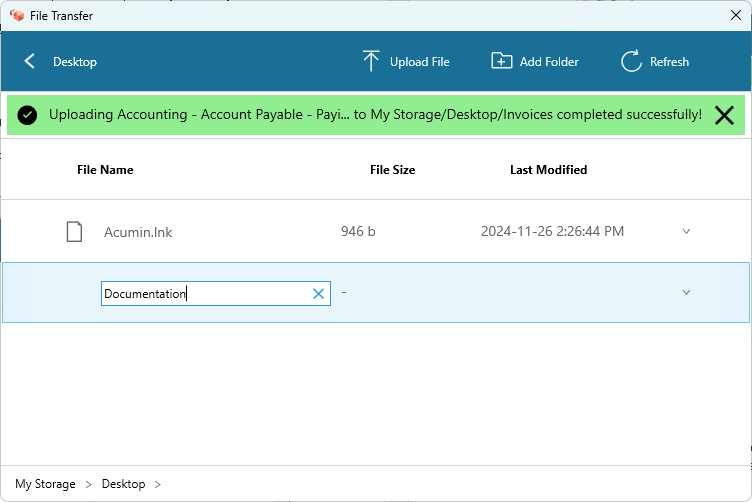
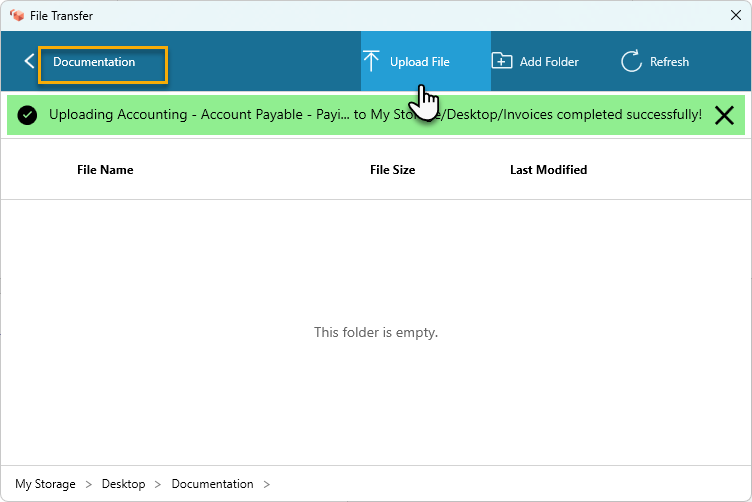
To upload a file to the folder, choose Upload File, select the file that you want to upload, and choose Open.
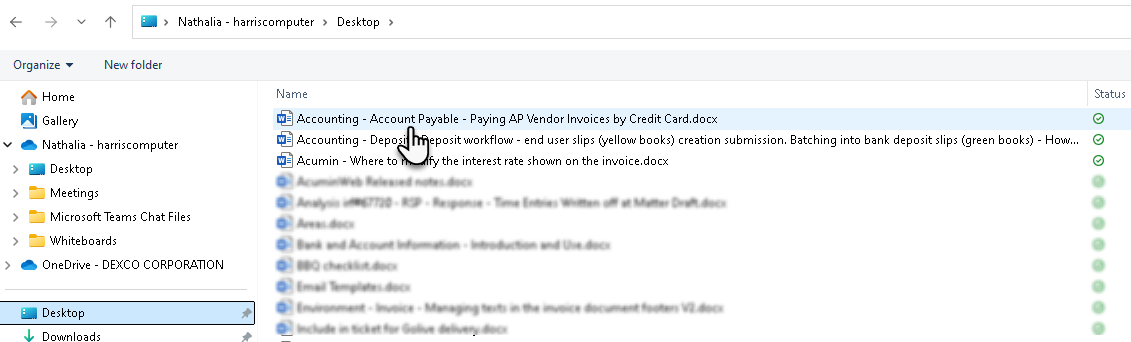
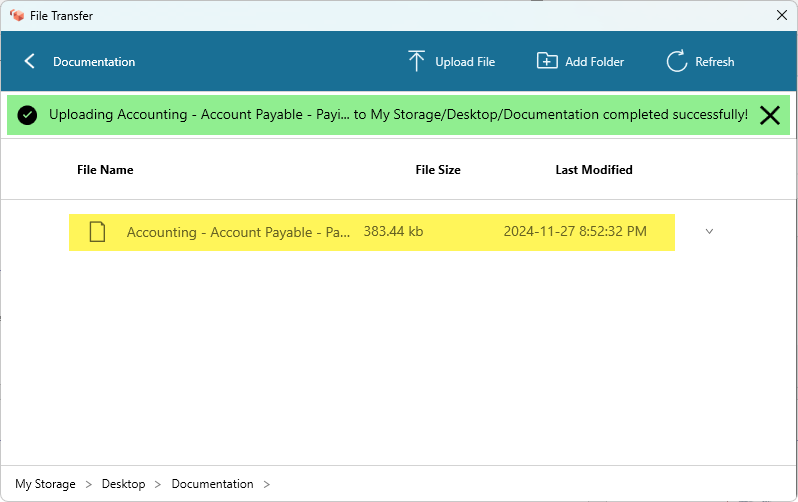
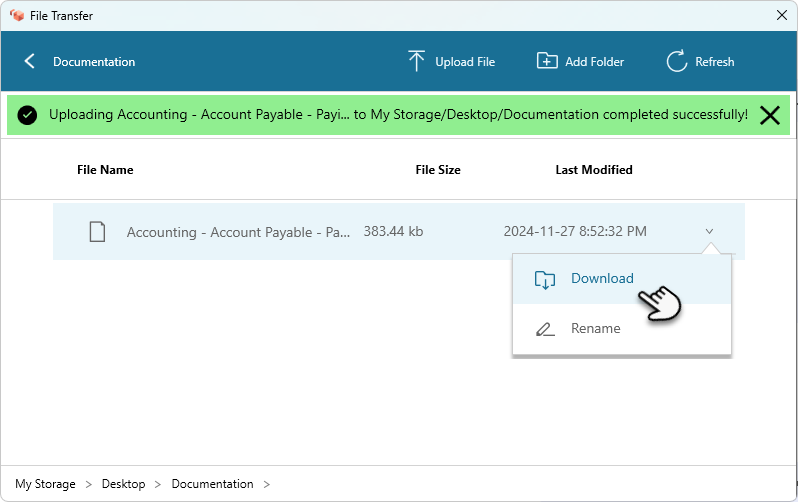
To download a file from the folder, click on the file that you want to download, or choose the down arrow to the right of the file name and choose Download.
Disconnect
To disconnect the Windows client application, you have several options:
-
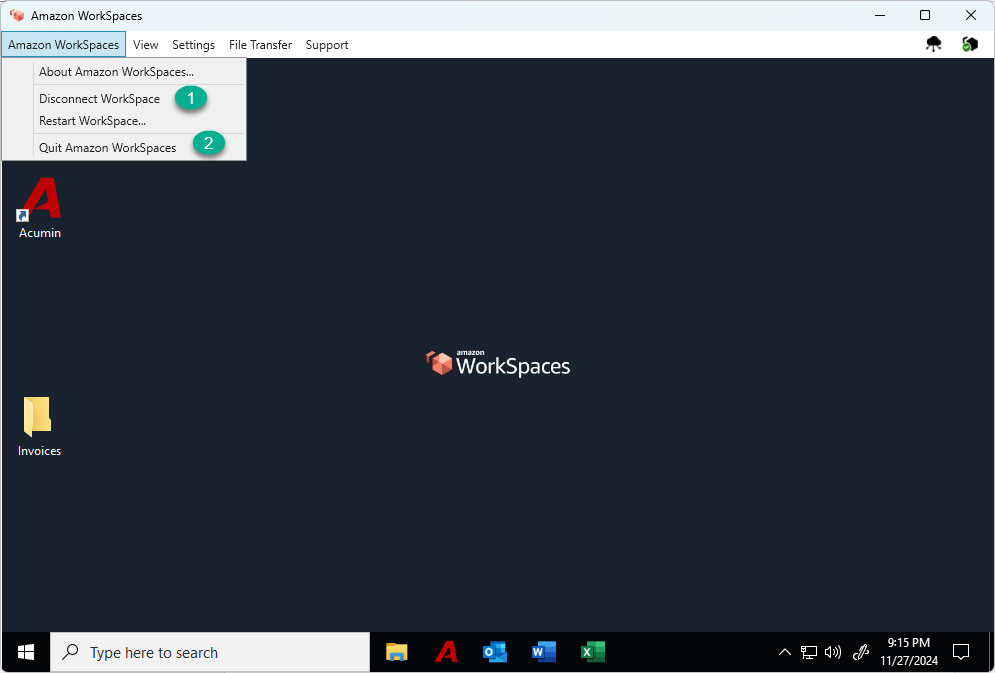
In the Amazon WorkSpaces client application, go to Amazon WorkSpaces, and then choose Disconnect WorkSpace. Your WorkSpace session ends, but the client application continues running in case you want to log in again.
-
In the Amazon WorkSpaces client application, go to Amazon WorkSpaces, and then choose Quit Amazon WorkSpaces. Your WorkSpace session ends, and the client application closes.
-
In the Amazon WorkSpaces client application, close the WorkSpaces client window by clicking the close (X) button in the upper-right corner. In the End Session dialog box, choose Yes. Your WorkSpace session ends, but the client application continues running in case you want to log in again.
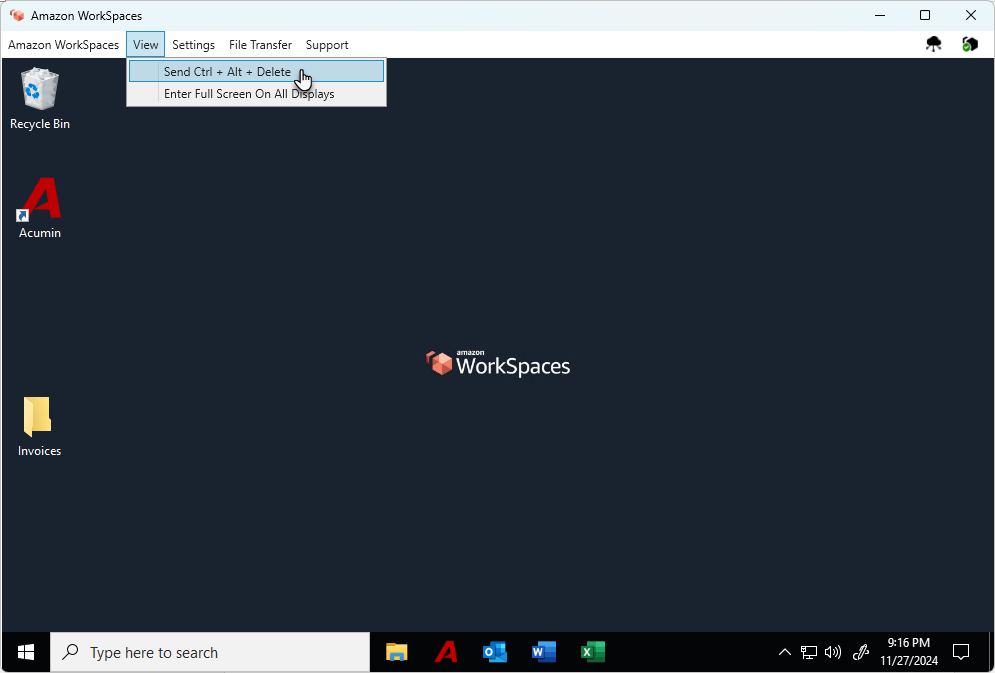
You can also log off of the WorkSpace. In the Amazon WorkSpaces client application, go to View, and then choose Send Ctrl+Alt+Delete. Choose Sign Out. Your WorkSpace session ends, but the client application continues running in case you want to log in again.