.png)
Occasionally it may be necessary to update a database, e.g. AcuminTraining. with a copy of the most recent data from the Acumin “production” database.
Note: You will need exclusive access to the database to perform a restore. Advise users that they will need to exit Acumin until the restore is complete
📘 Instructions
SQL Server Management Studio (SSMS) should already be installed, if not download it from
https://docs.microsoft.com/en-us/sql/ssms/download-sql-server-management-studio-ssms
We will use AcuminTraining as an example of a database you may wish to refresh with current data
-
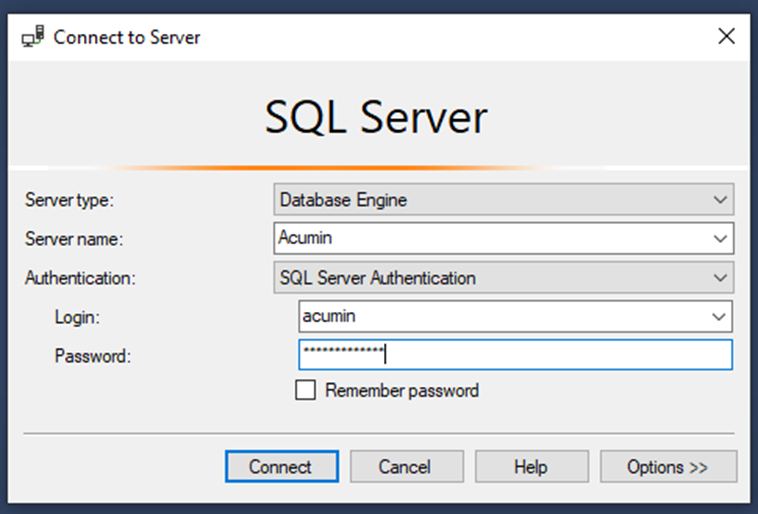
Log in to SSMS. Enter the server name, and credentials that have sufficient privileges
-
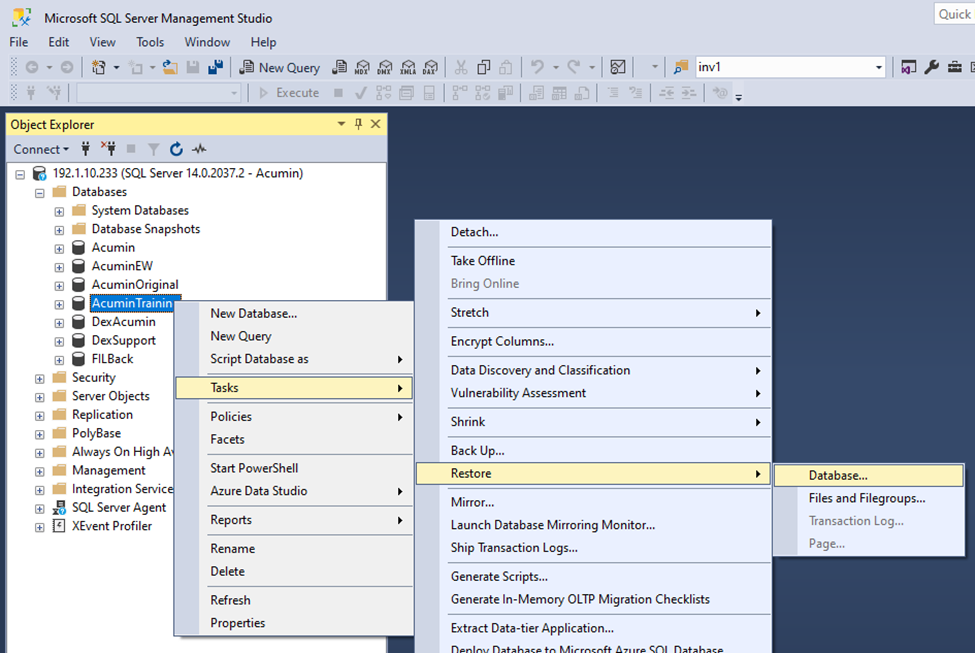
Expand the Databases folder. Right-click the database to be refreshed. and select Tasks... then Select Restore > Database…
-
This will open the Restore Database dialog. The left side of the window shows there are three pages of configuration.
Caution: Do NOT press OK until all required parameters are configured.
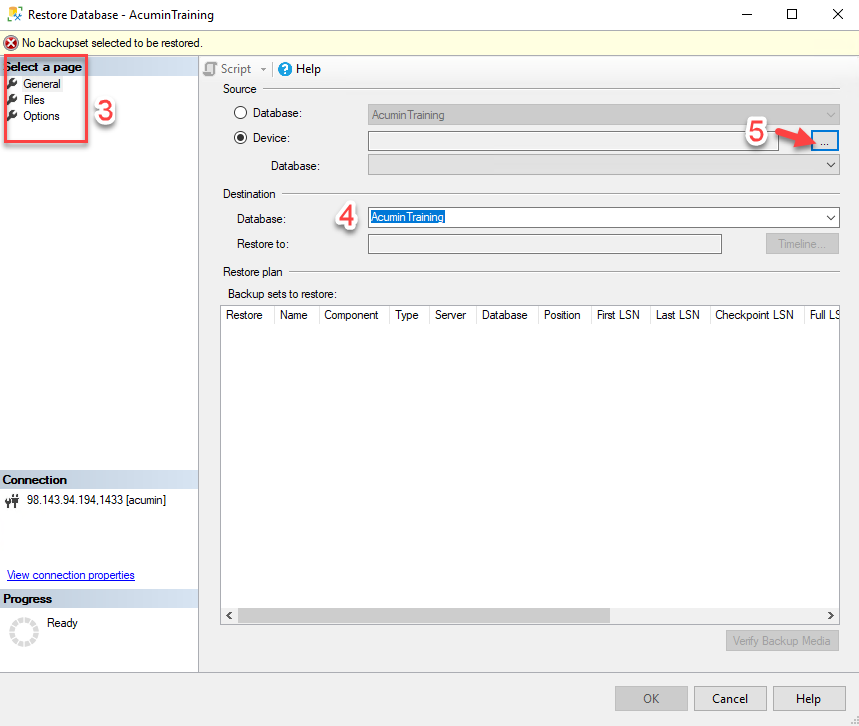
4. The Destination field should show the database to be refreshed. If not select it from the list
5. Change the Source button from Database to Device and click the ellipsis […]
6. Click Add and navigate to the most recent backup file and press OK to select.
If no recent backup exists, follow the Backup Database instructions below to create a new backup of the Acumin database
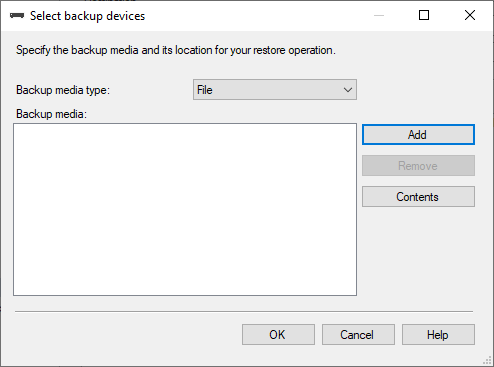
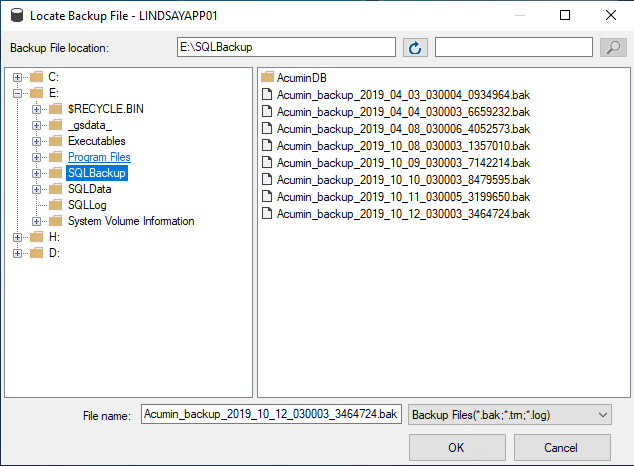
7. Press OK to add the Source backup media file
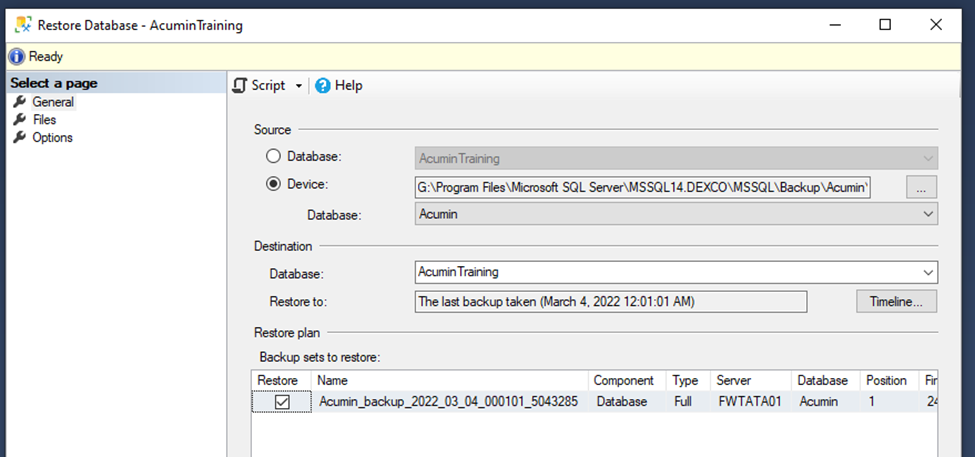
8. Switch to the Options page and tick the box to Overwrite the existing database
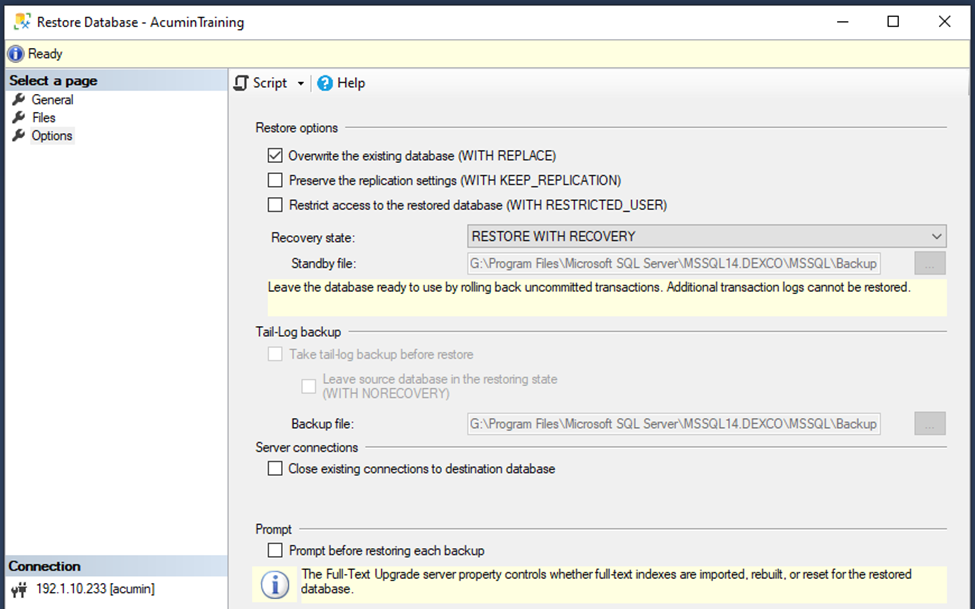
9. Doublecheck all the configuration settings and press OK to begin the restore
Backup a Database
If a recent backup is unsuitable or unavailable, you may need to make a new backup of the Acumin database.
📘 Instructions
SQL Server Management Studio (SSMS) should already be installed, if not download it from
https://docs.microsoft.com/en-us/sql/ssms/download-sql-server-management-studio-ssms
-
Log in to SSMS. Enter the server name, and credentials that have sufficient privileges
-
Expand the Databases folder. Right-click Acumin. and select Tasks... Back Up…
-
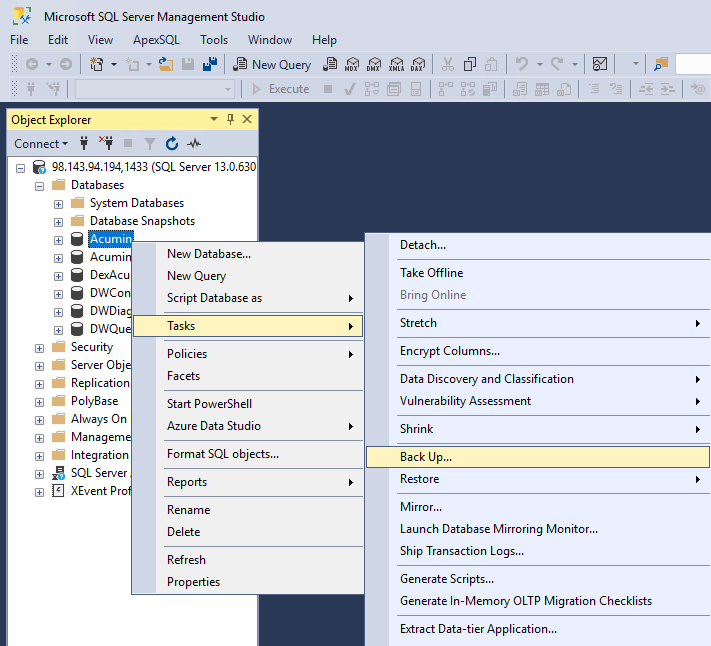
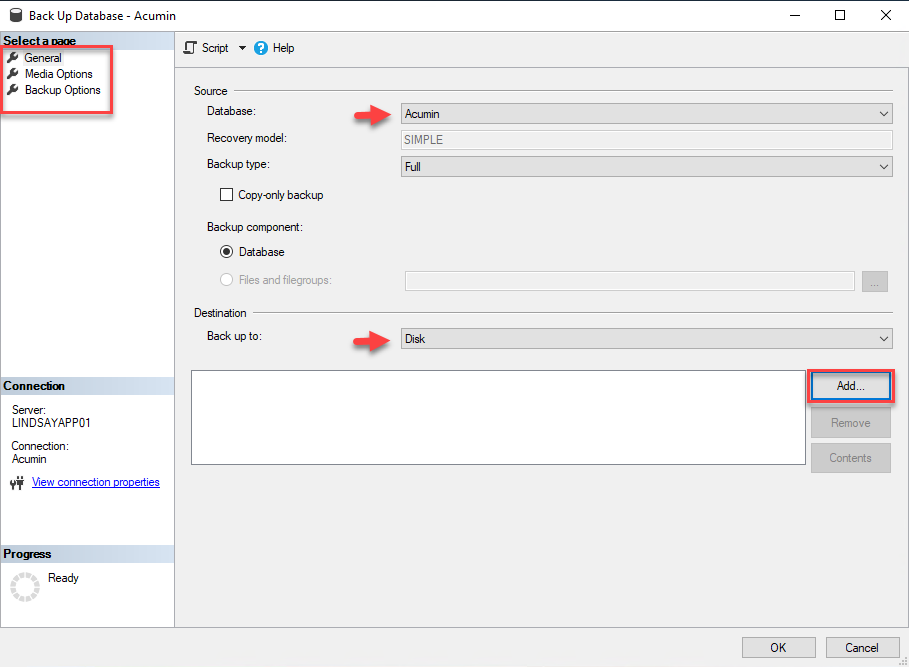
The Backup Database window opens. The left side of the window shows there are three pages of configuration.
Caution: Do NOT press OK until all required parameters are configured.
Ensure Acumin is selected as the source database and Disk is selected as Destination. Click the Add… button.
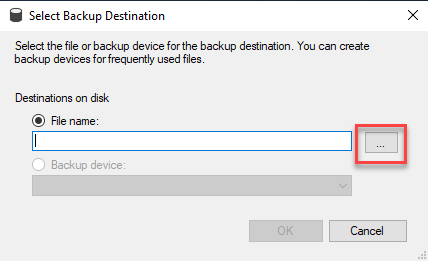
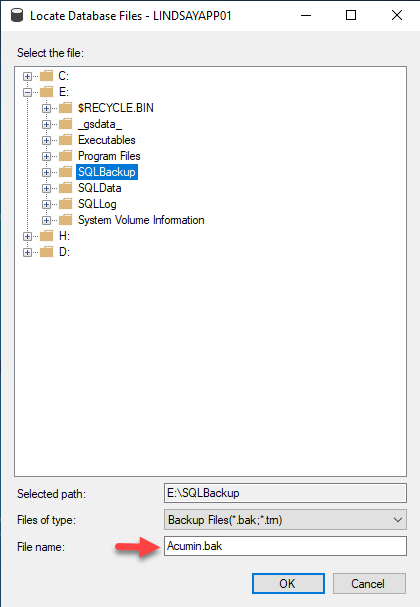
4. To select a location for the backup, click the ellipsis […] Then choose a location and file name. Click OK on both dialog boxes.
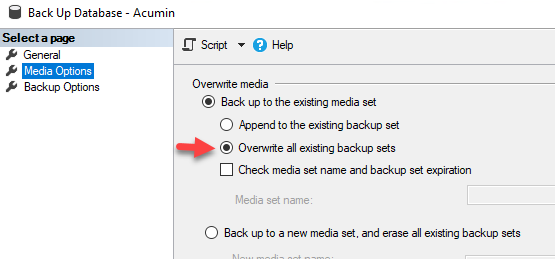
5. Switch to the Media Options page and select to Overwrite existing backup sets
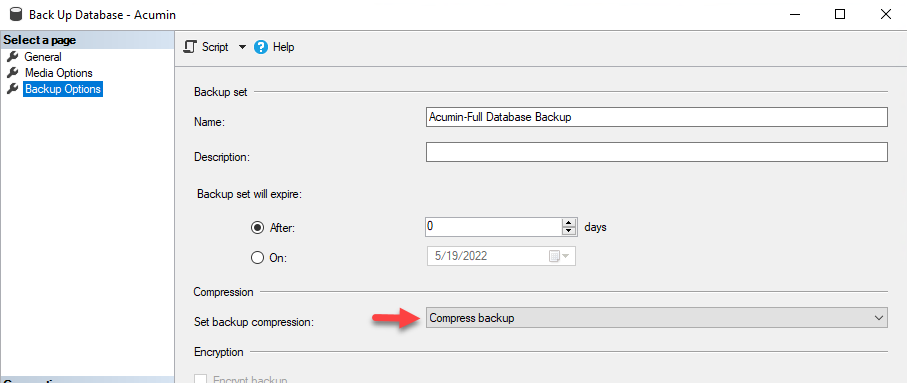
6. Switch to the Backup Options page and select Compress Database
7. Doublecheck all the configuration settings and press OK to begin the backup.