.png)
Single sign-on (SSO) enables users to automatically log into Acumin with their Windows username and password. This eliminates the need for users to manually enter a username and password each time they launch Acumin.
SSO is configured separately for each user. It associates a Windows username with a specific Acumin user profile.
SSO is only supported on Acumin desktop. It is currently not supported by Acumin Web or Acumin Mobile (coming soon). Therefore, you must define a user password to support logins on these platforms.
To enable SSO for a user
-
Launch Acumin and login as an administrator.
-
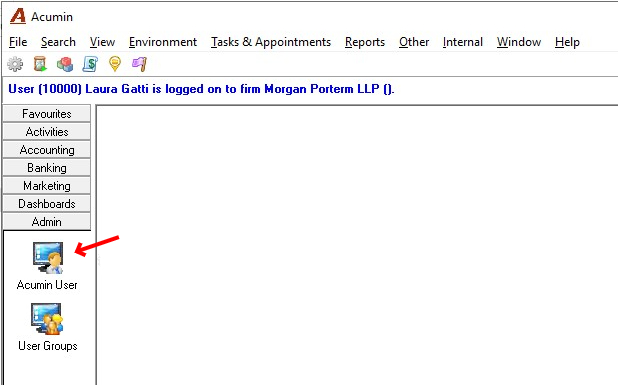
In the left menu, click Admin, and then click Acumin User.
-
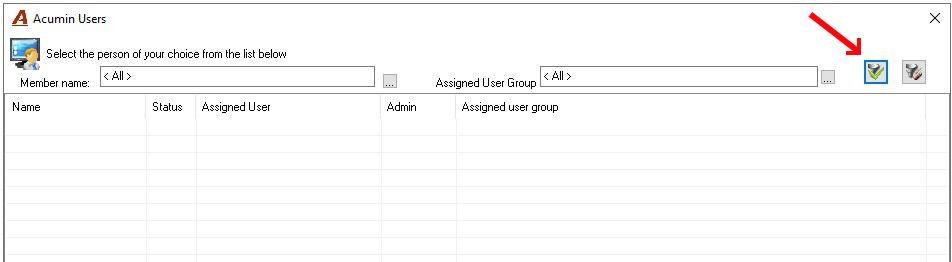
The list of Acumin Users opens. Initially it is empty. Click the Apply Filter button to view all users.
-
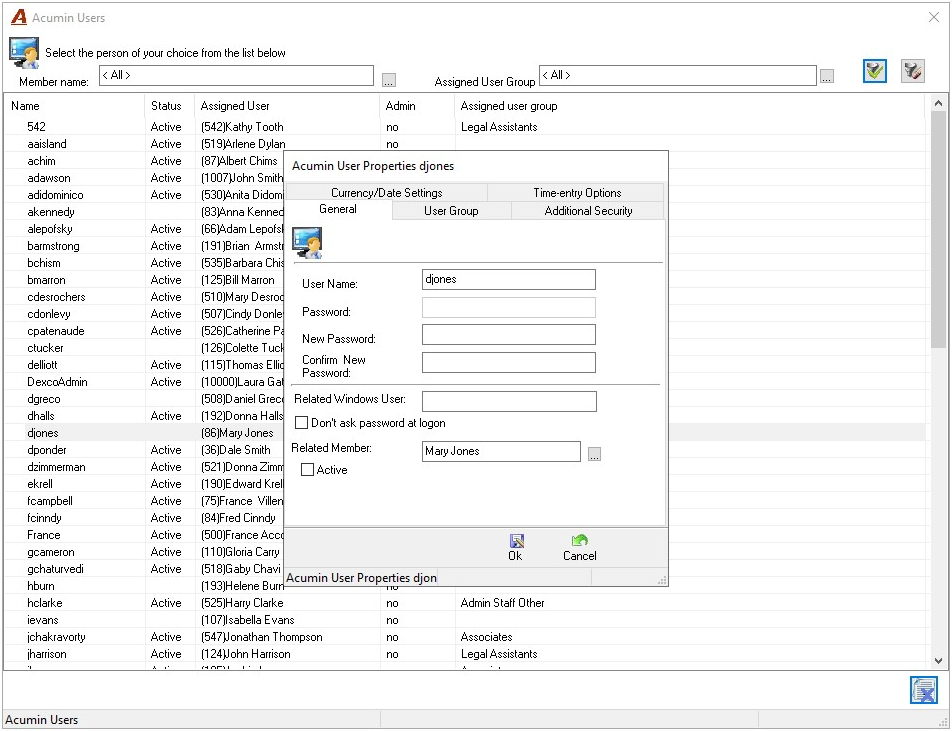
Double-click the name of the user you want to configure. The Acumin User Properties box opens. For example:
-
If required, define a Password for the user. This password is used when:
-
The Don’t ask password at logon option is disabled.
-
When a user logs into Acumin Web or Acumin Mobile (coming soon).
-
-
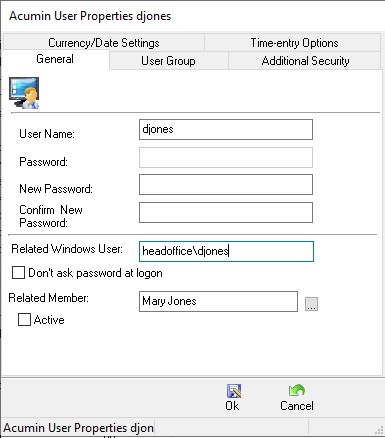
Set Related Windows User to the Windows domain and username assigned to the user. Use the format domain\username. For example:
-
Enable the option Don’t ask password at logon to automatically login to Acumin without being prompted for a password. If this option is disabled, the user must enter the password specified in the Password field to login to Acumin.
-
Click OK.