.png)
Scope and Purpose
The purpose a business process rule engine is to provide desired outcomes in context of the firm’s policy on the affected process, using automated email warnings and/or change in client or matter status.
The license driven firm defined templates, extend the scope of the engine to help support receivable collection processes, control engagement and retainer client sign-off, provide visibility of important dates via email reminders, monitor WIP and/or AR limits, warn of impending trust reinvestment requirements, hold vendor payments based on payment of related disbursement by client, and leverage matter specific worked value limits.
Set-Up
Configuration of the SMTP server and Auto Email sender
From “Environment - System Configuration – System Settings” launch “Acumin System Settings - E-mail & Bank” tab to set up the SMTP settings and Auto Email Sender Functionality for the “Office 365” radio button option will be available in a future release of the version 3.0 series.
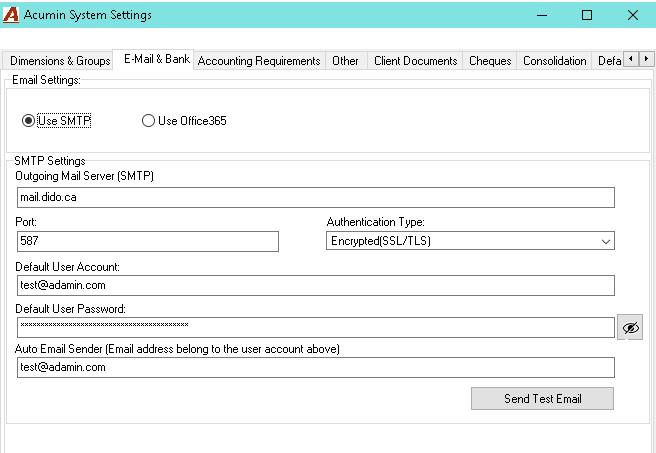
Outgoing Mail Server (SMTP): The ip address of the SMTP email server
Port: The port used by the email server
Authentication Type: Select on the three options (None) (Simple Login) (Encrypted(SSL/TLS))
Default User Account: the username for the email server
Default User Password: password of the user
Auto Email Sender: the email address Acumin will use to send the emails triggered by the BPR rules. This email address should not be a random one, it should be a real one and belong to the user account set in the “Default User Account” field.
Collection BPR
Overview
Available for use at the client level, the “Collection Business Process Rule” is designed to provide control of the client’s receivable position in context of firm-defined criteria. The template options can be used to trigger an email to role-based or individually selected recipient(s) that highlights when the receivable is reaching an unwanted position; and/or trigger the creation of a collection note; and/or update the client status to “Collection” to prevent the posting of additional unbilled time or disbursements to the client’s matters.
Highlights
The firm can use as many “Collection” business process rules as needed to automatically communicate the receivable’s risk to stakeholders in context of firm-defined value and age criteria of the oldest invoice.
“Collection” business process rules can trigger changes in status from active to collections for clients with a receivable position when the oldest invoice meets the maximum value and age threshold set by the BPR rule as well as trigger changes in status from collections to active when the client receivable position for the oldest invoice no longer meets the maximum value and age threshold set by any of the BPR rules.
The collection BPR’s thresholds are based on the client’s AR balance and age of its oldest invoice. Exceptional criteria for selected clients can be added to the collections BPR rule. Full exemptions from collections BPR rules can be granted within client properties.
Business Process Rules are applied daily. Once the criteria are met and the rule invoked, the business process rule outcome will not be triggered again unless the rule’s criteria is changed. For example, if the collections BPR rule triggers an email to the matter responsible based on a balance greater than 100.00 at 90 days, the latter will not be triggered again at 91 days, unless the age criteria are changed from 90 to 91 days outstanding.
Used at the client level, this status identifies clients who are not in good-standing, posing an unacceptable collection risk; provides stakeholders with a timeline for resolution before additional time and disbursement investment are committed; and timekeepers with the visibility needed to curb additional efforts until the receivable issue is resolved.
When a client is set to status collection, each matter retains its status However as the combined client-matter status of collections-active provides a temporary restriction on matter-actions, users cannot post time and/or disbursements on matters for clients that have the status “Collections” regardless of status of the matter, limiting the exposure for increased bad debt expense.
The application does not allow users to generate invoices for matters with the client or matter status “Collection”. This business logic exists to limit users from investing additional efforts in the preparation of an invoice that may not be paid. Typically, users generate invoices to be batch processed and if these were to include invoices for matters with combined status “collections” there is an increased risk of affected users being unaware of the collection-process requirements, investing time and effort on a process that may not generate a business benefit.
Although users are not permitted to generate invoices for matters with combined status “Collections” from the results tab nor the to-bill tab, users are able to generate individual regular matter invoices for these matters from within the “Show Invoice Details” list view right-click contextual menu. From a “collections” strategy perspective, the person responsible for the collections process may need to generate the invoice for matters with a client or matter status of “Collections” to create a complete receivable position to present it in court and/or to write it off (considered best practice). To create a client or multi-matter invoice the client will need to be temporarily activated.
Users can issue trust cheques and proceed with payment of invoice from trust for matters with the combined status “Collection”.
Template
Create as many collection templates as needed to support the firm’s collection process. For example, the firm may require two warning emails to the member responsible before triggering a change status to collections, resulting in three BPR rules.
If triggering multiple emails based on the age of the oldest invoice, each age parameter used will generate emails with different email content. The email rules will never be triggered on days identified in Acumin’s holiday calendar.
Access
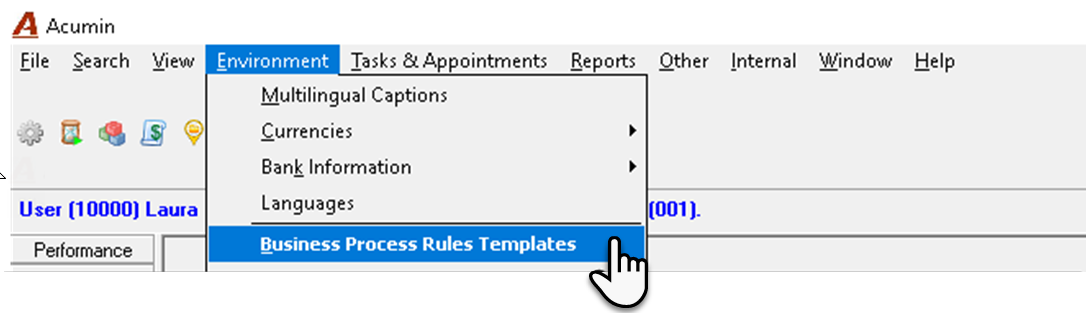
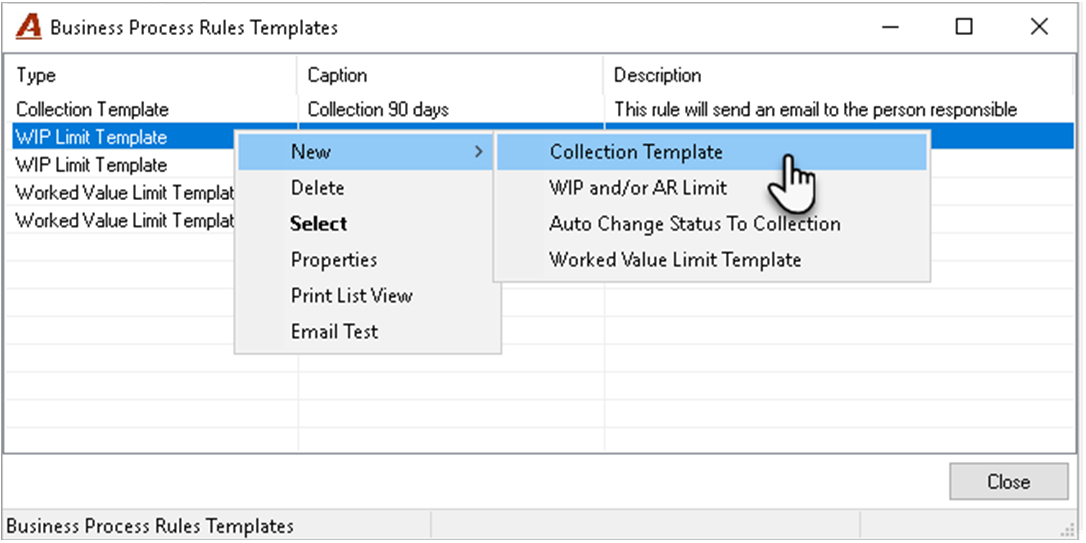
Select the “Environment - Business Process Rules Templates” menu option to launch the Business Process Rules Templates form. Right-click on the list view and select” Collection Template”.
Only authorized users with permission #274-Business Process Rules Templates can access licensed Business Process Rules Template Library content.
Details Tab
Criteria
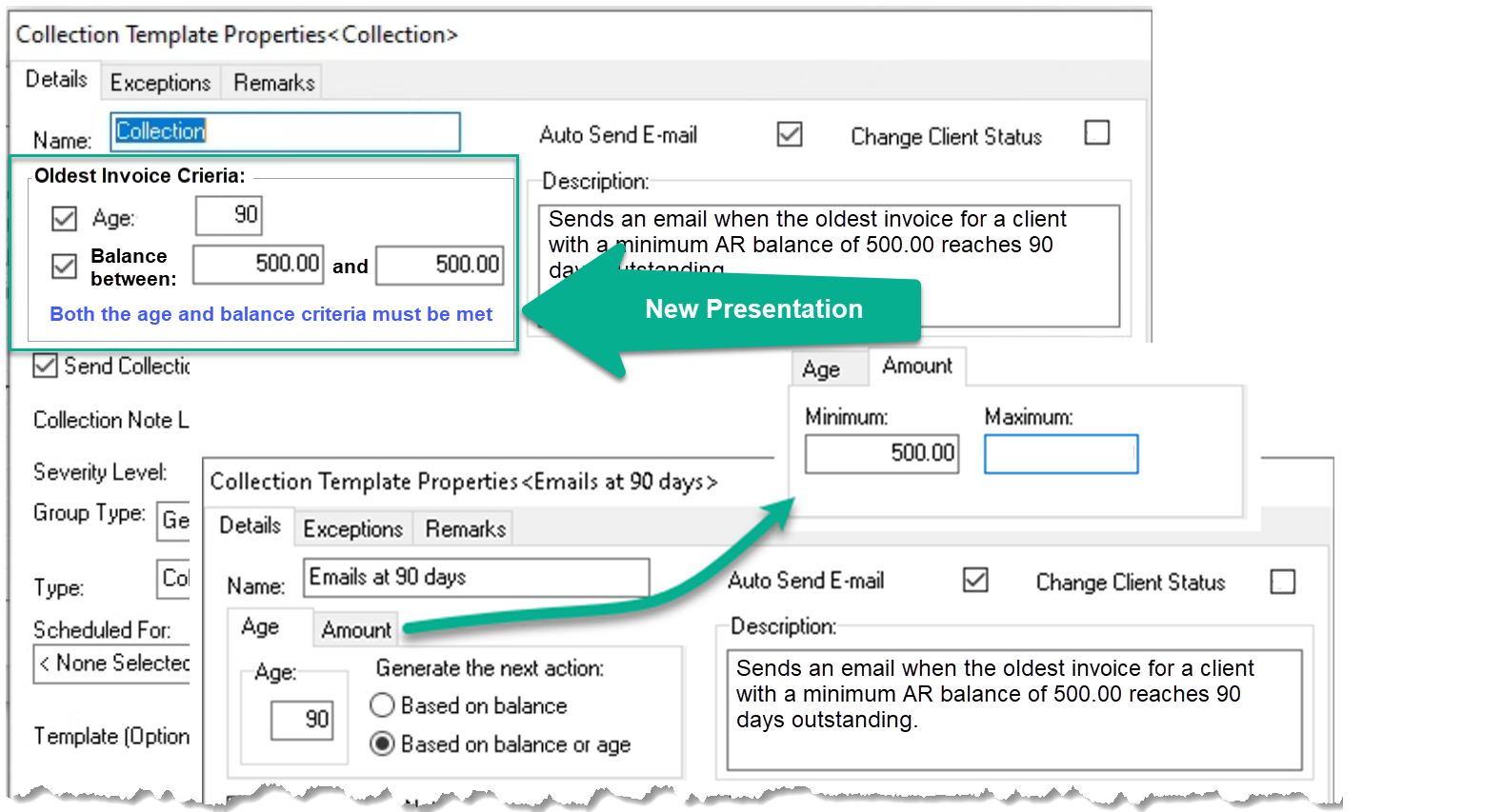
Name: Label the template in context of the rule. The name will appear in the email log.
Description: Enter a detailed description that includes what the result will be.
Auto Send Email: Checkmark this option to automatically send an email when the client is active, and the template’s criteria is met. Requirements:
-
The server configuration and email recipients’ sections for Internal Recipients and/or External Recipients must be complete,
-
The email content template be assigned.
For more information on requirements please refer to the “Business Process Rule Concept and Set-up Guide.”
Change client status: Checkmark this option to automatically change the status of the client from “Active” to “Collection”.
Age: Enter the number of days that an outstanding invoice for the client should reach, to trigger the action(s) selected within the template.
Amount: Enter the minimum and/or maximum oldest invoice balance needed to trigger the action(s) selected in the template.
Generate Next Action - Based on Balance: Use this option to trigger the action based on the “Amount” conditions being met. If you leave the amounts blank only the age is considered.
Generate Next Action - Based on Balance or Age: Use this option to trigger the action when both the “Age” and “Amount” conditions are met.
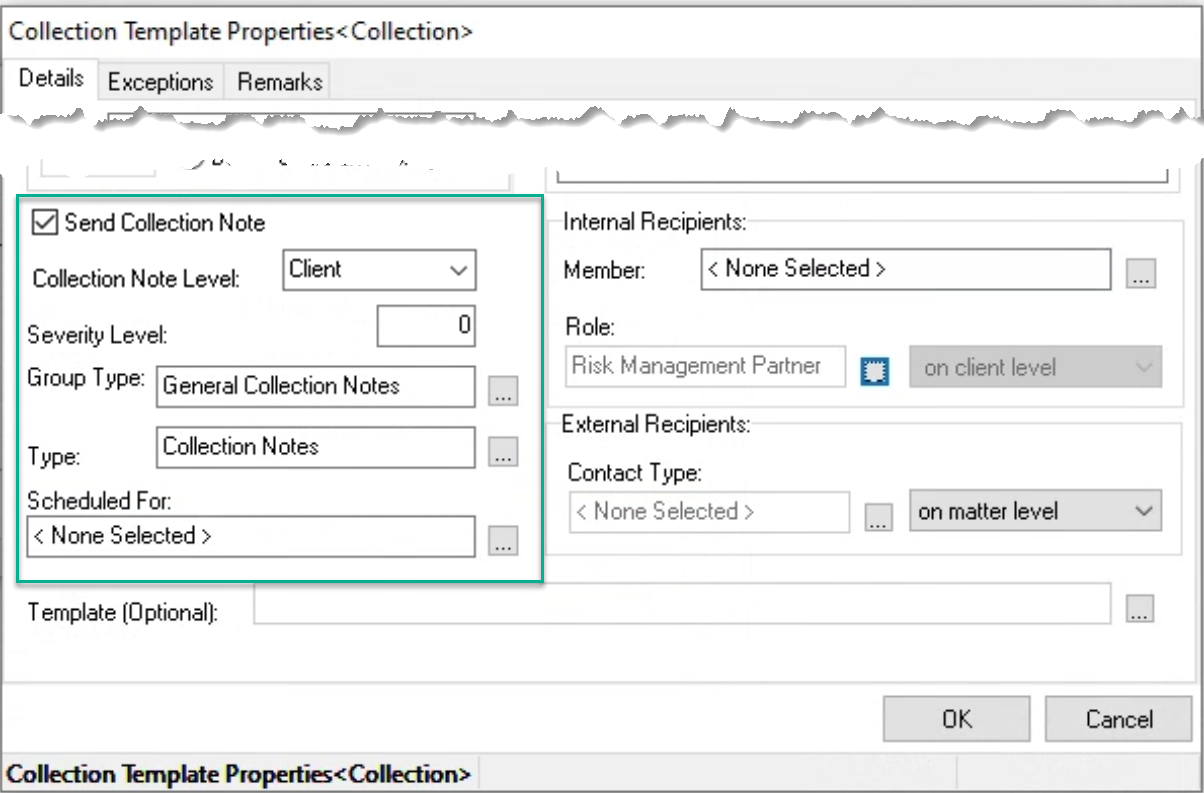
Collection Notes
Collection notes follow the same logic as emails and are visible in context of the client and matter affected. If a task should be triggered, the scheduled for field should have content.
Send Collection Note:
Checkmark the checkbox option to generate and send a collection note to reflect that an email was triggered, or the client status was changed.
Group Type and Type:
Select the most relevant group type and type to reflect the note. For example, these notes are generally reporting the automated action therefore it would be common practice to select a note type with a default note status of “Completed”.
Scheduled For: If the BPR rule’s action is intended to also trigger a task to be completed by someone, set the member responsible for this action in the “Scheduled For” field and select a note type with a default status of “In Progress”, so once the task is fulfilled the working member deems it completed.
Severity Level:
If there is more than one email collection template, enter escalating severity values to trigger the one that takes precedence. For example, if the client’s AR meets the minimum criteria, the oldest invoice is 155 days old, and the firm has the below escalating severity email templates:
Template 1: 110-day template with Change status and emails – severity 10;
Template 2: 140-day template with email only – severity 40;
Template 3: 150-day template with email only – severity 50;
Template 4: 270-day template with email only– severity 60;
Template 5: 540-day template with email only– severity 70;
Result:
The system will perform a client status change to “Collection” as result of template 1 and trigger an email because of template 3. Although templates 1, 2, and 3, meet the criteria, only the one with the highest severity – 3 – will trigger it. Templates with the same severity level will both run if the conditions are met
Recipients
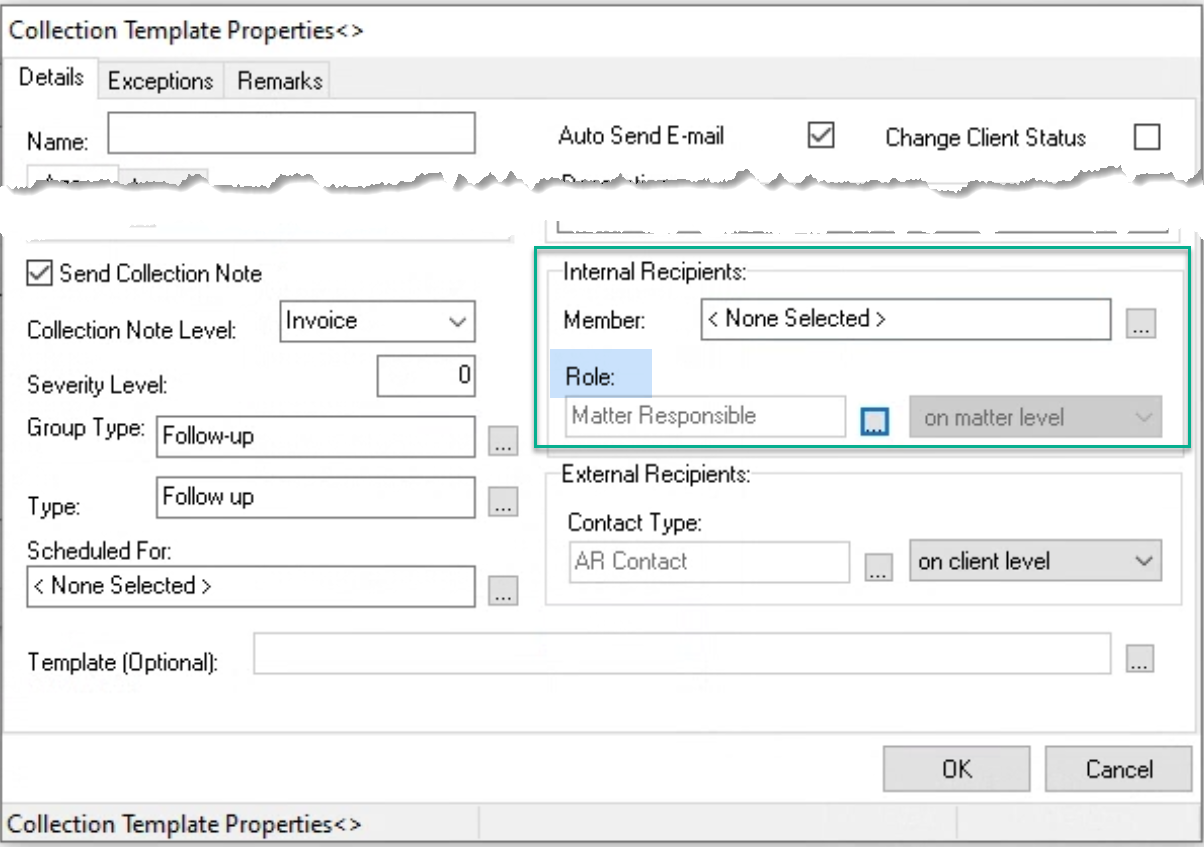
Internal Recipient:
This section is used to identify the internal email recipient. Most firms select a member based on role and defined role responsibilities. For example, if the client responsible role is used to monitor the relationship and on-going credit risk to the firm, then the client responsible role would be set for the role holder to be advised that the client’ receivable threshold will be reached triggering a change of client status to “collections.
Carbon Copy:
The system will automatically assign as a CC recipient, the first member found in the “Assistant List” set in the properties of the identified internal recipient.
External Recipient:
Firms email statement of accounts based on age of the oldest invoice with content explaining the collections process. This level of communication is more detailed and meaningful to the external recipient in the collection process, especially if a client has multiple statement of account recipients. If this option is used, as the collections template is client receivable based, the AR contact would be a most relevant choice. As the AR Contact is one per client, the drop-down box should be set to “on Client Level”.
Template
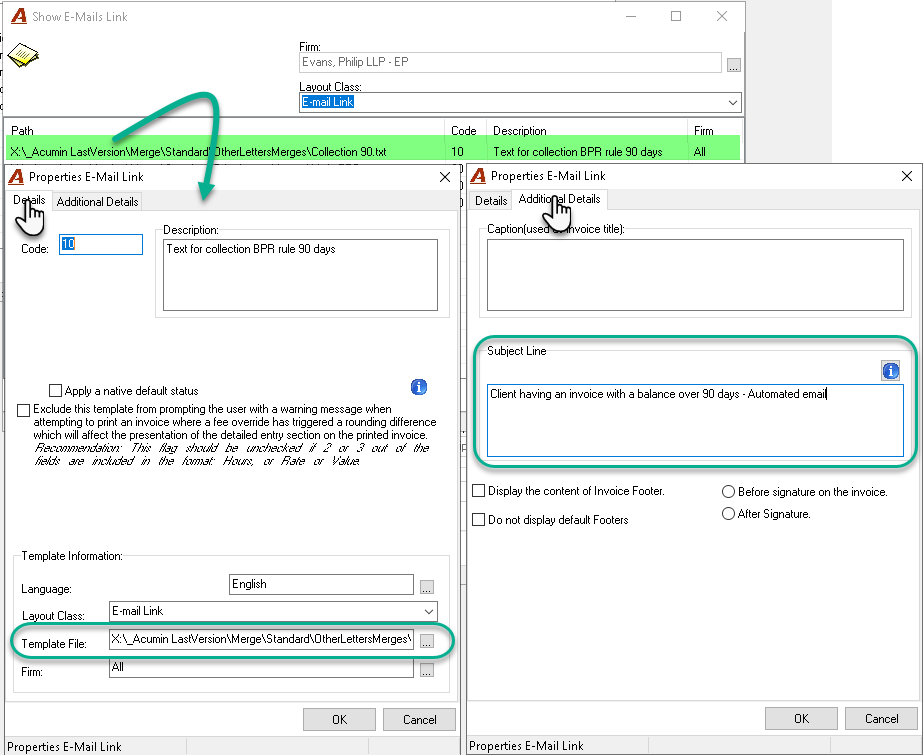
Select the corresponding email template code from the list on the “Show E-Mail Link” list view, when the BPR rule built is used to send emails.
The “Properties e-mail link” form – both the “Details” and Additional Details” tabs – of the section made must have a code, description, the path to the email template file and the content to be used as the email subject.
Exceptions Tab
Clients with a different number of days criteria than the one set in the details tab of the Collections BPR rule, are added to the list view on the exceptions tab.
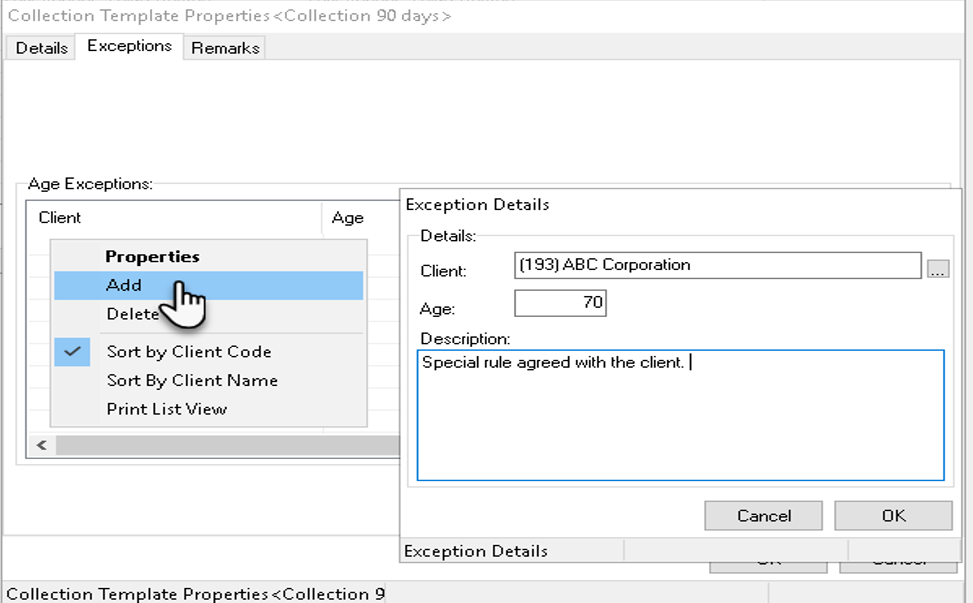
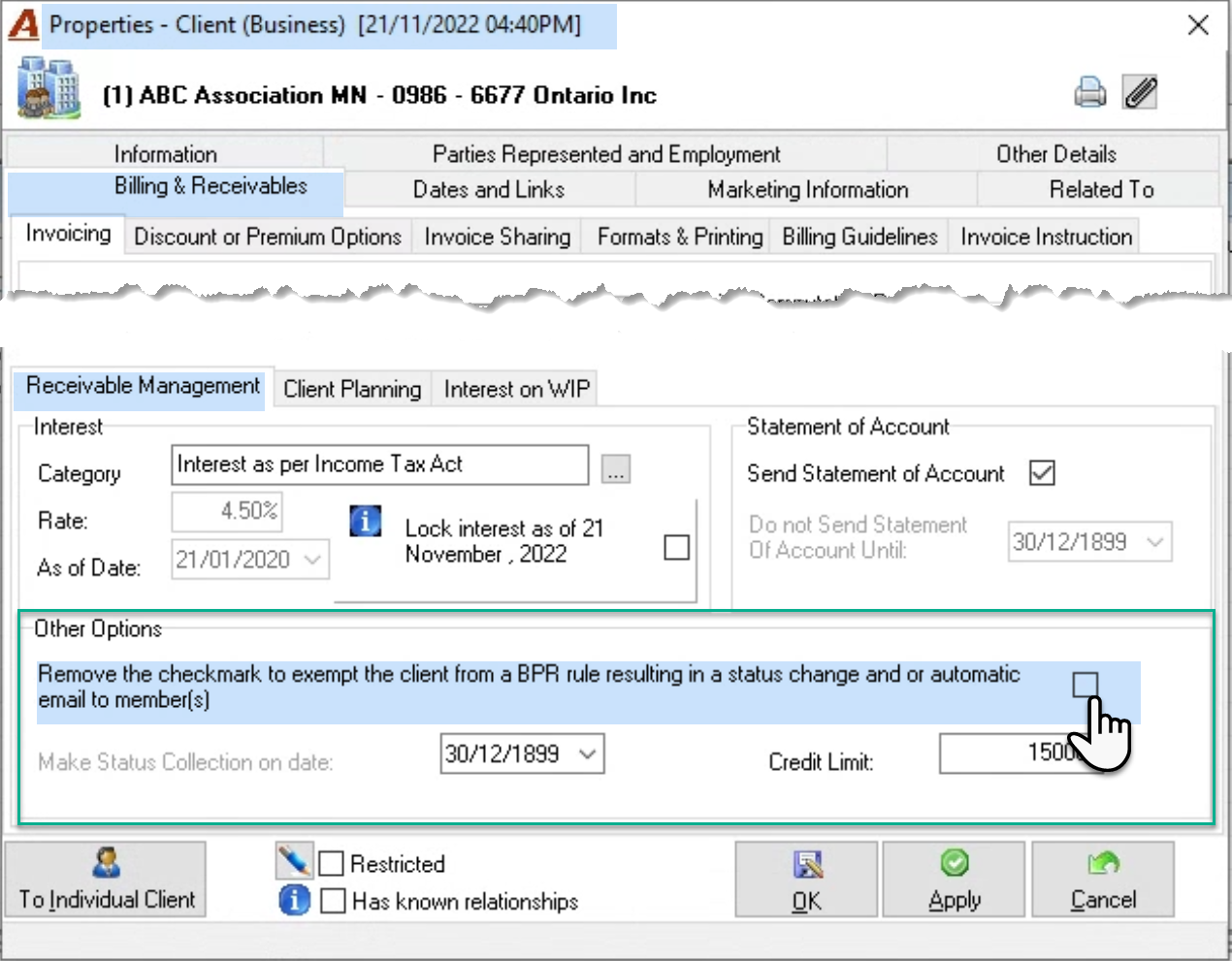
Clients which are completely exempt from Business Process Rules that trigger a status change, emails and/or the creation of WIP/Collection notes are identified with the removal of the checkmark found in “Other Options” section of Client Properties - Billing & Receivables – Receivable Management.
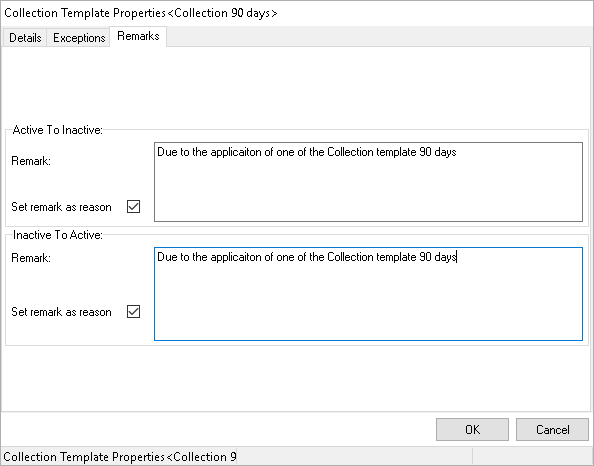
Remarks tab
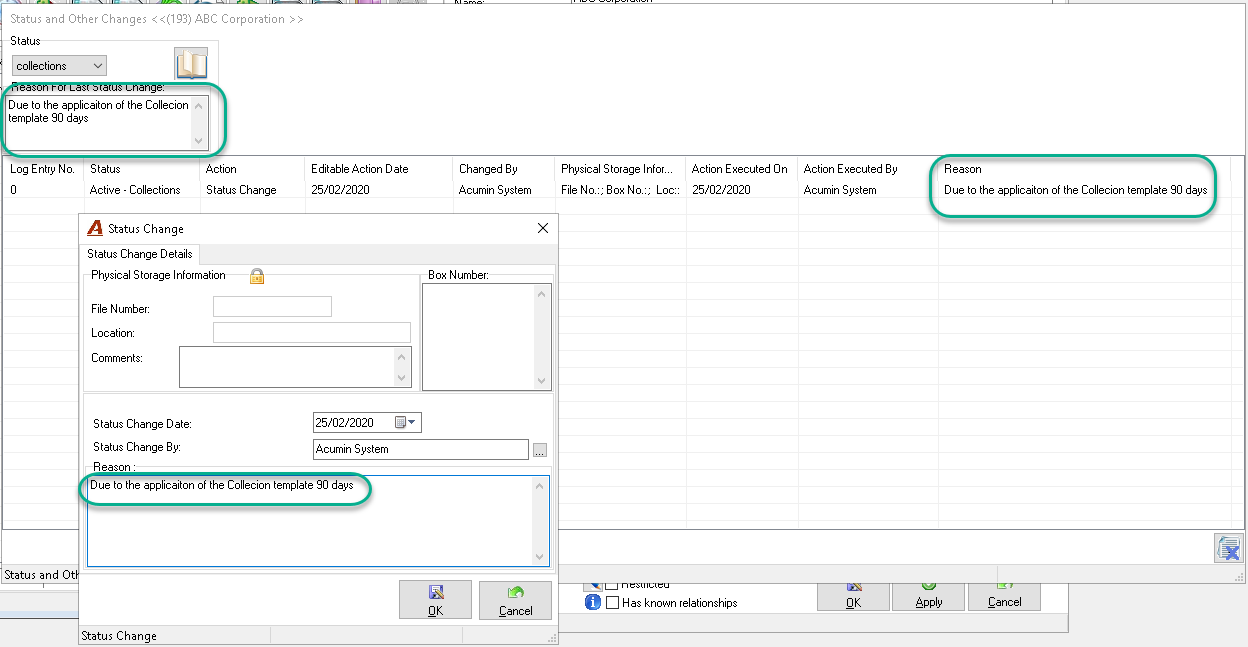
The content of the remark is used to build the log entry for the client’s status change triggered by the application of the business process rule.
.
Email Content
A “.txt” file including the body of the email text should be linked with the “Email Template” field within the template. It is possible to use the following variables in the body of the email. When the system will trigger the “Send email” function, those variables will be replaced by the information from the database. See below the list of the variables available for the email text.
|
Variables from the BPR templates |
Description |
|
<<MemberFirstName>> |
Recipient first name |
|
<<MemberLastName>> |
Recipient last name |
|
<<Age>> |
Age field from collection template |
|
Client Level |
Description |
|
<<Clientcode>> |
Client number |
|
<<Clientname>> |
Client name |
|
<<Mattercode>> |
Matter number (of the invoice that triggered the rule) |
|
<<Mattername>> |
Matter name (of the invoice that triggered the rule) |
|
<<ARContactFirstName>> |
AR contact first name |
|
<<ARContactLastName>> |
AR contact last name |
|
<<ARContactPhoneNumber>> |
AR contact phone number |
|
<<ARContactEmailAddress>> |
AR contact email address |
|
Invoice level |
Description |
|
<<InvoiceNumber>> |
Invoice number of the invoice that triggered the rule |
|
<<InvoiceDate>> |
Invoice date |
|
<<Invoice Balance>> |
Balance amount of this invoice |
Example
Email text in Notepad
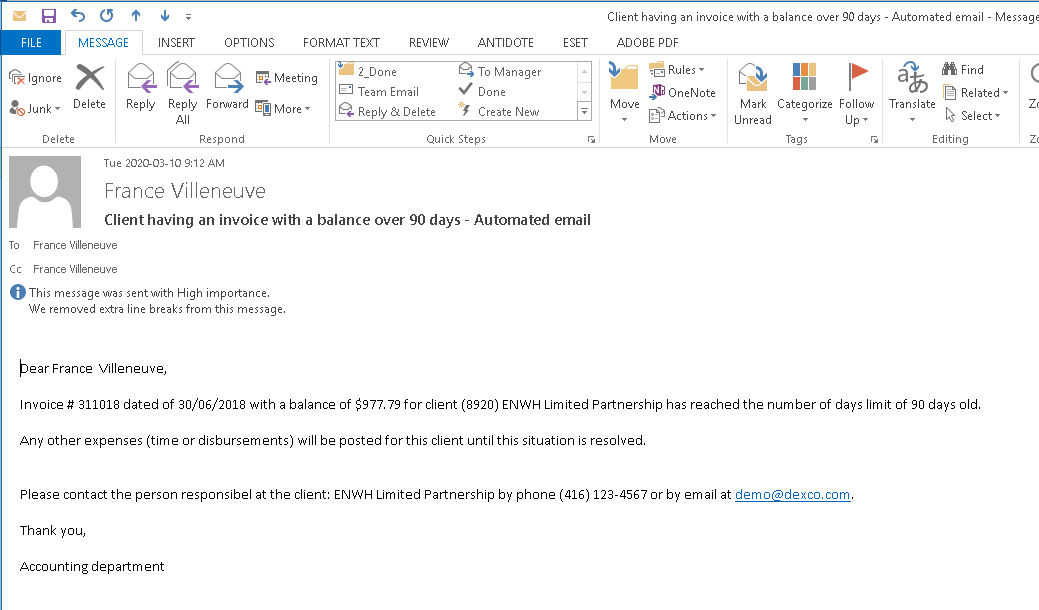
Dear <<MemberFirstName>> <<MemberLastName>>, Invoice # <<InvoiceNumber>> dated of <<InvoiceDate>> with a balance of $<<InvoiceBalance>> for the client ((<<Clientcode>>)) <<Clientname>> has reached the number of days limit of <<Age>> days old. Any other expenses (time or disbursements) will be posted for this client until this situation is resolved.Please contact the person responsible at the client: <<ARContactFirstName>> <<ARContactLastName>> by phone <<ARContactPhoneNumber>> or by email at <<ARContactEmailAddress>>. Thank you, Accounting department
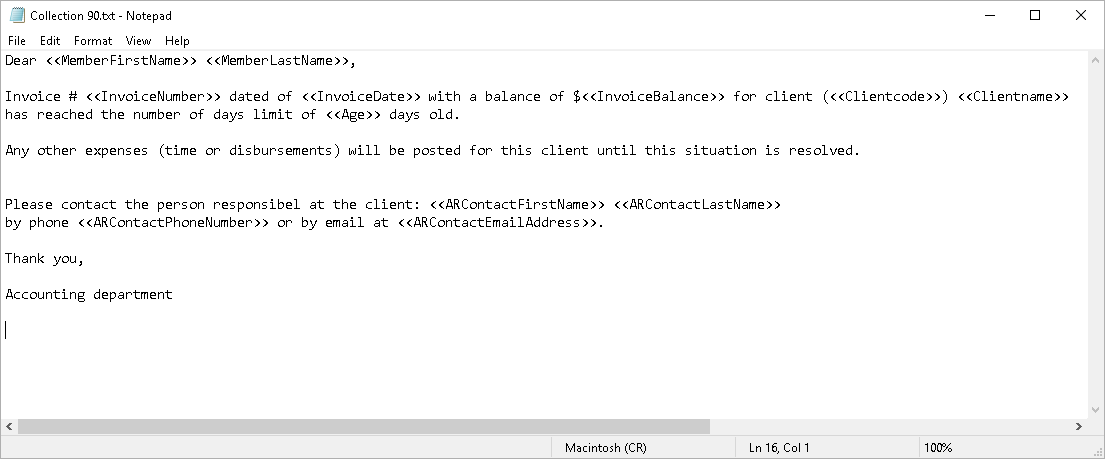
Email Output
Good to know
The email text file can be created in HTML or using Notepad, but it must be saved in .txt file format. It can be saved in the Other Letter Merge folder found under the main Acumin folder within the Acumin server because the of this folder is kept when new versions of Acumin are deployed.
The Auto Send Email functionality is triggered when the first user logs into Acumin after midnight each day. Once an email is sent, the client record is fagged to ensure the same email is not sent multiple times for the meeting the same criteria when the client status is changed manually “Active”.
If there is more than one email address for the recipient of an email, the first email address listed will be selected regardless of the email type. If there is no email address, the system cannot send the email.
Use Case Examples
Status Change
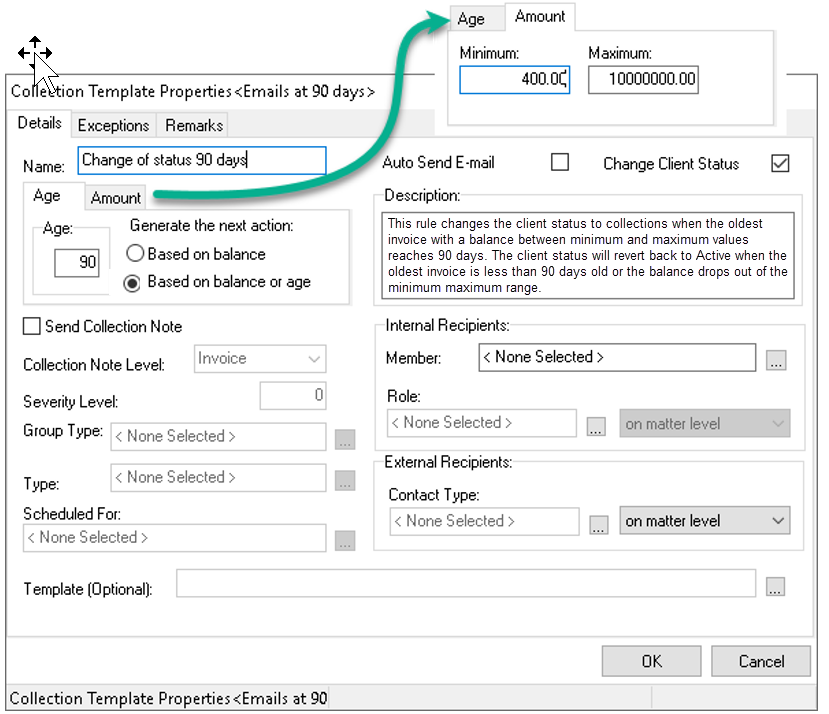
To change the client’s status to “Collection” when the oldest invoice with a balance between $400.00 and $1,000,000.00 reaches 90 days, checkmark the Change Client Status checkbox option, complete the Age field with 90 days, and enter a minimum amount of $400.00 and a maximum one of 1,000,000.00. Select Based on balance or age to engage both criteria. The status will be reset to “Active” when the oldest invoice balance threshold drops below $400.00, or the oldest invoice is younger than 90 days old.
Send Email
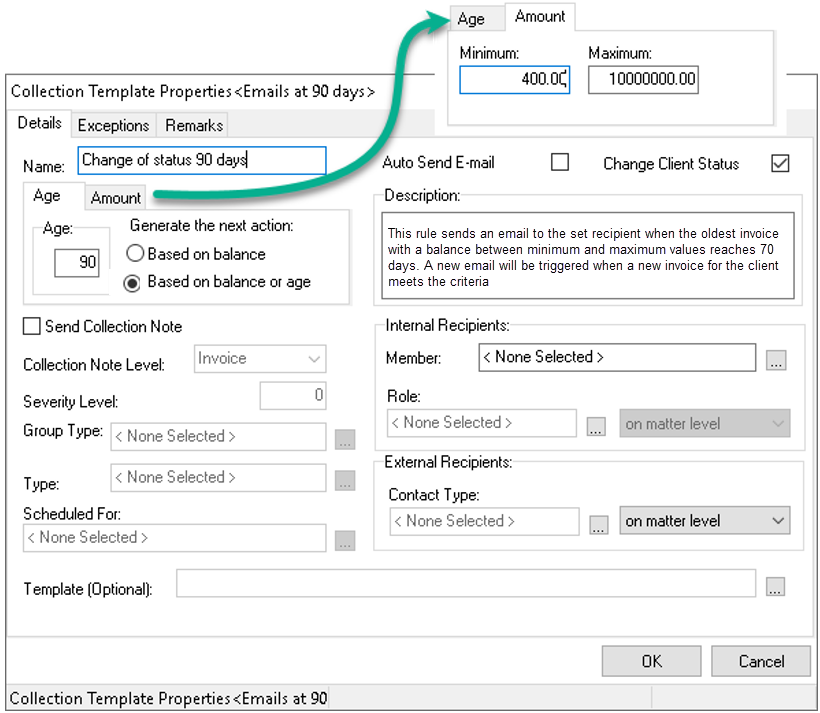
To send a warning email when the oldest invoice with a balance between $400.00 and $1,000,000.00 reaches 70 days, checkmark the Auto Send E-mail checkbox option, complete the Age field with 70 days, and enter a minimum amount of $400.00 and a maximum one of 1,000,000.00. Select Based on balance or age to engage both criteria to auto-send the email.
Other
Emails log form
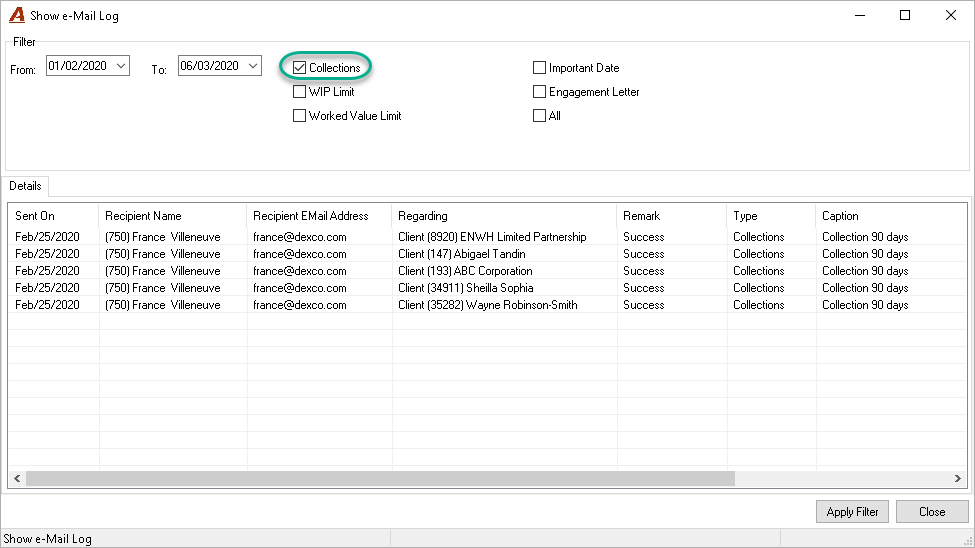
Authorized users can verify if emails have been successfully sent by the system in the Emails Log section located under Other – Sent Email log option.
Select the “Collections” filter option and the “from/to” date. The list will display all emails that have been triggered to be sent by a valid template. You will see in the “Remark” column if they were successfully sent or not. You can also see from which template emails were sent by looking the Caption column which is the text entered in the “Caption” field of the rule.
When emails are not successfully sent…
Verify that the SMTP server is functioning properly and that any modifications affecting the SMTP server were reflected in Acumin System Settings.
Verify that the email address of the recipient is valid and/or that the criteria for the email was met.
Implementation of a BPR Rule
Test the rule and email template setup in the AcuminTraining before deployment in the production environment.
Test First
Database
AcuminTraining database
Test Set-up – Part I
Complete the SMTP settings in Acumin System settings.
Complete a collections business process rule with the “Auto Send Email” and “Change Status” options ON and a date criteria that will result in a small number of emails being sent. confirm that you have a vaild email address in member properties and then enter your member code in the Internal Recipient section. Do not use the external receipient option for the test.
Select a small list of clients with invoices older than the number of days used as the criteria for the rule and confirm that that their client properties does not have the “Exemption” setting active. Enter one of these clients into the collections business process rule exceptions tab using another condition that will not trigger the rule. Complete the Remark section.
Logout of AcuminTraining
Invoke the Trigger
The next morning, log into AcuminTraining to trigger that BPR rule.
Expected Test Results
Receipt of emails for all the identified clients with the expected email content as well as a client status change to collections with the content of the remark in the client’s status change log. There should be no email or status change for the one client included in the exception list. Make sure that the test day is not considered a holiday in the Acumin holiday calendar. If the expected results are not met verify all the attributes affected to identify the cause.
Test Set-up – Part II
Pay the oldest invoice that triggered the action for the clients reflecting the changed status to collections, so the new balance outstanding is under the Minimum amount set in the template. If the minimum amount entered is 0, pay the invoice in full.
Invoke the Trigger
The next morning, log into AcuminTraining to trigger that BPR rule.
Expected Test Results
The status of the affected clients should be back to “Active”.
Production Database Implementation
First Communication:
Advise all role-holders what they can expect in context of emails and status changes along with process requirements. They should know the start date for the new process as well as what they are expected to do if they receive an email and/or if they want to reactivate the client.
Days before the activation of the template:
Complete the SMTP settings Under “Environment - System Configuration – System Settings” and “E-mail & Bank” tab in the production database in the same way you did within Acumin Training.
Confirm the list of all clients that should be exempt and remove the checkmark in their corresponding client properties to set exemption.
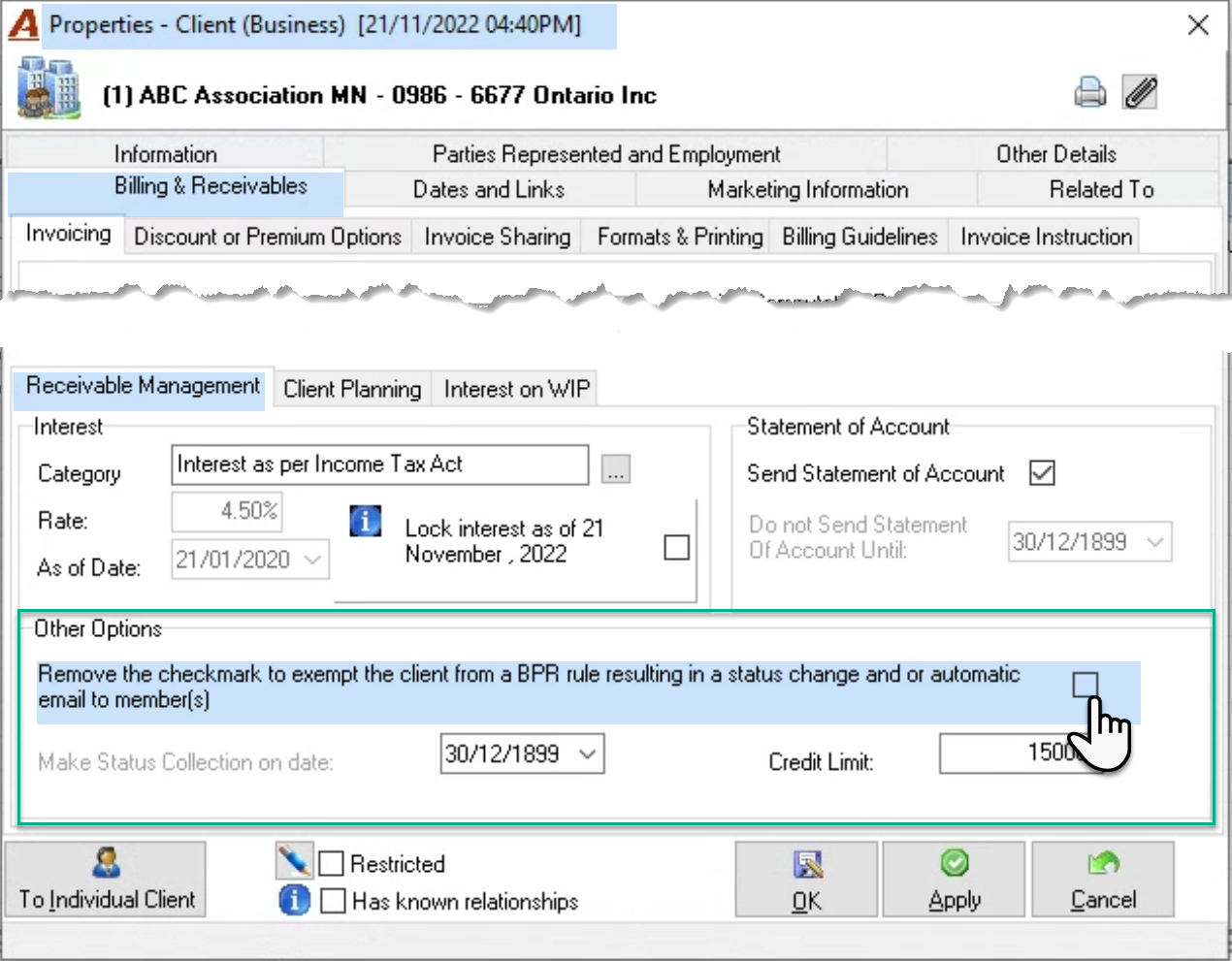
Confirm the list of exceptions to be added to the rule and that all email addresses for member role holders are up to date in member properties.
The day before the activation of the template:
Complete the collection template and enable the “Auto send email” or/and “Change status” options. The “status change” and/or the “Send automatic email” function will be triggered when the first user logs in Acumin the next day.