.png)
Introduction
Scope and Purpose
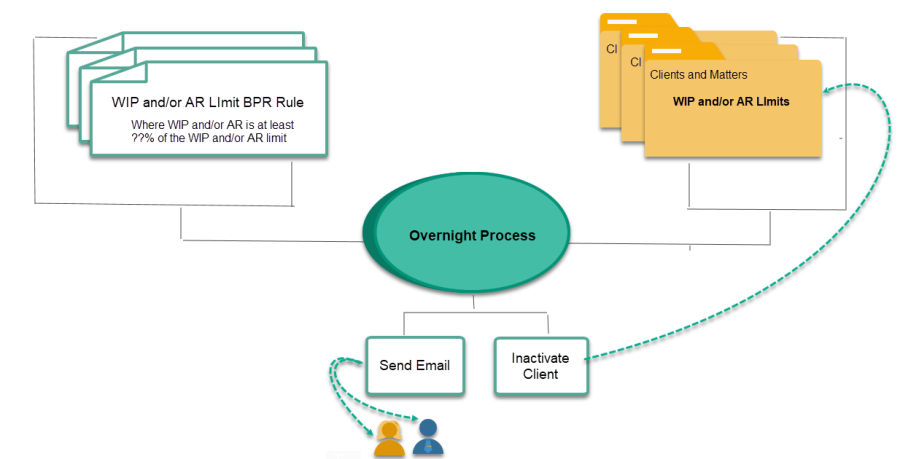
Available for use at the client or matter level, the "WIP and/or AR limit Business Process Rule" is designed to provide the Law-firm with the necessary tools to facilitate control of WIP and/or AR values in context of pre-set limits. Based on pre-set percentage-based limit use, the application will trigger an automated e-mail to role-based or pre-set recipient(s), and/or update the client status to inactive to prevent the posting of additional unbilled time or disbursements.
When used at a matter level, the WIP and AR limit for the matter is typically set in consideration of agreed retainer funds, therefore leveraging the Business Process Rule to trigger reminder emails to maintain replenished retainer balances as the work moves forward.
Process Overview
The authorized user can create as many "WIP and/or AR Limit" Business Process Rules as needed. Each rule will contain the percentage to be applied to the WIP and AR limit set the client or matter level which will be used to calculate the trigger amount.
The rule also offers the user with the ability to generate an automated e-mail to role-based or pre-set recipient(s), and/or update the client status to inactive to prevent the posting of additional unbilled time or disbursements.
The WIP and/or AR limits leveraged by the BPR rule are found within the client or matter properties of the affected clients and matters. Clients or matters without limits are therefore not affected by this type of BPR rule.
Once the value of the WIP and/or AR for the client and/or matter has reached the trigger amount, Acumin will launch the action or actions for the affected rule. In addition, once the conditions that trigger a change of status for the client are cleared, the application will re-set the client to active.
Law-firms working with retainer policies, set the value of the retainer in the matter's retainer field as well as set the matter's WIP and AR limit to equal the retainer value, to control the sum of WIP and AR in context of the retainer amount agreed to and leverage the BPR tool to generate the warning e-mail to address WIP & AR balances while replenishing the funds.
Best Practice:
Law-firms working with retainer policies, set the value of the retainer in the matter’s retainer field as well as set the matter’s WIP and AR limit to equal the retainer value, to control the sum of WIP and AR in context of the retainer amount agreed to and leverage the BPR tool to generate the warning e-mail to address WIP & AR balances while replenishing the funds.
Setting up the Client and Matter
Client Properties
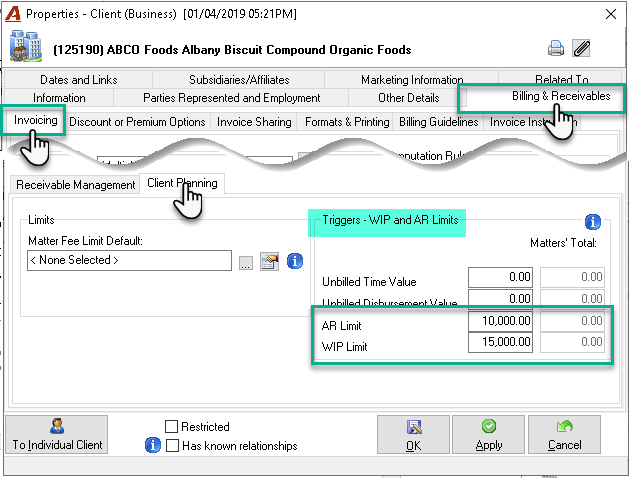
In the Client properties form, click on the Billing & Receivables tab. Then click the Invoicing tab and then the Client Planning subtab. The rule will work with the amounts entered in the AR Limit and WIP limit fields in the Triggers – WIP and AR Limits section
-
AR Limit: The amount entered in this field works in conjunction with the AR option in the Business Process Rules set at the client level. It includes the balance owed at the client level.
-
WIP Limit: The amount entered in this field works in conjunction with the Fees and/or Disbursements options in the Business Process Rules set at the client level. It includes the sum of unbilled time and/or disbursement amount selected or not in an invoice at the client level.
-
Matters Total: Total of the amounts entered in both the AR and WIP Limit fields of all matters of the client.
Clients with no amounts entered in those fields will not be considered by the rule.
Matter properties
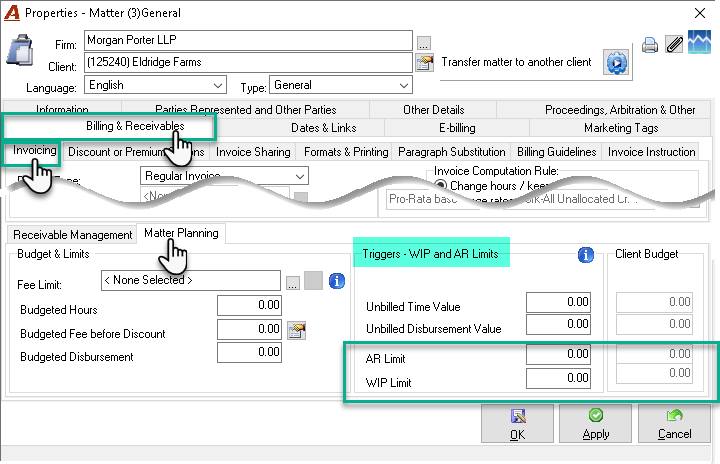
In the Matter properties form, go to the "Billing & Receivable – Invoicing – Matter Planning" subtab. The rule is working with the amount entered in the AR Limit and WIP limit fields in the Triggers – WIP and AR Limits section.
-
AR Limit: The amount entered in this field works in conjunction with the AR option in the BPR rules set at the matter level. It includes the balance owed at the matter level.
-
WIP Limit: The amount entered in this field works in conjunction with the Fees and/or Disbursements options in the BPR rules set at the matter level. It includes the sum of unbilled time and/or disbursement amount selected or not in an invoice at the matter level.
-
Client Budget: Amounts entered in the AR and WIP limit fields in the client properties.
Matters with no amounts entered in the AR and WIP Limit fields will not be considered by the rule.
Setting up a WIP and/or AR Limit Template
Acumin allows the creation of more than one rule with each triggering different actions and having different email texts.
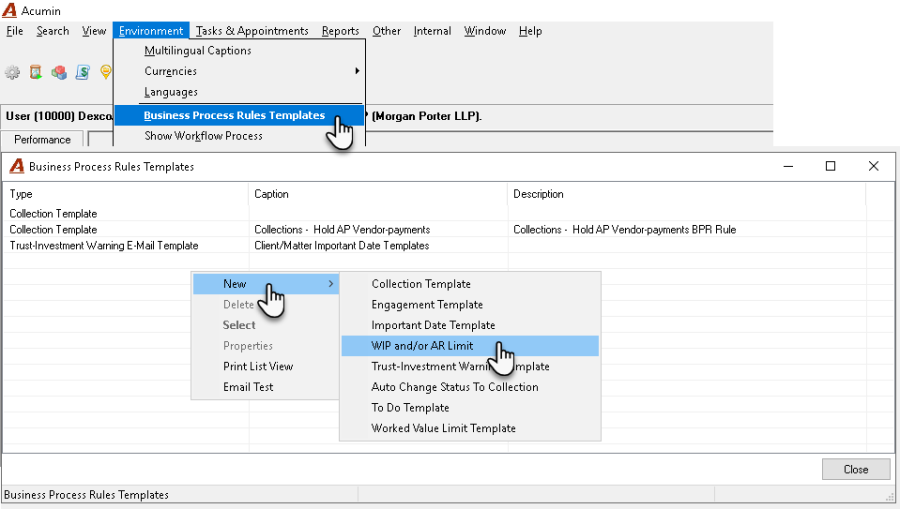
To create a new template, click on the Environment tab. Then select the Business Process Rules Templates option. Right-click New and select "WIP and/or AR limit"
Details Tab
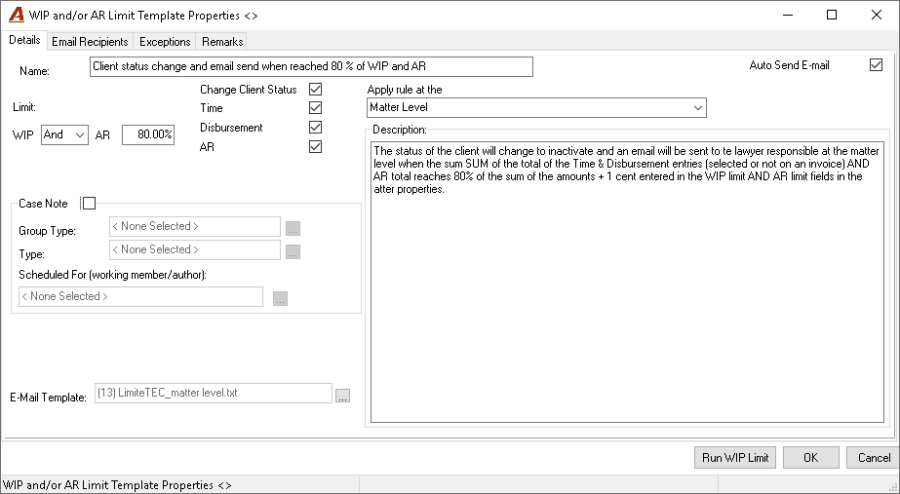
Fields definitions
Name: Enter a name that is significant name for the rule.
Description: Enter a detailed description of the rule.
Change status: When checked, the system will change the status of the client from "Active" to "Inactive" regardless which level the rule is applied. It is only when the WIP and/or AR goes under the limit set in the template that the system will automatically change back the status to "Active".
Auto Send Email: When checked, the system will send an email automatically. To be operational the server configuration and Email Recipient tab must be completed, and an email text selected in the template. (See section 4 in this document)
GOOD TO KNOW:
-
The "Auto Send Email" functionality is triggered in the morning when the first user logs in Acumin.
-
The email address used by the rule is the one set in the member properties. If there is no email set, the system will simply not send the email. There is no filtering by email type (General, Business and Home) when an email is generated and sent. The system will take the first email address listed in the member's coordinate section regardless of the email type.
-
For the system to resend emails for the same client/matter, 2 conditions must be met. The system should find:
-
The client status to "Active" and,
-
The WIP and/or AR amounts below the limit set in the template.
-
This is to avoid sending unwanted email when modifying manually the status of the client for example, without considering the WIP and/or AR position based on the limits set in the template.
Normally, the WIP and/or AR amounts should decrease under the limit set in the template which will trigger the client status change to "Active", resetting the client "send email" conditions.
Limit section: Select one or a combination of the 3 options - Time, Disbursement or AR - in conjunction with the Boolean operator "AND" or "OR" along with the percentage limit to build the rule to apply.
Refer to the scenarios below with the description of the rule:
*For Acumin versions older than 2.0, only the Boolean operator “OR” is available.
|
Boolean operator |
Time |
Disbursement |
AR |
The system will trigger one or several actions: |
|---|---|---|---|---|
|
OR |
X |
|
X |
if the total of the Time entries, selected or not on an invoice OR the AR total reaches XX% of the amount + 1 cent entered in the WIP limit OR AR limit fields in the client or matter properties. |
|
OR |
|
X |
X |
if the total of the Disbursement entries, selected or not on an invoice OR the AR total reaches XX% of the amount + 1 cent entered in the WIP limit OR AR limit fields in the client or matter properties. |
|
OR |
X |
X |
X |
if the total of the Time & Disbursement entries (selected or not on an invoice) OR the AR total reaches XX% of the amount +1 cents entered in the WIP limit OR AR limit fields in the client or matter properties. |
|
AND |
X |
|
X |
if the SUM of the Time entries selected or not on an invoice AND the AR totals reaches XX% of the SUM of the amounts + 1 cent entered in the WIP limit AND AR limit fields in the client or matter properties. |
|
AND |
|
X |
X |
if the SUM of the Disbursement entries selected or not on an invoice AND the AR totals reaches XX% of the SUM of the amounts + 1 cent entered in the WIP limit AND AR limit fields in the client or matter properties. |
|
AND |
X |
X |
X |
if the SUM of the total of the Time & Disbursement entries (selected or not on an invoice) AND AR total reaches XX% of the sum of the amounts + 1 cent entered in the WIP limit AND AR limit fields in the client or matter properties. |
|
OR/AND |
X |
X |
|
If the amount i.e., the sum of the unbilled time and disbursements amounts selected or not on an invoice reaches XX% of the amount + 1 cent entered in the WIP limit field in the client or matter properties. |
|
OR/AND |
X |
|
|
if the total of the Time entries, selected or not on an invoice reaches XX% of the amount + 1 cent entered in the WIP limit field in the client or matter properties. |
|
OR/AND |
|
X |
|
if the total of the Disbursement entries, selected or not on an invoice reaches XX% of the amount +1 cent entered in the WIP limit field in the client or matter properties. |
|
OR/AND |
|
|
X |
if the AR total reaches XX% of the amount + 1 cent entered in the AR limit field in the client or matter properties. |
Apply rule at the: Select at which level the rule will be applied. Available options are Client Level or Matter Level.
Case note section: Check the option for the system to create and send a WIP note with the status "In Progress" to the working member or member selected. The user must select a Group Type and Type by clicking on the ellipsis button. If an appropriate Group/Type is not available, one must be created.
-
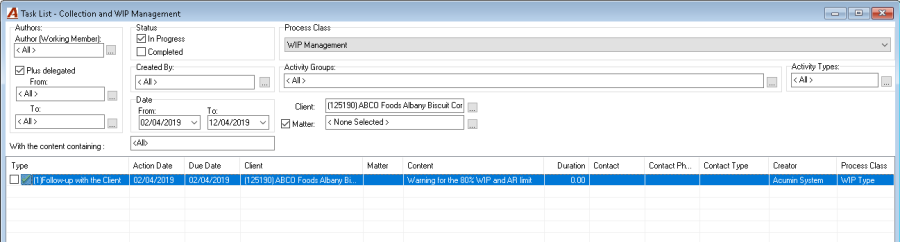
WIP notes are visible in the "Task List – Collection and WIP Management" when selecting the Process Class "WIP Management" and removing the "Created by".
-
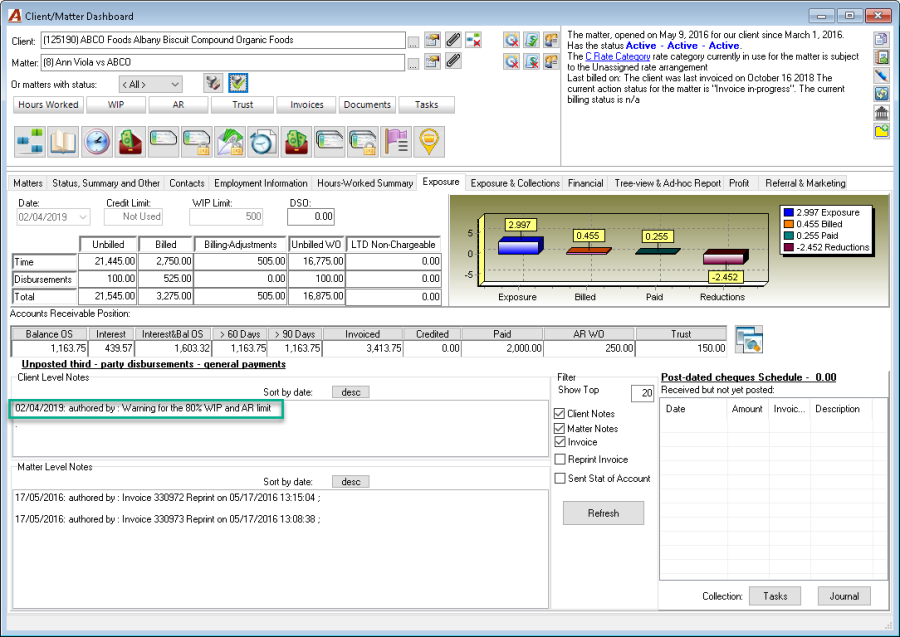
WIP notes can also be seen in the Client/Dashboard - Exposure tab, in the Client Level Notes.
-
The Time Entry & Note content will take the content of the "Email Subject line" field set in the Email Recipient tab.
Email template: Select the email template created for the rule by clicking on the ellipsis button. The ".txt" file should be mapped in the Show E-mail Link list in Acumin (Layout Class: Email Link).
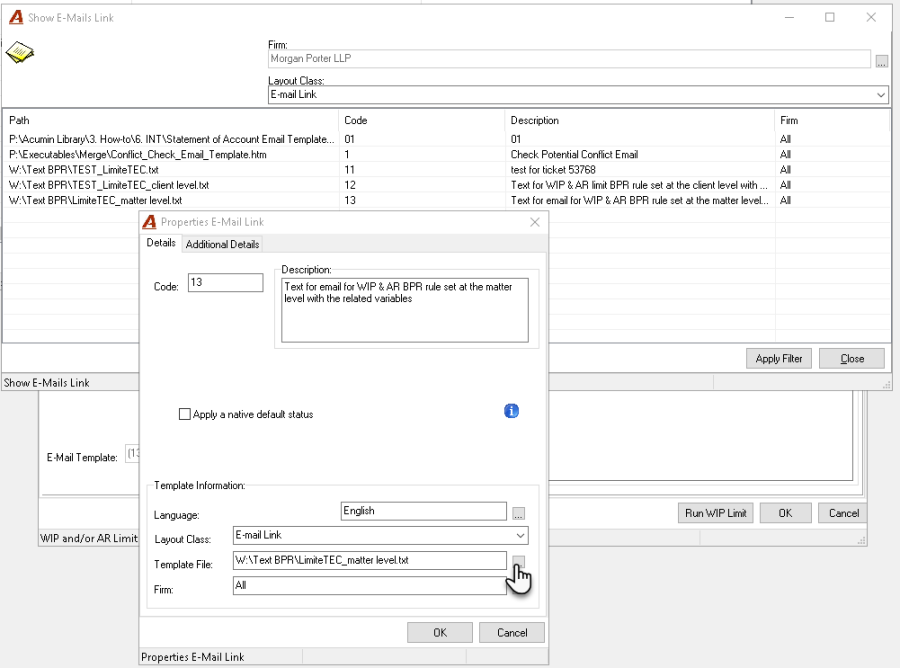
Creation of the email text
A ".txt" file including the body of the email text should be linked with the "Email Template" field within the rule.
The following variables can be used in the body of the email. When the system will trigger the "Send email" function, those variables will be replaced by the information that is found directly in the Acumin database.
The following tables list the variables available for the email text.
|
Client Level |
Description |
|
<<Clientcode>> |
Client number |
|
<<Clientname>> |
Client name |
|
<<ClientCurrentValue>> |
Total amount of what has been checked in the WIP & AR limit rule applied. Can be WIP-time and/or WIP-disbursement and/or AR.
|
|
<<ClientWIPPercentage>> |
WIP percentage reached |
|
<<ClientARPercentage>> |
AR percentage reached |
|
<<ClientPercentage>> |
Both WIP and AR reached |
|
<<ClientLimitValue>> |
Sum of WIP and/or AR limits set at the Client properties |
|
<<ClientWIPLimitvalue>> |
WIP limit set at the Client properties |
|
<<ClientARLimitvalue>> |
AR limit set at the Client properties |
|
<<Age>> |
|
|
Matter Level |
Description |
|
<<Mattercode>> |
Matter number |
|
<<Mattername>> |
Matter name |
|
<<MatterCurrentValue>> |
Total amount of what has been checked in the WIP & AR limit specific rule applied. Can be WIP-time and/or WIP-disbursement chargeable and non-chargeable and/or AR. |
|
<<MatterWIPPercentage>> |
WIP percentage reached |
|
<<MatterARPercentage>> |
AR percentage reached |
|
<<MatterPercentage>> |
Both WIP and AR reached |
|
<<MatterLimitValue>> |
Sum of WIP and/or AR limits set at the Matter properties |
|
<<MatterWIPLimitvalue>> |
WIP limit set at the Matter properties |
|
<<MatterARLimitvalue>> |
AR limit set at the Matter properties |
|
<<TotalMatterCurrentValue>> |
Sum of <<MatterCurrentValue>> |
|
<<TotalMatterLimitValue>> |
Sum of <<MatterLimitValue>> |
|
Other Variables |
Description |
|
<<Client text>> |
Begin section dedicated for client level template i.e. when the Client level is selected. |
|
<</Client text>> |
End client level section |
|
<<Mattertext>> |
Begin section dedicated for matter level template i.e. when the Matter level is selected. |
|
<</MatterText>> |
End matter level section |
|
<<MatterLine>> |
Begin matter line section that is replicating for each matter involved |
GOOD TO KNOW
-
The txt file can be saved in the Other LetterMerge folder found in the main Acumin directory.
-
The txt file can be created using Notepad or any other applications saving in .txt format.
-
The parameters <<ClientText>> and <</ClientText>> are mandatory when using variables at the client level.
-
The parameters <<MatterText>>, <</MatterText>>, <<MatterLine>> and <</MatterLine>> are mandatory when using variables at the matter level.
-
All the fields between <<MatterLine>> and <</MatterLine>> are basically the columns for a "matter details table" of matters affected.
Email examples can be found in the Appendix section at the end of the document.
Email Recipients Tab
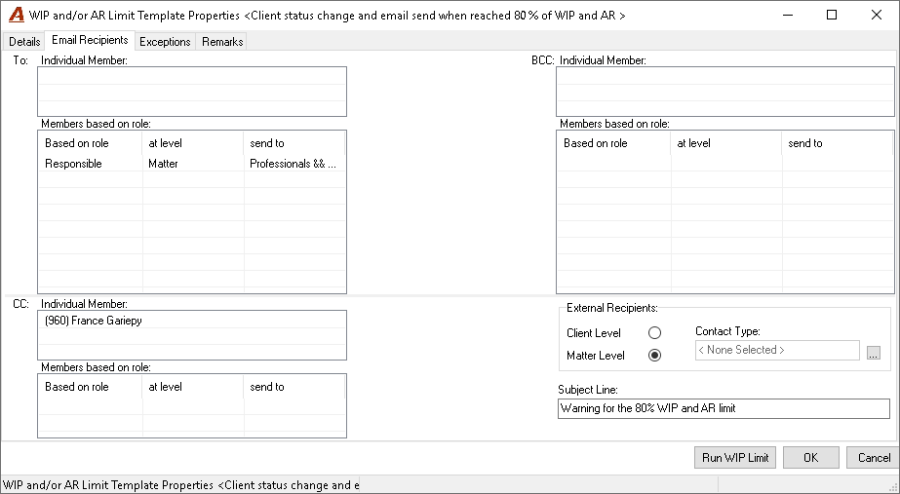
To:, CC: and BCC: sections
Individual Member
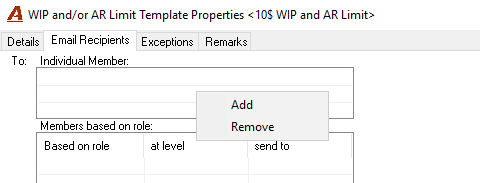
Right click in the Individual Member section, then select either Add or Remove a Member from the list.
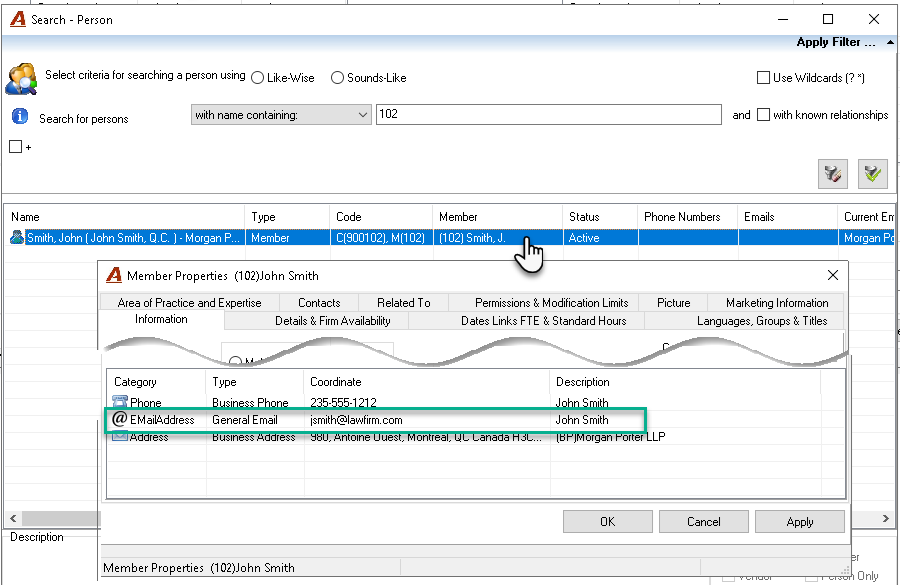
When adding a recipient, the Search – Person form will be displayed. Select a specific member by searching and selecting the member in the Search person form.
The member selected must have a valid email address set in the coordinate section of their Member Properties.
Members based on role
Right click in the Member based on role section, then select either Add or Remove.
-
Include Professional: Check if the email should be sent to the lawyer selected in the role.
-
And/or Assistant based on: Check if the email should be sent or also be sent to the assistant linked to the lawyer selected in the role.
-
Client / Matter level: Select the level client or matter of the role selected.
Role Select the role from the list.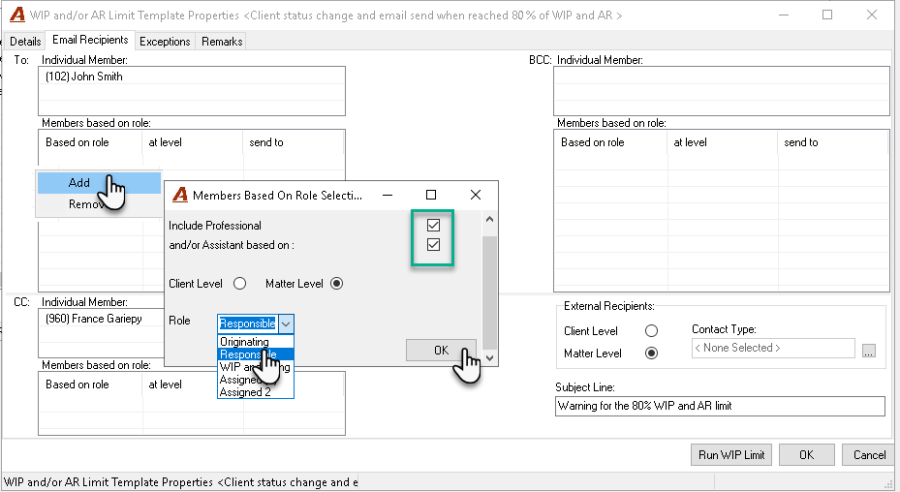
External Recipients
Select Client and/or Matter Level and the contact type. Make sure that the contact corresponding to the contact type within the client or matter has a valid email address.
Subject Line
Enter the text that should appear as the subject line of the email that will be sent. This text will also be used as the content of the case note if enabled.
Exceptions Tab
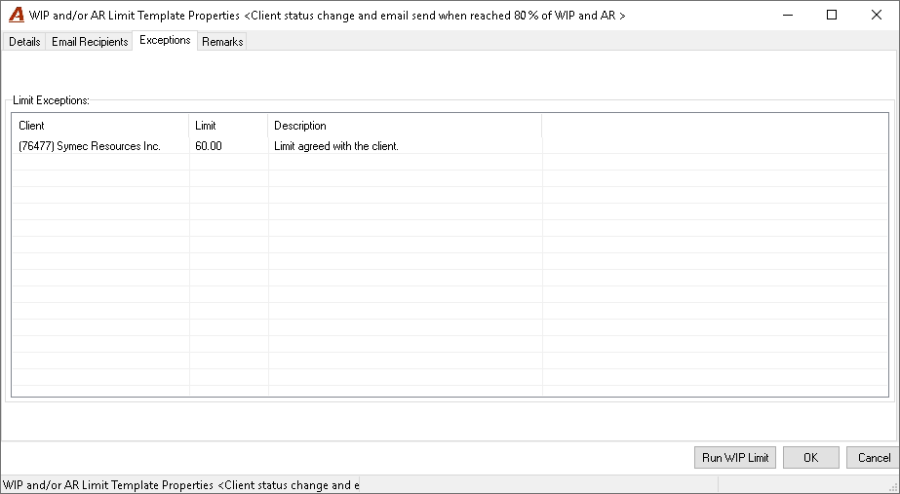
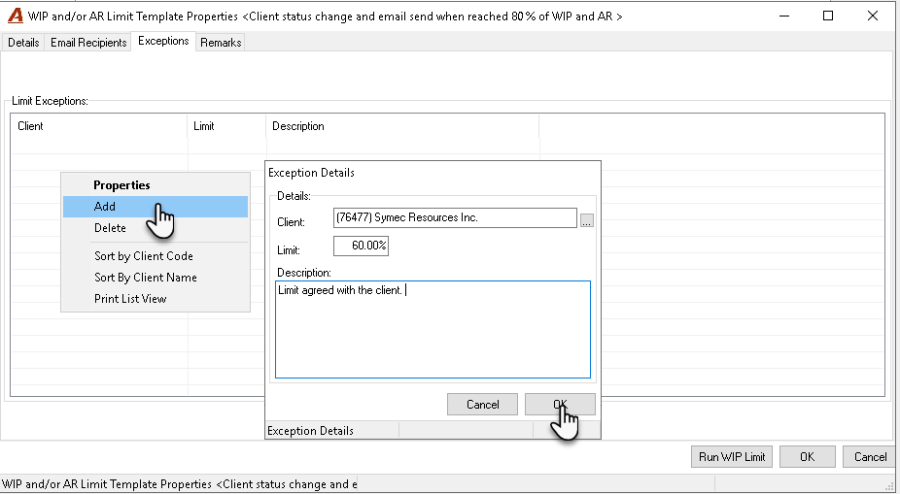
Specific clients can be setup to have a different limit than the one in the template. For example, all clients will have the limit of 80% set in the template but for client 123, the limit to apply will be 60%.
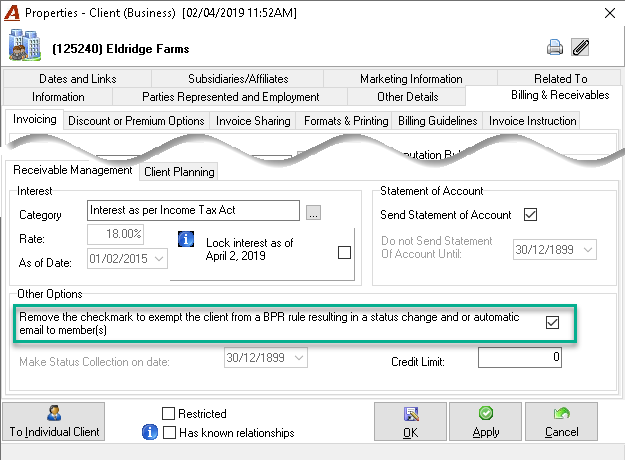
Exceptions where the client is completely exempted from Business Process Rules triggering a status change, emails and creation of WIP notes is directly set in the Client Properties under Billing & Receivables – invoicing – Receivable Management – Other Options section.
Remarks tab
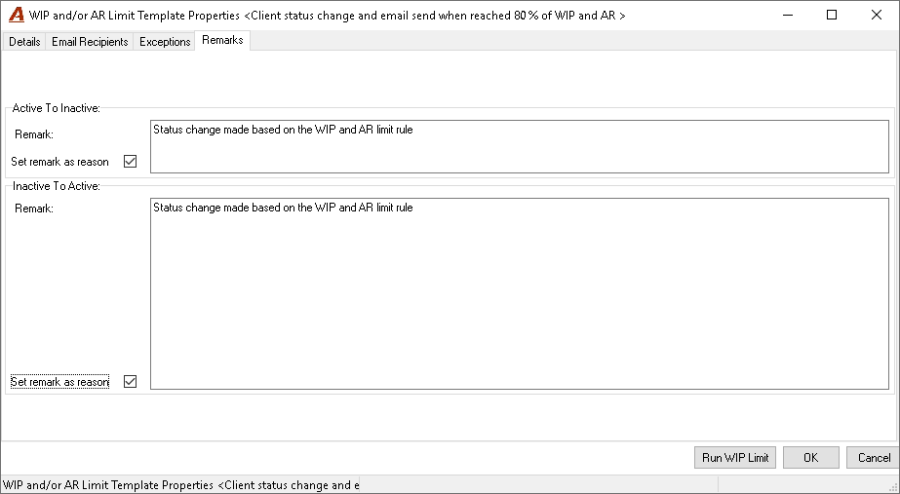
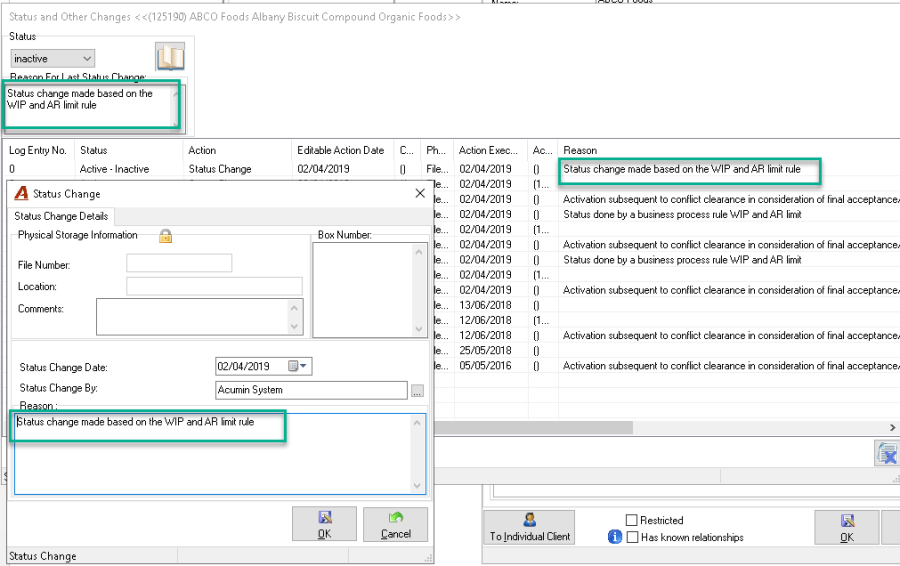
When the client is inactivated or activated by the system due to the status change set in the rule, the content entered in the Remark fields will be used to populate the reason for the status change in the status log.
To be used only if the status change is enabled in the rule.
Setting up the environment
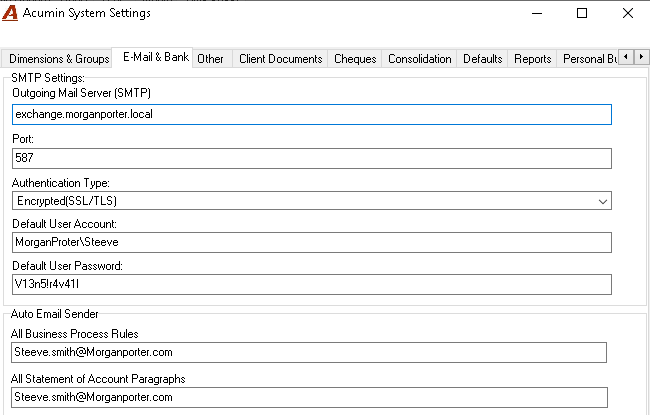
Configuration of the SMTP server and Auto Email sender (if required)
Under "Environment - System Configuration – System Settings" and "E-mail & Bank" tab, set up the SMTP settings (to be completed by your IT department) as well as the Auto Email Sender with the e-mail information for the individual to be considered the sender.
To receive emails automatically sent by the rule, make sure that all members have a valid email address entered in their member properties. The system will take the first email address of the list regardless of the type (Home, office, etc.). If there is no email address, the system will simply not send the email.
Emails log form
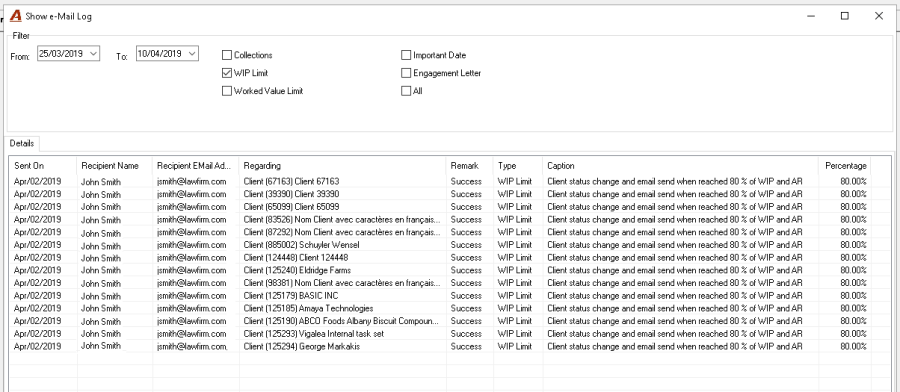
Authorized users can verify if emails have been successfully sent by the system in the Emails Log section located under Other – Sent Email log option.
Select the "WIP Limit" option and the "from/to" date. The list will display all emails that have been triggered to be sent by a valid rule. You will see in the "Remark" column if they were successfully sent or not. You can also see from which rule emails were sent by looking the Caption column which is the text entered in the "Caption" field of the rule.
What to verify when emails are not successfully sent:
-
Verify that the SMTP server is functioning properly.
-
Verify that the modifications affecting the SMTP server settings were made and update the System settings accordingly.
-
Verify that the email address of the recipient is valid.
Remember that if the member does not have an email address entered in his member properties, the system will not send emails and thus will not appear in this list.!
Implementation of a rule in your environment
We recommend to test in your AcuminTraining the rules while building it to see the impacts in and effects. Especially when it involves sending emails or changing status. We recommend enabling those 2 options only when you are ready and confident that the rule implemented is really what you want.
To test the "Auto send email" settings
Location: AcuminTraining database
Scenario: To test the email settings and email content.
-
Complete the SMTP settings in the System configuration;
-
Complete a selection of clients/matters with limits in their properties;
-
Complete a WIP and AR limit template . Enable the "Auto Send Email" option but also the "Change Status" option (to visually confirm that the rule was trigger for this client) Enter your member linked with your email address in the "TO – Individual Member" section of the Email Recipient tab.
-
Enter some exceptions with another percentage than the one set in the rule.
The following morning, verify if:
-
You received the emails from all the client/matter that reached the percentage set in the rule.
-
If not, verify if the status of the client has changed.
-
If yes, the rule was triggered. Review the SMTP server settings;
-
If not, verify
-
if the client is exempted from BPR rules in the client properties
-
if the actual WIP and/or AR total amounts compared limit's percentage amount is still reached to trigger the rule.
-
-
-
If yes, the emails settings are set properly.
-
-
The content of the email with the variables inserted are correctly presented. If not, review the .txt file.
IMPORTANT NOTE:
*For the reasons previously explained, a client can only receive an email when certain conditions are met. To run a second round of tests, the tester will have to use a new set of clients.
To test the "Change Status" option
Location: AcuminTraining
Scenario: To test the client status change
-
Complete a selection of clients/matters with limits in their properties;
-
Complete a WIP and AR limit template . Enable the "Change Status" option
-
Enter some exceptions with another percentage than the one set in the rule.
-
Complete the Remark section;
The following morning, verify if:
-
Clients having reached the limit's percentage has been inactivated.
-
If not, verify
-
if the client is exempted from Business Process Rules in the client properties.
-
if the actual WIP and/or AR total amounts compared limit's percentage amount is still reached to trigger the rule.
-
-
-
Client set as exceptions has been excluded or not depending on the percentage set.
-
If not,
-
if the client is exempted from BPR rules in the client properties
-
if the actual WIP and/or AR total amounts compared limit's percentage amount is still reached to trigger the rule.
-
-
-
For the same inactivated client, at the end of the same day, invoiced or pay invoices in order to impact the limit to reach.
-
The next morning, verify if the status of the affected client is back to "Active".
Implementation of the rule in the production database
-
Advice all lawyers that on a specific date, depending on the rule applied, they may receive an e-mail and/or client may become automatically "inactive" if they has reached the desired percentage of the WIP and/or AR limit.
-
Communicate what they are expected to do if they receive an email and/or if they want to reactivate the client.
-
Few days before the activation of the rule:
-
Complete the SMTP settings Under "Environment - System Configuration – System Settings" and "E-mail & Bank" tab in your production database the same way you did in the AcuminTraining environment.
-
Determine and set all clients that should be exempted by removing the checkmark in their client properties.
-
Enter the limit in all clients and/or matters that you want to apply the rule to.
-
Review the email address of members that may receive emails.
-
-
The day before the activation of the rule:
-
Complete the WIP and/or AR rule setting – enable the "Auto send email" or/and "Change status" options.
-
The "status change" and/or the "Send automatic email" function is triggered when the first user logs in Acumin the next day.
-
Appendices
Email examples
Matter information when the rule is set at the matter level
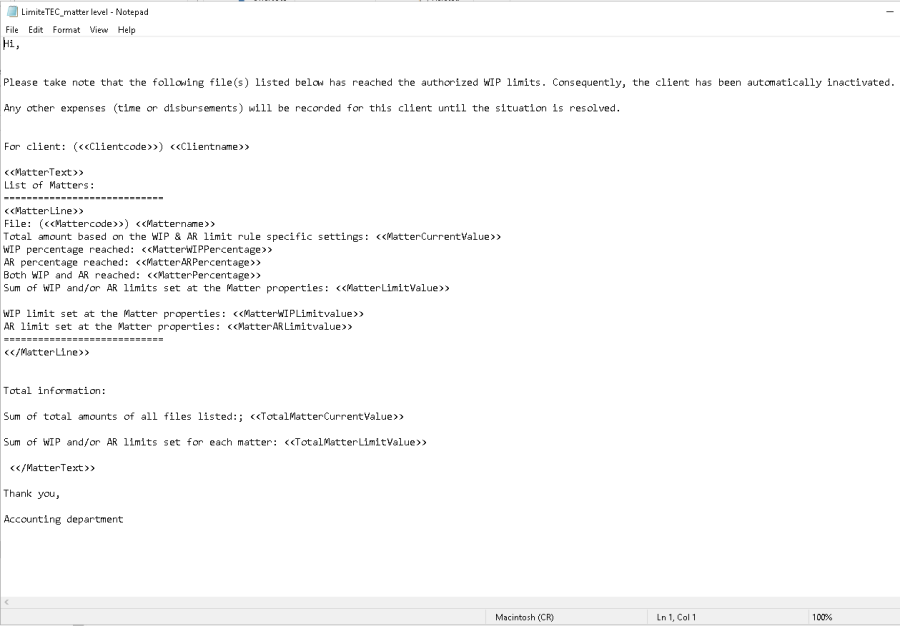
Example
Hi,
Please take note that the following file(s) listed below has reached the authorized WIP limits. Consequently, the client has been automatically inactivated.
Any other expenses (time or disbursements) will be recorded for this client until the situation is resolved.
For client: (<<Clientcode>>) <<Clientname>>
<<MatterText>>
List of Matters:
============================
<<MatterLine>>
File: (<<Mattercode>>) <<Mattername>>
Total amount based on the WIP & AR limit rule specific settings:
<<MatterCurrentValue>>
WIP percentage reached: <<MatterWIPPercentage>>
AR percentage reached: <<MatterARPercentage>>
Both WIP and AR reached: <<MatterPercentage>>
Sum of WIP and/or AR limits set at the Matter properties: <<MatterLimitValue>>
WIP limit set at the Matter properties: <<MatterWIPLimitvalue>>
AR limit set at the Matter properties: <<MatterARLimitvalue>>
============================
<</MatterLine>>
Total information:
Sum of total amounts of all files listed: <<TotalMatterCurrentValue>>
Sum of WIP and/or AR limits set for each matter: <<TotalMatterLimitValue>>
<</MatterText>>
Thank you,
Accounting department
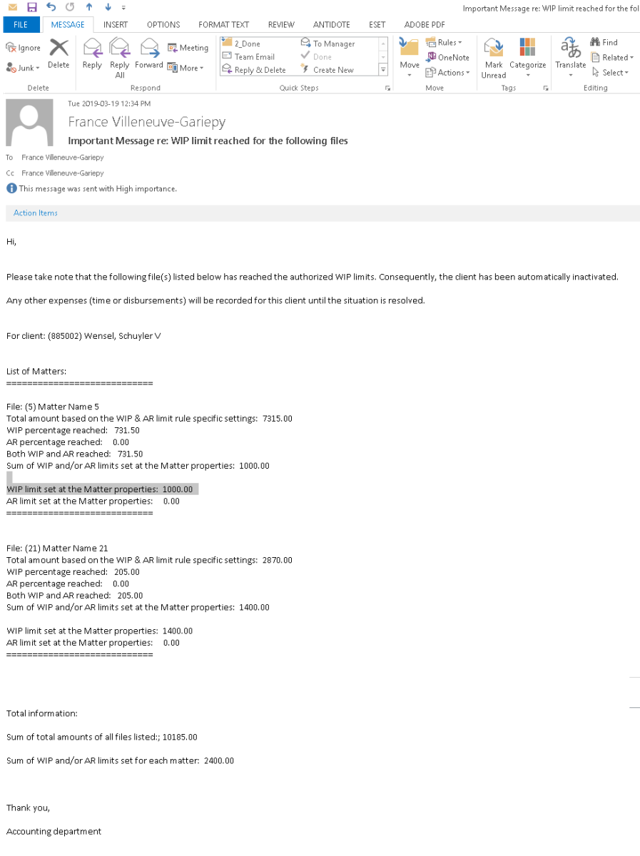
Email output
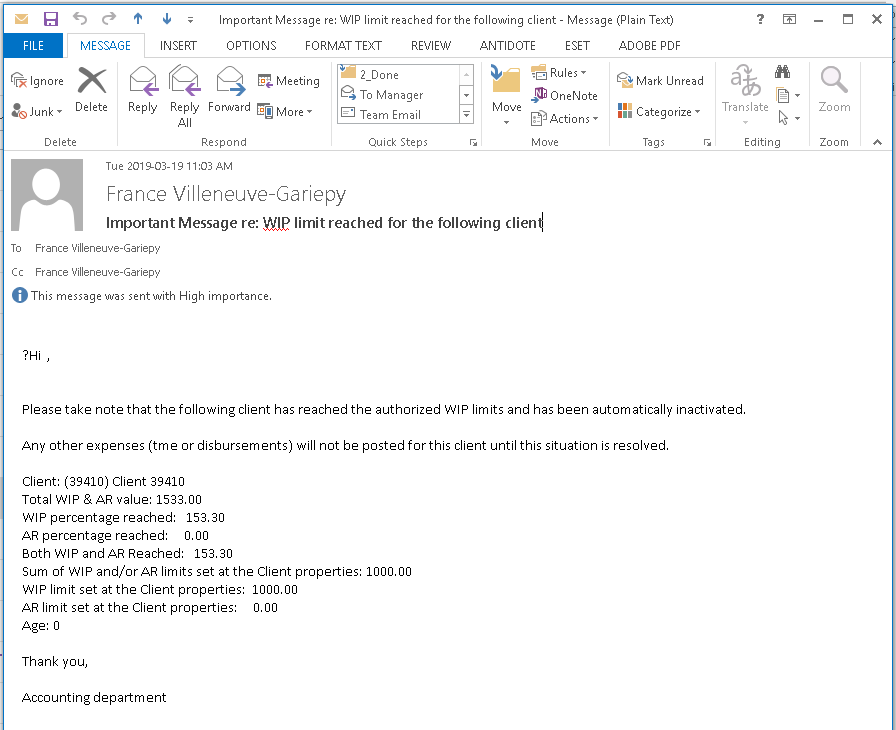
Client information when the rule is set at the client level
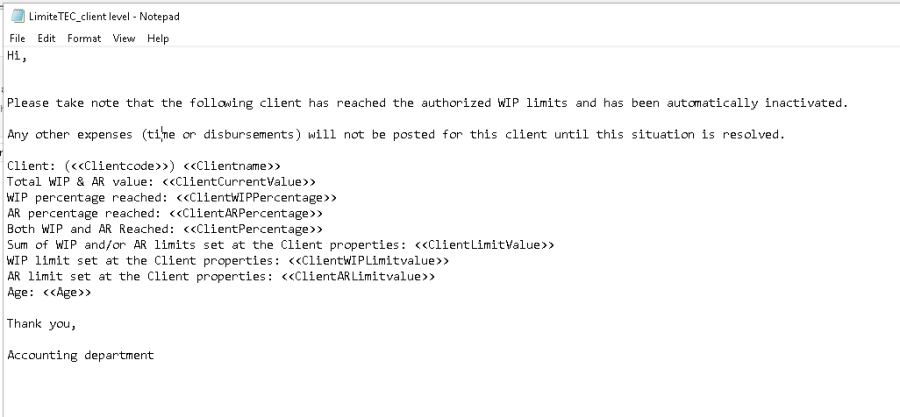
Example
Hi,
Please take note that the following client has reached the authorized WIP limits and has been automatically inactivated.
Any other expenses (time or disbursements) will not be posted for this client until this situation is resolved.
Client: (<<Clientcode>>) <<Clientname>>
Total WIP & AR value: <<ClientCurrentValue>>
WIP percentage reached: <<ClientWIPPercentage>>
AR percentage reached: <<ClientARPercentage>>
Both WIP and AR Reached: <<ClientPercentage>>
Sum of WIP and/or AR limits set at the Client properties: <<ClientLimitValue>>
WIP limit set at the Client properties: <<ClientWIPLimitvalue>>
AR limit set at the Client properties: <<ClientARLimitvalue>>
Age: <<Age>>
Thank you,
Accounting department
Email output