.png)
Scope and Purpose
The purpose of this document is to provide the user with an understanding of the email statement of account functionality.
The scope of this document extends across the variables available for use with the email template, the set-up of the email template code, path and sender, relevant options available in contact properties and execution of the workflow process.
Highlights
The Statement of Account can be sent to its intended recipient in print format through traditional post, or as a PDF attachment with a firm-created age-sensitive e-mail template associated to the corresponding statement of account firm-created paragraph.
Set-Up Requirements
Email Template
Variables:
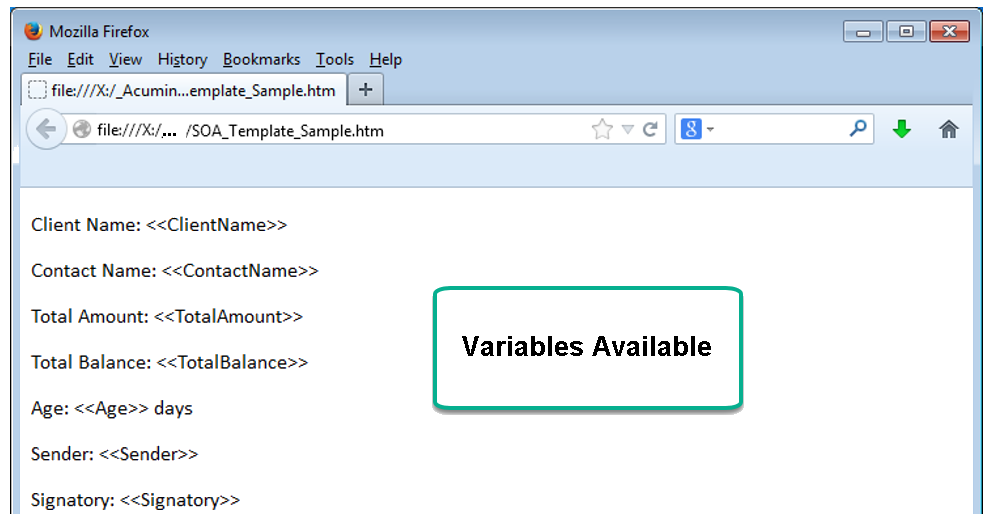
The following is a list of variables available for use when creating the template(s):
|
<<ClientName>> |
Name of the client |
|
<<ContactName>> |
Name of the Statement of Account contact |
|
<<TotalAmount>> |
Total invoiced less payments, credit notes and/or AR write-offs. It does not include interest (if any) |
|
<<TotalBalance>> |
Total invoiced less payments, credit notes and/or AR write-offs PLUS the interest (if any) |
|
<<Age>> |
Age of the oldest invoice |
|
<<Sender>> |
The name of the member that sends the Statement of Account |
|
<<Signatory>> |
The name of the member set within the Statement of Account (I.e., the Bill Lawyer for example) |
Format:
The email templates must be created as an HTML Document type (saved as .HTM files). These are created as a combination of firm defined text and use of selected variables. Most firms also include branding material (for example standard signature presentations and/or firm logos) in the email templates. Whereas the former requires minimal technical expertise, the inclusion of branding material requires programmatic knowledge of HTML requirements and should be completed by persons with expertise in this area as well as in context of other similar marketing initiatives and touchpoints which may be in use within the firm.
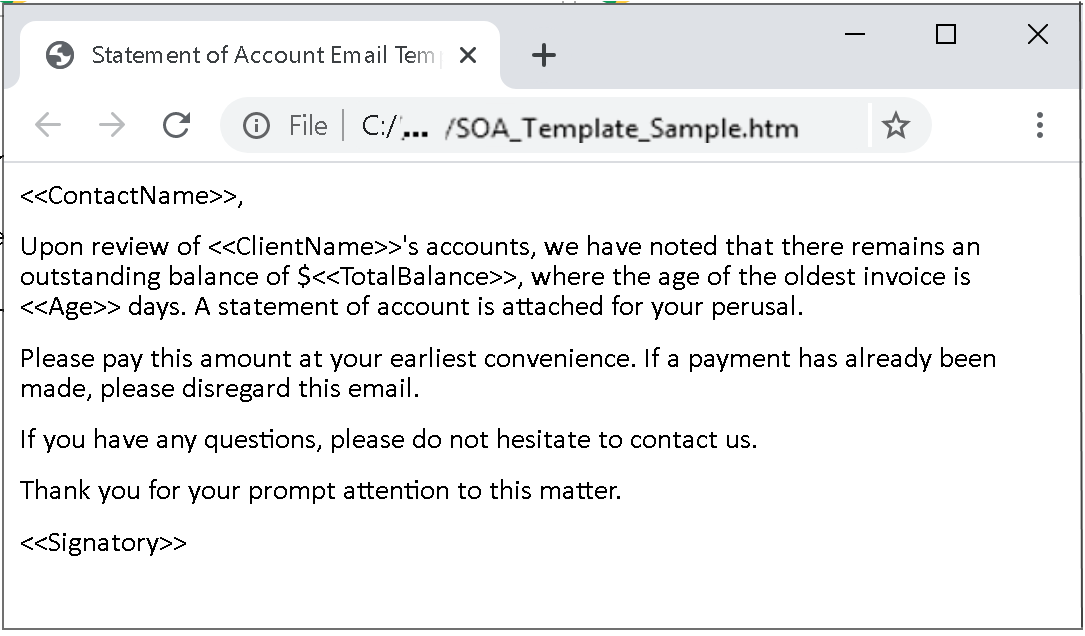
The simple example of variable use - SOA_Template_Sample.html - with the list of variables ae found within the “Executable\Merge folder or Executable\ OtherLettersRawStartPoint” folder. The copy of this file can be opened and edited with Notepad or MSWord.
Working with notepad provides visibility of the variables in HTML format which is more visually challenging but also more accurate for variable use. MSWord is easier in appearance but on save it can corrupt the variable in which case when the email template is used to generate the email text, the corrupt variable will not return the expected value.
The introduction of signature blocks and/or branding material requires the use of HTML, therefore this type of content cannot be successfully implemented with NotePad or MSWord.
Aged-Based Narrative:
If the intention is to include a narrative that changes based on the age of the oldest invoice included in the statement of account, create as many e-mail templates as there are statement of account paragraphs.
Template Creation:
Leave the sample SOA email template untouched in its folder location. Create a new subfolder within the “Executable\OtherLetterMerges” folder structure to save the new SOA email templates that the firm will create and associate to the age-sensitive paragraphs in Acumin.
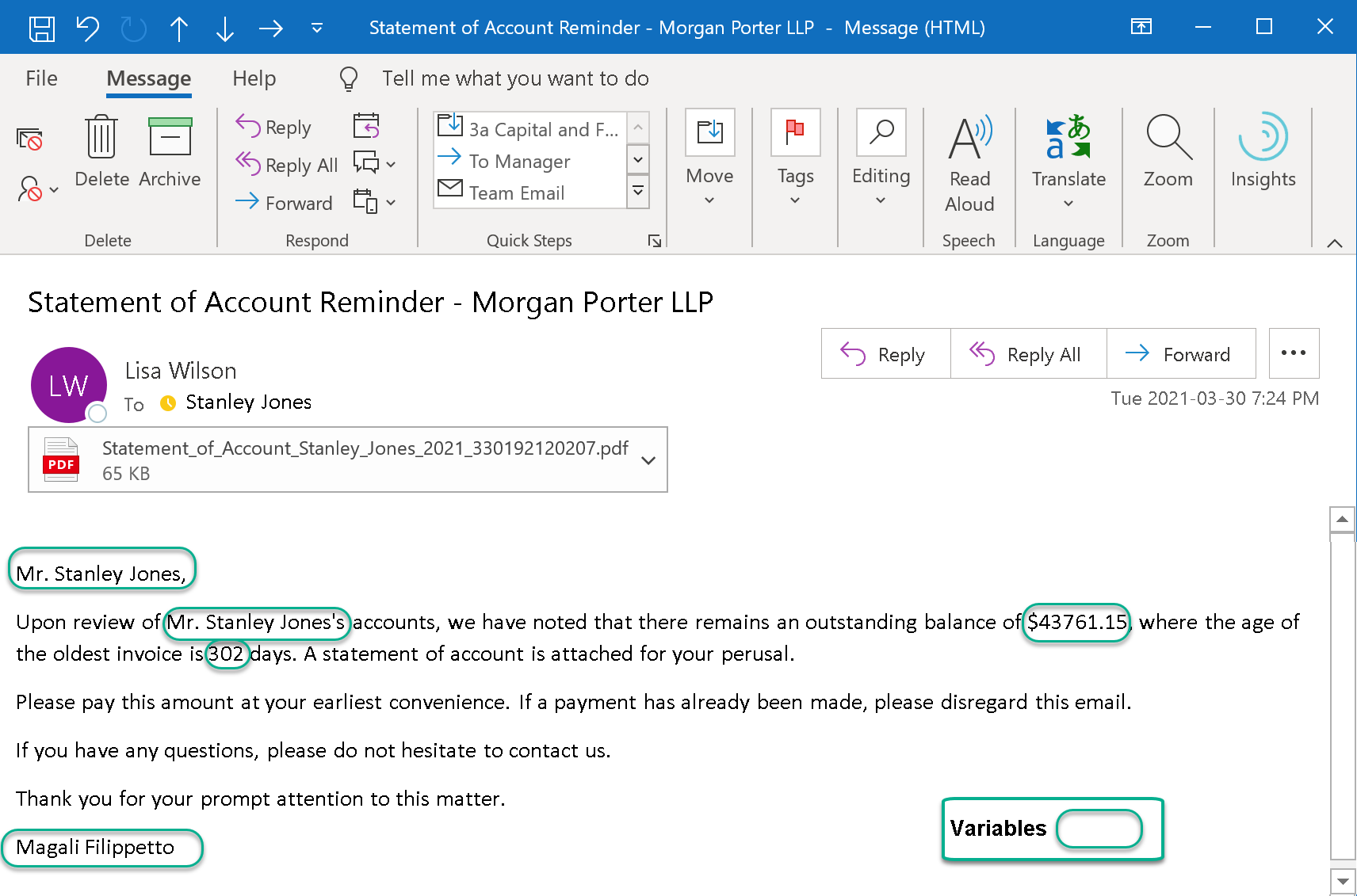
Simple Example with Variable Use:
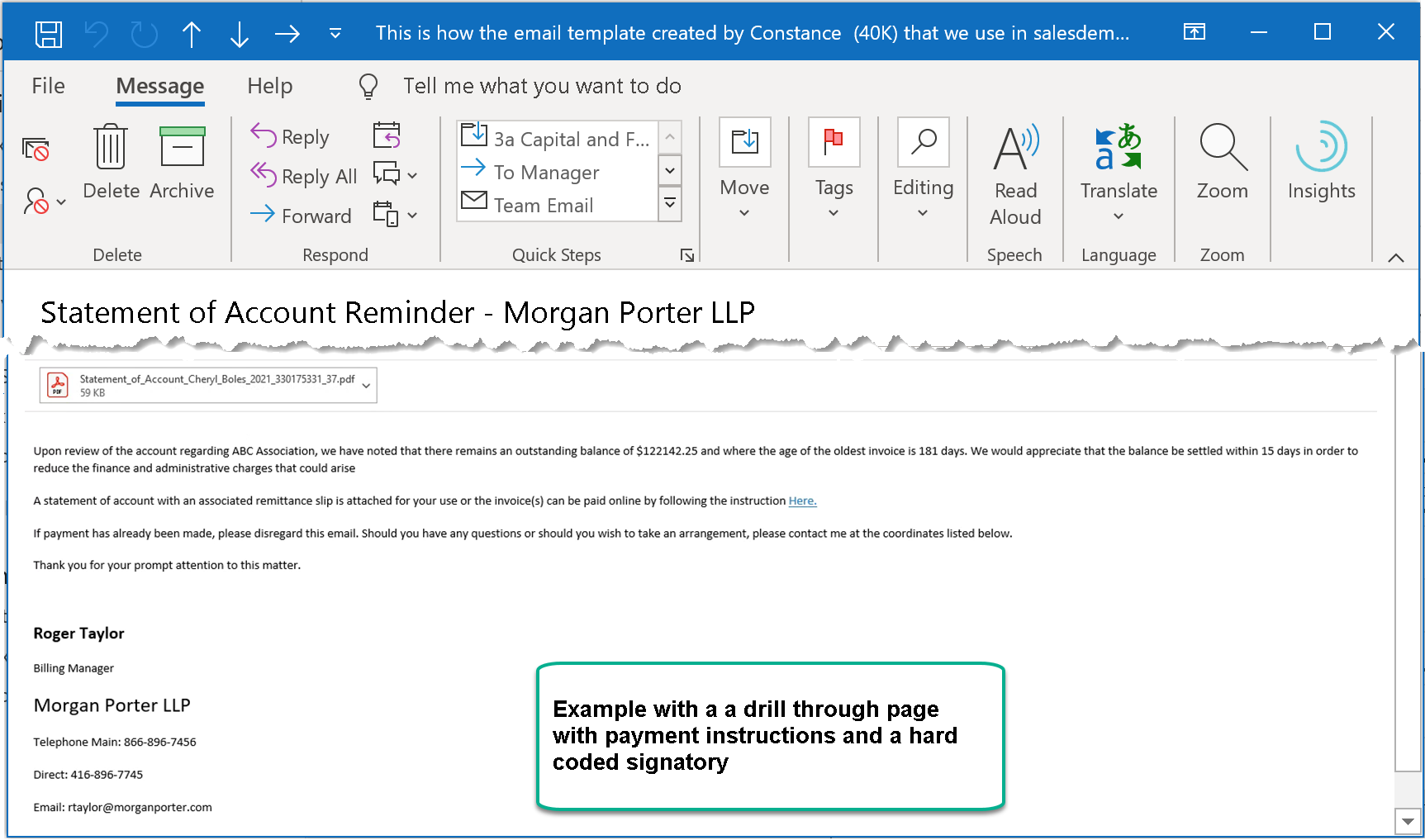
Example with Firm Name in Bold (Branding) and Drill Through Payment Page:
Associate the E-mail Template to the SOA Narrative
Every paragraph must be associated to a firm created email template – the same or different.
Create and save the email templates in the new folder “Executable\OtherLetterMerges\Your SOA email folder name”.
From “Environment – Collection Requirements – Statement of Accounts – Paragraphs”, access the “Show Statement of Account Paragraphs” list view.
Highlight a paragraph, right-click and select properties. Navigate to the “Other” tab and press on the ellipsis button to the right of the “Email Template (Optional)” field.
Once on the “Show Statement of Account Email Templates” form, right-click “New” to launch a properties form and “Properties” to edit an existing one.
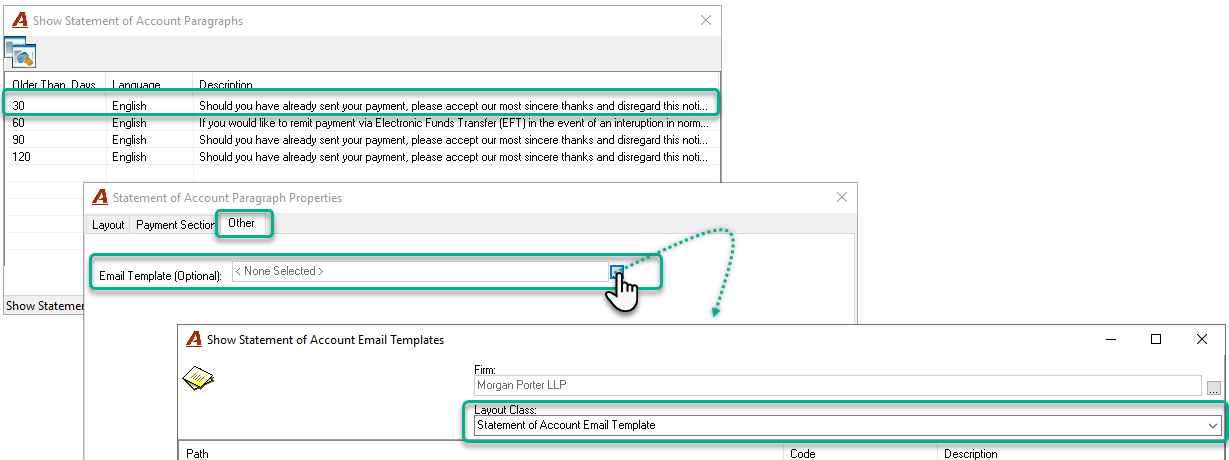
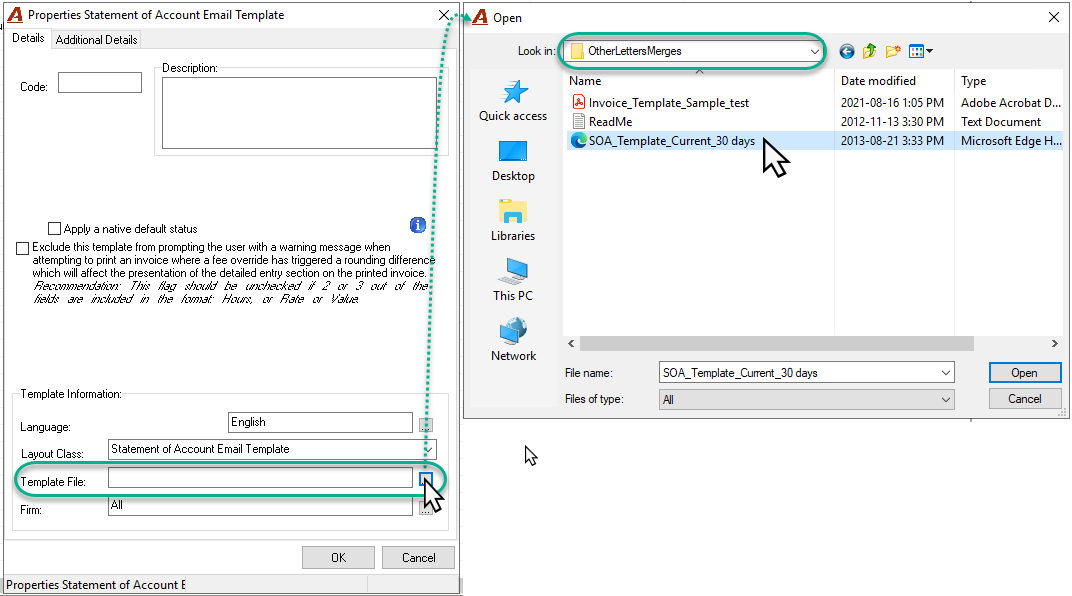
Press on the “Ellipsis” button to the right of the “Template File” field. Browse and find the folder where the email template was saved. Select the Template and press “Open”.
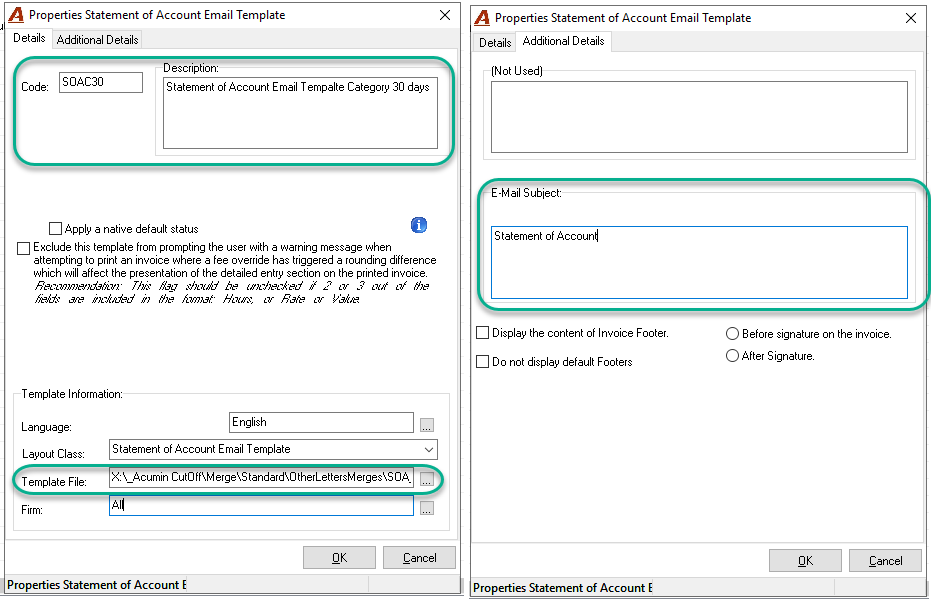
Complete the properties form. Enter a Code for the e-mail template, complete the description content, and enter the email’s subject line – field found on the additional tab.
The additional options are not applicable to email templates.
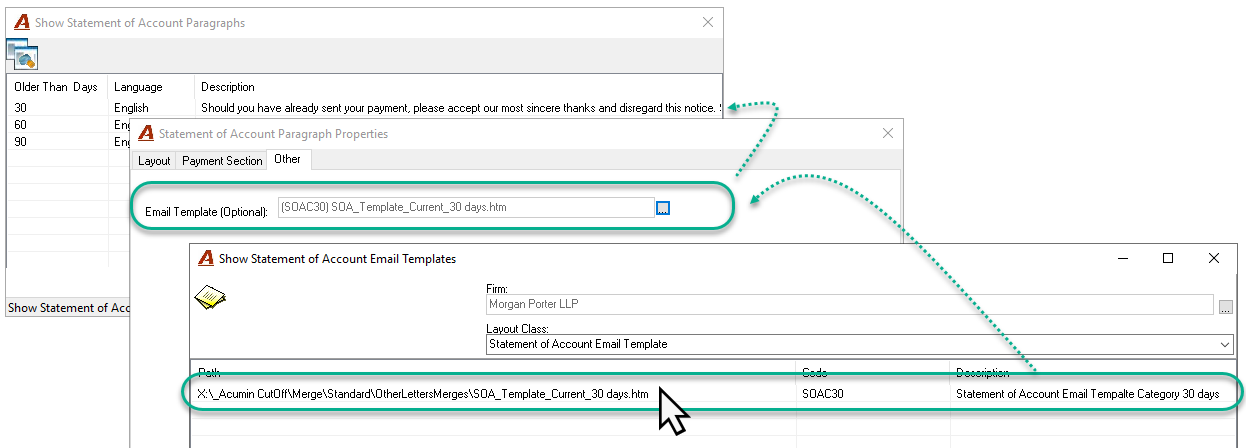
On Ok, the Show Statement of Account Email Templates will be refreshed with the updated record. Select the record. After the record is selected, you will return to the Statement of Account Paragraph Properties form with the associated e-mail template.
Statement of Account Contact
To take advantage of batched email process, the Statement of Account contact must have a valid email address. The email address is shown on the “Contact Email” column. If the statement of account record selected does not have a contact with an email address, the record will be skipped so it can be handled individually.
The column “E-mail?” will display the intent to email, however the position of this variable is not a requirement to be able to use the batched e-mail process.
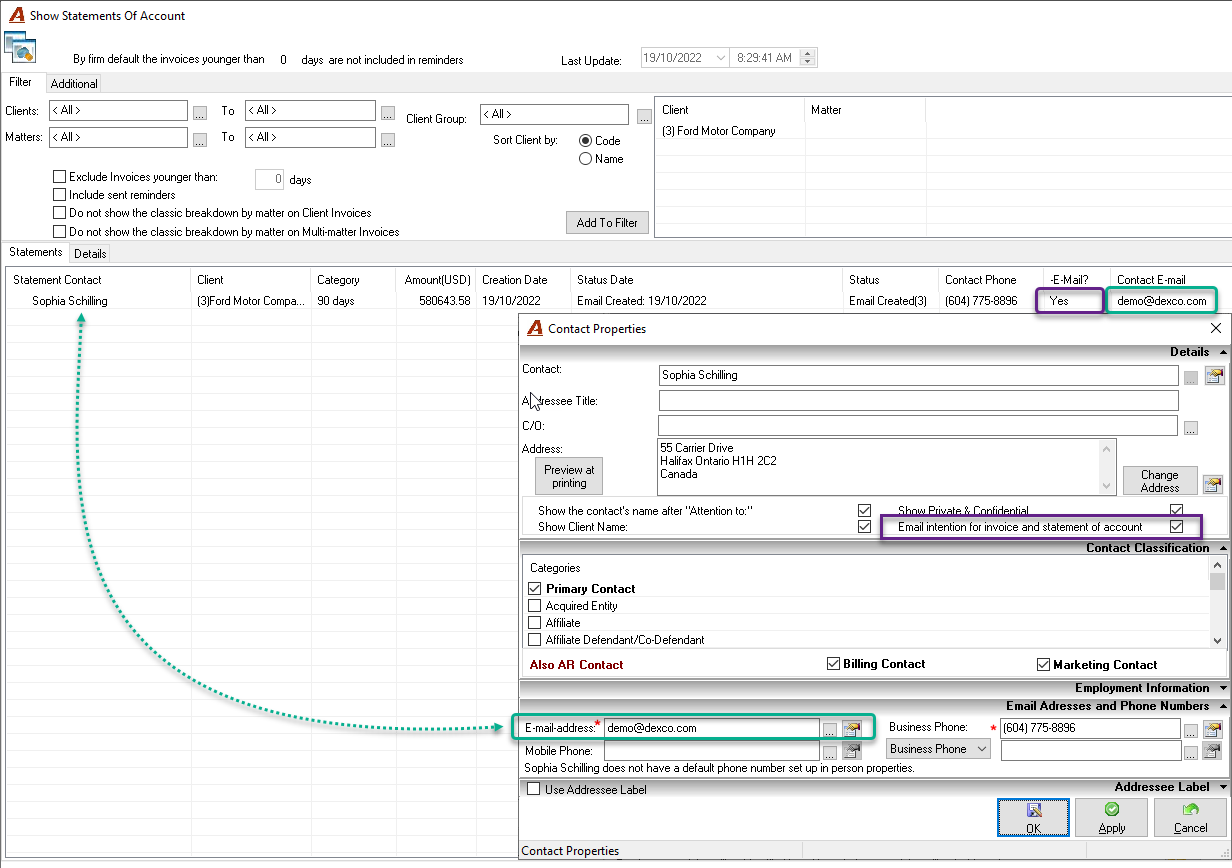
Transition to an Email Process
Contextual Menu and Column Presentation Options
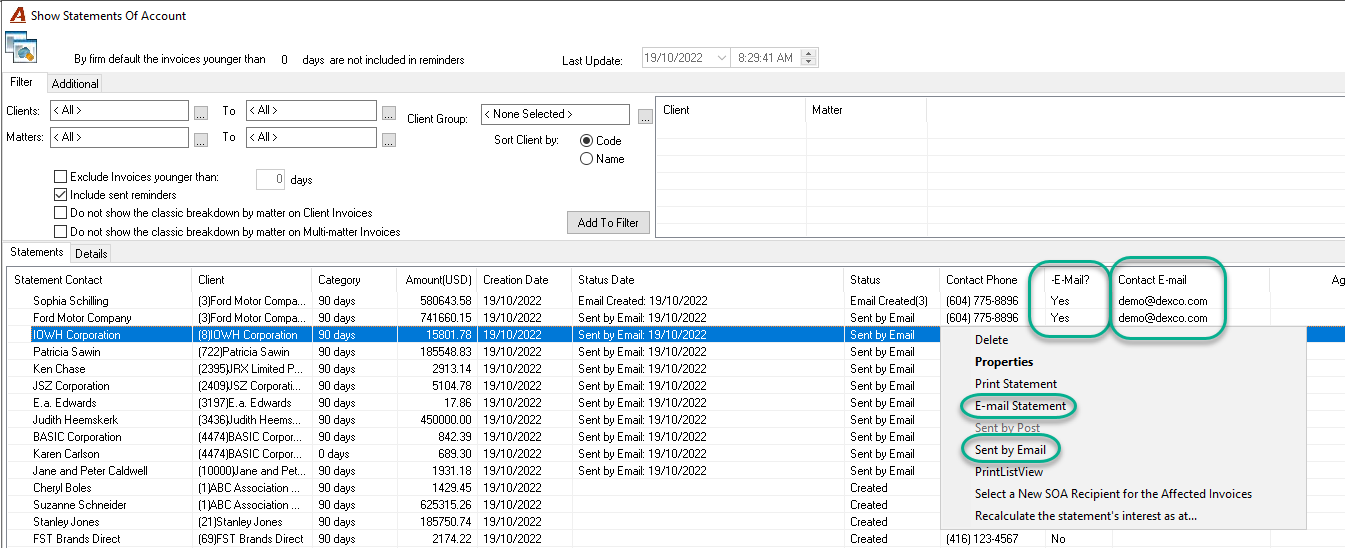
Contextual Menu - Email Relevant Options:
Email Statement (single instance):
Generates the email dialogue box with the statement of account as a PDF attachment and the content of the email template as the email narrative.
If the “statement-of-account contact” has an email address it will be included in the “To” field of the email dialogue box.
The “From” field will show the user who sent the email. User, if permitted, have the option to manually change the "From" email address before sending.
The “Reply to” field will take the email address set in the “From” field by default unless there is an email address set in the Statement of account “Reply to Email Address….” field in the System Settings - Email and Bank sub tab.
This option changes the status of the statement of account record to Email Created.
Email Statement (multiple instance):
Generates and sends the email using the corresponding template, with the statement of account as a PDF attachment.
The “From” field will always show the user who sent the email. It is not possible to make any change since the email application does not launch in this case
The “Reply to” field will take the email address set in the “From” field by default unless there is an email address set in the Statement of account “Reply to Email Address….” field in the System Settings - Email and Bank sub tab.
This option changes the status of the statement of account record to Sent by Email.
Records without an email address included in the selection are by-passed and will retain their current status.
Sent by Email:
This option only applies to records with status “Email Created”.
Columns:
Email?
This column displays the intention to use email for sending the invoice and statement of accounts to the contact (recipient), therefore users can opt to print or email the Statement or Account records, regardless of the position of the Email? column.
To organize the list by email intention, press on the column header “email?” to group the SOA records.
Contact E-mail:
This column shows the email address of the Statement of Account contact (recipient).
Single Instance:
Generate the email dialogue box with the statement of account as a PDF attachment and the content of the email template as the email narrative. If the “statement-of-account contact” has an email address it will be included in the “To” field of the email dialogue box.
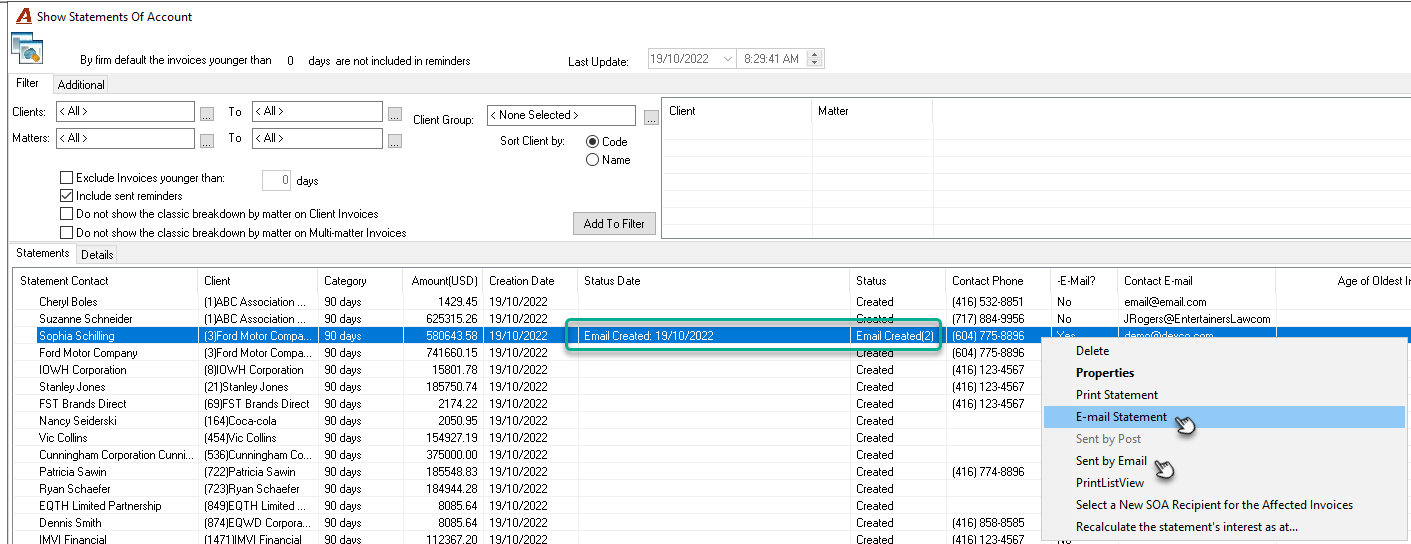
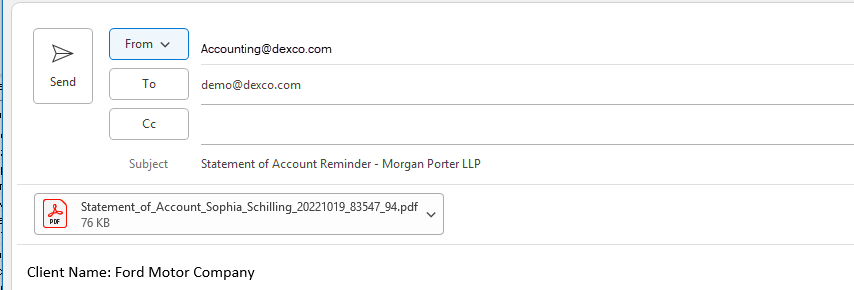
This option changes the status of the statement of account record to Email Created making the option “Sent by Email” available. Once identified as sent the date is also captured

Multiple Instance:
Multiple-select the contacts to be emailed and right-click to access the contractual menu, Select “Email Statement” to generate and send the statement of accounts via email, using the corresponding template, with the statement of account as a PDF attachment.
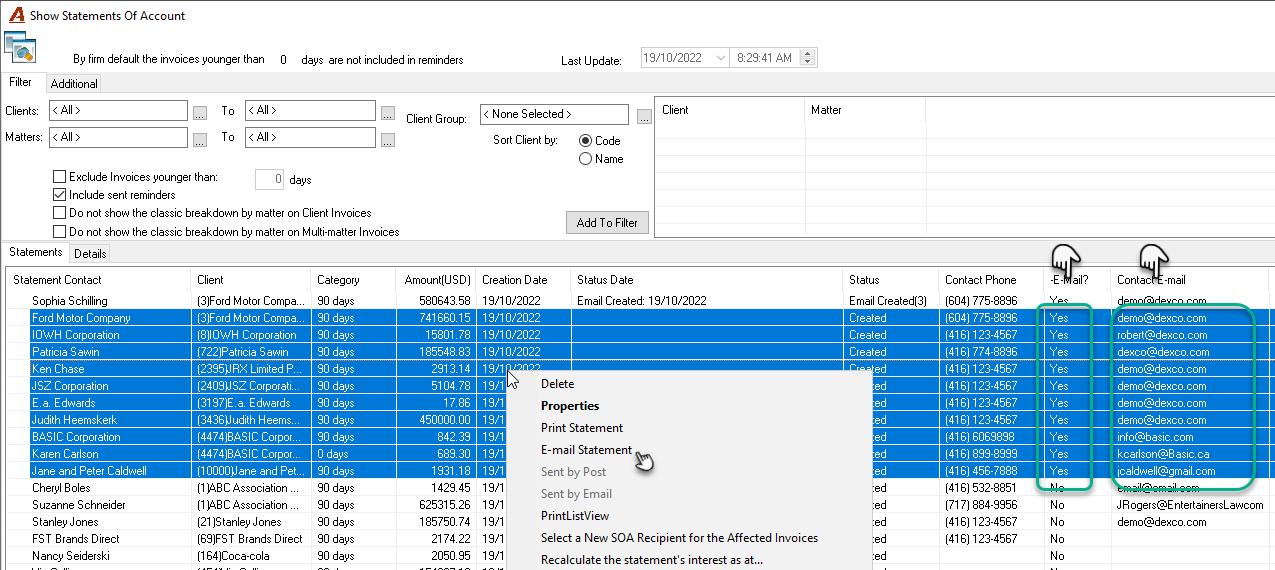
This option changes the status of the statement of account record to Sent by Email and captures the date sent.
Records without an email address included in the selection are by-passed and will retain their status.