.png)
Highlights
The Statement of Account can be sent to its intended recipient in print format through traditional post, or as a PDF attachment with a firm-created age-sensitive e-mail template associated to the corresponding statement of account firm-created paragraph.
Once a statement of account is printed or emailed, the status and status date columns will be updated to reflect the action taken.
Printed statements of account show with status “Printed” and individually emailed statements of account show as “Email Generated”, therefore theses need to be identified as ”Sent by Post” or “Sent by email” respectively for the user to complete the process for sending statements of account. Without this step, the statement of account records is considered unsent and will continue to list on subsequent sessions.
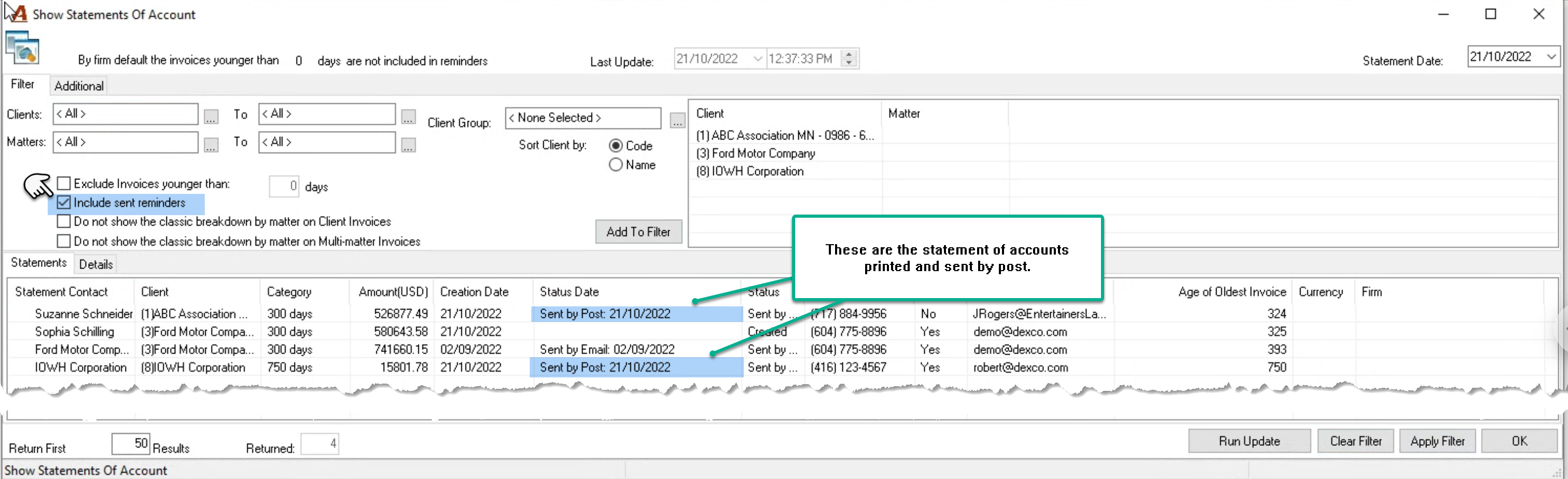
Statements of accounts “Sent by Post” clear the list and will only return if a new aging criterion is met or if the user filters for sent statements of account. Statements of account “Sent by Email” remain on the list updated with the new status of “Sent by Email”, but clear on apply filter or if the user ends the session. Once cleared, they will only return if a new aging criterion is met or if the user filters for sent statements of account.
Statements of account emailed as part of a multiple record selection are automatically updated as “Sent by Email”. They remain on the list, but clear on apply filter or if the user ends the session. Once cleared, they will only return if a new aging criterion is met or if the user filters for sent statements of account.
If a statement of account record is deleted, it is not considered sent. It continues to list if the criterion is met.
Process
Sent by Post
Traditional Print
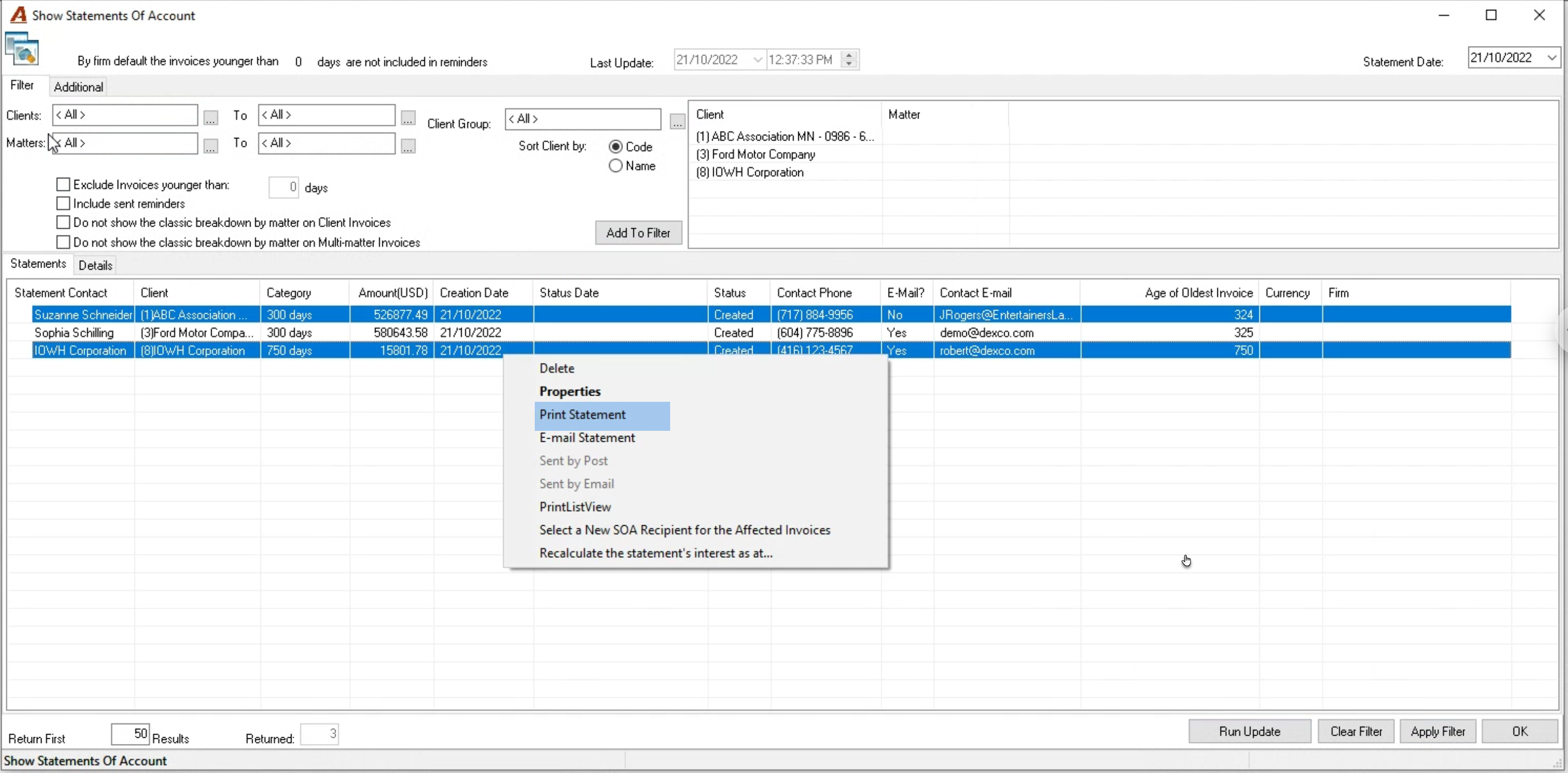
Multiple select the records to be sent by post and right-click to select “Print Statement”. This option changes the status of the statement of account record to printed making the option “Sent by Post” available.
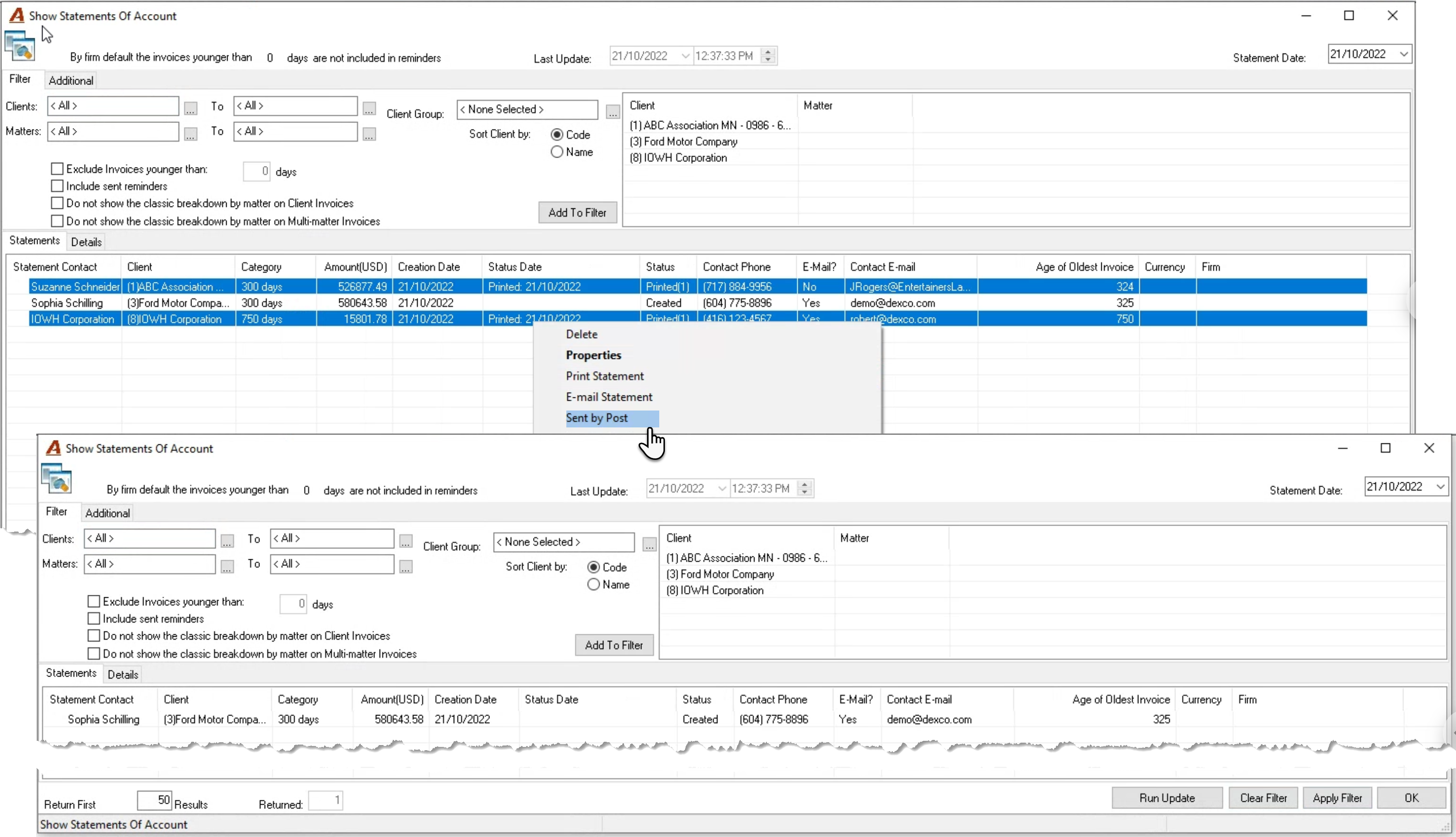
Once the printed statements of account are mailed, multiple select the records with status “printed” and right-click to select “Sent by Post”. This action will clear the statement from the list.
Print to PDF
Single Instance
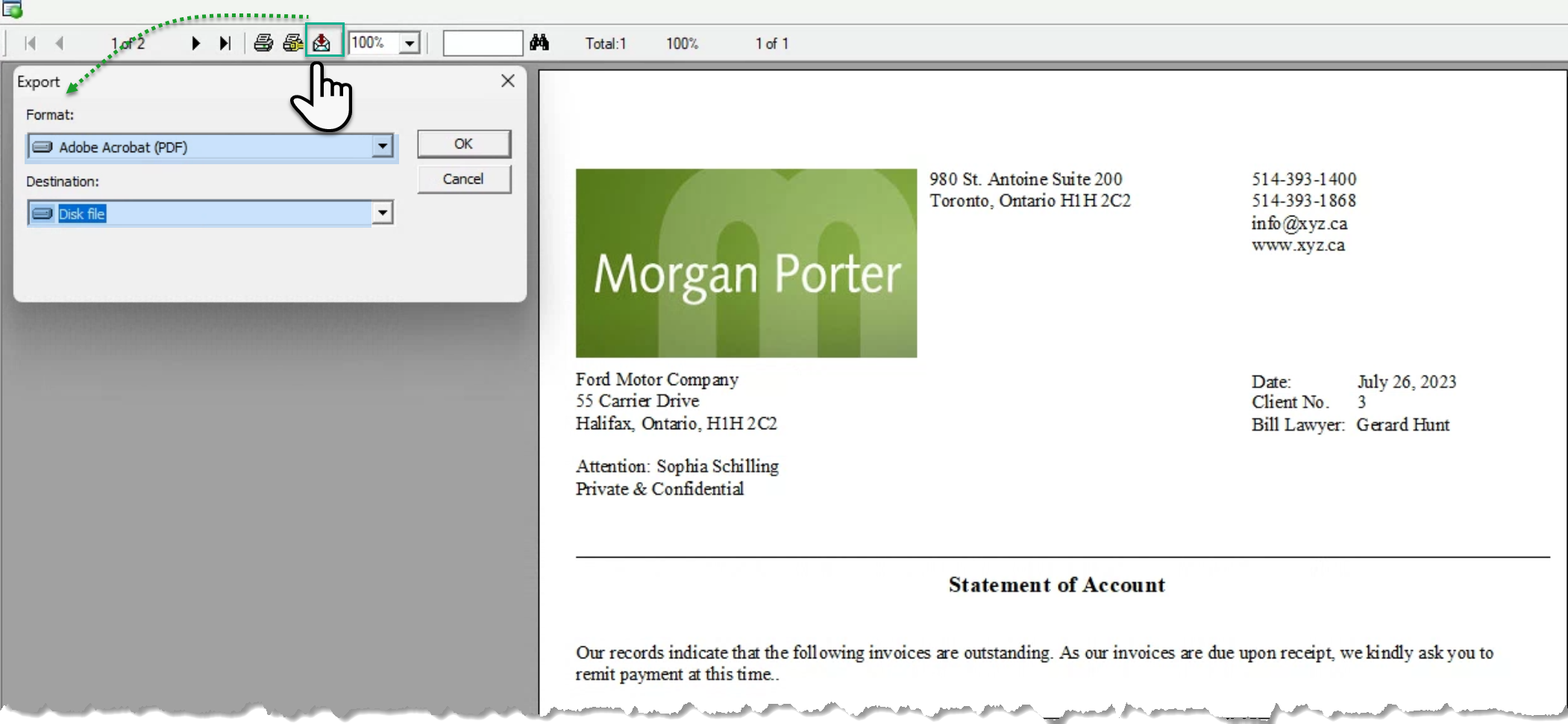
Once the print preview of the selected statement of account is launched, press on the crystal report’s tool bar envelope icon and select the format to equal PDF and the destination to equal “Disk File” if the intension is to save the output or application to launch the statement within the PDF application.
Multiple Instances
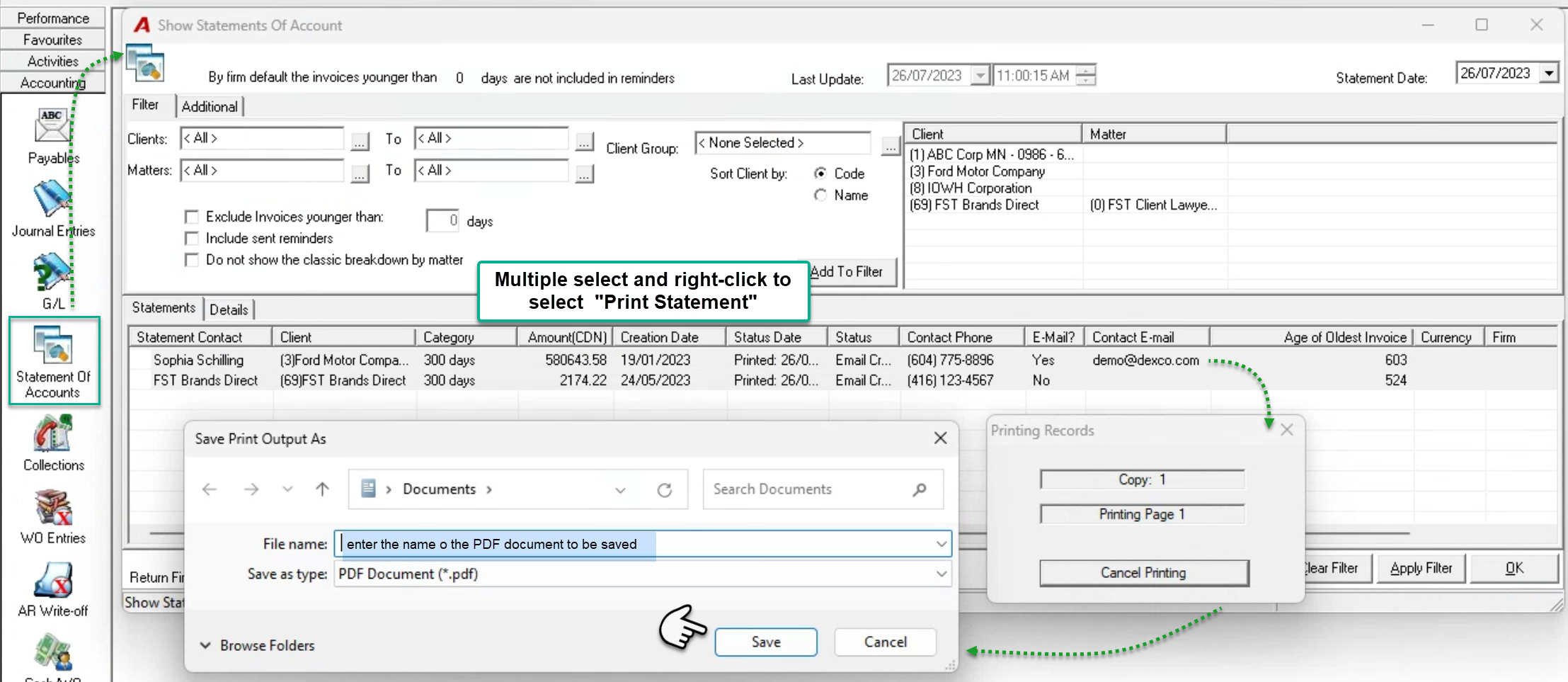
In this case change your default printer to PDF, multiple select the statement of accounts to be generated in PDF format and select “Print Statements”. The user will be prompted to save each statement of account.
Sent by Email - Single Instance
Generate the email dialogue box with the statement of account as a PDF attachment and the content of the email template as the email narrative. If the “statement-of-account, contact” has an email address it will be included in the “To” field of the email dialogue box. This action will change the status of the statement of account record to “Email Created” making the option “Sent by Email” available
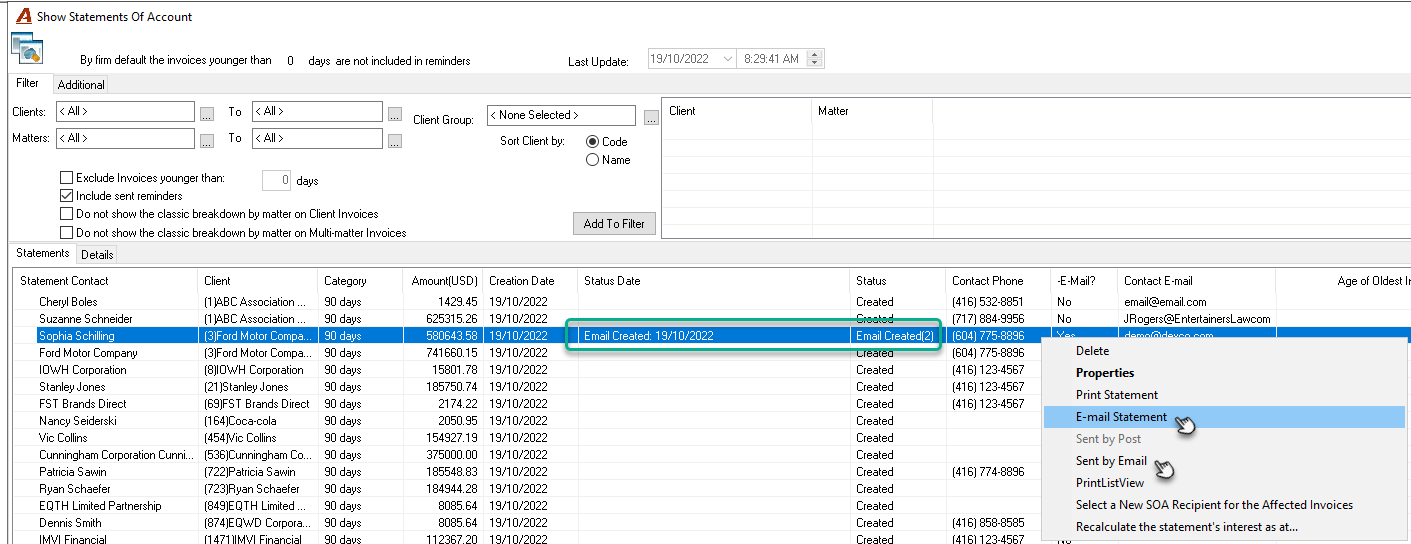
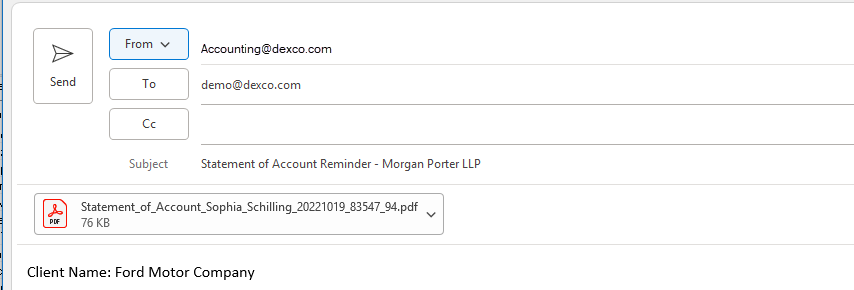
Once the statement of account is emailed, right click on the record with status “email generated” and select “Sent by Email”. This action will change the status of the statement of account record to “Sent by Email”. Unlike with “Sent by Post”, the record will continue to list until the filter options are re-applied or the session ends, showing the updated status and status date.

Sent by Email - Multiple Instances
Multiple-select the contacts to be emailed and right-click to access the contractual menu, select “Email Statement” to generate and send the statement of accounts via email, using the corresponding template, with the statement of account as a PDF attachment.
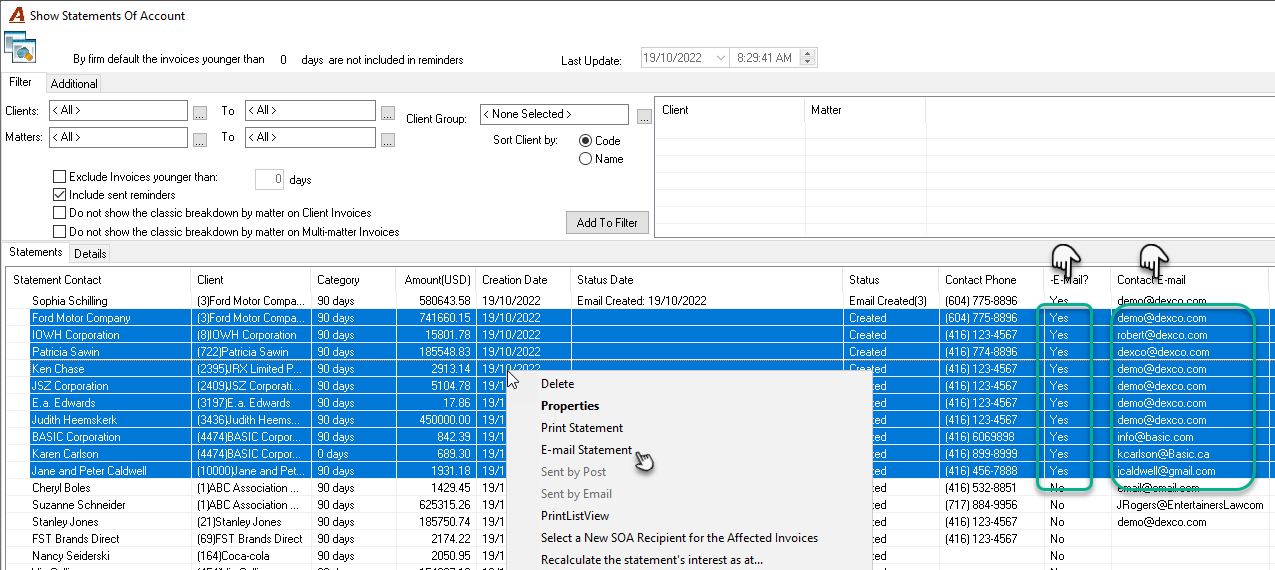
This option changes the status of the statement of account record automatically to “Sent by Email” and captures the date the email is sent.
Records without an email address included in the selection are by-passed and will retain their status.
Review Sent Statements of Account
To view sent statements of account use the option to include sent statement of accounts.
Delete
The delete function will remove the statement of account from the list for the current session only. This option is used to remove a record that needs to be corrected (change of address or recipient for example), so it will be available on the next session
RELATED DOCUMENT:
Statement of Account "Send By"/"Reply to" email address