.png)
QUESTION: Can you send us the steps to upload our disbursements data file into Acumin for posting? We have the file configured with the defined format, but need to know the steps to import the data.
RESPONSE:
Assuming the disbursement template uploads are set up, see below the steps to upload them in Acumin:
-
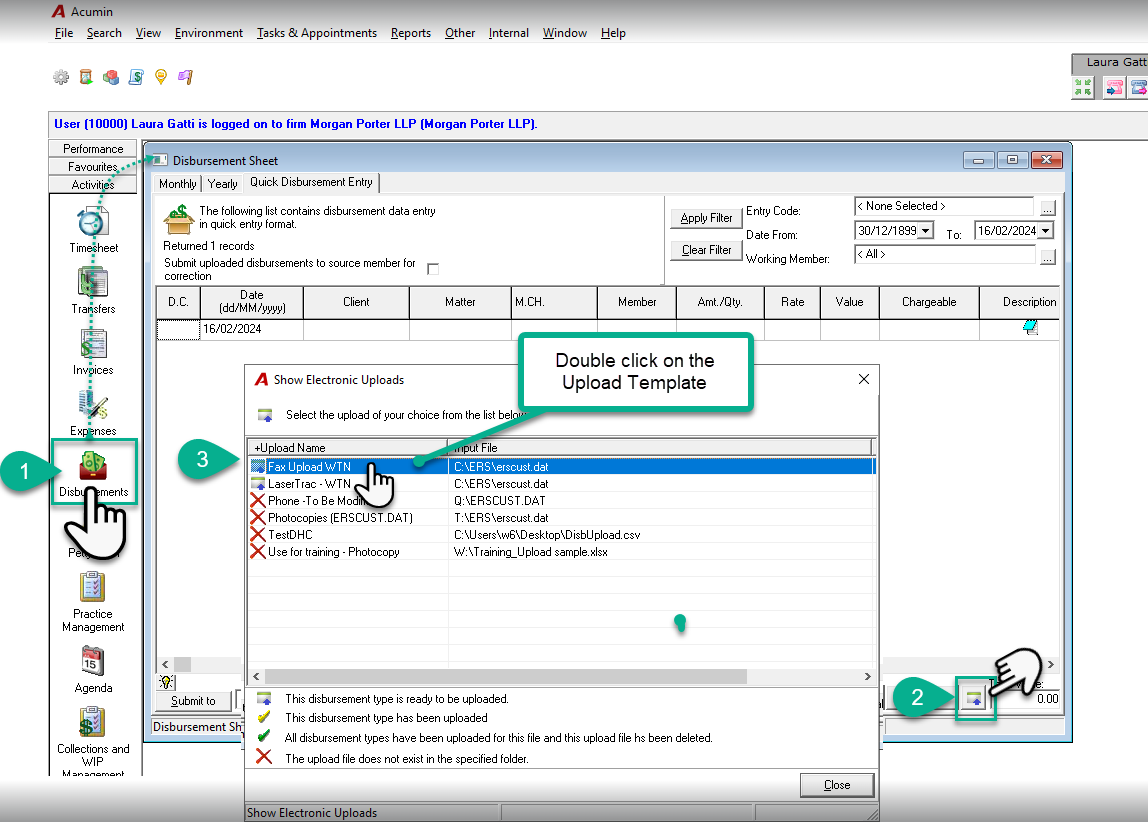
On the side task bar, open the Disbursement Sheet form;
-
In the form, click on the Upload icon to launch the Show Electronic Uploads form;
-
Highlight and double click on the Disbursement template you want to upload;
-
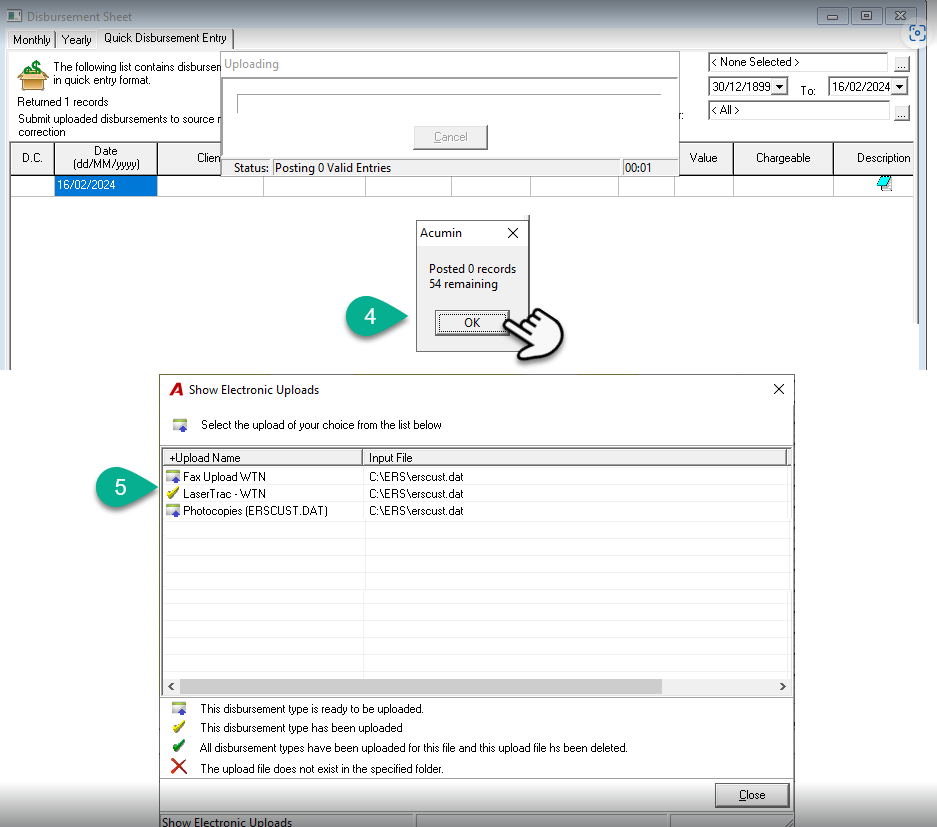
Once completed, the system will confirm the number of entries uploaded;
-
In the list, the disbursement template uploaded will display either a:
-
Yellow checkmark if the disbursement type has been uploaded but there are still other disbursement types sharing the same file not uploaded;
-
Green checkmark if the disbursement or all disbursement types have been uploaded for this file; Note: It is only when the green checkmark is displayed, that the file will be deleted/renamed to avoid uploading it twice.
-
-
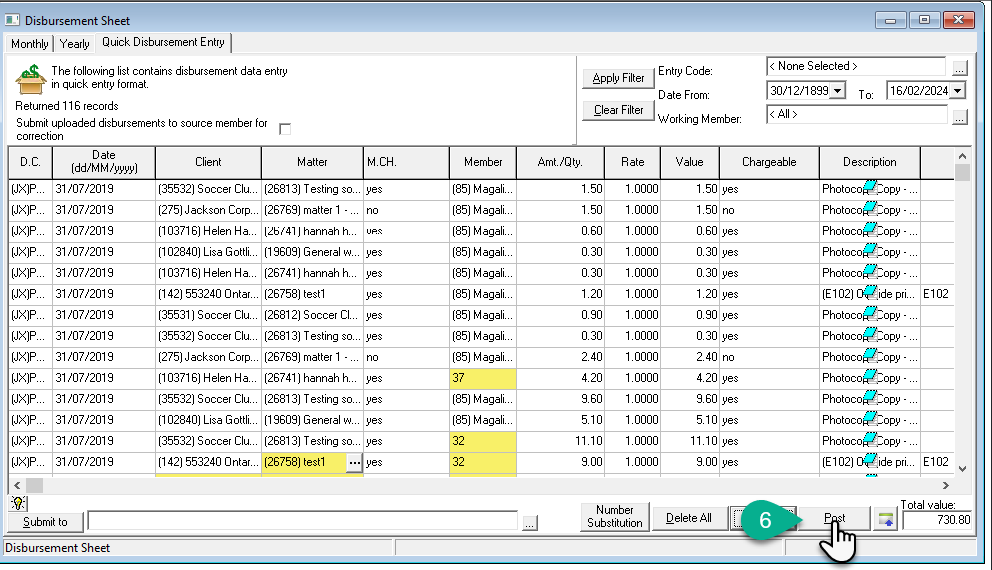
Disbursement entries will list on the disbursement sheet to be reviewed, completed if needed and then posted by the user. Depending on your environment set-up, if there are more than 250 entries to upload per type of disbursements, a group of 250 entries will appear first on the disbursement sheet, the next group of 250 entries will appear once the first group is posted until all of them are posted.