.png)
Scope and Purpose
The purpose of this document is to provide users with a road map for managing disbursement codes. Its scope extends across code and rate creation and modification.
Overview
Disbursement objects are used to record expenses within a matter. These include external third-party costs processed through quick payments or AP as well as the recovery of internal soft costs. Disbursements charged to a matter can be chargeable (to be recovered from the client) or non-chargeable (a non recoverable client expense or a firm expense).
Regardless of the chargeability, all disbursements are valued using one of three types of disbursement rates - cost per unit, fixed fee and percentage of cost.
Disbursement Code Properties
Creating a Disbursement code
Access:
-
Environment - Time & Disbursements – Disbursement Codes
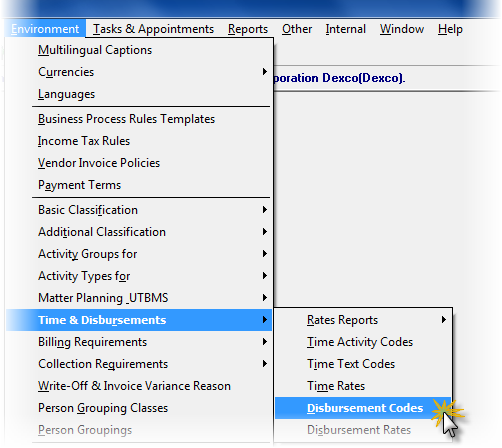
-
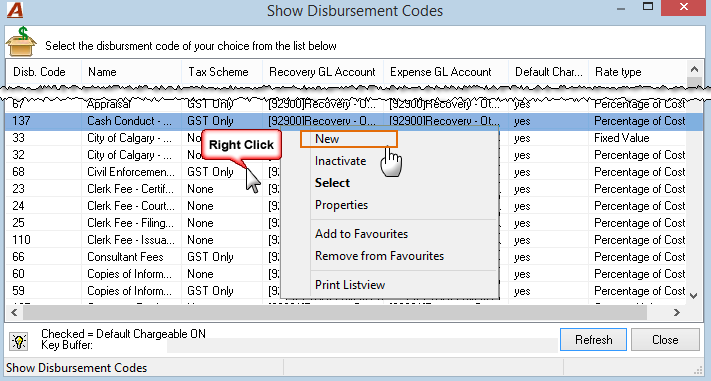
From the Show Disbursement Codes form, Right-click to access the contextual menu and select “New” to launch the “Disbursement Properties” form.
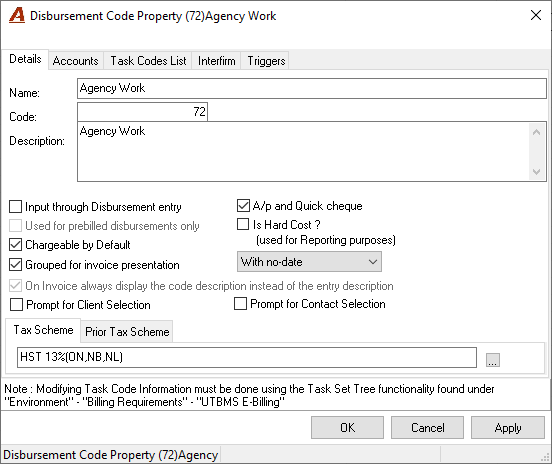
Disbursement Properties – Details and Accounts Tabs:
Complete the “Disbursement Code Property” form.
|
Field Name |
Description |
|
Fields Applicable to the Details Tab |
|
|
Code |
Enter the desired code (numeric or alpha numeric) |
|
Caption |
It is considered best practice to enter a caption that makes easy for user selection and use the description field for the text to be presented on the invoice |
|
Description |
Potential content on invoice presentation. |
|
Input through disbursement entry |
Checkmark ON if the code is to be used exclusively when processing disbursements via “disbursement entry” or uploads. Note 1 |
|
A/P and Quick Cheques
|
Checkmark ON if the code is to be used exclusively when processing disbursements through “Accounts Payable” or “Quick Cheques”. Note 1 |
|
Use only for pre-billed disbursements only |
Checkmark ON if the code is to be used exclusively when processing disbursements as a “pre-billed disbursement” ONLY. Note 2 |
|
Is Hard Cost? |
Checkmark ON if the code is considered a Hard Cost disbursement for reporting purposes. Note 3 |
|
Chargeable by Default |
Checkmark ON if the code will be chargeable by default. Note 4 |
|
Grouped for Invoice Presentation |
Checkmark ON if the disbursements entries bearing this code will be grouped by default for billing presentation purposes. Select one of the date presentation. Note 5 |
|
On invoice always display the code description instead of the entry description |
Checkmark ON if the invoice presentation of the disbursement entry with this code is to display the disbursement code description instead of the entry-description. Note 6 |
|
Prompt for client selection |
Subject to licensing, selection of this option forces the user completing an expense report against a personal marketing matter to select the applicable existing client |
|
Prompt for contact selection |
Subject to licensing, selection of this option forces the user completing an expense report against a personal marketing matter to select the applicable existing contact |
|
Tax Scheme |
Assign the tax scheme for the code. For multi-firm environments, assume the disbursement bearing this code is being billed from the main firm (firm 001). Note 7 |
|
Fields Applicable to the Accounts Tab |
|
|
Recovery GL Account |
Assign the GL Account on which the firm wishes to track the recovery of internal client disbursements. Note 3 |
|
Expense GL Account |
Assign the GL Account on which the firm wishes to track the cost of the non-chargeable disbursements. Note 2 |
Note 1
Acumin supports the concept of having disbursement codes for use with disbursement entries created through.
-
Accounts Payable or Quick Cheques (processing of supplier invoices) or;
-
Disbursement Entry.
These settings are used so end-users have less possibility of errors. For example, an organization may not want a user to use the internal disbursement code (code per page handled through disbursement entry) when processing a supplier invoice for external photocopying costs (handled through AP or Quick Cheques).
Most organizations identify:
-
Internal disbursements to be handled exclusively by disbursement entry therefore will opt to set the “Input through Disbursement Entry” checkbox ON, and;
-
Those to be handled exclusively by AP or Quick Cheques to set the “A/P and Quick Cheque” checkbox ON.
Note 2
It is considered best practice to use standard disbursement codes as “pre-billed” or “anticipated” when needed so the negative and positive values, which will remain on the matter until they are cleared, bear the same code. For this reason, the most often used value for this option is OFF.
Note 3
Correctly defining the code as a hard cost (set checkbox to ON) or soft cost (set checkbox to OFF) will enhance the organizations reporting opportunities when generating the “Disbursement Analysis” report. The hard-cost classification is typically used to group the resulting use-case entries created because of third-party payments to external service providers.
Most organizations set disbursement codes to be used for the recording of third-party disbursements as “hard costs” check-marked ON and disbursement codes to be used for the recording of internal disbursements (soft-costs) as “hard costs” check-marked OFF.
Note 4
Acumin supports the concept of default chargeability.
-
Checkmark the checkbox to set the disbursement code to be chargeable by default. This checkbox position is used for typical matter charges.
-
Leave the checkbox unchecked when creating non-chargeable disbursement codes for non-chargeable matters intended to capture firm expenses.
These are default settings, which are secured - where only authorized users can change the status of the resulting entry using the code. Most organizations create separate non-chargeable disbursement codes, which are aligned to the classification of firm expenses captured through non-chargeable matters.
Note 5
Place a checkmark on the checkbox if the disbursement entries using this disbursement code will default to a summarized value presentation on the invoice (entries with the same code are grouped into one); If checked, the description on the invoice will always display the code description instead of the entry description. By default the “With no-date” option will be selected. This can be changed afterward for the “Invoice date” or the “First-instance date”. Most organizations default all the disbursement codes to group for invoice presentation purposes therefore setting the checkbox ON as well as opt to show the content of the code description instead of the caption (client-documents - system settings)
Note 6
The authorized user working within invoice properties (often referred to as the pre-bill) can at his or her discretion (native right) change the default presentation of a disbursement presentation from grouped (summarized) to detailed.
Place a checkmark on the checkbox if the disbursement entries using this disbursement code will present on the invoice the content of the disbursement code’s “Description” instead of the actual entry description – when the presentation of the disbursement code is not left as GROUPED. Most organizations identify the disbursement codes where if the entry was presented un-grouped they would want to present the code’s description content instead of the actual disbursement entry description.
It is considered best practice to display full entry content when the entry is not grouped for presentation purposes therefore setting this option as OFF.
Note 7
The time and disbursement codes are applicable to Acumin’s full environment. In environments where the organization has offices (firms) across multiple sales tax jurisdictions, the default sales tax scheme of the time and disbursement codes should be assigned in relation to the requirements of the main firm (firm 001).
In other words, for time and disbursement codes which are:
-
Taxable, the tax scheme to be assigned to the time and/or disbursement code should be equal the tax scheme of the default client invoice policy of firm 001, and;
-
Non-taxable, the tax scheme to be assigned to the time and/or disbursement code should be non-taxable.
Note 8
The GL Account assigned to the recovery field is used to track the recovery of:
-
Internal client disbursements; disbursements whereby the related cost was directly charged to the relevant expense GL account through a different transaction – for example photocopying;
-
The additional recovery or loss on third party disbursements; whereby the disbursement charged to the matter is higher or lower in value than the amount paid to the supplier. This difference is either an increased recovery (credit) or a reduction of recovery or loss (debit);
Points to consider:
-
It is considered best practice to assign the same GL account included in the expense GL account field to the recovery field when the disbursement code is considered non-chargeable as this type of circumstance is likely non-existent;
-
For chargeable disbursement codes most organizations create:
-
A one-to-one relationship for internal disbursement codes (not hard costs);
-
A one-to-one relationship for hard cost rated at a value not equal to 100% of the supplier cost – consistently creating a gain or loss;
-
A one-to-one relationship for hard cost specifically assigned to a liability or a prepaid expense GL account (special circumstances), and;
-
A many-to-one relationship for all others, where remaining codes are assigned to the same GL account for the few times the code generate an entry to the recovery (i.e. Special client/matter rate for the code).
For chargeable disbursement codes used to bill time-based fees or track discounts which are not to be allocated to the timekeeper most organizations create a one-to-one relationship with a relevant GL Account.
Note 9
Acumin supports the concept of non-chargeable disbursements. Their value calculated with the rate applied is not recoverable resulting in a firm expense instead of an asset (UBD). Non-chargeable disbursements can be recorded by authorized users on chargeable or non-chargeable matters and as these disbursements are not assets, the corresponding GL operations will be recorded to the GL account assigned to “expense GL Account” field in disbursement properties instead of the unbilled disbursement master account.
It is considered best practice to:
-
Assign an accurate rate for non-chargeable disbursement codes that accurately reflects the loss to the organization;
-
Create a one-to-one or a many-to-one relationship between non-chargeable disbursement codes and corresponding GL Accounts, where the many to one represents a few disbursement codes assigned to the same GL account – the disbursement code providing greater breakdown of the corresponding GL account;
-
For typically chargeable disbursement codes most organizations create:
-
A one-to-one relationship for internal disbursement codes (not hard costs) with the same GL account used for the recovery of soft costs;
-
A many-to-one relationship for all others, where remaining codes are assigned to the same GL account – typically labeled – “Non-recovered third party client disbursements” for the few times the code may be used under non-chargeable circumstances.
Disbursement Properties – Task Code List and Interfirm Tabs:
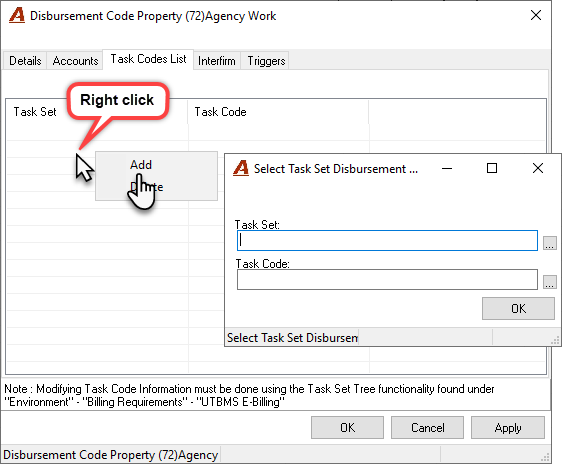
Organizations licensed with UTBMS systems will need to assign to each disbursement code the applicable UTBMS Task set(s) and task-set code in order for the application to control the disbursement entry process for applicable task-based matters.
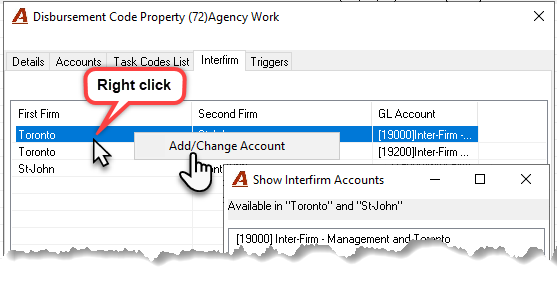
Organizations licensed with “Inter-firm” accounting business logic will have set up inter-firm GL accounts to handle automated inter-firm transactions. These GL accounts would then be used by the application when a disbursement is recorded in one firm (for example firm 001), but the matter is in another firm (for example in firm 002). Organizations that wish to have disbursement related inter-firm operations accounted for separately can set up different inter-firm GL accounts and assign these to affected disbursement codes.
Note: Most organizations will use the general inter-firm GL account to handle inter-firm operations resulting from the disbursement creation process, therefore this list is typically left blank.
Disbursement Properties – Triggers Tab:
Organizations have the ability to trigger a related disbursement when processing disbursements entries through disbursement data-entry and/or disbursements recorded through quick payments and/or payable invoices with disbursement codes that have this option ON. Where the disbursement code is set to take advantage of the trigger, the application will create the related disbursement entry - if one does not already exist for the affected matter.
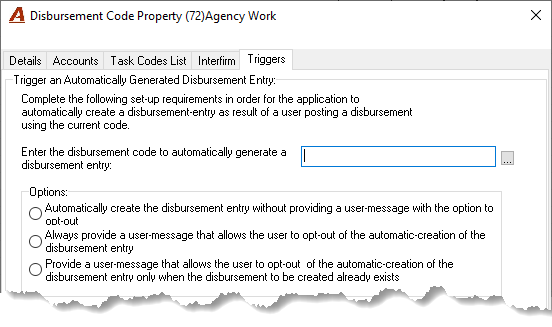
Once the set-up is completed for the affected disbursement code, when the latter is used and the entry is posted the application will either:
-
Launch a decision-making message as described within the triggers tab radio button options, and/or;
-
Automatically trigger the creation of a posted related disbursement entry.
The related disbursement entry will be triggered as a result of the end user posting the originating disbursement entry through:
-
The disbursement entry properties form and the disbursement quick-sheet, as well as;
-
The execution of quick payments and payable invoices.
Points to consider:
-
The disbursement entry properties form for the disbursement codes assigned to the deposit process for applying overpayments to the matter as negative unbilled disbursements (firm properties) will not have a “Triggers” tab as there is no related functionality in this case;
-
The automated posting function which is part of the disbursement upload process will not trigger automated related disbursement entries.
Disbursement Code Rate
As a rate is required to render a new disbursement code functional, on creation of new disbursement code properties form the user will be prompted with an information message to that effect.
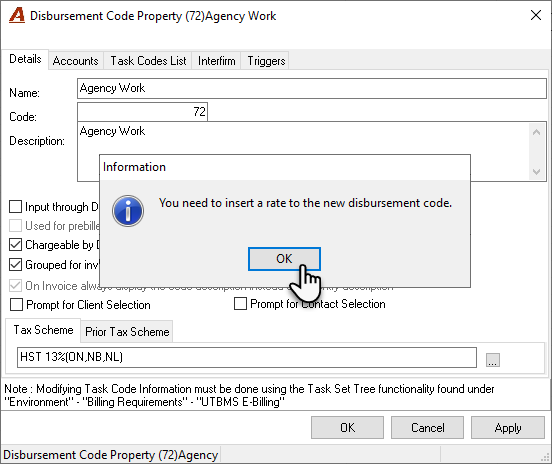
Press OK to accept and proceed to create the rate.
Assigning a Rate to the Disbursement Code
From Environment – Time & Disbursements – Disbursement Rates; launch the “Show Disbursement Rates” tree view.
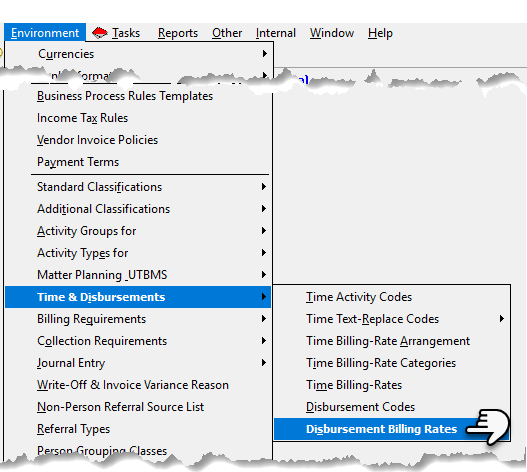
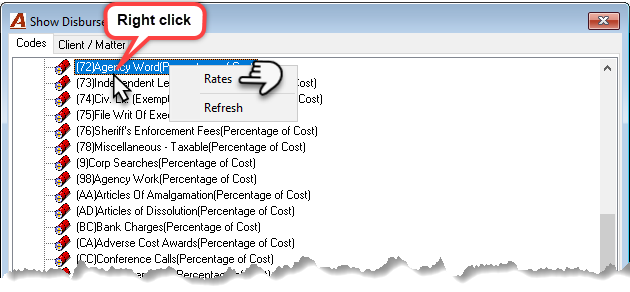
Highlight the new disbursement and right click to access to contextual menu to select “Rates”.
Complete the “Disbursement Code Rate Properties” form in consideration of its use-case.
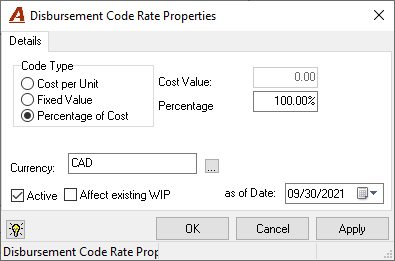
The code type defines the type of rate to be applied to the code. Once defined, accepted and in-use; the latter cannot be modified. If a change is required subsequent to its use to calculate a disbursement entry value, then a conversion will need to be executed on applicable transactions.
-
Cost per Unit: Typically used for internal per page costs such as photocopies, it is sometimes used to invoice internal time-based fees in which case the unit measure is equivalent to the hour. A zero (0.00) cost per unit is not a valid and accepted value.
-
Fixed Value: Typically used to record transactions with a set fee. These always have a unit equal to one (1).
-
Percentage of Cost: Used for most codes to transfer the cost of the supplier at 100% percent of its value. Users can set a reduced rate and/or a surplus on the supplier cost by changing the percentage factor from 100% to the desired amount. In this case the gain or loss will be recorded within the GL account assigned to the disbursement code’s recovery field.
Note: A zero (0.00) cost per unit is not a valid and accepted value, however for clients with zero-rated disbursement rates for specific disbursement codes, the user can set-up special client or matter level rates as well as identify disbursement codes as non-chargeable (the equivalent of zero rated).
Once the type of rate is identified set the amount or the percentage (the rate), confirm the effective date to equal the current date and press OK to accept. As WIP is carried in base currency, a rate per licensed base-currency will need to be completed for new disbursement codes.
Assigning a Special Client or Matter Rate to the Disbursement Code
Authorized users can create special client or matter level disbursement code rates. Once applied, these special client or matter level rates will override the current disbursement code rate set for general use.
Note: The special client-matter rate structure allows for the override of the rate’s value for the SAME code type at either the client or the matter level. In other words a special client or matter level disbursement code rate cannot be created with a different code type than the one assigned to the code
Right-click to access the contextual menu and select New Client or New Matter to add the client or client/matter that will bear the special disbursement code rate.
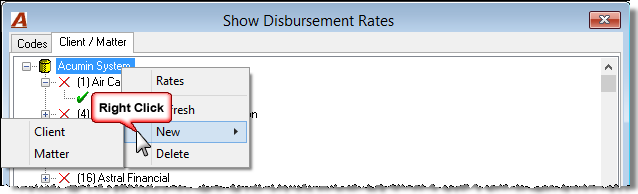
Highlight the client or matter for which the new special client level or special matter level disbursement rate will be created.
Right-click to access the contextual menu and select rates to access the “Show Disbursement Rates for the Client or the Matter”.
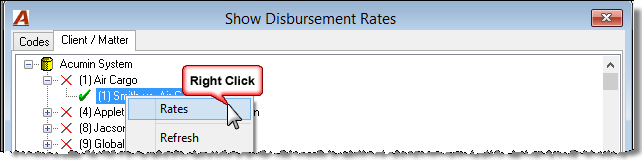
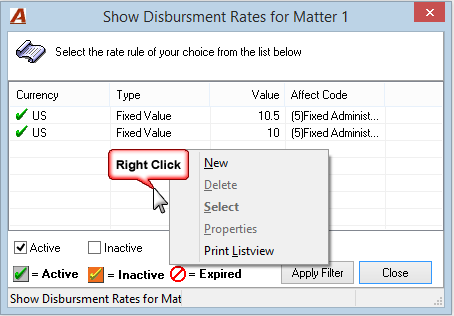
Right-click to access the contextual menu and select “New” to access the “Disbursement Client or Matter Rate Properties” form.
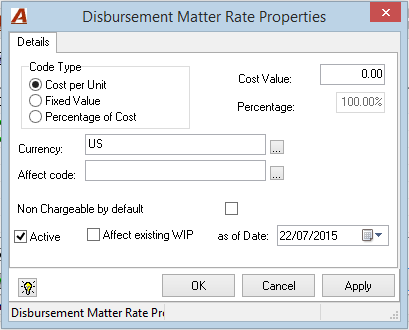
Complete the “Disbursement Client or Matter Rate Properties” form in consideration of its use-case and special rate requirements.
Reminder: A zero (0.00) cost per unit is not a valid and accepted value, however for clients or matters with zero-rated disbursement rates for specific disbursement codes, the user can set-up special client or matter level rates as well as identify disbursement codes as non-chargeable (the equivalent of zero rated).
Once the type of rate is identified set the amount or the percentage (the rate), confirm the effective date to equal the current date and press OK to accept. As WIP is carried in base currency, a rate per licensed base-currency will need to be completed for new disbursement codes.
Rate Changes
Unlike time-rates, the disbursement code rate structure is not historical, therefore once a rate change is executed the new rate will apply for new disbursement entries even if they are created with a transaction date within a period that use to bear a different rate for the disbursement code.
Note: the Affect existing WIP checkbox is applicable on rate changes for existing disbursement codes only.
Overpayments Applied to Unbilled Disbursements
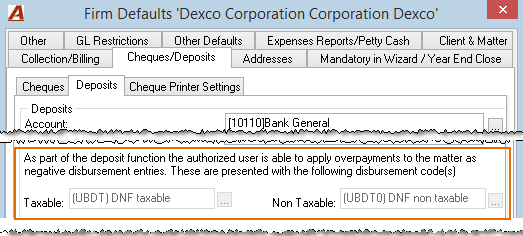
Overpayments beyond interest on receivables are akin to a client-payable and can be applied against a GL account or as a credit to the file (matter) with a specially configured disbursement code set with a percentage of cost rate. Whereas deposits against a matter require a client and a matter (no invoice) in order for the deposit mode to default to "Apply to UDB", deposits against a GL account cannot have an invoice, a client nor a matter in order to default to deposit mode "GL Account Deposit".
Specially Configured Disbursement Code
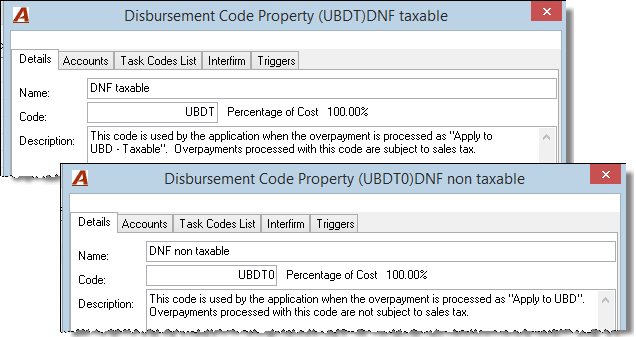
Acumin includes two specially configured disbursement codes which are used to record overpayments as credits (negative disbursement entries) within the matter.
-
The disbursement code “(UBDTO) DNF non-taxable” is used when the user selects the “Apply to UDB” receipt mode option at the time the deposit is being completed, and;
-
The disbursement code “(UBDT) DNF” is used when the user selects the “Apply to UDB” receipt mode option at the time the deposit is being completed, and;
Recommended Use-case
When the overpayment is not refunded to the client, it is considered best practice to record the overpayment with the “Apply to UDB” option found within the general deposit function and to transfer the latter to the client’s trust account for future application against outstanding balances. This process provides the organization with optimum visibility of the overpayment with a clear audit trail for future reference as well as provides the client with maximum clarity of the transaction.
-
Most organizations process overpayments beyond interest as a credit to the matter resulting in a negative disbursement with the specially configured disbursement code.
-
Regardless if the overpayment is deposited against a GL account or as a negative disbursement against the matter - best practice; most organizations require that the overpayment be dealt with as a refund to the client or a transfer to the client’s trust account on conclusion of the general deposit function.
-
In this case the authorized end-user responsible for the deposit function would have completed a note for the affected receipt in the form of a paperclip, with the overpayment amount identified and prefixed with the action REFUND or TT (trust transfer).
-
As the deposit slip report can print with notes, the latter will list the content of the paper clip providing the same individual completing the deposit with the information needed so he or she can also complete one general cheque requisition to accommodate all of the trust transfers within the distribution tab as well as general cheque requisition per client refund to be issued.
It is not considered best practice to apply overpayments processed as negative disbursements as reductions of future disbursements billed. Not only is the visibility of the overpayment reduced to those involved in invoice preparation process, the application of the negative disbursement as a visible reduction of other disbursements billed within the invoice can be cumbersome - especially in environments with sales tax implications; and the presentation options to the client less than ideal.
Taxability Considerations
-
Most organizations that process overpayments beyond interest as a credit to the matter use the “Apply to UDB” function in which case the specially configured disbursement code used is always non-taxable. To use its taxable equivalent the user would have to select “Apply to UDB – Taxable”.
-
Organizations that follow the recommended process of transferring the overpayment into the client’s trust account when it is not immediately refunded, only implement and use the “Apply to UDB” option – eliminating any taxability considerations.
-
Organizations that keep the overpayment within the matter for direct application on a future invoice as a reduction of disbursements, must ensure that the negative disbursement is applied to the sum of disbursements with the same taxability status without exceeding its value. In other words, the invoice should not include a negative balance of taxable or non-taxable disbursements billed.
Process Driven Disbursements
Acumin includes a variety of options designed to support end-users allocate matter expenses as part of the new business intake process and/or the invoice preparation process.
New Business Intake – Matter Creation
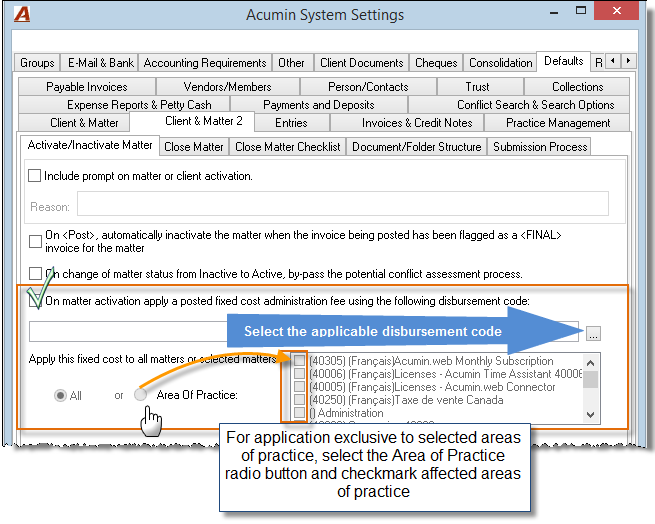
Organizations can set-up an automatically generated standard administrative fixed-fee disbursement as part of activating the matter.
***IMPORTANT: Activating this option after starting using Acumin will require some conversion activities for matters already created. Please contact Dexco for additional information.
-
Most organizations that have a standard file-opening fee also have a policy that exempts certain areas of practice from having to apply it. In this case, it is most effective to set-up the automatically-generated standard administrative fixed-fee disbursement so it applies exclusively to the areas of practice affected.
-
Designed to support a firm-decision to include within the costs of a matter the costs associated with opening a file, there are no options to exempt a client from the automated process.
Exceptions
Best Practice:
-
Considered best practice, where a specific matter is exempted, most organizations will respond to the exception by addressing the chargeability status of the disbursement entry during the file opening process. In other words, as part of the file opening process, once the matter is activated and the operator is in the process of updating matter properties in accordance with firm-requirements, the authorized user changes the chargeability of the disbursement to non-chargeable.
-
The modification to the chargeability status of the entry supports both the firm’s decision to charge for this service as well as fairly reflects negotiation results by showing the latter as non-chargeable.
-
The service is recorded within the matter;
-
As it is not recovered it will show as an opportunity cost;
-
The organization can offer the invoice preparer the option to show or not show the disbursement with a value of 0.00 on the invoice, and;
-
As the disbursement entry is associated to the mater, firms licensed with the matter costing and profit module will have access to the disbursements true cost when calculating matter profitability.
-
-
If the decision to exempt is made for the client (i.e. for the current as well as all future matters) it is recommended that the exemption be noted within the properties of the client-level paperclip, as new file new business intake process.
Note: Some organizations prefer to control the change in chargeability as part of the invoice process. In this case, the file operator responsible for new business intake would record the requirement as a billing guideline and invoice instruction paperclip.
Invoice Preparation Process
Pre-billed – Anticipated Disbursements
A pre-billed or anticipated disbursement is a disbursement or client-expense that needs to be billed (included in an invoice), without first having been charged to the matter.
-
As with regular disbursements, they are valued based on applied “non-historical” disbursement rates; cost per unit, fixed fee and/or percentage of cost.
-
Pre-billed or anticipated disbursements only exist within the structure of the invoice properties, therefore if the invoice is deleted so is the pre-billed disbursement as well as its related GL operations.
-
Organizations working with Accrual or modified accrual accounting models must consider the impact of leaving pre-billed disbursements within an un-posted invoice across crossed fiscal periods.
-
On creation of the pre-billed disbursement the application will create its counterpart as a negative unbilled disbursement along with supporting GL operations having an effective date equal to the pre-billed disbursement’s transaction date.
-
If the invoice affected is never posted but instead it is deleted in a subsequent accounting period, the negative unbilled disbursement entry and supporting GL operations are also deleted generating the equivalent of a prior period correction to unbilled disbursements.
-