.png)
Access
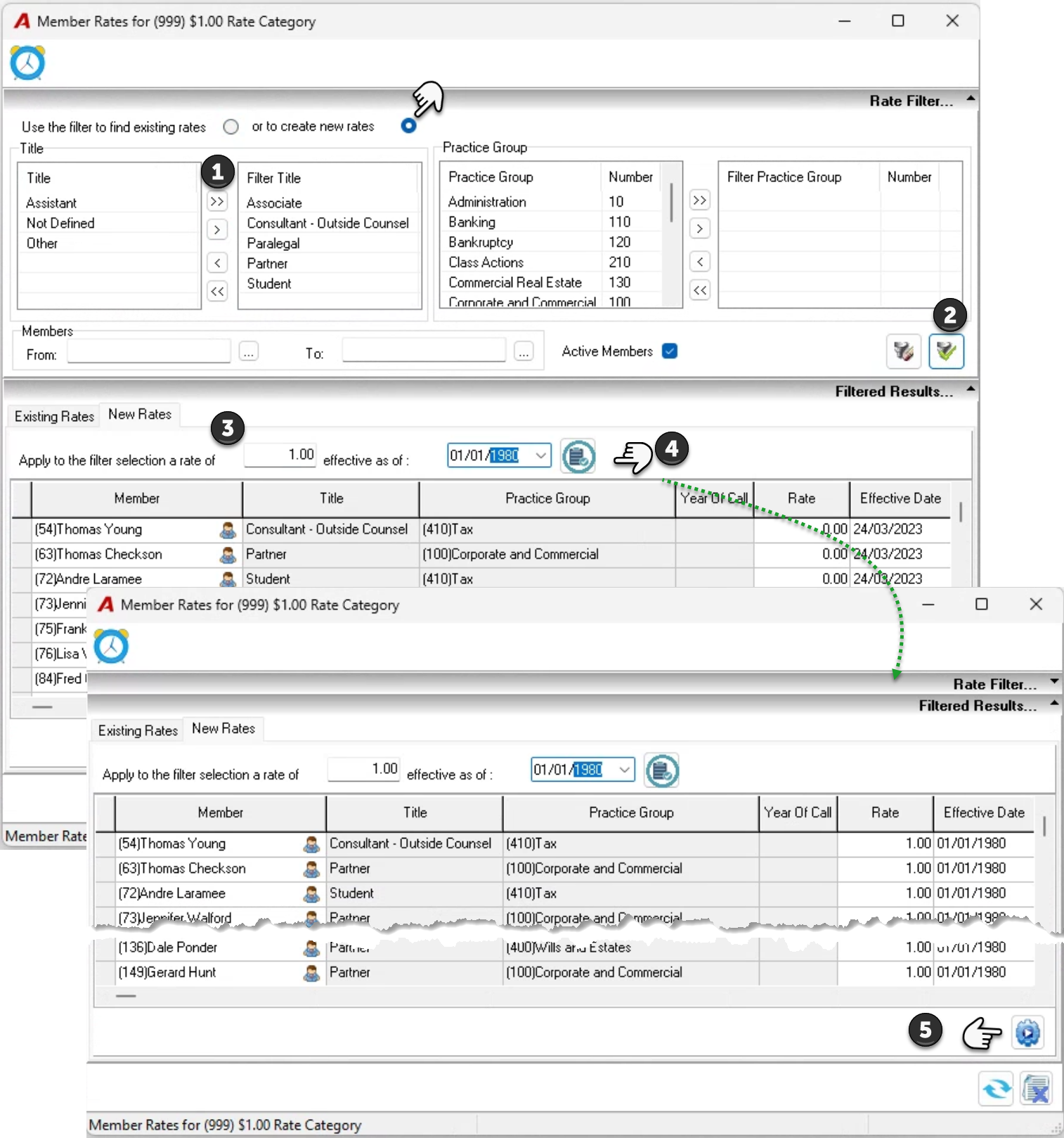
Select “Time Billing-Rate Categories from the “Environment – Time & Disbursements” sub-menu to launch the “Billing Rate Categories form.
Process
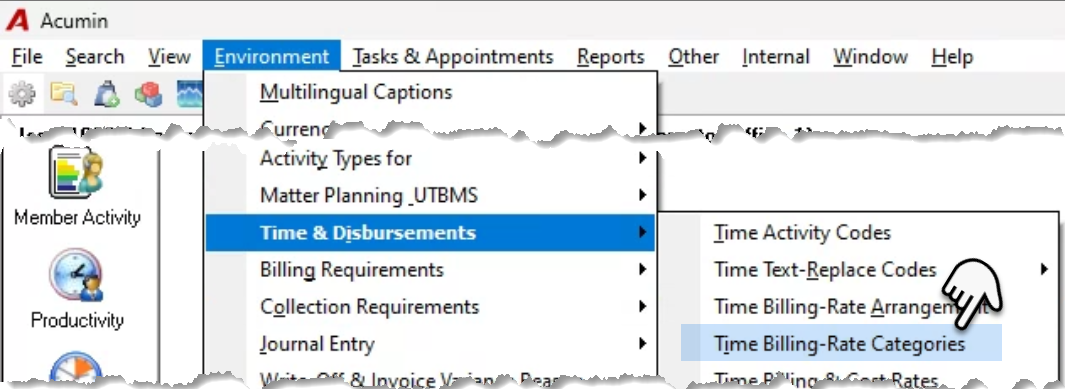
Right click and select “New Member Category” from the contextual menu to launch a new rate category properties form. Set a unique code, the rate category name, its currency and description, as well as keep is a reusable or set it as non-reusable outside of a client structure. Select the rate arrangement it will group under. Press on the member icon to add the rates.
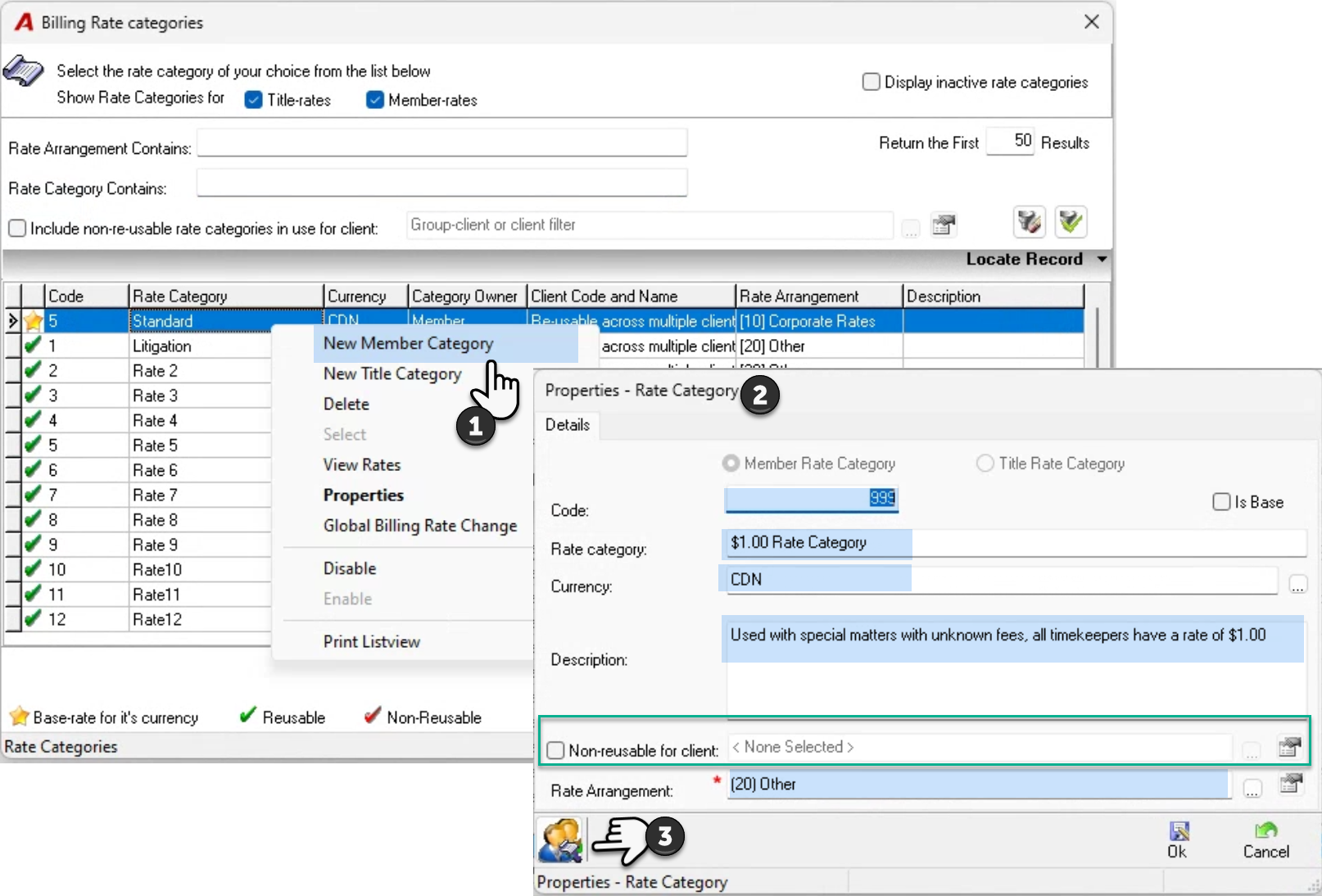
Change the default “Use the filter to find existing rates” “to create new rates.”

Find the members you want to rate by using the cumulative rate title filter and/or practice group filters. Press apply filter to populate the filtered results panel with members. Enter the rate and effective date that will cover most of the members to update the rate and effective date columns on the grid. Change the rates and/or effective dates individually as needed, and press execute to complete the process.