.png)
Use time code favorites to build a quick-pick list of your most-used activity (time) codes. Favorites appear first in selection dialogs, speeding up time entry in Timesheet, Time Entry Properties and Timer.
Before you start
-
Access to Acumin.desktop for managing and using favorites.
-
Know a few activity/time codes you frequently use (e.g., Drafting, Review, Travel).
-
Optional: Decide on 3–5 “core” codes to keep your quick-pick list concise.
Create Time Code Favorites
Step 1: Open Entry Code Favorites
-
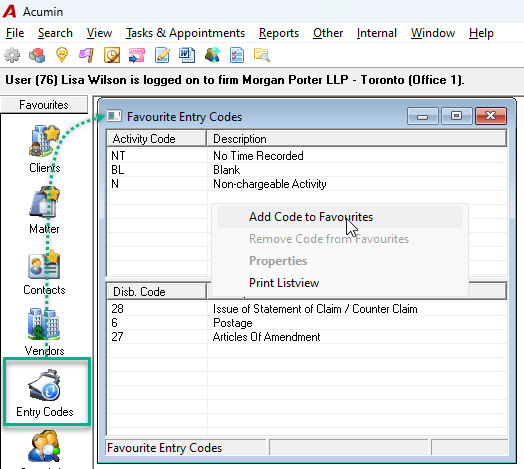
From the main side bar, open the Favorites section.
-
Select Entry Codes to launch the Entry Code Favorites form.
Step 2: Add favorite Time Codes
-
In the upper list (Time Codes), right‑click anywhere and choose Add.
-
Select a code using one of these methods:
-
Single-click to highlight, then right-click → Select
-
Double-click the code
-
-
Repeat to add additional favorite time codes.
A compact list of 3–5 works best.
Keep the list short. Fewer, high-usage codes improve scan speed and reduce misclicks.
Step 3: (Optional) Add favorite Disbursement Codes
-
In the lower list (Disbursement Codes), right‑click and choose Add.
-
Filter and select disbursement codes as you did for time codes.
-
Repeat to add several commonly used disbursement codes.
Use Your Favorites During Time Entry
-
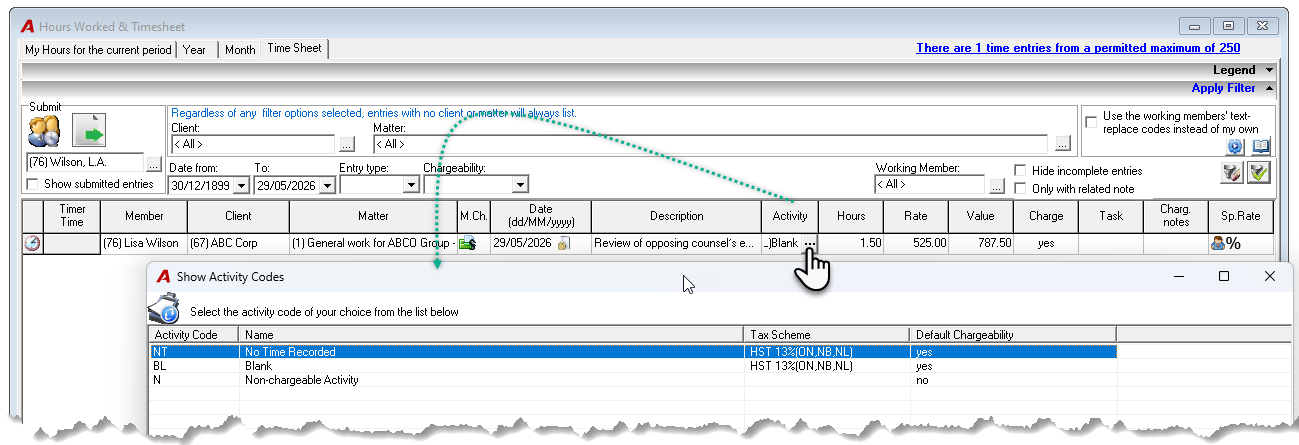
Open Timesheet and move to the Time Code field on a new row.
-
Your favorite time codes display first for quick pick.
-
If the code isn’t in favorites, press Refresh or search by name to view the full list.
-
-
To add an Activity code to your favorites from this view, single‑click to highlight the activity code, then right‑click select the Add to Favourites option.
Best Practices
-
Start with 3–5 favorites. Expand only when a code is used weekly or more.
-
Reorder and curate periodically. Remove rarely used codes to keep selection fast.
-
Combine with defaults. If your user defaults carry over the previous row's code, you'll type even less.
-
Use alongside matter favorites and aliases for the fastest workflow end‑to‑end.