.png)
Locating Missing Time Entries
Time Entries
When are the time entries saved?
acumin.desktop : Time entries are automatically saved when a new timesheet row is created, the user exists the timesheet, the timer is more than 5 seconds through.
Acumin.web :Time entries completed using the Acumin.web timesheet or timer are also saved as unreleased under the same conditions as described for Acumin.desktop.
Are deleted time entries saved?
Deleted time entries are moved to a deleted time entry table and permanently saved. This makes them accessible and if needed, they can ne restored as unposted on the user’s acumin.desktop’s timesheet.
When can a time entry be posted and from where?
To post a time entry created in Acumin.web it must first be released to Acumin.desktop. These entries once released will show on the Acumin.desktop timesheet of the designated recipient responsible to edit and post it.
Once in Acumin.desktop, time entries can be posted from the Acumin.desktop timesheet of the user that is the current owner of the entry, or from the entry’s properties form.
Can unposted entries be submitted to someone else’s timesheet?
Unposted time entries listing on a user’s Acumin.desktop timesheet can be submitted to the Acumin.desktop timesheet of another user. This is a native right for any Acumin.desktop timesheet user. How ever only those with additional rights can take unposted timesheet content from another user’s timesheet to bring it onto their own.
Can a user take control of someone else’s unposted time entry and become its owner outside of the submit function?
A user that has the right to modify the time entry properties content of time entries created by another user, will have access to the OK button. If the OK button is used to exit the time entry properties created by another user; they will become the owner of the entry in which case the entry will list on that user’s timesheet.
Can future dated time entries be posted?
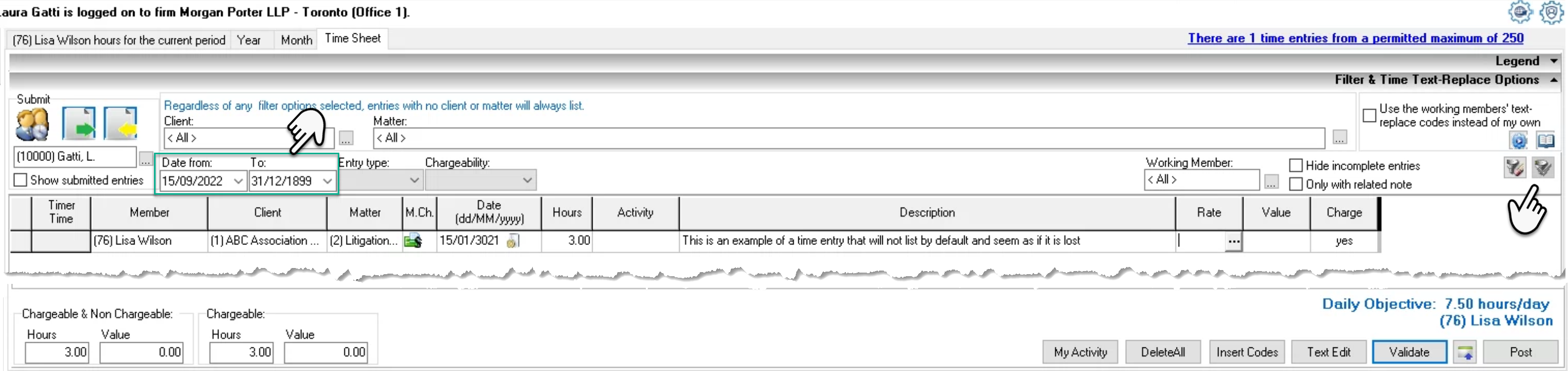
Future dated time entries cannot be posted with one exception – those recorded against a non-chargeable matter for recording days off (setting completed in firm properties of the main firm). They remain unposted and can only be posted when the current date is equal or more in the future than the transaction date. For this reason, if a time entry is recorded in error with a future date, it will not list on Acumin.desktop’s timesheet unless the default “To-Date” filter is modified to 31-12-1899 which represents an open to-date filter.
Tools
Timesheet View Filter Options
The filter options for the unposted time entries owned by the user are in the filter panel above the list of unposted time entries. Although there many filter options for a variety of use-cases, the date range filter is the first go-to option to locate entries which may have been entered by the user with a future date as these are excluded from the timesheet’s default filter; and the submitted entries option to locate entries submitted prematurely.
Date Range: Filter by time entry transaction date. As the default is for all entries to the current date, to find future dated time entries entered in error set the form date to the current date and to date to 31-12-1899 to reflect no date.
Submitted Entries: Checkmark the filter options to see the entries submitted by the user who owns the timesheet to the member in the field above
Other Options:
Client and Matter: Filter for time entries for a client and/or matter
Entry Type and Chargeability: Filter by type of entry – timer entries or non-timer entries (time entry) or the entry’s chargeability status – Chargeable or non-chargeable.
Working member: If the user has time submitted from different working members (timekeepers) use the working member filter to see the unposted time for one member.
Only with Related Note: Use this option to filter for unposted time entries owned by the user of the timesheet that have a related note.
Once the filter is complete, press apply filter.
My Activity Filter Options
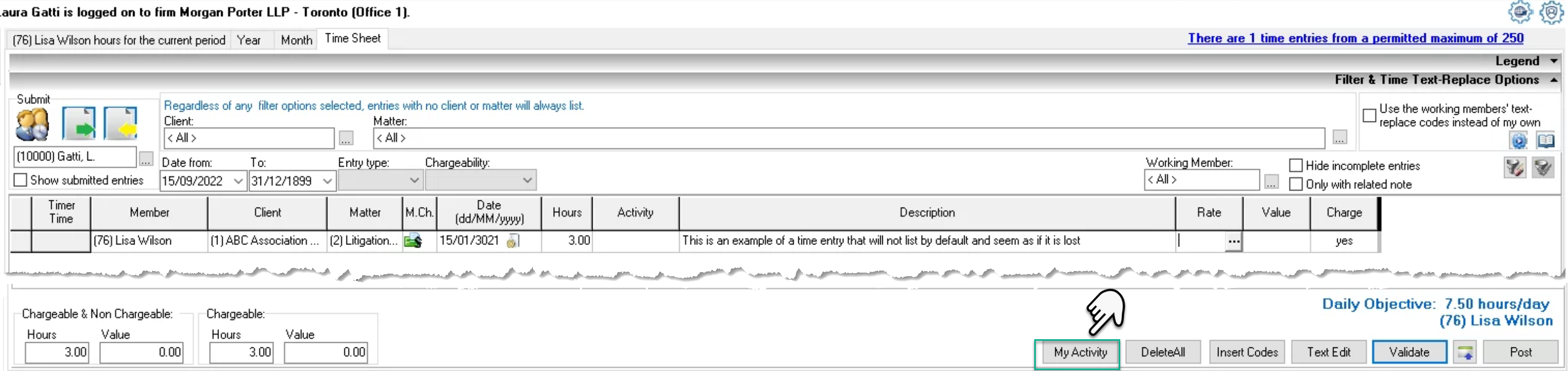
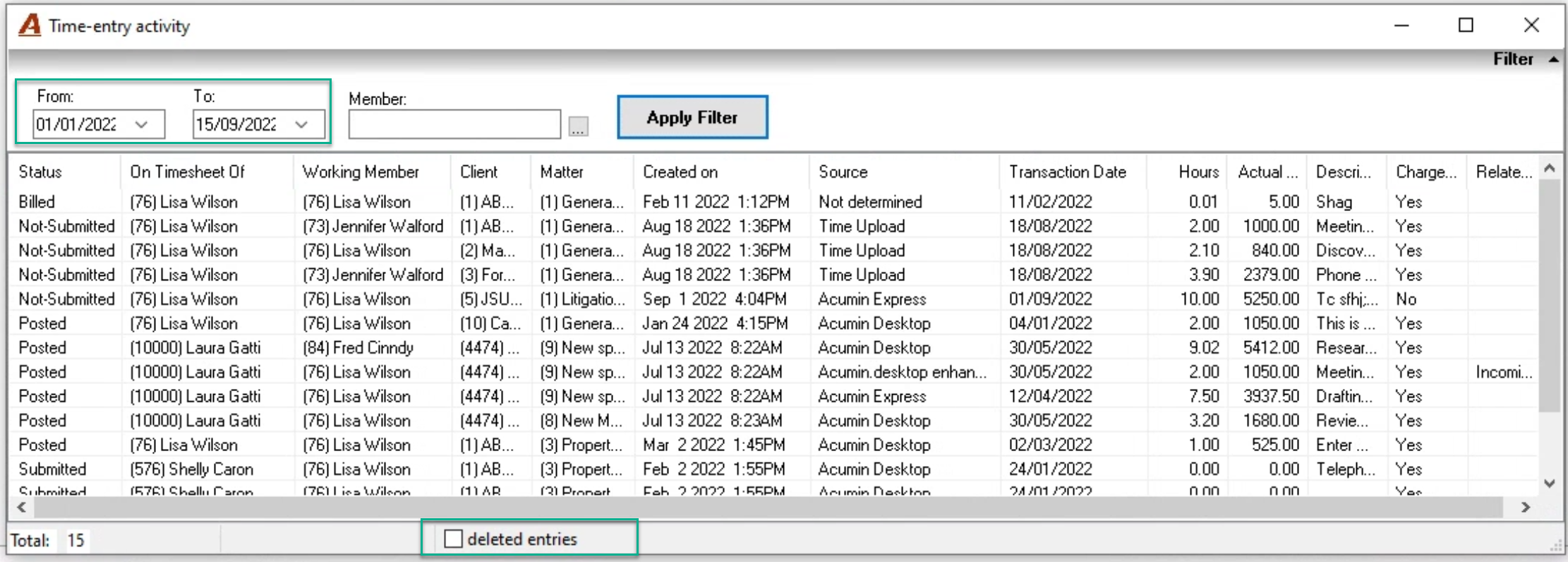
The “My Activity” filter form provides visibility of unposted and posted time entries to locate entries perceived to be missing. Press on the “My Activity” button on the “Timesheet” to access the form
Filter Options
Use the from to date to locate the entries which were posted by the user owner of the timesheet, based on their transaction date. Use the working member filter to further limit the results.
Consider expanding the date filter or removing the working member in case the time entry was entered for another working member in error or accidentally with a wrong date (including a future one).
Use the “Deleted Entries” checkbox to include time entries that may have been accidentally deleted.
Monthly Calendar View
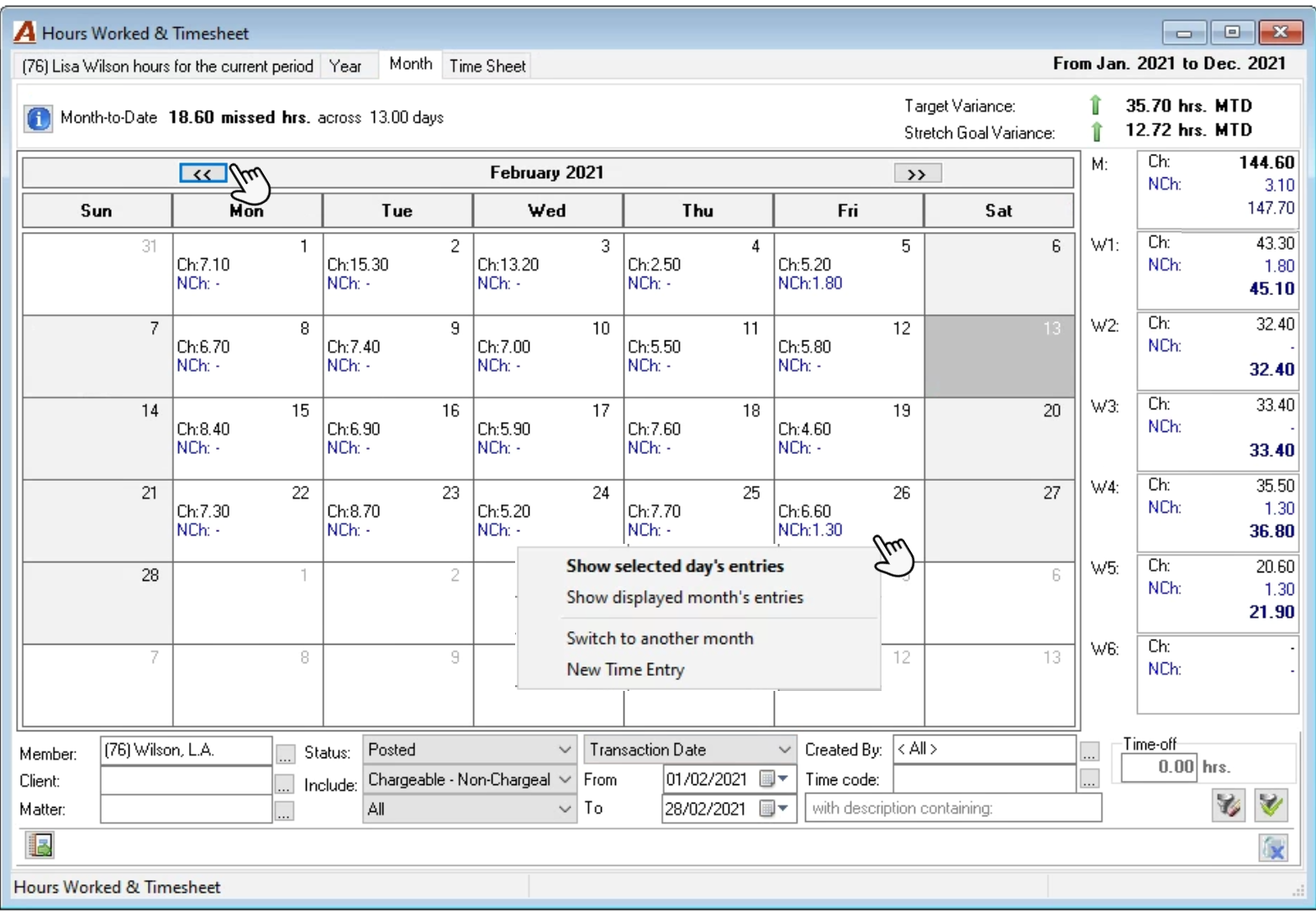
The filter options are below the calendar view.
Member:
Filter for time entries specific to a working member (timekeeper). To change a working member to someone outside of the works with relationship requires third party access to time entries.
Client and Matter:
Filter for time entries for a client and/or matter
Status:
Change the default depending on what you are looking for. The options are available on their own or combined with another. They include:
Not Posted: Time entries which are on someone’s timesheet in Acumin.desktop;
Posted: Time entries which are no longer on a timesheet but are accessible from multiple sources including the WIP dashboards and My Hours Month Tab;
Deleted: Time entries which were deleted and available to be restored as “Not Posted” time entries
Unreleased: Time entries which are in Acumin.web’s timesheet. These can only be modified or changed from within the user’s Acumin.web timesheet until they are released at which point, they are considered Not Posted.
Include:
Chargeability: The first drop down box offers users the ability to filter for Chargeable entries or for non-Chargeable entries separately.
Posted Life Cycle Status: The second drop down box offers users the ability to filter posted entries by their life-cycle status, namely unbilled, selected for billing, billed and written-off.
Date:
Select the type of entry date - transaction date, creation date, or deletion date.
Date Range:
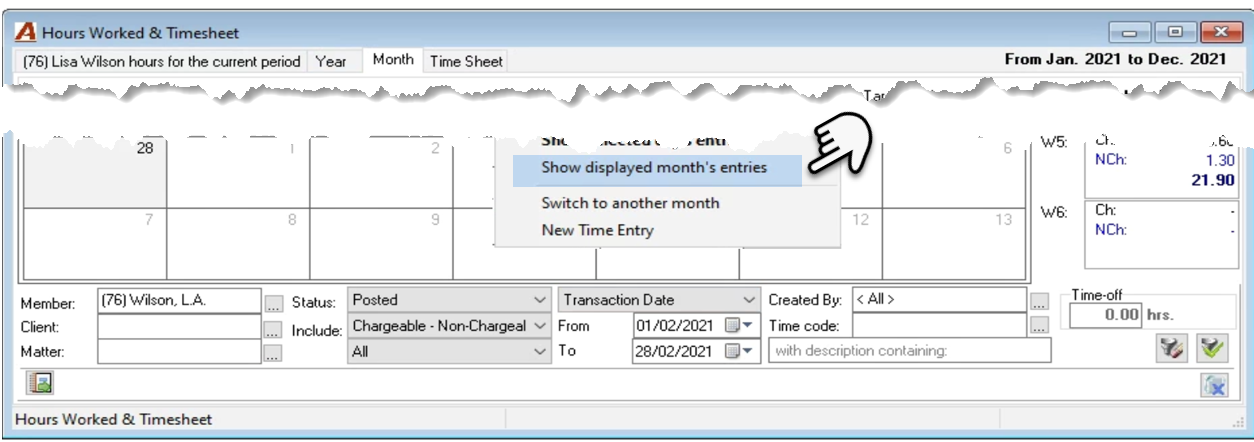
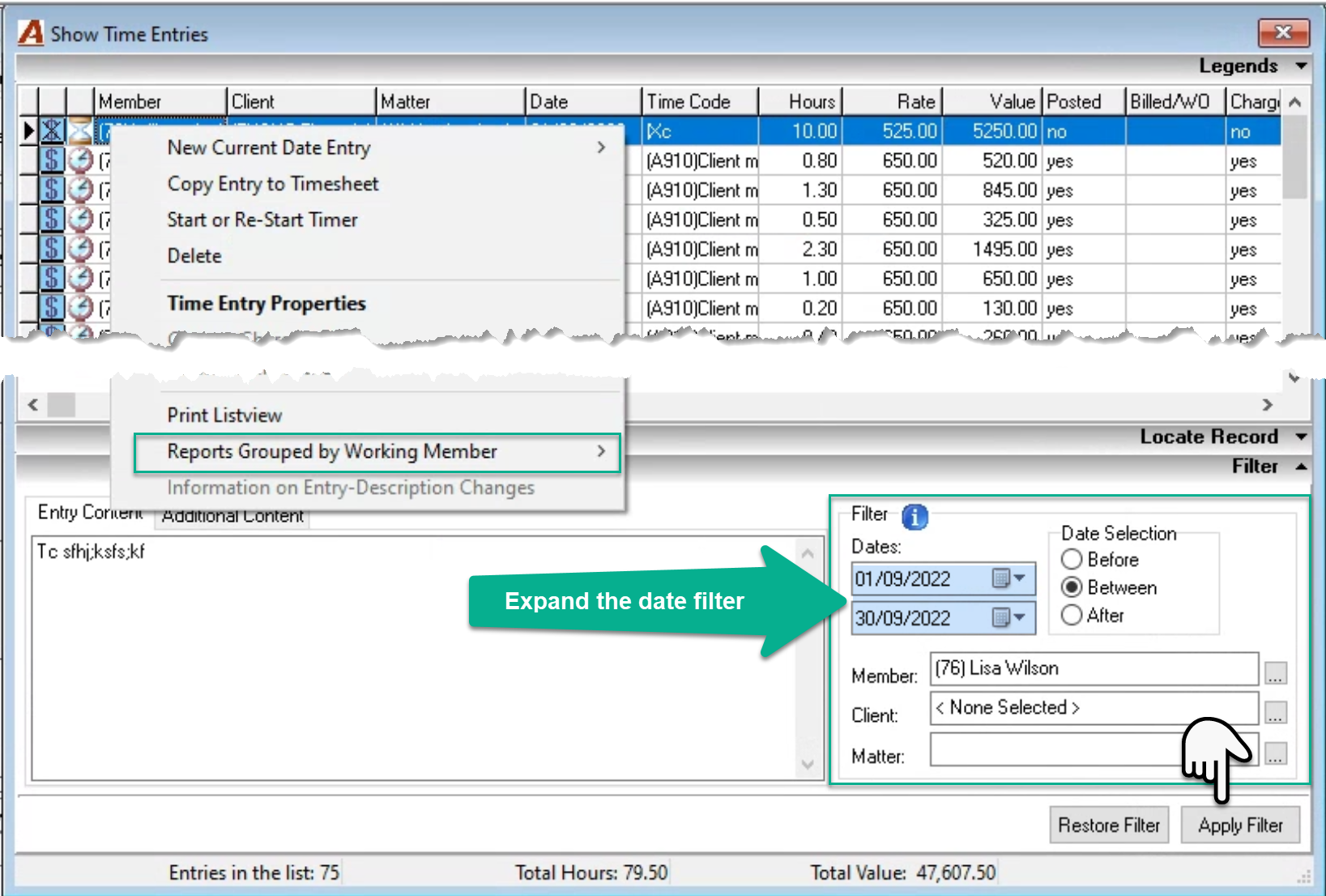
If the date range is outside of the month, the results will be for the “To” month, however once the filter is applied with all other filter options, you can expand the date range on a sub-form.
Created By:
Filter for entries based on the created by member.
Time Code or Description:
Filter for entries based on time code and or description content.
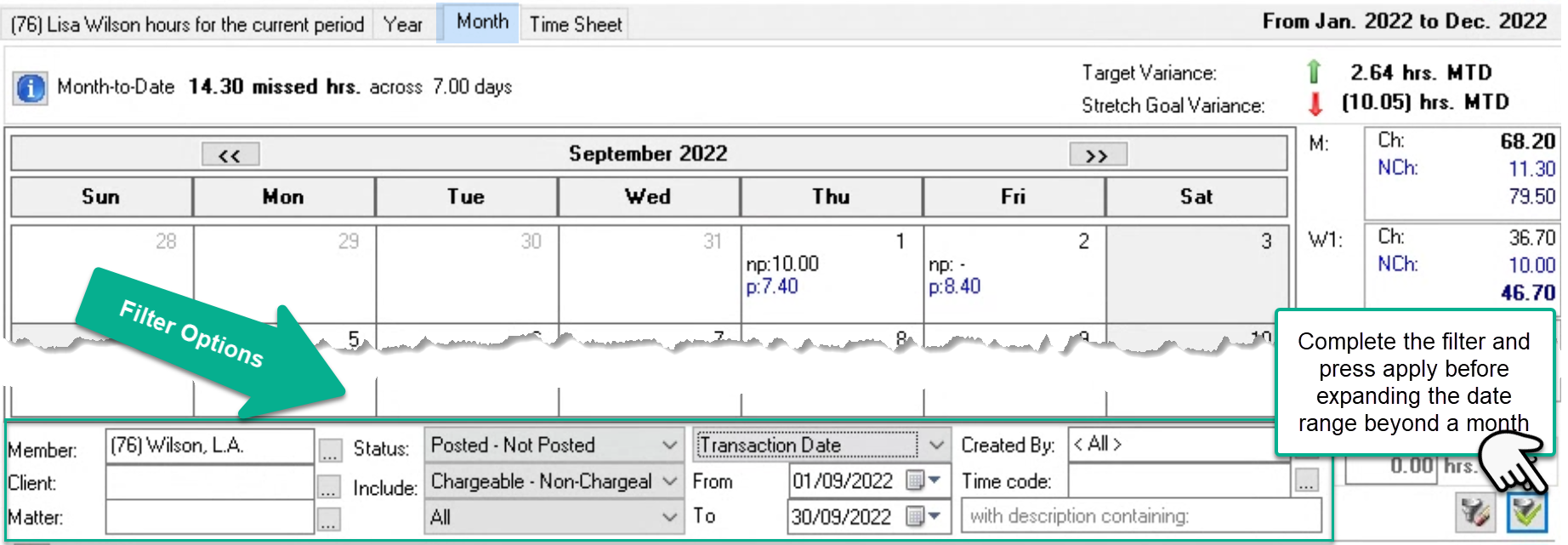
Press on the apply filter button before expanding the date range.
Expand the Date Range:
To expand the date range, after the filter is applied, right click on any day, and select “Show displayed month’s entries” to launch the “Show Time Entries” form. Expand the date filter beyond the month and press “Apply Filter”.
Right click to select report options.