.png)
Transfer Unposted Time to My Timesheet
One Entry at the Time
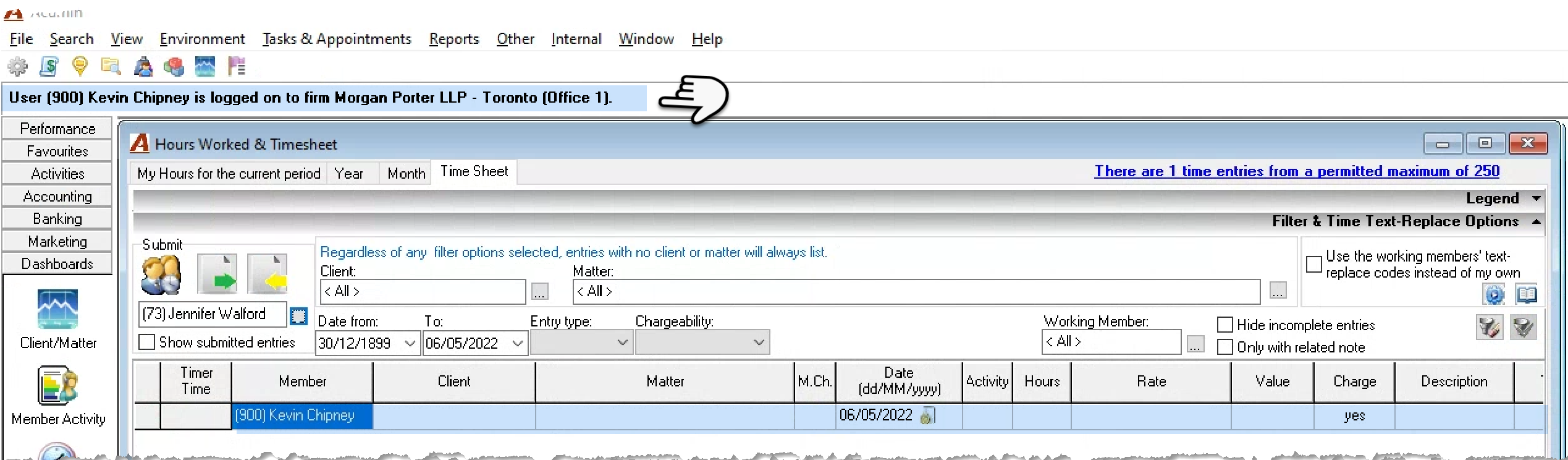
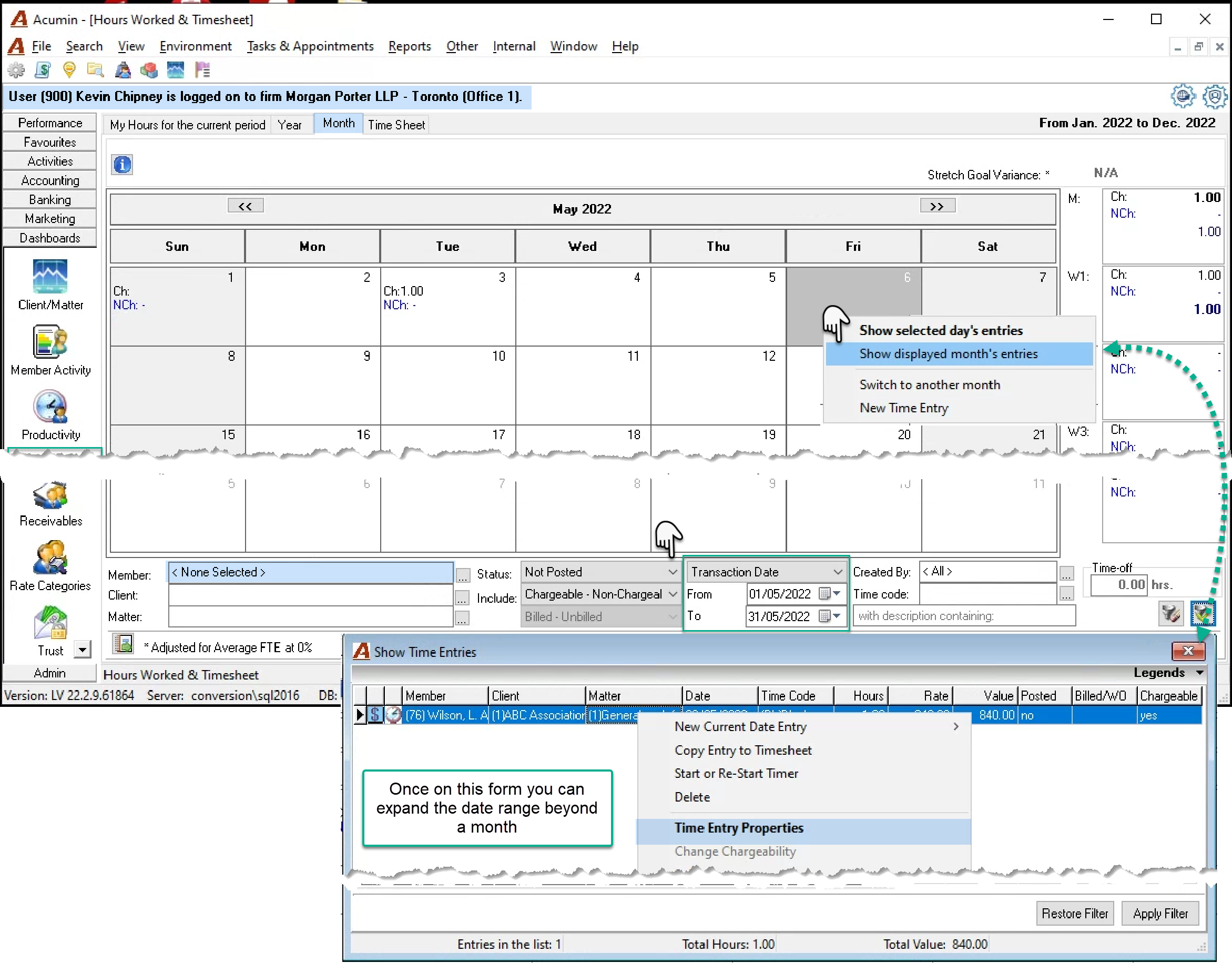
From the dashboard section of the task bar press on the hours worked icon. Navigate to the “Month” tab and complete the filter criteria to find the entry. Press on the apply filter icon (bottom-right. It is possible expand the date filter beyond the month on the next step.
Right click on the calendar view panel and select “show selected day’s…” or “…month’s entries” depending on your results. For example, if there are unposted entries for more than one day after reducing your results by filtering for member, client or matter, selecting the month option would provide the visibility needed for the next step.
Once on the “Show Time Entries” form you can expand the date filter beyond a month or apply a client filter if not done on the calendar view. Right click on the entry you need to bring to your timesheet and select “Time Entry Properties”.
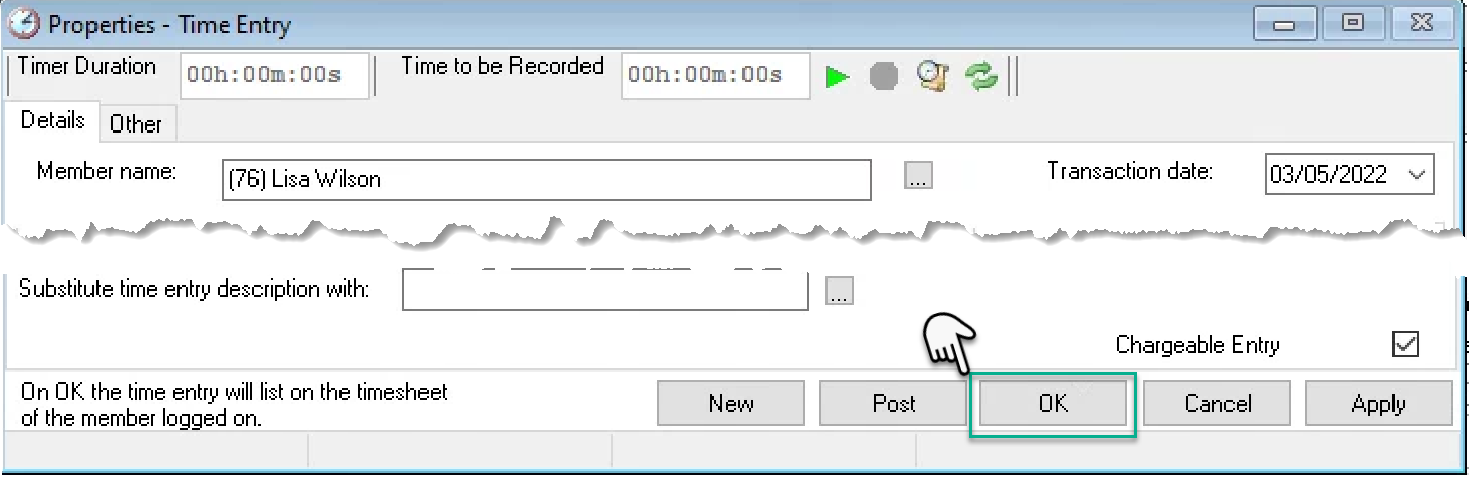
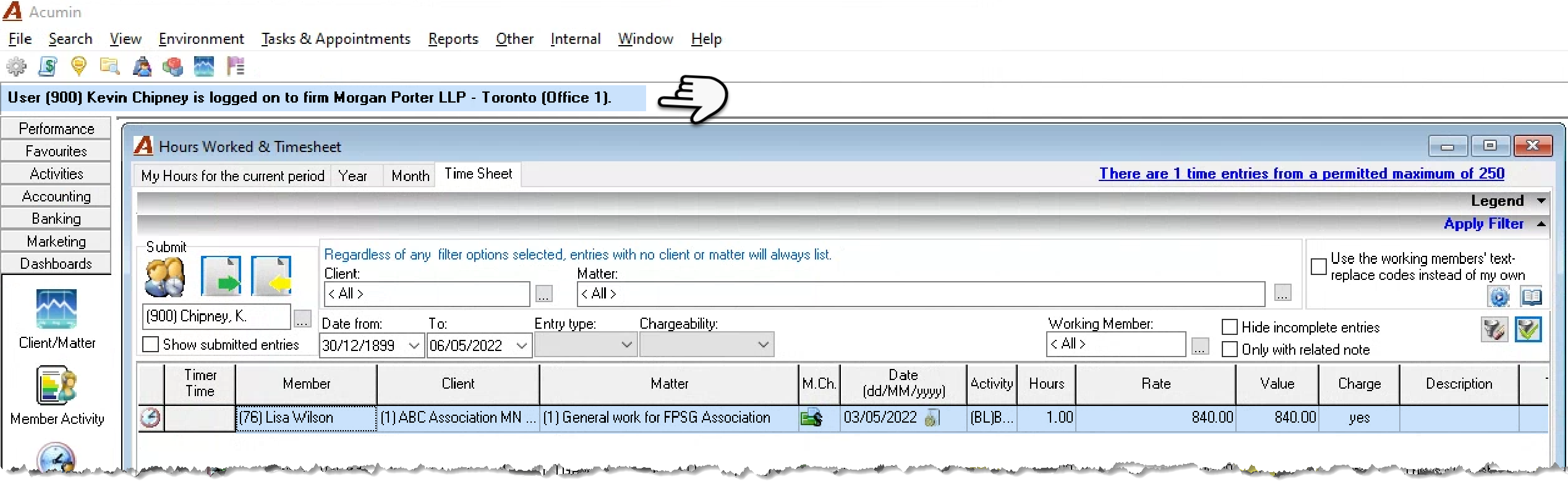
Once on entry properties press OK to bring the entry to your timesheet, cancel to leave it where it was.
Workflow Business Logic:
For any changes to be accepted on a posted or unposted time entry the user must press OK, therefore the application will use OK as the trigger to update the creator to reflect the last person that made changes to the entry, to provide an audit trail should the entry content be questioned.
Impact on Posted Entries:
Users with third party access to time entries viewing posted entries should exit using the Cancel button for the right audit trail to be preserved, however the impact if not, is minimal because of the relationship between assistant and timekeeper, the controls to relevant filter options and change history for the posted time entry.
Impact on Unposted Entries:
The impact to unposted entries is more extensive as the time entry will be moved from the creator’s timesheet to the one belonging to the person pressing OK.
Multiple Entries at Once
Security
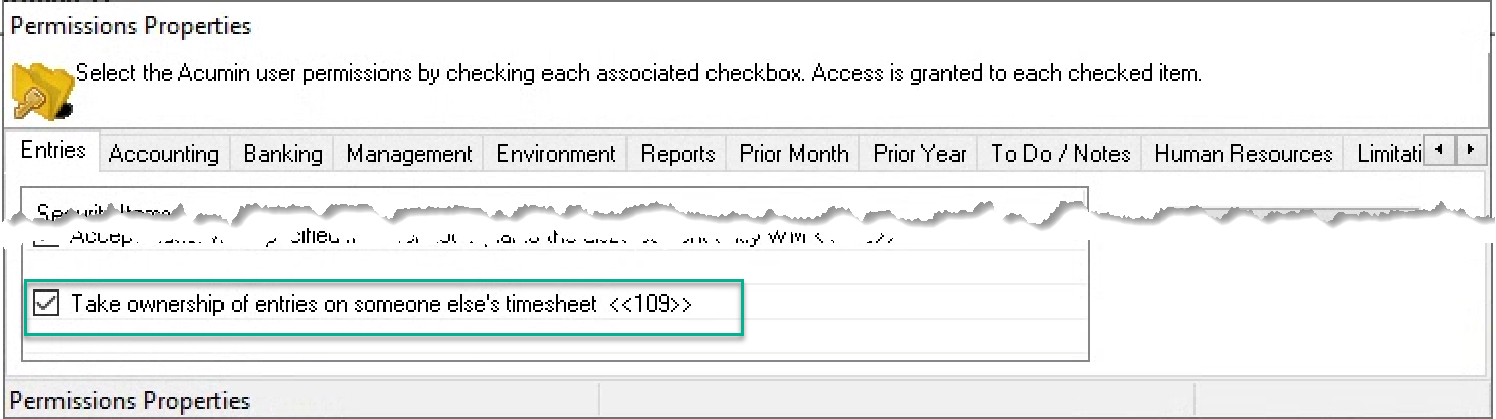
To bring the content of someone’s timesheet into yours you will require security <<109>>
Process
Enter the member whose time sheet entries you will import into your own on the member field in the “Submit” section of your timesheet – upper left.
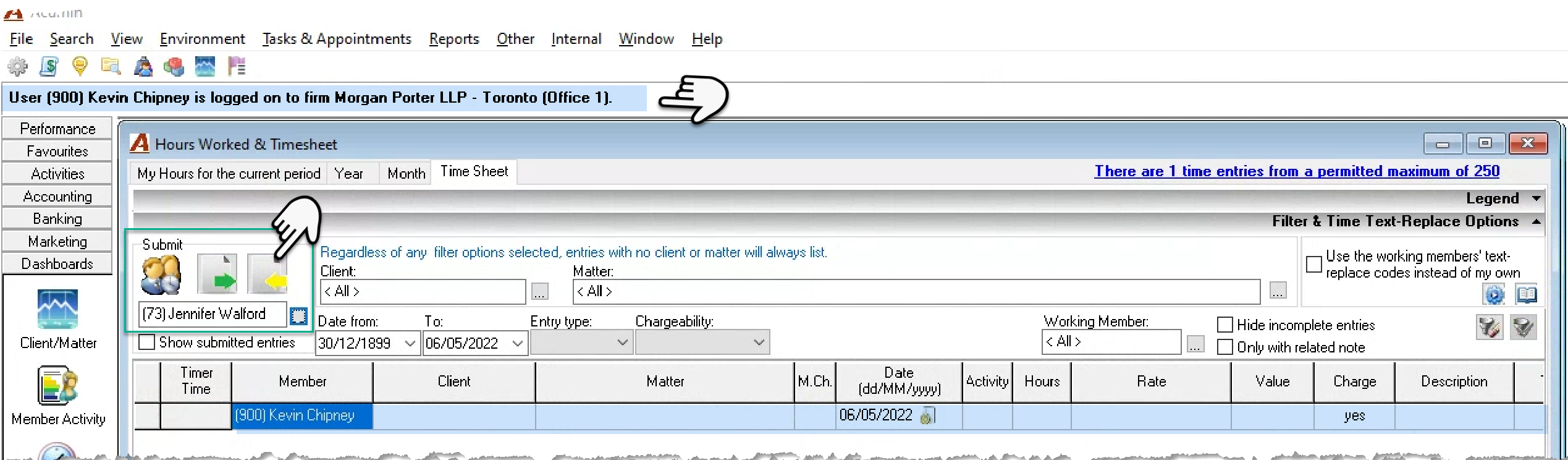
Press on the “Submit from” button with the hint box “Used in case you want to transfer entries from another member. You will have the option to opt-out
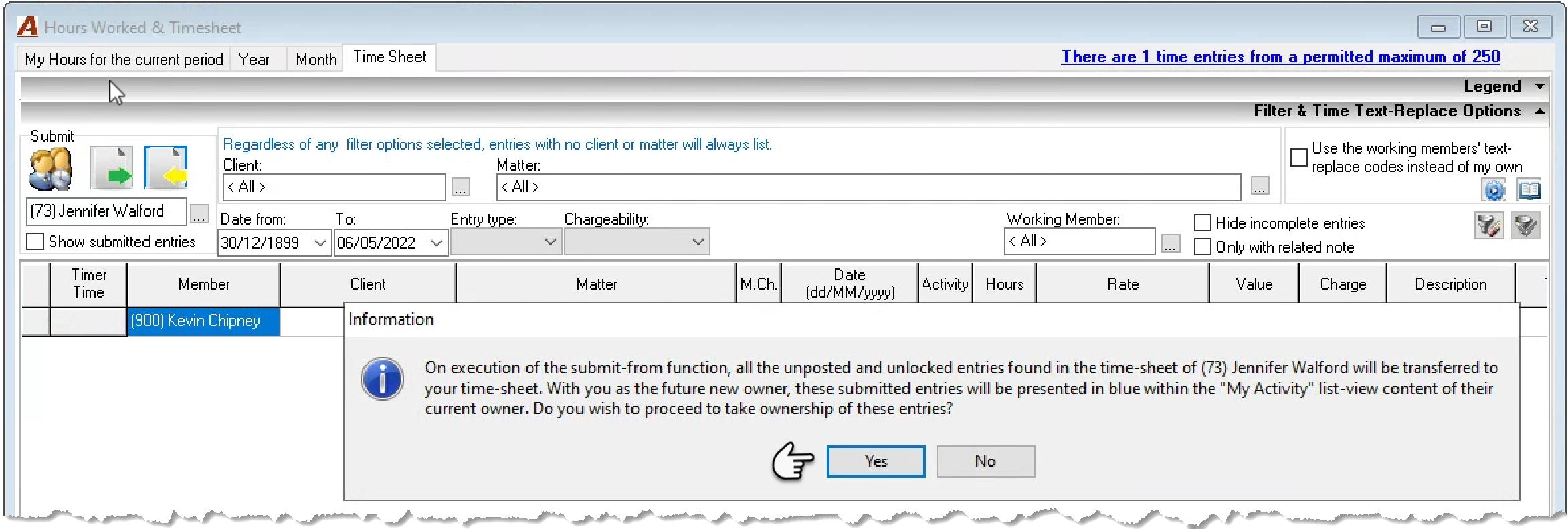
If the entries are free to be transfer, you will receive the following message and results.

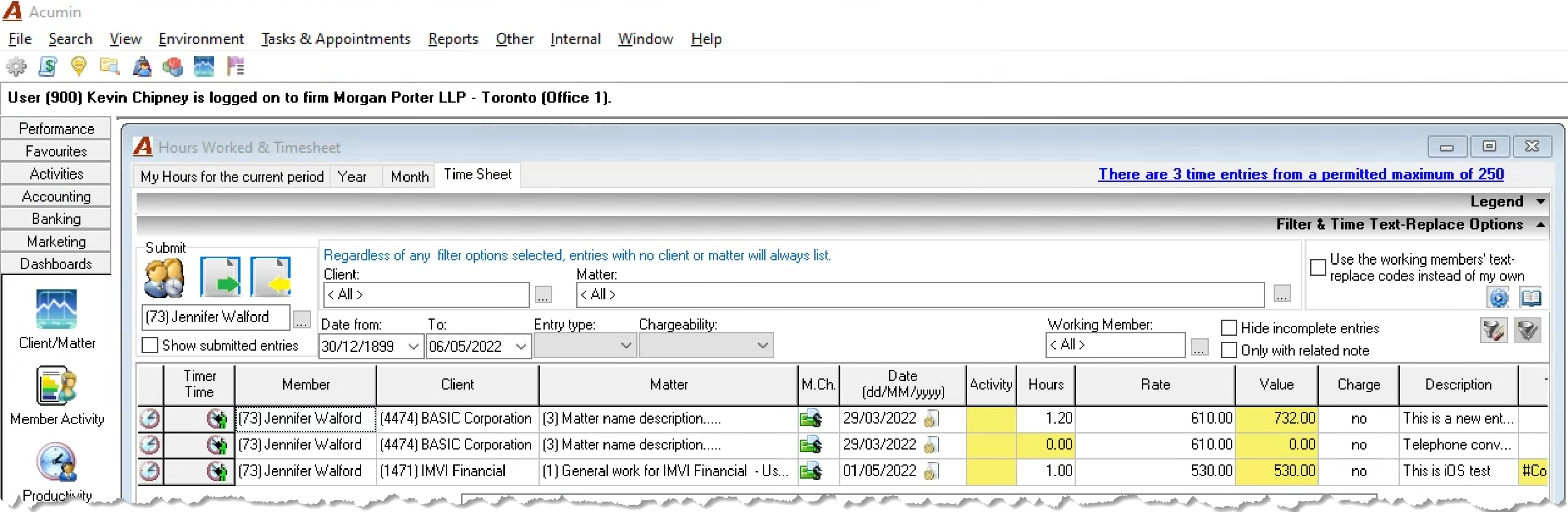
If the entries or timesheet are in use by the owner, you will receive the following message and results.