.png)
Overview
The Auto-text replacement functionality enables the conformity of descriptions as well as the optimization of the description entry process. By entering a pre-set code in a description field, Acumin replaces the code by the corresponding text.
The objective of this document is to explain how the pre-set codes and text are created as well as how they can be used in Acumin.
These codes can exist at three levels within the Acumin system, the Firm-defined level, the User-defined level, and the Time Code as Text Code. Firm level codes can only be set by persons having access to do so. These persons are usually Acumin system administrators. However, Users, often Assistants, may setup their own pre-set codes as well as setting them up for the Lawyers for whom they work.
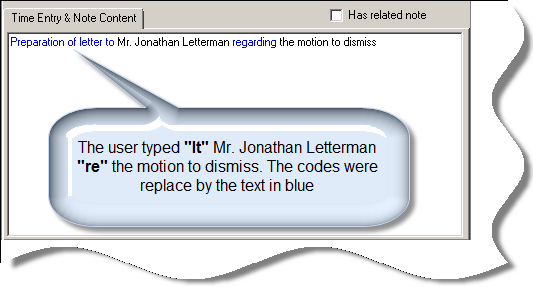
Figure 1: Use multiple auto-text replace codes within the same narrative
Text-codes in Relation to Time Codes
The implementation of auto-text codes typically results in a re-definition and use of time codes. The following explains the business logic and purpose behind each object.
-
Text codes can only be used within the body of pre-defined text fields; therefore, they are not a grouping variable. Their only purpose is to reduce data-entry especially for commonly used words and phrases. Although a library can be created for all to use, the end user can create his or her own text-replace codes.
-
Time codes can only be used within the time-code field. With a comprehensive properties form with multiple attributes, they are also used as grouping variables, for define default chargeability and/or set a different sales tax requirement than other activities. With the flexibility of text-codes, time codes are not required as the object to manage common text or phrases geared to reduce data entry efforts.
It is considered best practice to create a fairly short but meaningful list of time-codes for main activities in consideration of:
-
Desired grouping opportunities (i.e. Client Communication, File Management etc.);
-
Default chargeability requirements (i.e. Time off, Goodwill etc.); and/or;
-
Special sales tax requirements (i.e. Tax Planning is non-taxable, whereas and all other activities are taxable).
Please note that as these types of time codes would be more akin to grouping variables, they would not have any text or would have minimal text in the description field on the expectation that the user would use auto-text replace codes to describe the nature of the action.
The time code properties form is also used for required task based activity codes (coding requirements for UTBMS or e-billing). Time-codes created for use in this manner are associated to the corresponding task set(s) and typically not made visible for selection on matters which are not subject to the task set on which the time code applies. These codes typically require pre-defined codes, names and descriptions particular to the affected client.
The Library of Auto-Text Replacement Codes
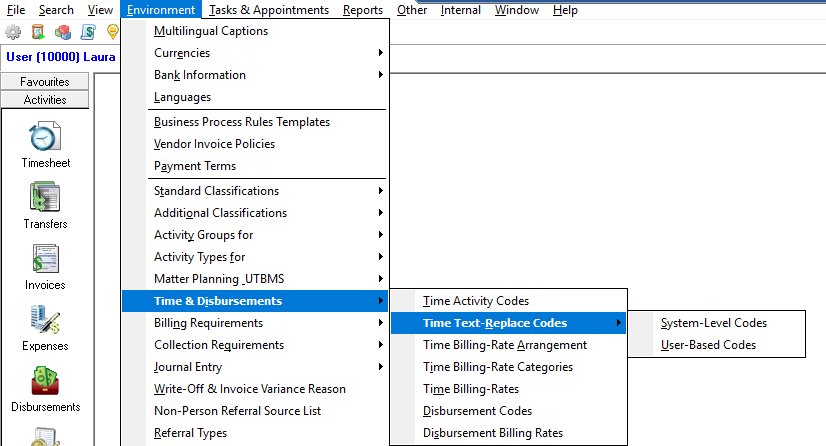
To access the library of auto-text replace codes and create new ones, from the top banner line, click on Environment – Time & Disbursements – Time Text-Replace Codes.
Auto-Text replacement Codes can be added at the System Level (available to all Acumin users) or User-Based Codes (that are available to one or more Acumin users).
System-Level Codes
From the Time Text-Replace Codes list, select System-Level Codes to open the Time Text-Replace Codes form.
Adding new codes
To ADD a new code, right click on the form and select Add System-Level Codes.
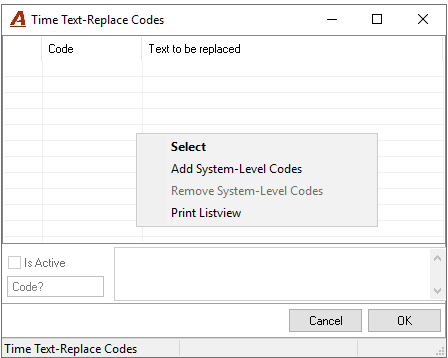
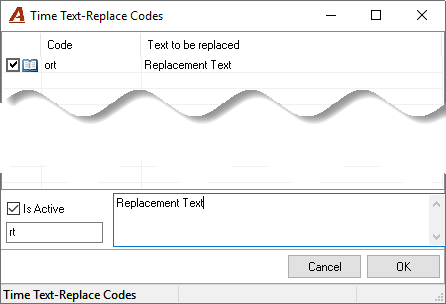
In the Code field, type the acronym for the text that you wish to replace. Now enter the text that is to be used when the acronym is typed.
You will see that as you enter text, the code and the corresponding text will show in the top part of the form.
Click OK to save the new code.
Depending how your system has been configured, you may notice that when System codes are added, the letter “o” is added as a prefix. Therefore, when used, the “o” must be included.
Modifying existing System-Level Codes
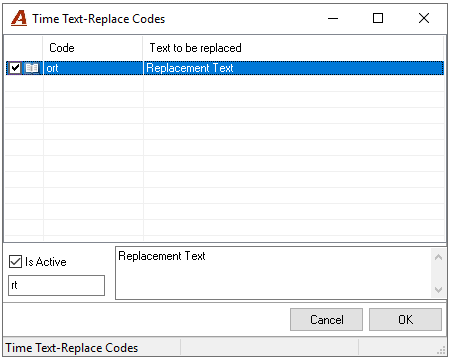
To modify an existing code, click on the code from the list. The Code and Description fields will be automatically populated.
Either or Both of the two fields (Code and Description) can now be modified.
Click OK to save your changes.
Removing existing System-Level Codes
Removing a System-Level Code will remove it for all Acumin users.
Therefore, make sure that the code is no longer required before it is removed.
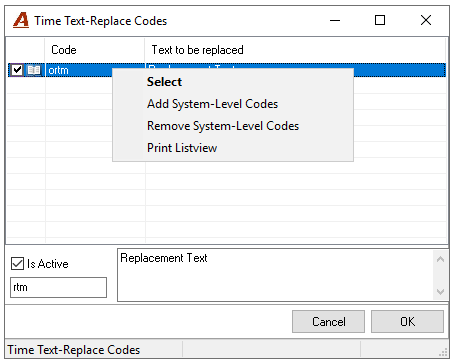
Right click on the code that must be removed and select Remove System-Level Codes from the list.
There will be no prompt to validate that whether this code should be removed. The removal will be instant.
Setup of User-Based Codes
The Book Icon Method
Individual Client Properties
Auto-text can be managed throughout the Acumin product where the book icon can be seen.

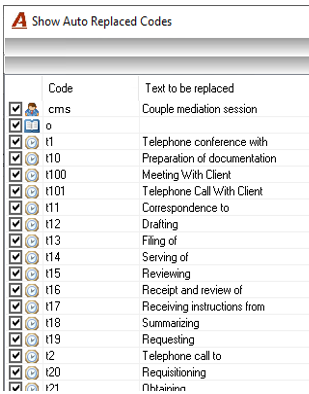
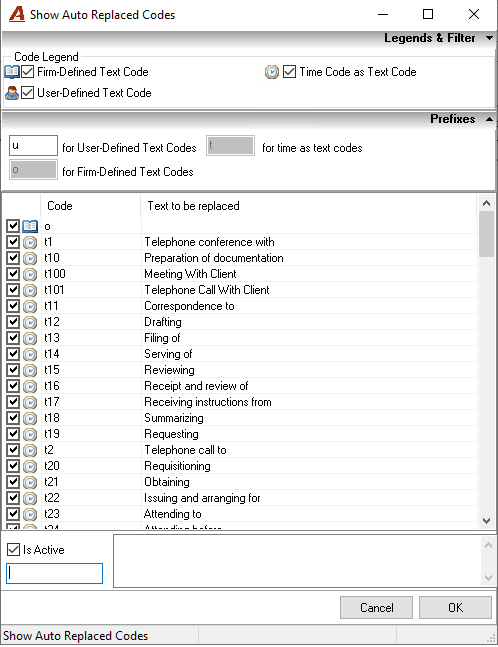
Clicking on the book icon will open the
Show Auto Replaced Codes form.
Adding New User-Based Codes
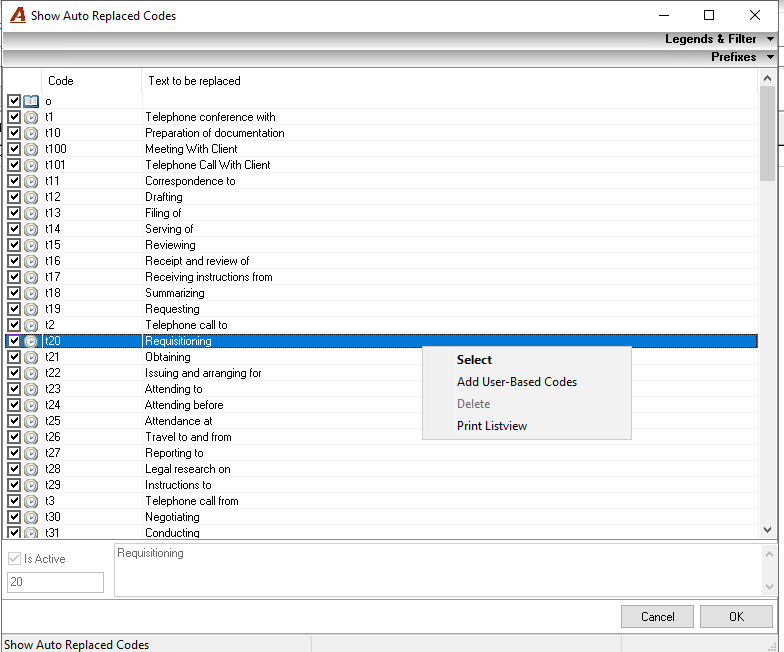
Right-click on the codes list, and select the Add User-Based Codes option.
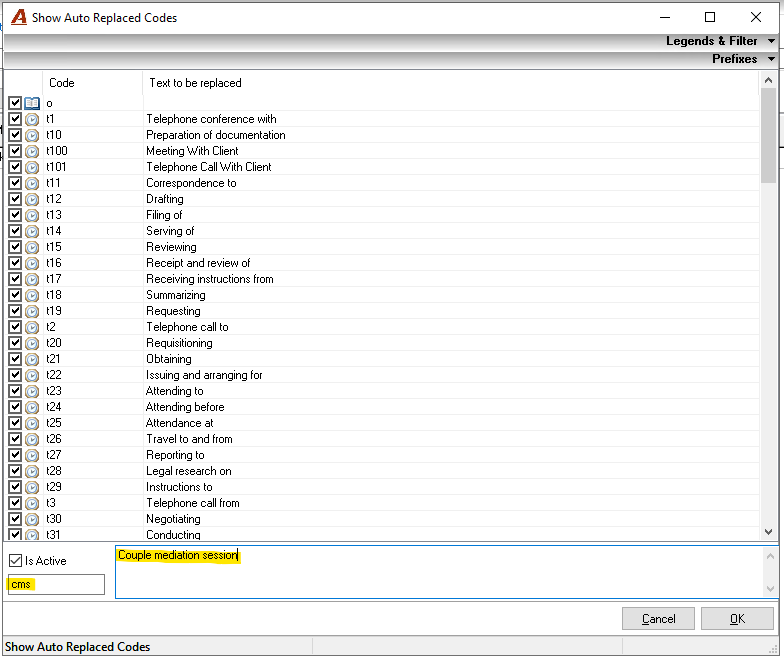
Enter the new code the bottom of the form in the field under the Is Active checkbox.
example: cms
Enter the replacement text.
example: Couple mediation session
Click OK to save the changes.
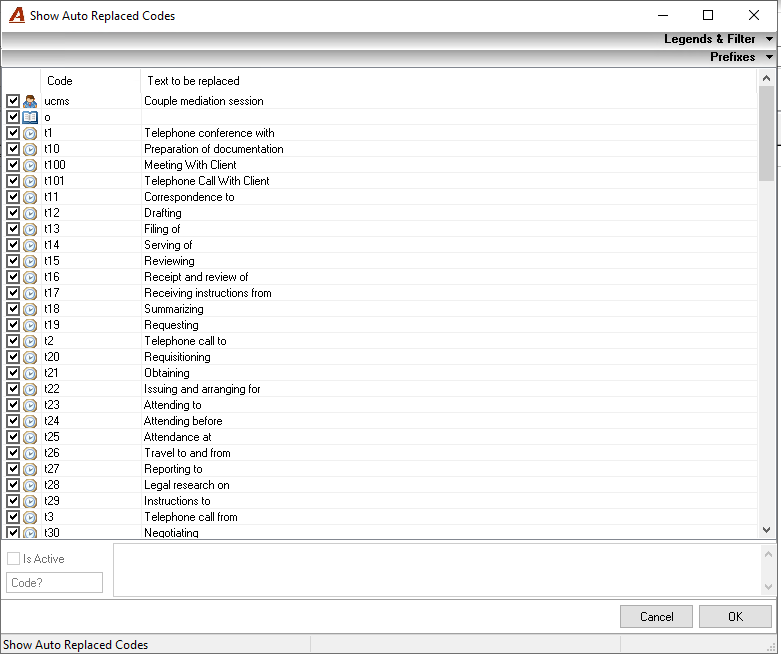
The new auto-text replacement code “cms” has now been created.
Using text replacement codes
Replacement codes can be used in many areas of the Acumin system, for example in the timesheet, invoices, disbursements, in short, anywhere a Description text can be entered.
User-Based replacement codes
In the example below, we are working in the Hours Worked & Timesheet form.
Start typing in the Description field. This will automatically open the Description form.
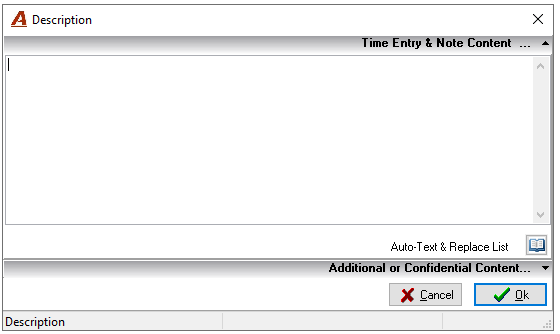
Start typing text or codes as required.
Continuing with the example above, type “cms” followed by a space.

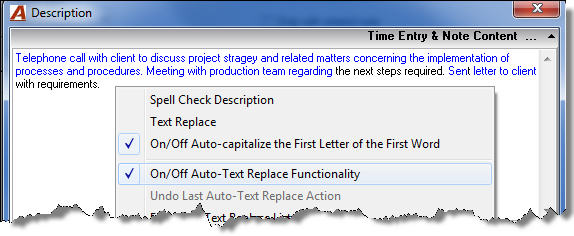
The space after the code tells Acumin that a replacement code is being used as opposed to regular text. The replacement text appears in blue. Any additional text will appear in black so that it is easy to distinguish between replacement text and regular text.
At any time, available codes can be viewed by clicking on the book icon located at the bottom-right of the form. There is no need to exit out of the list to select a code. By using either the right-click Select function, or the double-click on the code to be used, Acumin will know to insert the corresponding text into the Description.
Using System-Level text replacement codes
Using System-Level text replacement codes is done the same as User-Based text replacement codes.
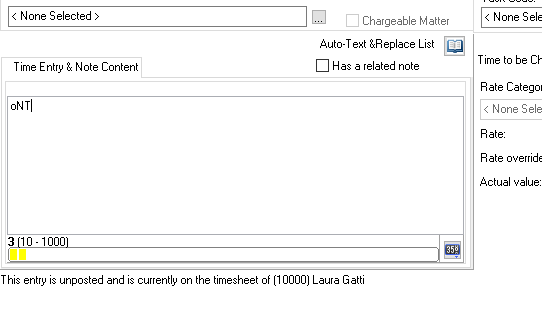
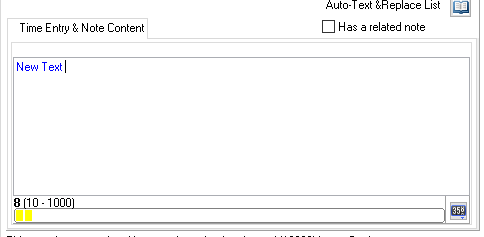
To be able to enter the code as “code” the user must right-click to access the contextual menu of the text field and select on/off Auto-text Replace Functionality to remove the checkmark.
Using working members’ text-replace codes
In some cases, it may be required to use the text-replace codes that the member has created for themselves. Rather than creating a second set of codes, you may want to use their codes.

To use the working members text-replace codes, check the box beside the Use the working members’ text-replace codes instead of my own.
Once in the Description field, once the book icon is selected, you will now see the members codes rather than seeing your own codes.
Your codes
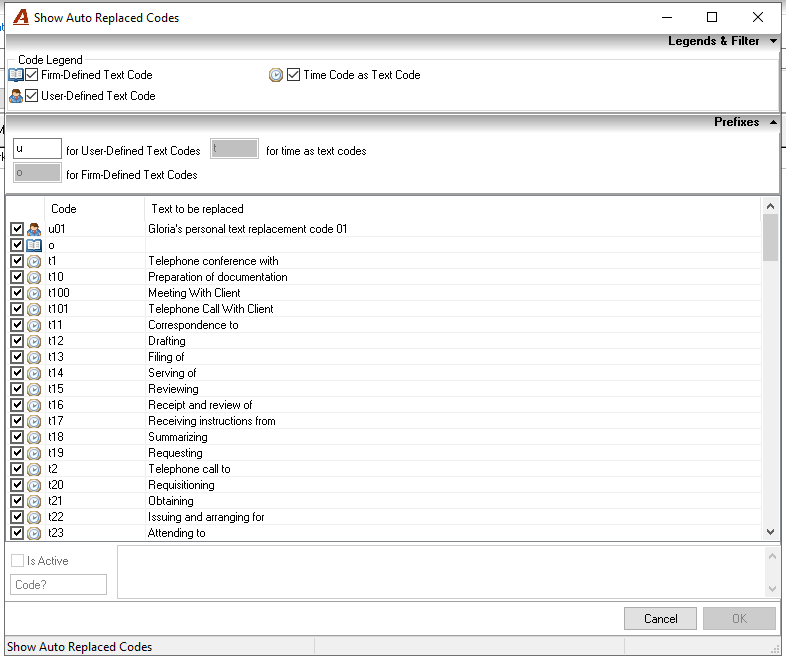
Member codes