.png)
Scope and Purpose
The purpose of the time rate structure and supporting management tools is to provide flexibility for pricing options on worked values without compromising efficiency.
The scope of this document extends across the build and use of rate categories by rate-title and/or member, the ability to group conceptually similar rate categories by rate arrangement for greater perspective, the options to set occasional special rates client or matter rates, as well as the use of rate management tools to facilitate rate visibility and rate changes.
Highlights
-
The time rate structure is historical. This means that the effective date of the rate is used to value the time entries in context of the active rate on the date of the time entry.
-
Rate changes are applied based on an effective date. At the user’s discretion, rate changes applied with a past effective date can result in the re-evaluation of unbilled time. Users can also set a future effective date, to prepare the rate change in advance.
-
Non-chargeable time recorded within matters intended to have chargeable time are the equivalent of being zero rated. The application keeps the time spent as well as the opportunity value (the rated entry value) however when included in the invoice, this time is valued at zero. Internally, zero rated time is reported differently than written-down time.
-
Rates have an activation date and if expired, an expiration date. An expired rate can be activated with a date equal to or more in the future than the last expirations date.
-
Unless specifically set to the contrary, the entry will ultimately be calculated using the base rate if there is no other rate that takes precedence.
-
The client and matter dashboard provides drill through visibility of the rates in use for the affected rate category as well as access to see any special client or matter rates that would take precedence.
Rate Arrangements, Categories and Special Rates
Rate categories and special rates for clients or matters are how Acumin stores the rates used to calculate worked values.
Rate arrangements are firm-defined grouping variables, used to classify conceptually similar rate categories. Rate arrangements provide visibility of aggregate rate measures. They are especially useful for firms working with many reusable and non-reusable rate categories.
Rate Categories:
Rate categories are used to group title or member rates.
-
The system requires at least one rate category.
-
One of the rate categories must de identified as containing the “base” rate and include a rate for every member in the organization - timekeeper or not.
-
New clients are created with the system’s default rate category. New matters are created with the client’s rate category as a default.
-
Although all members require a rate within the base-rate category, not all members need to be assigned to other rate categories or included when special client or matter rates used.
-
Rate categories can be client specific, so they are only used within the client structure. They can also be reusable outside the client structure, for example, when multiple clients share a rate structure and industry, or some matters across multiple clients share a rate structure common to an area of practice.
Special Rates and Rate Override
Member Rates – Client and/or Matter Level
Special rates for members are an alternative for handling occasional exceptions to the rate included within the rate category affected.
-
It is possible to create a special client or matter member rate as an alternative to creating a new rate category. This type of structure is recommended, when the rate is exclusively negotiated for a member-client or member-matter relationship.
-
Special client or matter rates take precedence over the rate category when calculating the worked value.
-
If the same member has unexpired special client and matter rates, then the special member rate at the matter level will take precedence
Special Activity (Time) Code Rates:
-
It is possible to create rates for activity (time) codes. If used, these special rates can be applied to all members completing the same activity, for example if there is a special rate for travel time for all timekeepers.
-
Activity (time) code rates can be created as fixed value - where regardless of time spent the worked value is always the same. Alternatively, these rates can also be set on a per hours basis.
-
Special time code rates take precedence over all other rates
Rate Override:
Authorized users can override the rate result during the time entry process.
Best Practice Recommendation:
This secured option is rarely granted as it can conflict with pricing decisions made by those responsible in context of the firm’s pricing strategy. From a practical perspective, once a rate override is applied, the only way to change the rate for the time entry is with another override. This can be limiting when a rate change is needed on multiple time entries.
Rate Hierarchy
The below is the hierarchy on how rates are applied in context of the rating options offered.
-
Entry-code rate for a member
-
Entry-code rate for all members
-
Special-rate - matter-level for a member
-
Special-rate - matter-level for all members
-
Special-rate - client-level for a member
-
Special-rate - client-level for all members
-
Rate-category
-
Type = Title-rate category - is there a rate for member based on his or her title, OR
-
Type = Member-rate category - is there a rate for the member
-
-
Member base rate - used subject to the Acumin System Setting to allow or not the use of the member base rate where another rate is not available.
Rate Arrangements
The rate-arrangement is a firm-defined variable that groups conceptually similar rate categories in context of client and/or matter attributes, for example industry or areas of practice. In environments with many rate categories, rate arrangements make it easier for users to find and select a rate, as well as to have visibility of key rate measures for the group to use as a comparative base-line when making pricing decisions.
Rates and Other Functional Licenses
-
With the advanced foreign currency management license the firm can create foreign currency rate categories and special rates for clients or matters. Used exclusively to calculate the initial value to be billed, these rate categories and special rates for clients or matters are not used to calculate worked values.
-
With either of the cost and profit licensed models the firm can create cost-rate categories for multiple perspectives when calculating matter level profitability. Member cost rates are exclusively used for cost and profit valuations based on hours worked and or billed; therefore, they are not used to calculate worked values.
Rate Management
New Rate Category
Access
Select the “Time Billing Rate Categories” menu option found within “environment - Time and Disbursements” sub menu to launch the “Billing Rate Categories” filter and results form.
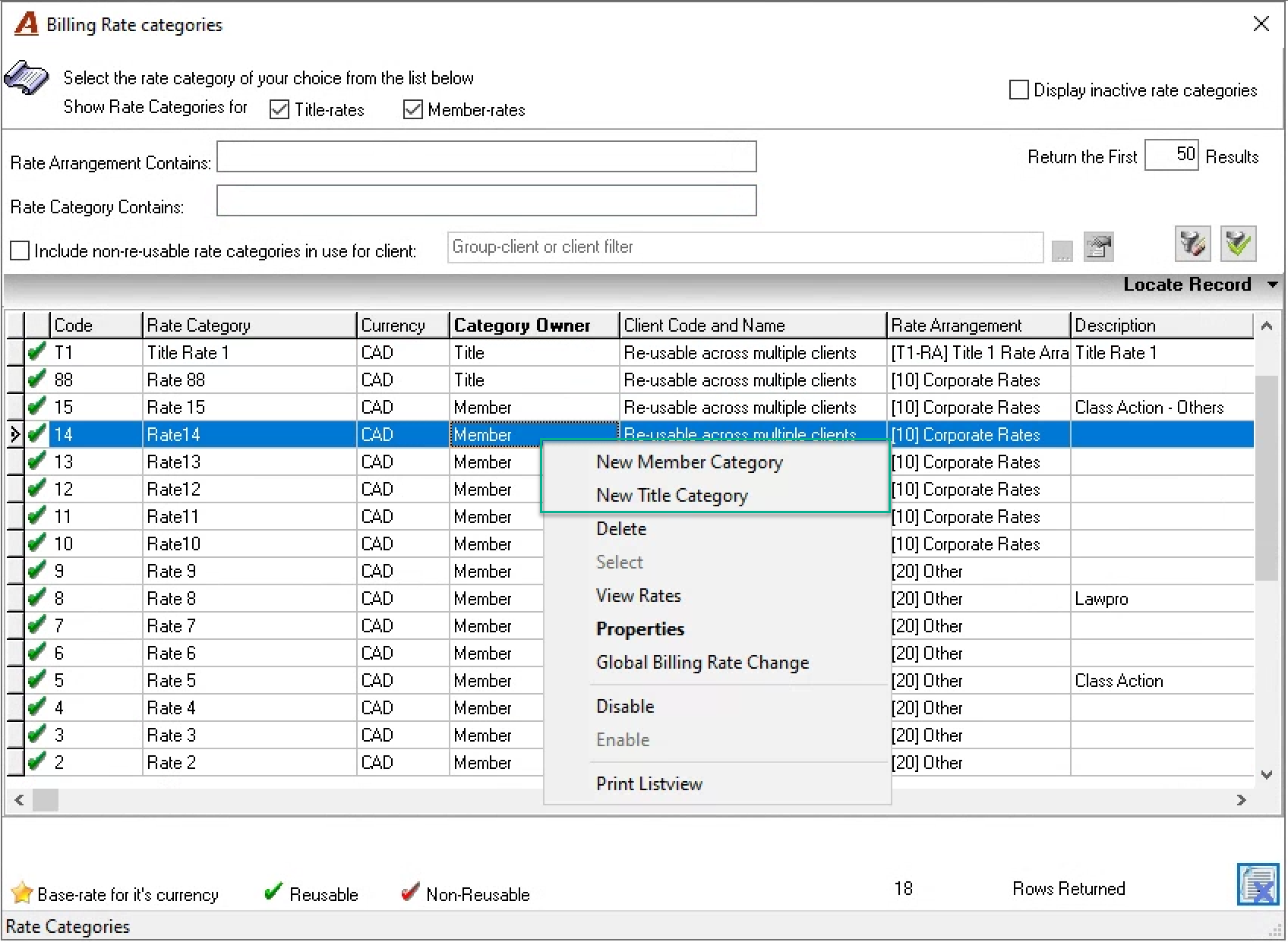
Member Rate Category
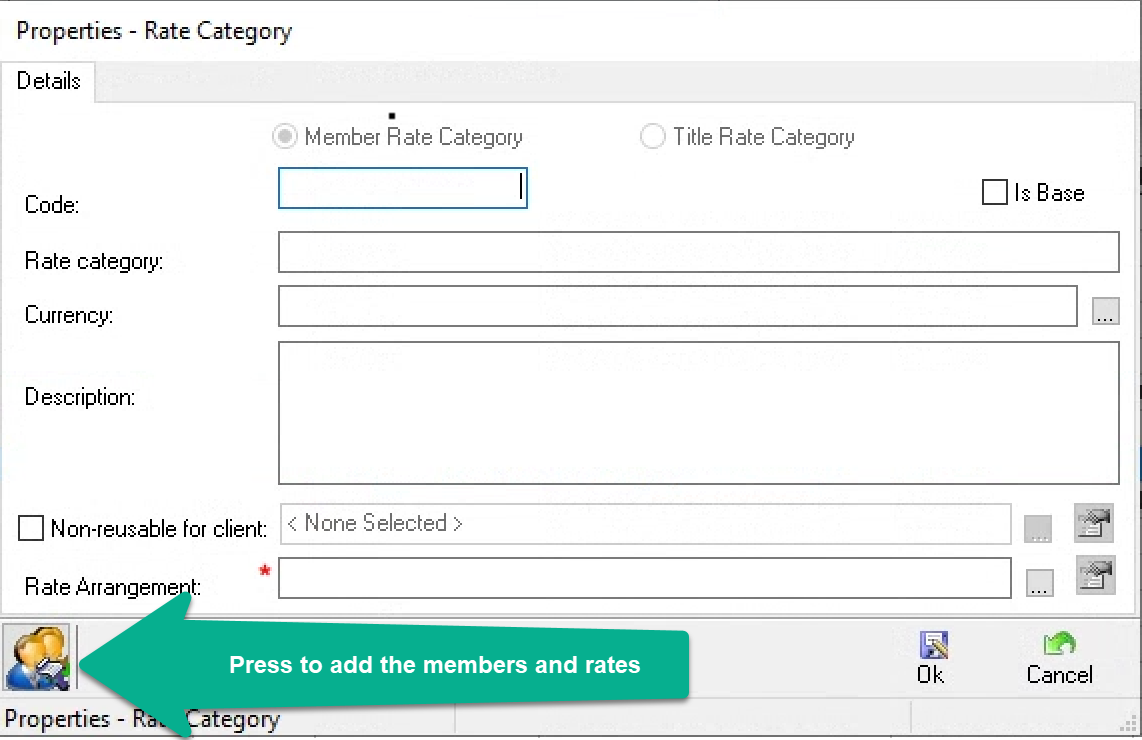
From the “Billing Rate Categories” form, right click to select “New Member Category”. Complete and press OK to exit or press on the “view member rates” button located at the bottom left to add members and rates to new rate category.
Reusable vs. Non-Reusable:
The option to create rate categories as “non-reusable for client” restricts the re-usability of the rate category outside of the client-structure.
Select the “Non-reusable for client” option when it is necessary to manage client specific rate agreements. For example, one of your oil and gas clients may have the same rates as other oil and gas clients in the firm’s portfolio, for matters on emissions compliance. However, this agreement requires that rates for partners and associates be held at agreed amounts for three years and rate increases always be effective April 1st. In this case the rate category may have the same rate values as the reusable rate category for this type of work for other oil and gas clients, however the limitations on agreed dates and frequency for rate increases would make it necessary that it have its own non-usable rate category.
For visibility of the impact of pricing decisions for emissions compliance matters for oil and gas clients, this new rate category should share the same rate arrangement as other reusable and non-reusable rate categories for emissions compliance for oil and gas clients as these would be conceptually similar.
Title Rate Category
From the “Billing Rate Categories” form, right click to select “New Title Category”. Complete and press OK to exit OR press on the “view title rates” button located at the bottom left to add members. The reusability concept outside the client structure also applies to title rate categories.
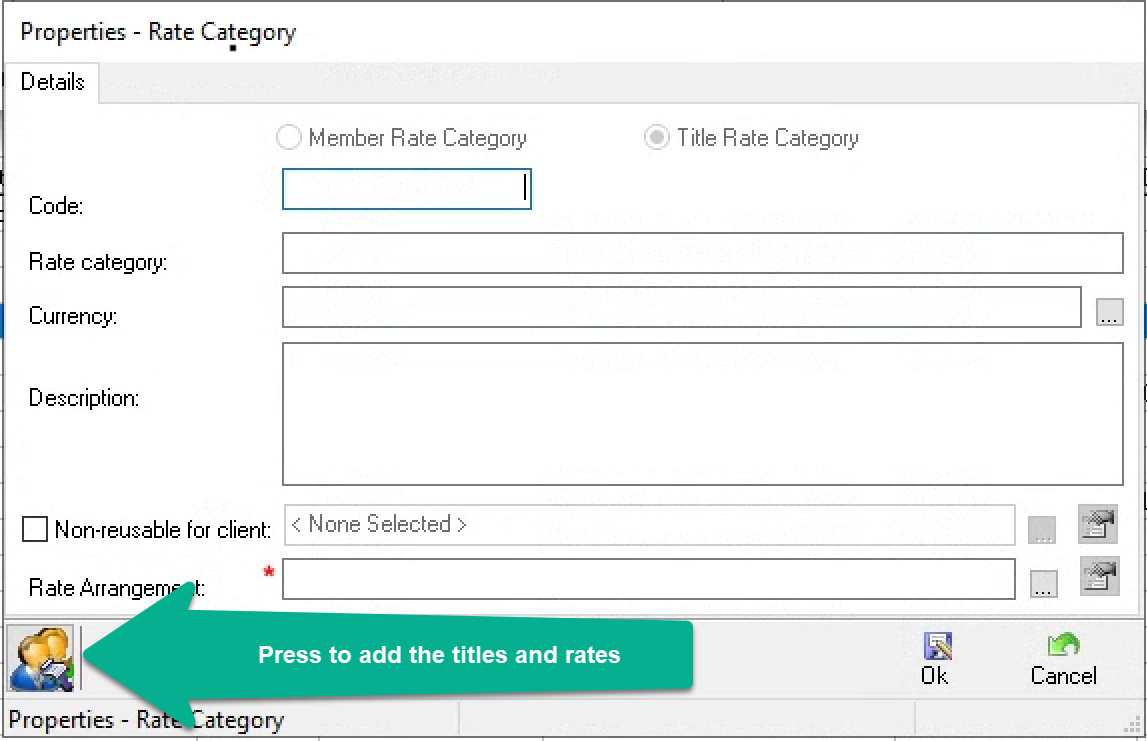
Once rates are added the content will show.
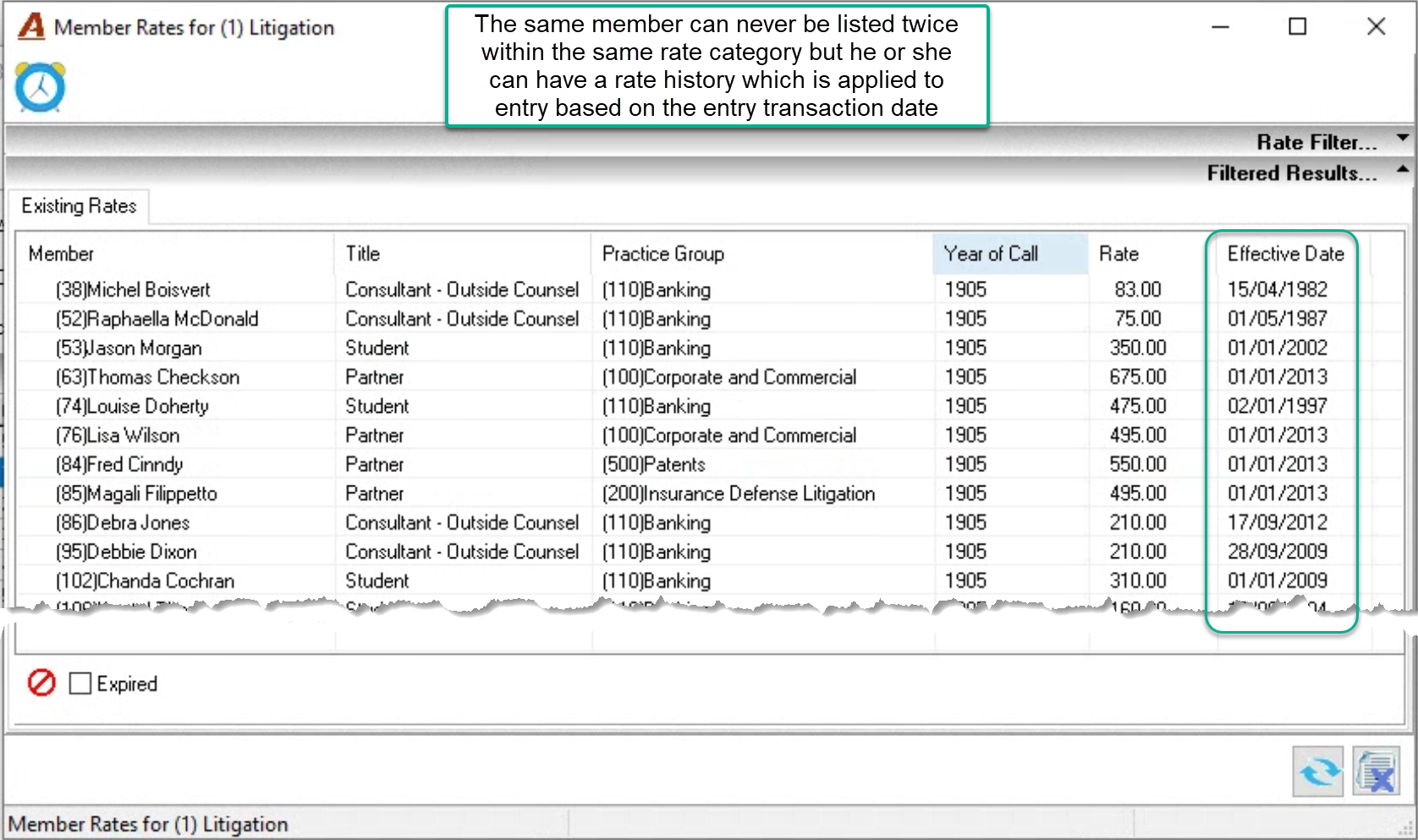
New Rate Arrangement
Concept
On creation of the first rate-arrangement, the application will automatically enable the rate-arrangement concept, forcing a selection within the rate categories properties form.
As a result, when the user presses OK to accept the first-rate arrangement created, the application will provide a message explaining the implementation process with an option to cancel.
From the “Billing Rate Categories” filter and results form’s right-click contextual menu, multiple select rate categories auto-assigned to the first rate-arrangement to “transfer” them to a rate-arrangement that best fits.
Properties
Complete the properties of the rate arrangement including the premise for the calculation of overnight measures - the period used for the calculation of measures and use of the first or last day of the month. These measures will be presented in the lower portion of the properties form.
Measures:
-
Rate measures by rate-title using data from associated rate-categories including average (mean), use-based weighted–average, median, maximum, and minimum.
-
Firm defined target rates – a standard or rack rate – for the rate arrangement for future metrics, like variance to target.
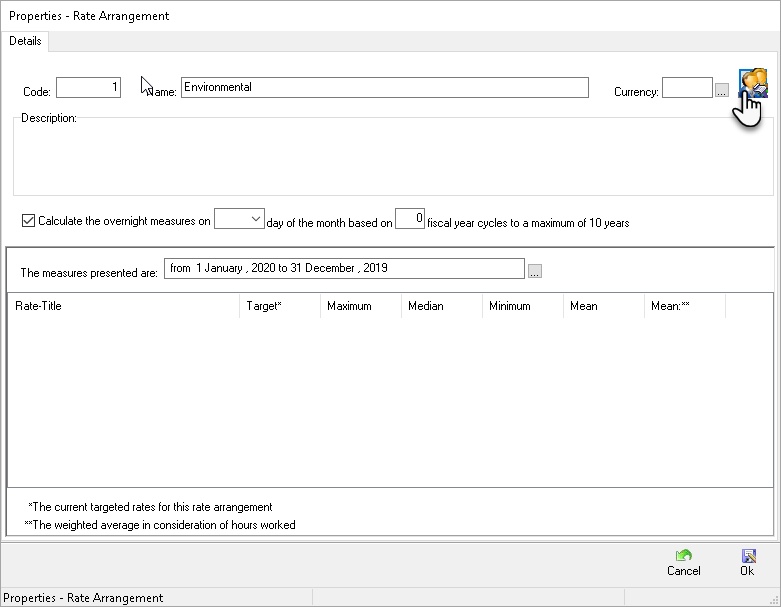
New Rates, Rate Changes, Rate Expiration & Reactivation
Focus on Member
Access
Select the menu option “Time Billing Rates” from the “Environment – Time & Disbursements” submenu to access the “Show Rates” form and “Title/Member” tab.
Enter the member and press on find rates (bottom right) or explode the tree-view and right-click on the member to select “Show Time Rates”. Both options will launch the “Show Time Rates for….” form for the member.
To access the rates for an inactive member, checkmark the “Show Inactive members” checkbox (bottom right).
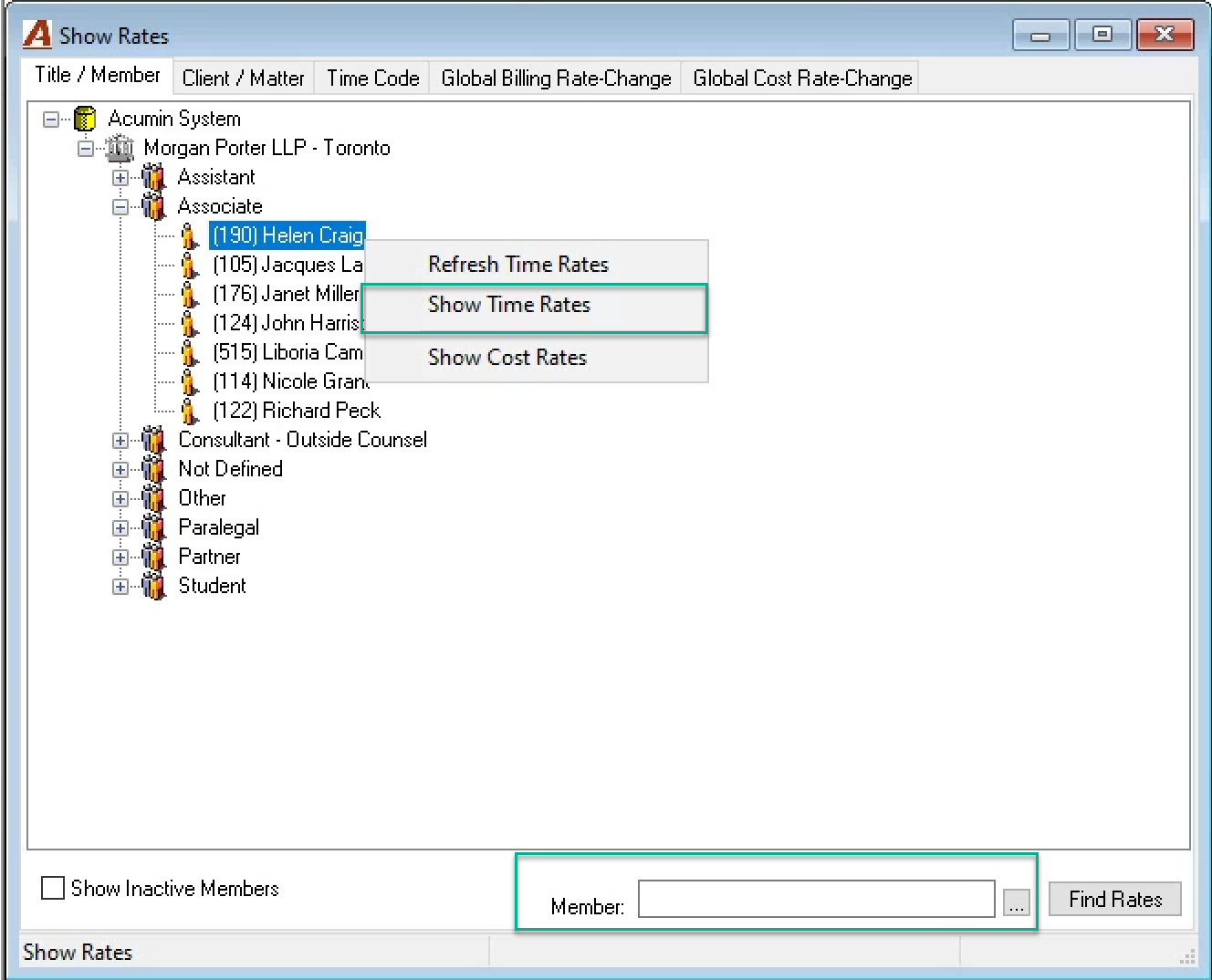
Rates for the Member
The “Show Rates for Member…” form includes all the rate categories with an active rate for the member, showing information on the newest rate.
Checkmark the “= Expired” checkbox and press on Apply Filter to include expired rates. You will not be able to create a new rate for a rate category that has an expired rate for the member, but you will be able to reactivate it.
Select “Properties” to change the value of the highlighted rate, expire it or re-activate it, or select “New” to create a rate for a never been used with the member rate category.
Only rates which have never been used can be deleted.
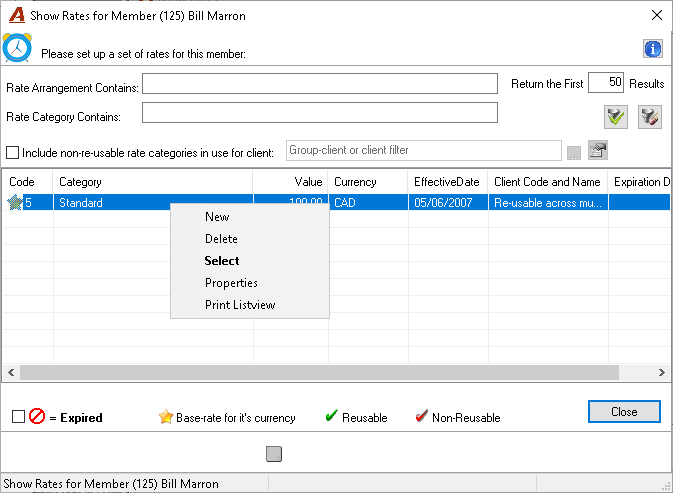
To avoid a gap, reactivate with a date equal to the date on which the rate was expired
Complete a Rate Change
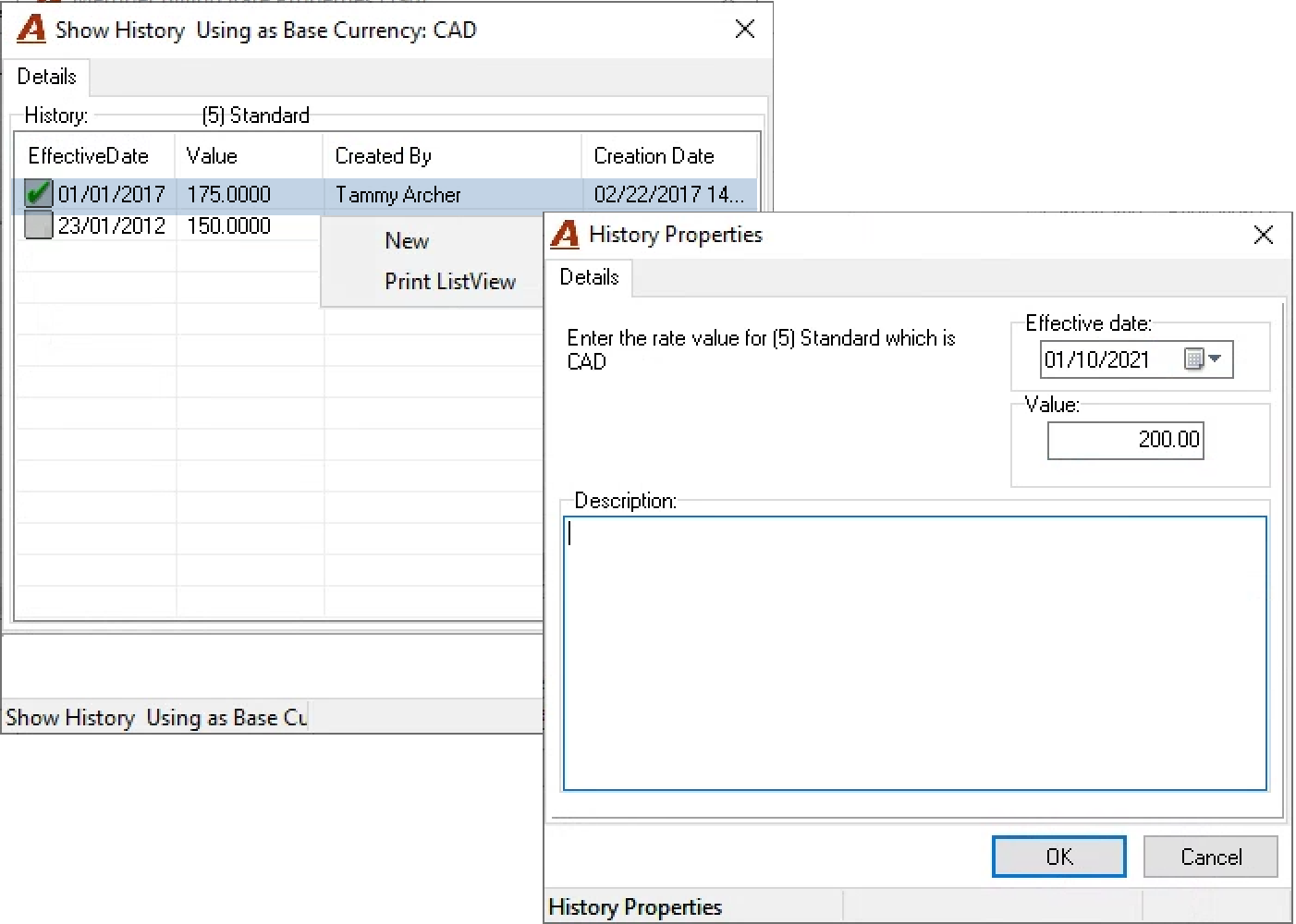
From the “Show Rates for Member…” form, double click on the rate to be changed or right-click to select Properties. Press on “New Value”, highlight the current rate shown with a green checkmark, and right click to select “New”. The rest of the rate’s history lists in descending order.
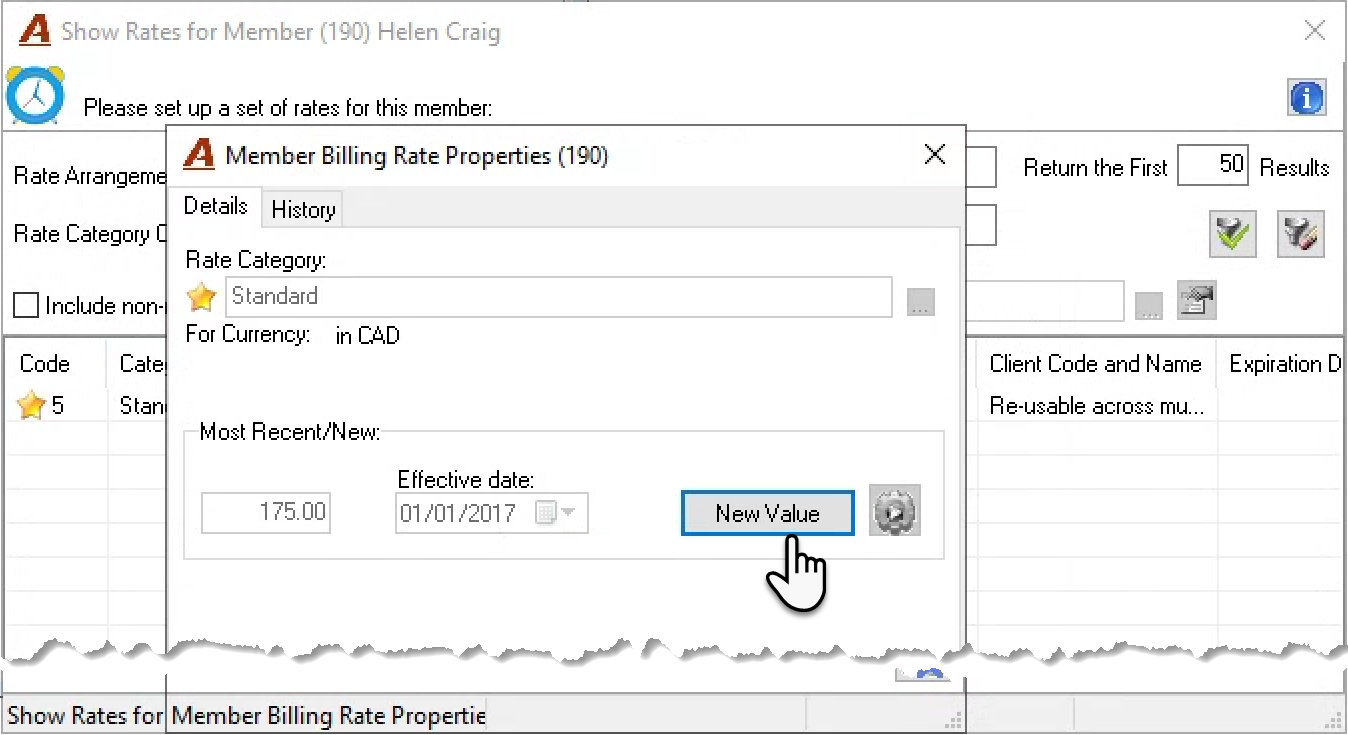
Select the effective date (past or future) and enter the new value. Press OK to accept and return to the details tab of the member’s properties form.
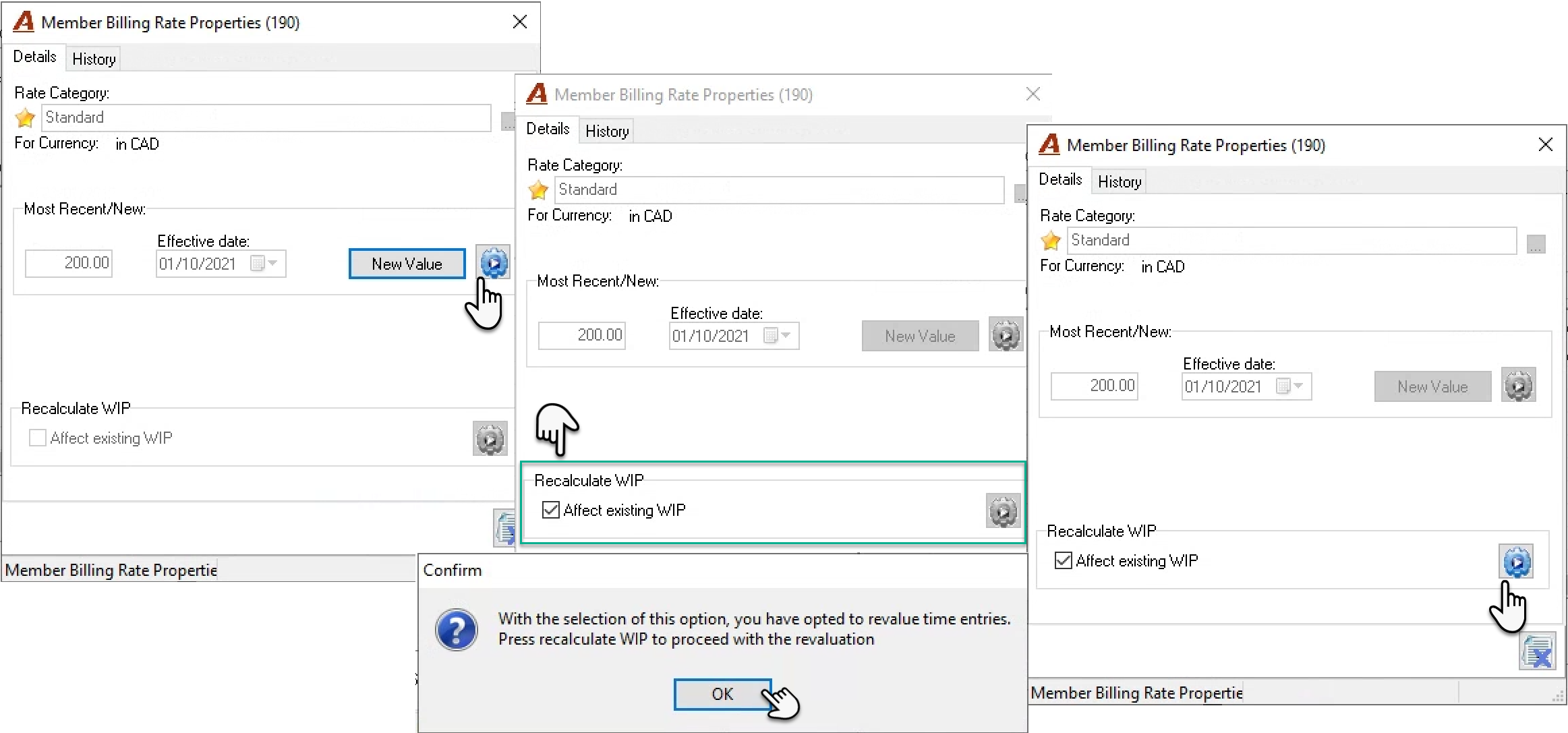
Press the enabled execute button to the right of new value. This will enable the “Recalculate WIP” section.
Press on the close form button (bottom right) – to bypass the revaluation of WIP and complete the rate change process. In this case you will receive a YES/NO message asking you to reconsider revaluing the WIP. Select the right option for your rate change requirements as once the rate is updated you will not be able to undo.
Checkmark the “Affect Existing WIP” checkbox to update unbilled time that meets the effective date criteria. This action will trigger an informational message. Press OK to return to the process. Press the close button (bottom right) - to abort the WIP revaluation process or the enabled execute button to affect WIP to proceed.
As it is possible for unbilled time to be selected for billing, you will need to consider whether the WIP re-evaluation should extend to these entries and respond accordingly. For example, a change in WIP may impact the value of entry losses (write-downs) on invoices where the total worked value was reduced before the rate change was applied.
Select “Yes” or “No” to include or exclude entries selected for billing during the WIP re-evaluation process.

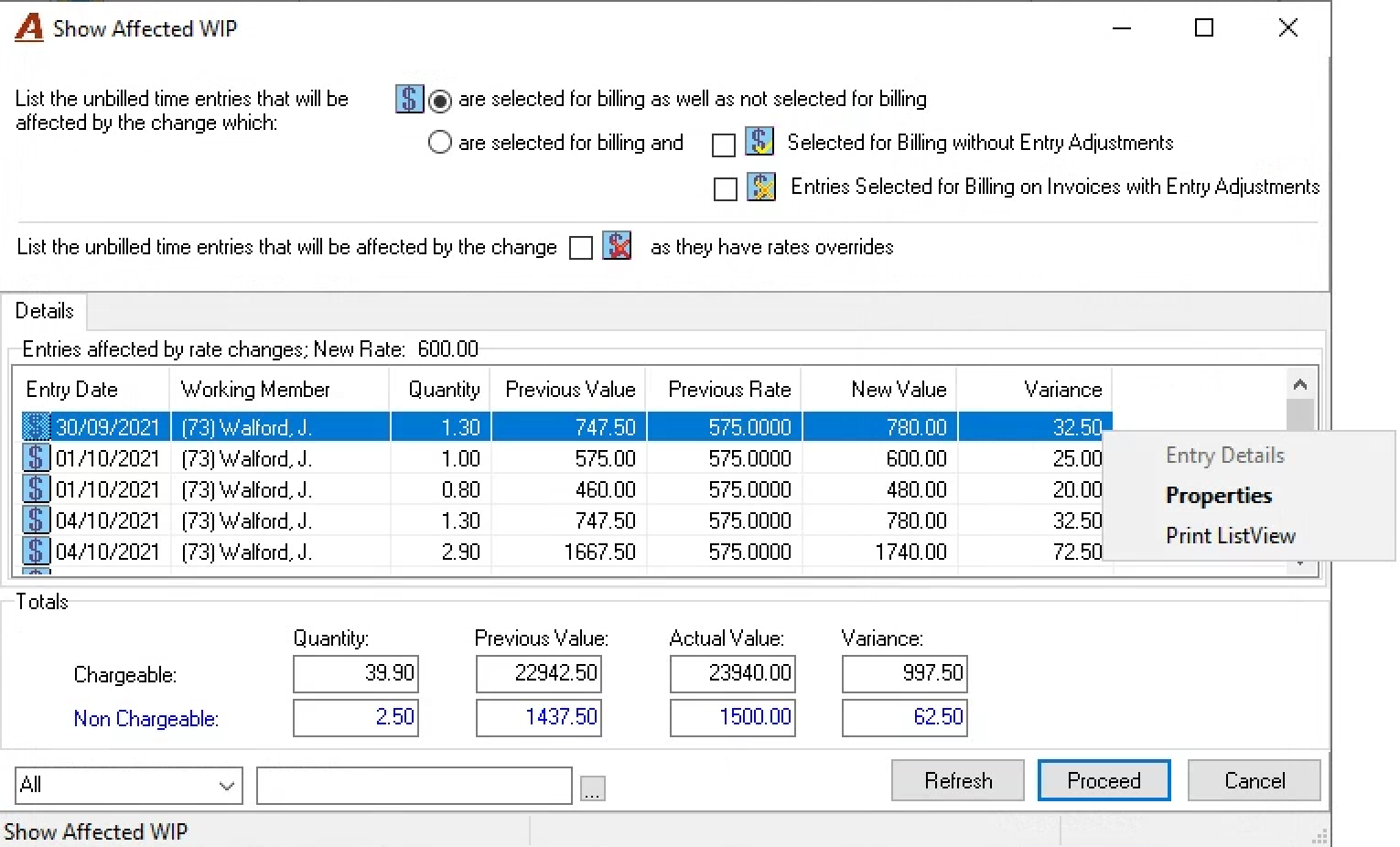
Once within the “Show Affected WIP” form, the user will be able to see the impact of the rate change. The form includes filter options to manage the list content in case the results are to be exported to Excel using the print listview option.
Press proceed to continue and respond to the decision message to complete the process.

Expire a Rate
From the “Show Rates for Member…” form, double click on the rate to be expired or right-click to select properties.
Checkmark the option “Expire with an expiration date” checkbox and select the date of expiration. Press on the enabled execute button to the right of the date.
The decision message explains the implications of the choice of expiration date on future re-activation of the same rate.
Ensure that the date selected will meet expectations as it is not possible to undo the expiration process to re-do it with a different date.
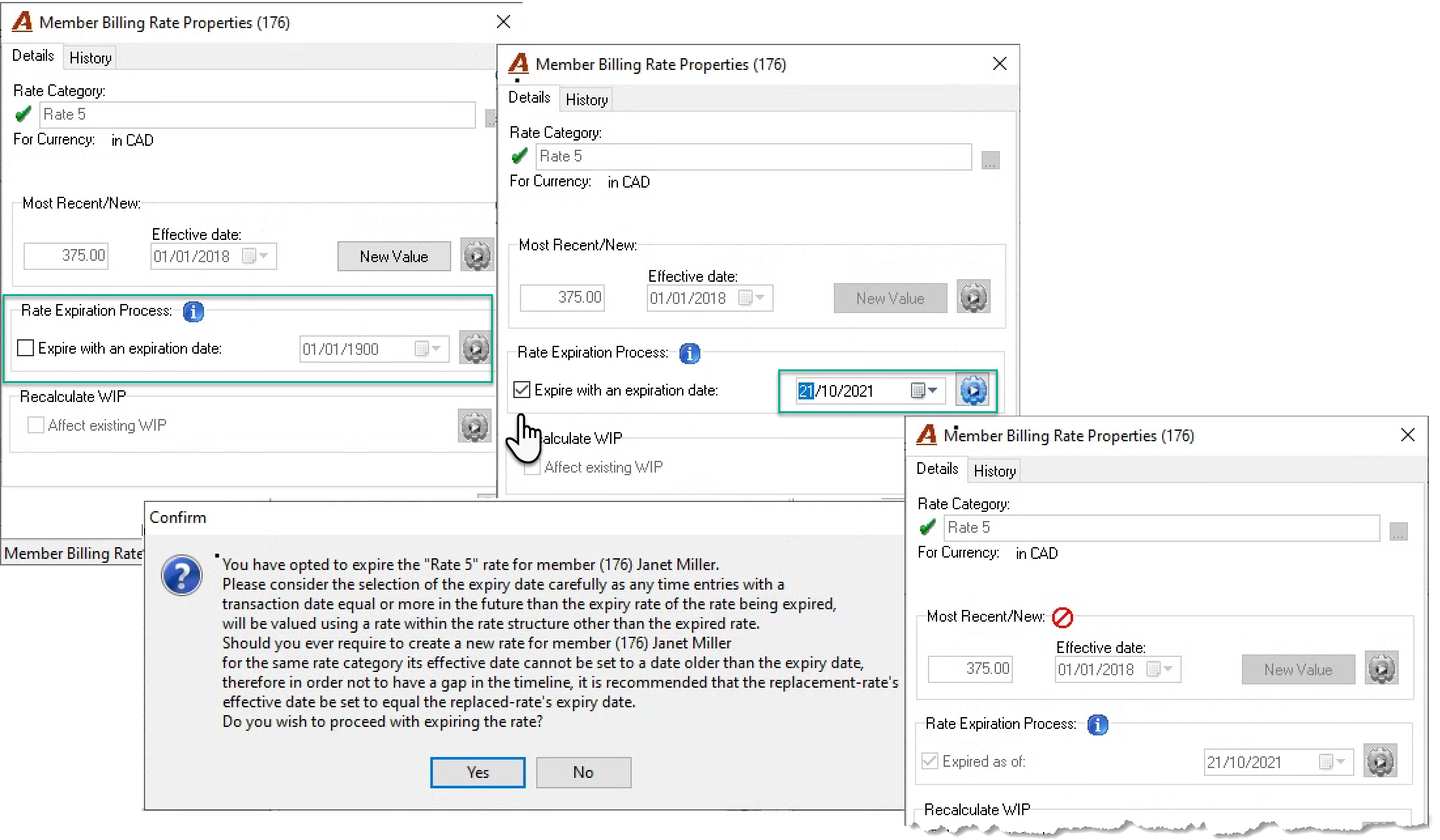
Like a change in the rate, complete the recalculate WIP section to trigger a WIP revaluation in context of the expiration date selected and press on the execute button.
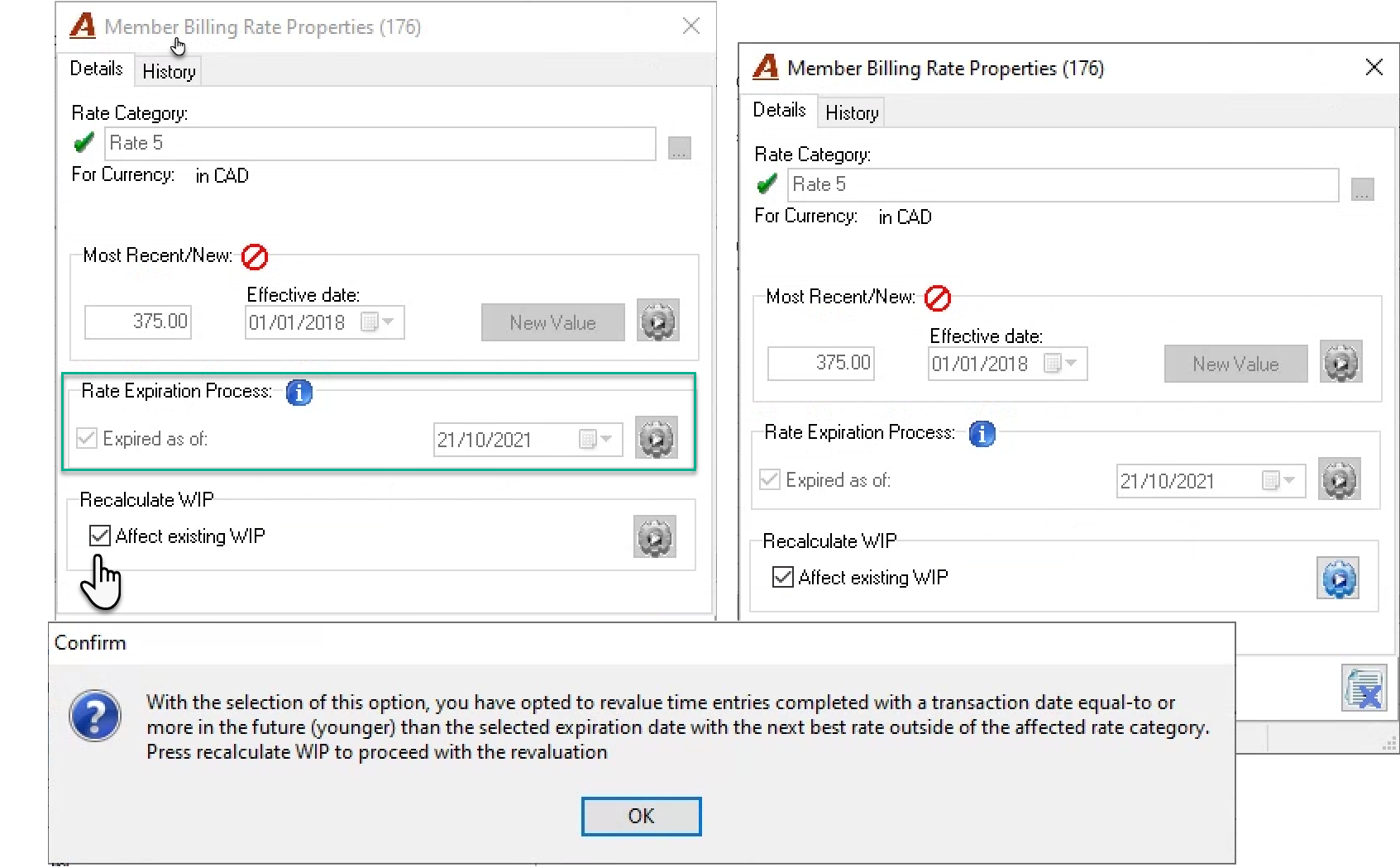
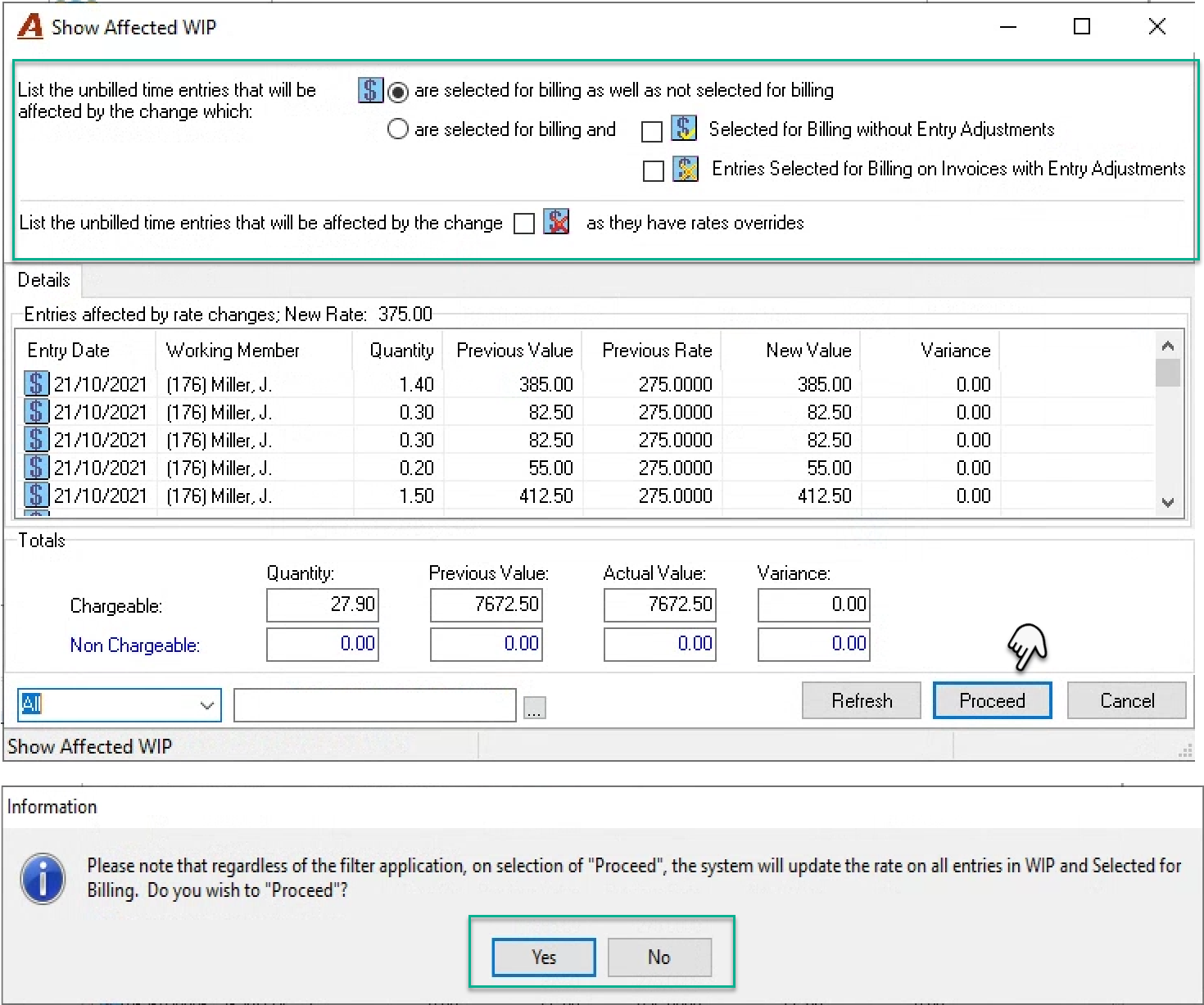
Once on the “Show Affected WIP” form, the user will be able to see the impact of the expiration date on WIP. The form includes filter options to manage the list content in case the results are exported to Excel using the print listview option.
Press proceed to continue and respond to the decision message to complete the process.
Create a New Rate or Activate an Expired One
From the “Show Rates for Member…” form, right click and select “New”. Checkmark the “Expired” checkbox to view all rates included expired ones.
Once on the new properties form, select the rate category where the new rate will be created or reactivated.
If the rate category selected has an active rate, you will need to select a rate category without a rate for the affected member.

If the rate category selected has an expired rate or no rate for the member, press new value to continue.
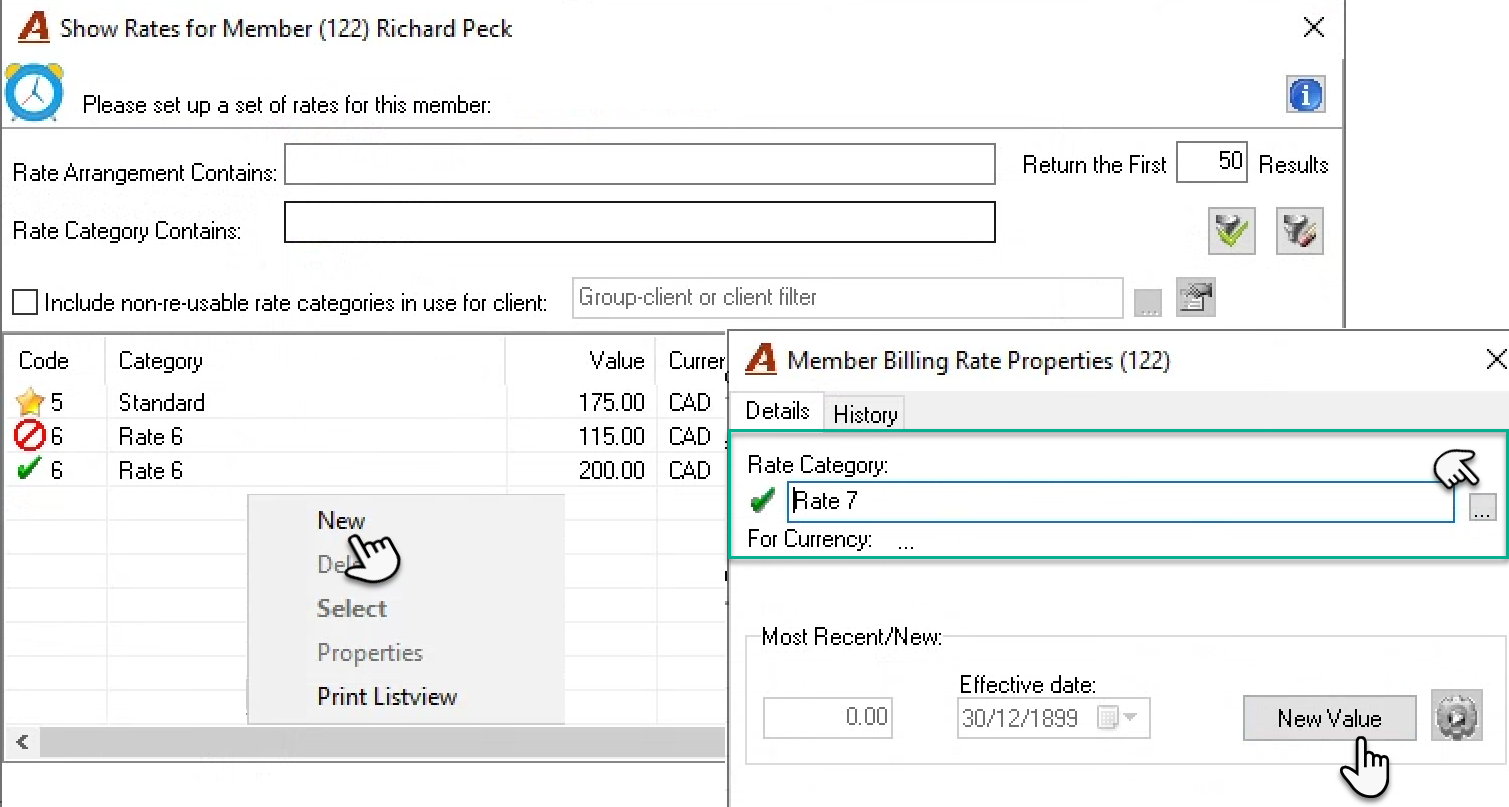
Right-click new, enter the effective date and value, press OK and the execute button.
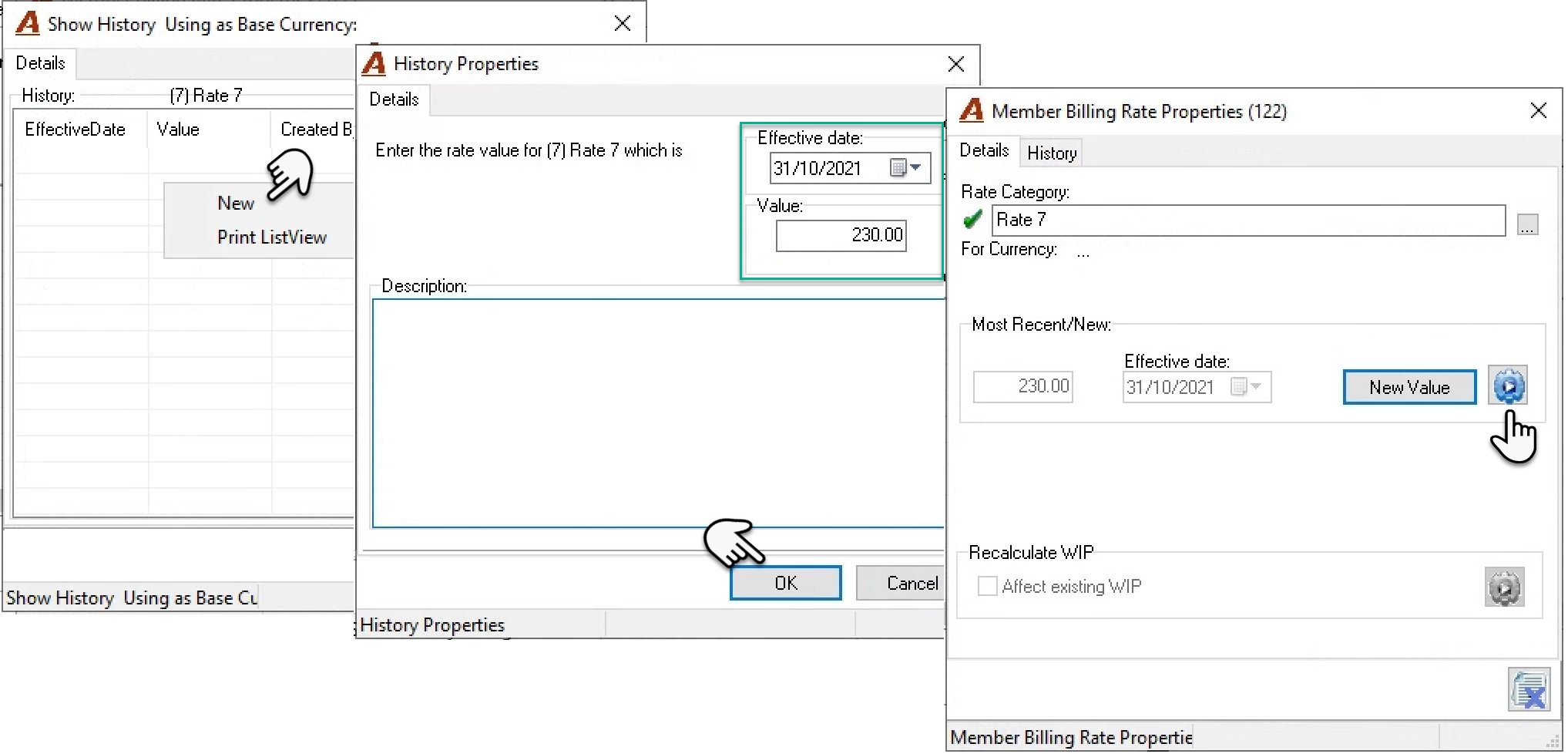
If there is an expired member rate, and the effective date selected is older than the expiration date, the application will automatically set the effective date to equal the expiration date and therefore the activation date.
When re-activating an expired rate, it is considered best practice to select the effective date to equal the activation date and ensure a gap where an alternate rate would need to be used.
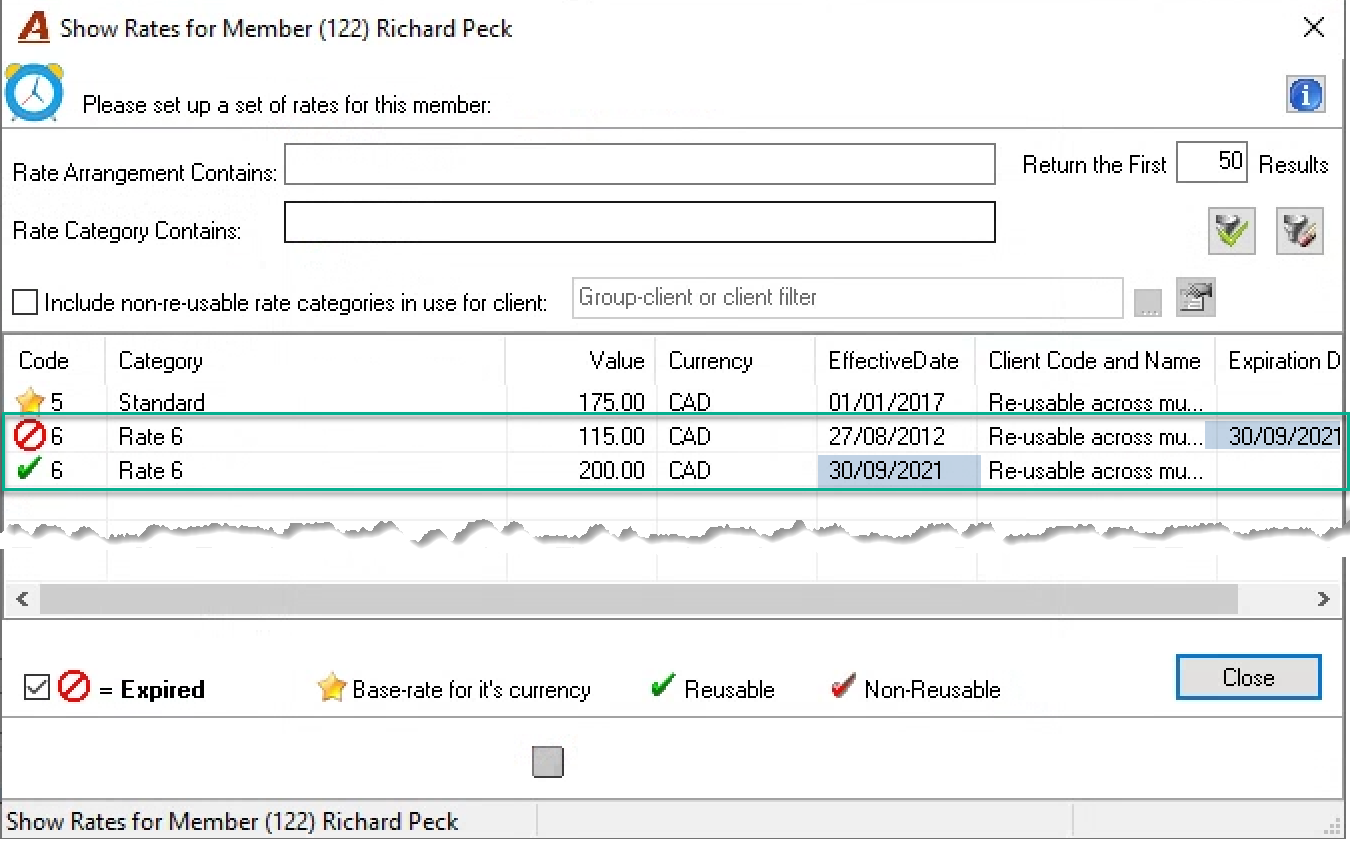
As with a rate change process or the expiration of a rate, consider revaluing the WIP when creating a new rate or reactivating an expired one with a past effective date.
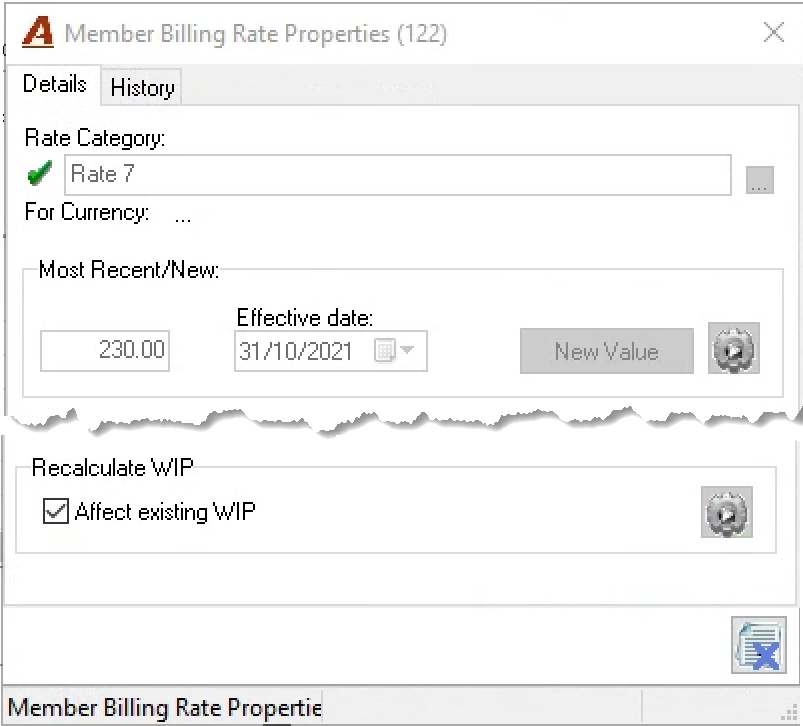
Focus on Multiple Members
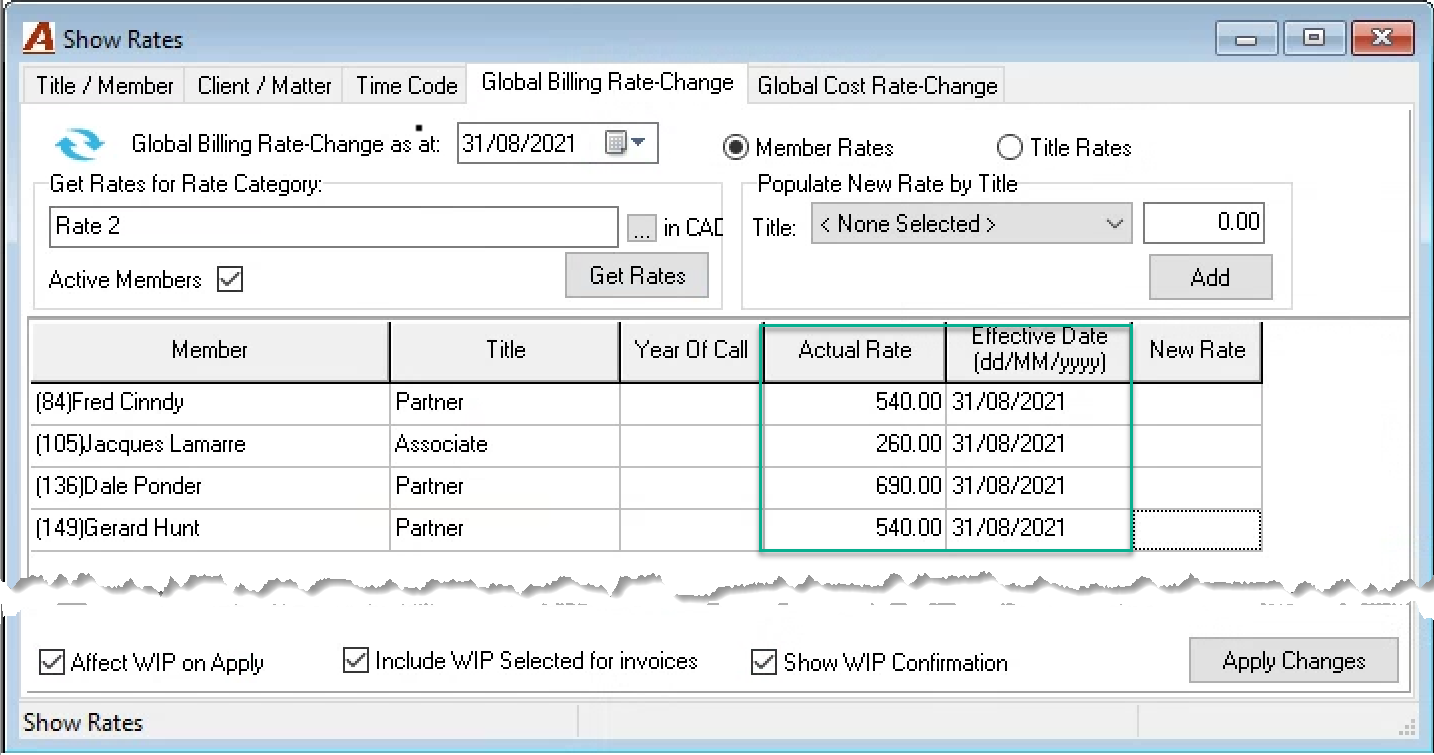
Use global rate change options to modify member rates for a rate category. To access the global billing rate form, select “Time Billing Rates” from “Environment – Time & Disbursements” and on the “Show Rates” form click on “Global Billing Rate Change.
Access
Select the menu option “Time Billing Rates” from the “Environment – Time & Disbursements” submenu to access the “Show Rates” form “Global Billing Rate Change” tab.
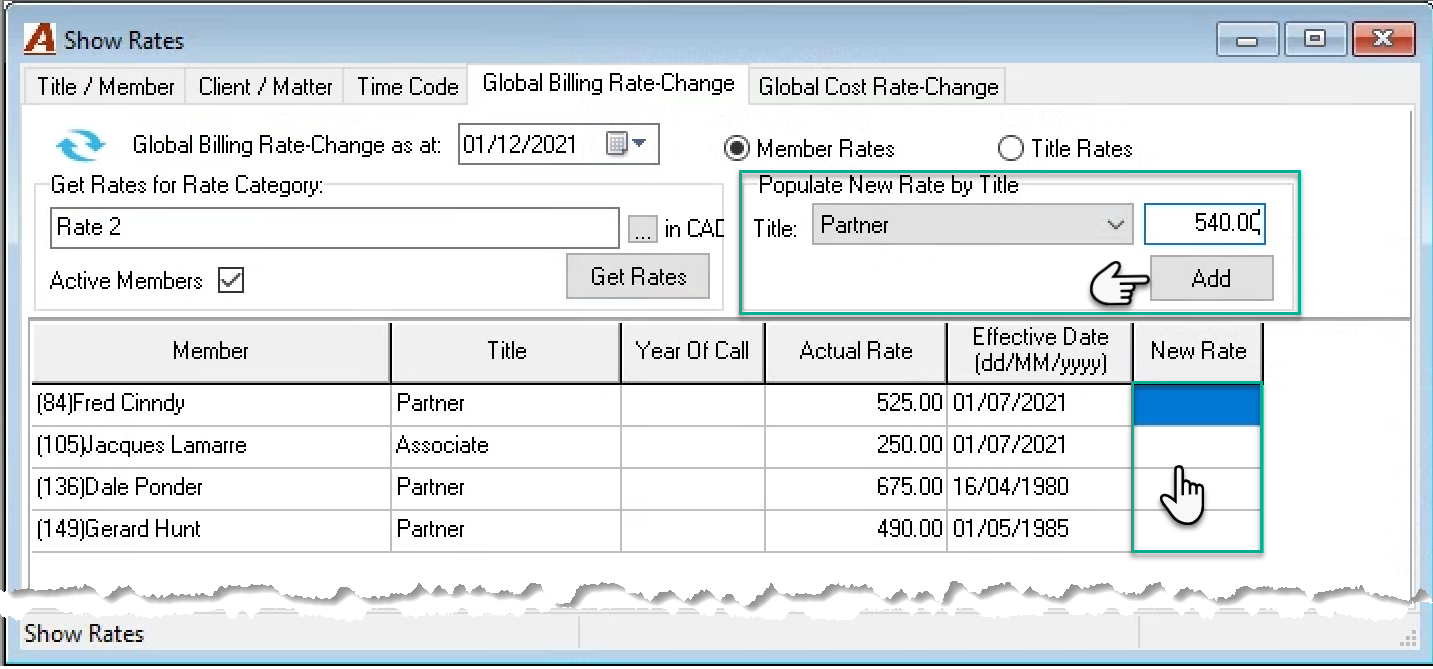
Select the effective date for the rate change – for example December 1st. To select a member rate category, keep the default radio button position for member rates, or change it to the title rates one to select a title-rate category. Press on the ellipsis button access the list and make your selection.
Keep the Active Members checkbox check-marked to limit the rate change. Press “Get Rates” to list the members or titles affected with their most recent rates.
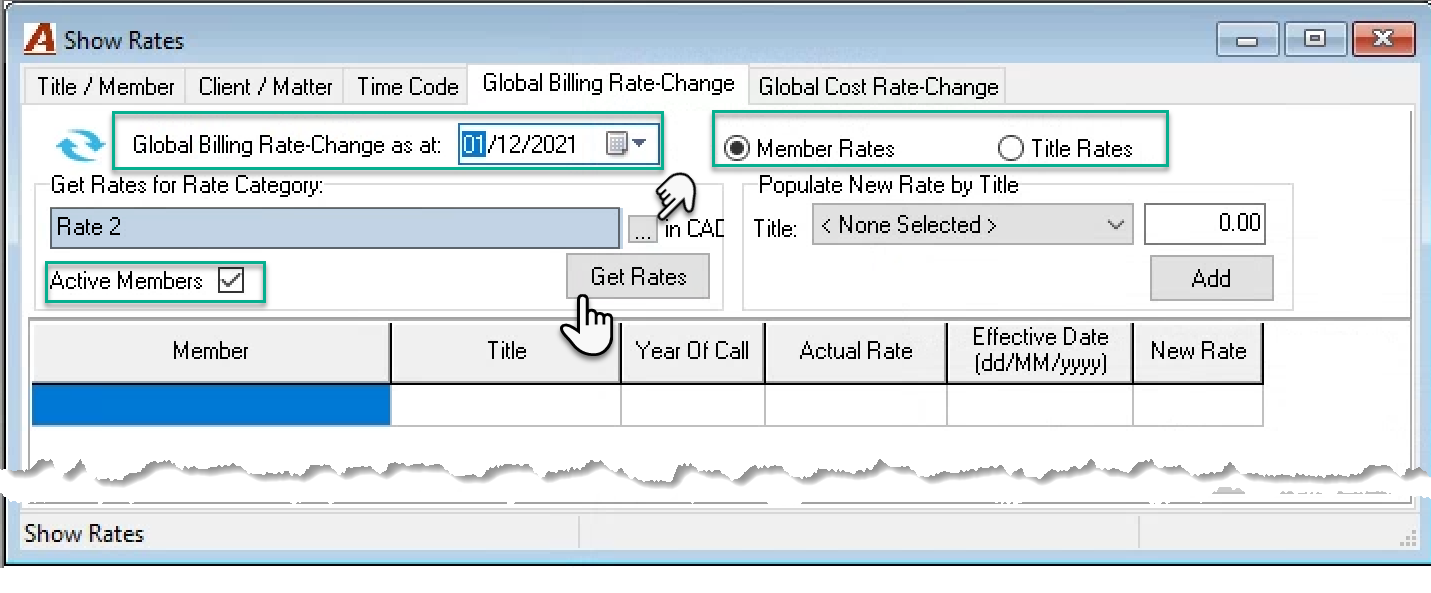
Select a title, enter a rate and press “Add” to populate all members having the same title with the same rate and override to change, or enter the rates for each member.
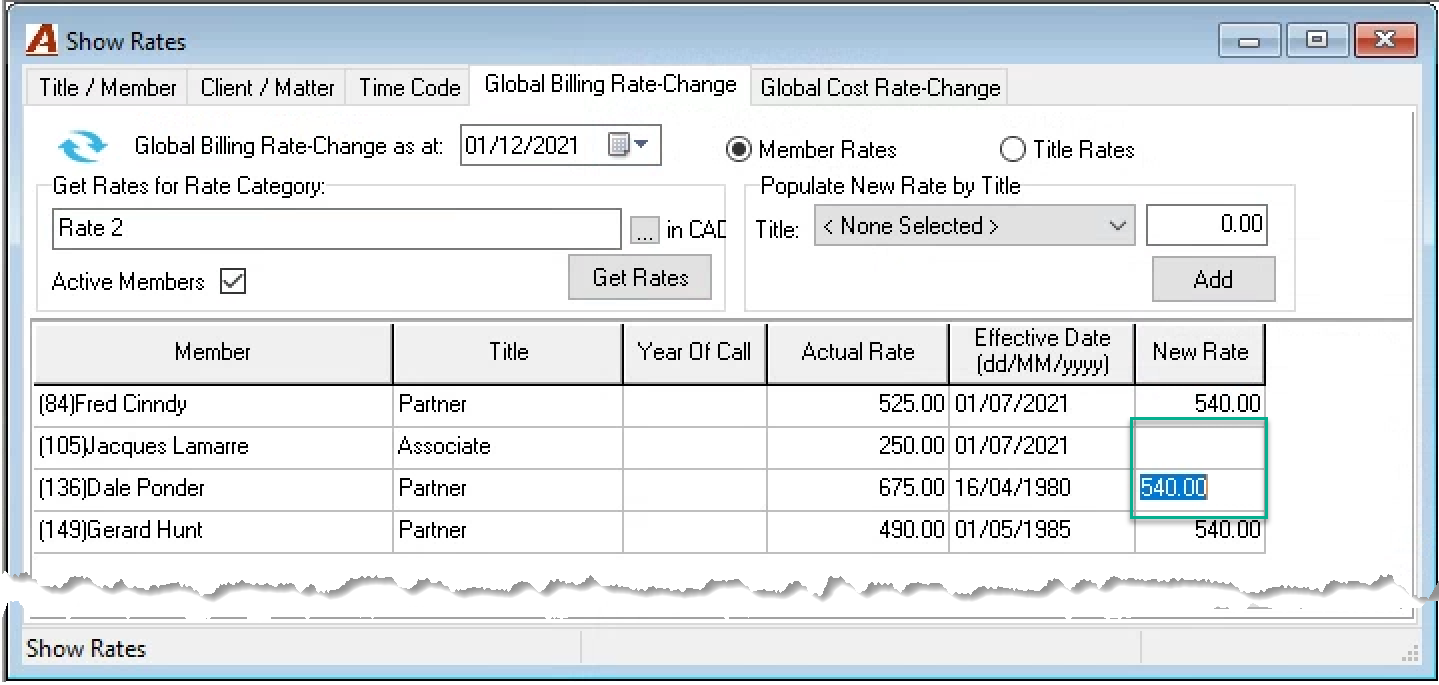
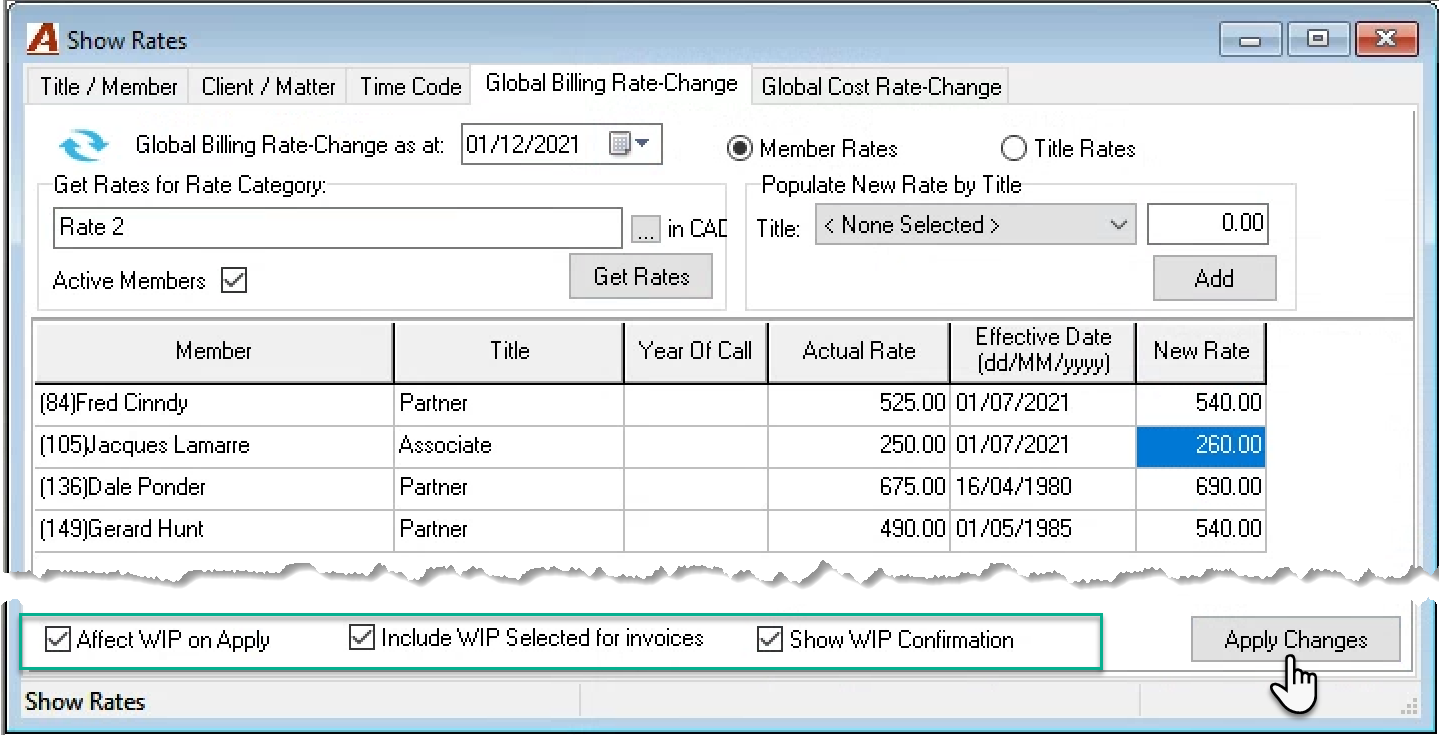
Once the new rates are entered, decide if you will affect WIP (checkboxes – bottom left). Press on “Apply Changes”.
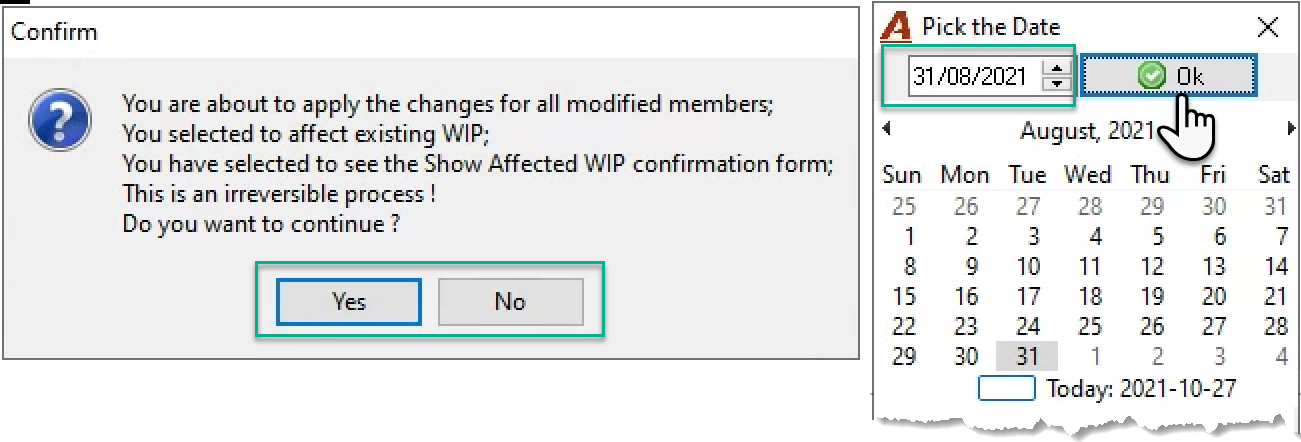
Review the confirmation message and respond to proceed or cancel. If you proceed, you will need to confirm the effective date by pressing OK on the Pick Date form or select new date.
If the “Show Affected WIP” form is triggered because of a global billing rate change, it will display summarized results per member with the “Entry Date” column showing “N/A”. The right right-click contextual menu option “Entry Details” applied to a summarized member result, launches a second “Show Affected WIP” form, listing all the entry details for the affected member. A progress bar provides visibility for lengthy processes.
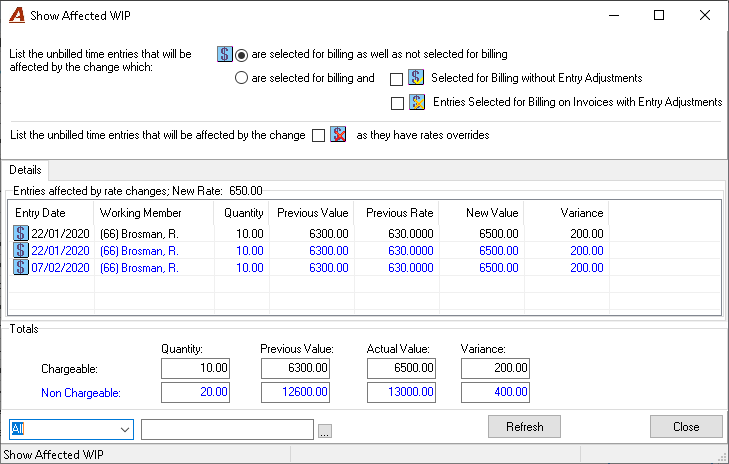
Once the change is complete you will return to the global rate change form.
Focus on Matter
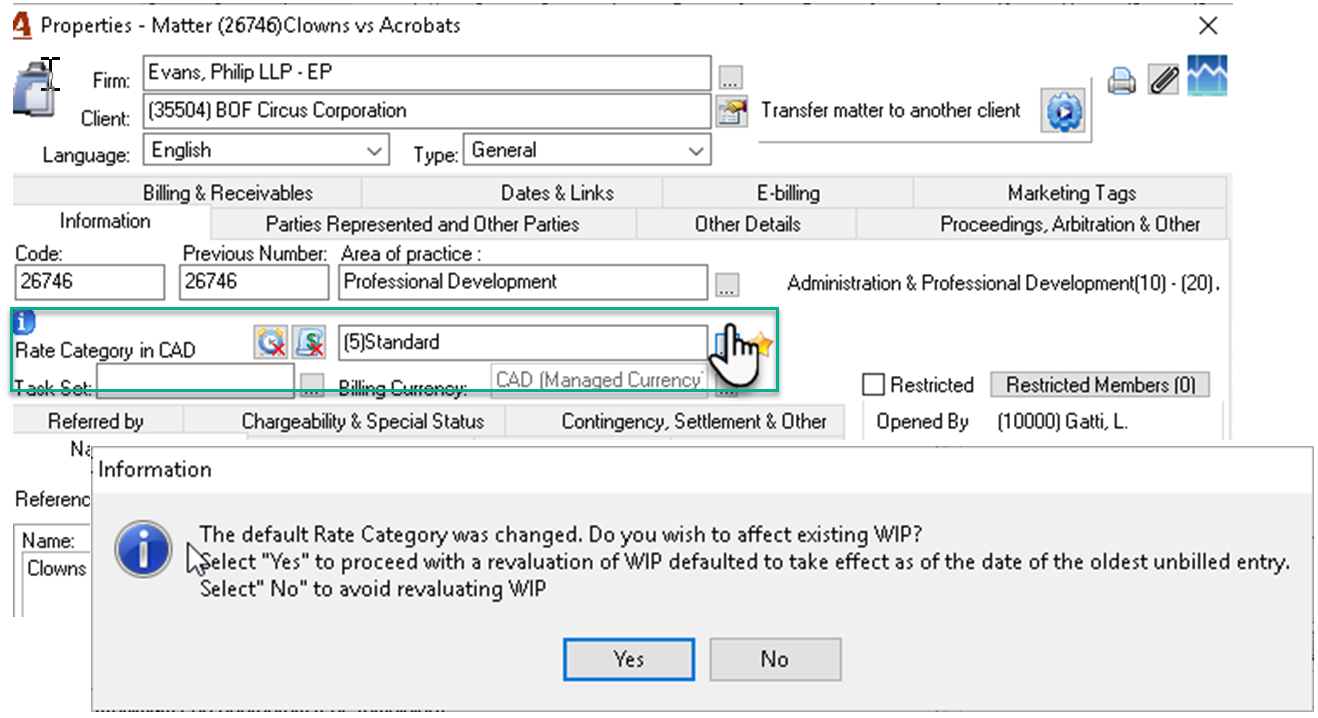
From the client/matter dashboard drill through to the properties of the matter. Press on the ellipsis button besides the WIP rate category field found within the information tab to launch the rate category list-view. Make the new selection and press OK to accept. Respond NO to the WIP update message to complete the process without revaluing WIP, or YES to trigger the rate change process.
Focus on Client
From the client/matter dashboard drill through to the properties of the client. Press on the ellipsis button besides the WIP Rate Category field found within the bottom of the Information tab to launch the rate category list-view. Make the new selection and press OK to accept.
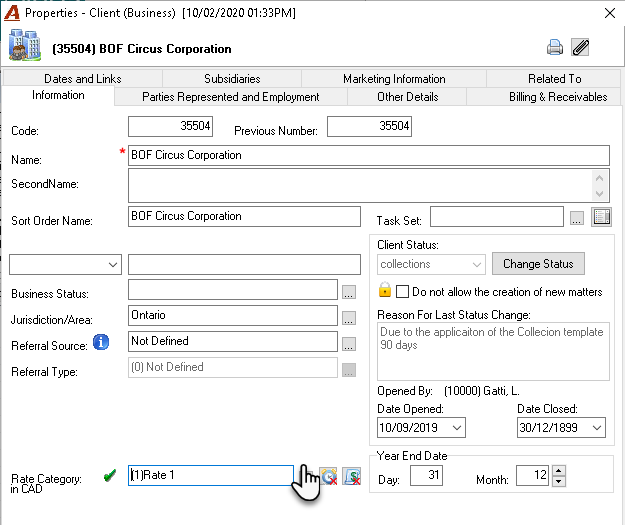

Respond NO to the WIP update message to complete the process without revaluing WIP, or YES to trigger the rate change process
Special Client and Matter Rates
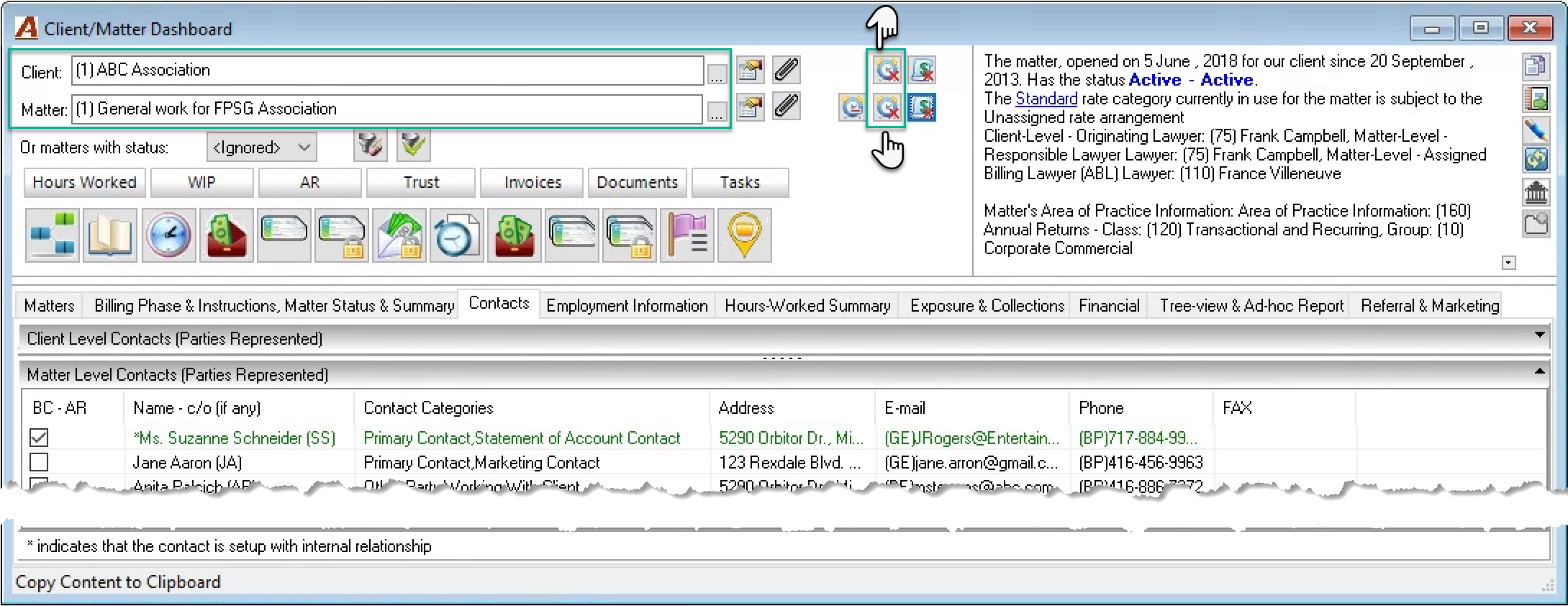
To create a special client or matter member rate, access the client/matter dashboard and press on the special client rate button – to the right of the client field; or the special matter rate button – to the right of the matter field.
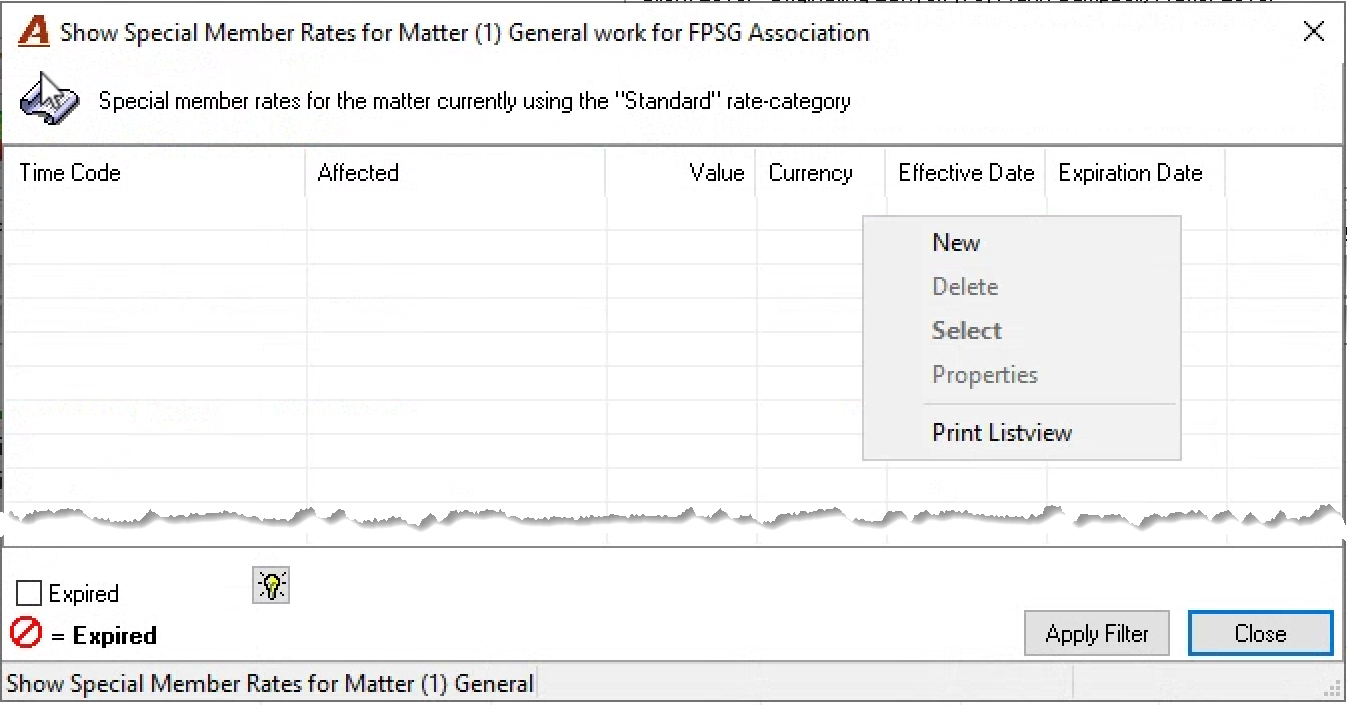
The buttons will launch the “Show Special Member Rates for Client” or the “Show Special Member Rates for Matter” form respectively. The process to create special member client or matter rates is the same.
Right-click and select “New” to create a new special rate for specified members. To change the value of an existing rate or expire (un-expire) the rate, highlight the rate to be modified and right-click to select properties. Use the “Expired” checkbox to include expired rates.
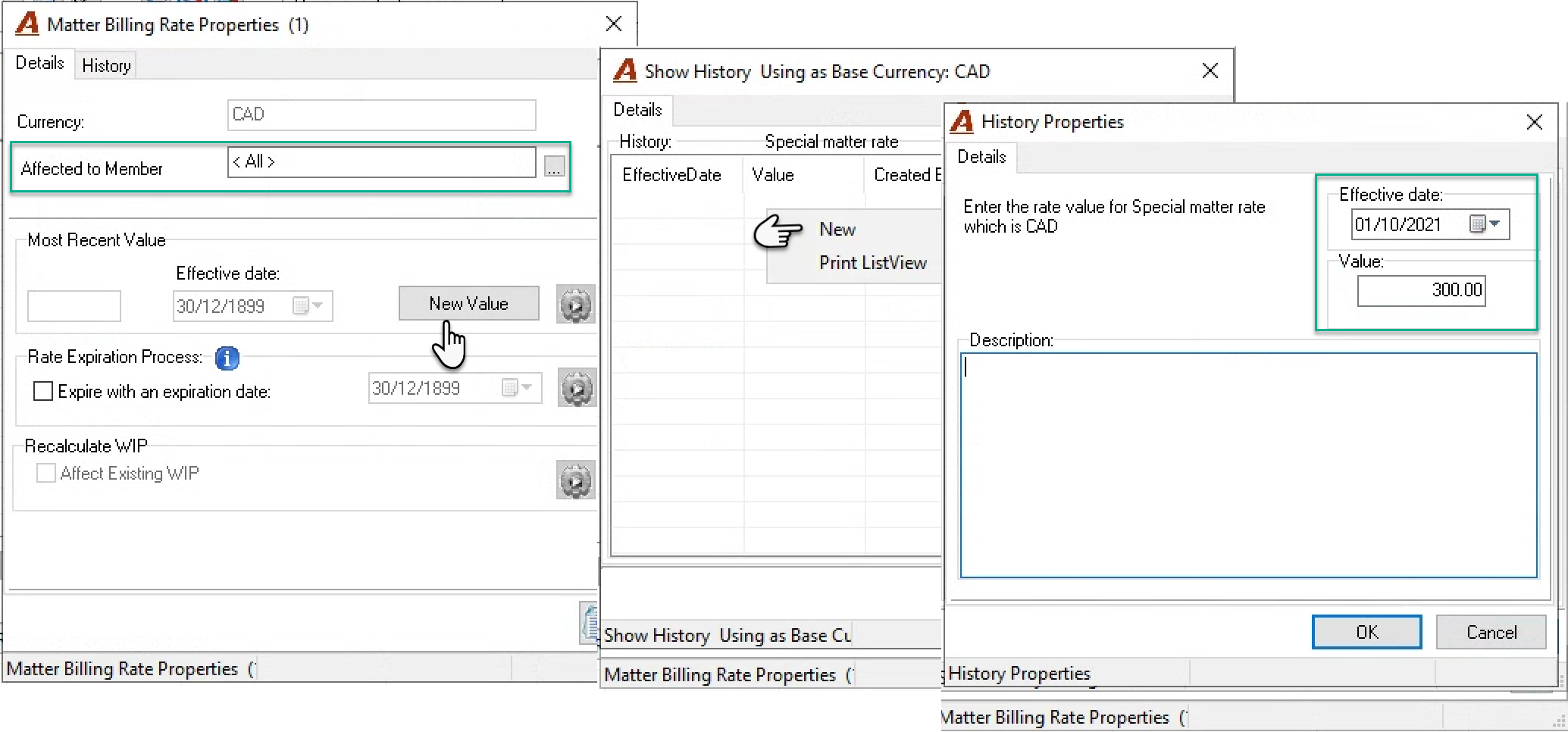
When creating a “New” rate, decide if the rate will affect “All” members recording time against the matter, in which case keep the default position as is. If the rate is member specific, select the affected member. This is already pre-set if you are changing a rate.
Press “New Value” to access the history form. Select New to create the new rate or change the existing one. Complete the new rate’s effective date and value. Press OK to accept and exit.
Once back on the properties form, checkmark the “Affect Existing WIP” checkbox to enable the execute button. As with member rates, this process will involve a series of messages and responses.
Rate Expiration:
Press on the “expire” checkbox to select the expiration date for the rate. Note that expiration can also be future dated.
Press on the “Recalculate WIP” button to re-value the WIP in consideration of the expiry date selected.
Rate Adjustments
Premiums, Discounts, Maximums and Minimums
Matters using rate-title rate-categories can apply percentage-based rate premiums or discounts to rate-titles or to members.
Matters using rate-title or working member rate-categories can set maximum and minimum rates for specific members.
For example, a matter with a rate-title rate category where senior partners have a rate of 450.00 and junior partners a rate of 300.00. The fee arrangement allows for a 5% rate premium for junior partners and a maximum rate for one of the senior partners at 450.00. Once the extended rate management options are added to the matter, the valuation of time for Junior Partners will at a rate of 315.00 per hour and after a rate increase to senior partner rates, the partner ser to a maximum of 450.00 will continue to have its time valued at 450.00.
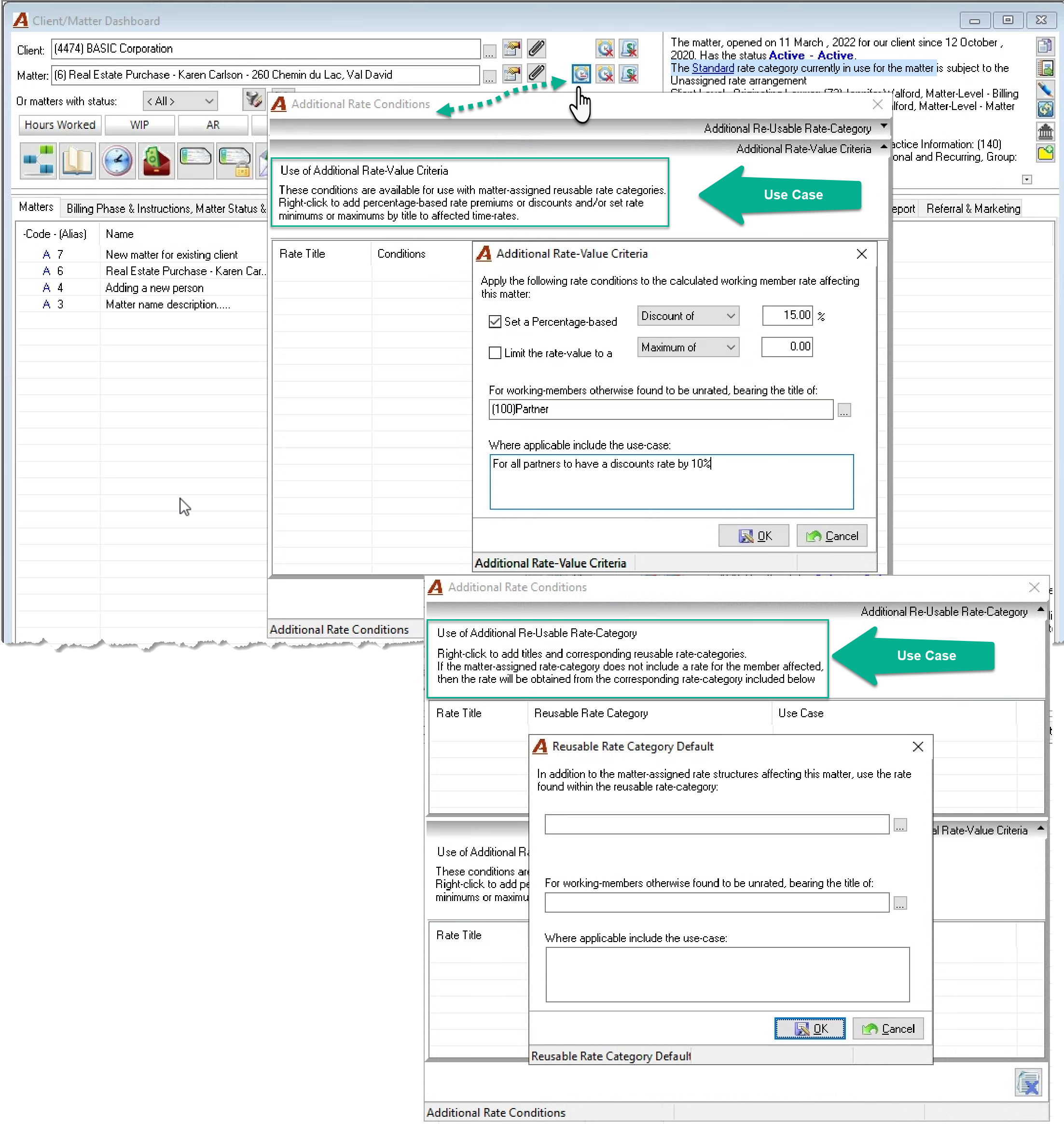
Additional Rate Conditions for the Matter
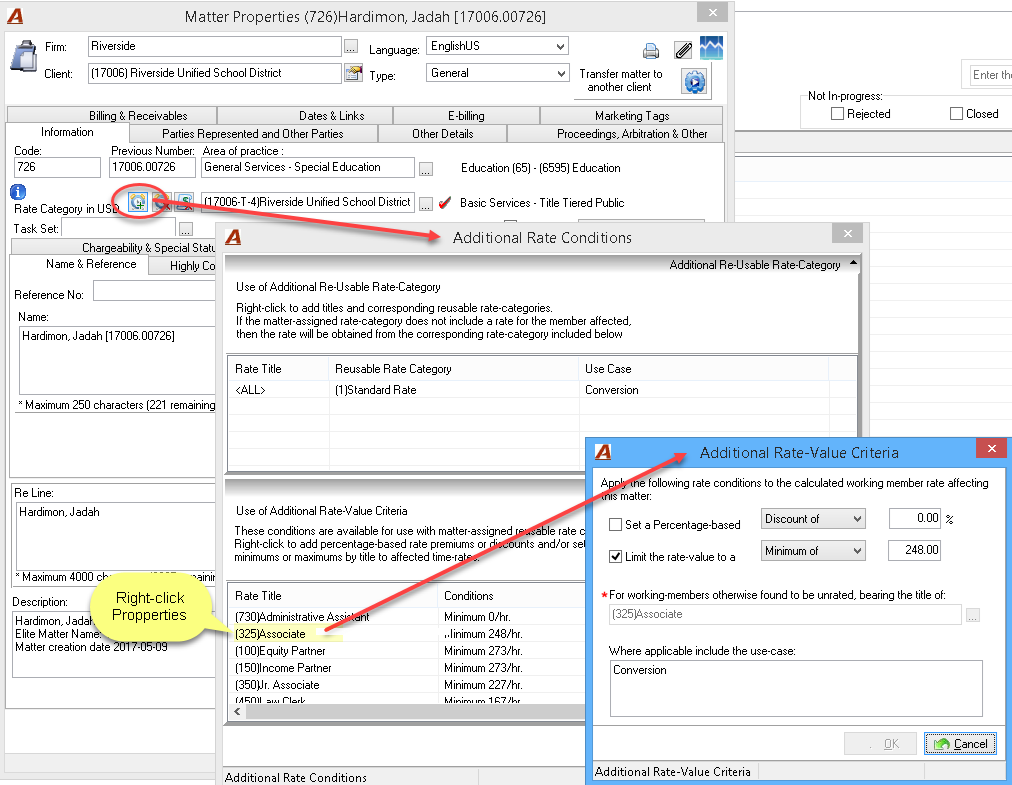
To create additional title-based percentage rate reductions or limits to the rate-category applied, access the “Additional Rate Conditions” form for the matter. Right-click to select new (or properties) within the “Additional Rate Value Criteria” panel to launch the Additional Rate Value Criteria” form to complete additional pricing requirements. Press OK, to accept and exit.
To supplement the matter’s rate category with another when the members affected are not on the matter’s rate category add the supplementary reusable rate categories to the affected titles from within the “Additional Re-Usable Rate Category” panel.
Special Activity (Time) Code Rates:
In addition to member rates, it is possible to create time or activity-based rates. If used, these special rates can be applied to all members completing the same activity or set of tasks. Regardless of to whom it applies, the rate will take precedence over the one calculated based on the rate category or special member rate structure.
Special activity (time) code rates can be created as fixed fee rates, in which case the flat rate for the activity is always the same regardless of time spent (i.e., block-fees) or as cost per unit where the unit is the hour worked in which case the same rate applies to all members for the specific activity. For example, if the firm is billing for time spent on travel, and the time is valued equally across all affected members - then the activity “travel” would have a special per hour time rate reflective of the firm’s rate policy.
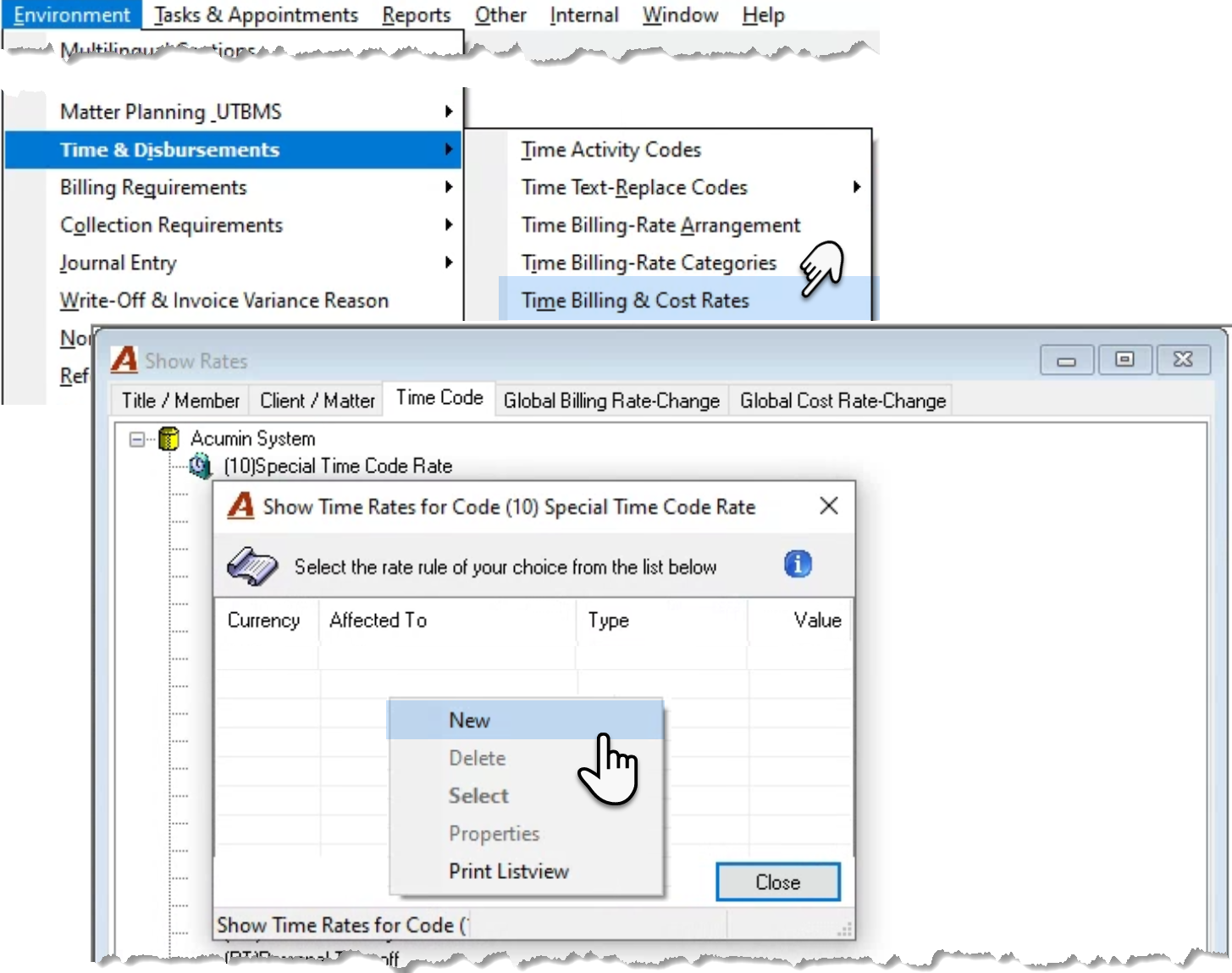
To create a new activity (time) code rate, or update an existing one, select “Time Billing” or “Time Billing & Cost Rates” from the “Environment – Time & Disbursements” sub-menu, to launch the show rates form. Navigate to the “Time Code” tab, press on the plus sign to expand the “Acumin System” tree view. Activity (Time) codes with a clock icon have special activity (time) code rates. Right click on an Activity (time) code and select “Rates”. Right click and select “Properties” to make a change or select “New” to create one.
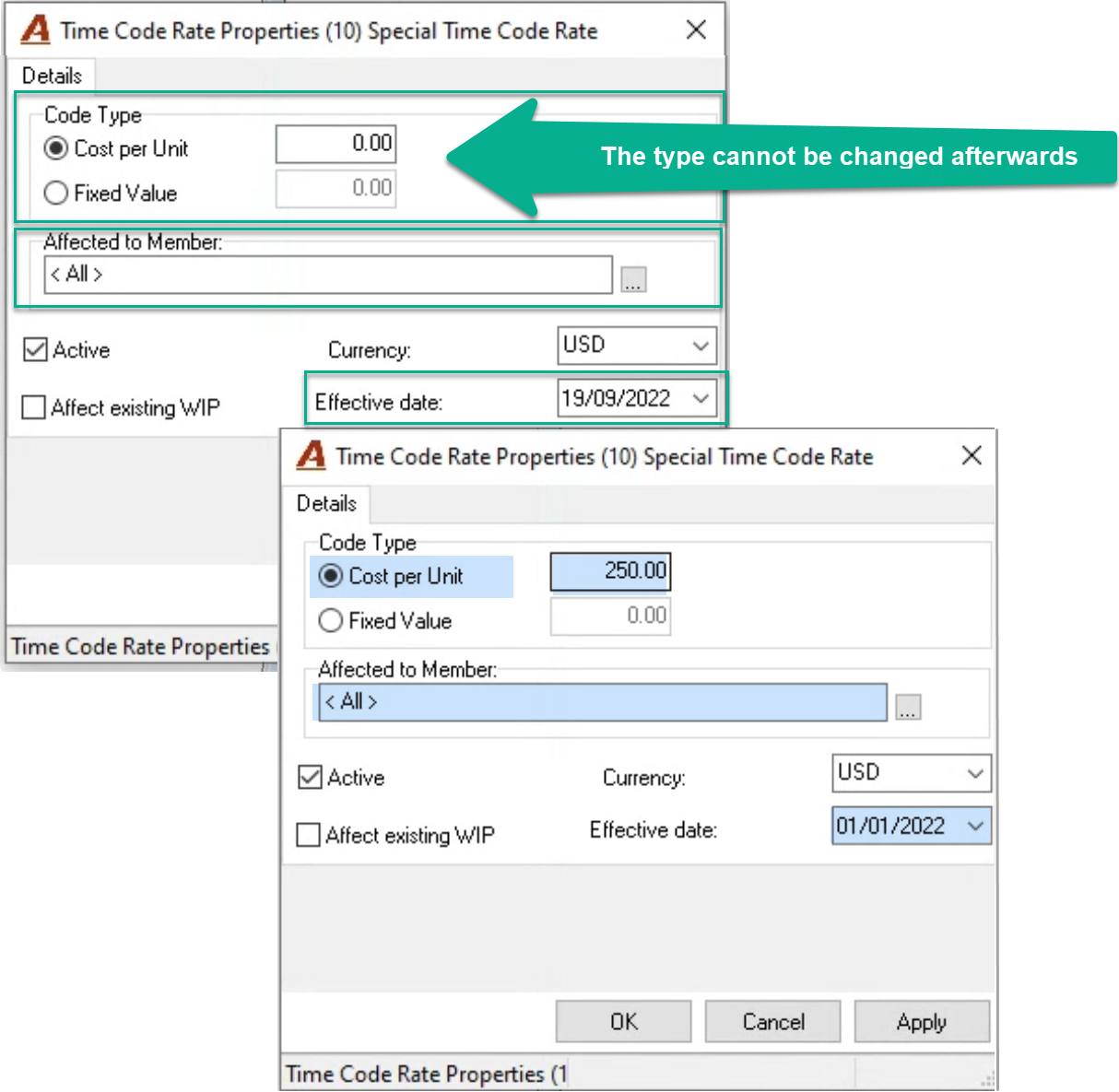
If creating a new activity (time) code rate, consider changing the type rom the default as a first step, because once the rate is created, the type cannot be modified. Once the type is decided upon, enter the value.
If the new activity (time) code rate will only apply to select member, enter the member, and repeat for the others. The default position is that the activity (time) code rate will apply to all members.
Select the effective date. The date can be back-dated, however when completing rate changes, even retroactive ones, once applied will not retain the rate history as it was. Special activity (time) code rates are like disbursement rates from this perspective.
Press OK to accept across the respective forms. Try a new time entry using the code and delete prior to posting it to confirm the desired impact.
Rate Visibility
From the Client/Matter Dashboard
Access to the rates for the client and matter is controlled by permission 720 and 727 respectively
-
Rate Category in Use:
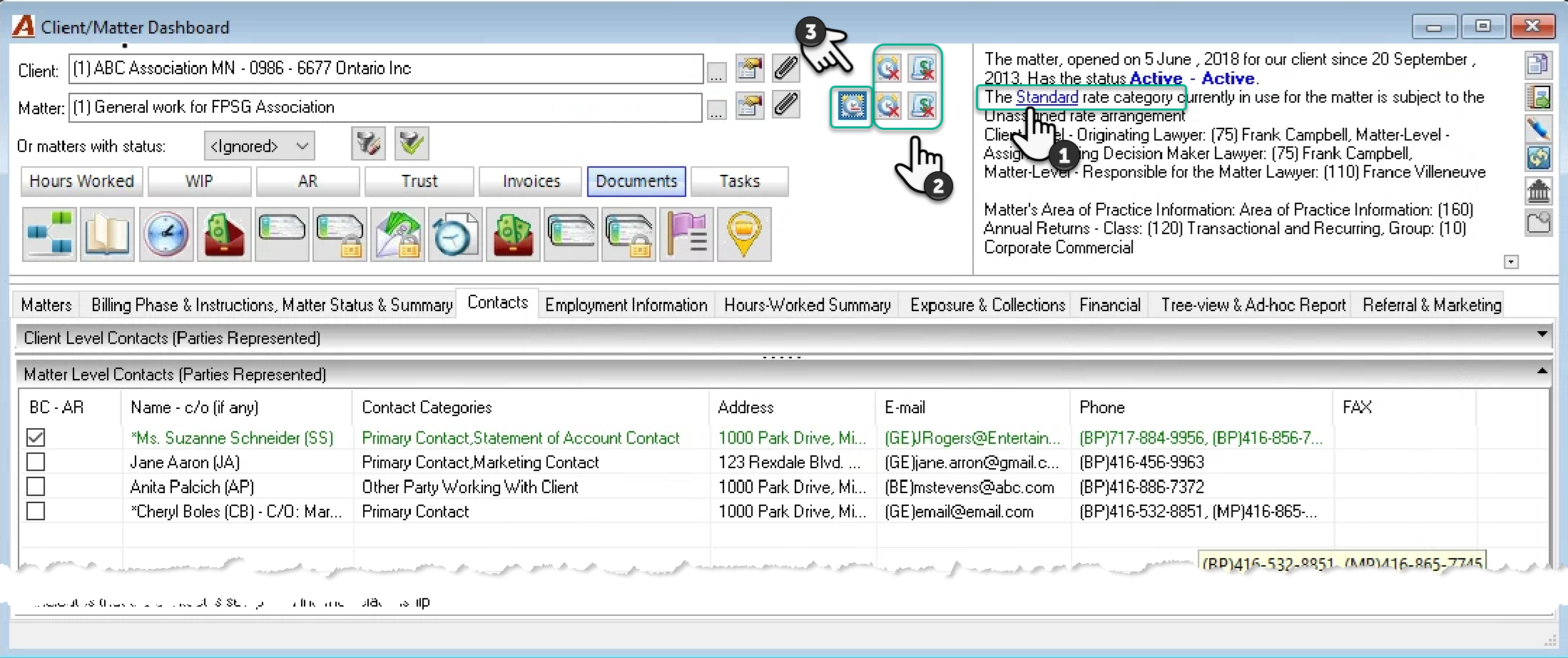
Once a client and matter is selected, drill through on the rate label presented as a hyperlink on the basic information pad to access the list of members and their rates which will be used to value the time records unless there is a special member time rate. If the matter is not selected and a similar link is presented, its content represents the default rates applied when a new matter is created if a different rate category decision is not made.
-
Client and/or Matter Special Rates in Use
Press on the clock button to the right of the client or matter field and to the left of the basic information pad to access the list of special client or matter level member time rates respectively. The buttons that follow provide access to the list of special disbursement rates. Buttons showing a green checkmark indicate that there are special rates, and those showing a red x, that there are none. Special rates set at the client or matter level take precedence over rates in the rate category applied to the matter along with any rate discounts, premiums, maximums, or minimums applied.
-
Rate Discounts, Premiums, Maximums or Minimums
Press on the button to the left of the special member time rates button for the matter, to access percentage-based rate discounts or premiums applied to matter level title rates and/or maximum or minimum rates applied to specific working membersRate Dashboard
The Rate Dashboard
Access
From the dashboard section of the task bar access the rate dashboard. Visibility is secured through security item “Rates – Restricted Access” found within the “Environment tab” of the permission properties.
Security
Users with restricted access will be able to access the properties of a rate category and drill through to the list of affected members with their current rate for the affected rate category. Users can drill through to a listed member to view his or her other rates as well as execute a print list view at various levels.
Users with this level of access cannot create new rate categories nor can they add members and rates to the rate category.
Adding Members to a Rate Category
Users with access to rate management options can add members and their rates through the rate category dashboard instead of accessing each member’s rate properties form, depending on what type of rate management action is required.
Reports
Client-Matter Dashboard Reports
Rate reports generated from the client and matter dashboard provide visibility of the rates in use for timekeepers with time on the matter(s) as well as the rates to be used by members that have not yet recorded time. As a result, report output will include the following members grouped by rate-title:
-
All members found within the rate category.
-
Members not found within the rate category that have time on the matter.
-
Members not found within the rate category with no time on the matter that are on the matter level assigned list
-
Members not found within the rate category with no time on the matter or that are not on the mater level assigned list BUT that have a special client rate OR a special matter rate.
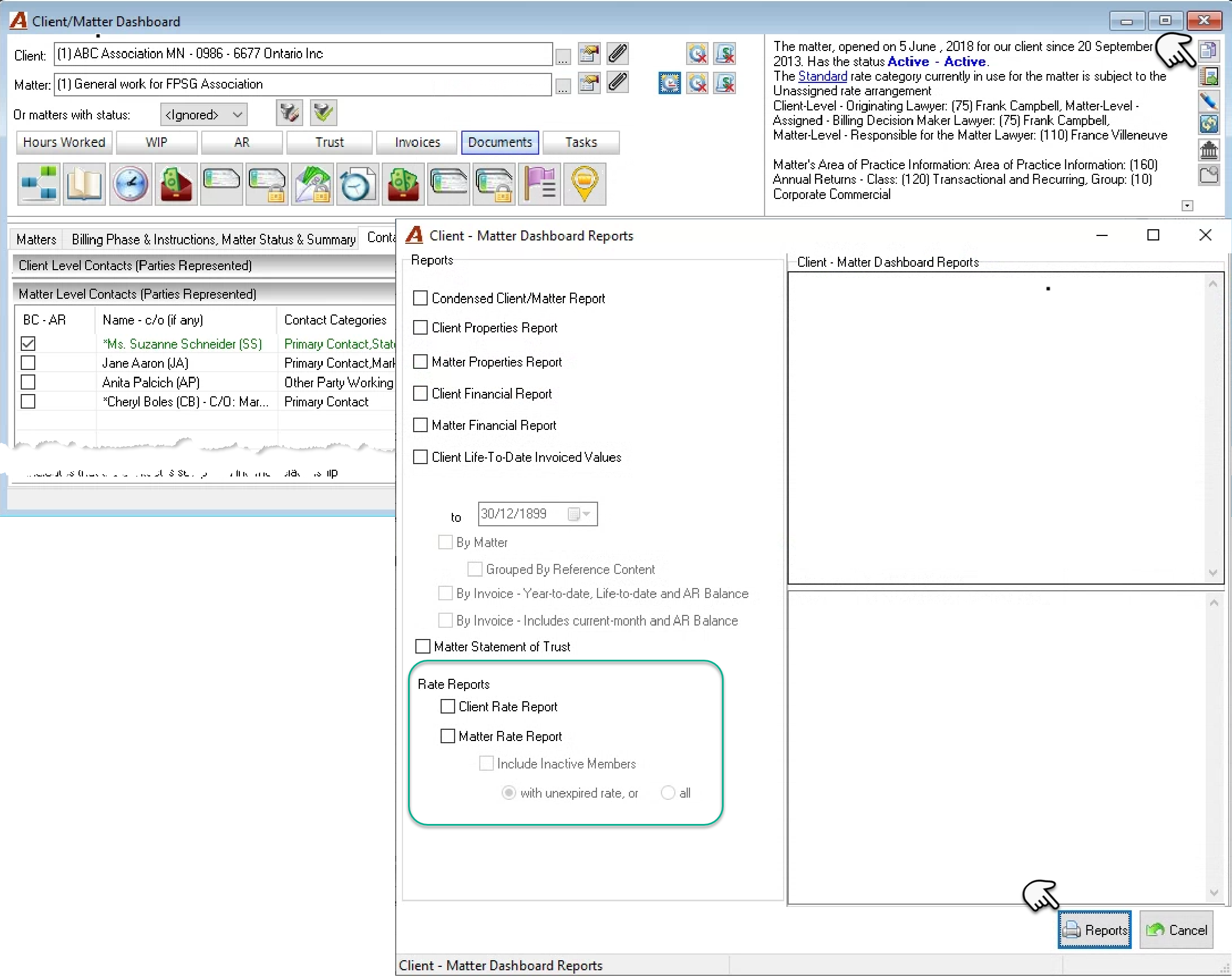
Executed at the client level this report will group the members and their rates within the rate category in use and include the matter count – the number of matters currently using the listed rates.
To access the reports available from the client matter dashboard, press on the report button.
To generate the reports, checkmark any of the reports and or options offered and press on the reports button.
Other Report Options
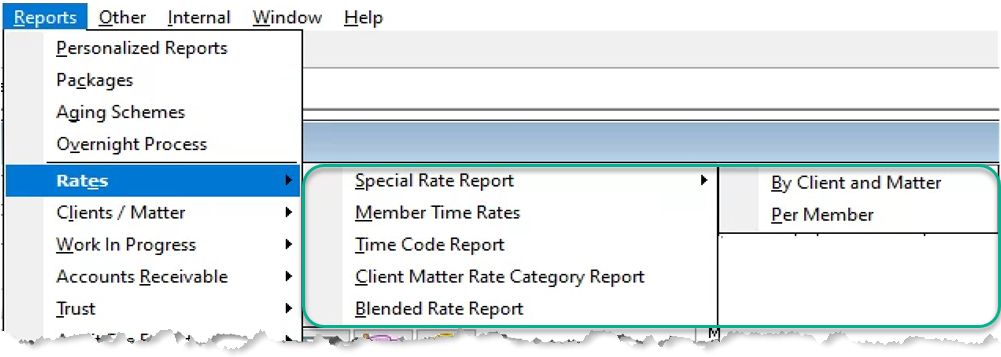
Other rate reports are found within the Reports – Rates sub-menu.
The Special Rate Reports:
The Special Rate Report by Client and Matter:
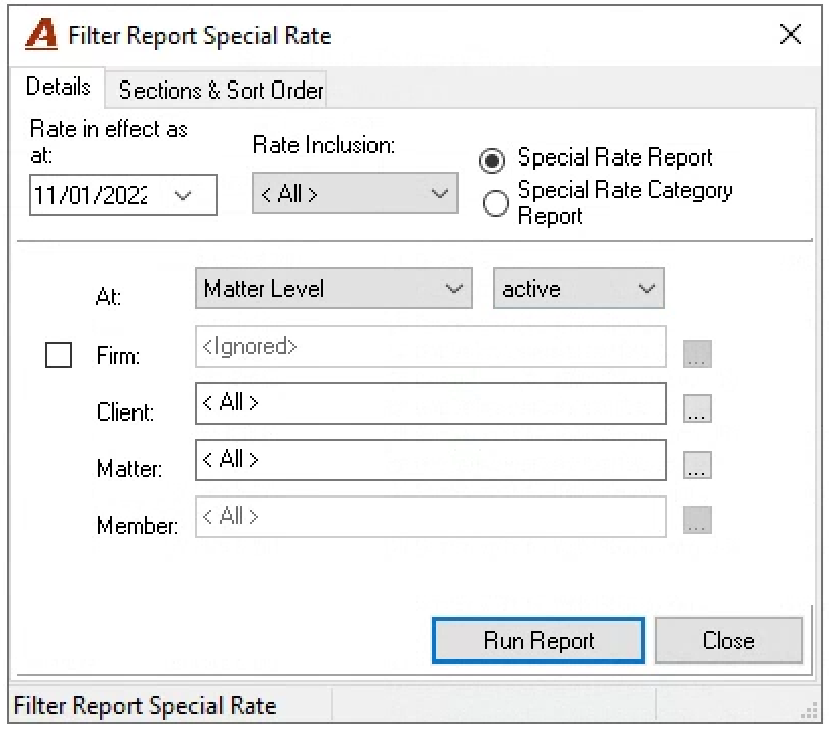
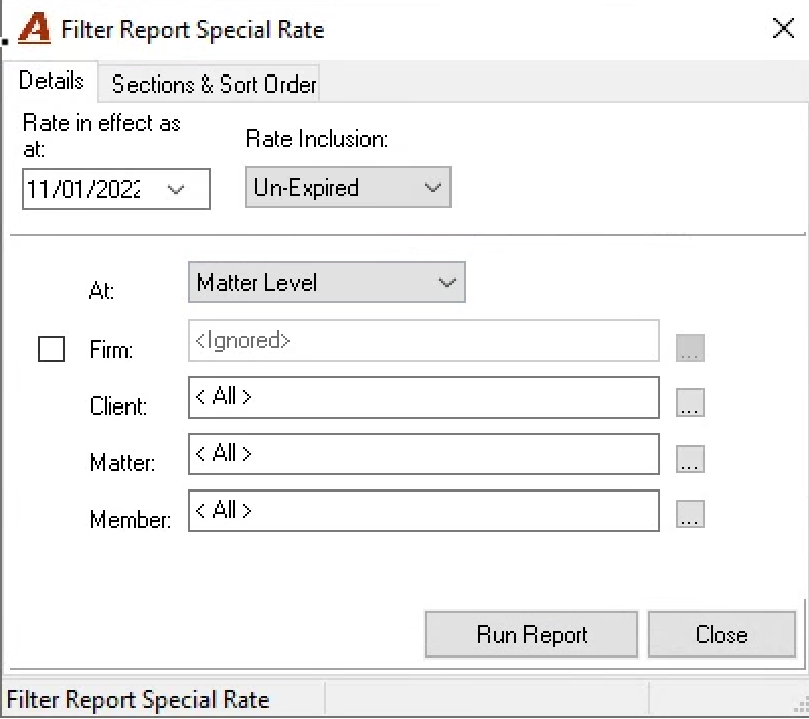
The special client-matter rate report (first radio button) includes special member rates for clients, matters or both. It can be filtered by client and/or matter status as well as rate expiration status. It lists all the member special rates for affected clients and/or matters. The member field is intentionally grayed out to provide the complete special rate structure.
The Special Rate Category Report by Client and Matter:
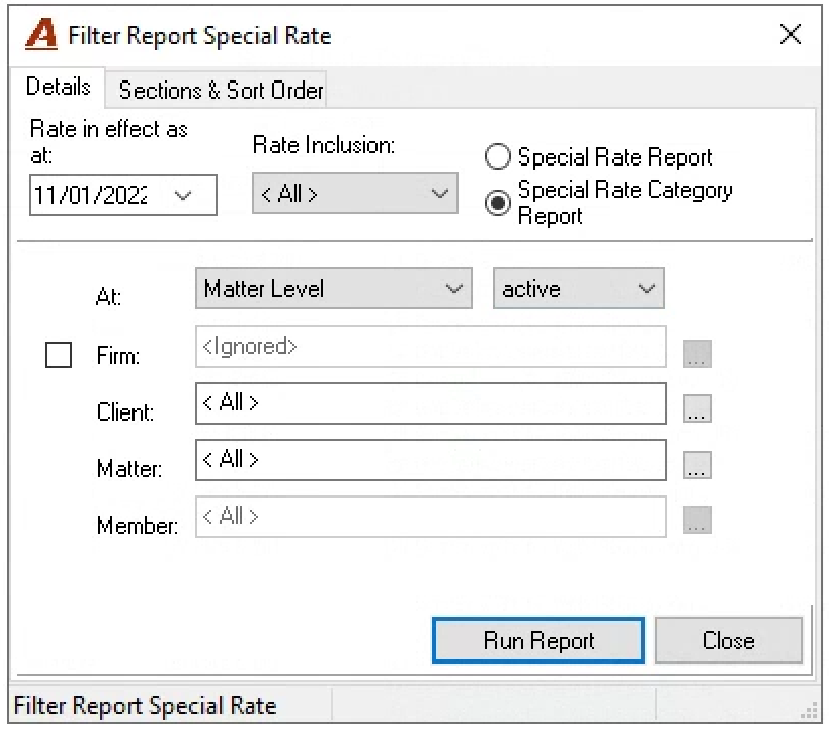
The special client-matter rate category report lists all the clients and matters with a rate category that is not set as base rate. It can be filtered by client and/or matter status as well as rate expiration status. The member field is intentionally grayed as in this case it is not relevant.
The Special Rate Report per Member:
The special rate report per member can be filtered by rate expiration status. It lists the clients and/or matters with special rates grouped per member, therefore the member field is enabled to provide the option to run the report for one member instead of all. The sections and sort order tab allows for page breaks by member.
The Member Time Rates Report
The member time rate report can be filtered by member, by member status and by rate expiration status. It can exclude non-working members and include user-select rate-categories to a maximum of six.
The Time Code Report:
This report has no filter options, and it will list all the time codes that have a pre-set rate.
The Client Matter Rate Category Report:
This report uses the comprehensive filter offering a variety of reporting dimensions and filter options. It lists all the client and matters meeting the criteria along with rate their rate category. Other information includes the client and/or matter referral source, date opened, member responsible, status and default tax scheme.
The Blended Rate Report:
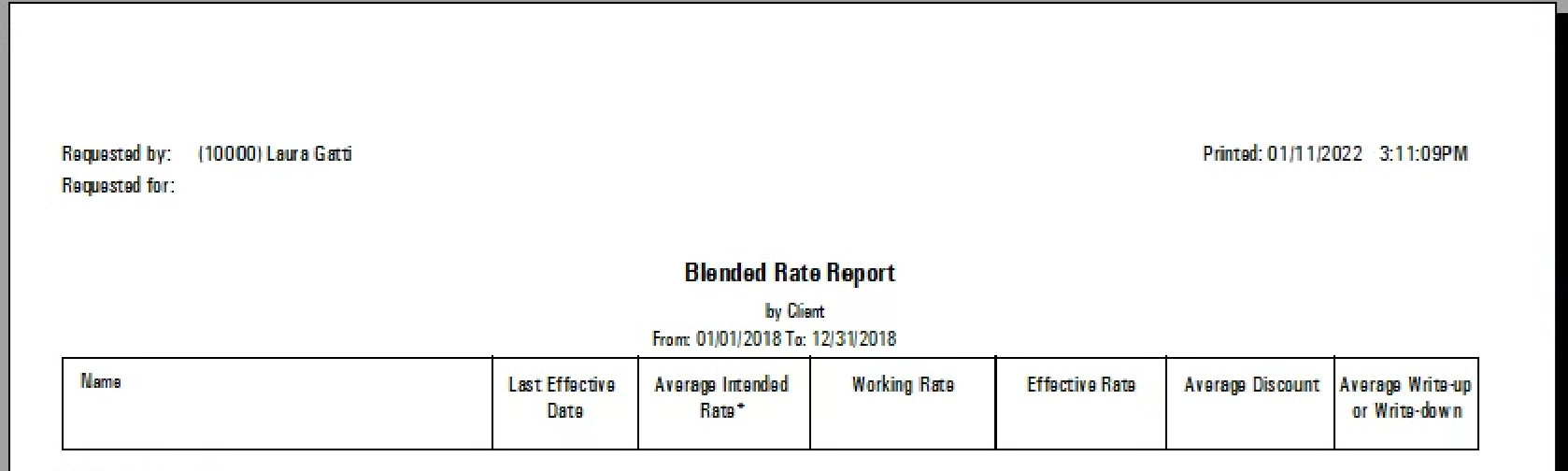
This report also uses the comprehensive filter offering a variety of reporting dimensions and filter options. For each rate category it provides the blended rate per rate-title per reporting dimensions selected along with other rate-relevant measures. For example, for each rate category the report could provide blended rates and rate relevant metrics per rate title per area of practice, applied in the last three years. Other rate metrics beyond the average intended rate and last effective date, the report also includes the working and effective rates as well as the average net discount and/or premium and net write-up write-down applied during the billing process expressed as a percentage of worked value.