.png)
Highlights
In addition to title rates and member rates, Acumin also supports time or activity based rates. If used, these special rates can be applied to all members completing the same activity.
Special time code rates take precedence over the rate category rates or special member rates for clients or matters.
Time code rates can be created as fixed fee, whereby regardless of time spent the fee is always the same for the activity or group of activities (i.e. block-fees) or as fee per unit where the unit is the hour worked.
Although often used to support a pre-set activity based fee structure, the time code rate can also be used to rate time-records for activities where regardless of member, the rate per hour is the same. For example if the firm is billing for time spent on travel, and the time is valued equally for all members - then the activity "travel" captured with a time code “Travel” can be set to have a special per hour time code rate.
Process
Access
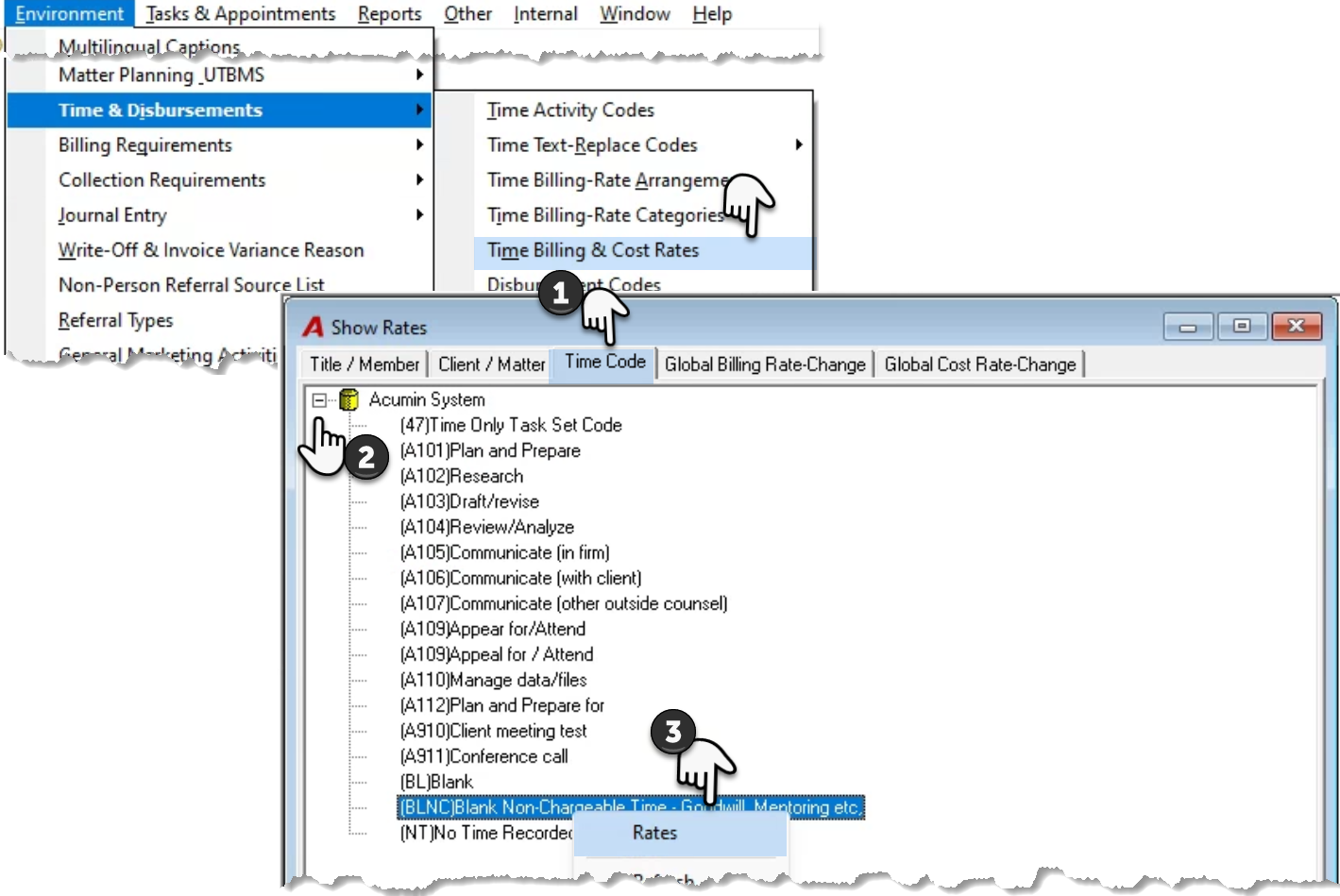
Select "Time Billing Rates" or "Time Billing & Cost Rates" (1) from "Environment – Time & Disbursements" to access the "Show Time Code Rates" form. Navigate to the “Time Code” tab (2), explode the time code tree. Right click to select “Rates” (3) for the affected time code.
New Time Code Rate
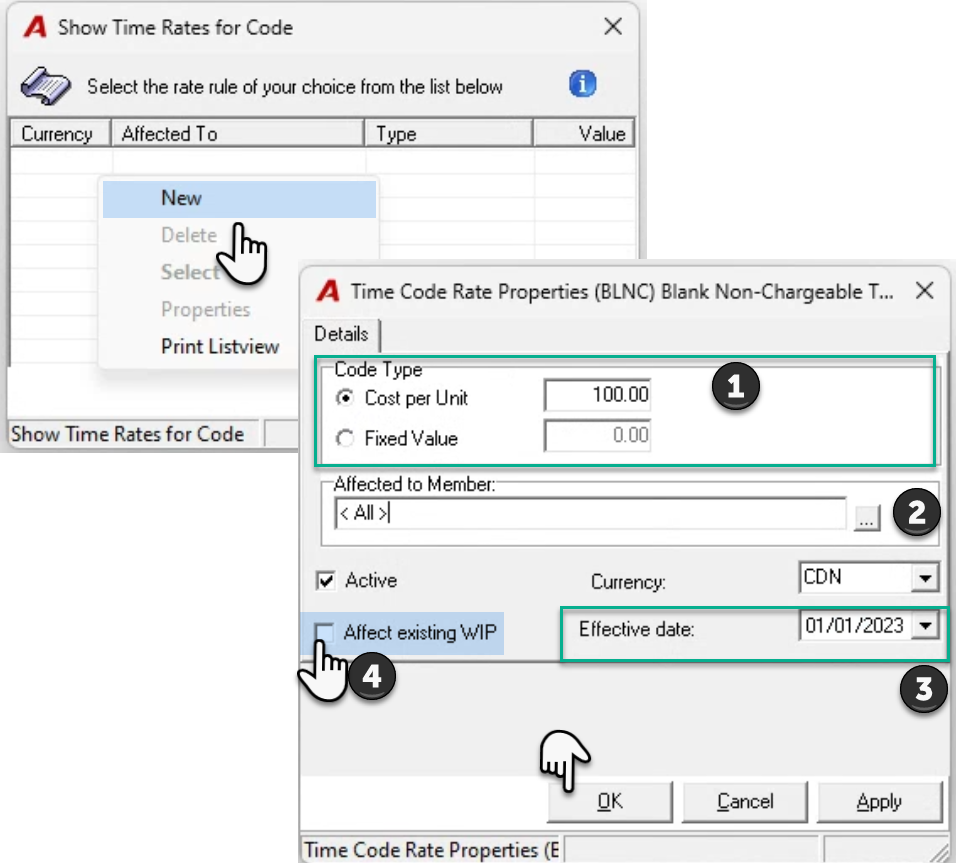
Select new to set a new special time code rate.
Select the type of time code rate required. Select cost per unit to have the rate applied to the time spent on the activity, for example time spent on non-chargeable activities or travel. Select fixed value to have a set-fee regardless of time spent on the activity (1).
Leave the “Affected to Memmber” with the default valie of <ALL> when the time code rate applies to everyone. Alternatively, select the membr affected (2).
Modify the “Effective Date” as needed (3).
Checkmark the option to “Affect Existing WIP” to trigger the revaluation of unbilld time that meets the time code rate criteria as of the effective date selected (4).
Press OK to accept
Time Code Rate Change
To complete a rate change, access the time code rate, set the new rate, the effective date and decide to affect WIP or not. Press OK to accept.
New Time Code Delete
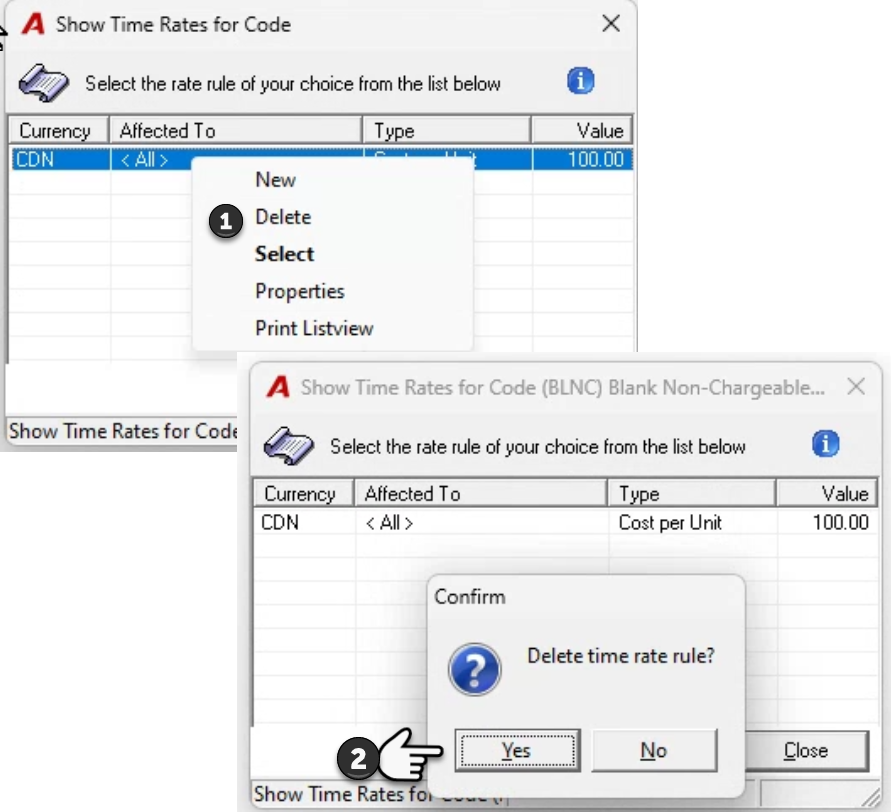
Select “Delete” (1) and accept the removal of the rate rule (2) so that when the time code is used the net best rate is applied.
Rate Hierarchy
-
Is there a rate value override for the time entry? If YES, it will be used. If NO --) NEXT;
-
Is there a Special Time Code Rate for the time code used? If YES, it will be used. If NO --) NEXT;
-
Is there a Special Member Rate for the Matter? If YES, it will be used. If NO --) NEXT;
-
Is there a Special Member Rate for the Client? If YES, it will be used. If NO --) NEXT;
-
Does the rate-title-based or member-based rate category attached to Matter (which is not the base rate) have a rate for the member? If YES, it will be used. If NO --) NEXT;
-
Does the rate-title-based or member-based rate category attached to Client (which is not the base rate) have a rate for the member? If YES, it will be used. If NO --) NEXT;
-
Use the member's base rate.
.