.png)
Acumin.web – Use of Favourites & Alias
Use Case
The Acumin,web user interface supports the use of favourite clients, matters and time entry codes as well as the use of matter nicknames (alias).
Highlights
Use favourites to select matters and/or time codes from within the time entry page, or matter alias (nickname) to enter your matter instead of using client-matter numbers (codes).
To facilitate data entry during file intake process set up a default where a team role holder is 100% of the shareable role to start.
Licensed shareable roles can be re-labelled from within implementation tab to reflect the naming convention of the firm for this member-based reporting dimension.
Time Entry Page Matter Selection
Matter Selection
Use Favourites
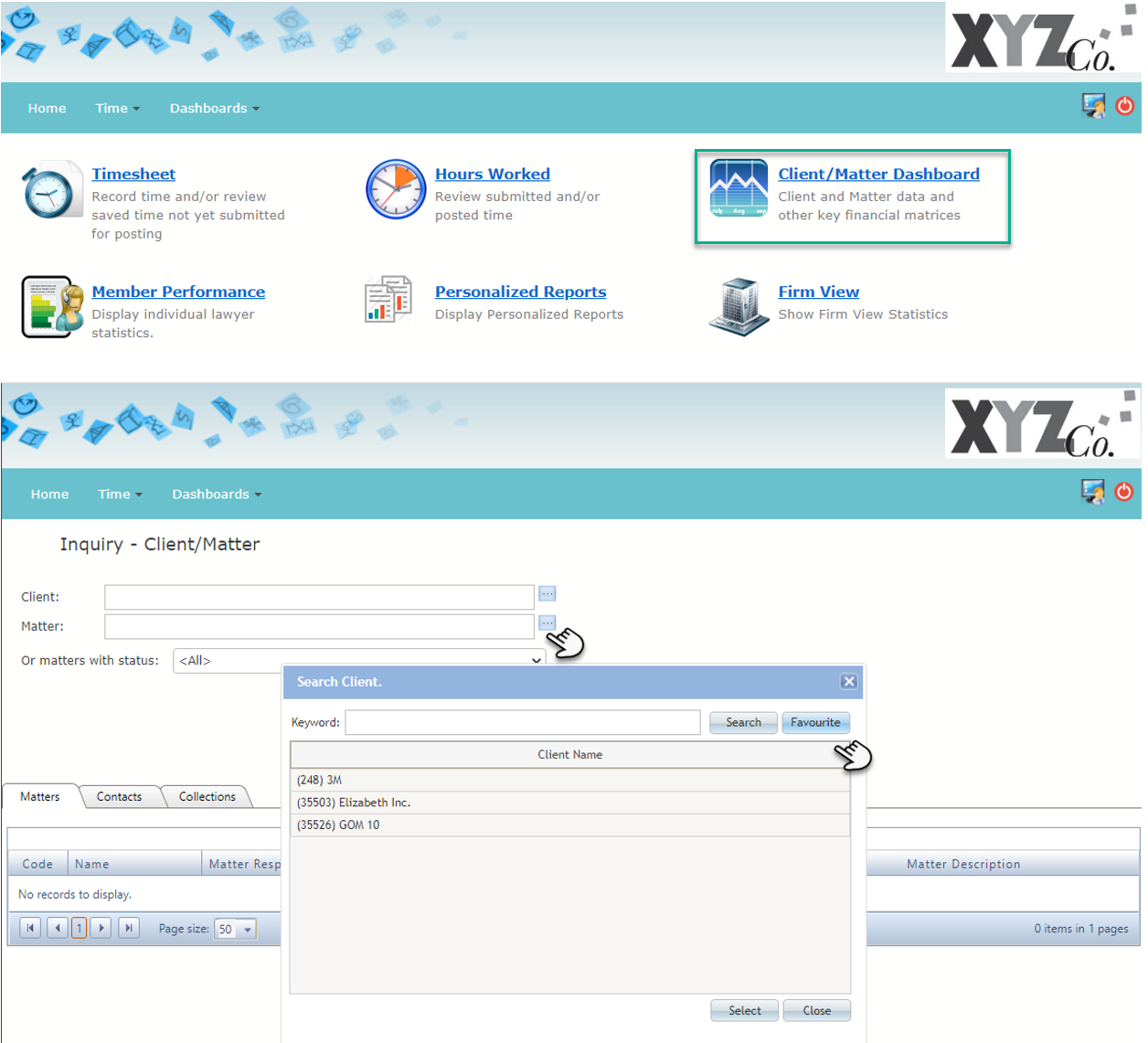
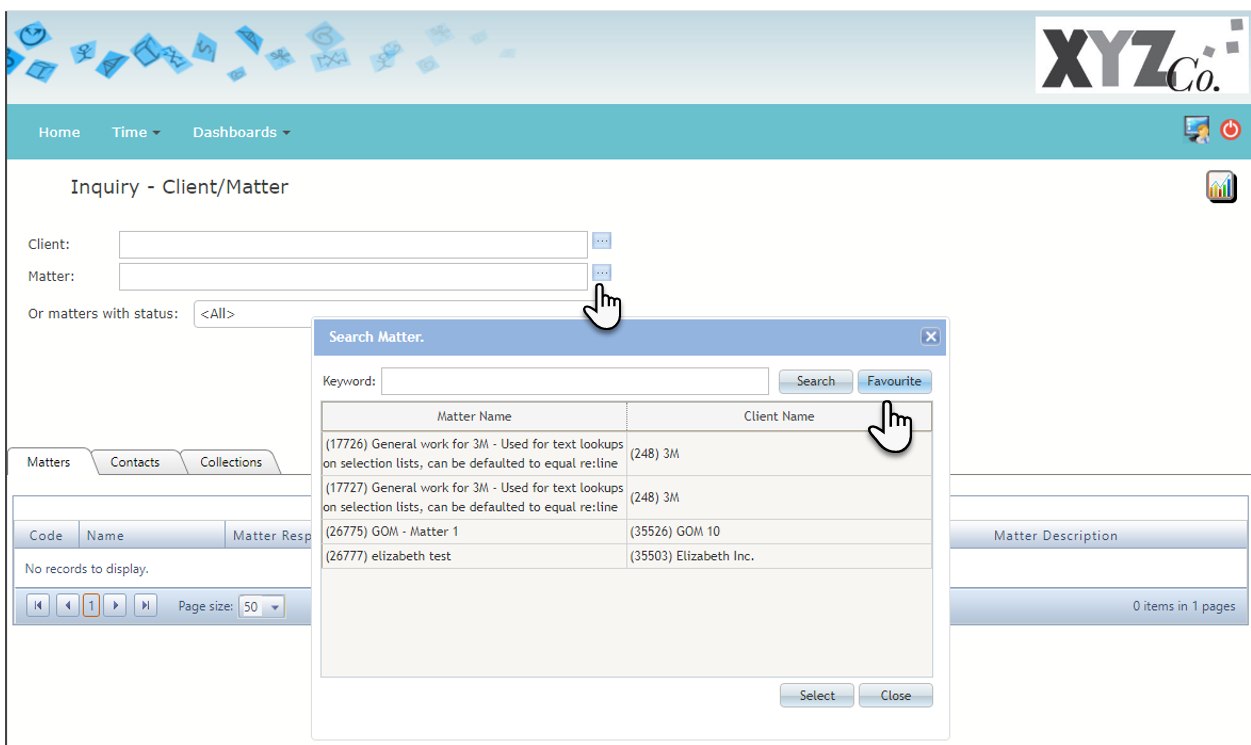
All clients and matters identified as a “Favourite” in Acumin.desktop are accessible from the corresponding “Favourite” list in Acumin.Web. To launch the list of favourites, press on the “Favourite” button.
Favourite Matter:
Without selecting a client, press on the favourite button for the matter field to make your selection from your list of favourite matters. The selection of a favourite matter will auto populate the client field.
Replace the screenshot with the same for matters
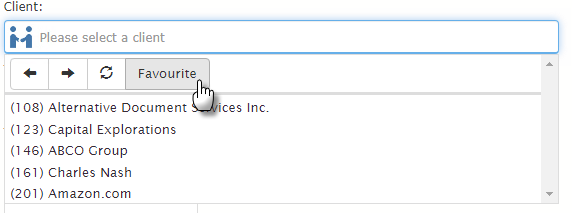
Favourite Client:
Select a favourite client to view its most recent matters to select one into the matter field.
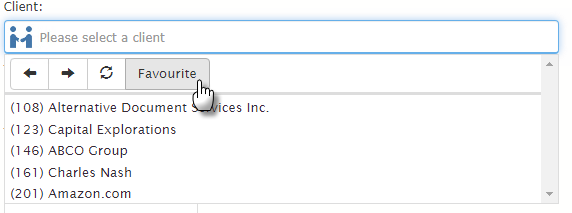
Select the matter for the favourite client.
Add screenshot showing the newest matters for the favourite client selected
Use Matter Alias (Nickname)
Users can setup personal aliases (nicknames) for matters in Acumin.desktop which can then be used in the matter field of the time entry page with any user interface including Acumin.web.
For example, Client 201 Matter 1 is setup with “Amazon” as the alias (nickname) for Member 66.
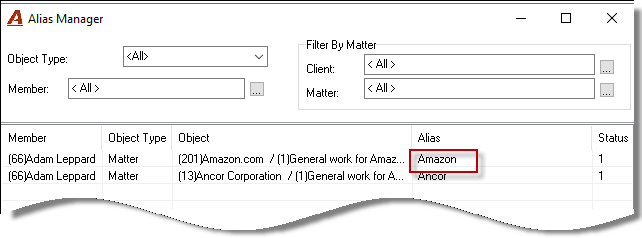
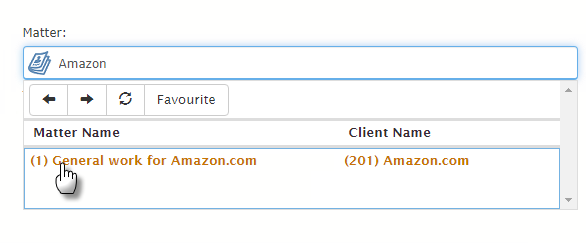
In this case, when Member 66 records time using Acumin.web he/she can enter the alias “Amazon” in the client or the matter field to have Client 201 Matter 1 as the resulting content. Press on the record to capture the file in the corresponding client and matter fields.
Time Code Selection
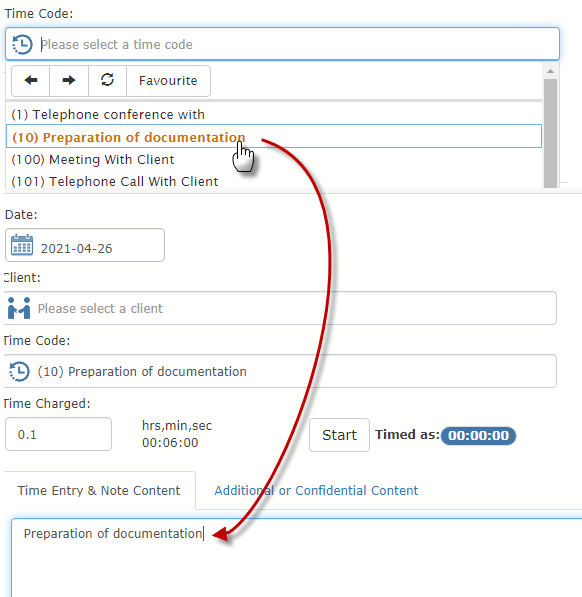
This is not a mandatory field and can be left blank, however if you maintain a favourite time code list in Acumin.desktop, press on the favourite button to access your list and select instead of searching from the full ban of time codes.
Client and Matter Dashboard Page
All clients and matters identified as a “Favourite” in Acumin.desktop are accessible from the corresponding “Favourite” list in Acumin.Web. To launch the list of favourites, press on the “Favourite” button.