.png)
Scope and Purpose
The reminder system is used in conjunction with appointments which is part of the Acumin Practice Management Tool system.
It allows the user to set reminders related to appointments by: selecting specific dates, by having the latter auto-calculate from user-entered calendar days or by selecting an existing reminder date structure.
Reminders will appear in the Task List and related reports. If the firm is licensed to synchronize appointments with Outlook, reminders can also be synchronized in Outlook. The firm will have the ability to see them as reminders or as appointments in Outlook.
System set up
Reminder Date Structure
Reminder date structure allows the firm to build a pre-set list of reminders to be selected at the time of the reminder creation. By selecting a "Reminder date structure", a set of reminders will be created automatically – all at once – based on the structure and appointment due date.
To use reminder structures, they need to be set up first in the system. Go to Environment – Additional Classifications – Reminder Date Structure.
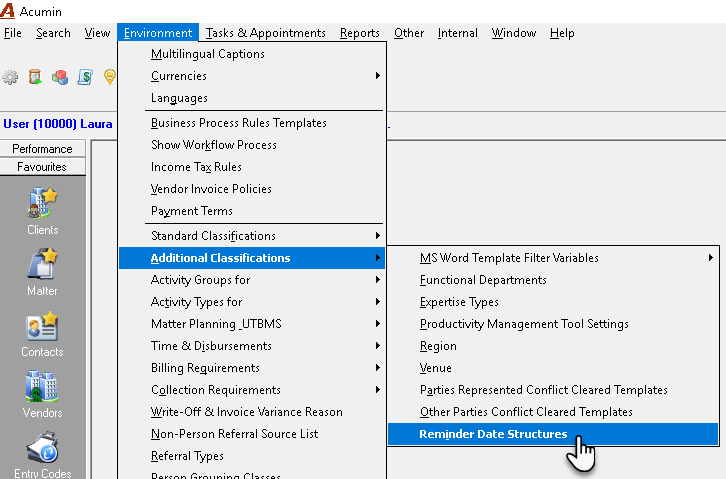
Reminder Date Structure form
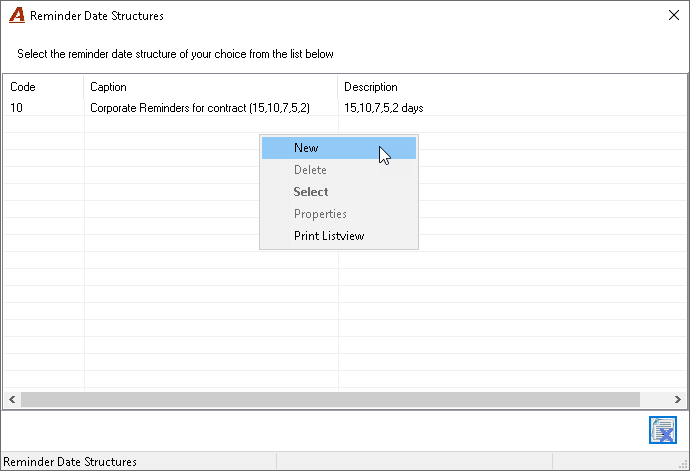
-
New: Launches the Reminder Date Structure Properties form to create a new structure;
-
Delete: Allows the deletion of the selected Reminder Date Structure if not yet used;
-
Select: N/A in this form;
-
Properties: Launches the Reminder Date Structure Properties for modification;
-
Print List View: Prints the content of the list in Excel or Crystal.
Creating a new Reminder Date Structure
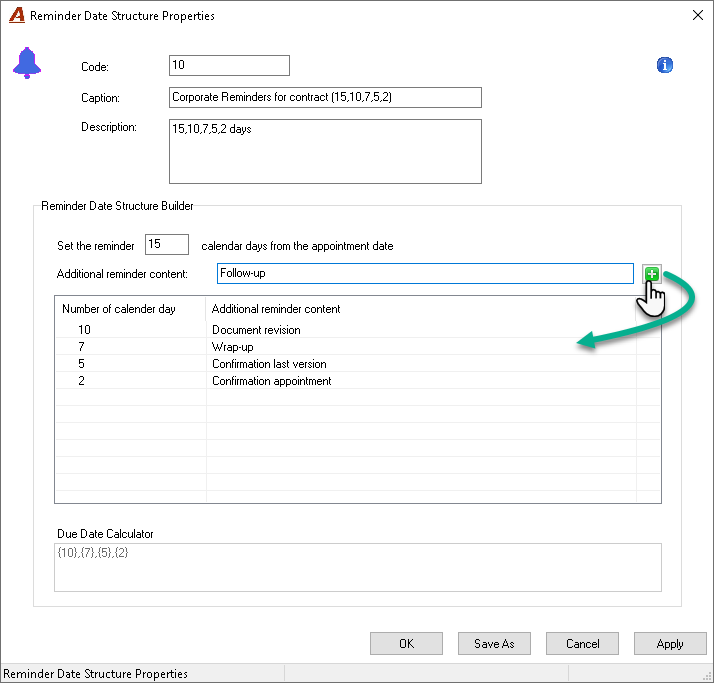
To create a new Reminder Date Structure, select the "New" option in the contextual menu. The Reminder Date Structure Properties form will launch. Complete the form and click on OK to save and exit.
Field Definitions
-
Code, Caption and Description: As the preconfigured reminder date structures built are intended for use by general users looking to set multiple reminders for appointments at once, to facilitate the selection process we recommend that the caption and description content be completed in consideration of use cases and the number of days considered in the formula, respectively.
-
Reminder no of day field: Number of calendar days from the appointment;
-
Additional reminder content: Content that will be added to the appointment subject line;
-
Plus sign:
-
When clicking on the Plus button, the reminder number of days and additional content information will be added to the list below.
-
-
Reminder structure list:
-
Lists each reminder created based on the number of days sort order;
-
It is possible to have 2 reminders having the same number of calendar days.
-
Contextual menu:
-
Edit: Allow the user to edit the reminder selected;
-
Delete: The entry selected will be deleted from the list (and the Due Date Calculator);
-
Print List View: Will print the content of the list.
-
-
-
Due Date Calculator:
-
Display the number of days of the reminder structure formula.
-
-
Buttons:
-
OK: Saves the content and exits the form;
-
Save As: Opens a second form with the same information except the Code; Caption and Description will open empty. The user will have to complete at least the Code to be able to save the new Reminder structure;
-
Cancel: Closes the form without saving the last modification.
-
Apply: Saves the modification and leaves the form opened.
-
Settings Permissions
Reminders, follow the same restrictions as appointments depending on where they are accessed from; agenda or task list. For example, if the ability to manage an appointment – edit, cancel, restore, and/or delete – is limited to the Author or Creator, then by extension the reminders are subject to the same process/limitation. This means that without additional security, an attendee cannot modify, delete, cancel, restore or add a reminder to the existing appointment.
Working with Reminders
General Facts to know about Reminders
-
An appointment or event can have many reminders associated with it;
-
Reminders exist at the appointment or event level not per author or attendee;
-
Users can set a reminder for an appointment or event by selecting a specific date, by having the system automatically calculate it based on the number of days from the event populated or by selecting an existing Reminder-Date Structure.
-
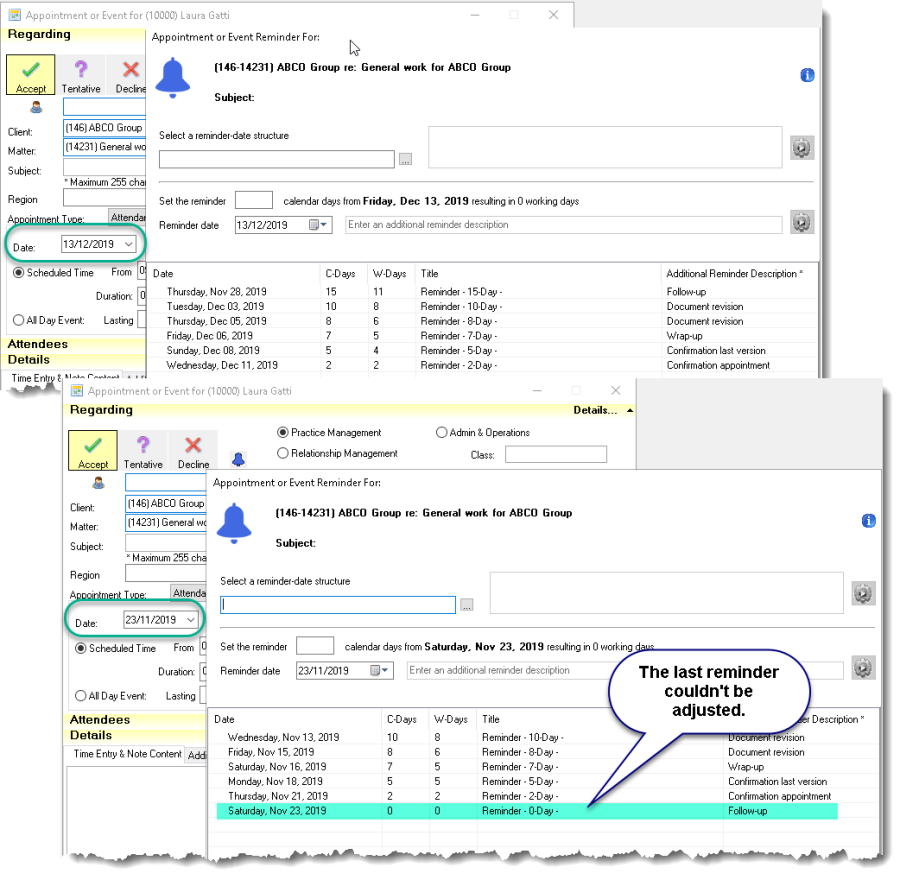
When a user modifies an appointment date, the system will automatically re-adjust the reminder dates in accordance with established rules i.e. updated reminders cannot be older than the current date. For reminders having a date falling outside of the period, the system will keep them but with the same date as the appointment date. For reminders already having a date in the past, they will remain as is with the ability to be manually updated if required.
-
Reminders included in a cancelled appointment will have the status "cancelled" and will be restored at the same time as the related appointment if restored.
-
Reminders included in deleted appointments cannot be restored.
-
Reminders are not visible in the Acumin Agenda.
The Appointment and Event Reminder form
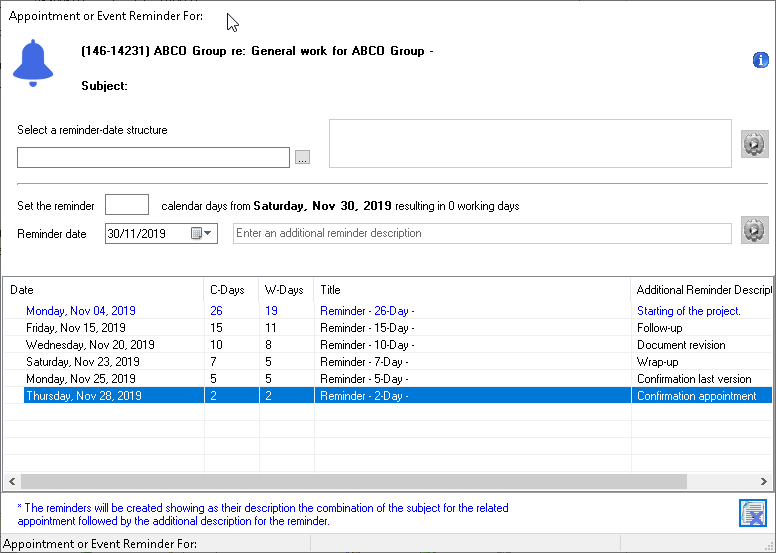
Field Definition:
-
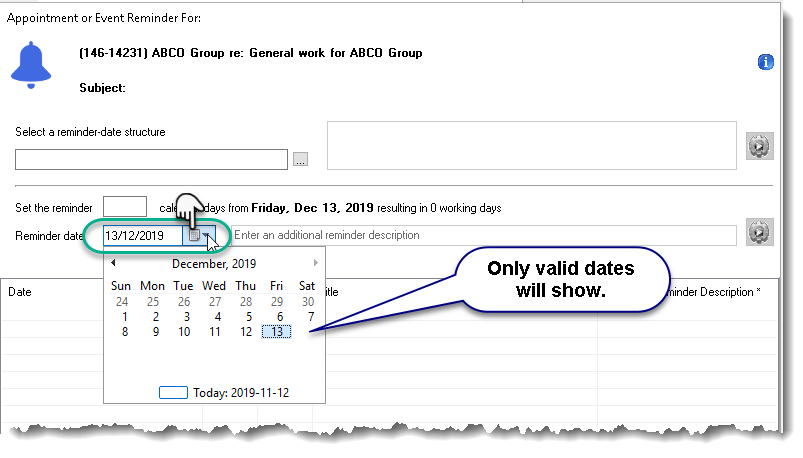
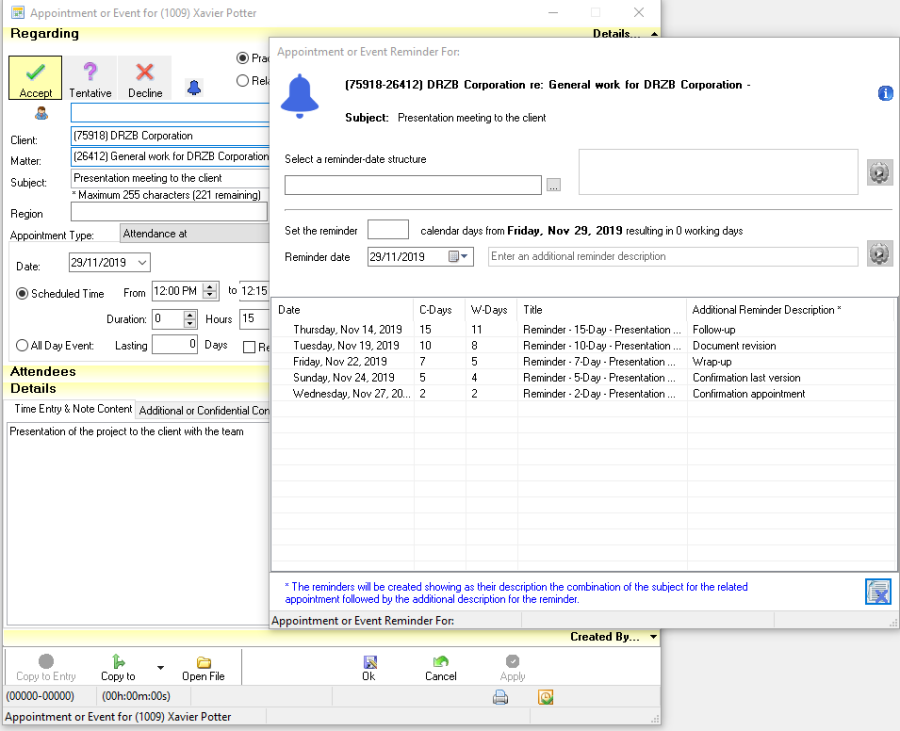
Date selection section: The user will have the choice to select an existing reminder-date structure, to enter a specific reminder date by using the calendar or to enter the number of calendar days from the appointment and let the system calculate the date. In all cases, the date should not be older than the current date or more in the future than the appointment date.
Users can add reminders using the reminder-date structures feature as well as individual reminders within the same reminder list. The system will add them to the list in chronological order.
-
Additional Reminder Description: The content of this field will be added to the content of the appointment subject field as well as being visible in the "Content" column of the Task List.
-
Execute icon: As soon as a reminder-date structure is selected or the number of days is entered, the icon becomes enabled. The user has to click on it to add the reminder to the reminder's list.
-
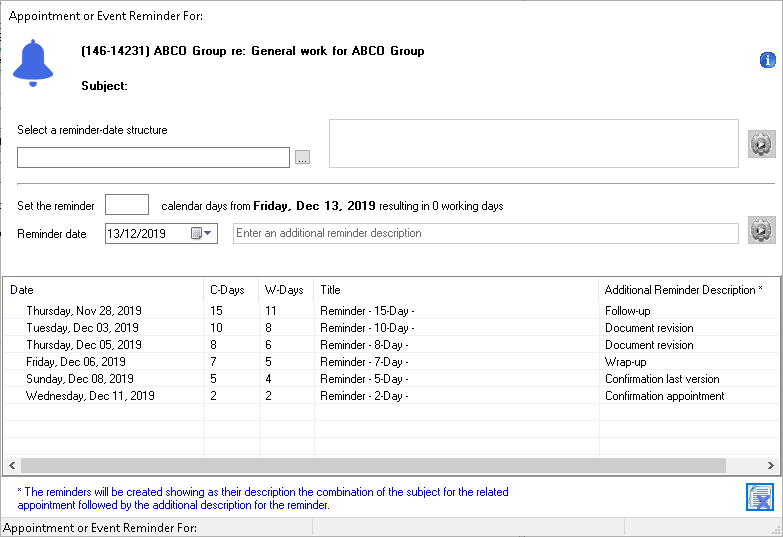
Reminders' list: This list will display all reminders created for the appointment or event.
-
Date: Displays the date of the reminder;
-
C-Days: Number of calendar days between the reminder date and the appointment or event date;
-
W-Days: Number of working days between the reminder date and the appointment or event date;
-
Title: Displays the content of the Appiontment Subject combined with the label "Reminder" and the number of the calendar days between;
-
Additional Reminder Description: Displays the content of the "Additional reminder description" field when entering a number of days OR the content of the "Additional Reminder Content" field when selecting a Reminder-date structure.
-
Reminders in blue are older than the current date (in the past). Reminders in black are equal or more in the future than the current date.
-
Bottom section: will display the client and matter name entered in the related appointment or event.
-
Exit: To exit the form.
As soon as a reminder is added to the reminder's list, it is saved regardless of the way the user exits from the form, using the Exit button or the X.
Creating Reminders
-
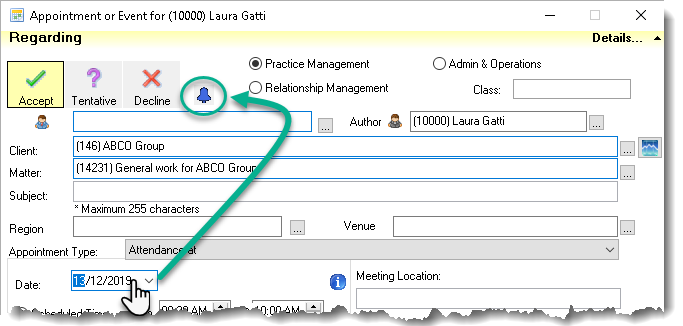
When a future dated appointment or event is selected, the Reminder icon

will become enabled.
-
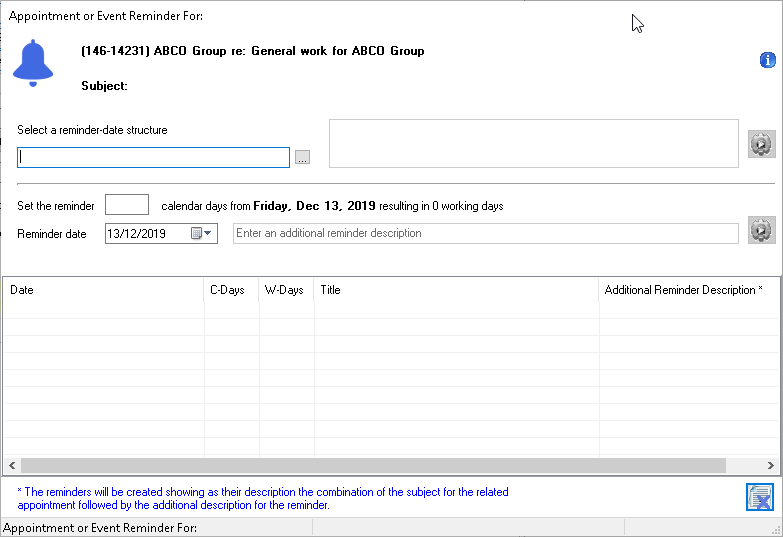
When clicking on the Reminder icon, the system will launch the "Appointment or Event Reminder " form.
-
To create a reminder, the user has to select at least a date.
-
To select a date, if the user selects:
-
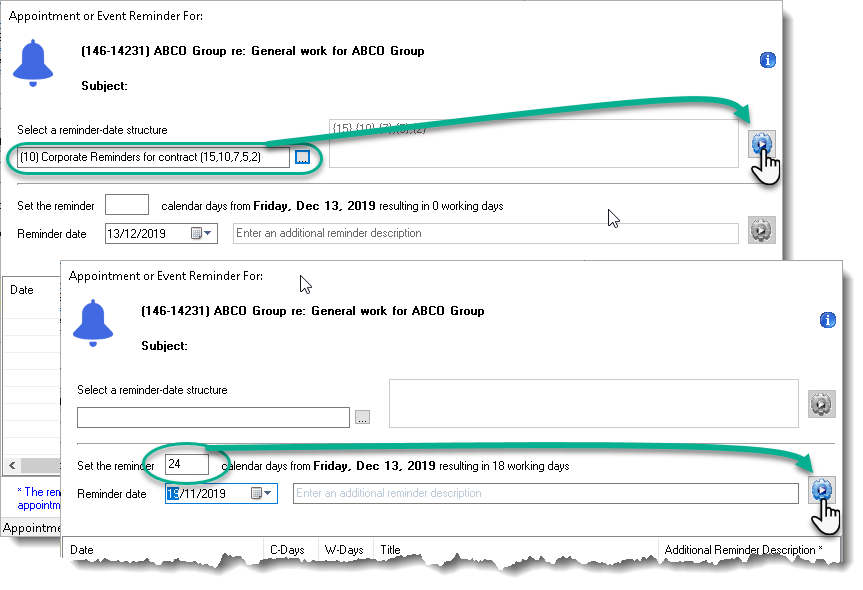
Reminder-date structure, the related Execute button will become enabled. The user will then have to trigger the date calculation in order to add the reminders to the list.
-
"Set the reminder XX Calendar days from XXX" feature, as soon as the number of days is entered, the date in the calendar will properly be calculated and the related "Execute" button will become enabled. An additional description can be entered or not at this point. The user should click on the Execute button to add the reminder to the list.
-
-
Specific date in the calendar, as soon as it is selected the related "Execute" button will become enabled. An additional description can be entered or not at this point. The user should click on the Execute button to add the reminder to the list.
Editing or Removing Reminders
Within the Appointment or Event Reminder form, reminders listed can be edited or removed from the list by the user.
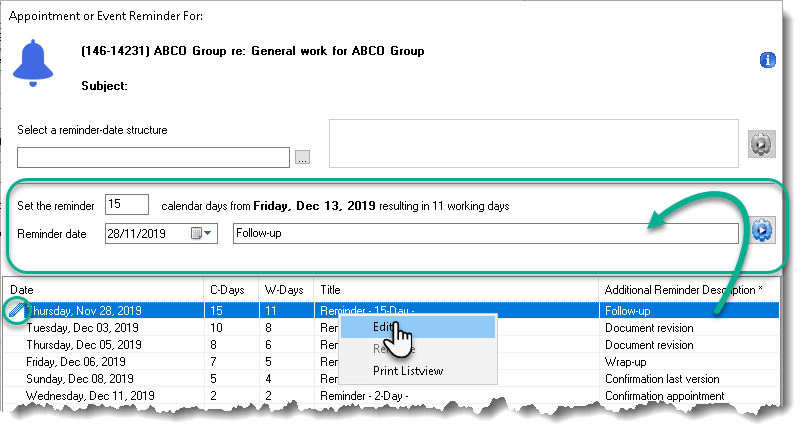
Edit: On selection, the system will put back up the information to be modified in the top of the form. The user will see a Pen

beside the entry on the list and the Execute

icon will become available to add the modified reminder back in the list.
-
Remove: On selection, the system will delete the reminder from the list. The multiple selection functionality can also be used (Holding the SHIFT or CTL keys). The deleted item cannot be restored.
-
Print Listview: On selection, the system will print the content of the list in Excel or Crystal..
Modifying an appointment date, impact on reminders
When an appointment date is modified,
-
Reminders having a date newer or equal to the current date, the system will recalculate each reminder dates keeping the same "number of days from the appointment date" structure. If one or more reminders cannot be readjusted in consideration of the establish rule, i.e. reminder cannot be older than the current date, those reminders will be automatically updated with the action date equal to the appointment due date.
-
For reminders having a date older than the current date (in blue), the system will keep them as is i.e. will not update them. If they need to be modified, users are allowed to manually edit them if needed.
Cancelling or deleting an appointment having reminders
-
When an appointment is cancelled, the attached reminders will also be cancelled and thus have the status cancelled. They will be restored if the appointment is restored.
-
When an appointment is deleted, the attached reminders will also be deleted and as the appointment cannot be restored.
Reminders in the Task List
Filtering for reminders
To see reminders attached to an appointment or event, the user has to use at a minimum the following filters:
-
Activity: Appointment or All
-
Include Reminders option: enabled;
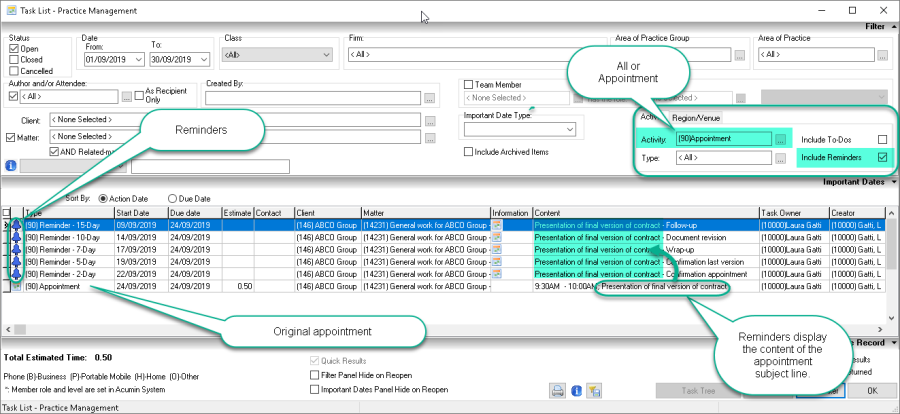
A reminder is considered as "closed" when the reminder date is older than the current date and "cancelled" if included in a "cancelled" appointment.
-
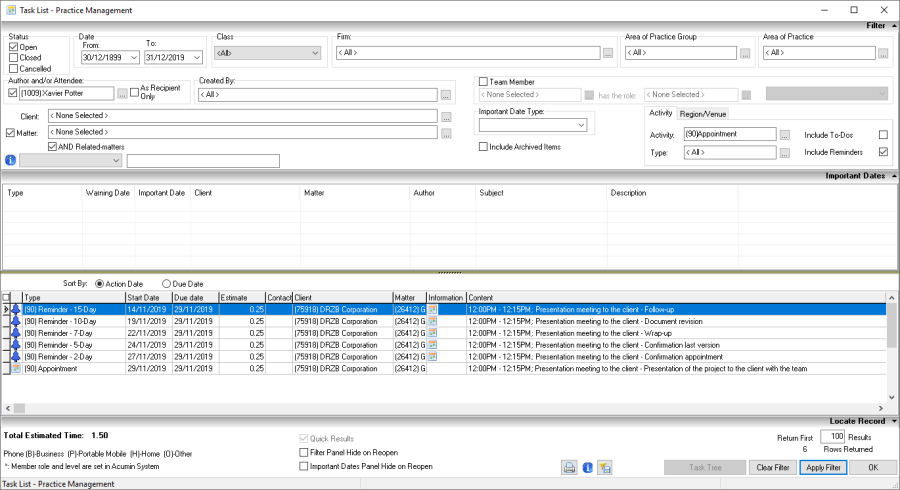
The reminders will display on the list with the Reminder icon along with their appointments;
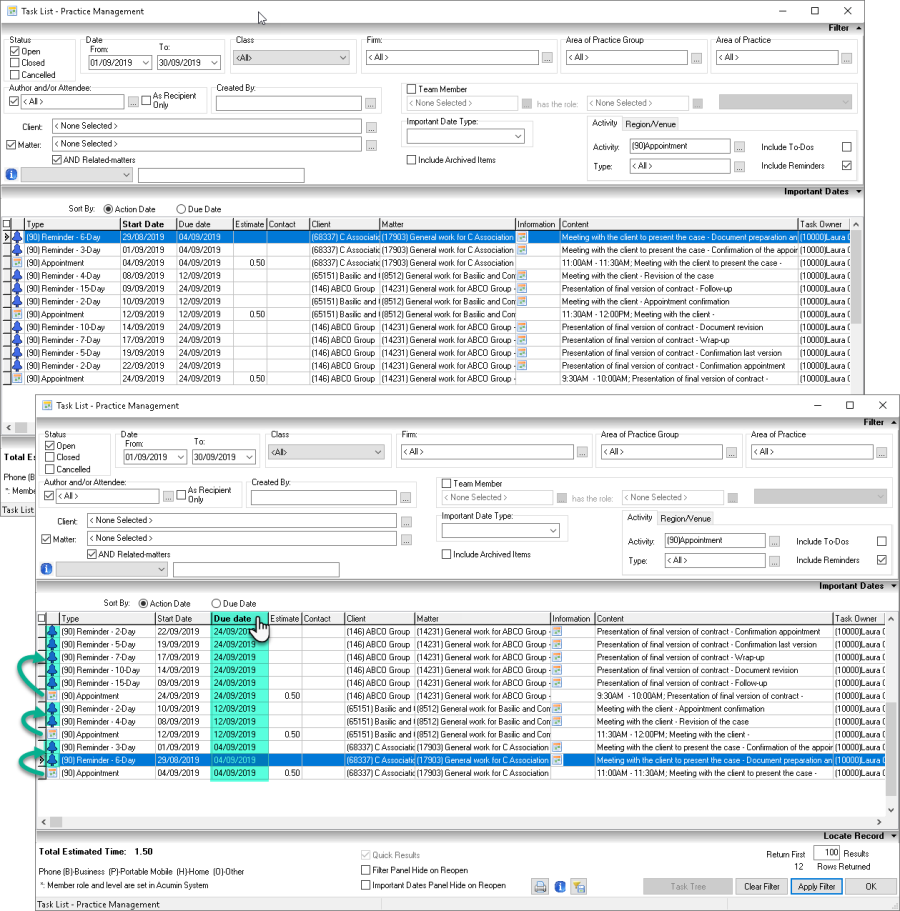
TIP: If sort by Due date, the system will group the appointment followed by their related reminders.
Reminders will display with the same owner and creator as the appointment.
Reminders will also appear on the attendee's task list when filtering for appointments (even if in reality only one set of reminders is created at the appointment level) for visibility.
-
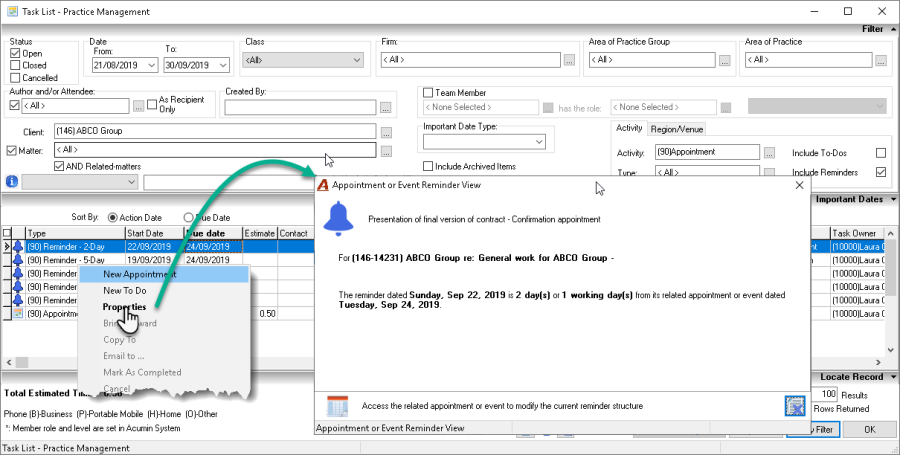
To open and view a reminder of the task list, double-click on the item or select the Properties option in the contextual menu. The Appointment or Event Reminder View form will launch.
-
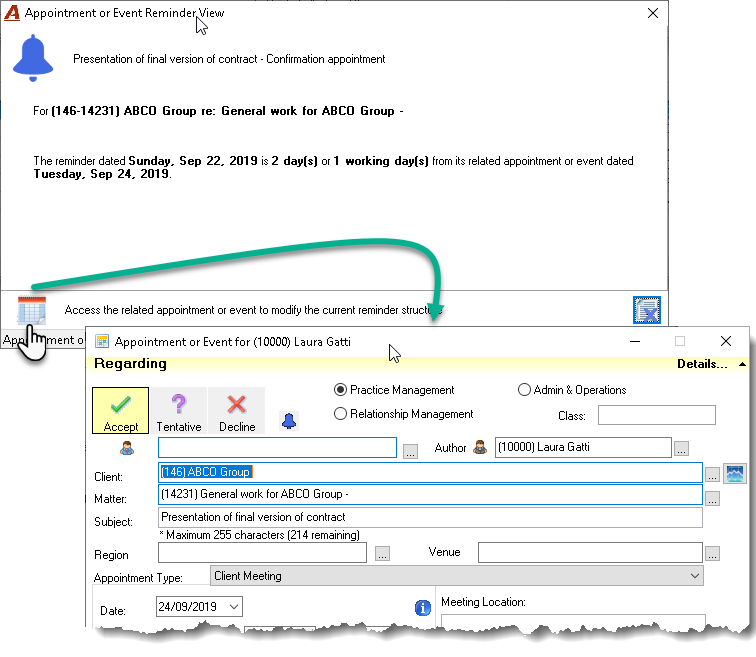
From the Appointment or Event Reminder View form, the user will see the information. In order to modify the information presented, the user will need to access the original Appointment or Event by clicking on the Appointment button in the bottom section.
Reminders in reports
From the Task List, it is possible to print reminders on :
-
Important Date and Activity Report
-
Activity Report Summary
-
Activity Report - Detailed
-
Assigned and Unassigned Scheduled-task reports
Reminder synchronization with Outlook
Settings
Licence
Firms having the Outlook Appointment Synchronization licence ON will have to decide if they want to:
-
Synchronize appointment reminders with Outlook (default position is set to be OFF);
OR
-
Synchronize appointment reminders as appointments in Outlook;
If the second option is chosen, the implementation of the new option has to be done by Dexco before using the the module.
*The third alternative i.e. to synchronize reminders as Outlook reminder is not available yet.
System settings
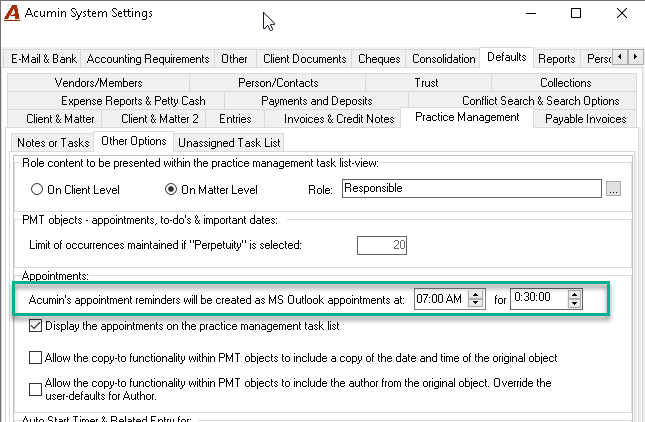
In the case where appointment reminders are synchronized as appointment in Outlook, the firm can set a defaulted time where they will appear in the user's Outlook. This setting can be overridden by the user in their own User Defaults .
Personalized settings for users
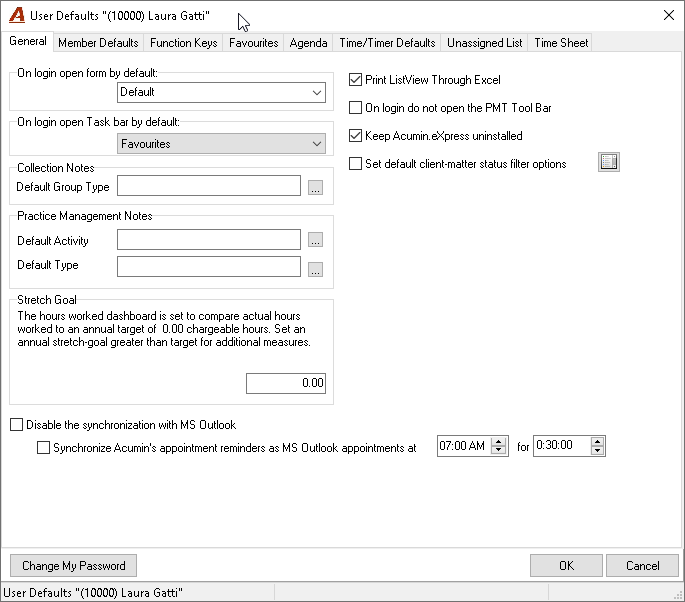
If the option above is enabled in System Settings, each user will have the ability to enable or disable the synchronization of reminders in their Outlook through the User Default functionality.
In addition, if the synchronization of reminders is enabled, the user will have the ability to convert them as appointment and determine the defaulted time they should appear in Outlook.
Working with Reminders in Outlook
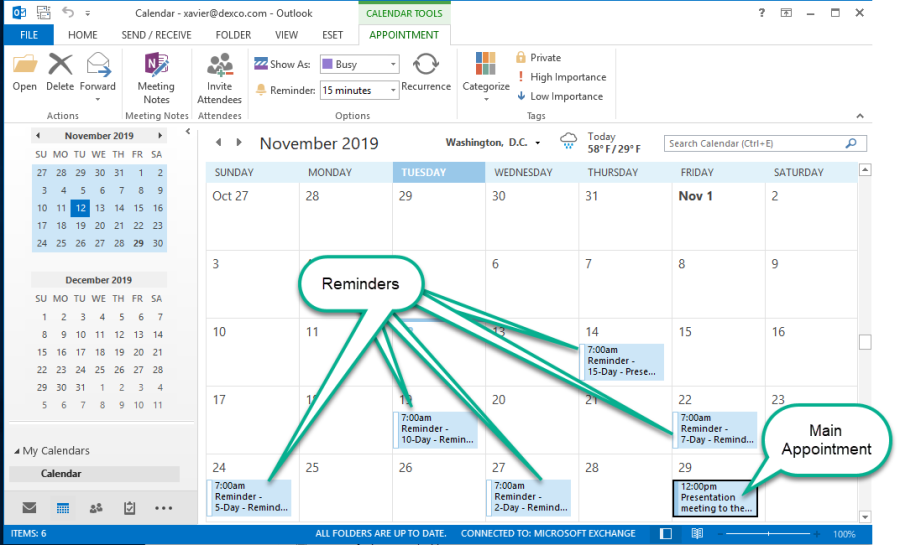
Reminders will be visible in Outlook only if the firm opted to convert them as appointment. As a result, they will appear in Outlook as if they were appointments with the same attributes as real appointments despite being different objects in Acumin.
As real appointments in Outlook, they will behave accordingly, i.e. if an appointment with reminders is cancelled or deleted from Acumin, the main appointment and related reminders/appointments will disappear from Outlook.
If an appointment having reminders is restored back in Acumin, the main appointment and related reminders/appointments will also be recreated in Outlook, etc.
1) For example: reminders created within an appointment dated of 16/12/2019
2) In the task list, the reminders will list as shown below:
3) In Outlook they will appear as follows: