.png)
Matter Status Considerations
Acumin offers seven client and matter level statuses respectively, resulting in multiple options with which to define the combined client-matter status result in accordance with internal policies and procedures.
The ability to work with multiple statuses is relevant for matter management, yet less evident or necessary for client (person) management –therefore it is recommended to assign meaning to client level statuses, definitions that are pertinent in the management of data resources.
Users transacting on matters other than those with a combined client-matter status of Active-Active will have limitations on actions, providing the firm with business tools to effect appropriate action throughout the life of a file.
For detailed information on client and matter status possibilities please refer to the Client and Matter Status Definitions document you can find here: Status Definitions - Concept Guide
Impact of Status on the File Closing Process
|
Client Status |
Matter Status |
Use case |
|---|---|---|
|
Active |
Inactive |
Once the final closing bill has been issued, this status is used to define matters in their finishing stage, triggering first steps towards the file closing process– final closing bill has been issued. |
|
Active |
Closed |
Used to defined matters which no longer have system requirements. All work product has been completed, as well as all outstanding balances and closing checklist items have been cleared. |
|
Active |
Rejected |
This combined status is typically reserved for when the file is not accepted or concluded due to conflict. It is not recommended to use this status at the matter level to establish a credit risk, as it is the client in its entirety that would be the credit risk which one would want to assess when reevaluating the client for re-activation. |
|
Active |
Released |
Typically used to define matters no longer with the firm (where the physical file is no longer under the control of the firm because it has been transferred to another firm). Some firms reclassify closed matters as released once destroyed. |
File Close Process
Matter-Close Request
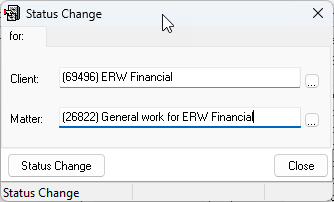
To initiate the closing of a matter process, the requester must access the changed status log by following the steps as outlined below. Click on the Status change icon. If this icon does not exist in the Customized Personal Toolbar, it can be added by clicking on the cog on the left and dragging the Status change icon to Personal Toolbar.

Select the Client and Matter by either entering them or choosing from the lists using the appropriate ellipsis buttons.
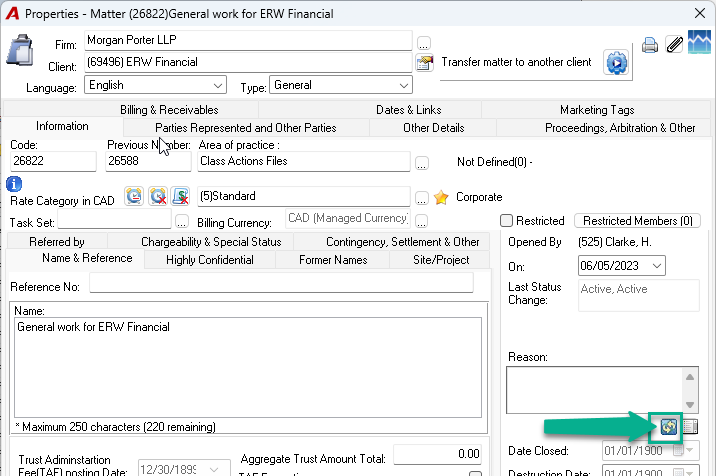
Or access the status change through Matter Properties form.

-
In the Client/Matter Inquiry, select or enter the Client and Matter and click on the Matter properties button to access the status change icon in the matter properties.
OR
-
Click on the Status Change icon directly from the Client / Matter Inquiry.
OR
-
Click on the change status icon to launch the status change form.
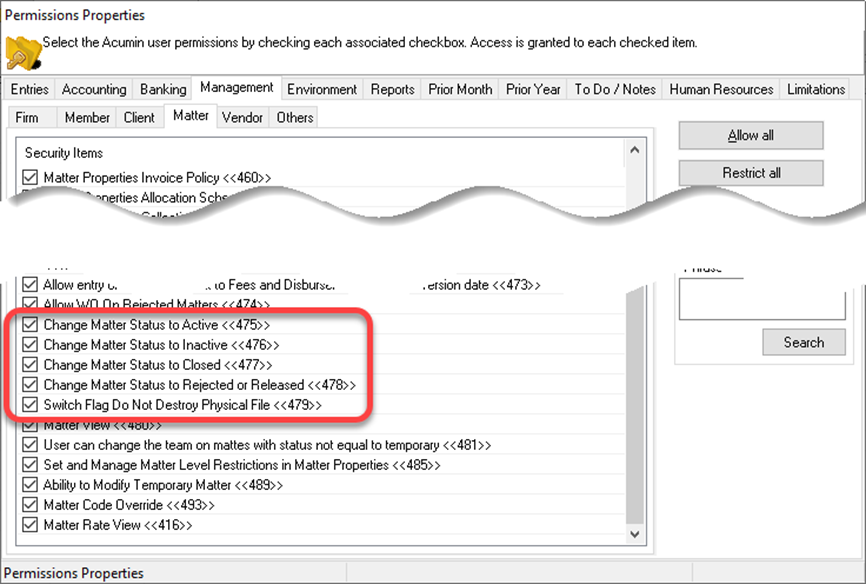
All users have the native right to select a change of status, including the status CLOSED – however only authorized users can conclude any status change.
Please refer to the Management – Matter Tab in Permissions Properties for a comprehensive list of relevant security options. To access this tab, and from the side banner select Admin - User Groups – Permissions button – Management tab – Matter tab.
Authorized user is closing the matter
If the user is authorized to close the matter AND the matter has no outstanding balances or items that need to be cleared, then the status can be set to closed.
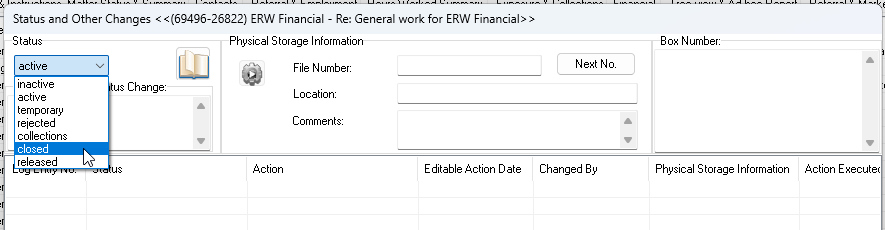
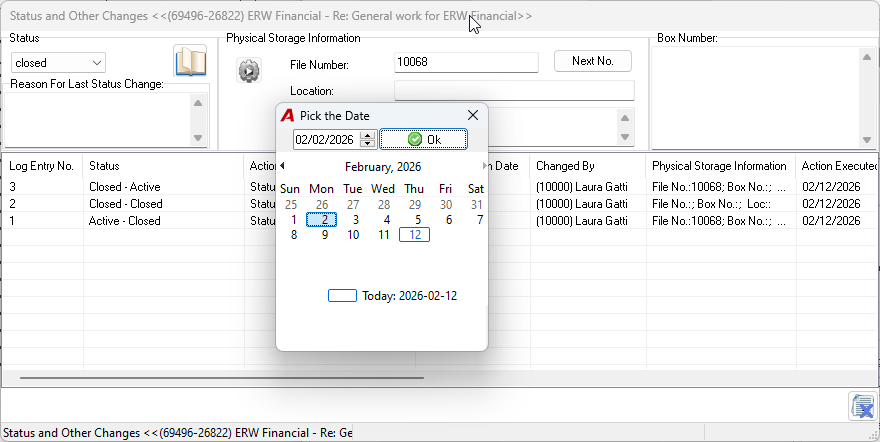
On selection of the status “closed”, the latter will be accepted and the closing date will be preset to the current date.
Important Note
Although users can manually set a closing date in the past, Acumin will automatically reset it during the overnight process to match the Action Executed date. This is because all system verifications are performed as of that date, and overriding it could result in historical discrepancies.
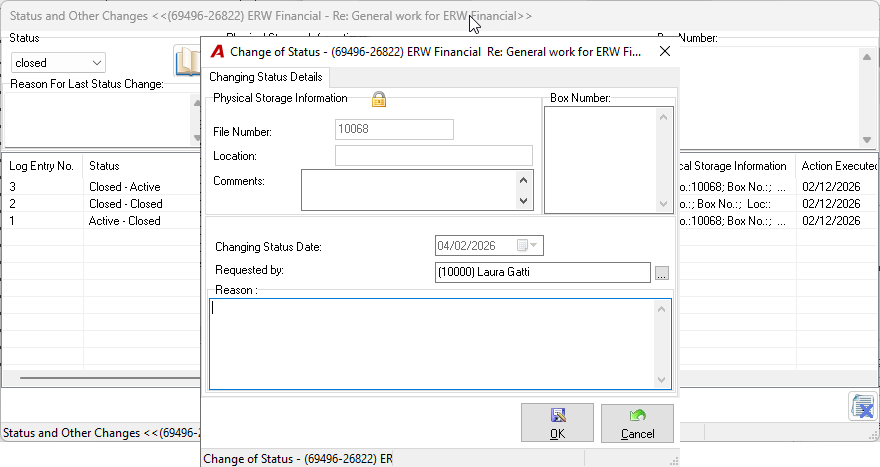
By clicking OK, the Change Status form will open, allowing you to enter the Reason. After entering the reason, click OK again to continue.
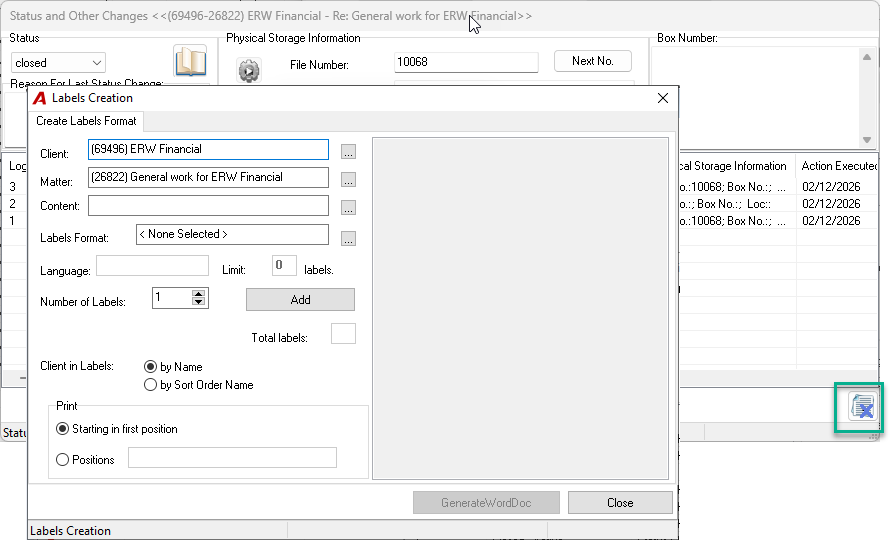
When exiting the form by clicking the "X" at the bottom right, the user will be prompted with the Labels Creation form.
After the labels are printed, or if the user chooses not to print, the closing process will be completed.
User is not authorized to close the matter
When the status closed is selected by the un-authorized user:
-
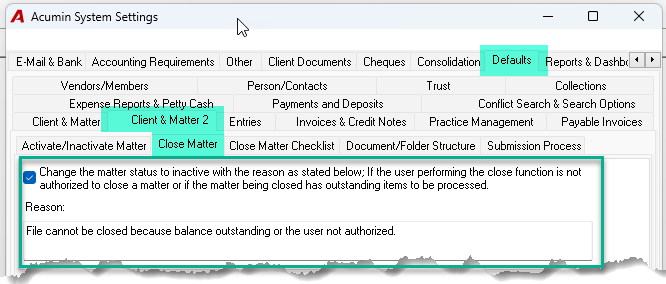
The system will automatically inactivate the matter, provided that the system settings is configured to support this feature.
OR
-
If the system setting is not ON, the authorized user can opt to manually inactivate to prevent further entries to the matter.
ELSE
-
The matter will retain its original status.
The matter is inactivated rather than being closed
If the matter is inactivated and the user opts to drill through to the outstanding balances form, even if the obstacles preventing the status change to “closed” are dealt with by the authorized user while on this form, the matter status will remain as “Inactive” on the user’s return to the Status Change form.
To proceed with the closing process the user will need to re-select the status “Close”.
If all outstanding items and requirements for the closing process are cleared while the user is in the Display Outstanding Balances form, on EXIT the system will return the user to the Status Change form with the status equal to the status set prior to the drill through into the form (closed, inactive etc.).
Best Practice: In addition to implementing many of the facilitators for initiating the closing process, best practice processes include allowing general users to inactivate matters to prevent other users from incorrectly adding WIP to a matter that is technically complete but still has balances outstanding which need to be cleared.
You can find the option in Acumin System Settings under the Environment:
Working with Outstanding Items
The user executed the native right to change the matter status to CLOSE. As there were outstanding items the user was prompted with the following message and the option (set in System Settings) to inactivate the matter instead.
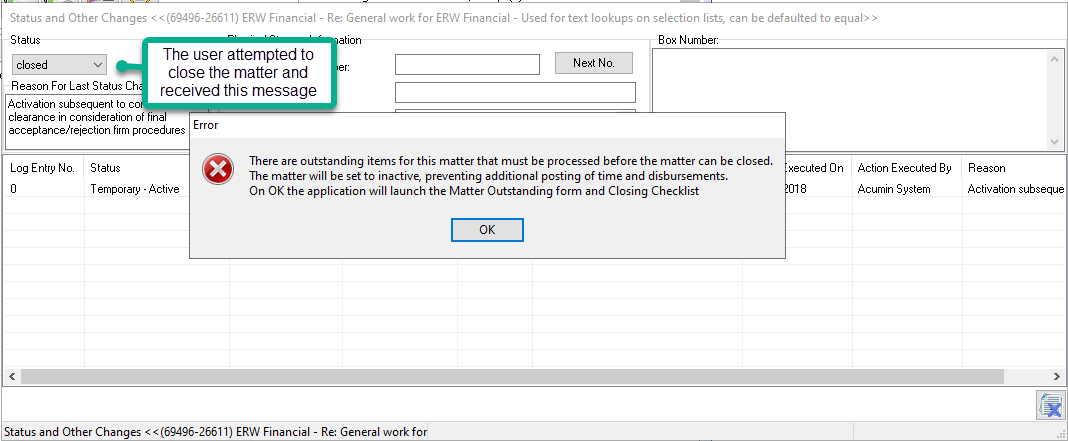
By clicking on the OK button, the system will change the status of the matter to “Inactive” and launch the display the Outstanding Balances form.
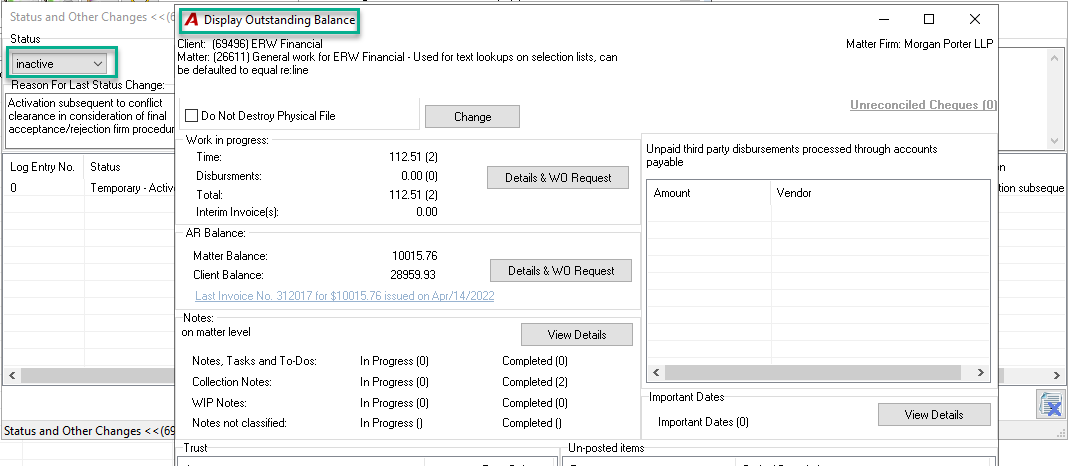
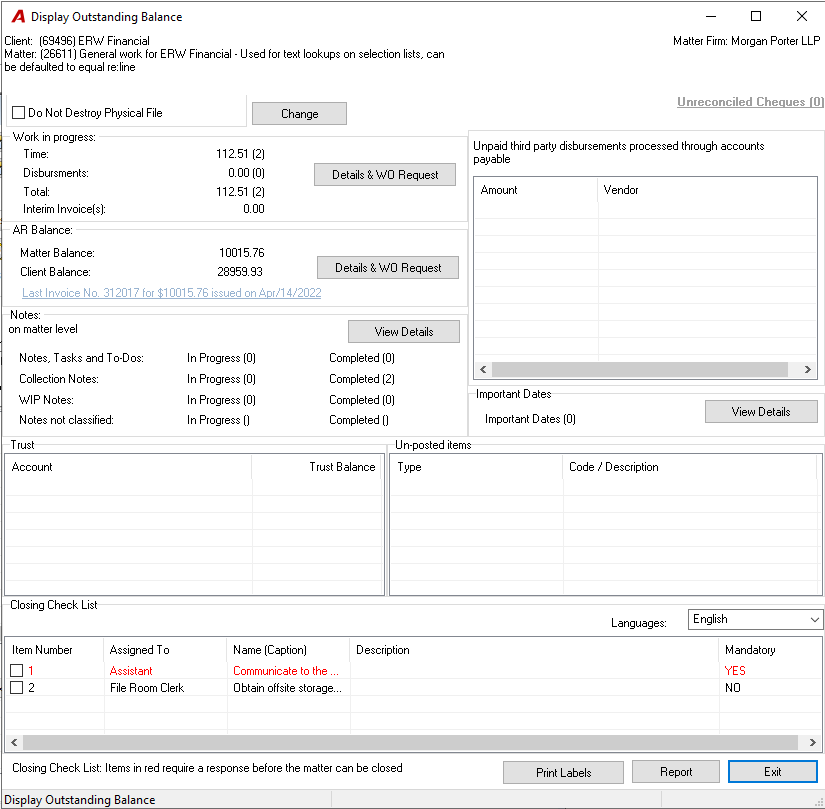
Display Outstanding Balance Form
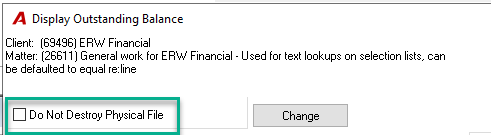
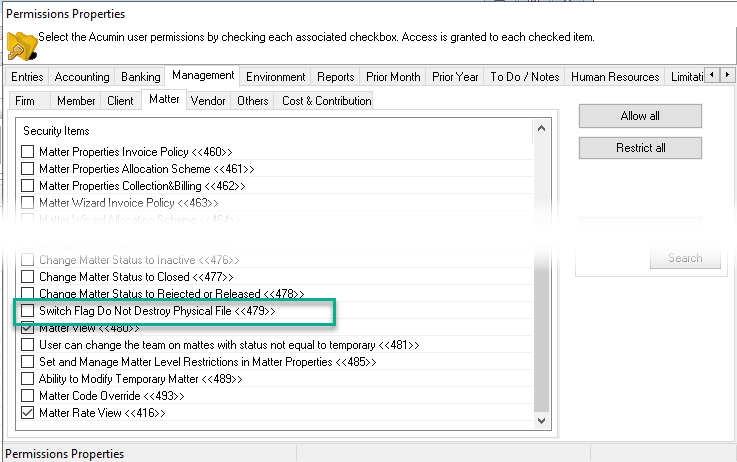
Do Not Destroy Physical File option
This option identifies matters whereby the physical file is not to be destroyed. Furthermore, in environments with classic or enhancement case management licensing, the law firm client has the option to set the calculation of a file destruction date applicable to all matters without the checkmark ON.
-
Check the Do Not Destroy Physical File checkbox to identify the matters where the physical file is not be destroyed and depending on licensing to remove the destruction date (if any).
-
Authorized users can make changes to the status of the Do Not Destroy Physical File checkbox.
-
Changes to the requirement not to destroy are tracked on the status log.
Outstanding WIP and AR Balances
The work in progress section lists the value of time and or disbursements which remains outstanding as well the number of records (transactions) which need to be dealt with.
-
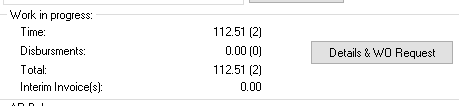
Users may see a balance of zero yet not be able to close the matter if there are positive and negative entries totaling zero that need to be written-off first.
-
Users can click on the Details & WO Request button to access and transact on the WIP inquiry form.
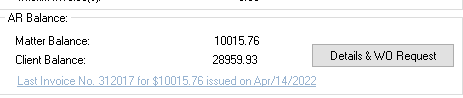
The Accounts Receivable section lists the outstanding AR balance for the matter, which must be zero before the matter can be closed. In addition, this section includes the client’s AR balance as additional information for the decision maker.
-
Users can click on the Details & WO Request button to access and transact on the AR inquiry form.
OR
-
Click on the last invoice hyperlink to drill down into the invoice properties.
The WO icon with a red checkmark identifies that there is a pending WIP or AR write-off requests not yet processed by accounting.
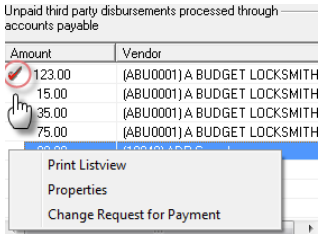
Unpaid third-party disbursements processed through AP
Users can right click to select the properties of the payable voucher.
OR
Make a request for payment which is identified with a red checkmark. The request for payment is listed on the report. Please note that the request is not currently an electronic process
Matter Level Notes
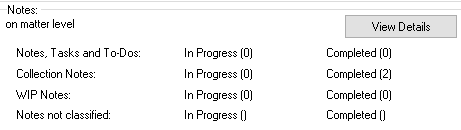
Depending on Acumin System Settings it may be required for all the notes to be cleared (completed) before the matter can be closed.
Click on View Details to access and transact on the notes.
Trust
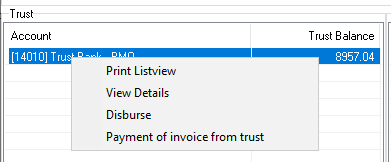
To close a matter all trust funds must be disbursed.
Select disburse to generate a trust cheque requisition or Payment of Invoice from trust to apply the funds against an outstanding receivable balance.
Unposted items
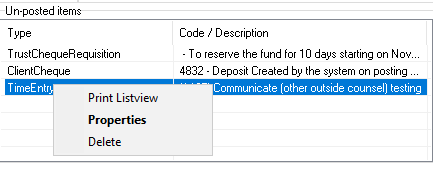
Delete un-posted items or access the object’s properties to POST and then write-off to proceed with the closing process.
Closing Checklist
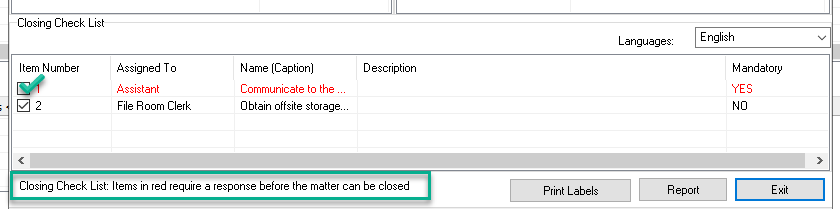
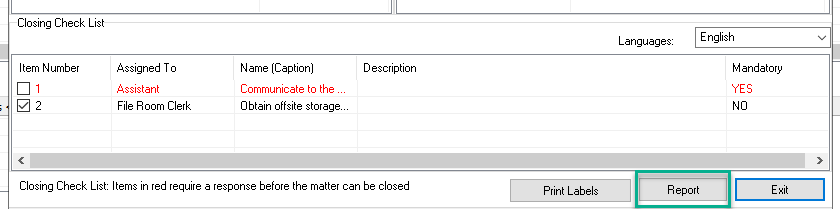
To indicate completed checklist items by clicking on the respective checkbox. All items indicated as Mandatory = YES must be completed prior to closing.
If all outstanding items and requirements are cleared as part of the process, on EXIT of the form the system will return the user to the Status Change form with the matter status set as it was prior to drill through (e.g. inactive).
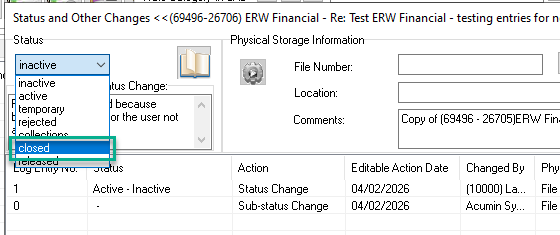
Status change
To proceed with the closing process, the user will need to re-select “Closed”.
Closing process after exiting the Display Outstanding Balances form
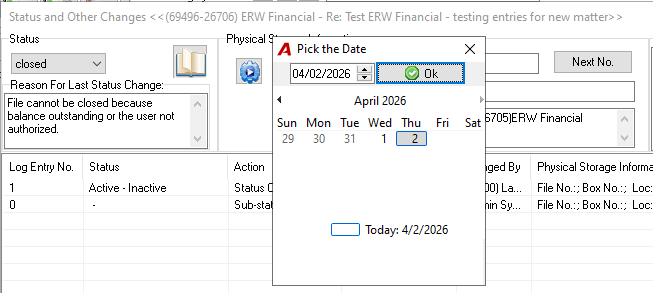
If the user was unable to complete the close on selection of the status, once the balances and requirements are cleared on re-select of close the user will be prompted to select the closing date.
Other Functionality and Reporting Options
Other functionality
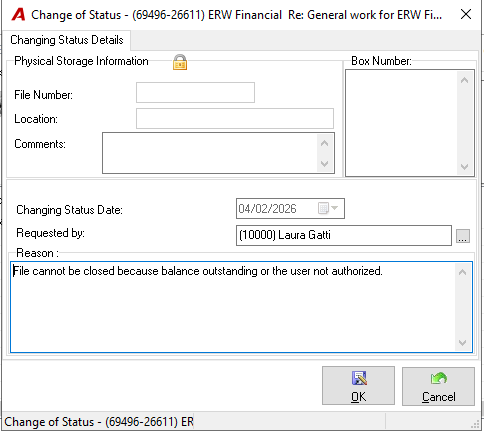
Change in Status Reason
Users will be asked to complete a reason for changes in status.
Best Practice: If the assistant has completed the change to status inactive – due to authorization limitations or outstanding balances that need to be cleared - it is recommended that they print the File Status Report.
The Closed File Number
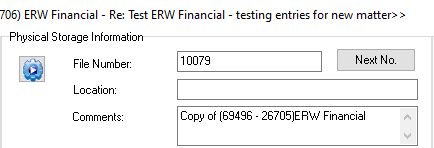
If the numbering is set to automatic (system or firm level), the Get Next File Number button is visible on the Status Change form as well as the Reason form.
Authorized users have access to click on the Next No. button.
When a matter is reactivated, the authorized user will have the option to retain the existing closed file number or to manually override the number or re-set a new automatic number.
Changing the Physical Storage Information
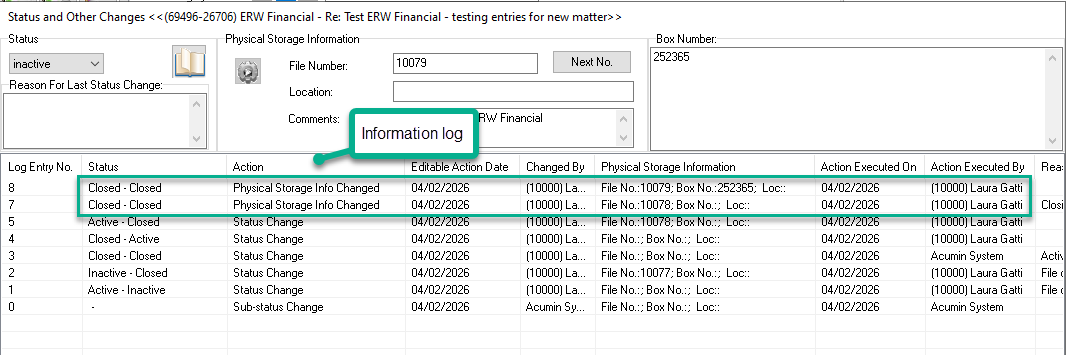
Users making changes to the physical storage information will be prompted to insert a reason. Changes in physical storage information are tracked on the status log. The status log information is searchable.
Shadow files
Partial physical files created and maintained in a second office, that need to be closed or placed with off-site storage can be assigned a closed file number even though the matter remains active in the system.
Search Options
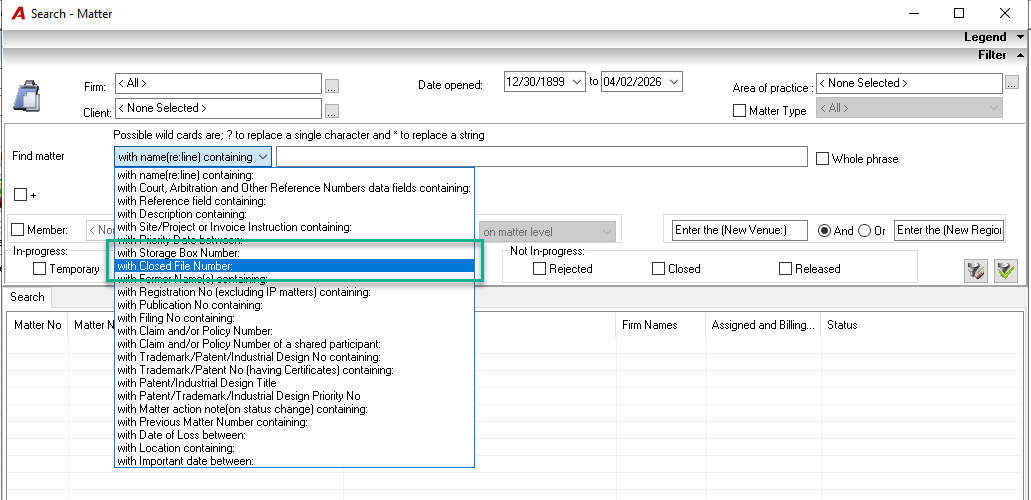
The database can be searched by current or previous closed file numbers. As well as by BOX number, as well as partial content.
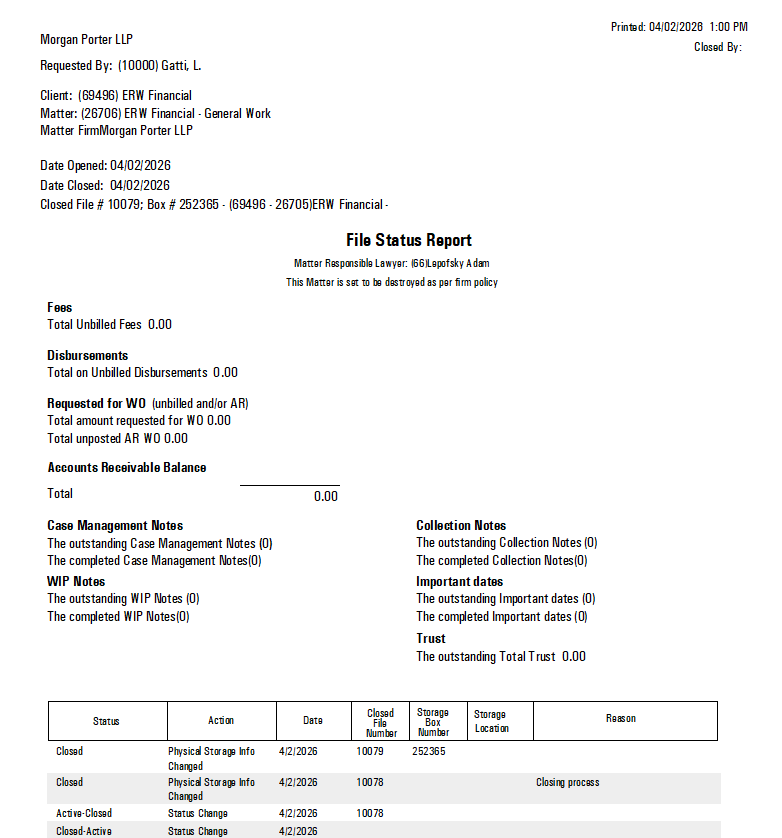
Example: Search for closed file number 1079 (the current number), or by closed file number 1078 (the previous number).
Destruction Dates
Law-firm clients can create an important date type for destruction dates to manually insert at the time that the matter is being closed.
Law-firm clients licensed with either the classic or the enhanced practice management tools model may opt to use the Practice Management model to setup the automated process for the calculation of the destruction date.
For information on how to implement a more automated destruction date process please send a request to the support desk
Printing closing label
As part of the closing process, the law-firm can decide to print the closing label using a label format in the Acumin library. The closing label format should be mapped in the Format Library under the Layout Class named Closing Matter Formats.
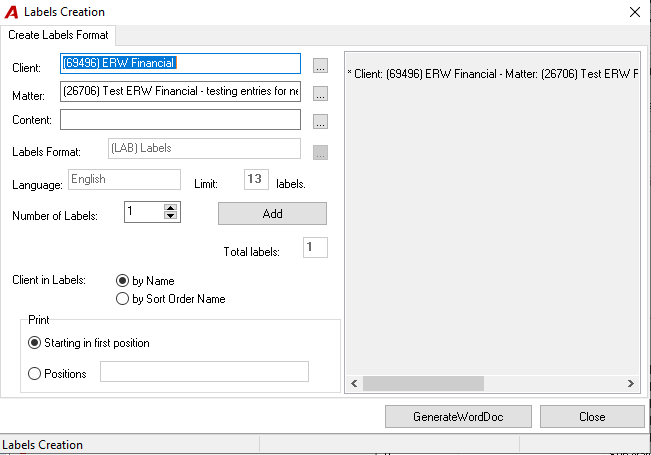
• At the end of the closing process, when the user clicks on the “X” button in the Status Change window, the system will display the Closing labels form.
-
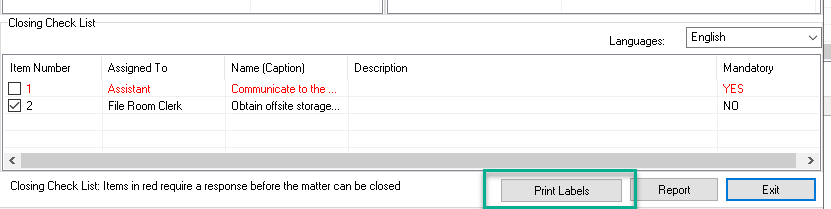
At any time, the user has the option to click on the Print Labels button in the Display Outstanding Balance report.
-
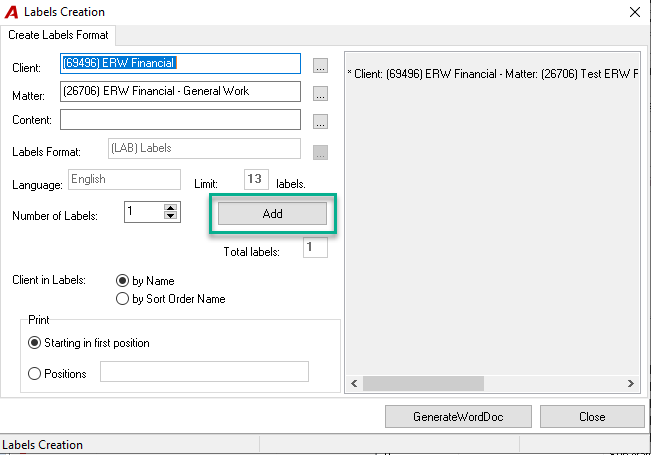
The Labels Creation window will be displayed. Complete the fields and click on the Add button and then on the Generate Word Doc button.
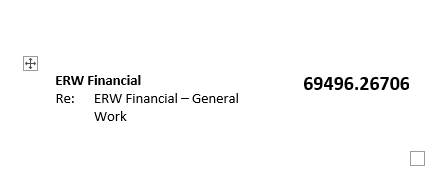
Example of a closing label.
Report Options
The “File Status Report”
This report can be printed as part of the closing process or from within the Display Outstanding Balance form.
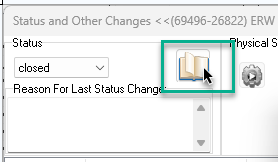
To access the form, click on the Display Outstanding Balance Form & Report button. To print the report, click on the Report button.
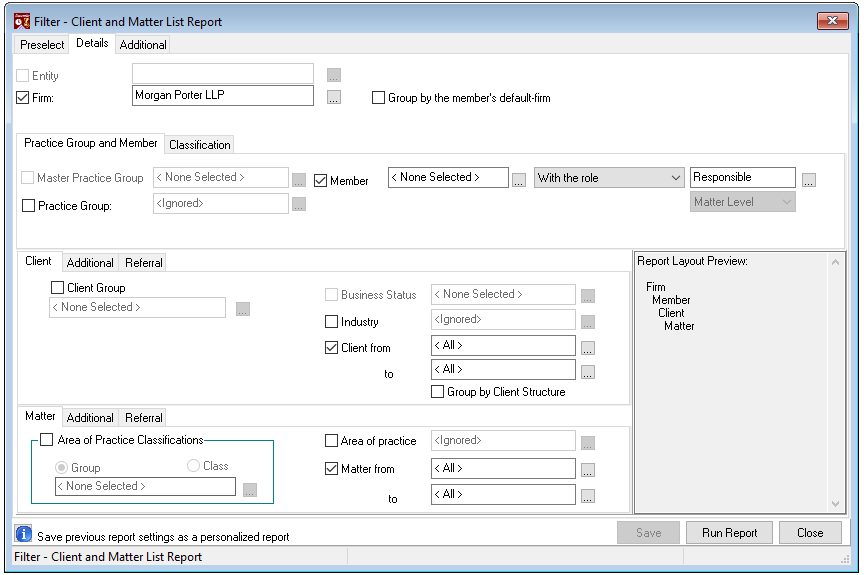
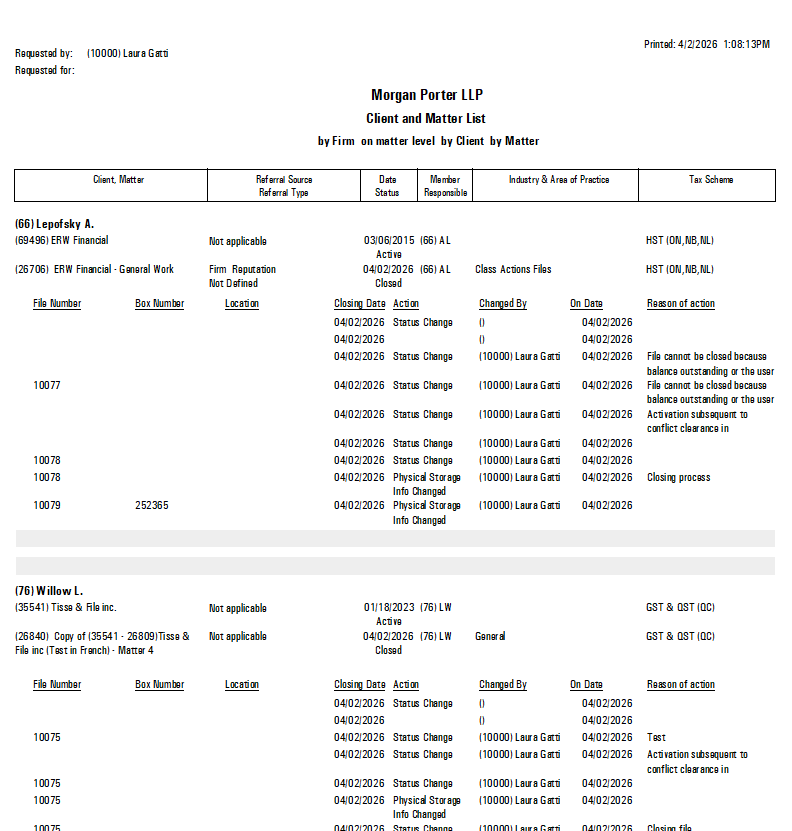
The Client and Matter List Report with closing information
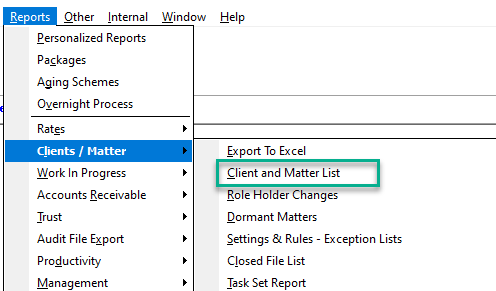
The Details TAB:
Keep the client and matter checkmark ON
Click on the Additional TAB - Matter section. Select the CLOSED date range. In this example we have chosen matters closed on October 28th 2008, with Status CLOSED
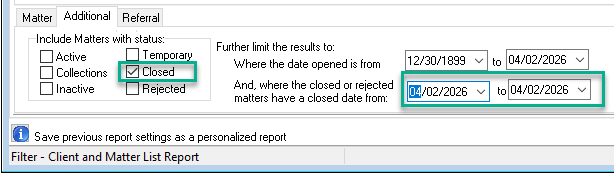
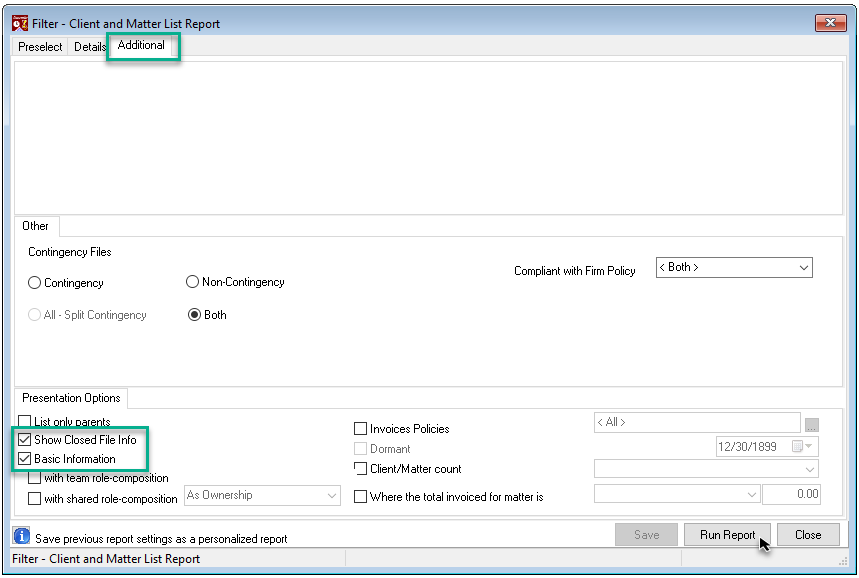
The Additional TAB:
Check the “Show Closed File Info” and “Basic Information” checkboxes;
Click on Run Report and on the following form, accept or change the sort order presentation.
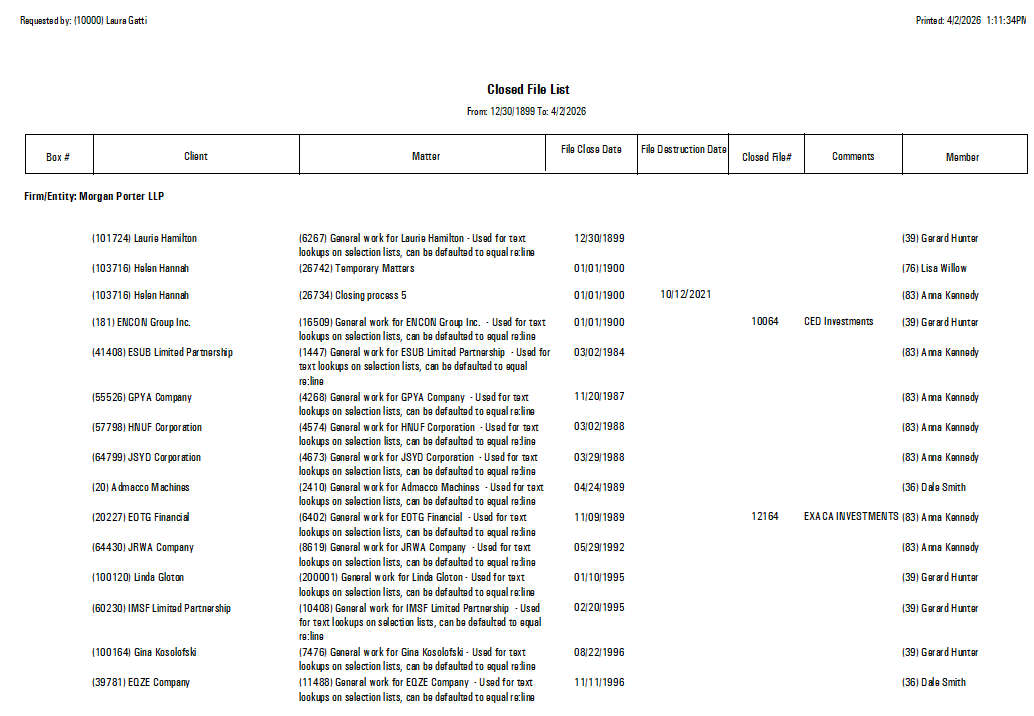
The “Closed File List”
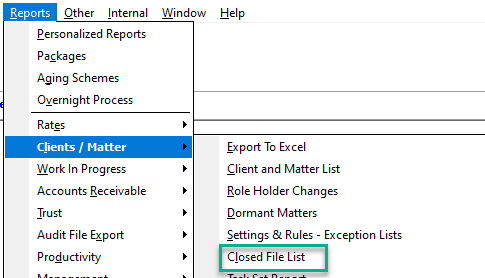
From the Reports Option, select Clients / Matter and then Closed File List.
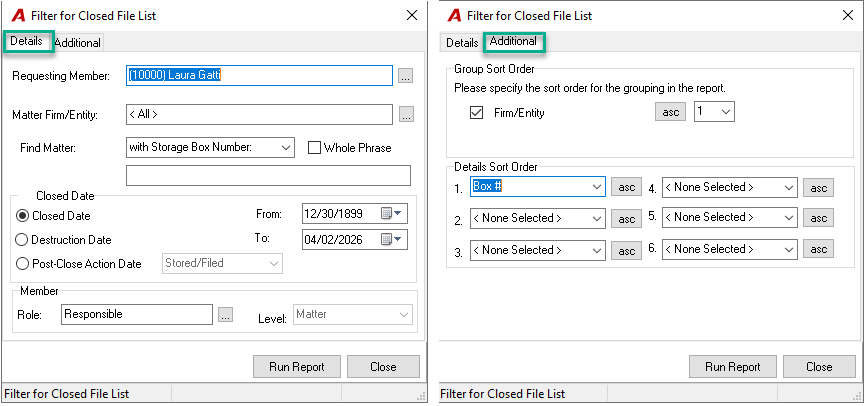
Complete the details and additional tab filter options
RELATED DOCUMENTS: