.png)
Scope and Purpose
Important dates let you set date-based reminders tied to matters and persons within your areas of practice. Use them to track compliance deadlines, filing dates, transaction closings, and other key milestones.
Key points:
-
Important dates are associated with a matter and can also be linked to a person (client, contact, referral source, member, or vendor).
-
Each important date can include a warning date to give you advance notice.
-
Important dates are reportable, but they do not automatically trigger action items on their own.
-
To turn an important date into an actionable item, link it to a related task (see "Linking to Tasks" below).
Creating a New Important Date
You can create important dates from several places in Acumin:
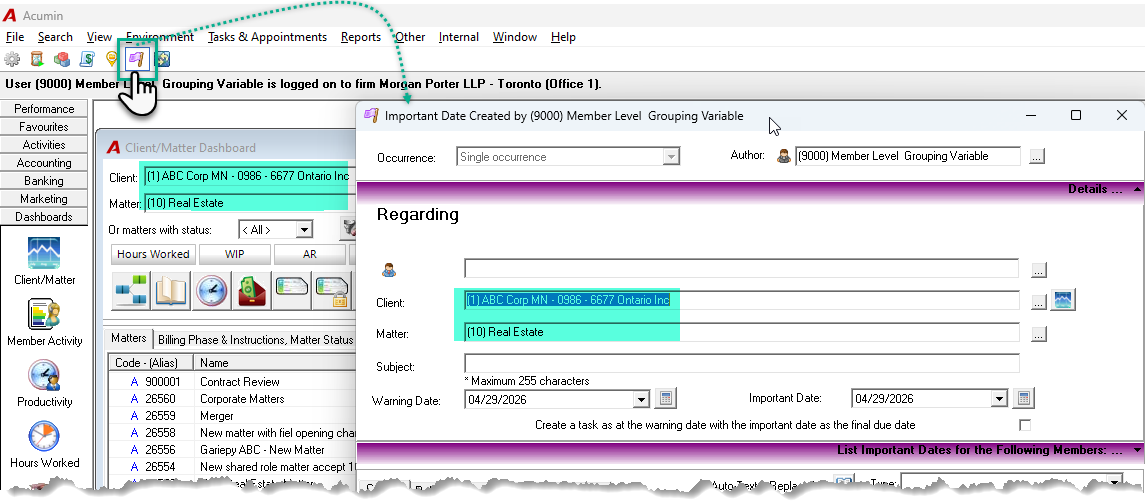
From the Personalized Toolbar
-
Click the Important Date icon in your personalized toolbar.
-
The properties form opens. If you already have a client–matter dashboard open, the form will be pre-populated with those values.
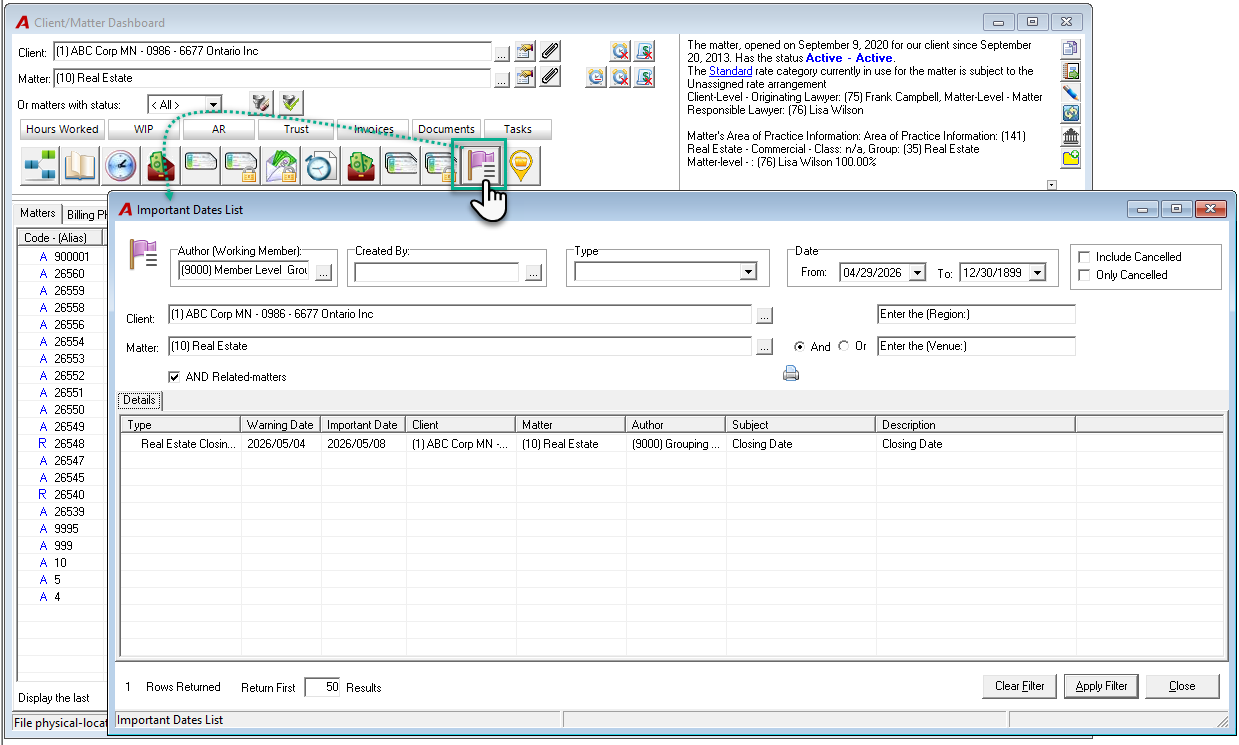
From the Client–Matter Dashboard
-
Click the Important Date List icon on the dashboard.
-
If no important dates exist for the matter yet, a new properties form opens pre-populated with the matter.
-
If dates already exist, the list view opens instead — right-click and select New.
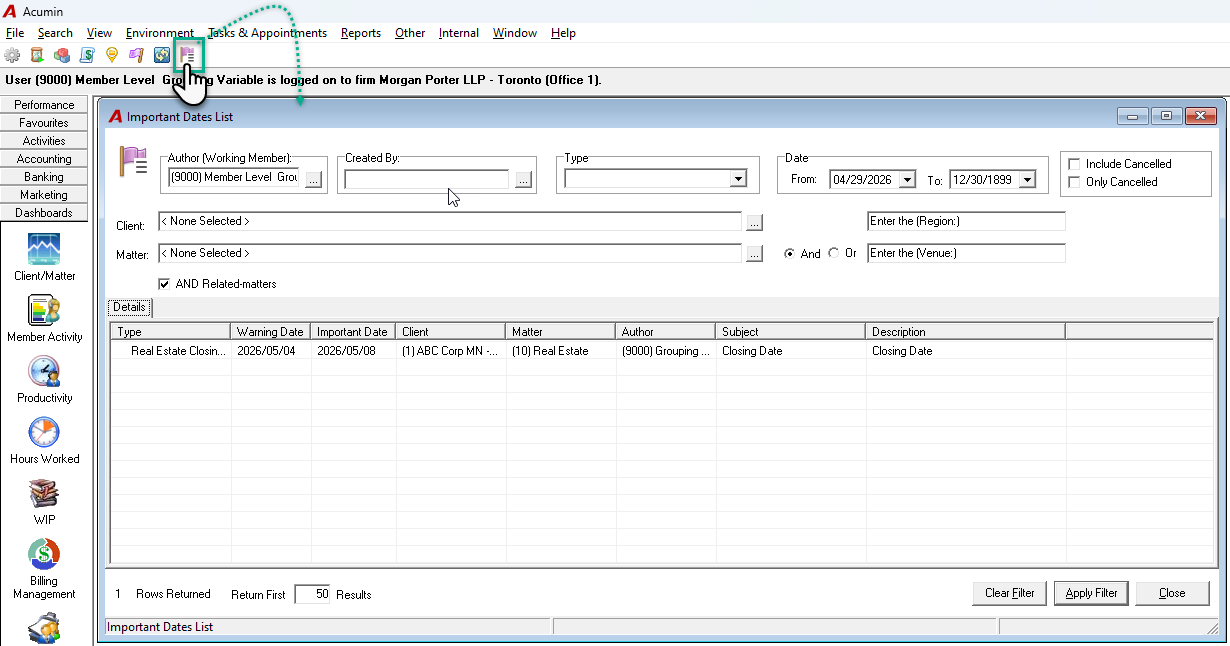
From the Important Date List
-
Open the list from your personalized toolbar.
-
Right-click and select New.
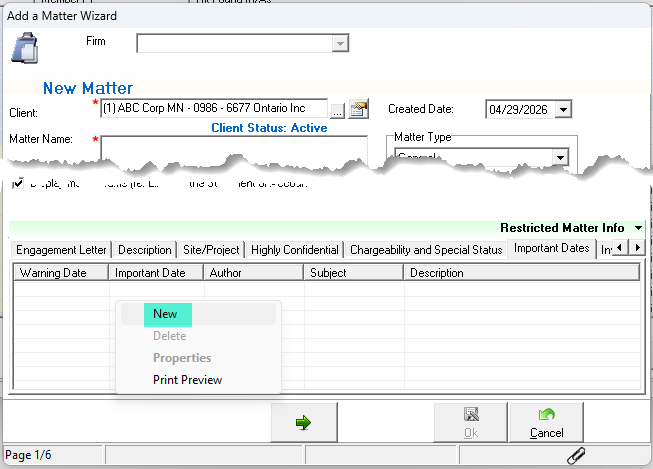
During File Intake (Wizard)
-
In the file intake wizard, go to the Important Dates sub-tab on the first page.
-
Right-click and select New.
Important Date Properties
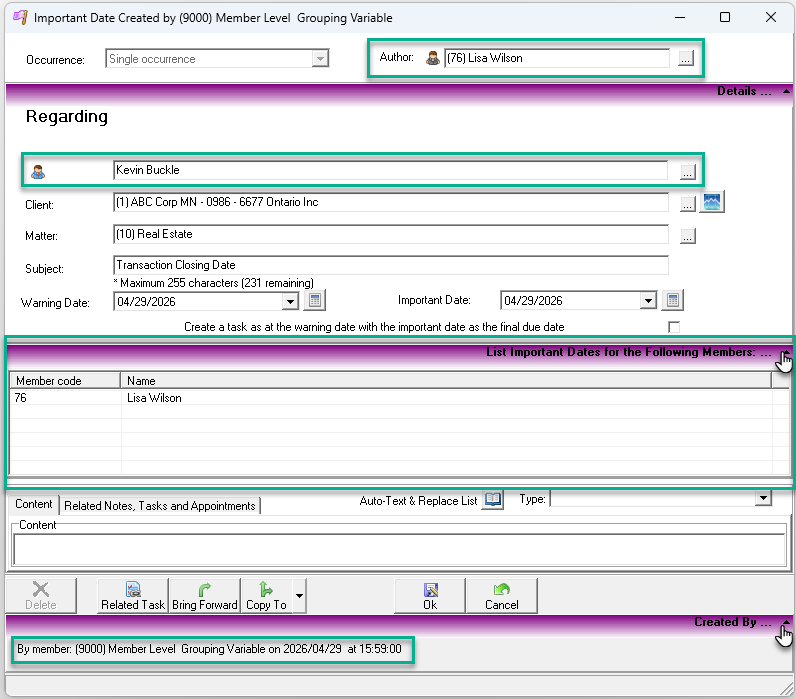
Regarding (Author and Contact)
-
Author and Created By default to the logged-in user. You can change the author to another member — the date will then appear on their list.
-
The Contact field is optional.
Warning Date and Important Date
-
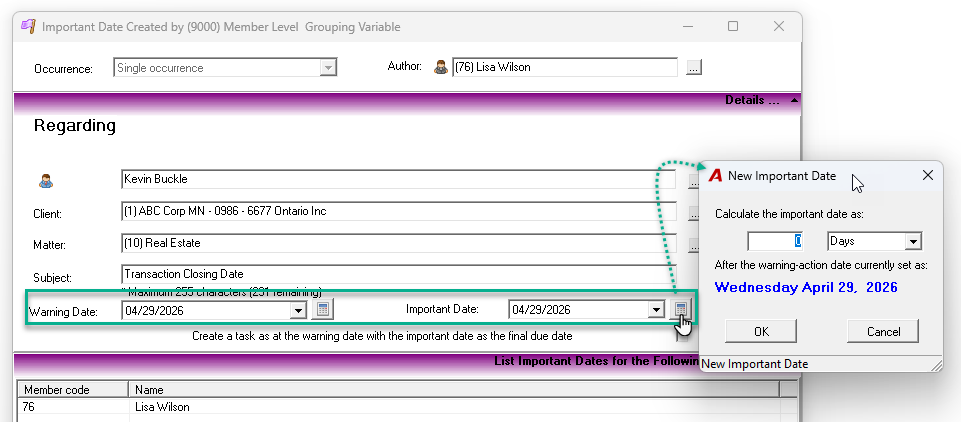
Both dates default to today when creating a new entry.
-
Change either date using its calendar control.
-
Shortcut: Set one date (e.g., the important date), then click the calculator button next to the other to auto-calculate it based on the interval between the two.
Associated Members
-
Change the author to create a date that appears on someone else's list.
-
Add members to the "List Important Dates for the Following Members" panel so they see it on their report.
-
Members with a client- or matter-level role don't need to be manually added — they can already run the report.
Content and Type
-
The Content field supports auto-text replace codes for faster entry.
-
Every important date requires an Important Date Type — a firm-defined category used for filtering and reporting.
Linking to Tasks
An important date on its own is informational. To make it actionable, link it to a related task.
|
License |
Task Created |
Action Date |
Due Date |
|---|---|---|---|
|
Basic Practice Management |
Case management note (In Progress) |
Warning date |
Important date |
|
Enhanced Practice Management |
To-do (+ optional appointments) |
Warning date |
Important date |
All examples below use an environment with the Enhanced Practice Management licence enabled.
To create a related task:
-
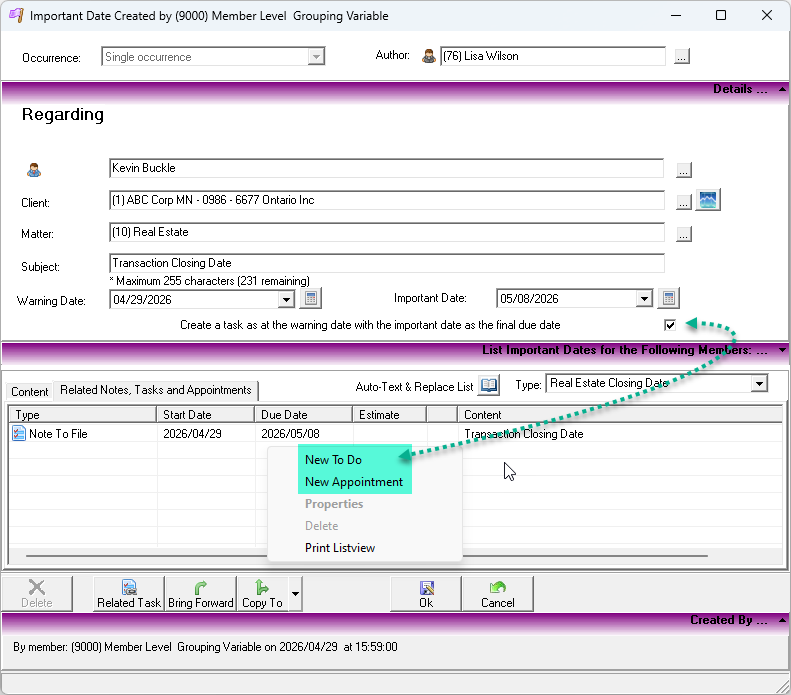
Check "Create a task…" or click the Related Task icon.
-
For additional tasks or appointments, use the Related Notes/Tasks/Appointments tab and right-click menu.
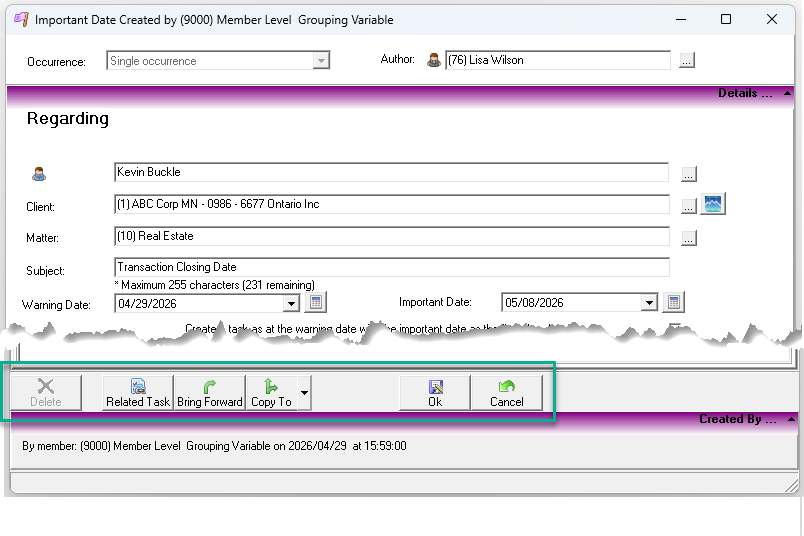
Menu Bar Options
|
Action |
Description |
|---|---|
|
Delete |
Permanently removes the date (no audit trail). |
|
Related Task |
Opens the linked task or creates a new one. |
|
Bring Forward |
Shifts the warning date forward; the important date moves by the same interval. |
|
Copy To |
Opens a new form pre-populated with this date's content (useful for other matters). |
|
OK |
Saves and closes. |
|
Cancel |
Closes without saving. For new unsaved entries, this behaves like delete.
|
Important Date List and Filters
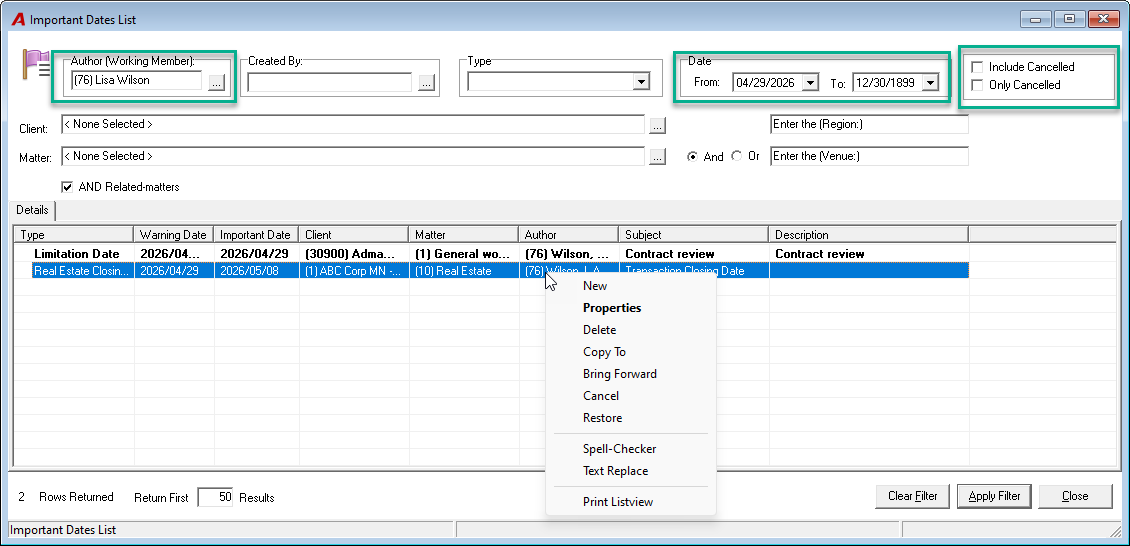
Default filters: Author = current user, From = today, To = open-ended.
Key behaviors:
-
Filter by client, matter, date range, or status (including Cancelled).
-
Bold dates indicate the important date is today.
-
Cancelled dates are retained with a status change; deleted dates are permanently removed.
Right-click menu: Create, open, delete, bring forward, copy, cancel/restore, spell check, or text replace across entries.
Users can restore a cancelled Important Date if needed.
Important Dates within the Task List
-
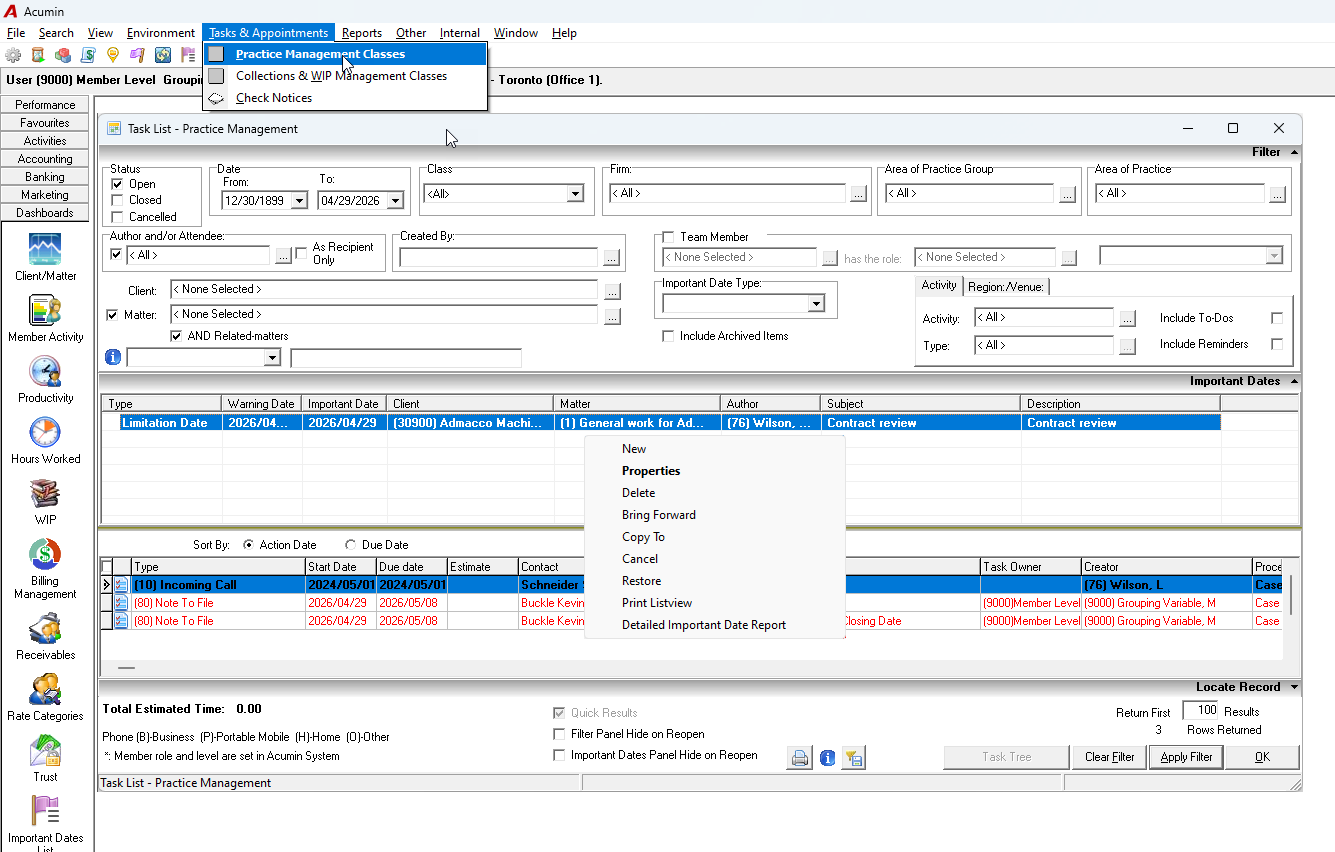
Available in environments using the Enhanced Practice Management License.
-
From the Task List, users can filter for practice management objects—To-do’s, case notes, and appointments—as well as Important Dates.
-
Important Dates display in a dedicated panel within the Task List.
-
Filter options apply to both practice management objects and Important Dates.
-
Important dates don't have an "open" or "close" status and appear based on the selected date range, but these statuses can indicate upcoming (open) or past (close) dates within that range.
-
The right-click menu lets users create new important dates or access existing ones' properties. Authorized users can delete, cancel, or bring forward dates. Cancelled dates can be restored.
-
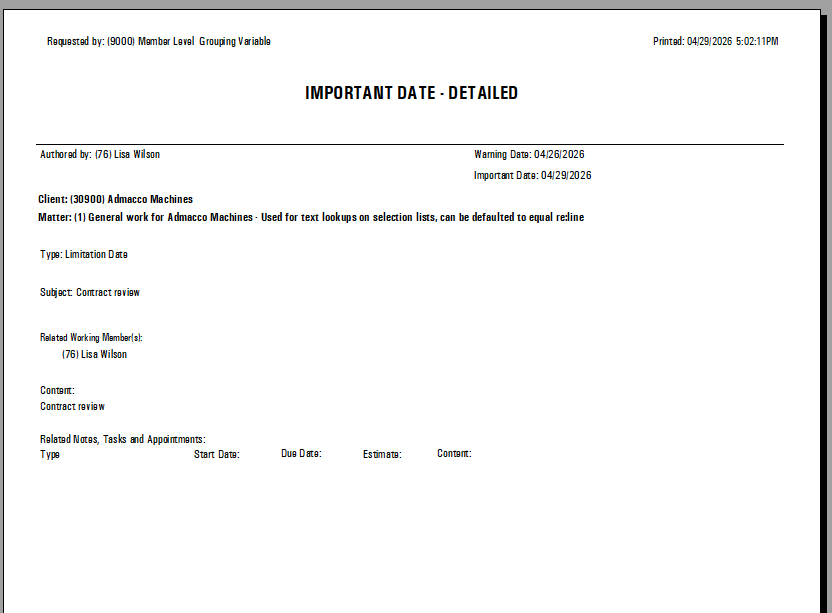
Users can launch the Detailed Important Date Report or print the list view.
Person Important Dates
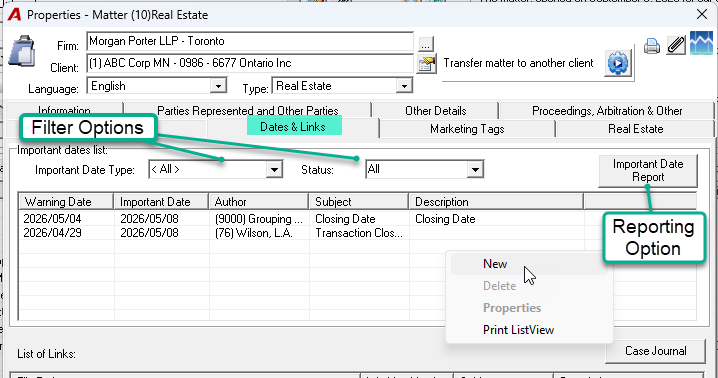
Create important dates for any person type — client, contact, member, or vendor. Access them from the person's Dates and Links tab. Client dates can also be managed from the dashboard or filter when working without a matter.
Reports
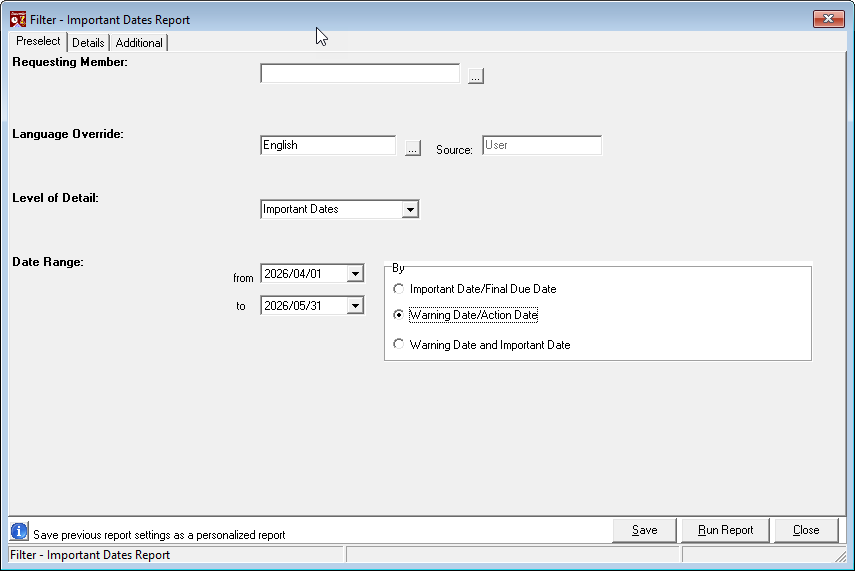
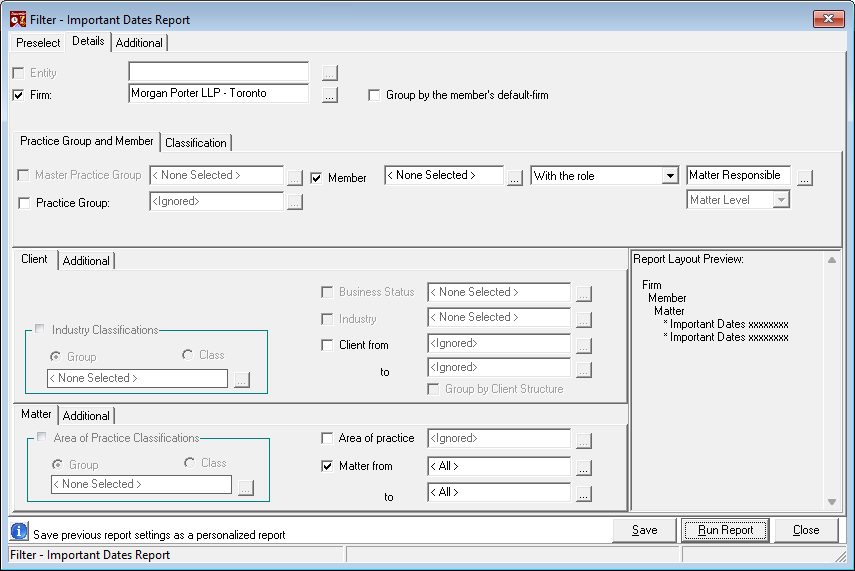
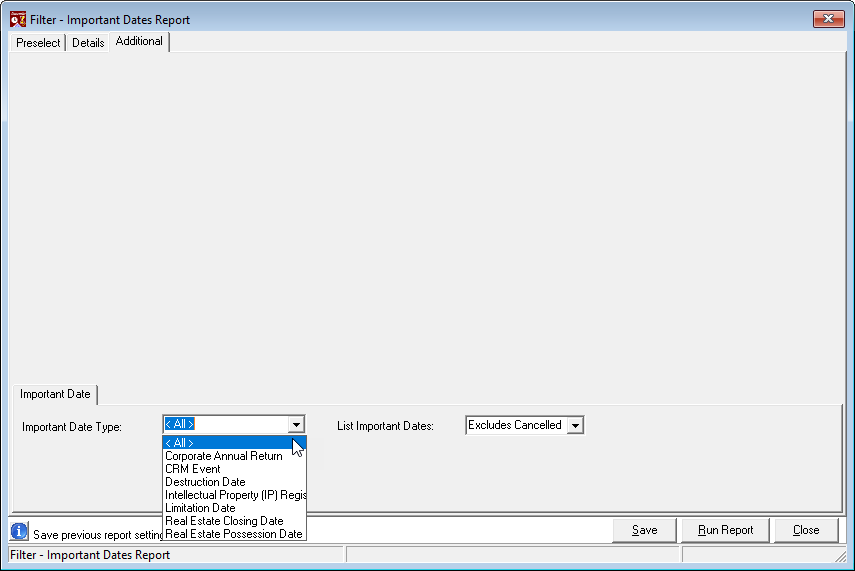
Filter Options
-
Select a date range and date context (radio buttons).
-
Set report attributes in the Details tab.
-
Optionally filter by important date type.
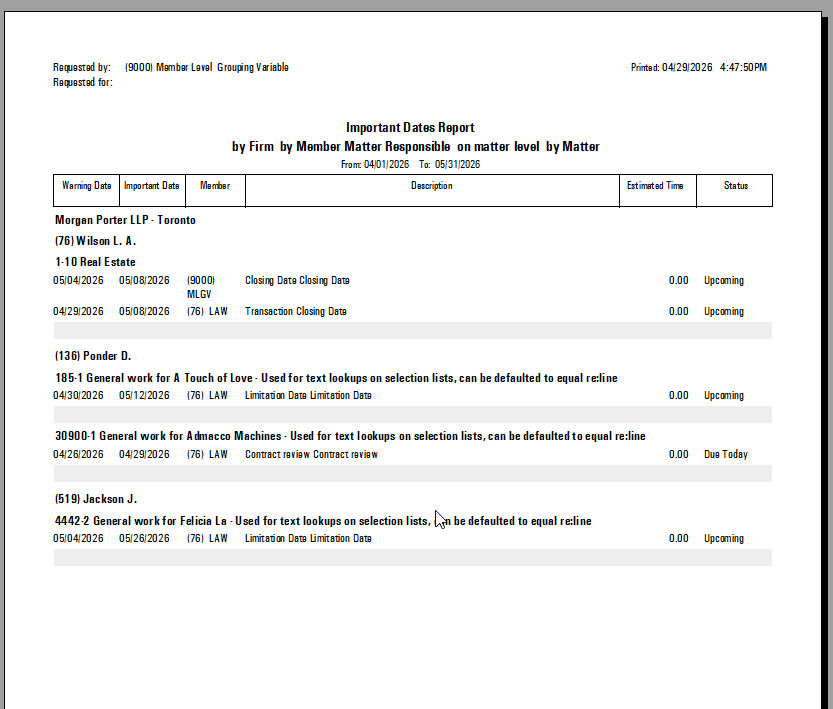
Output
The report displays matching important dates organized by your selected attributes.
Security (Permissions)
-
Case Management & Important Date Limited Access: Users can create important dates, case notes, and to-dos for themselves or someone in the "works-for" relationship. They can edit or delete items where they or someone in the works-for relationship is the author or creator. In task or important date lists, they can filter for practice management objects (including important dates) for themselves or someone in the works-for relationship as author/creator, or by selecting a client and/or matter.
-
Case Management & Important Date Access: Same level of access as Permission 270, plus the ability to create to-dos, case notes, and important dates for any member and filter practice management objects by common area of practice.
-
Case Management & Important Date Third Party Access: Same level of access as Permission 271, plus the ability to edit or delete case notes, to-dos, and important dates where they have no relation to the object, and unrestricted use of the filter.
-
Case Management & Important Date Full Access: Same level of access as Permission 272, plus the ability to create case notes, to-dos, or important dates for the Admin & Operations class (where no client or matter is selected).