.png)
Scope and Purpose
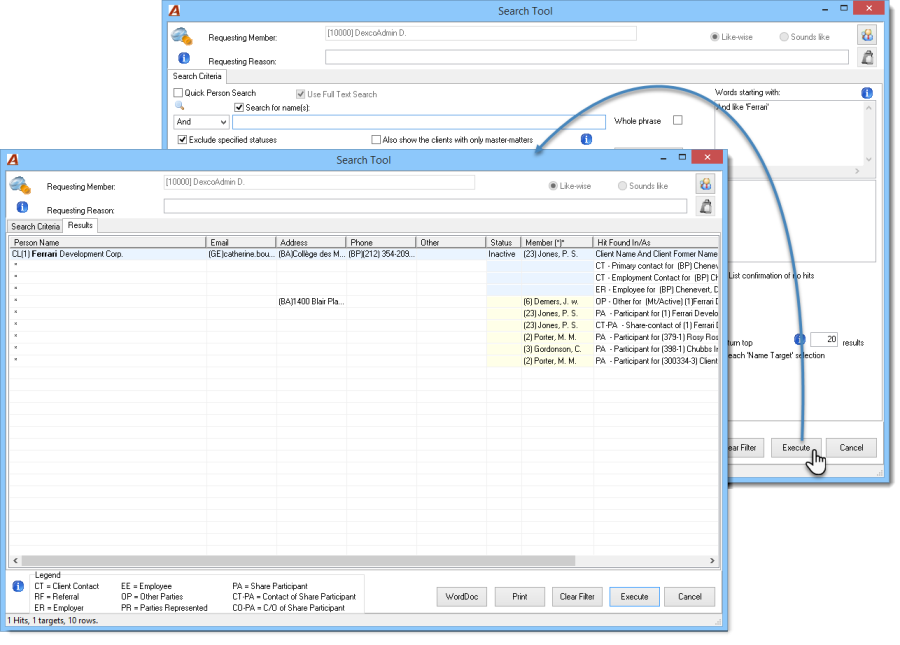
The search tool offers a variety of search options designed to facilitate an effective search process and results assessment. Depending on requirements and final use-case, the various options included within the search tool provides end-users with different alternatives in terms of performance and results-content.
Impact of an Effective Search Process
Acumin is considered a relational database management system (RDBMS) where data is organized into one or more tables of columns and rows, with a unique key identifying each row (pID). Using the pID, logical relationships can then be established between various rows across different tables.
A core concept when using the relational database model is for all objects to be unique. In order to maintain data integrity, best practice dictates that objects must only be entered once into the database, therefore, when creating a new person, it is imperative that the database be thoroughly searched.
The purpose of performing a search is to verify whether or not a person already exists within the database. A thorough search should be completed in conjuction with the conflict clearance process and is not intended as a substitute. When a search is bypassed or ignored, the risk for duplicate information is greatly increased. When duplications exist, not only is there a risk of data corruption, the conflict clearance decision-makers risk missing relationships to existing persons as duplications are presumed to be differently people.
The existance of duplicate persons forces the member responsible for conflict clearance to have to reassess the search and potentially review unnecessary lists of names that should have been considered in the elimination or selection pocess, else risk missing a critical relationship with resulting consequences.
To help facilitate the search process, the application will force end-users to perform a search via the search tool when generating the following processes:
|
|
|
|
|
|
|
|
Performing a Search
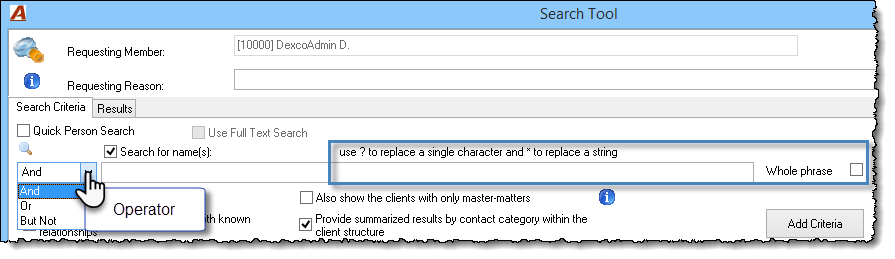
To perform a search using the Search Tool, the user is required to enter the string into the "Search for name(s)" field and select "Add Criteria". By clicking on the dropdown menu located to the left of the field, end-users have the option to use the AND, OR and BUT NOT operators. Once all criteria have been entered, the user should select "Execute".
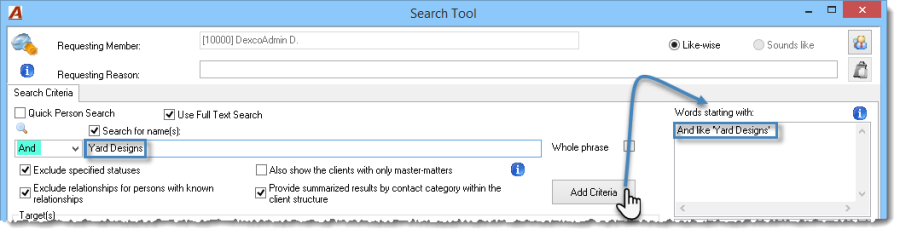
Example: To perform a basic search for Yard Designs, the user will need to do the following:
To enter the criteria, the end-user should leave the "And" operator in the drop-down and enter "Yard Designs in the "Search for name(s)" field. Once entered, the user will need to Add Criteria. For more complex searches, additional criteria can be entered can be entered in the same manner with relevant operators.
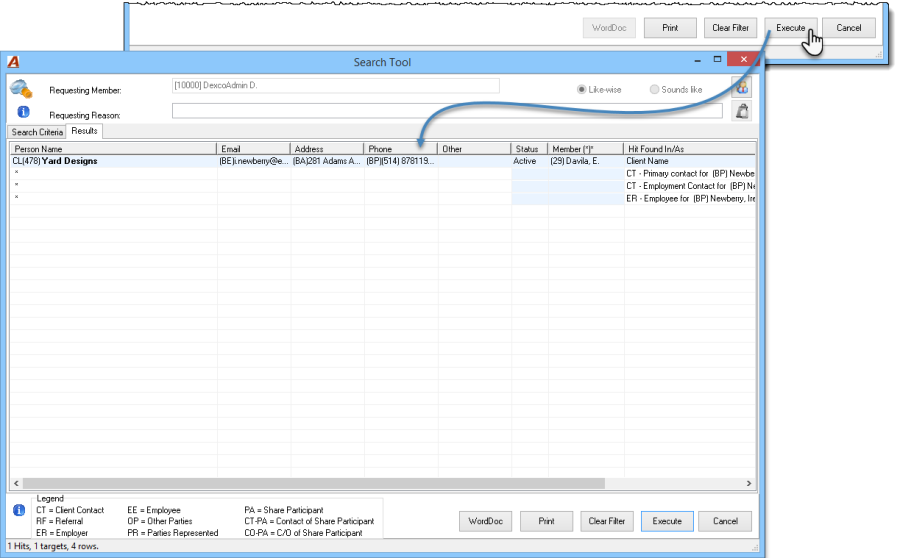
Once all criteria have been entered, the user will need to click on the Execute button to launch the search. The results will be displayed in the Results tab.
Search Tool
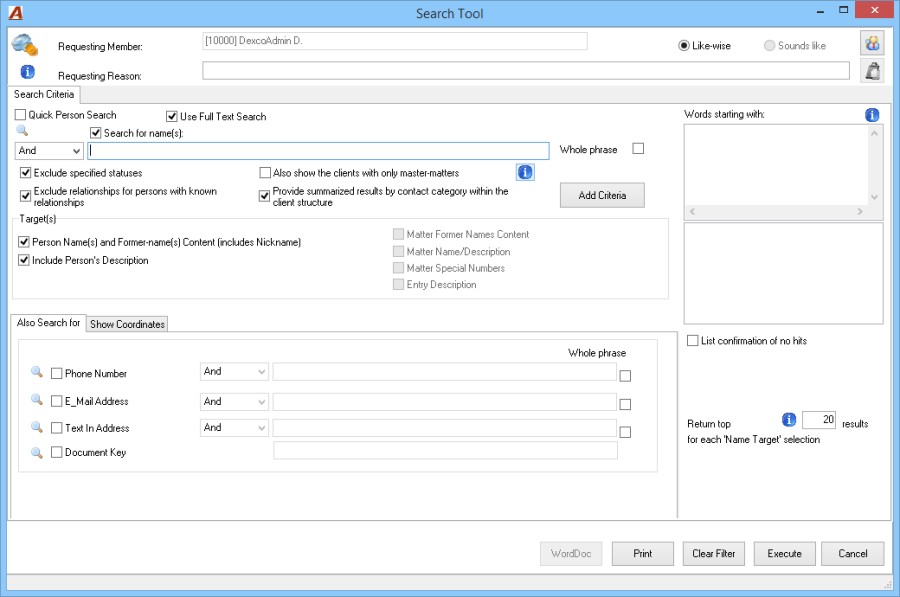
Search Criteria
Search Criteria Options
|
Like-wise |
When using the like-wise default settings, the search engine will search for words that contain the inputted string using the exact spelling. Example: String entered is "Maier". Results can include Himmermaier, Plamaierson… |
|
Sounds like |
When using the "sounds like-wise" option, the search engine uses Soundex technology to find options that sounds the same, but are spelled differently. Example: String entered is "Maier". Results can include Mayer, Meier, Maier… |
|
Quick Person Search |
Regardless of the search alternative used, users can apply the "quick person search" option for a very performant process. This search alternative is applied exclusively on the "Person and Client Description /Info" target (meaning that only person and client properties are searched), and limits the selection of conflicting search tool options. When selected, relationships for the persons listed will be excluded from the results – information will therefore be consolidated into one row. |
|
Use Full Text Search |
When the flag is enabled, the search engine will search for hits beginning with the inputted string. Example: String entered is "World". Results can include Worldview, Worldox… However Disneyworld or Marketworld will be excluded from the results. If this option is used, users will enjoy performant results, however, the technology behind this option is not compatible with Soundex technology therefore the sounds-like option will be disabled. |
|
Exclude Specified Statuses |
Matters specified in system settings will be excluded for the results. Matters with a status released typically represent matters that have moved to a different firm due to a lawyer leaving. As these matters no longer represent a conflict of interest, as a default, the status "released" would be considered a specified status. |
|
Exclude relationships for persons with known relationships |
This search alternative works in conjunction with the "Person with known relationship" flag found in person properties. When enabled, persons with the flag on who meet the search criteria will still list in the results, however, their relationships will not be listed. This significantly reduces unnecessary information for the reader and facilitates the decision making process. This option is favored within organizations working with large clients (for example, insurance companies) and large volumes of returning business (many insurance files dealing with the same insurance adjustors). Incompatible options are disabled when this option is used. |
|
Also show the clients with only master-matters |
By default clients that only have master-matters are excluded from the search results as generally the contacts included in master matters are not considered potential conflicts. To include these clients, the user must check-mark the "Also show the clients with only master-matters" checkbox. |
|
Provide summarized results by contact category within the client structure |
As a default, the application excludes the repetition of individuals set as Billing, AR or Statement of Account contact for multiple matters for the same client. The hit is only displayed once per client-matter structure. |
|
Whole Phrase |
The Whole Phrase option restricts the search to the whole word. Example: To restrict the results to World, turn on the Whole Phrase flag prior to adding the criterion "World". When launching the results, results can include "World Wide Web Inc." or "Wonderful World of Wizardry" but not "Disneyworld". |
Target Options
|
Person Name(s) and Former Name(s) Content (includes Nicknames) |
By default, the search tool will look at all information fields of a person (For example: First name, last name, corporate name etc.). A person can be a basic person, a client, a vendor or a member. |
|
Include Person's Description |
The description field of the client or a person is searched by default as well. |
|
Matter Former Names Content |
Depending on search criteria selected, matter former names can also be included in the search. |
|
Matter Name/Description |
Matter names field and matter description field can also be included when performing a search. |
|
Matter Special Numbers |
If this option is selected, the application will search the content of the following fields:
|
|
Entry Description |
With this option enabled, time and disbursement entry descriptions will be included in the search. Due to volume, this option should only be enabled as needed. |
Also Search For Options
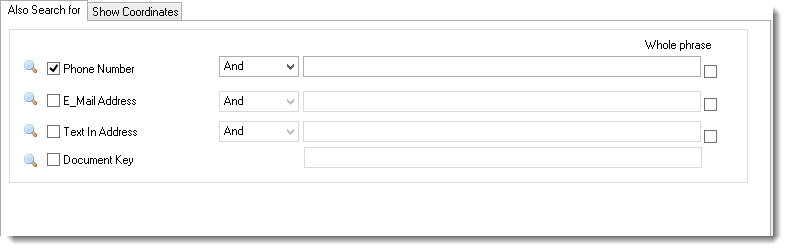
To further refine the results, users have the option of including phone numbers, email addresses, addresses and document keys in their search. These options are meant to be used in conjunction with the inputted string and can use either the AND, OR or BUT NOT conditions.
To include these options, turn on the corresponding flag, use the dropdown to select the required operator (AND, OR or BUT NOT) and enter the required string in the corresponding field. Users have the option of using the Whole Phrase flag for the additional search criteria as well.
Other Options
List Confirmation of No Hits
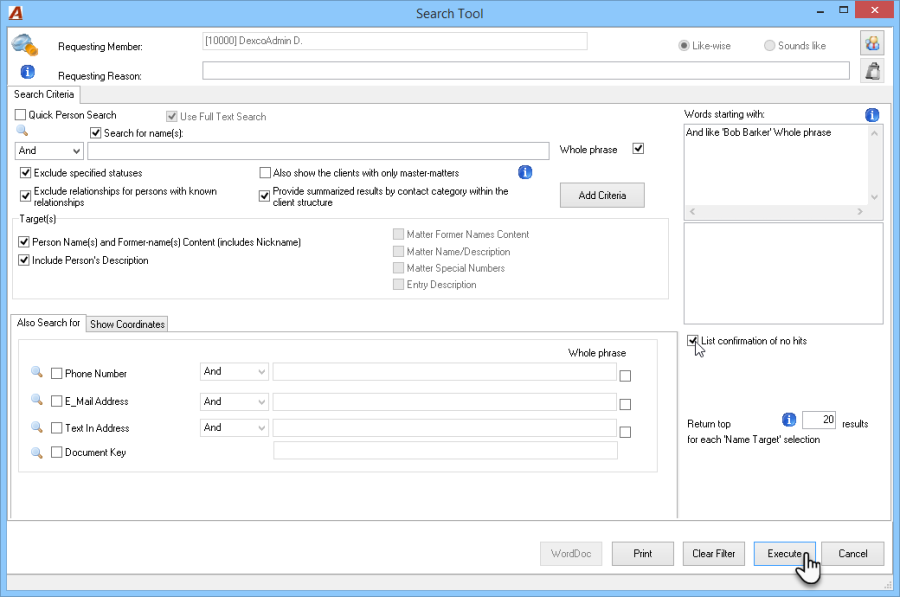
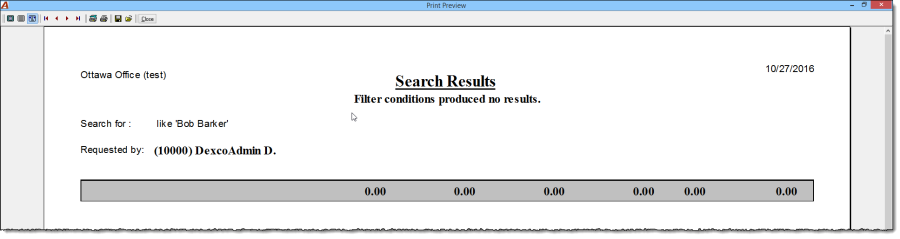
In the event that a user is required to provide a confirmation of no hits, users have the option to enable the "List Confirmation of No Hits" flag. If no hits are received, the results tab list-view will be launched showing no results.
Return Top Results
The search results present the top number of results per "target" selected. By default, the number of results for each target is 20, however, this can be overridden by the end-user. Practically speaking, this means that if the user request the top 20 results with three targets specified, up to a maximum of 60 results will be listed.

Results Tab
Results Grid
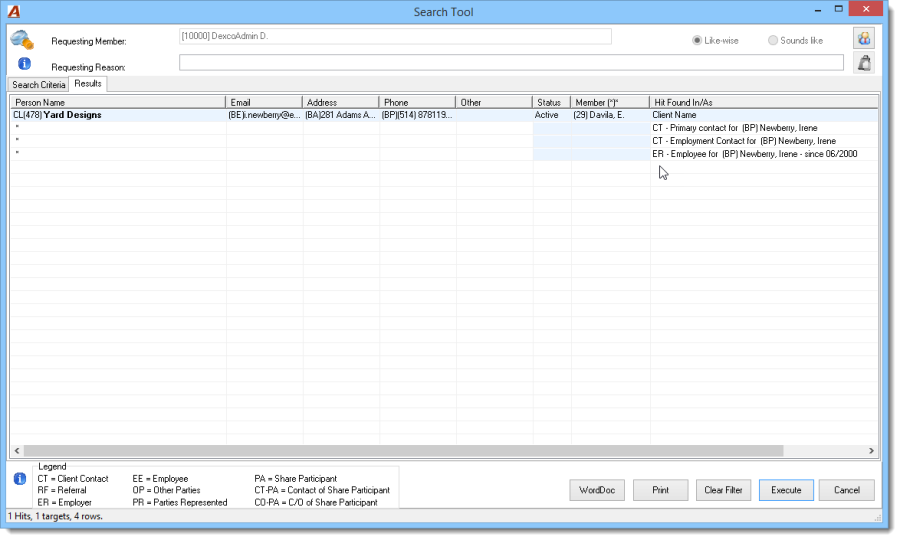
As a visual cue, strings inputted will be listed in bold.
Person Name: The person name column will list the person type (as defined below), the person's code (if any) and the name, where;
-
C = Client, if the matter is listed then the hit is at the matter level for that client.
-
V = Vendor
-
M = Member
-
P = Person (the hit is a person other than a client, member or vendor).
Note: A legend is located at the bottom of the form; however, for a more comprehensive list please see the information icon located next to the legend.
Member: The member column refers to two possible roles as defined in system settings. There is a different roles can be specified for the client level and for the matter level. Please refer to the hint box for more information.
-
If the hit is a client then the member column will list the member assigned to the client level role;
-
If the hit is a matter then the member column will list the member assigned to the matter level role.
Hit Found In/As: The location of the hit will be listed in the Hit Found In/As column. If a matter is listed in this column, this signifies that the hit was found at the matter level for that client.
-
"*" refers to the name on the previous row;
-
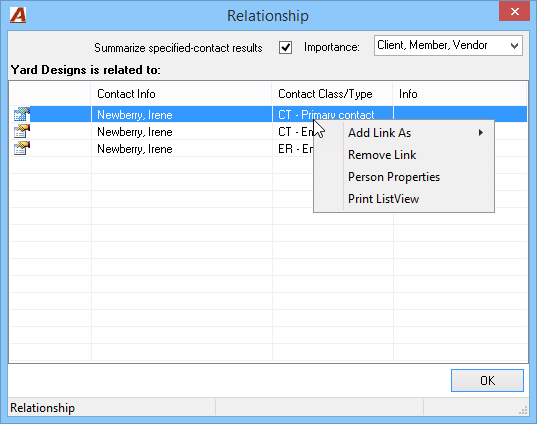
If you right-click the row in order to access the person properties, the properties of the person specified in the Person Name column will list, not the person listed in the Hit Found In/As column. For performance reasons, persons listed in the Hit Found In/As column are only shown as text with no pID. To access the properties of persons listed in this column, the user will need to select "Relationships" from the right-click menu and then select the applicable person;
-
When searching for a person and that person is also a contact to themselves within their properties at either the client or matter levels, the hit will only be displayed once in a single row as the person and not as the contact. When this scenario occurs, in the "Hit Found In/As" column, either "Client Name and at least as one contact to itself", "Vendor Name and at least as one contact to itself" or "Person Name and at least as one contact to itself" will, depending on type of person found, be displayed.
Right-Click Contextual Menu
-
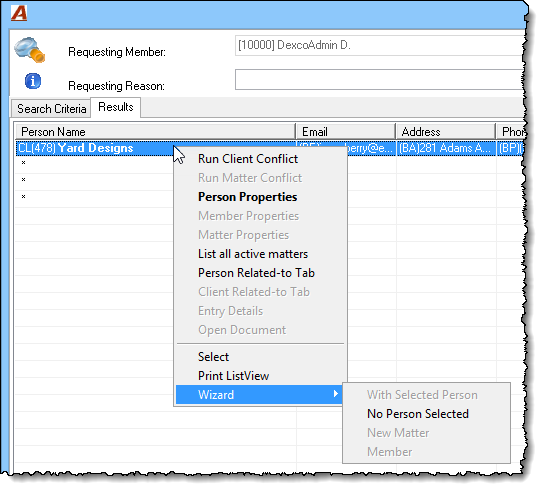
Run Client Conflict and Run Matter Conflict: Users have the option of running either the client or matter conflict search of persons included in the results tab in order to evaluate existing relationships;
-
Person Properties and Member Properties: To access the person properties of the person listed in the person name column, select the option from the right-click menu. If the hit is found in any of the applicable fields of the person, the hit will be listed in bold. For example, if a hit was found in the person description, when accessing the person properties, the hit will be shown in bold in the description;
-
Matter Properties: If the hit was found in the matter properties of a client, users will have the option of accessing the applicable matter properties form directly;
-
List all active matters: To help facilitate the interpretation of results, users can launch the search matter form to be presented with a list of active matters for the client;
-
Person Related-to-Tab and Client Related-to Tab: Used to access the related-to tab of the specified person or client in order to review additional information about the existing relationship. From here, users can access the properties of a person that has a relationship with the person specified in the person name column
-
Entry Details: If the user opted to search within the descriptions of time and/or disbursement entries, users can view the details of the entry where the hit was found;
-
Wizard: If it is determined that the person the user is searching for is not the same person as what is listed in the results, users can proceed to the client and/or matter wizard by selecting Wizard – No Person Selected. If the user determines that one of the results is the same person, the user can proceed by selecting Wizard – With Selected Person. Depending on the situation, an additional profile can be added to the existing person. For example, if Bob Barker was listed as a basic person, by selecting Wizard – With Selected Person, a client profile can be added to the existing person.
Search Results Listview
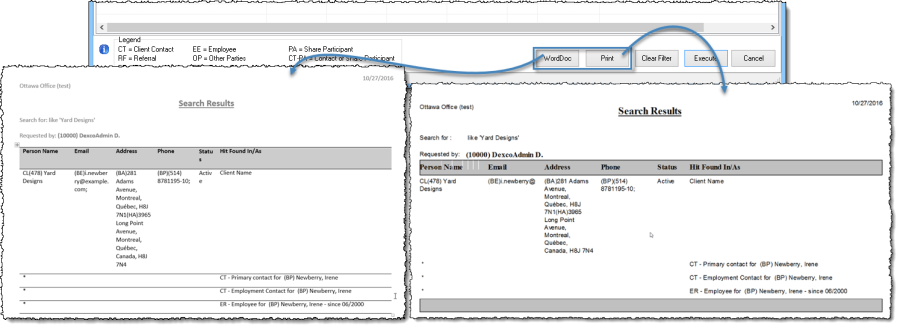
End-users have the option of generating a print-listview of the results through the standard engine, or by exporting the results to MS Word.
Search Tips
Whole Phrase
Selecting Whole Phrase enables the user to search specifically for a string with a precise beginning, content and ending. All characters are taken into consideration including spaces.
Examples:
-
Search for Disney [whole word]:
-
Results will include anything that has the word "Disney" listed as is, such as Disney, Disney World or Disney Land;
-
Results will exclude items that incorporate the word "Disney" such as Disneyworld, Disneyland or DisneyStudios;
-
Wildcards
Wildcards are used to replace characters or strings when a user is unsure of the spelling.
-
?= Replaces one character in a string;
-
*= Replaces a string of characters. The * can be placed at the beginning, in the middle of two known characters, or at the end;
-
If placed at the beginning, everything before the symbol is replaced;
-
If placed in between two characters, it replaces everything in between these two characters. This can be an unlimited amount;
-
If placed at the end, everything following the symbol is replaced.
-
As the * replaces a string, it is considered best practice for it to be used in conjunction with Whole Phrase in order for applicable results to be generated.
Operators
-
AND = The intersection of the items being searched;
-
Examples:
-
Search for Disney [Whole word] AND world [whole word]:
-
To find Disney World and The World of Disney;
-
Excluding Disney, World Inc. or Disneyworld.
-
-
Search for Disney AND world:
-
To find Disney World, Disneyworld, or The World of Disney;
-
Excluding Disney or World Inc.
-
-
-
OR = The union of items being searched;
-
Examples:
-
Search for Disney [Whole World] OR world* [whole word]:
-
To find Disney, World Inc., Disney World or The World of Disney;
-
Excluding Disneyworld;
-
-
Search for Disney OR world:
-
To find Disney World, Disneyworld, World Inc., The World of Disney or Disney;
-
-
-
BUT NOT = An exclusion of items being searched:
-
Examples:
-
Search for Disney [Whole World] BUT NOT world* [whole word]:
-
To find Disney, Disney World or The World of Disney;
-
Excluding World Inc.;
-
-
Search for world BUT NOT Disney:
-
To find World Inc;
-
Excluding Disney World, Disneyworld, The World of Disney, or Disney;
-
-
-
Combining Operators: Users can combine operators with multiple criteria, natural order to the combinations. Typically the order is AND, OR where BUT NOT (and exclusion) is left to the end.
-
Examples:
-
Search for Disney AND world BUT NOT the:
-
To find Disney World or Disneyworld;
-
Excluding Disney, World Inc. or The World of Disney;
-
-
Search for Disney AND the AND of OR world* [whole word]:
-
To find The World of Disney or World Inc.;
-
Excluding Disney World, Disneyworld, or Disney;
-
-
System Settings Defaults
Authorized users have the options to set defaults for search options to be used, and targets selected.
To modify the list of contact categories where, when multiple hits are found, hits are summarized, users will need to select the corresponding ellipsis button and add as many contact categories are required to the summarized hits section.
The same can be achieved for the exclusion of specified statuses.
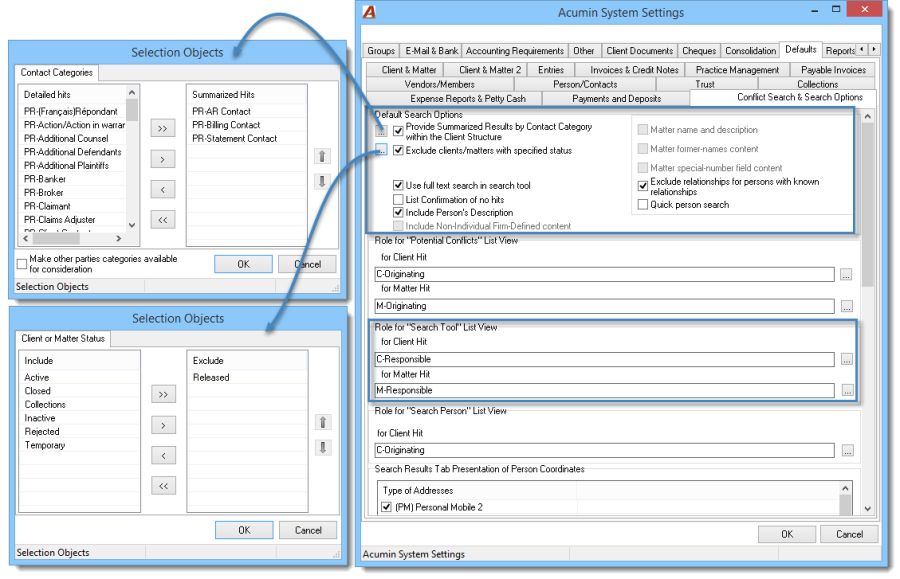
Adjustments to members presented in the Search Tool results, or the presentation of person coordinates, can also be adjusted in this tab.
RELATED DOCUMENT:
Options to increase the performance of the Search Tool in your environment