.png)
Use Case
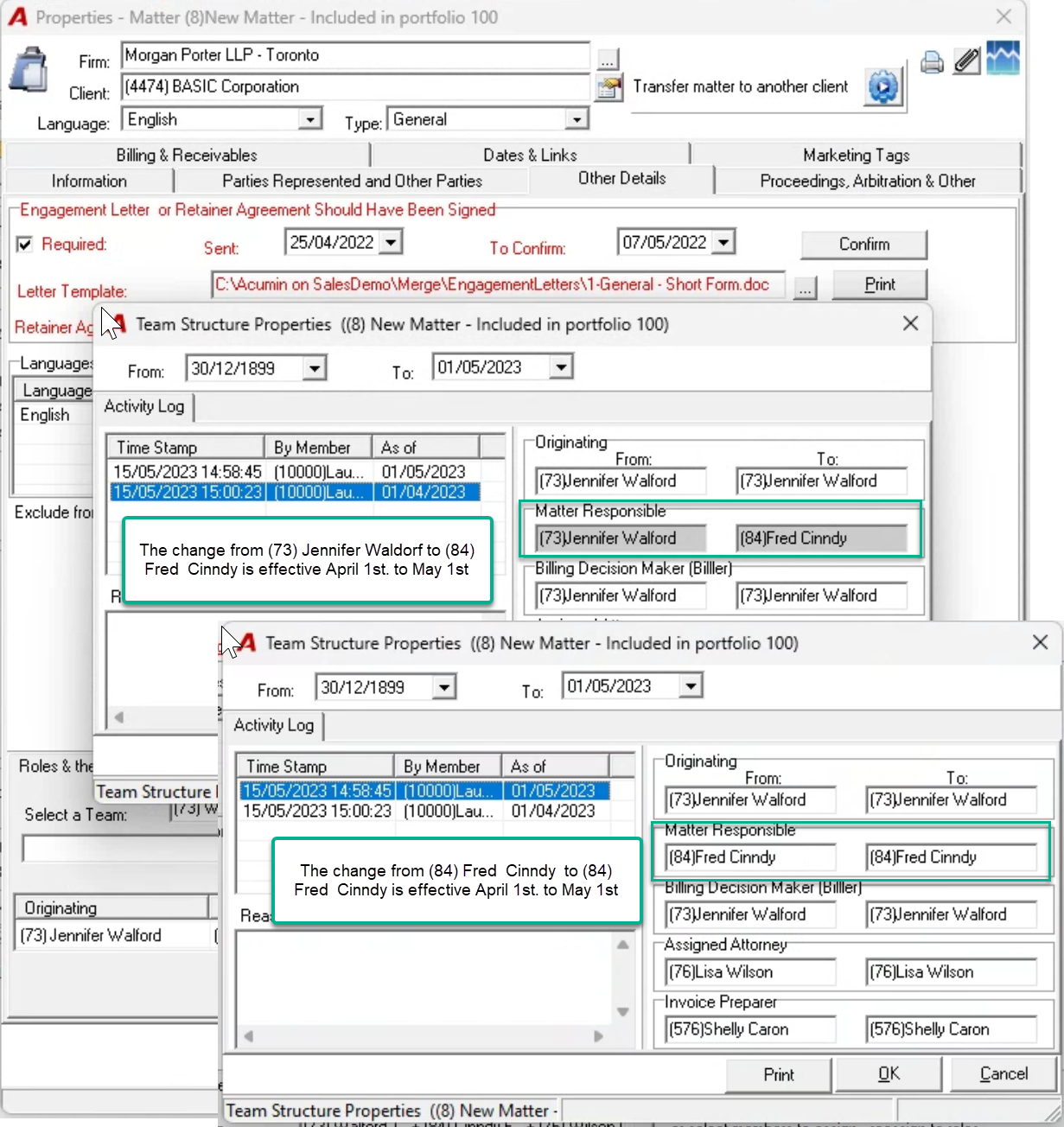
The following process describes how to make team or shareable role-holder changes in context of required effective dates.
Security
Client Level Role-Holder Changes
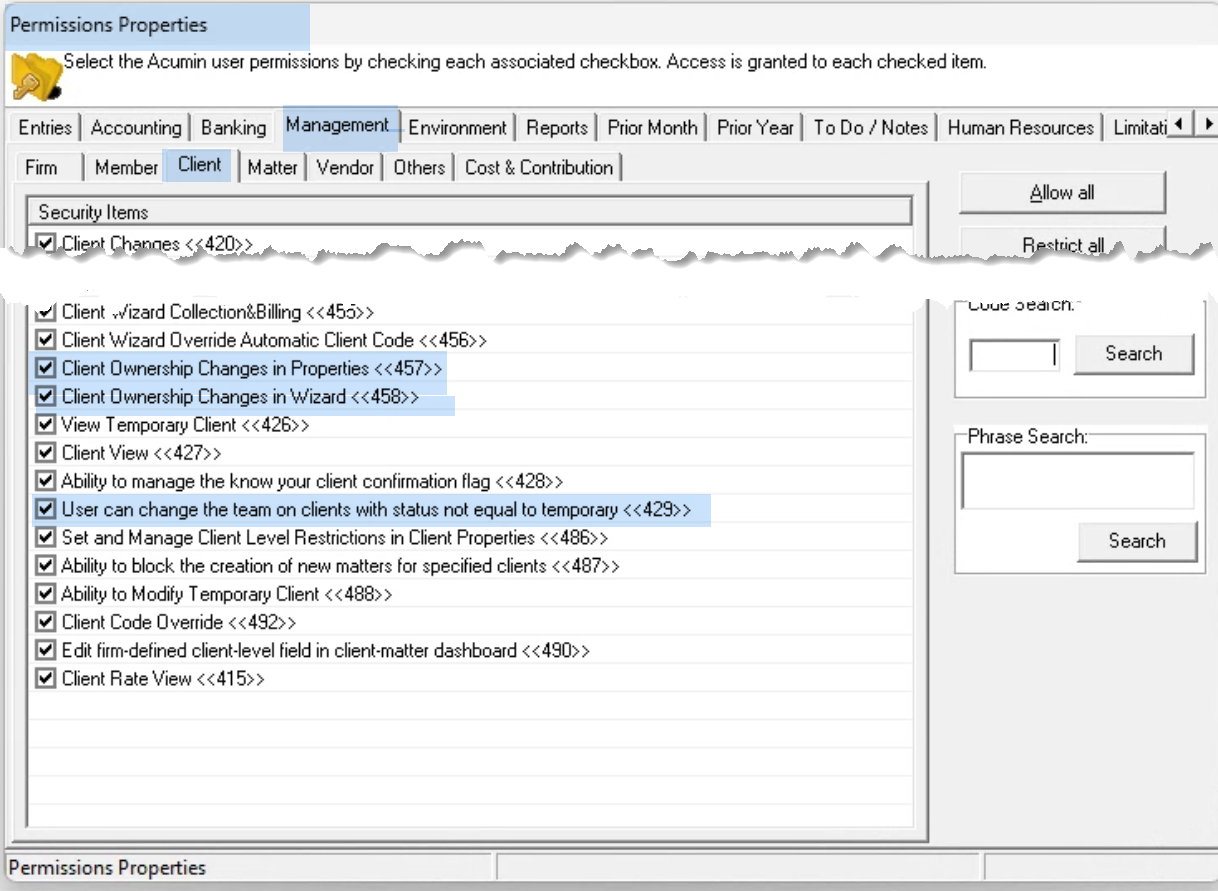
To make client level team role-holder changes in client properties the user must belong to a user group with security <<429>>
To make client level shareable role-holder changes to client properties the user must belong to a user group with security <<457>>. To make them in client wizard, security <<458>> is required. Only applicable if the shareable role license is enabled.
Matter Level Role-Holder Changes
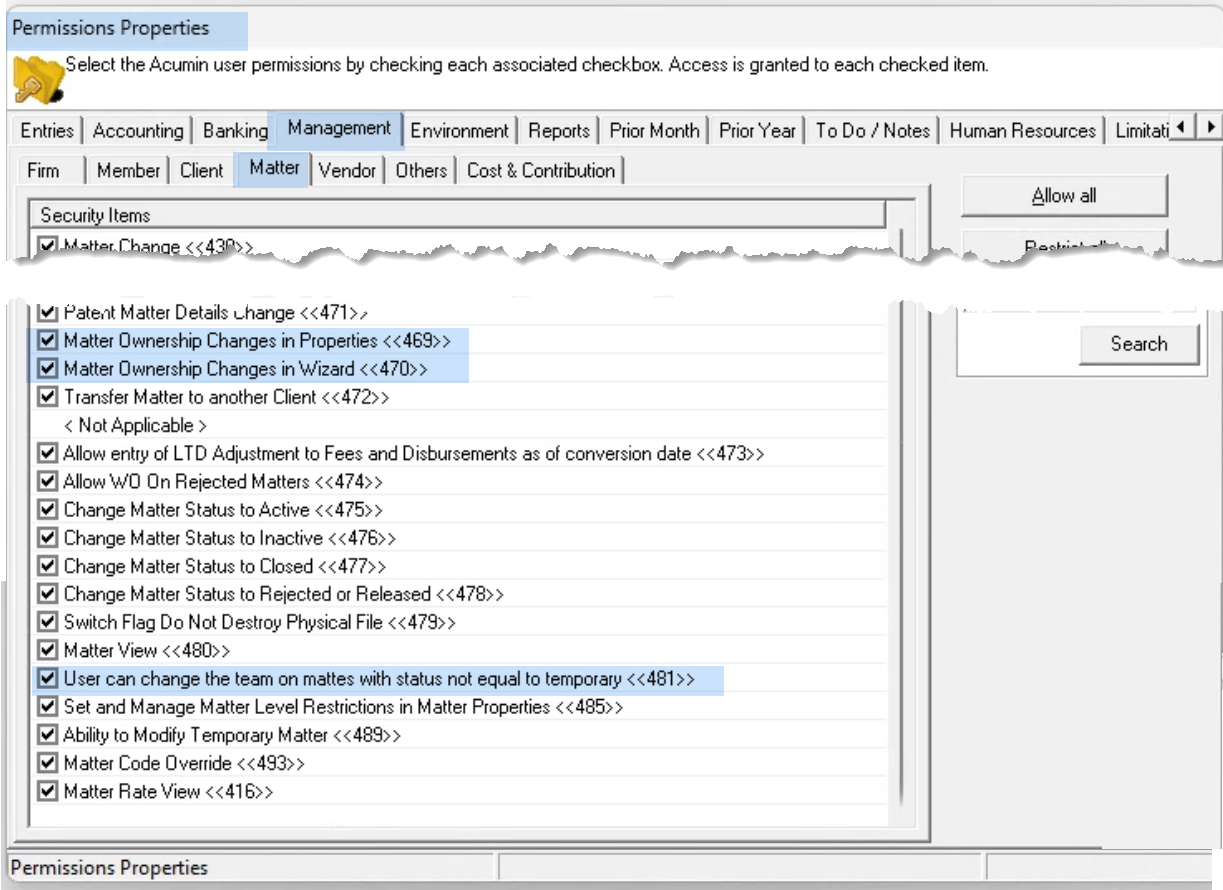
To make matter level team role-holder changes in matter properties the user must belong to a user group with security <<481>>
To make matter level shareable role-holder changes to client properties the user must belong to a user group with security <<469>>. To make them in client wizard, security <<470>> is required. Only applicable if the shareable role license is enabled.
Process
Team Role-Holder Changes
Access the “Other Details” tab in client or matter properties. Press on the ellipsis button above the team composition, to launch the person search tool. It will be set to members only – checkbox on the bottom right.
Enter the search string, press on “Apply Filter” – green checkmark button. Right-click “Select” on the member found.
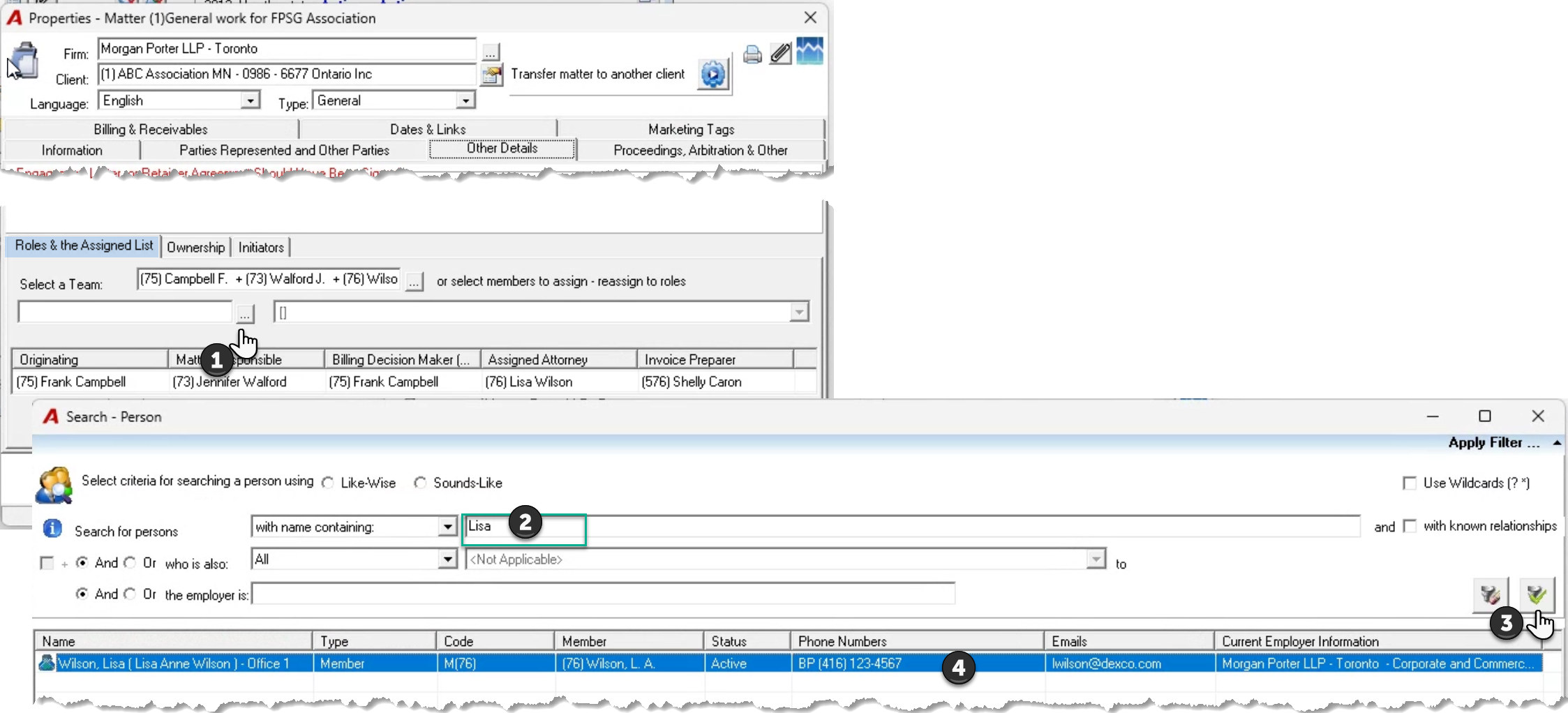
After the selection is made and back on the “Other Details” tab in client or matter properties, press on the drop-down box to the right of the member field from where the ellipsis button was launched, and above the team composition.
Checkmark the checkboxes for the roles to which you would like to assign the role-holder selected.
Press the “Commit Change” button to launch the date selection form.
Select the correct effective date for the role-holder date. This date sets the reporting outcome, when changes are made throughout a fiscal period.
Once the date is selected complete the reason form and press OK to accept the workflow.
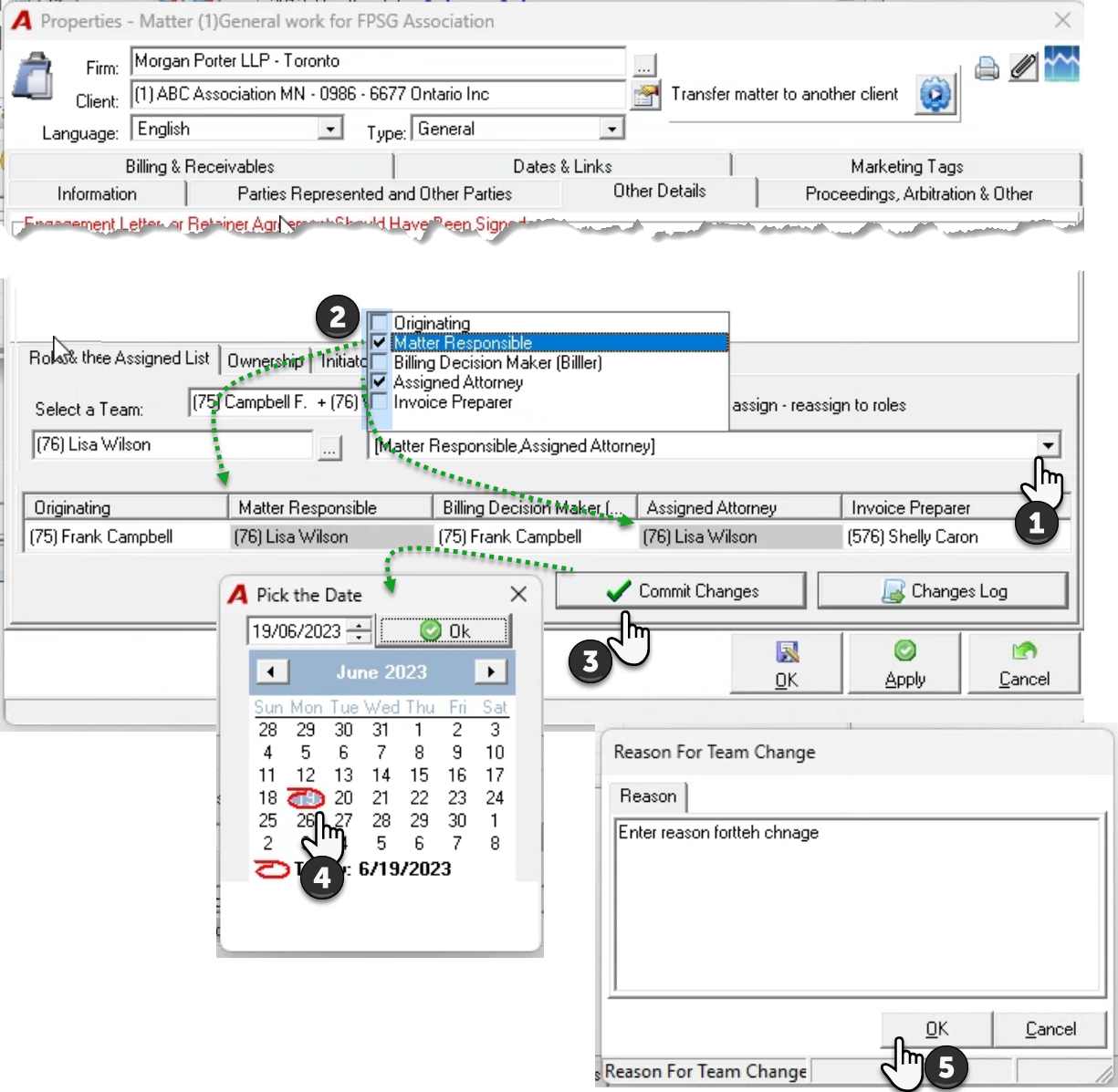
Press on changes log to see the changes made.