.png)
Use Favourites to build a fast, personal pick‑list of clients and matters you access most. They appear first in selection lists (e.g., Timesheet client/matter selectors).
Who this is for
Lawyers, assistants, and billers who frequently select the same clients and matters during time entry or while working in the Client/Matter dashboard.
What you’ll learn
-
Manually add/remove client and matter favourites
-
Auto‑build and maintain favourites with smart rules
-
Use favourites during time entry for faster selection
1) Add Client & Matter Favourites Manually
1.1 Add favourites from the Timesheet (fastest)
-
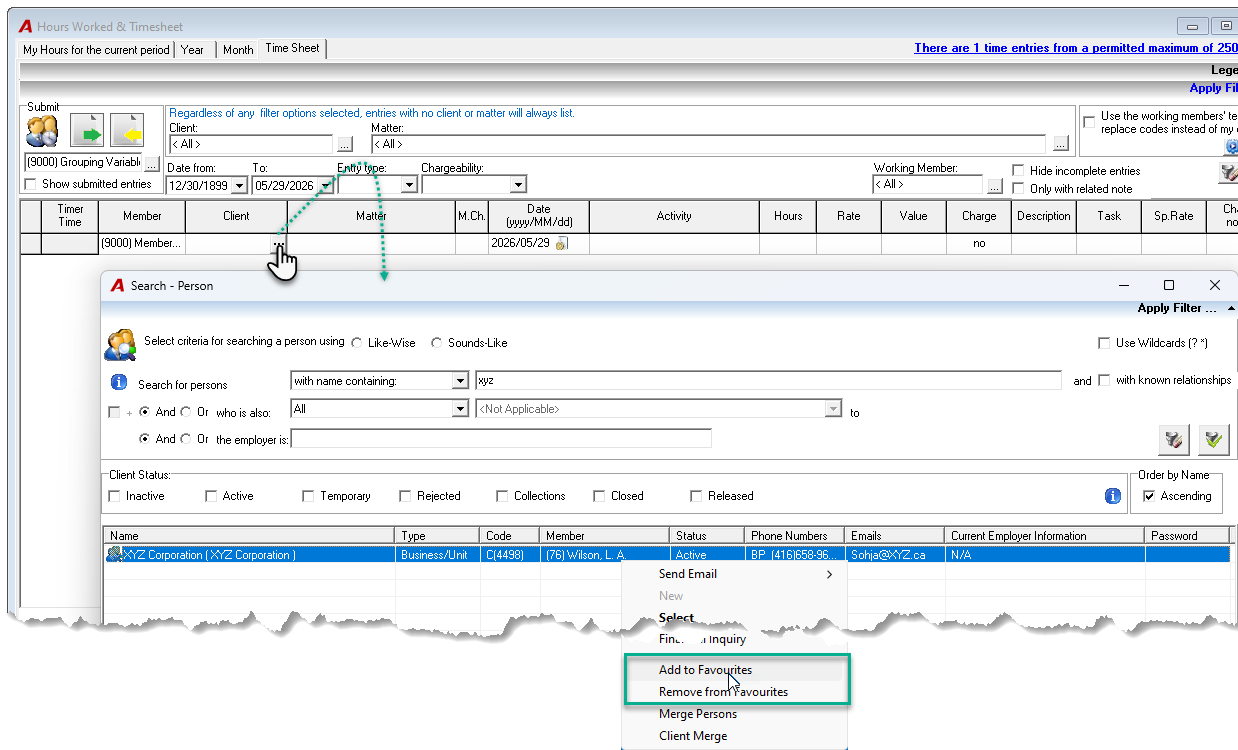
Open Activities > Timesheet.
-
In the Client field, click the ellipsis (…) to open the search dialog.
-
Search and single‑click a client to highlight it, then right‑click and select Add to Favourites.
-
In the For Member field, the user’s name is pre-filled. An assistant can select a lawyer to add to the lawyer’s favourite list
Once added, favourites display at first in the Search-Person list. Selecting a favourite matter auto‑populates its client.
1.2 Add favourites from the Favourites workspace
-
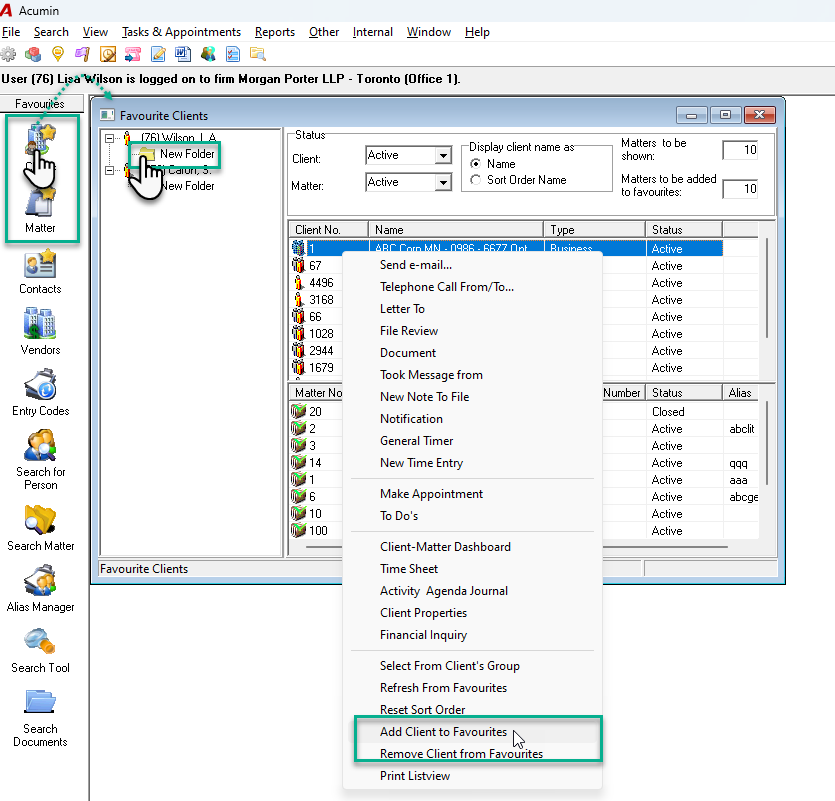
Select Favourites in the left side bar.
-
Select either the Client or Matter favourites button depending on how ou want to work.
-
On the left, create folders to classify clients or matters. You need at least one folder to select.
-
On the right, right click and select the Add Client or Matter to Favourites:
-
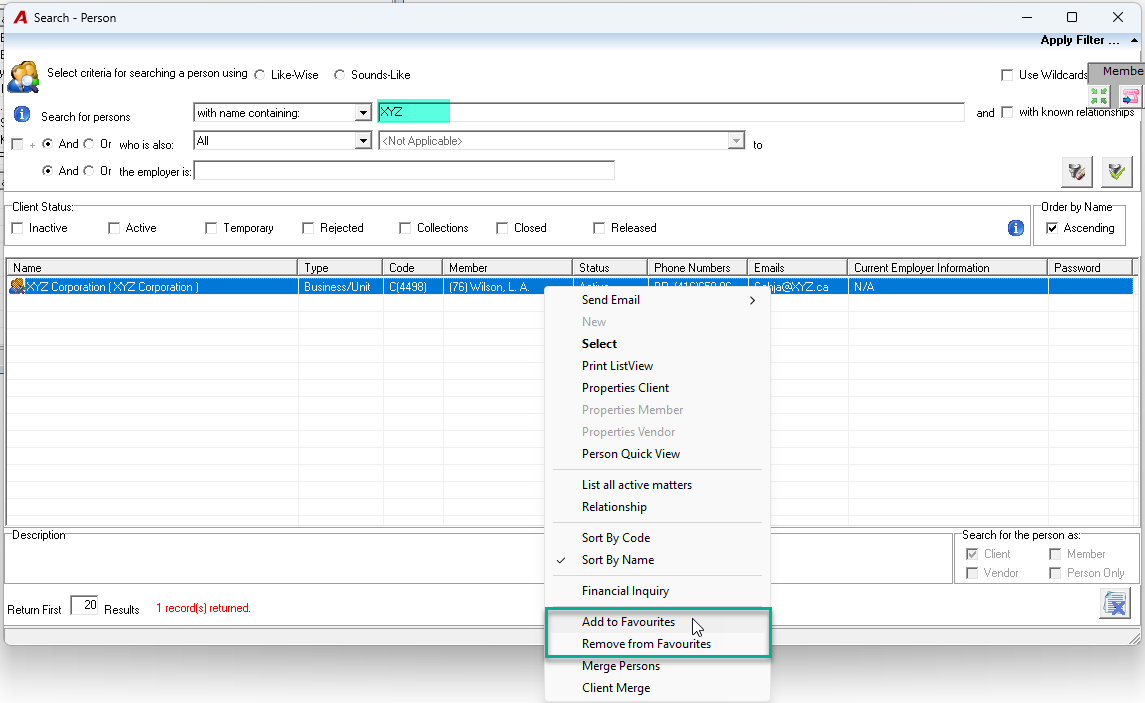
In the Search - Person form, search, select the desired client or matter and select the Add to Favourites option.
Once added, favourites display at first in the Search-Person list. Selecting a favourite matter auto‑populates its client.
2) Auto‑Build and Maintain Your Favourites
Let Acumin add and prune favourites automatically based on your usage. This keeps lists short, relevant, and fast to scan.
2.1 Automatic rules for adding matters
-
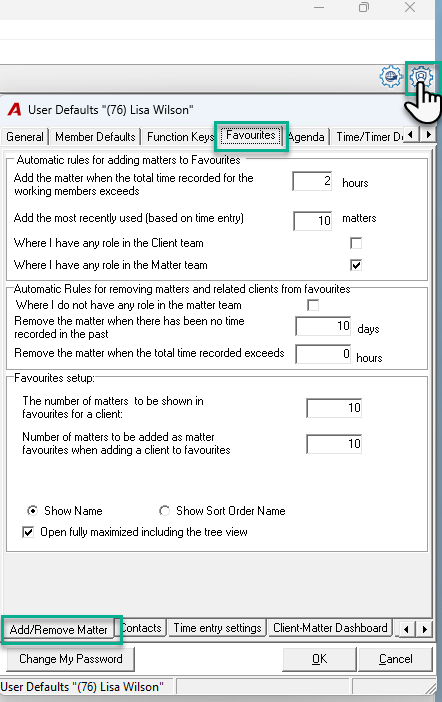
Open User Defaults (cog) > Favourites > Add/Remove Matter bottom sub tab.
-
Automatic rules for adding matters to Favourites
-
Add the matter when the total time recorded for the working member exceeds [n] hours: once your cumulative time on a matter hits the threshold, Acumin adds it.
-
Add the most recently used (based on time entry) [n] matters: always keep your last n worked matters in favourites (based on time entry).
-
Where I have any role in the Client team: when enable will add the matter if the user has any role at the client level team.
-
Where I have any role at the matter team: when enable will add the matter if the user has any role at the matter level team.
-
Favourites generated by rules update on the next daily refresh. If you just met the condition today, expect to see the matter in the list the following day.
2.2 Automatic rules for removing matters and related clients from Favourites
-
Add/Remove Matter
-
Where I do not have any role in the matter team: when enable, remove items you’re no longer assigned to.
-
Remove the matter when there has been no time recorded in the past [n] days: remove stale matters.
-
Remove the matter when the total time recorded exceeds [n] hours: automatically remove matters once your cumulative recorded time exceeds a threshold, useful for completed engagements.
-
2.3 Favourites setup number limits
-
Add/Remove Matter
-
Number of matters to be shown in favourites for a client: cap per‑client list length.
-
Number of matters to be added as matter favourites when adding a client to favourites: when you favourite a client, Acumin can also favourite its top n matters for you.
-
3) Use Favourites During Time Entry
3.1 Select favourites in the Timesheet
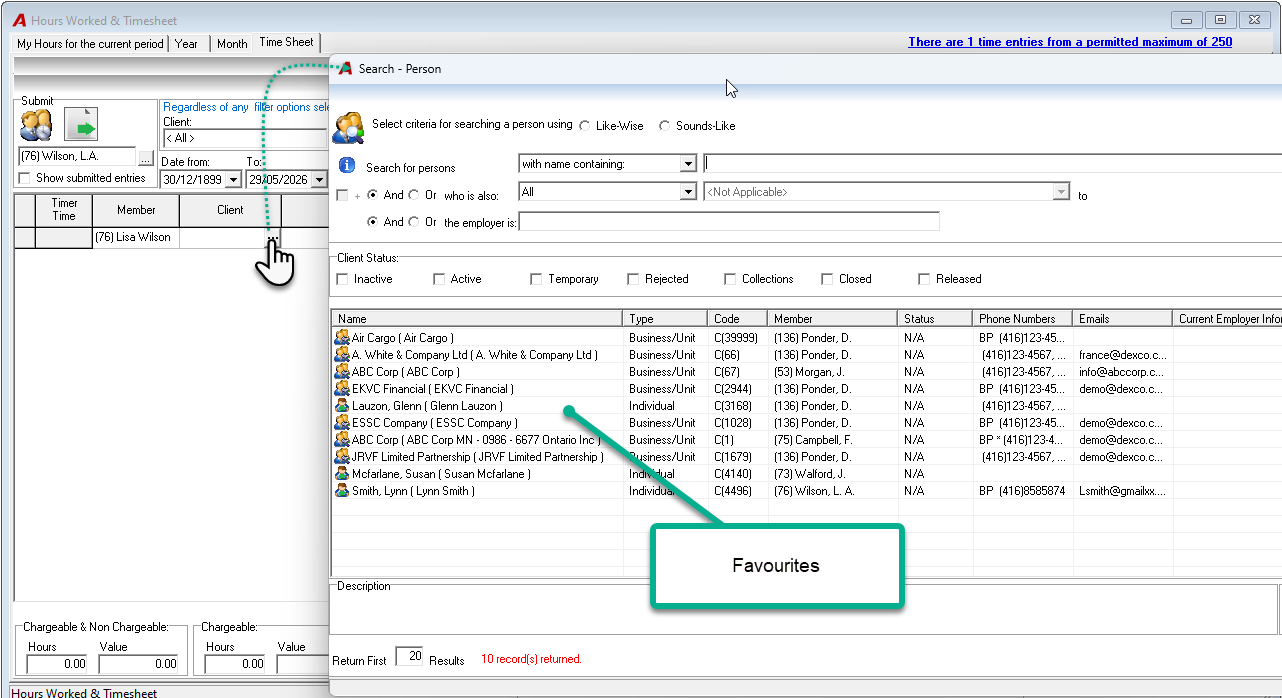
-
Open Activities > Timesheet.
-
In the Client field or in the Matter field:
-
Type the code and press Tab, or
-
Click the ellipsis (…) and choose from Favourites at the top of the list.
-
-
Selecting a favourite matter auto‑sets the client. Your favourite time codes (if any) also display first in the Time Code selector.
Tip: If your firm allows placeholder entry, you can draft lines without a final selection and submit to your assistant. Favourites help you quickly replace placeholders later.
4) Best Practices
-
Keep lists short and purposeful. Aim for 10–20 current matters and your core clients.
-
Turn on “recently used” plus a small hours threshold to auto‑curate your list as your work shifts.
-
Use team‑role filters to avoid favouriting files you’re not assigned to.
-
Set removal rules so old files automatically drop off over time.
Result: Faster selections and fewer search steps.
FAQ