.png)
Introduction
Scope and Purpose
To help users understand and complete the enhanced client and matter form in a most efficient manner. This document covers the completion and submission of the form by the end user, steps 1 and 2 of the process described below.
The enhanced client and matter form offers to the end user options designed to facilitate the new business intake process by encouraging the capturing of relevant client and matter information while restricting the execution and control of the resulting validation and conflict assessment process to the data-steward and supporting conflict clearance team. The initiating end-user will use the New Business Intake and Conflict Assessment Form to record information critical to the execution of a more efficient and effective new business intake process.
Process Overview
The following outlines a commonly applied new business intake and conflict assessment process in context with Acumin Functionality:
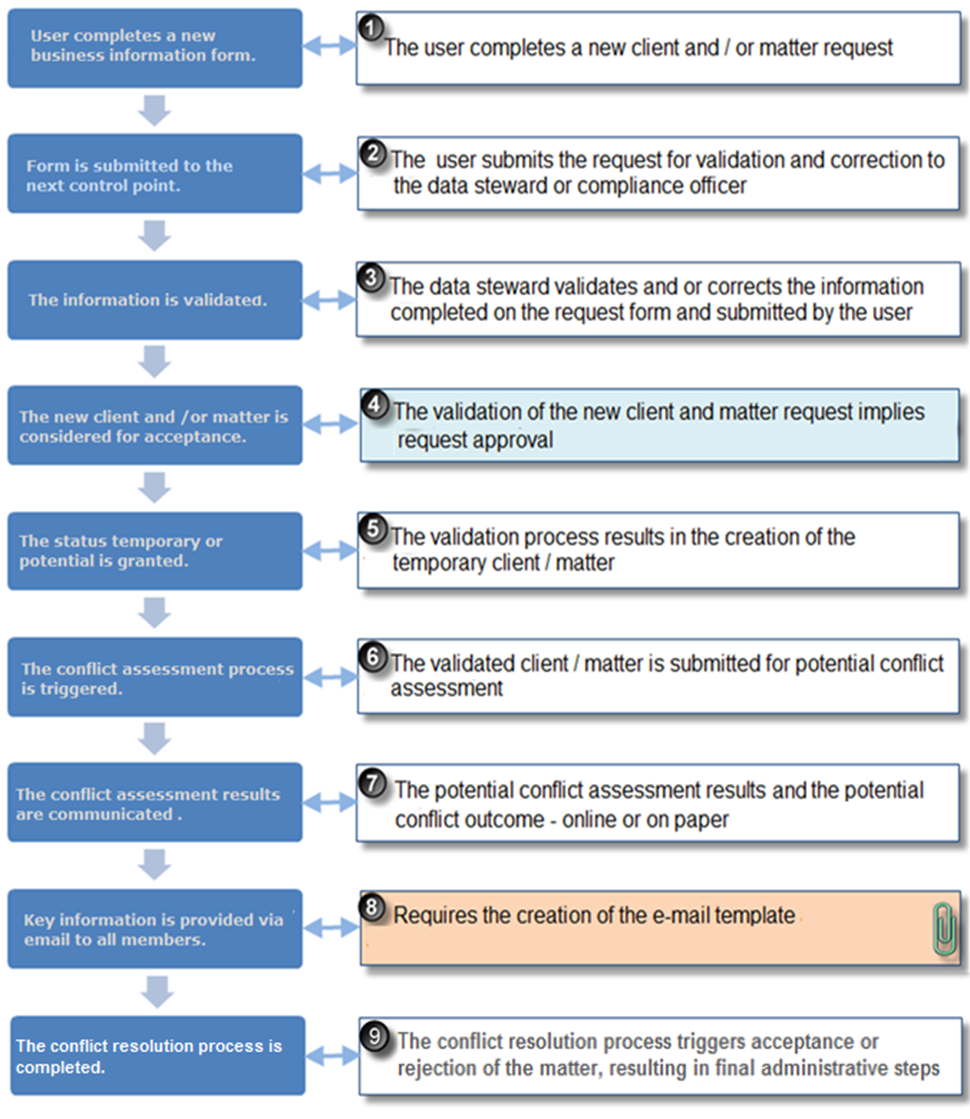
Completing the form
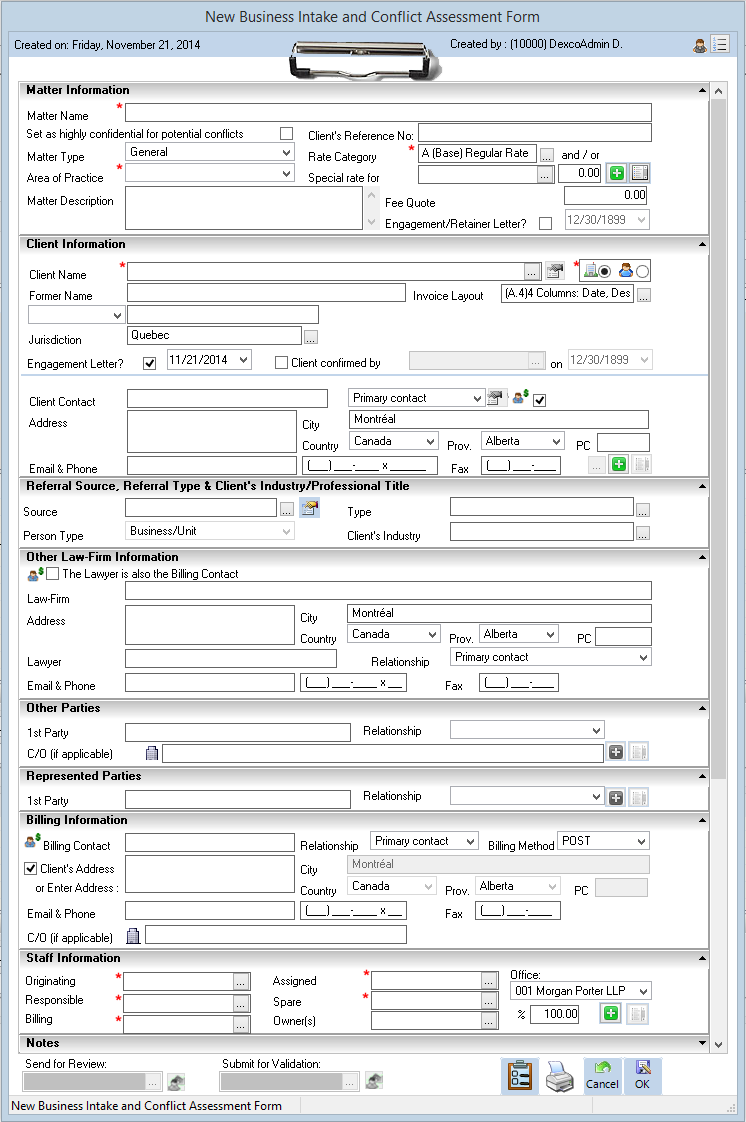
IMPORTANT NOTE: The included screenshots may be different depending on versioning and licensing the firm is working with and configuration decisions made at the implementation.
General Information
-
The form is considered as "completed' when all fields with a red star (*) are populated. Be aware that depending on the selection made during the process, new fields can become mandatory. For example, if no billing contact is selected in the client information section, the Lawyer field in the Law-firm or the Billing contact in the Billing Information section will become mandatory. At least one billing contact should be set in a matter.
-
A contact should only be entered ONCE in one of the sections in the form. The user should evaluate before starting what the contact is and how the contact will be used:
-
Who is the billing contact:
-
If the billing contact will be re-use in another matter within the client, enter the billing contact in the Client contact section with the option billing contact checked. He will be added at the client and matter levels.
-
If the billing contact will only be used in this specific matter, enter the billing contact in the Billing Information section. By default, any contact entered in this section is considered as a billing contact. He will be added only at the matter level.
-
If the billing contact is a lawyer within another Law-firm, enter the name of the lawyer and the Law-firm's name in the Other Law-Firm section with the option "The lawyer is also a billing contact" checked. The lawyer "care of" the Law-firm will be added as a billing contact only at the matter level .
-
-
Who are the parties represented contacts:
-
If the contact will be reused in other matters within the client, enter the contact in the Client Contact section. He will be added at the client and matter levels.
-
If the contact will only be used at the matter level, enter the contact in the Parties Represented Information section. He will be added only at the matter level.
-
If the contact is a lawyer c/o his law firm, enter the name of the lawyer and the Law-firm's name in the Other Law-Firm section. He will be added only at the matter level.
-
-
-
Who are the other or adverse parties contacts:
-
All contacts considered as other or adverse parties should be added to the Other or Adverse Parties section. They will be added to the matter level, in the Other Parties section.
-
-
Any information that cannot be entered in the existing section of the form should be added in the Note section. The validator will add it to the client and/or matter properties during the validation process.
Matter Information Panel
This is where the user will enter information specific to the matter.
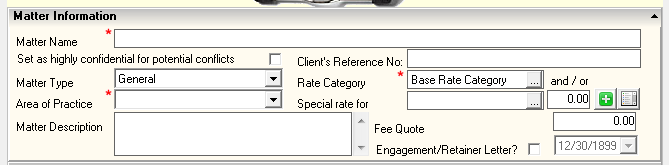
Matter Name (Mandatory): The name should be completed in consideration of future search requirements when looking for matter duplication and the fact that the content of this field will update the "Matter Properties" – "matter name" and "re: line" fields.
Highly confidential: Check mark identifies the potential new matter as highly confidential, in order for the person responsible for triggering the conflict assessment process to engage proper procedures without full disclosure where the latter is not warranted.
Matter Type: The default matter type whether the field is used or not is "General", in which case the additional tab can be added subsequently by making the appropriate change in matter properties.
Area od Practice (Mandatory): Is a mandatory reporting dimension; therefore the user must make the appropriate selection from a firm-defined list of options.
Matter Description: The content will be stored within the matter description field in the matter properties.
Client's Reference No: The content will print on client documents such as the invoice package, the statement of accounts and the statement of trust. This number is typically provided by the client.
Rate Category and/or Special Rate
-
The end-user can accept the default base rate category or select a different rate category from a list of firm-defined options;
-
In addition, the end-user can request from the validator the addition of a special client or matter level rates for specific members by selecting the affected member and inserting the proposed special rate.
-
Press on the "plus" sign to add the member-rate combination request to a list and make a second request until all requests are completed.
-
The list view icon launches the "Details" form, where the end user can execute the functions included on the contextual menu.

-
Subsequent to the validation process concluded by the data steward or the compliance officer, the application will automatically create the temporary client and or matter with the following rate structure:
-
A new temporary client and matter are created: In this case the client and matter will be created with the rate category selected within the request form. In addition, each of the special rates entered by the end user (if any) and accepted by the data-steward or compliance officer is confirmed as different than the one associated through the rate category selected in which case it is automatically created as a special rate at the client-level with an effective date equal to the date on which the matter is created as temporary.
-
A new temporary matter is created for an existing client: In this case the matter will be created with the rate category of the client. In addition, each of the special rates entered by the end user (if any) and accepted by the data-steward or compliance officer is confirmed as different than the one associated through the rate category selected and/or set up as a special member rate at the client level in which case it is automatically created as a special rate at the matter-level with an effective date equal to the date on which the matter is created as temporary.
-
Fee Quote: The value entered will be stored within the Billing & Receivable tab – Matter limits & Quote sub tab in matter properties and presented within invoice properties
Engagement / Retainer Letter: Checkmark to trigger the client and/or matter level Engagement and/or Retainer letter process defined by the firm and set the date the letter was sent.
Client Information Panel
Client Properties Section
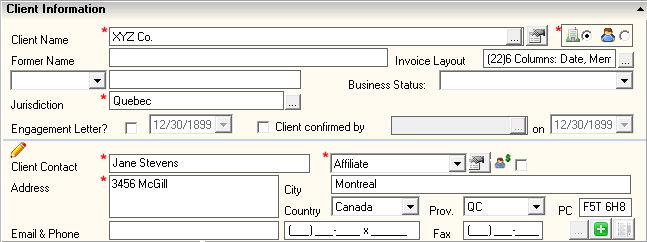
Client Name (Mandatory): Enter the name of the client and press on the ellipsis button to launch the person search. If the client exists, select it. If not, close the Search form.
-
Selected clients will be presented with a "properties" icon on the right of the field, providing the end user with drill through capabilities into client properties consistent with their security profile;
Note that to remove the selected or entered object from the client field - including other related objects – to facilitate the process of entering or selecting a new one - right-click to access the contextual menu and select "Clear Client and Related Objects".
Person Type: The selection of a person type is mandatory – Business/Unit or Individual;
Former Name: Will display if the selected client has one entered in the client propertie. Enter the former name (if any) for a client assumed to be new. This field is searched during the potential conflict search.
Invoice Layout: If an existing client is selected, will display the invoice layout found within its own client properties as the default for the creation of the new matter. The default invoice layout set at the firm level will display for a client assumed to be new. In both cases, if a different selection is made, the latter will only apply to the new matter.
Client Identification Field: If an existing client is selected will display the client identification information found within its own client properties. Enter the client identification information (if any) for a client assumed to be new.
Business Status: If an existing client is selected, will display the content pre-populated found within its own client properties. Select one for clients assumed to be new.
Jurisdiction/Area: Will be preset with the firm's desired defaults (mandatory on creation or not)
Client contact section
Client Contact (Mandatory) and relationship fields
-
If an existing client is selected, the most recent billing contact at the client level will display as the default contact to be added to the matter file – parties represented list-view.
Note that to remove the selected or entered contact and coordinates (excluding the address), right-click to access the contextual menu and select "Clear contact & Coordinates" .
-
If a new non-selected client is entered, the user must enter a New Client Level contact along with its corresponding relationship to the client. As the client contact and relationship fields are mandatory, their content will result in the creation of a client-level contact which also is automatically added to the matter file – parties represented list-view.
Any client contact added to the Contact and Addresses List from here will be added to both client and matter Party represented contacts list. If the intent is to add a contact only at the matter level, the user must use instead one of the other matter level sections.
Points to Consider:
-
The default relationship is that of "Primary Contact", in which case the contact is also presumed to be the billing contact, therefore the "also billing contact checkbox" will be check-marked ON by default. The end-user can change the default status of the checkbox to reflect the true nature of the relationship;
-
The client contact is also presumed to be the ultimate AR contact. One ultimate AR contact is required per client and only one per client is permitted. This status is automatically granted and not defined by the end user at this time;
-
If the user selects a contact category other than that of "primary contact", he or she can also alter the status of the "is also a billing contact" checkbox to reflect the true nature of the relationship;
-
If the "Is also a billing contact" checkbox:
-
Is check marked; then regardless of contact category selected, the client-level contact will be set up as also being a billing contact and added to the matter file;
-
Is not check marked then:
-
Regardless of contact category selected, the client contact will not be set up as also being a billing contact, but it will be added to the matter file, and;
-
The end-user will be required to identify the billing contact within the "Billing Information" panel and/or the "Law-firm Information" panel.
-
-
-
Based on system settings, the address for all contacts set as also billing contacts could be mandatory.
Address
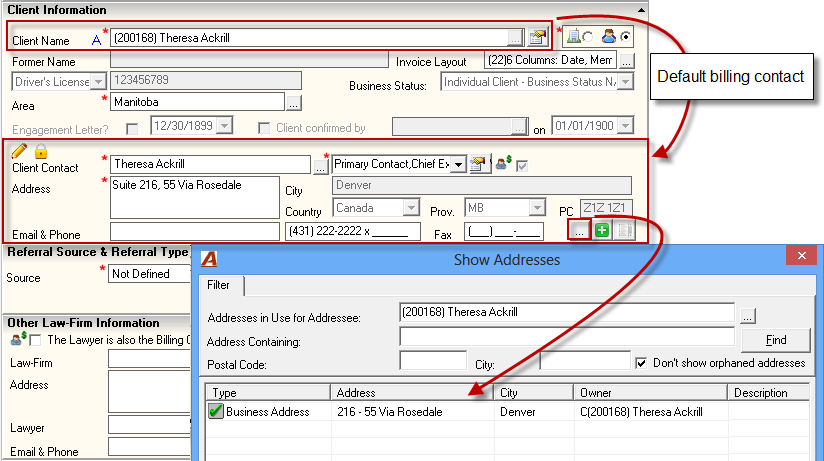
-
If an existing client is selected, the default address – the address and other coordinate-information associated to the default client-contact will display. Press on the ellipsis button for the address to select another existing client-owned or client-used address.
By selecting another address to the defaulted contact, a completely new contact will be created – new combination of person and address. This will not modify the original defaulted client contact. If the intent is to modify the address of the defaulted client contact, add instructions in the Notes section to let the validator knows to remove the original defaulted client contact from the Party represented list in the client and matter properties and set the new one as the new defaulted client contact.
-
If a new non-existing client is entered, the user must enter a new address.
Points to Consider:
-
To see the list of proposed new addresses the user must press on the list-view icon to the right of the plus sign icon;
-
If multiple addresses are entered, only the one with the person icon will be associated to the client-contact properties;
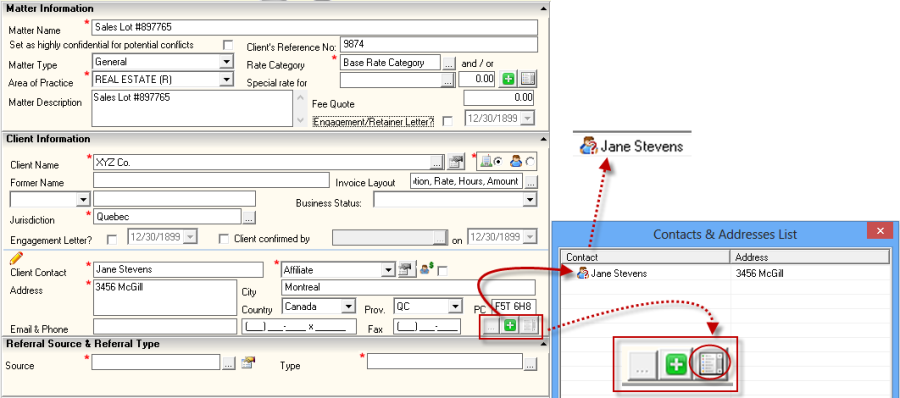
-
To enter a new client address without adding a new contact, type only the address and then press on the plus sign to add it to the Contact & Addresses List. This address will be added to the coordinate section in the client properties and will be part of client-owned or client-used addresses list.
Contacts & Address List
The Contacts & Addresses List includes a contextual menu with:
-
Edit: Resets the selected contact and/or address onto the client contact and/or address fields in the client information panel in order for the end user to make required modifications. To relist the contact and/or address on the list, the end-user must press on the "Plus-sign" icon;
-
Delete: Removes the contact and/or address from the list and the client information panel if applicable. If there was only one contact/and or address and this was deleted, the fields in the client information panel will be displayed with a red asterisk to show that a contact and/or address is needed and enabled so the end-user can complete them.
The lock icon means that the user cannot modify the field; whereas the pen icon means that the user can modify the field. In the example below, some fields are locked and some can be modified.
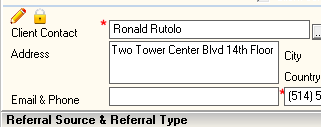
Email, phone and Fax
It is recommended that the end user complete the e-mail address and telephone number for the client contact as the latter will be stored as contact properties, available to end users within the client-matter dashboard as well as client and matter properties.
Referral Source, Referral Type & Client's Industry/Professional Title Specifications
Referral Source and Type
It is recommended for the organization to enable the Referral Source and Referral Type in order to capture business information relevant to the potential conflict assessment process.
If the option is set only at the client level,
-
For a new client, the field will be available for selection.
-
For an existing client, the content will be visible but the field grayed out.
If the option is set only at the matter level,
-
For a new client, the field will be available for selection.
-
For an existing client, the field will be available for selected.
If the option is set at the client and matter level then:
-
For a new client, both fields will be available for selection and when validated, the same information will be added to both levels.
-
For an existing client, both field will be available for selection and when validated the information will be added to the matter properties.
Client's Industry
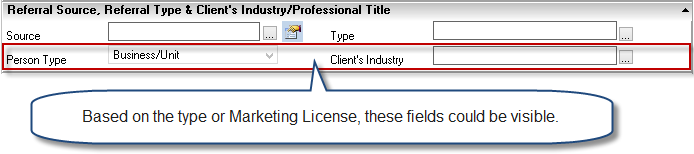
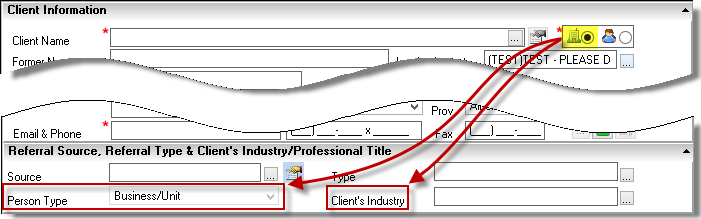
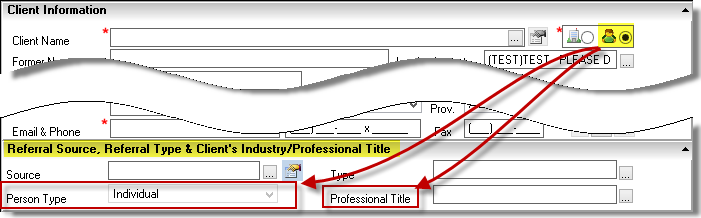
Based on the person type selection in the Client Information panel, the appropriate type will appear in the Person Type field in the Referral Source & Referral Type panel.
Additionally, if the Person Type selected is business/unit the label shown will be "Client's Industry", and if the Person Type is individual the label shown will be "Professional Title".
Other Law-Firm Information Panel
If the client wants to be billed care-of another law firm or when the firm will represent another law firm as the agent for a matter, the end user should complete the content of the law-firm information panel.
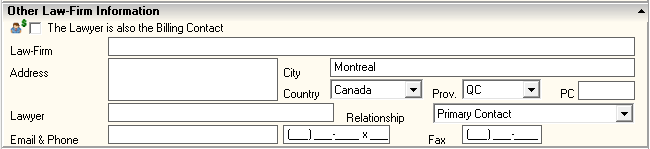
The lawyer is also the Billing contact: Checkmark this option when the lawyer entered into the "Lawyer" field is to be the recipient of the invoice (the attention to on the invoice – namely the billing contact)
Law-Firm Name, Address and Client's Lawyer field: Complete the name of the law firm the organization is working with, as well as its complete address including the country. Based on the country, select the state or the province. Also complete the name of the lawyer, as it is mandatory when the law-firm name field has content.
Relationship, E-mail and telephone Number: If the lawyer field has content, then the relationship field is mandatory. In other words, as part of the data-entry process the end user is required to define the relationship between the lawyer (attorney) and the client. Enter an email and phone number if any.
Parties Represented Information Panel
In order to have a complete picture for the conflict assessment process, it is highly recommended that end-users capture relevant parties-represented information.

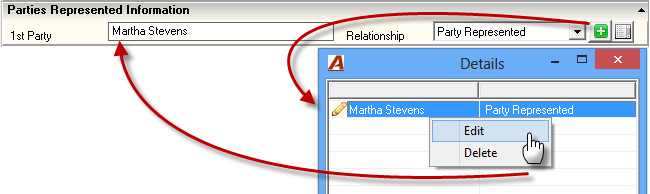
Any contact added to the Details list will be added exclusively to the Party Represented contacts list in the matter properties. If the intent is to enter a contact that will be re-use in other matters under the same client, the contact should be added from the Client contact section to be added at both levels .
The end-user can record one or more parties by entering the name in the first field (labelled 1st party) and defining its relationship to the client by selecting a firm-defined "Party Represented Category" from within the relationship drop-down box. The plus sign icon will clear the content of the panel so the end-user can enter additional parties represented. This action will also launch the cumulative list view form and relabel the first field to the next number (i.e.: 2nd Party).
The list view icon launches the "Details" form, where the end user can execute the functions included on the contextual menu.
Other or Adverse Parties Information Panel
In order to have a complete picture for the conflict assessment process, it is highly recommended that end-users capture other-party information.

Contacts entered in this section will be added to the Other Parties contacts list in the matter properties.
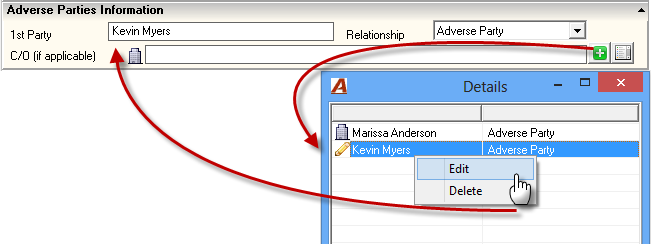
The end-user can record one or more parties by entering the name in the first field (labelled 1st party), defining its relationship to the client by selecting a firm-defined "Other Party Category" from within the relationship drop-down box and completing the content of the care-of (CO) field where appropriate. The plus sign icon will clear the content of the panel so the end-user can enter additional other parties. This action will also launch the cumulative list view form and relabel the first field to the next number (i.e.: 2nd Party).
The list view icon launches the "Details" form, where the end user can execute the functions included on the contextual menu.
Billing Information Panel
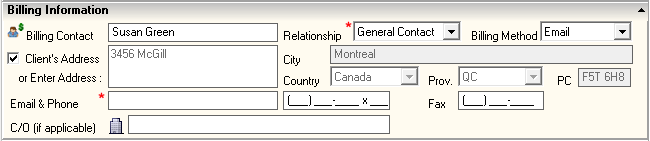
Contact entered in this section will be added as billing contact exclusively to the Party Represented contacts list in the matter properties. If the intent is to enter a billing contact that will be re-use in other matters under the same client, the contact should be added from the Client contact section to be added at both levels as billing contact.
Billing Contact and Relationship: Where a billing contact has not yet been identified elsewhere on the form, the Billing Contact field in the Billing Information panel will become mandatory.
Where the user identifies the client-level contact found within the client information panel or the law-firm information panel, also as the billing contact – the billing contact field found within this panel remains available for use on an optional basis.
Although the default contact category is the "Primary Contact", regardless if the Billing Contact field is mandatory or optional, the end user can select another more relevant contact category. Regardless of the category selected, the application automatically sets the contact as "Also billing contact" without additional user intervention.
The billing contact entered will default to the client's address. However the user has the option to remove the client's address default checkmark and enter a new address.
Where applicable the end user can enter the name of the care-of (C/O) entity.
Employment Information Panel
In order to have a complete picture for the conflict assessment process, end users may need to capture relevant client-level employment information.

Contact entered in this section will be added to the Employment contacts list in the client properties.
The end-user can record one or more parties by entering the name in the first field (labelled 1st entry) and defining its relationship to the client by selecting wither employer or employee from within the type drop-down box. The date range allows end users to set the start and end dates as needed. The plus sign icon will clear the content of the panel so the end-user can enter additional employment information if needed. This action will also launch the cumulative list view form and relabel the first field to the next number (i.e.: 2nd entry).
The list view icon launches the "Details" form, where the end user can execute the functions included on the contextual menu.
Staff Information Panel
The Staff Information panel allows the end user to complete member role information, modify the default firm (office) for the matters where applicable, and where required, enter member-ownership information. The information is considered to be at the matter level, therefore on creation of new clients the same team composition will be applied at both levels. The client level team composition can be easily modified as part of the activation process.

Team roles
The user accepts, enters or selects the originating member. To facilitate this process, a default originating member has been set in the "Acumin System Settings".
Once the originating member is accepted or overridden the end-user can tab to the "Responsible" member role, in order to have it default to the value found within the "Originating" member field. As the field content is pre-highlighted, the end-user can override it by entering or selecting another member value or by tabbing to the next field to accept the current value and preset the next default value. The remaining member-role assignments have the same business logic for calculating the default value and can be completed in the same manner.
Owner(s)
Displayed in gray, the "Owner(s)" field content will default to the member value entered as default in the "Implementation" tab found within "Acumin System Settings". The default is preset on the assumption that he or she is 100% owner.
If the user changes the content of the role that drives the default ownership value with a different member, the change will also change the content of the default owner value – which remains in gray; however if the user manually selects someone different as owner, then the content will be considered changed and displayed in black. In this case, subsequent changes content of the role that drives the default ownership value will not be reflected in the owner's field.
To add another owner, the end-user must change the 100% ownership percentage to a lower value, thus enabling the plus button. On the application of the plus button, the "Owner" field is vacated. After each name is entered and the percentage is defined, the user presses plus to clear the content and create the parallel list view form.
The user can override any default value and on enter, on tab or on selection of the ellipsis button; the user triggers a member search. On member selection the percentage field is pre-populated with the left over percentage. Users can enter as many owners as needed as long as the sum of the percentages used equals 100.00%.
Offices
Based on the rules applied within system settings, the firm or office of the matter is calculated. The authorized user can modify the default where it is permitted.
Notes
If there is content in the notes section, then this will be converted to a matter properties paperclip, therefore the notes section should be used to complete additional information not specifically requested.
For example, users that
-
want a paper clip with billing instructions when working with the matter's invoices should request the insertion of a billing instruction paperclip.
-
require billing frequencies which are subsequently set up in matter properties.
-
want to open a new matter potentially subject to task code should include in the notes the reminder text they would like to see when they bill.
-
require special time rates and/or disbursement rates.
-
require split invoicing (invoice sharing) should add the information about the participants and their percentage in the notes.
-
want to add any other information that is not already part of the form content.
Best Practice Recommendation:
For every inclusion on the notes, user should start with a clear label and then state the desired outcome. as per the examples provided.
-
Billing Instruction: Present courier charges as individual disbursement entries – ungrouped;
-
Billing Frequency: Quarterly Nov 15th 2011
-
E-Bill Set-up Requirements: Apply the LEDES 2000 task set and supporting requirements
-
E-Bill Instruction: Invoice E-Coded activity separately
Workflow and the Submission Process

Validation, Printer, Cancel and OK buttons
Validation button: The creator can verify if all the mandatory fields are populated before submitting the request.
Print: Will print the request content.
Cancel:
-
If an existing request is re-opened, it will close the form without saving any of the modifications made.
-
If a new request is created, it will close without creating the request.
OK:
-
If an existing request is re-opened, it will close the form and save all modifications made.
-
If a new request is created, it will close the form and save the content.
Sent for Review
The creator can submit the form "for review" prior to the latter being submitted for validation;
Depending on how the default member to be set for review is defined in firm properties, the following calculation of the default member for the "send for review" field will apply:
-
If the assistant-member relationship option is selected, then:
-
If the member working with the new business intake form is an assistant then he or she will see the member he or she is the main assistant for as the default within the "send for review" field or if he or she is not a main assistant for a member, then the default will be set to the first member found for whom he or she is an assistant for;
-
If the member working with the new business intake form has an assistant then he or she will see the member assigned as his or her main assistant as the default within the "send for review" field or if he or she does not have a main assistant, then the default will be set to equal the first member set as an assistant on the member's assistant list in member properties;
-
-
If a specific member is set as a default review member for the firm, this is the member that will list on the "send for review" field.
-
If the member is not an assistant and he or she does not have an assistant then the "send for review" field will pre-populated with the creator who is the member logged into Acumin.
Submit for Validation
Once the form is completed, the user can submit the latter for validation.
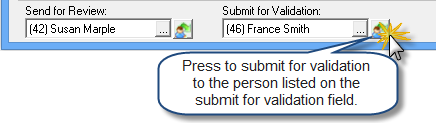
-
The recipient of the submitted form is then responsible for validating the information received ensuring that:
-
There are no duplicate persons – where the same person is created more than once -as existence of duplicate persons compromises the potential conflict assessment process;
-
The content of the information supplied is in accordance with firm policy, and;
-
That data integrity and continuity are maintained.
-
Typically this function is handled by a data-stewart or compliance officer.
General Client-Matter Request Form Options
Filter Options
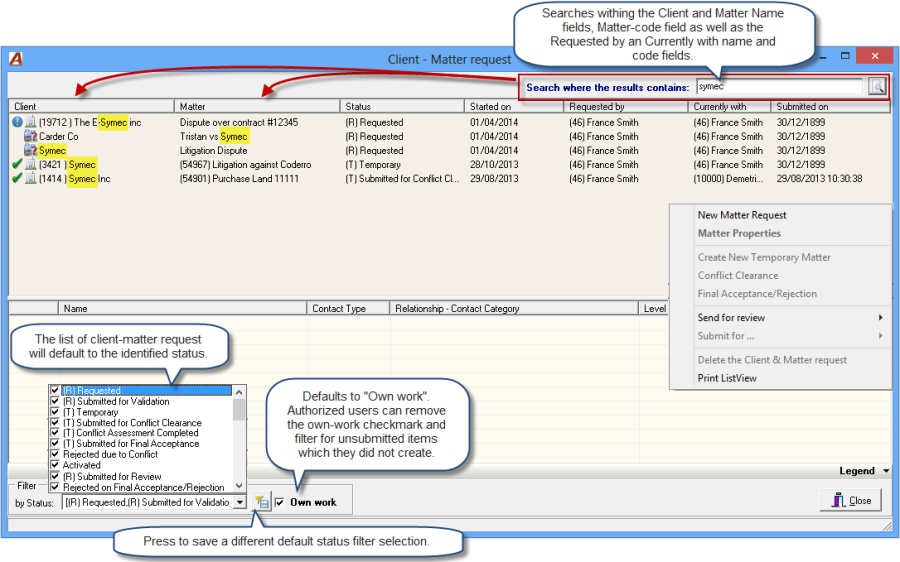
Search where the results contain: will search for the content of the search string entered within the field content of Client name, matter name, code and name of the "Requested by" and the" Currently with".
By Status: the status-filter defaults to include all statuses.
Own work: The list will default to the users' own work
Legend
Legend panel: Click on the legend panel label to explode its content and view corresponding icon definitions

Contextual Menu
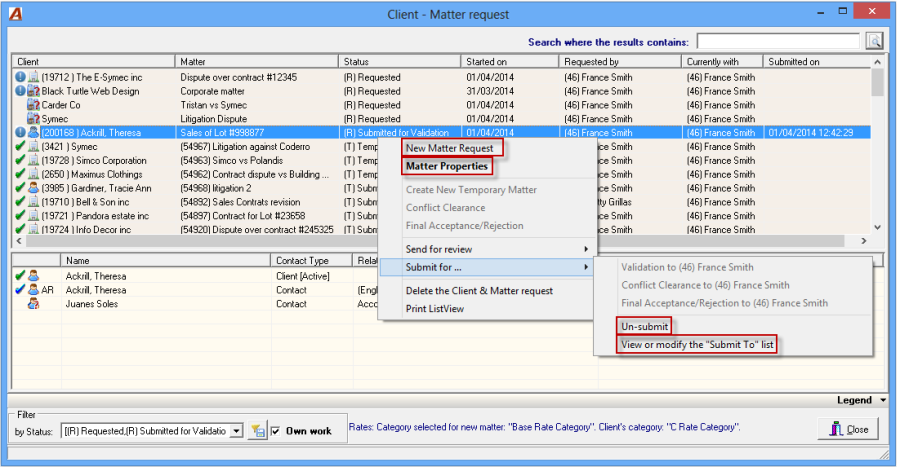
New Matter Request: Launches a new client & matter request form for user completion.
Matter Properties: Launches the client-matter request form or the matter properties form depending on the status of the request.
Create a New Temporary Matter: Enabled for authorized users when the status of the matter is "Validated" i.e. when the last contact to validate has already the status "validated". This option will trigger the creation of the temporary matter.
Conflict Clearance: Enabled for authorized users when the status of the client-matter request is "Submitted for Conflict Clearance".
Final Acceptance/Rejection: If visible, this option is enabled for authorized users when the status of the client-matter request is "Submitted for Final Acceptance".
Send for review: Dependent on the organization's review workflow, this option includes a list of possible actions related to the review process of the new client and matter creation form.

-
Send to review to…: The member listed is the one set as a default in firm properties;
-
Get it back: If the recipient has not opened the client-matter request, the creator can recall the object back;
-
View or modify the "Send for review" list: This option will launch the list of default recipients in order for the end user to make changes as needed.
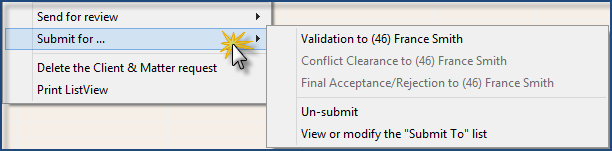
Submit for…: This option includes a list of possible actions to be concluded by other parties involved in the new client and matter creation and acceptance workflow. The possible actions available for submission will be presented in an enabled state.
-
Validation to…: Member set as a default in firm properties;
-
Conflict Clearance to: Member Member set as a default in firm properties;
-
Final Acceptance/Rejection to…: Member set as a default in firm properties;
-
Un-submit: If the recipient of the submission has not opened the submitted object, the creator can recall the object back
-
View or modify the "Submit To" list: This option will launch the list of default recipients in order for the end user to make changes as needed.
Delete the Client & Matter request: The latter and all of its un-validated contents will be deleted. If the object being destroyed has validated content and/or is a client and/or matter with status temporary or better, where possible the affected objects will be destroyed. However if they are subject to other dependencies or use cases, only the links that affect the highlighted object will be destroyed.
Print ListView: Generate the print-preview.
Client-Matter Request – Process Status Options
Requested: Identifies new business intake requests that are in their most basic state. In this case new information included in the form which is not yet validated does not yet have a valid status and therefore is not subject to the rights and privileges afforded to validated objects or existing objects which are selected;
Submitted for Review: Identifies new business intake requests that are in their most basic state - "requested"; and where the latter have been submitted for review;
Submitted for Validation: Identifies new business intake requests that are in their most basic state - "requested"; and where the latter have been submitted for validation with at least one associated person in an un-validated state;
Validated: Identifies new business intake requests that are in their most basic state - "requested"; and where all associated persons and addresses are validated and/or have a valid status as validated object or existing object selected but the temporary client and/or matter have not yet been created;
Temporary: Identifies new business intake requests that have resulted in the automatic creation of clients and/or matters with the status temporary;
Submitted for Conflict Clearance: Identifies new business intake requests with a temporary client-matter or matter status that are submitted for conflict clearance;
Conflict Assessment Completed: Identifies new business intake requests with a temporary client-matter or matter status that have cleared conflict but whereby the individual responsible for this task has not yet activated the latter nor submitted it for final acceptance/rejection;
Submitted for Final Acceptance: Identifies new business intake requests with a temporary client-matter or matter status that have cleared conflict and have been submitted for final acceptance/rejection. This is applicable to organizations where conflict clearance and final acceptance are considered two separate steps;
Rejected due to Conflict: Identifies new business intake requests with a temporary client-matter or matter status that have not cleared conflict resulting in the automatic matter's status change to "rejected" and the insertion of a status-change log-entry that includes the fact that the matter was rejected due to conflict as well as the user-completed reason;
Activated: Identifies new business intake requests with a temporary client-matter or matter status that have been activated;
Rejected on Final Acceptance/Rejection: Identifies new business intake requests where the client-matter or matter clear conflict but are then subsequently rejected on final acceptance. This is applicable to organizations where conflict clearance and final acceptance are considered two separate steps.
The process status is generally preceded by the objects' current status; where the letter (R) means that the object's current status remains in request-mode with limited functionality, whereas the letter (T) means that the object's current status is temporary and therefore subject to functionality options afforded to clients and/or matter holding that status