.png)
By using these deployment tools, you can efficiently manage and synchronize contact information across your entire client/matter hierarchy, ensuring consistency and accuracy throughout your records.
The functionality to deploy contact information throughout the client/matter structure is available via the right-click contextual menu under the option:
"Deploy Contact Information Where…"
This feature allows you to apply or replace contact details across multiple matters and invoices within a client structure using one of the following deployment methods:
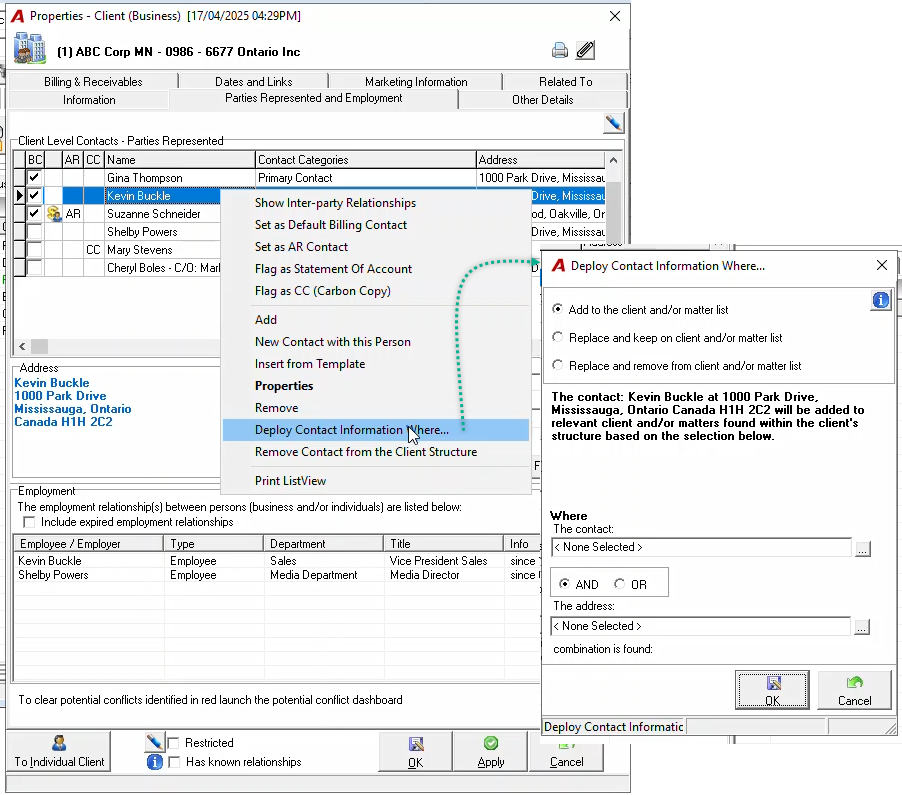
Deployment Options
1. Add to the Client and/or Matter List
This option deploys the selected contact’s properties (including all flags and settings) to all relevant matters within the client structure.
-
You may leave the Person and Address fields as is to deploy the contact across all matters under the client.
-
Use this option when adding a new contact without replacing any existing ones.
2. Replace and Keep on Client and/or Matter List
This option replaces existing contact details across all applicable matters and invoices based on selected replacement criteria, while retaining the replaced contact on the client list.
-
At least one replacement criterion (e.g., specific contact or address) must be specified to proceed.
-
If the new contact being deployed is not already flagged as a billing contact, and it is replacing a billing contact in invoices, it will automatically be flagged as such in the invoice properties.
3. Replace and Remove from Client and/or Matter List
This option works similarly to "Replace and Keep," but removes the replaced contact from the client list after deployment.
-
As with the previous option, you must fill in at least one criterion field (contact and/or address).
-
The deployed contact will be flagged as a billing contact in matter or invoice properties if it is replacing a previously flagged billing contact.
Additional Access Points
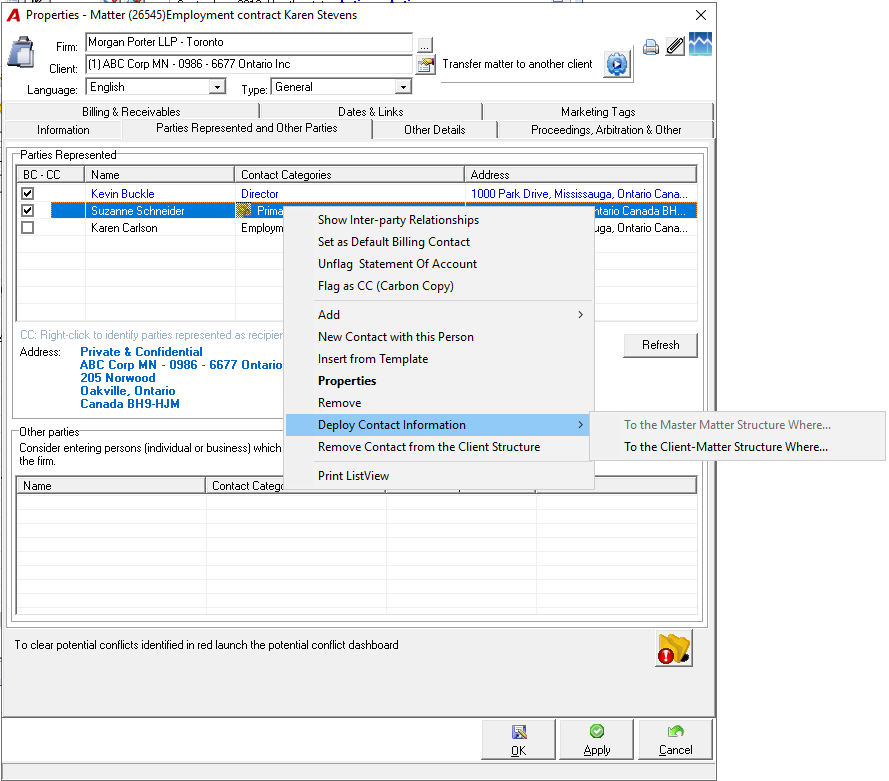
These deployment options are also available directly from Matter Properties, with actions applying accordingly based on your selections.
If your firm holds a license for the "Master Matter Concept," an additional deployment feature is available in Matter Properties via:
"Deploy Contact Information – To the Client-Matter Structure Where…"
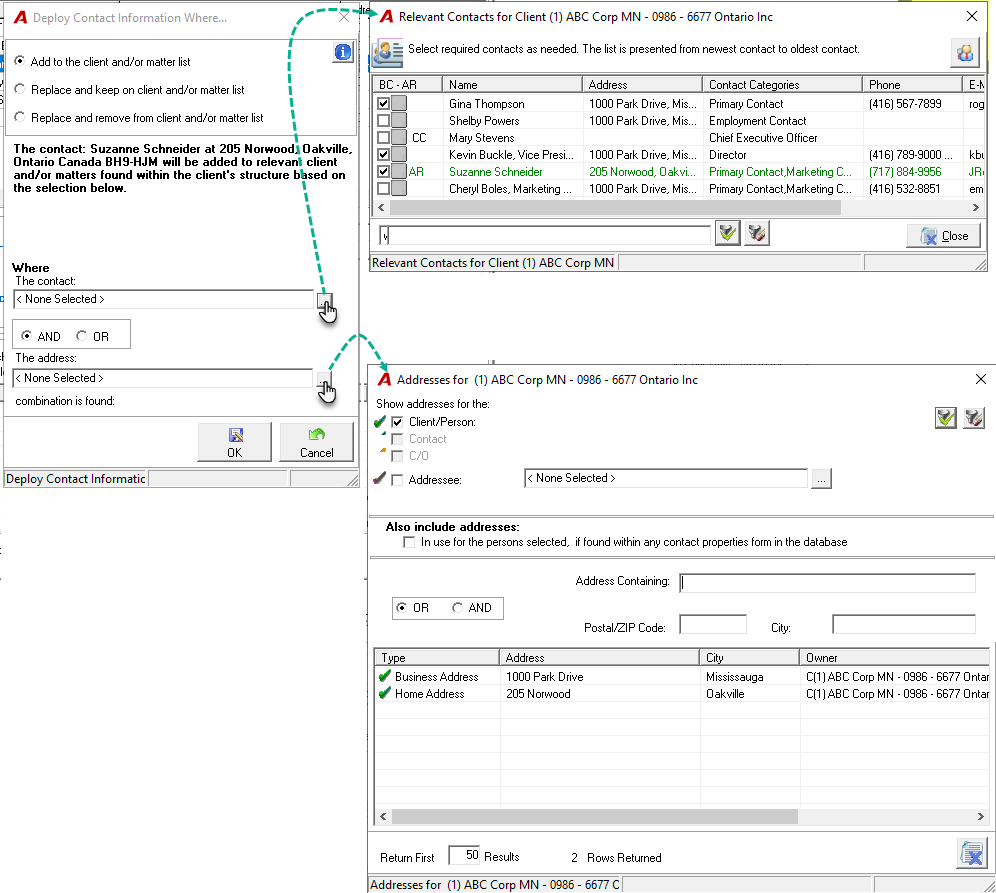
Source of Contact Information
When using the deployment feature, contacts and addresses available for selection are drawn from those listed in Client Properties.
Post-Deployment Confirmation
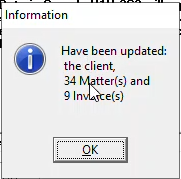
After completing the deployment, a confirmation message will appear, summarizing how many items were successfully updated.
Deployment Log
To review deployment history:
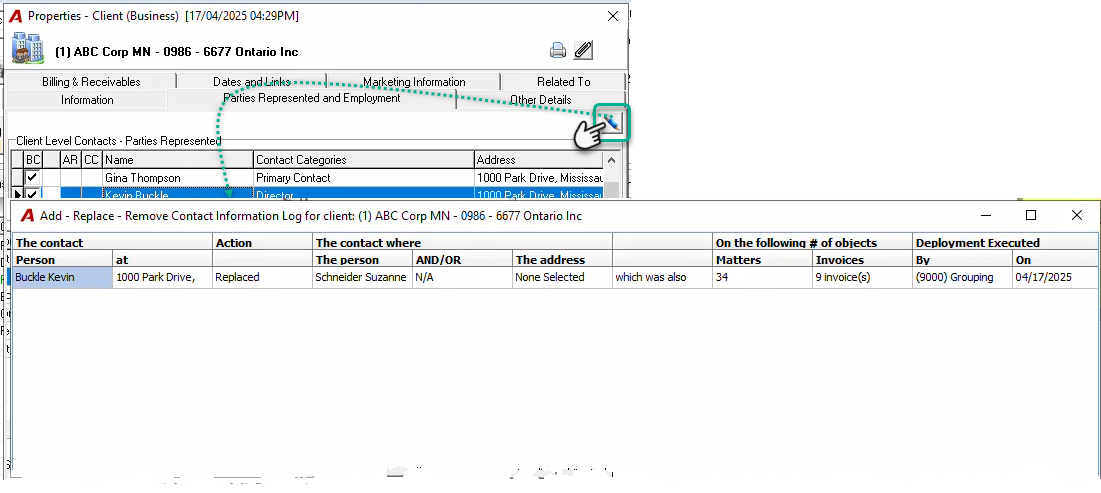
Go to Client Properties > Parties Represented and Employment tab and press the Log icon
Here, you'll find a log detailing all deployment actions within the client structure.