.png)
Person and Address Merge
Use Case
The person and address merge tools are used to combine duplicate persons or addresses.
Duplicates impacts person relationships and as a result impacts the effectiveness of the potential conflict results dashboard and report, as well as can result in duplicate contacts which can impact reporting including the statement of account invoice billing contact grouping.
Person Merge
The person merge can be leveraged by users with security <<170>> to combine two or more persons into one. This includes the ability to merge multiple “persons” into a client.
Access
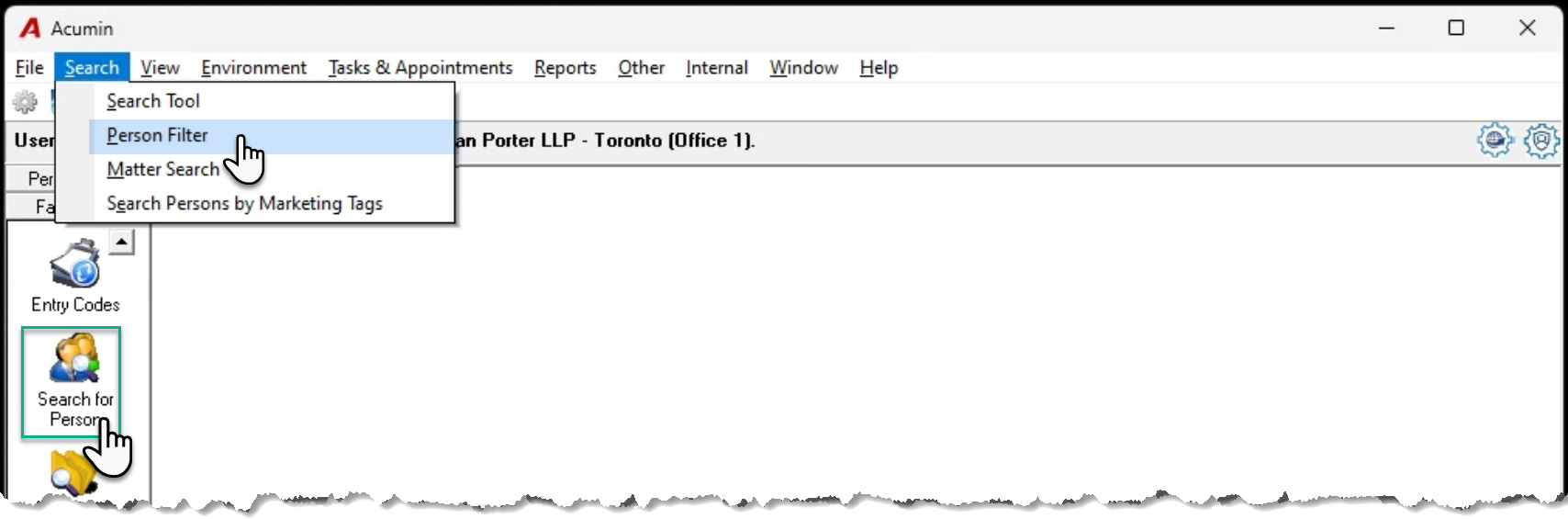
Press on “Search for Person” from the favourite section of the task bar or select “Person Filter” menu option found within the “Search” main menu option to launch the Person Search filter form.
Process
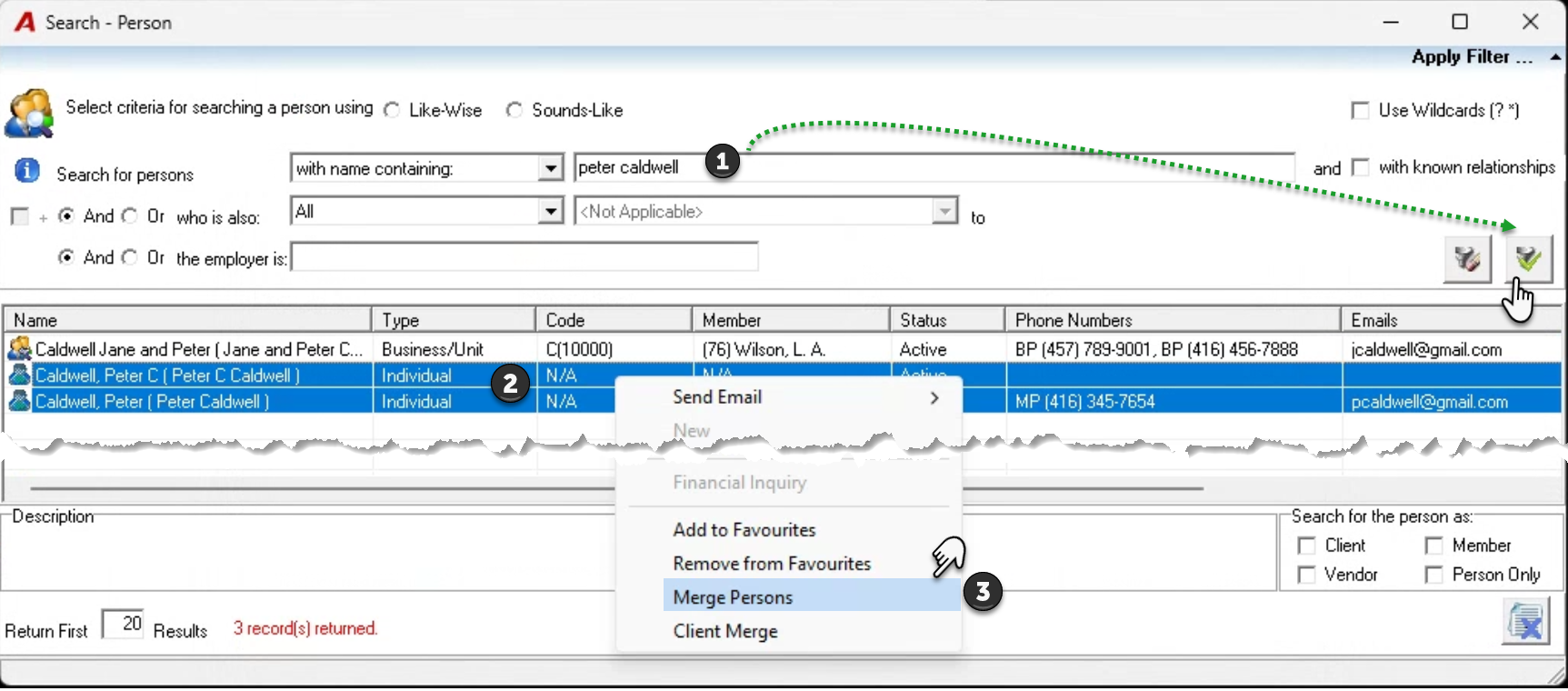
Once on the Search Person form, use the filter options to find, list and select the persons that need to be merged. Right-click to access the contextual menu and select "Merge Person".
Although is possible, to merge two clients the user must execute the “Client Merge” function.
The persons selected will list on the upper section of the Person Merge Tool form. Drag the destination person – the person unto which all other persons listed will be combined into - to the "Info" section of the form and press “Execute” to trigger the merge process.
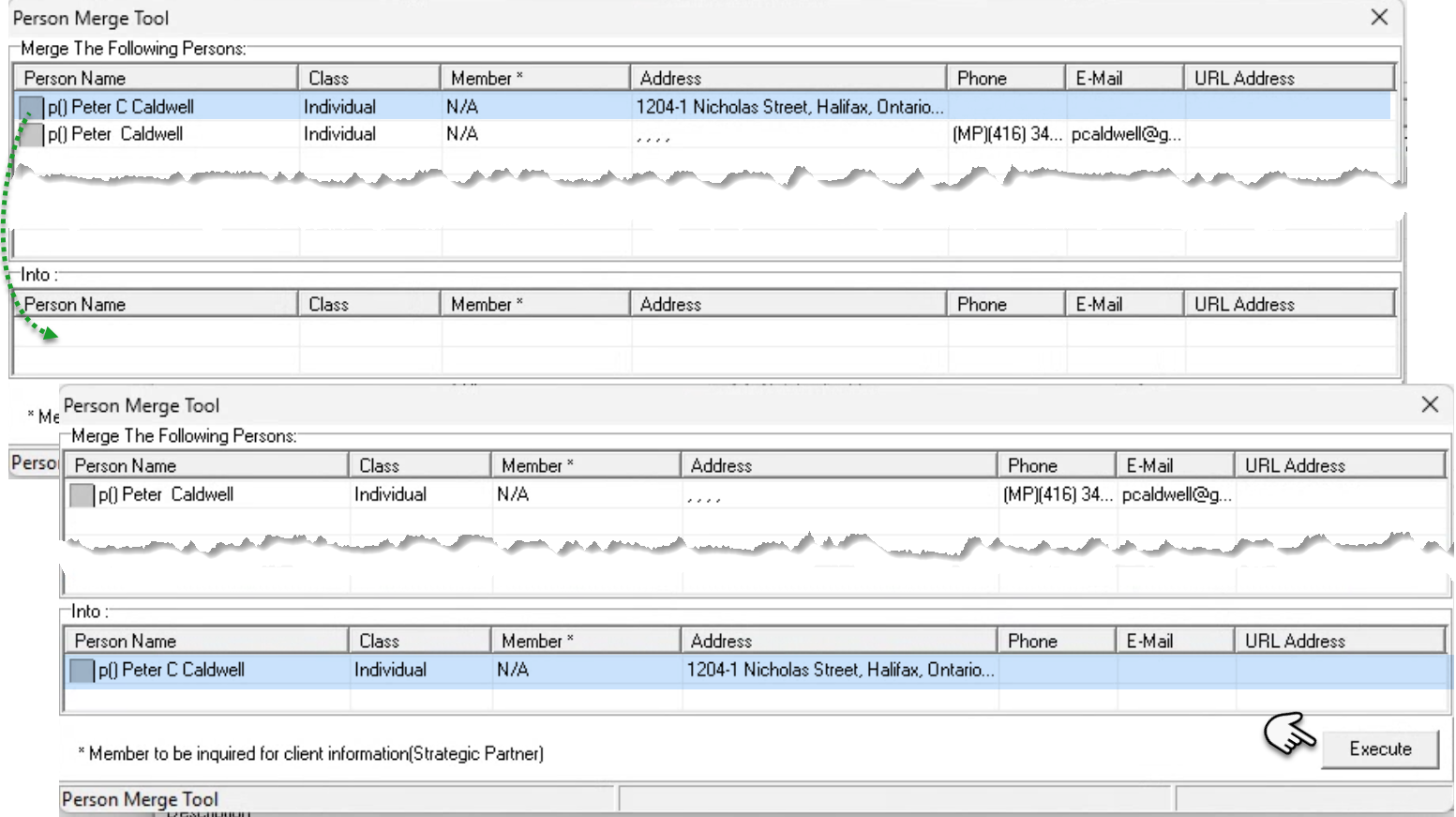
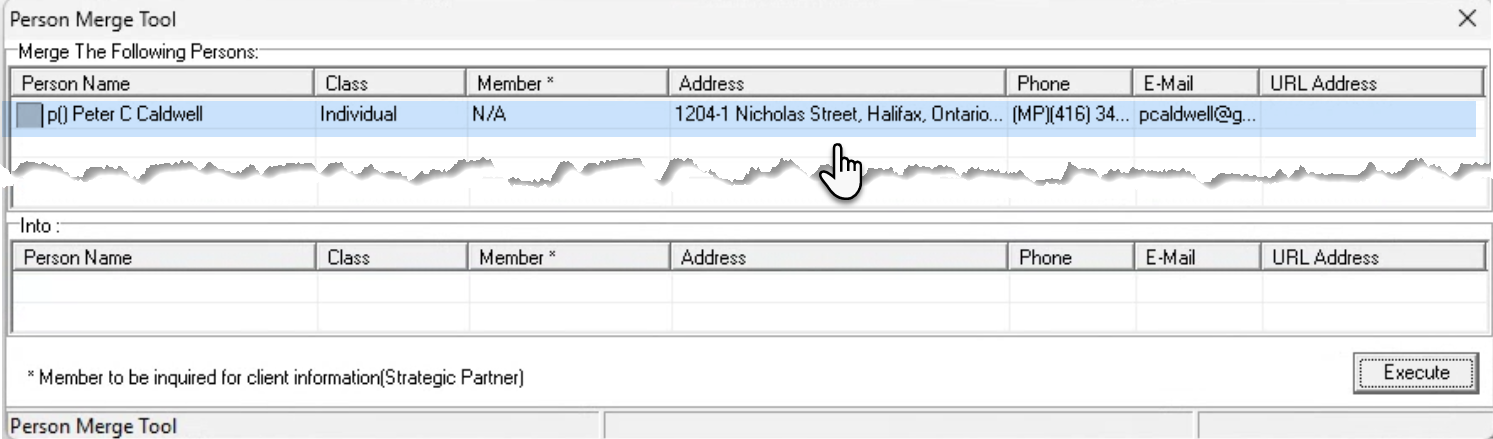
Once triggered the merged person will list in the upper section of the Person Merge Tool form.
The destination person will keep all its properties. However, it will inherit from the source person or persons the additional information that does not match with the information stored in its properties.
Summary
|
Merge |
Into (Destination person) |
|
1 or more persons |
1 person |
|
|
1 vendor |
|
|
1 client |
|
|
1 member |
|
1 vendor |
1 person |
|
|
1 vendor |
|
|
1 client |
|
1 person + 1 vendor |
1 person |
|
|
1 vendor |
|
|
1 client |
|
Many persons + 1 vendor |
1 person |
|
|
1 vendor |
|
|
1 client |
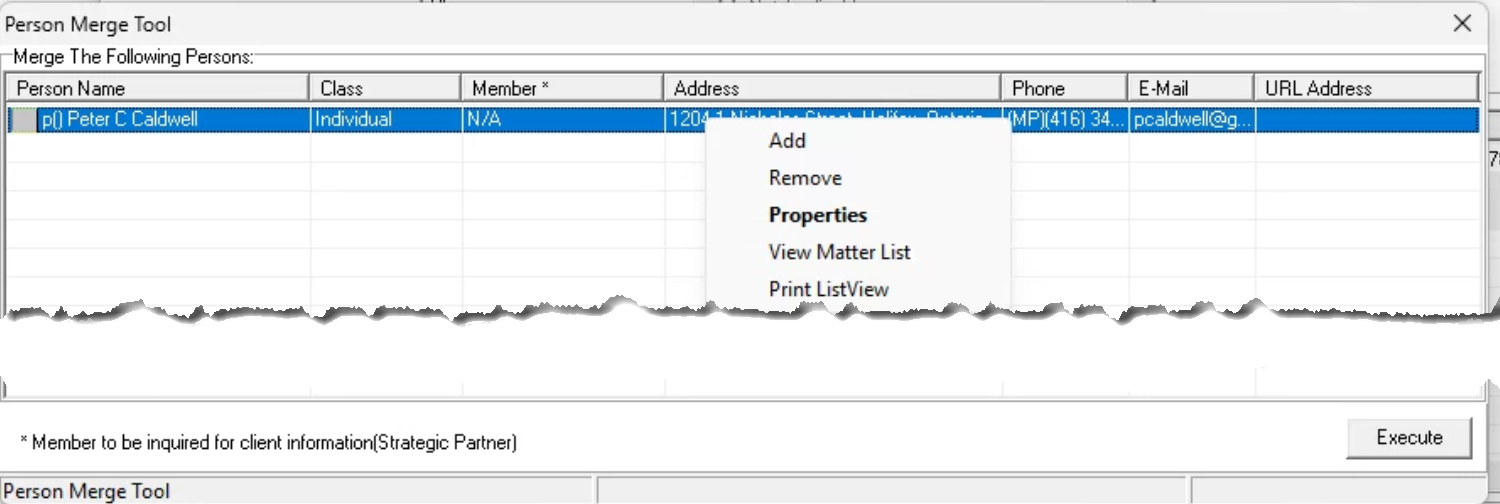
Upper Section Contextual Menu
Add: opens the search tool so users can insert more persons as needed.
Remove: removes the highlighted person (or persons – allow for multiple selection) from the list view.
Properties: opens the properties of the person.
View Matter List: available when highlighting a client, ability to see a matter list.
Print list view
Address Merge
The address-merge uses the same security control as the person merge.
Access
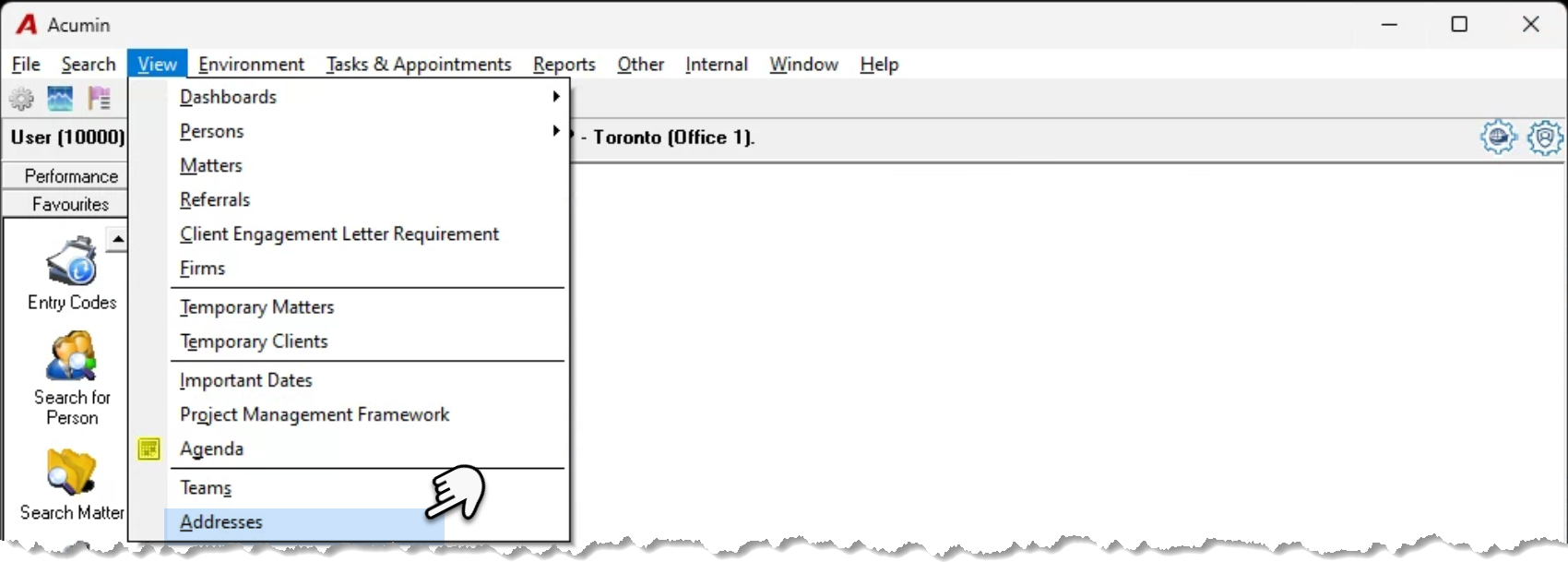
Press on the “View” main menu option to select the “Addresses” and launch the Address for filter form.
Process
Once on the Address for form, use the filter options to find, list and select the addresses that need to be merged. Right-click to access the contextual menu and select "Merge Addresses".
We have combined the search string 33 bay using the AND operator for Toronto and have will merge only the ones with the same suite number.
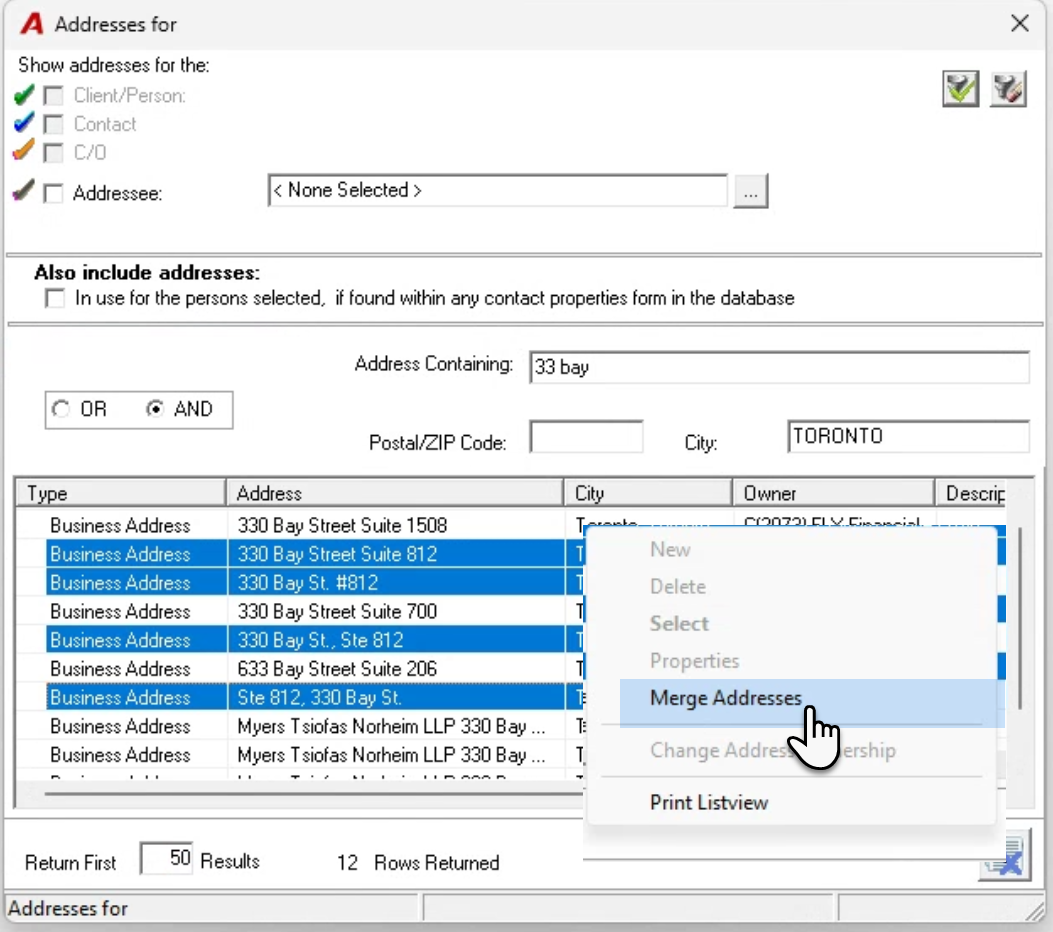
On execution of the “Merge Addresses” contextual menu option, the following message will be launched.
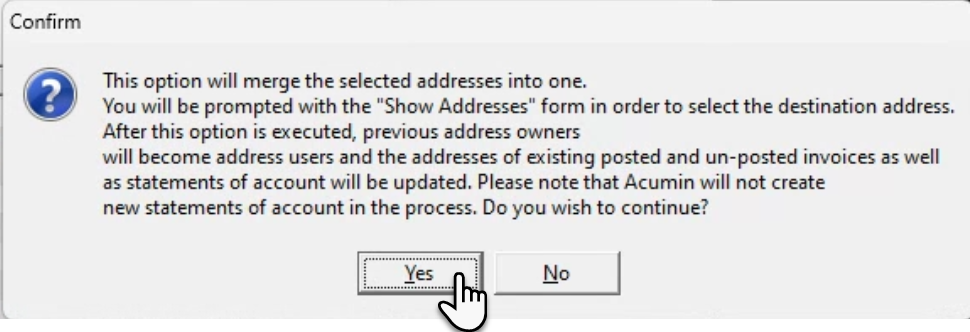
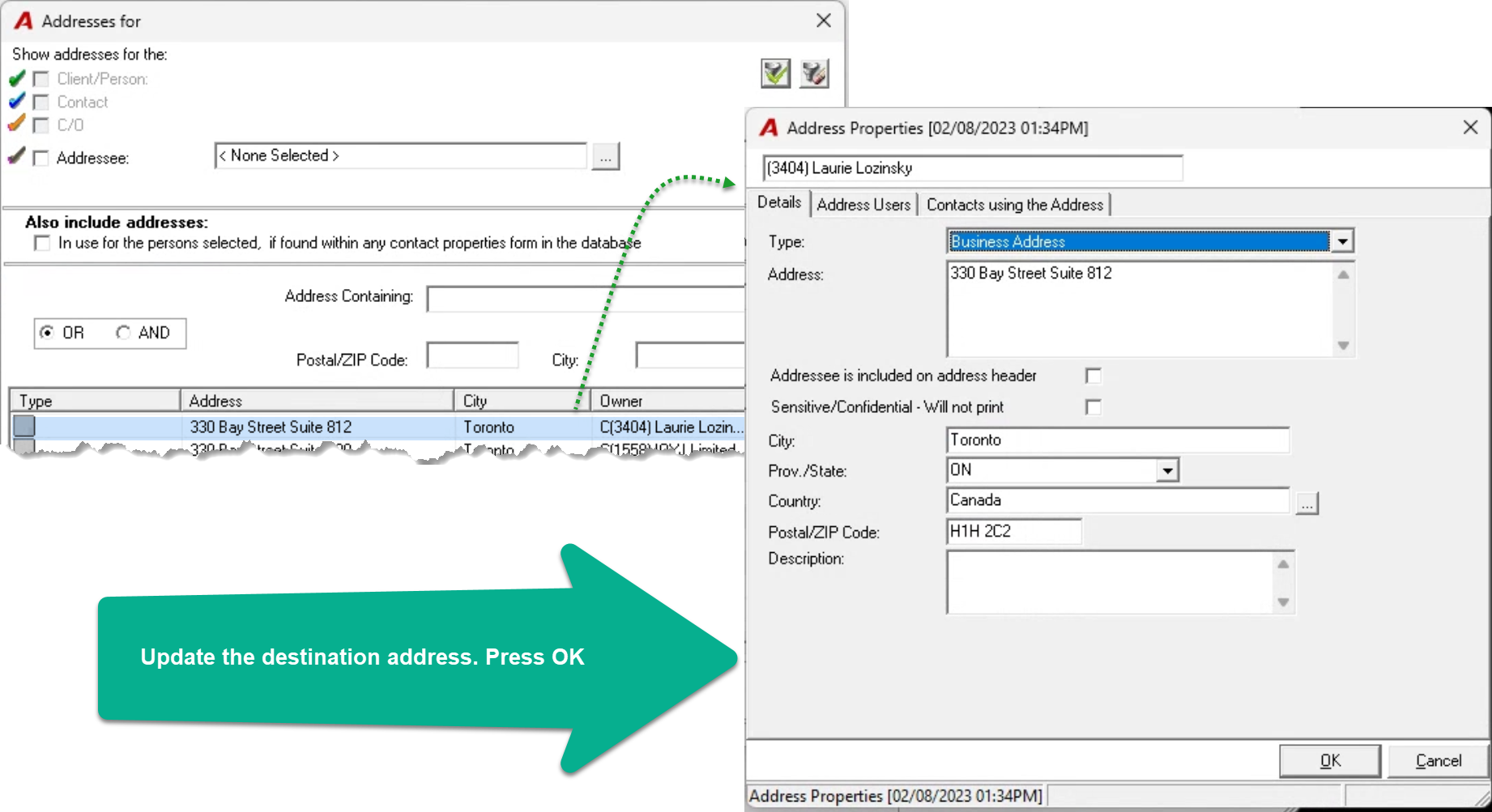
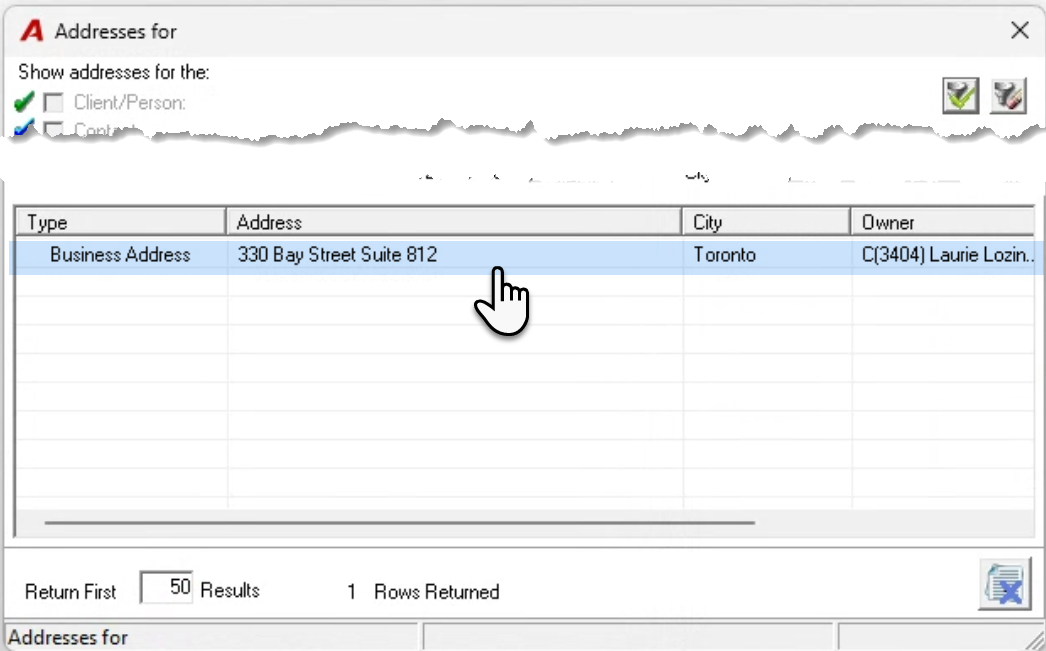
Select YES to proceed. The Address for filter form will be launched with only the selected addresses listed. Click once on the destination address to highlight and twice to execute to finalize the address-merge and launch its address properties. Update as needed and press OK to accept and return to the address for filter form.
This address will retain its owner and all other previous owners of the duplicates will become address users.