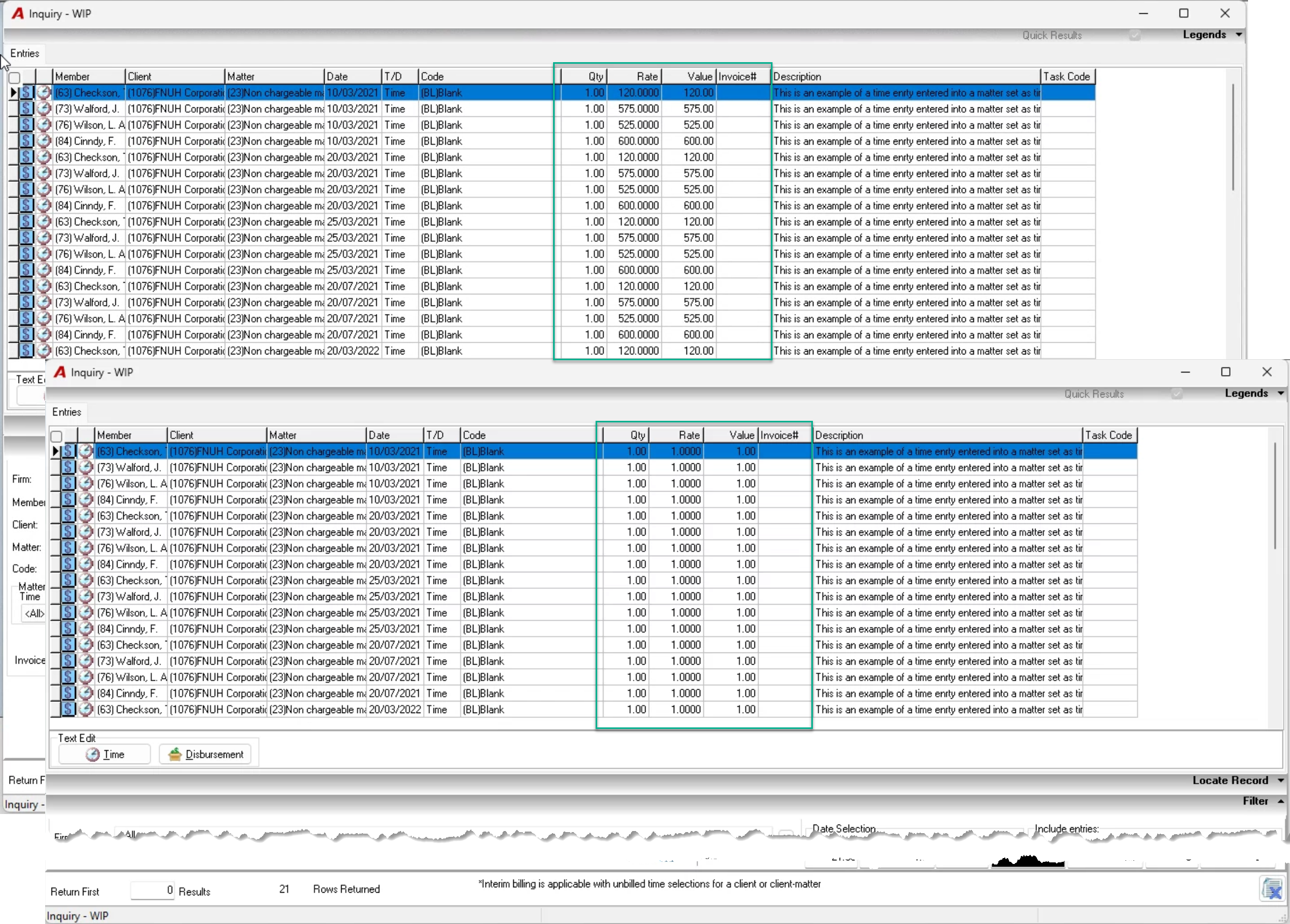
.png)
Context
Changes to the matter’s rate category can trigger a rate change to all unbilled entries at the user’s discretion, based on the effective date selected.
Process
From the client-matter dashboard drill through to the properties of the matter. Press on the ellipsis button to the right of rate category to select a new rate category
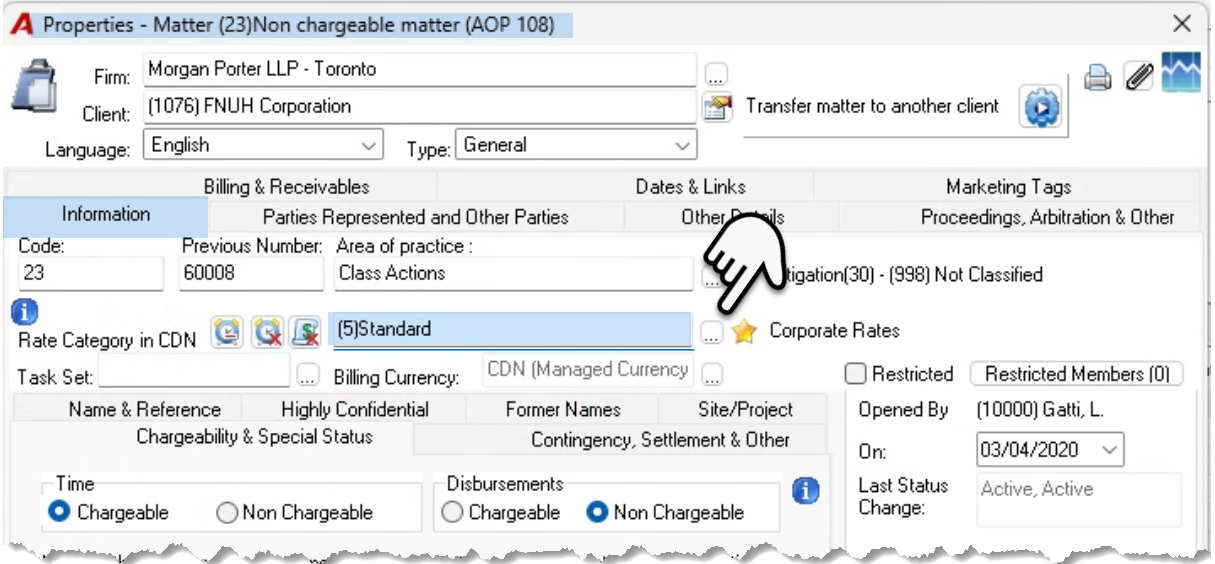
Once the new rate category is select the rate change process is triggered.
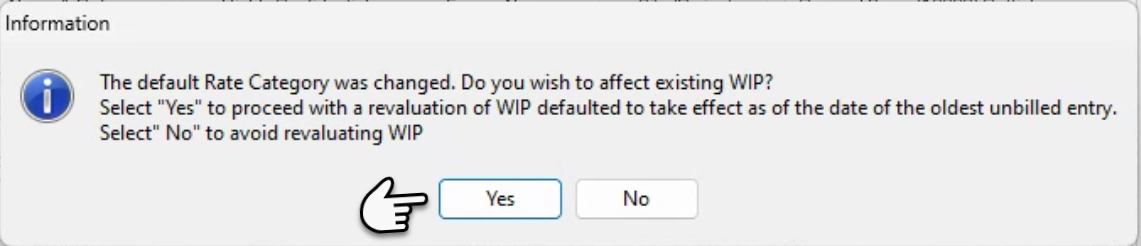
Respond NO to avoid a revaluation or YES to revalue the WIP based on an effective date that must be equal or younger than the date of the oldest unbilled entry for the matter.
Keep the default date (the oldest unbilled entry date within the matter) or selected a newer date. Press OK to continue.
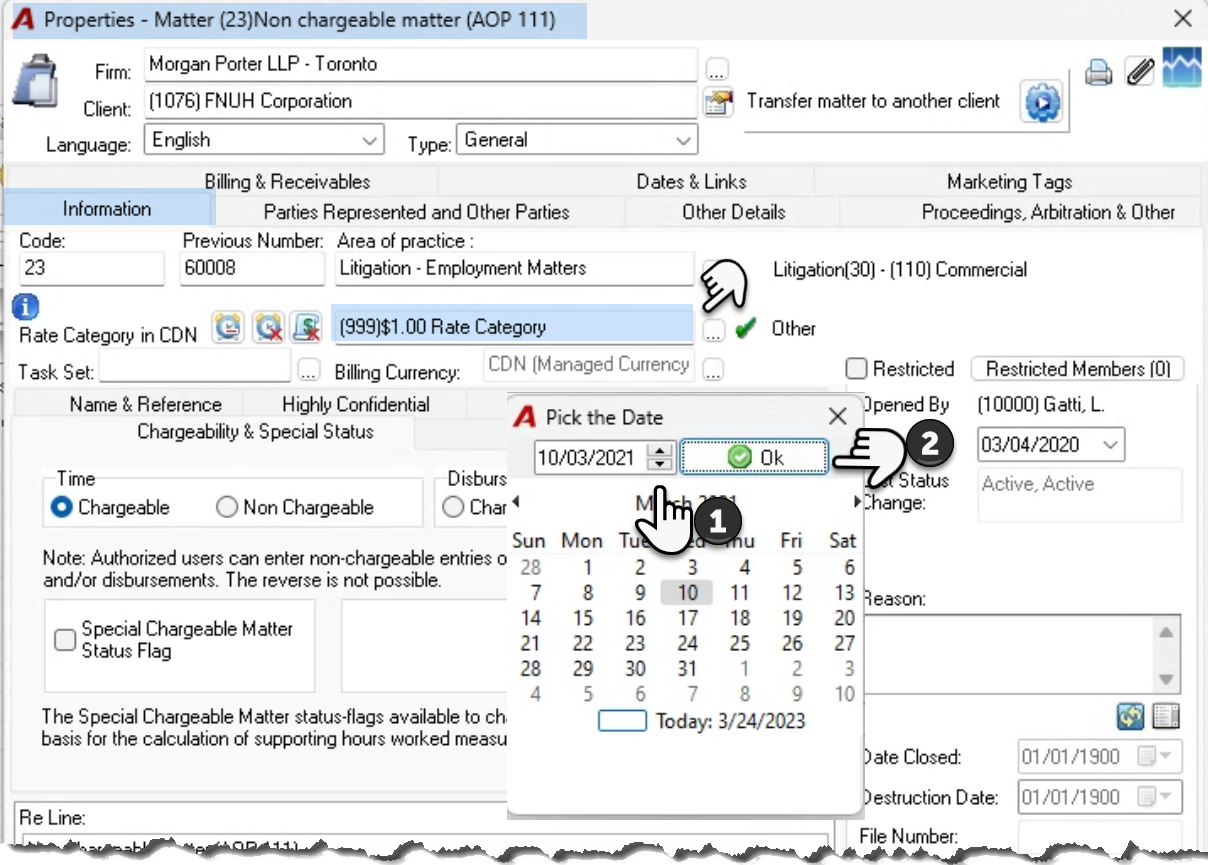
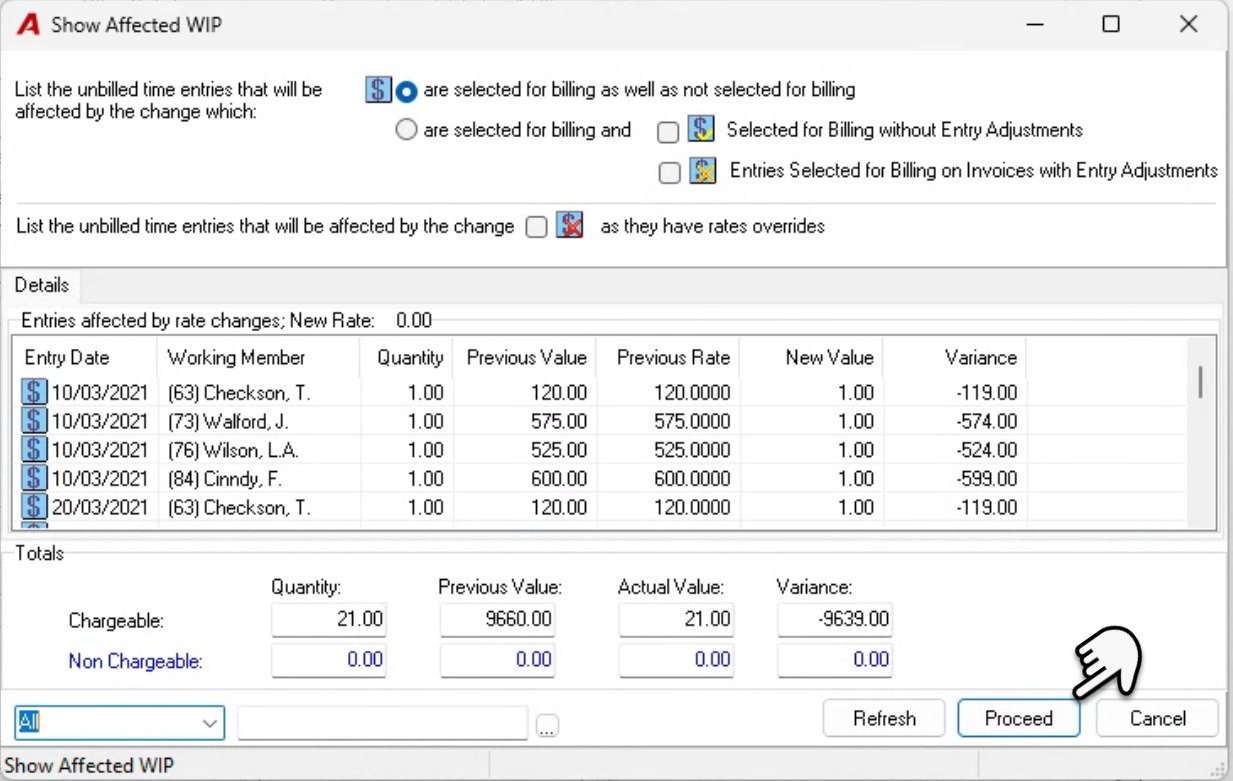
As part of the process, the user has visibility of the entries affected within the “Show Affected WIP” form. The user can change the default filter to see more or less entries and use the right-click contextual menu to generate a printed list-view or a print list-view to excel. Press “proceed” to conclude the process.
Results