.png)
Scope and Purpose
The purpose of the "Restricted Matter Functionality" is to establish an information barrier that prevents the general dissemination of confidential information, thereby mitigating potential conflicts of interest.
The scope includes:
-
Providing restricted access for users on the restricted list.
-
Allowing full access for users on the allowed list.
-
Offering options to set system-level or client-level default restrictions.
Highlights
-
Ethical Walls for Restricted Matters
-
Restricted matters utilize ethical walls to prevent unauthorized users from accessing confidential details.
-
Restrictions can be tailored to either limit access to a select few or restrict access to all users except those on the allowed list.
-
-
Use Cases
-
Regular Matters with Restricted Access for Specified Users:
-
These are standard matters with no conflicts for most members, except for a select few.
-
Commonly used when lateral hires join the firm and conflicts exist with pre-existing firm matters.
-
-
Restricted Matters with Full Access for Specified Users:
-
Access is limited strictly to those on the Allowed Members List.
-
Non-allowed members can view matter details by entering a user-defined password.
-
Typical use cases include lateral hires bringing matters that conflict with the firm or highly sensitive matters (e.g., a prospectus) requiring limited access.
-
-
-
System Settings
-
System settings provide the option to prevent non-allowed members from posting time to a restricted matter, ensuring compliance with restrictions.
-
Restricted Matters
Restricting Members from an Otherwise Available Matter
Set individual member matter restrictions from within the matter properties form.
Matter Properties Form
Leave the restricted flag OFF and press on the Restricted Members button to launch the Restricted Member form.
Launch the right-click contextual menu and select "Add" to search and select specific members to add to the list, or checkmark any of the client and/or matter level roles to restrict access to the corresponding role holder.
Alternatively, from the Security Groups tab checkmark the security groups for all their members to be restricted and/or checkmark the option "Users set as administrator" flag to restrict users with admin rights.
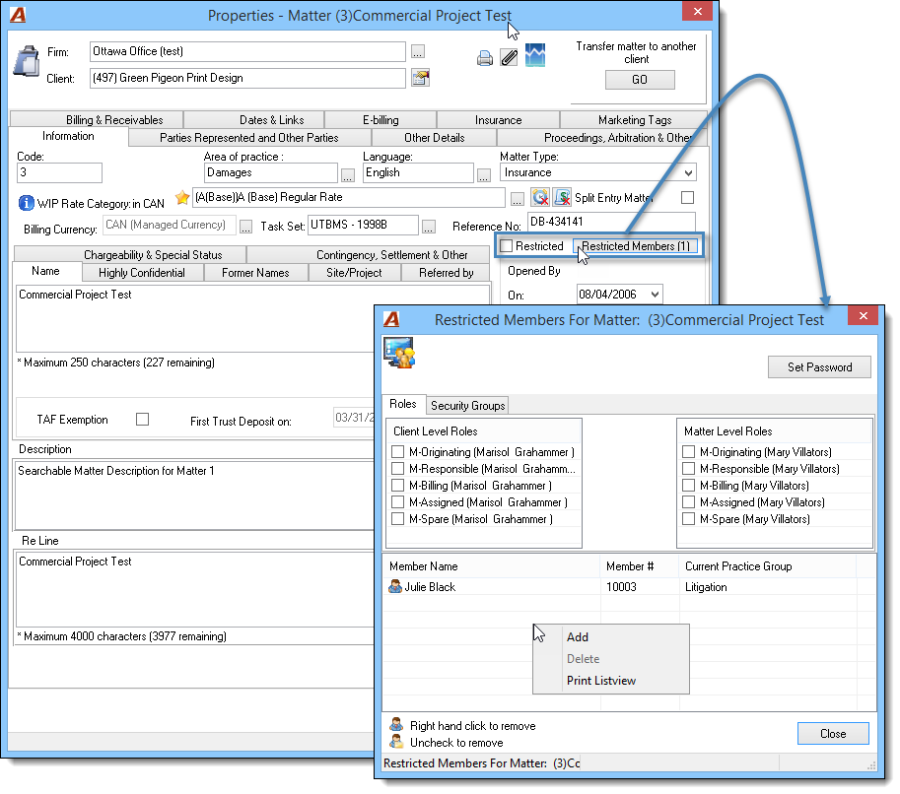
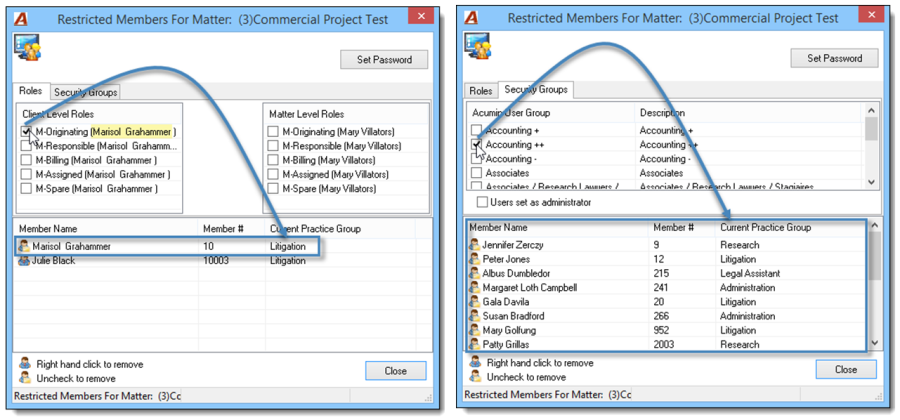
The same functionality is available from the restricted matter info panel in the first page of the matter wizard.
Restricting Matters to All Except Allowed Members
Set matter restrictions for all except those specifically listed as allowed members. The user placing the matter restriction will automatically be added to the Allowable Members List.
Matter Properties Form
Enable the restricted flag. The application will prompt the user to enter a password which can be given to members that require access but are not on the allowed list. On OK, the "Restricted Members" button will change to "Allowed Members".
Press on the "Allowed Members" button to launch the form. Right-click to access the contextual menu and select "Add" to search and select specific members or checkmark security groups for all their members to be added to the allowed member list or checkmark any of the client and/or matter level roles to provide access to the corresponding role holder.
To modify the password, select the Set Password option to launch the form.
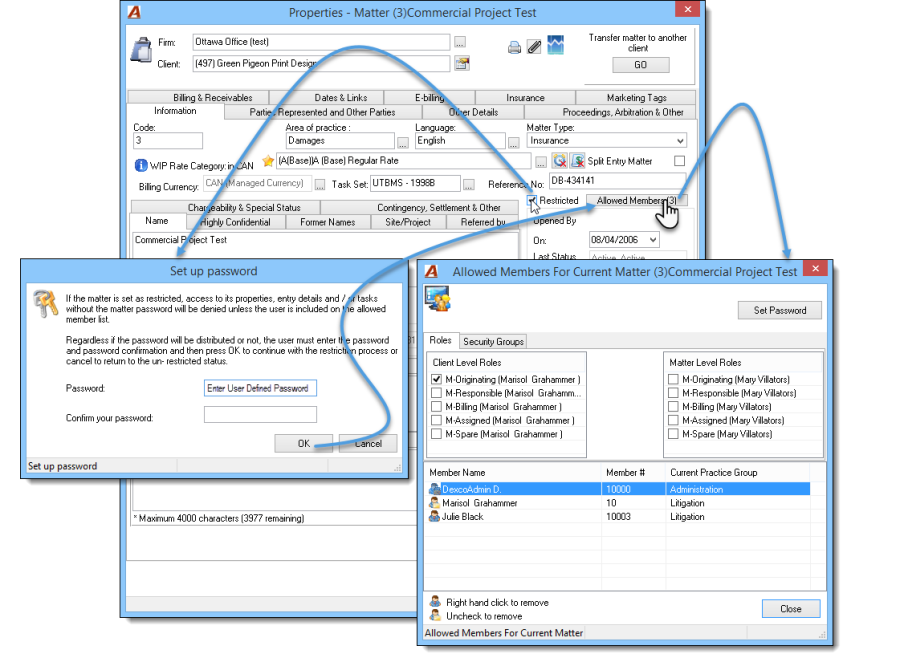
The same functionality is available from the restricted matter info panel in the first page of the matter wizard.
Icon Definitions
|
Icon |
Definition |
|---|---|

|
Members added to the Allowed or Restricted Members List as role holders, part of a security group, selection, or members with administrative rights. |

|
Identifies the member that triggered the matter restriction, automatically added to the Members List. |

|
Identifies members that were manually added to the Members List. |
Impact on Restricted Members
Restricted members are prevented from accessing sensitive information throughout various parts of the application. Although this is not meant to be an extensive list, below are examples of areas with restrictions.
Matter Properties Form
If not on the list, and without the password the user cannot proceed.
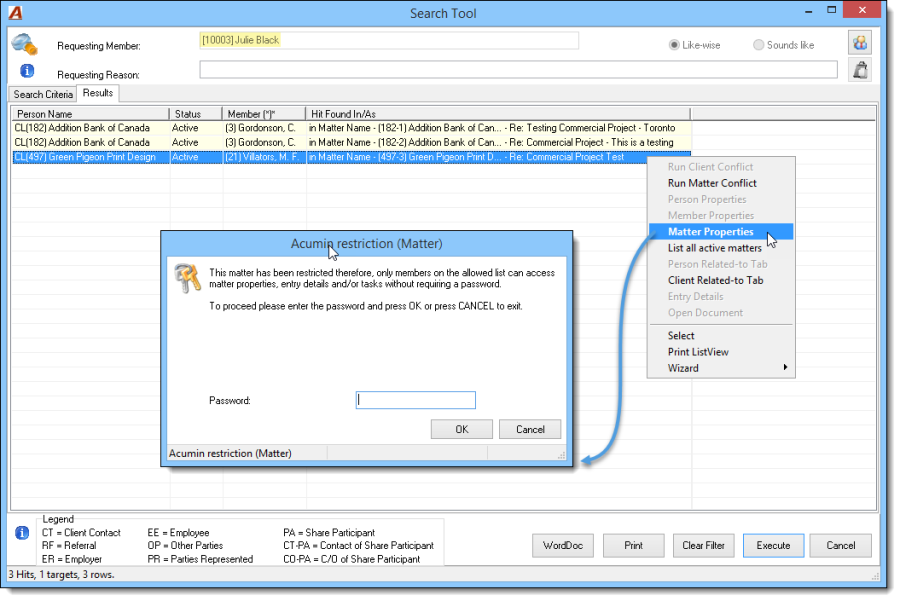
Dashboards
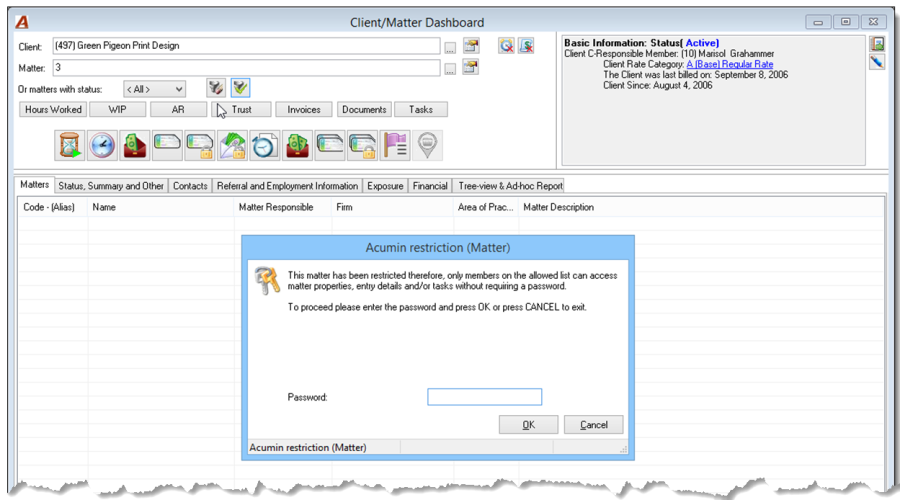
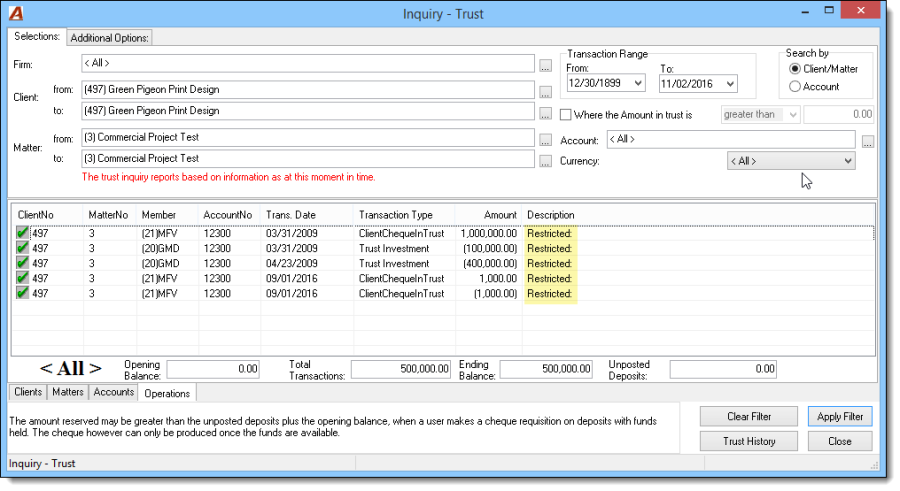
For most dashboards, users not on the list will require a password for access, however some dashboards, such as the Trust and AR Dashboard, will allow limited access; with sensitive information such as Trust Transaction descriptions, hidden.
Member #10003 enters Matter 497 – 3, which is a restricted matter for this user.
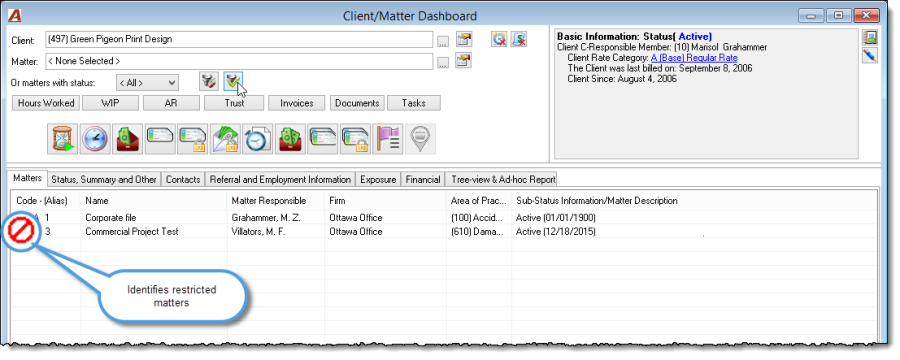
If only the client is selected, the matter is identified as restricted and cannot be selected.
Although Member 10003 is allowed to filter for Matter 497-3, when viewing Trust Transactions, the description is hidden.
Entry Details
-
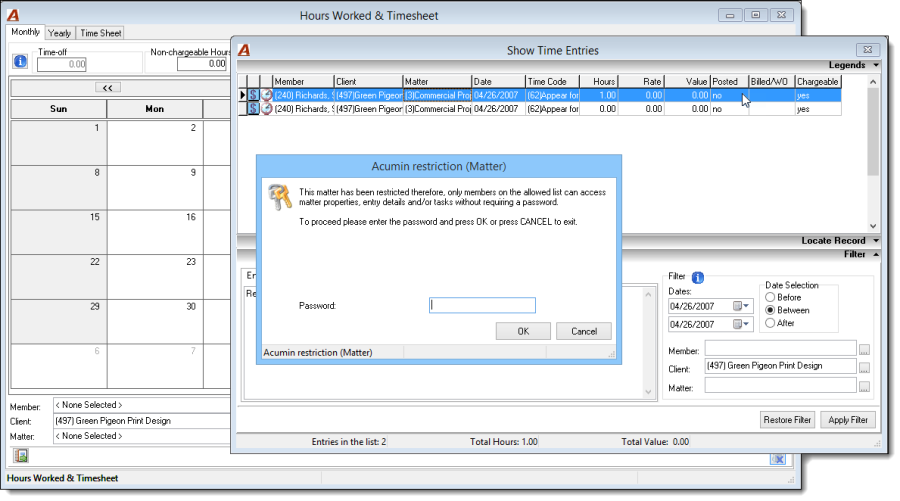
Users not on the list will require a password for access, to access time or disbursement entries from any part of the application or reports.
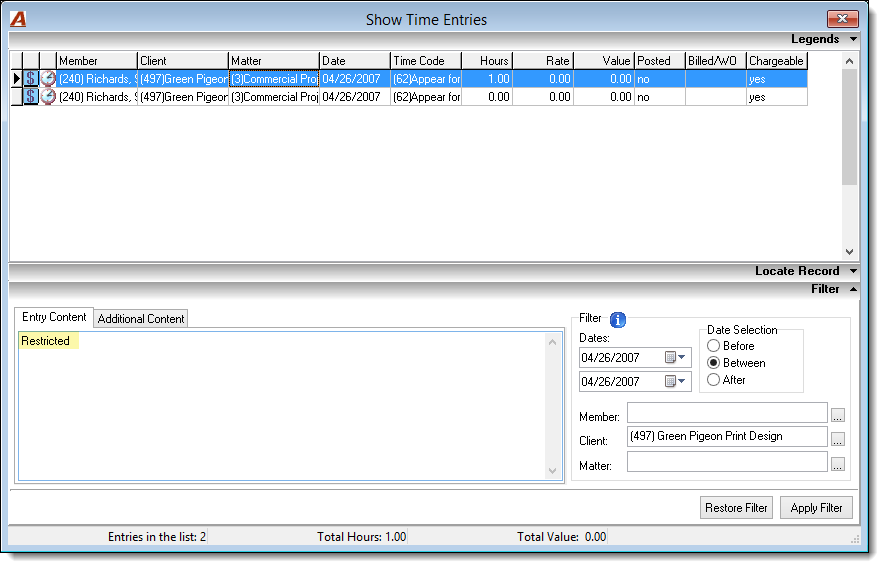
Member #10003 is filtering for time entries for restricted matter 497-3. Although the user is prevented from directly filtering for the restricted matter, they can filter for all time entries for the client. When viewing time entries for the matter, the description is hidden and if the user attempts to access the properties of the time entry, the user is blocked.
Good to Know:
-
Depending on permissions, users can enter and post disbursements for restricted matters through regular Acumin vehicles such as the Quick Disbursement Entry form, General Payments, or AP Payments; and/or locate, create, and post deposits applied to restricted matters;
-
The restricted user will be prevented from accessing the invoice properties form of restricted matters;
-
Restricted matters will be visible on the To Bill tab of the role holder so he or she can set and commit actions relevant to the worked to billed process.
Restriction Client Setup
The restriction functionality offered at the client level allows for the set-up of a default restricted position and allowed-member list which facilitates matter management actions when most of the matters for the client are to be restricted. In this case, modifications to the default position are completed specifically within the matter affected.
Restricting Matters to All Except Allowed Members
Client Properties Form
Enable the restricted flag. The application will prompt the user to enter a password which can be given to members that require access but are not on the allowed list. On OK, the "Restricted Members" button will change to "Allowed Members".
Press on the "Allowed Members" button to launch the form. Right-click to access the contextual menu and select "Add" to search and select specific members or checkmark security groups for all their members to be added to the allowed member list or checkmark any of the client and/or matter level roles to provide access to the corresponding role holder.
The password cannot be modified at this level. The user can individually modify it at the matter level. By selecting the Set Password option to launch the form,
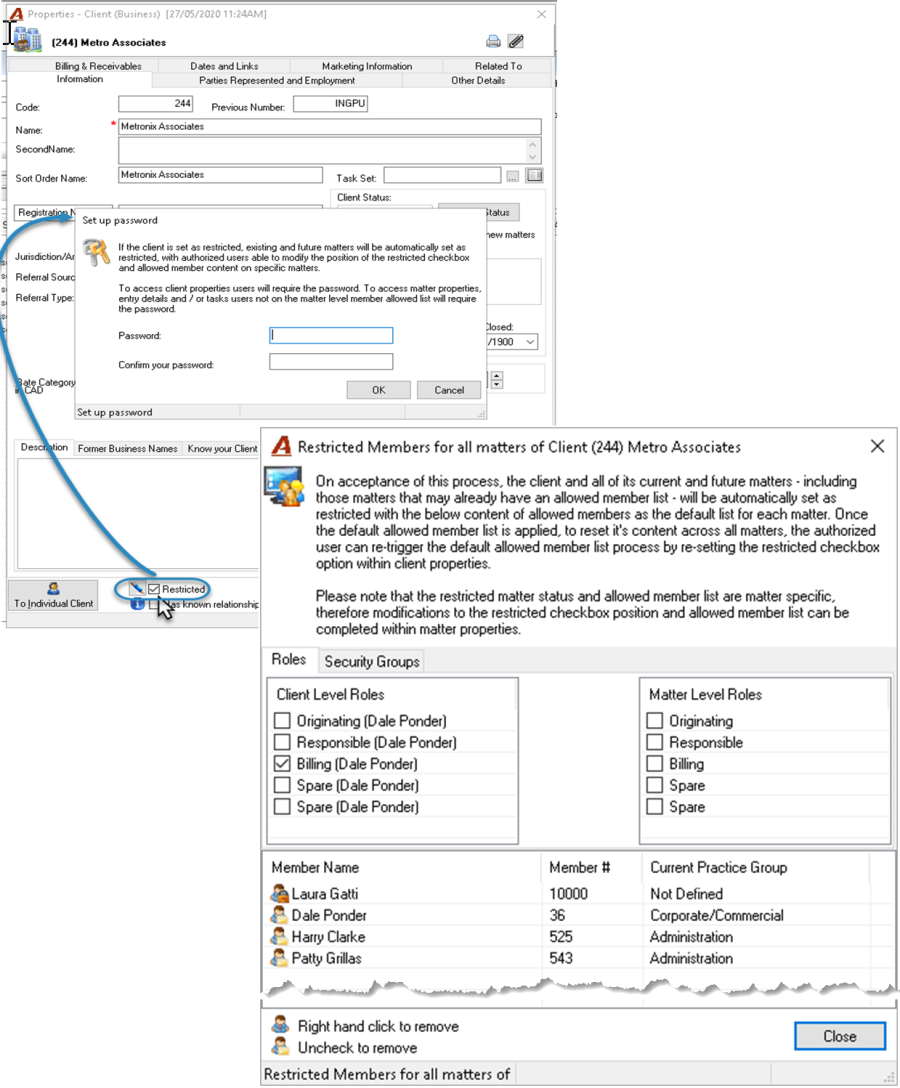
Once the members are entered the application will launch a confirmation message with the number of matters affected.

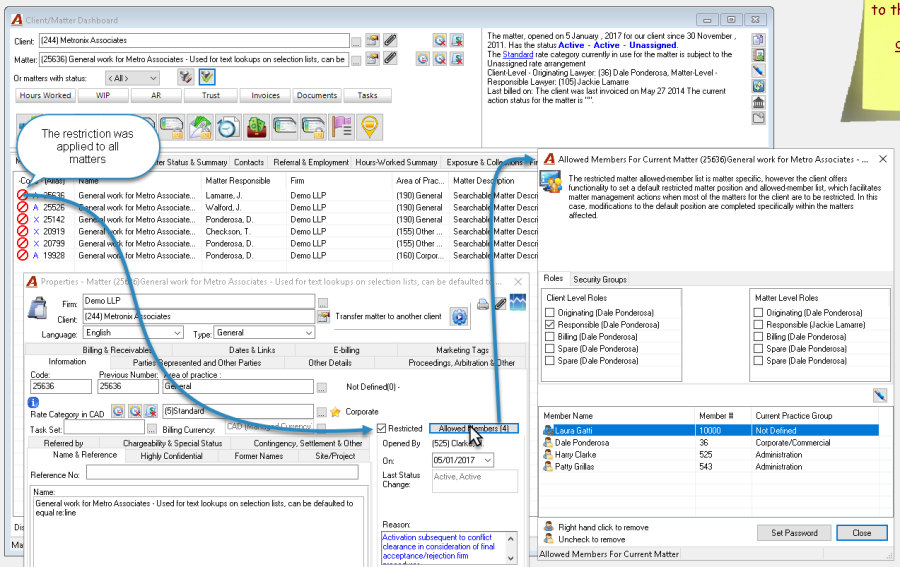
Press Yes to execute the deployment across all matters, No to return to the Client Properties with the restricted flag disabled and Cancel to return to the Allowed Member List and make changes to the content.
Good to know:
When deploying the restriction at the client level, the Default Allowed Member List will replace any existing list that was previously set at the matter level.
Removing the restriction flag at the Client level
It is possible to reset the position of all "restricted" matters under a client by disabling the restricted flag at the client level.
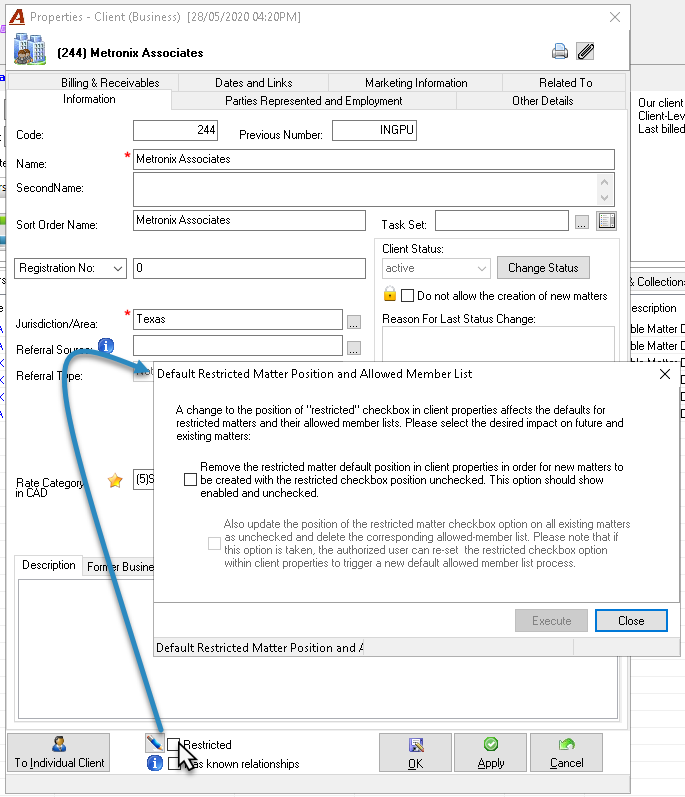
Once the authorized user disabled the restricted flag, to set by default as " not restricted" upcoming new matters for this client, select the first option. New matters will be created as not restricted and all existing matters will keep their existing position.
To also reset all existing matters as "not restricted" AND at the same time, delete all members in the allowed-member list, select the second option. All existing and upcoming matters will have the restricted flag disabled and the allowed member list empty.
Execute to proceed with the process selected or Close to cancel the modification and return to the client properties. If both checkbox options are selected, the system will launch the following confirmation message:

Press Yes to proceed with the update, No to return to the Default Restricted Matters Position and Allowed Member list form with the second option disabled, or Cancel to return to the Default Restricted Matters Position and Allowed Member List form with both options enabled.
Good to know:
When disabling the restricted flag at the client level, if the second option is selected, this update will be applied to all existing matters regardless of if some of them were individually modified.
It is possible to globally reset the password and/or the content of the member allowed list by disabling the restricted flag and selecting both update options and then, enabling again the restricted flag to relaunch the password selection panel and member allowed list and reapply the new settings to all existing matters.
System Settings
Auto-Restricting New Matters
Set the option in system settings of automatically restrict all new matters by default, including a list of role holders and named users to be added to the allowable members list.
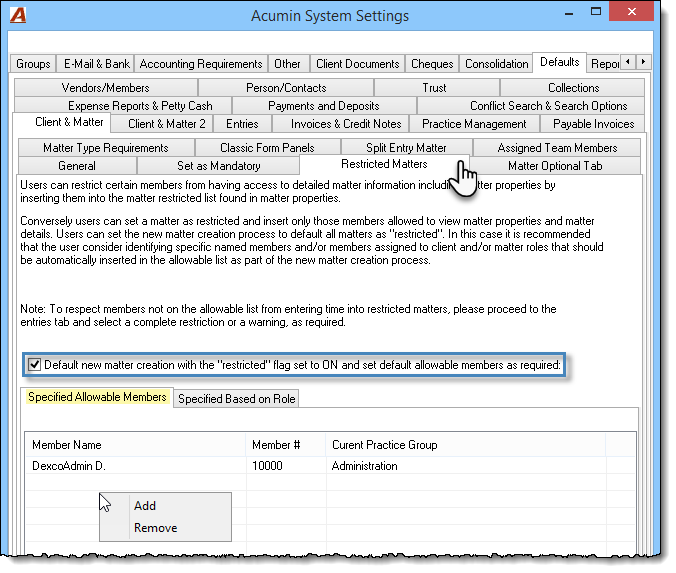
From the Defaults - Client & Matter – Restricted Matters tab in system settings checkmark the "Default new matter creation with the 'restricted' flag set to ON and set default allowable members as required" checkbox option. Add authorized members to the "Specified Allowable Members" list.
Acumin also can automatically populate the specified allowable members' list based on team member roles at the client and/or matter levels. This can be enabled by default in the "Specified Based on Role" flag.
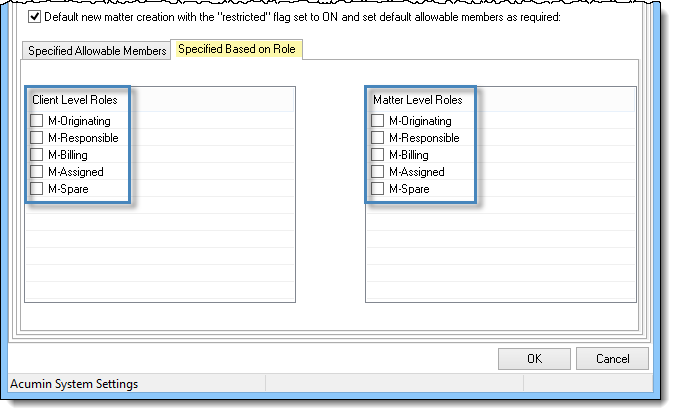
Good to Know:
With the "Default new matter creation with the "restricted" flag set to ON and set default allowable members as required" flag enabled, when creating a new matter, the restricted flag in the matter wizard will be turned on by default. This can be overridden by the file opening clerk during the matter creation process;
Members who are on the Specified Allowable Members list in system settings will automatically be added to the equivalent table in the matter wizard. This can be overridden by the file opening clerk during the matter creation process;
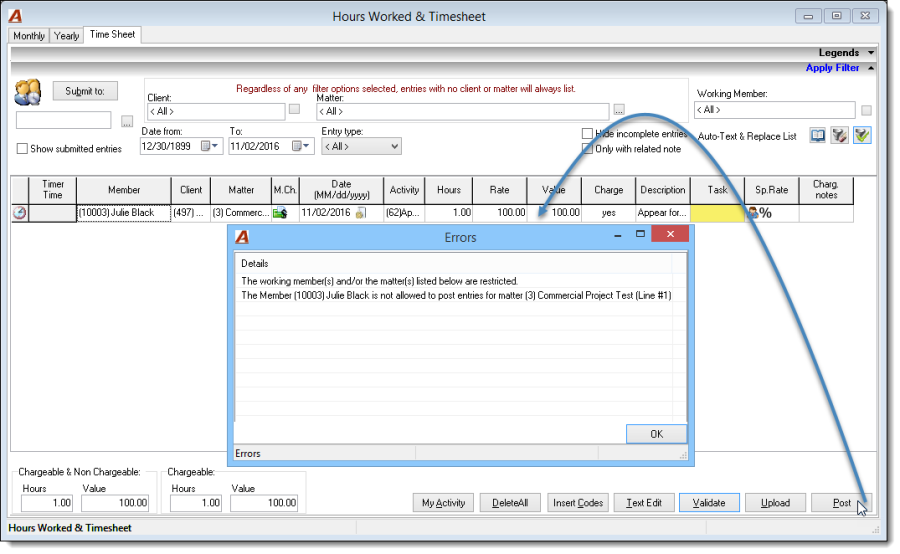
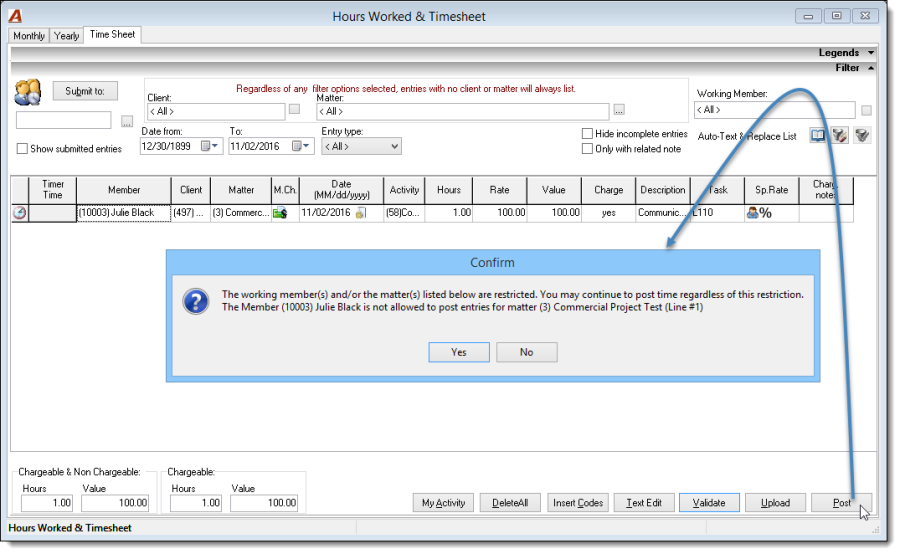
Prevent Users from Posting Time on Restricted Matters
Depending on business requirements, environments have the ability to self-define expected behaviour based upon pre-defined options in regard to posting time on restricted matters when not on the allowable list. As this is viewed as process decision, options are set at the system-settings level, therefore the decision will affect all restricted matter regardless as to matter location (firm). By default, the "Allow all members to be set as author or working member for time-entries, to-do's, case-notes, important dates or appointments of restricted matters" setting is used.
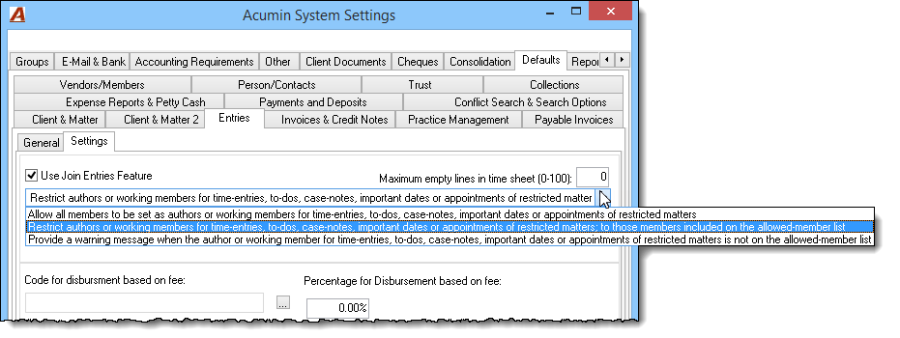
Restriction Client and Matter Password Dashboard
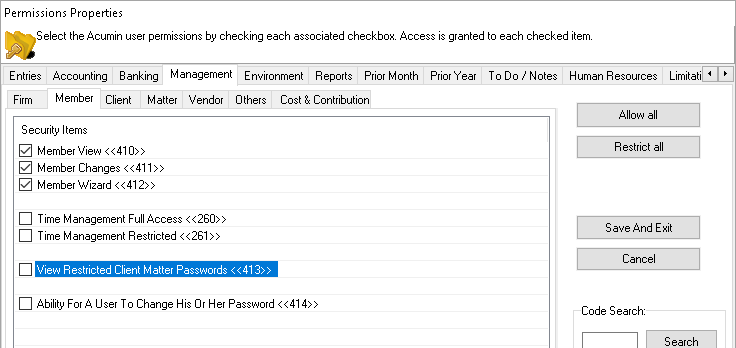
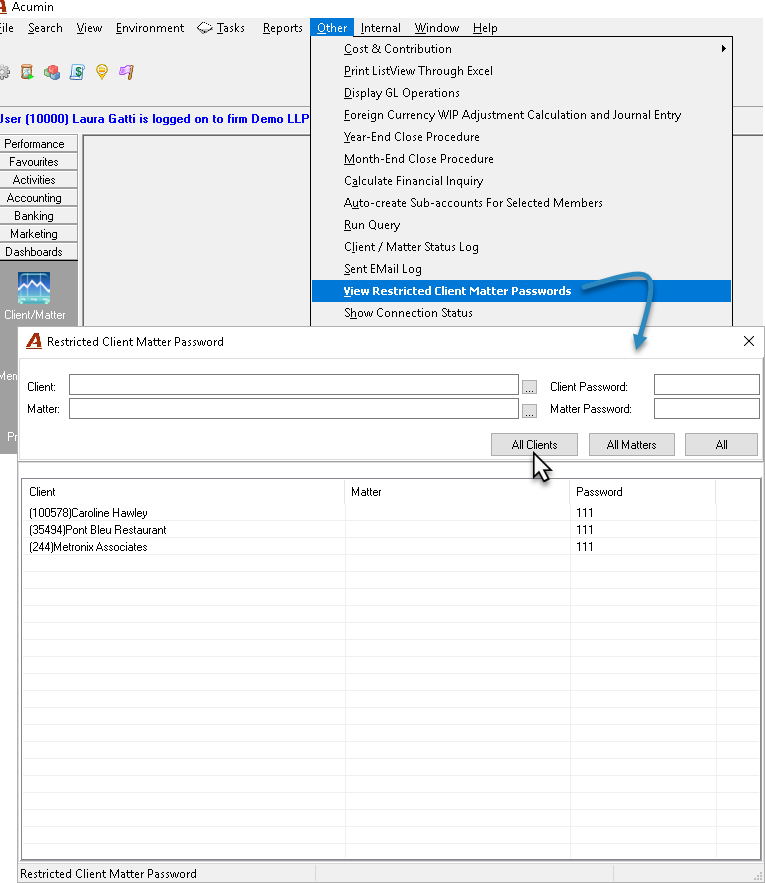
Authorized users (permission #413) can view all restricted client and matter passwords by selecting the "Other" option from the menu and then "View restricted Client Matter passwords" option.
No modifications to the password can be made from this list.
Security
Permission to manage the Client and Matter Restriction options
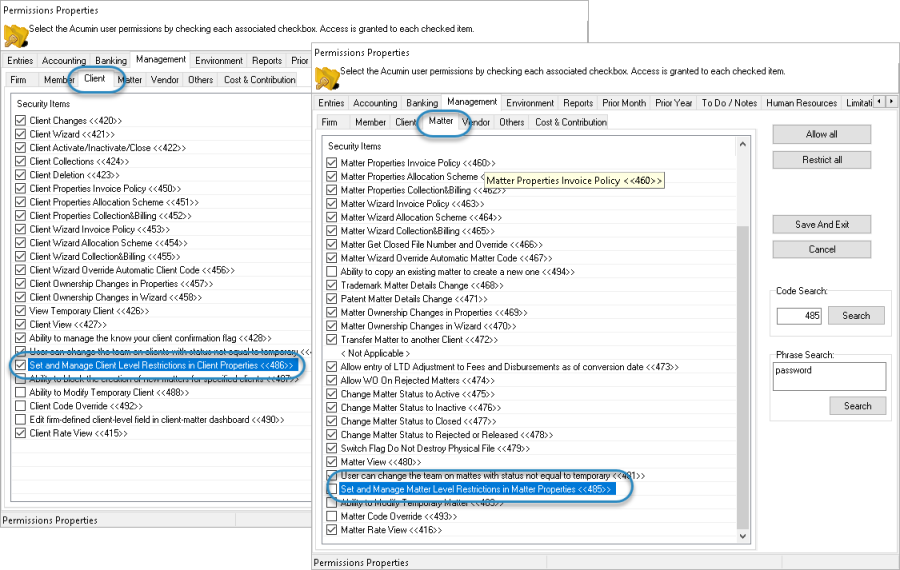
To have the ability to set, remove and/or modify the restricted or allowed member list at the matter level , a user should be granted with permission # 485 – Set and Manage Matter Level Restrictions in Matter Properties.
To have the ability to set and remove the allowed member list at the client level, a user should be granted with the permission #486 – Set and Manage Client Level Restrictions in Client Properties.
Permission to view the Client and Matter Passwords
To have the ability to view all client and matter passwords, a user should be granted with permission #413 – View Restricted Client Matter Passwords.