.png)
Contacts
The ability to create new contacts without compromising the integrity of the database is an integral part of the file intake and conflict assessment process.
A contact is the unique combination of a person and an address in context of a client, vendor, or member. Contacts created for a client can be used across multiple matters. Contacts created to be specifically associated to one matter are also created in context of the matter’s client but included in the matter’s list of parties represented.
For more information, read the following document:
Person, Address, Contact and Employment Information - Concept Guide
Search First
To start, launch an empty Contact Properties form.
In the Contact field, enter the name of the contact you wish to create. Do not be too precise in case the person was created already with his or her name misspelled. You can use * and ? as wildcards.
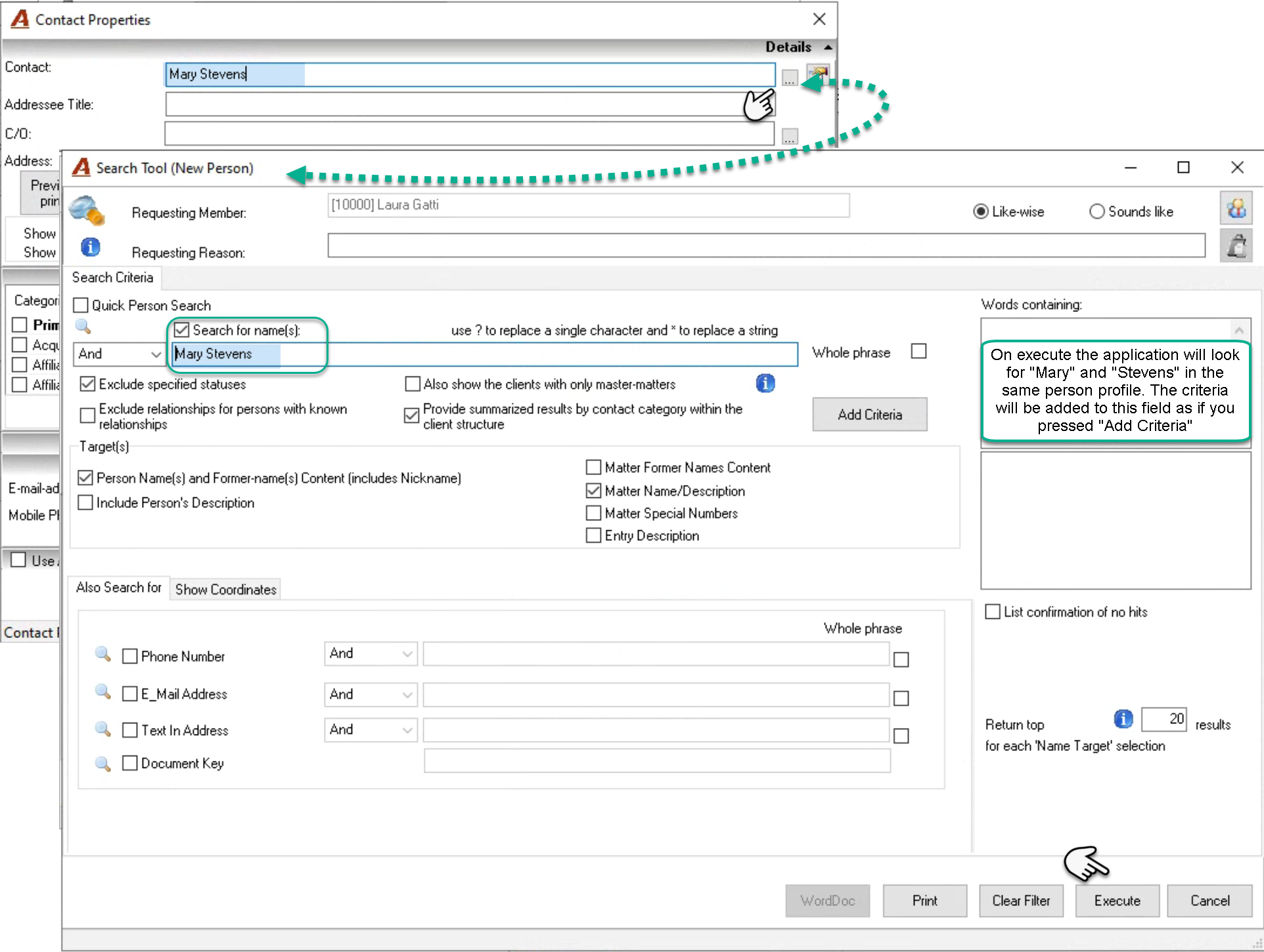
Click on on the ellipsis button to launch the Search Tool to trigger the “Search” process.
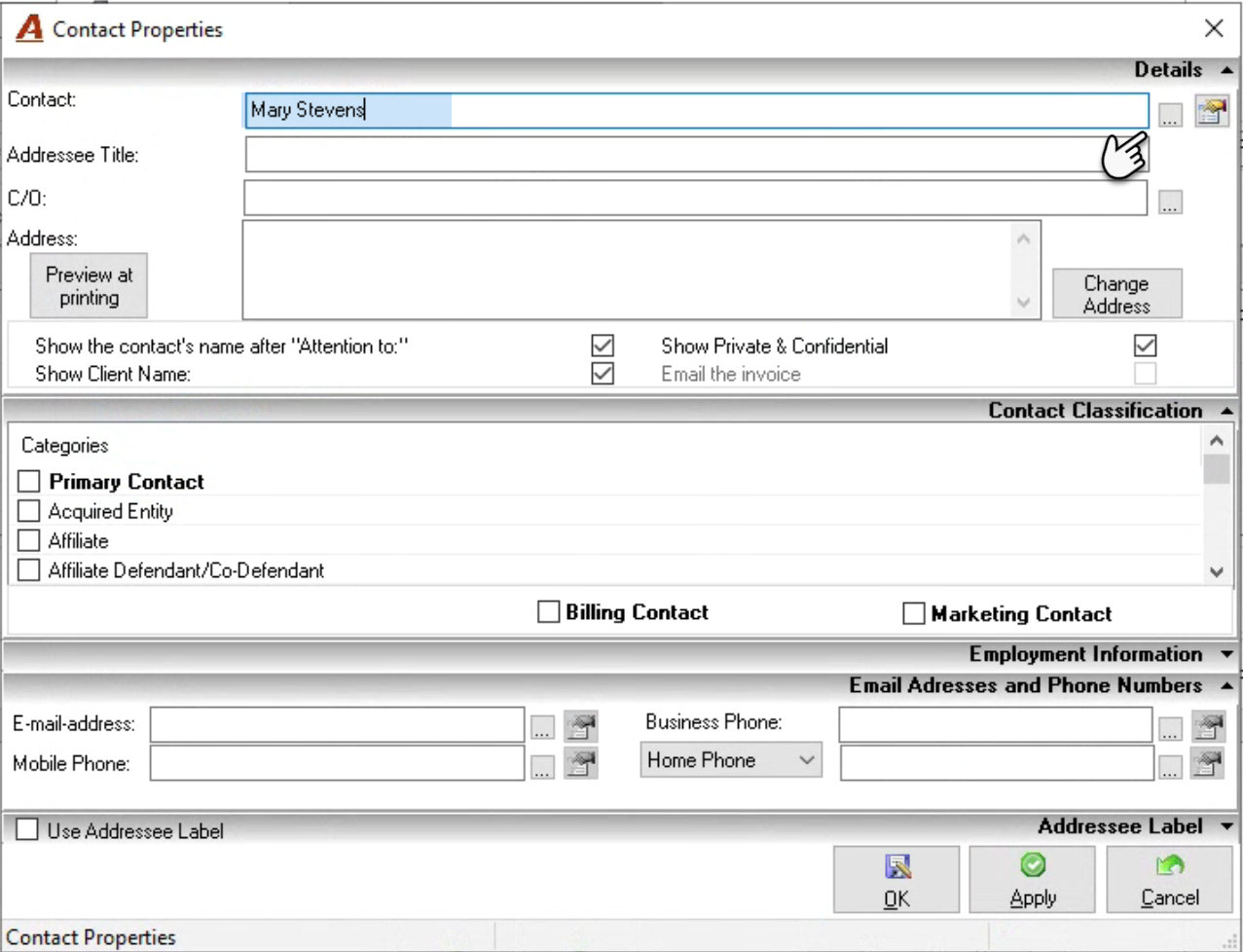
The name you entered on the Contact Properties form will be copied to the Search for name(s) field. Modify the search string if needed and launch the search by pressing Execute button.
If the person is found, double click or right-click to select and continue with the contact creation process.
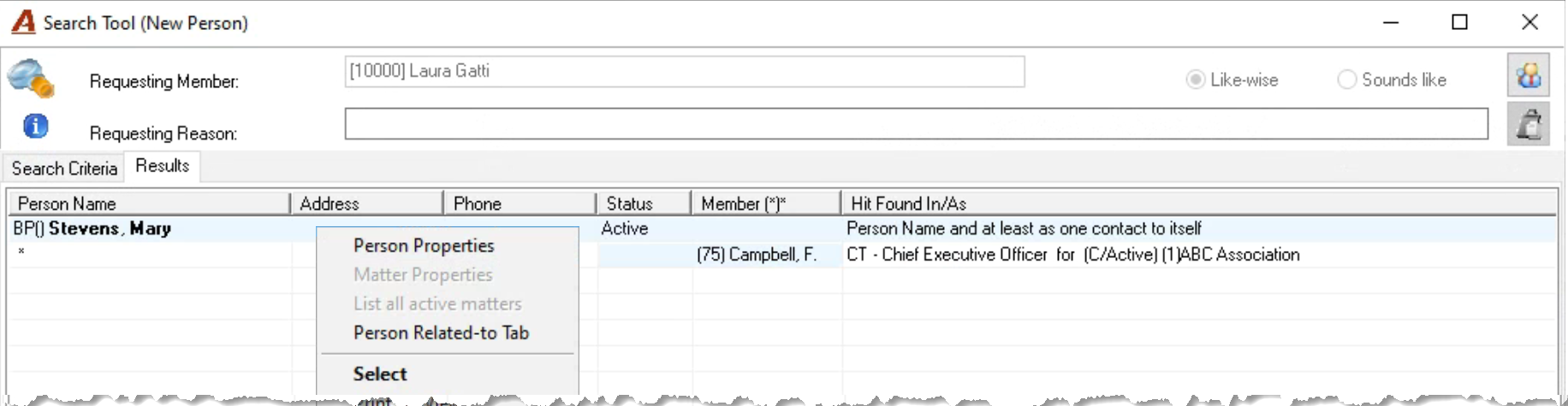
If the persons listed do not include the person you are looking for – for example you are looking for another Gary Stevens – right click on the search results to select – Wizard – No Person Selected.
If you need to change the search criteria, return to the search criteria field press the clear filter button and apply your new search
If not hits are found, you will be prompted to expand the search (change the criteria) or to create the new person. Expand the search as often as you need. You should only create the new person once you are sure it does not already exist.
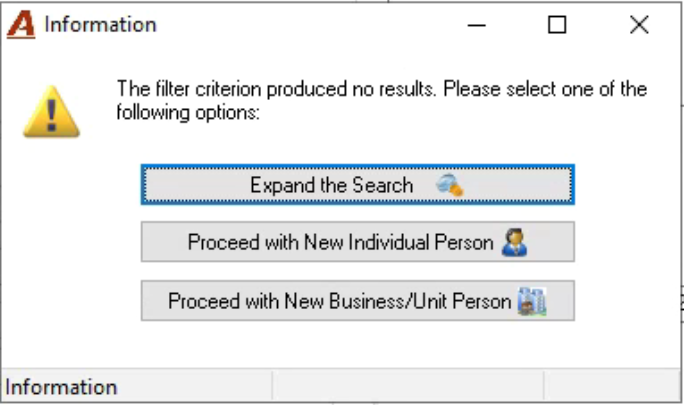
Select Proceed with a New Individual Person to create a contact that is a new single person or Proceed with a New Business/Unit Person to create a contact that is a business, association, or group of individuals.
Use the individual profile to create a new individual. Groups of individuals use the non-individual profile and add the individuals as parties represented, each with their own profile.
Add a Person with the Wizard:
The Name fields will be pre-populated using the order values searched. Correct the name, as a strong search implies the name searched was not precise. Add an appropriate Prefix.
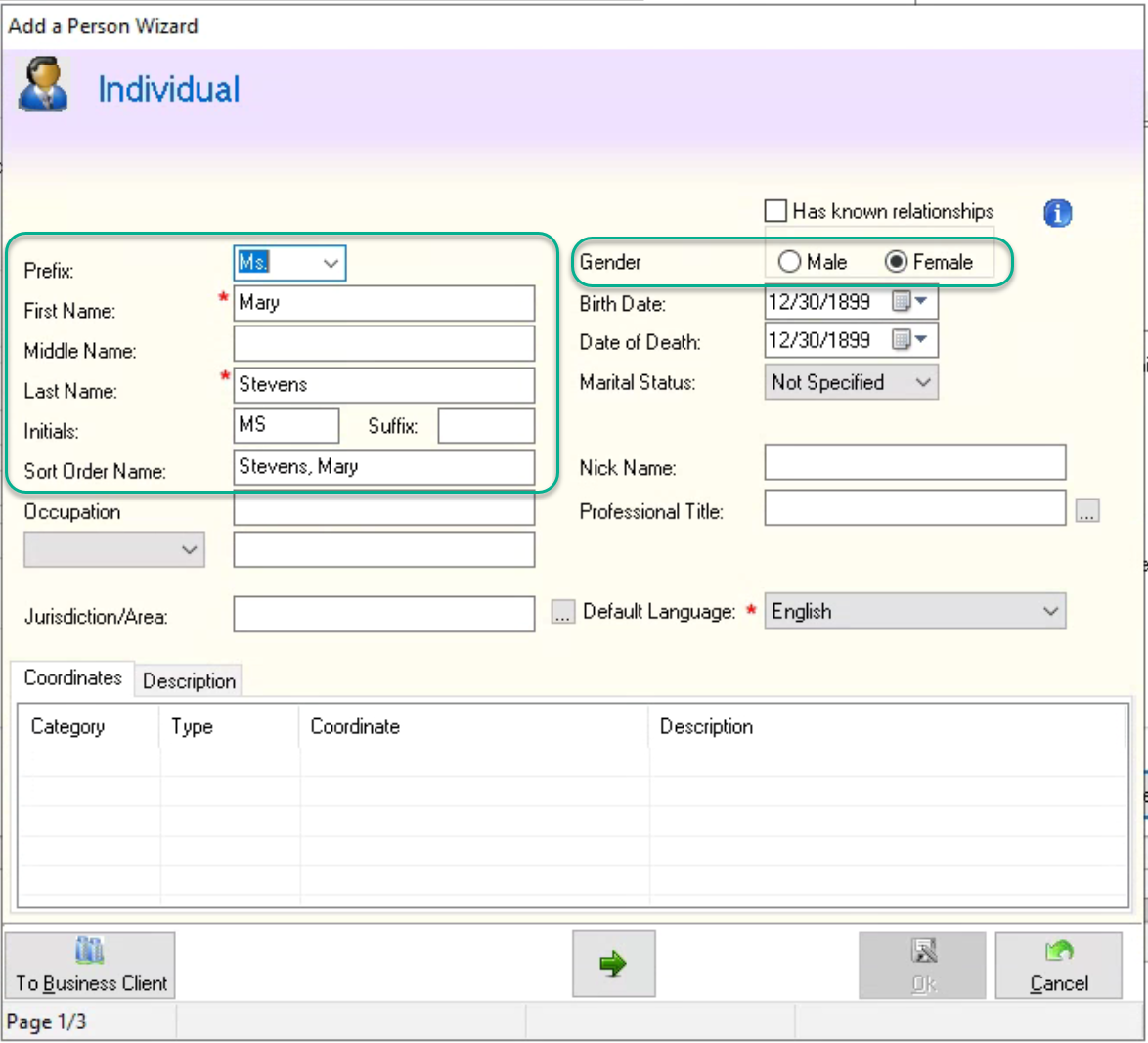
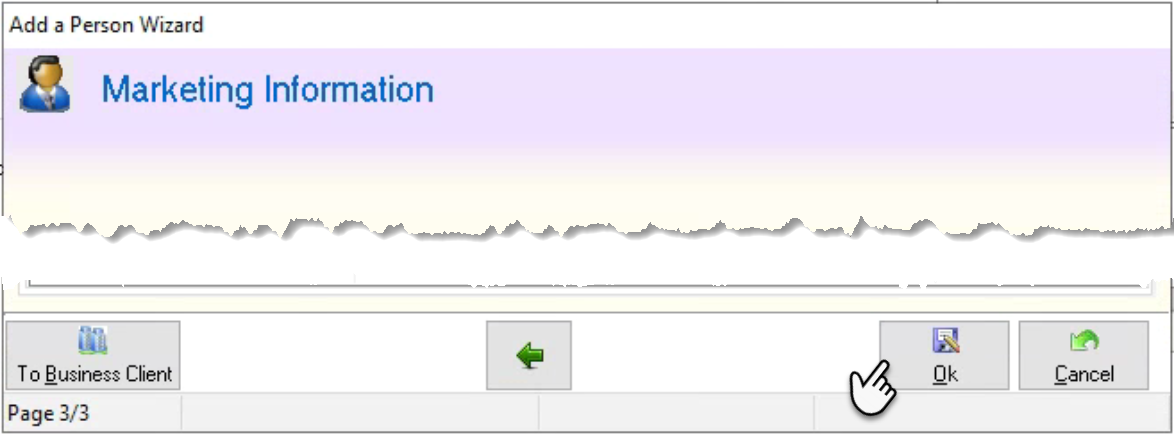
As the person is being created in context of being a contact for the client or matter, you will not need to enter personal information. Once the First name, Last Name, Prefix and Gender fields are completed, press on the arrow button to navigate through the wizard pages to the last page and press on OK to return to contact properties.
Care-Of (C/O):
Often abbreviated as C/O, “care of” is defined as through someone or by way of someone. This phrase indicates that something is to be delivered to an addressee where they do not normally receive correspondence. In practice, it lets others know the recipient is not the normal recipient at that address.
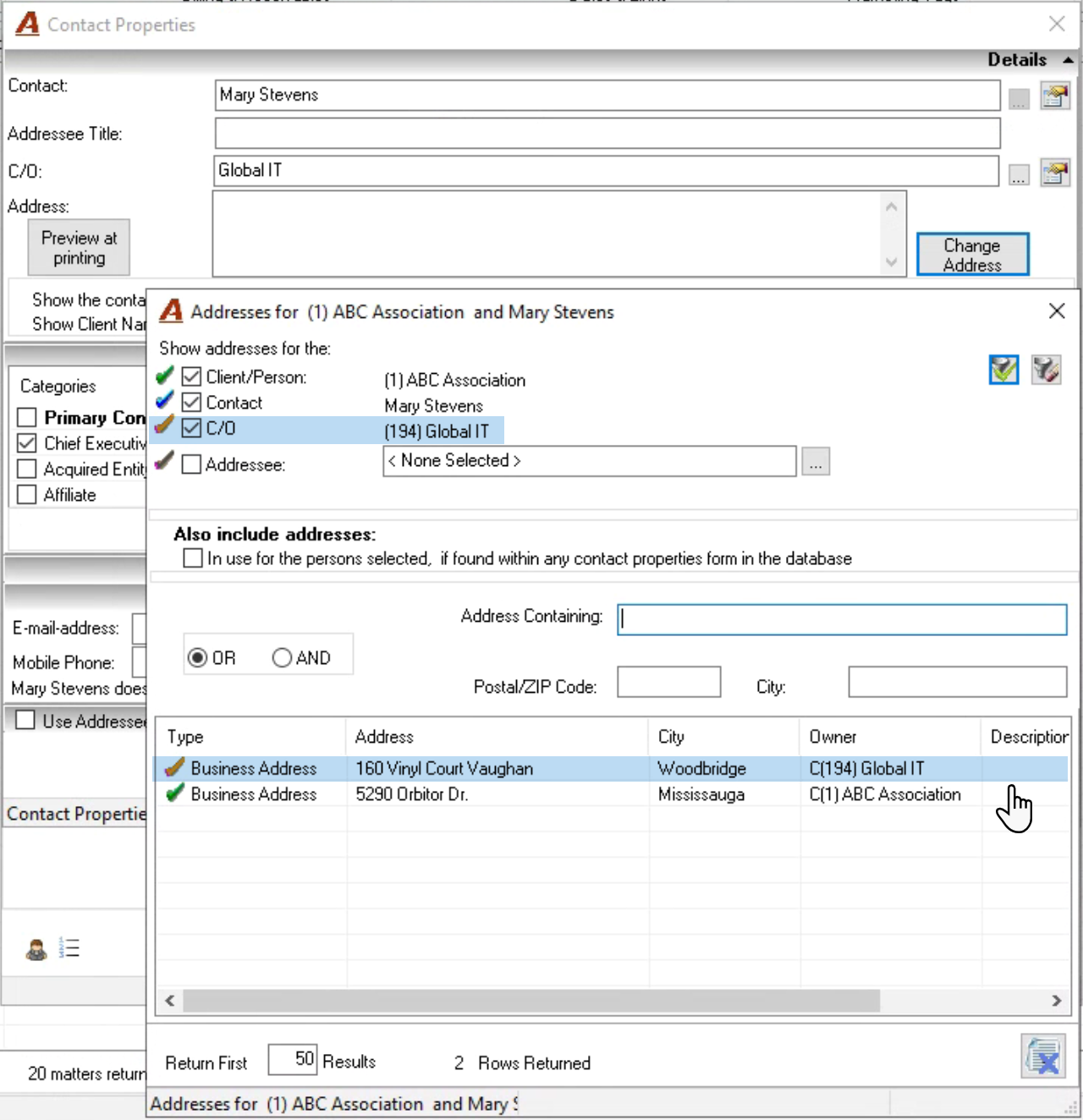
The C/O is followed by the name of the company, person etc. expected to be associated with the address you are using for the contact. Press on the ellipsis button to launch the search for the “care-of”. If found select it. If not found, use the correct contact profile to create it – business-unit or individual.
Make sure that you add the appropriate Address in the Contact Properties form to the coordinates of the person being created as C/O. The address will have the correct owner and it will be the first default on your list when you click on the Change Address button.
Address information
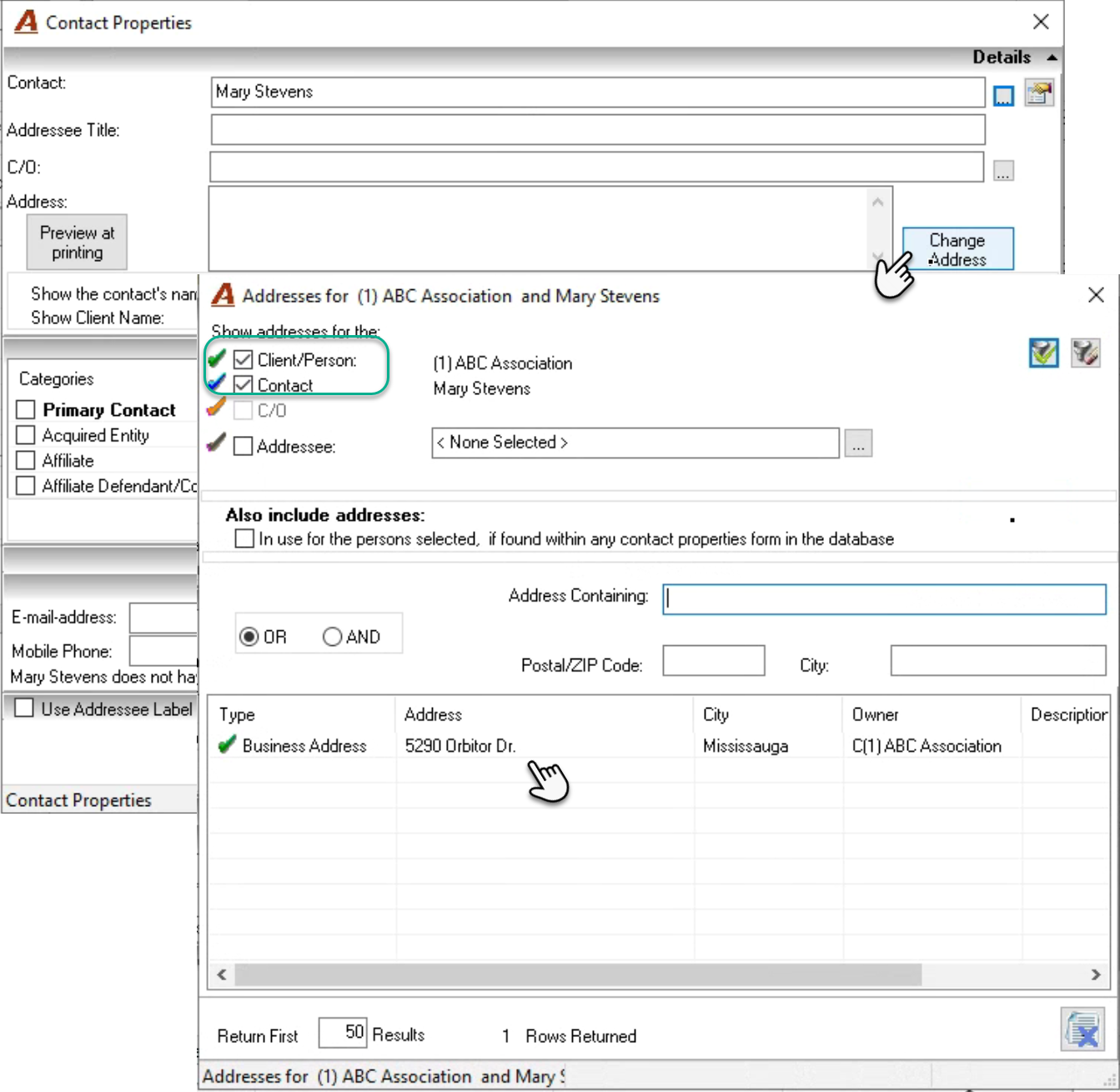
With the contact and c/o (if used) selected, click on the Change Address button. The form will list all the addresses existing for the client, the contact and the C/O (if used).
Although most of the time you will be using the address of the client if there is no C/O content for parties represented it is possible to look for other addresses by specific addressee (for example another Law firm), or by using the Address Containing search field.
Contact Classification
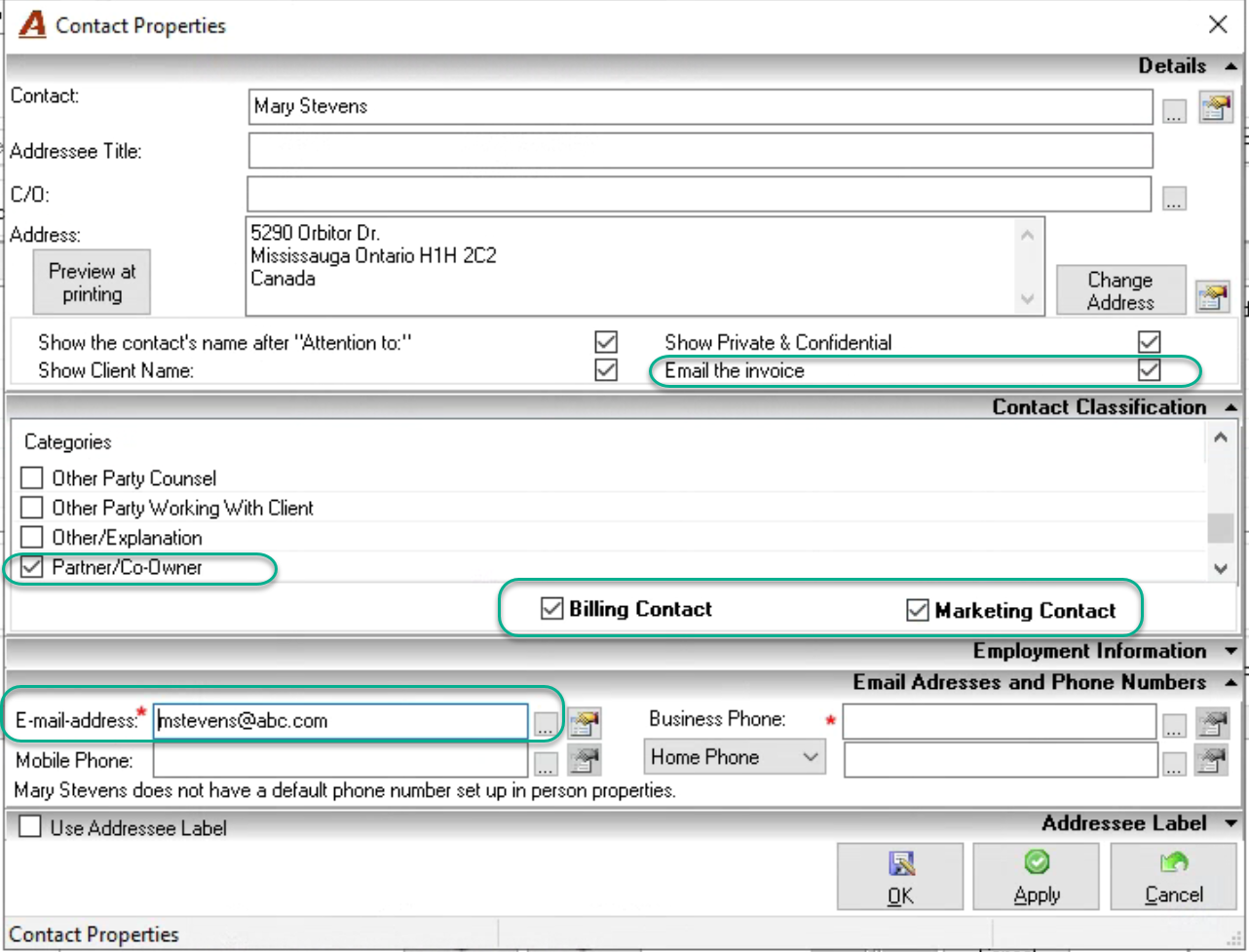
In the Contact Classification panel, select the most reflective contact category or categories that best represents the contact.
Special Contact Classifications
To be classified as an AR Contact, a Billing Contact and/or a Statement of Account contact, the contact must have a relevant category and be included in “Parties Represented” list.
-
AR Contact: The final authority if there is an issue with the client’s ability to meet its financial commitments. A client must have one AR Contact. AR Contacts do not exist at the matter level.
-
Billing Contact: Any party represented can be set as “Billing Contact”. If there is more than one in client properties right-click to set the default one on matter creation. If there is more than one in matter properties right-click to set the default one on invoice creation.
-
Statement of Account Contact: The billing contact is the default statement of account contact. However if the SOA is intended for someone other than the invoice recipient, highlight the client or matter level party represented intended to receive the SOA, and select “Flag as Statement of Account Contact”
Employment Information
The Employment Information panel is used to capture the employer’s information for the contact when the contact is an individual. This is most often seen when the contact is associated to an employment type matter as party represented or other party, when the client is an individual as part of the know your client process or when the firm leverages employment information for marketing and CRM efforts.
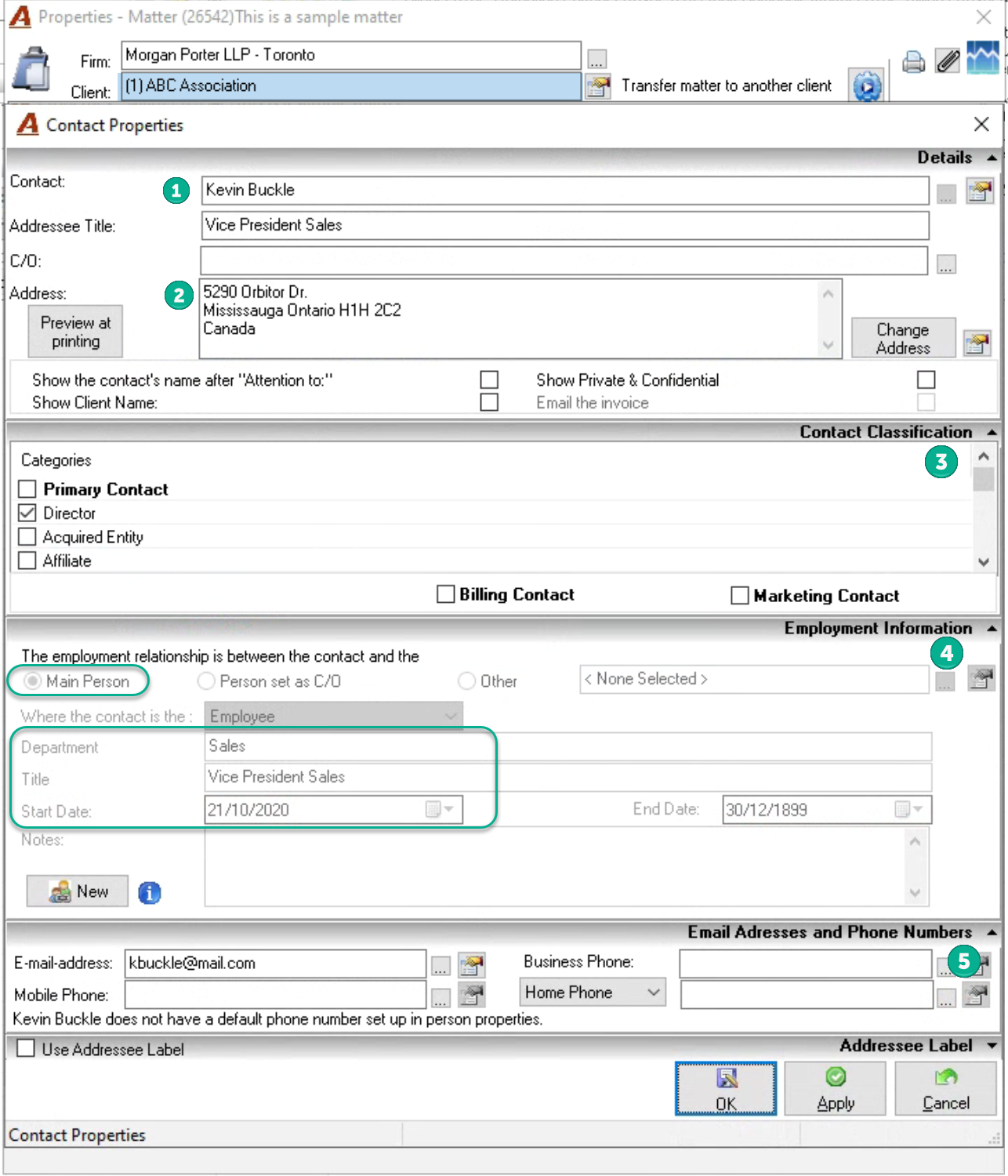
Example: The contact Kevin Buckle is being associated as an employee to a person that is not an individual - ABC Association - the employer. ABC Association is also client (1).
Update the Employment information (4) panel after the Contact is selected, the C/O completed if used (1), the Address is assigned (2), and the Contact Classification(s) added (3). In this example, the user keeps the default employment relationship between the Contact – Kevin Buckle and the Main Person - the client ABC Association.
Complete the Email Addresses and Phone Numbers (5) panel if not yet done (see coordinates section)
Other Employment Relationships:
-
When the person set as C/O in the Details panel of the Contact Properties form, is also the employer.
Complete the Employment Information panel after the contact, the C/O, the Address, and the Contact Classifications are added to the Contact Properties form. In this case, change the default employment relationship from “Main Person” to “Person set as C/O”. Complete the Email Addresses and Phone Numbers panel, ensuring that the right owner is set as, for example the care-of. (See coordinates section).
-
When the contact’s employer is neither the main person - client (1) ABC Association – or the C/O.
Complete the Employment Information panel after the contact, the address and the contact classification are added to the Contact Properties form. In this case, change the default employment relationship value to “Other” and press on the ellipsis button to launch the search tool and look for the employer. If found select it, otherwise create a new business/unit for the employer with the information known. Complete the Email Addresses and Phone Numbers panel if not yet done.
Coordinates - Email Addresses and Phone Numbers
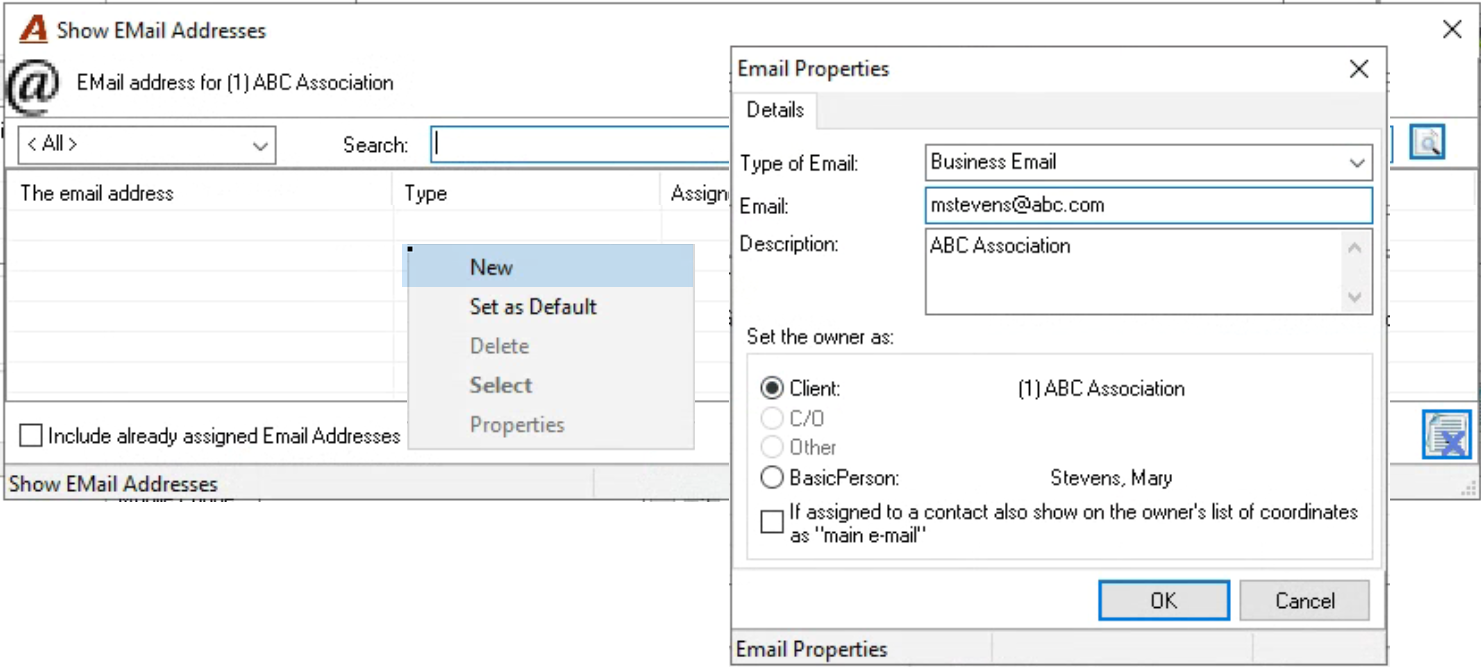
To add an E-mail address, click on the ellipsis button. The list will include all the email addresses for the client-contact and C/O combination. Depending on the number of addresses for a client-contact combination, it may be easier to use the search form to find the one you want.
If the email address you need is not listed, right-click and select New. Enter in the information. The default owner is the client, but if that is not accurate, it should be changed. For example if you are adding a personal email address select basic person. Similarly if there is a C/O, then select this radio button options if the C/O is the most accurate owner. Press on OK to save the information and exit.
Double-click on the coordinate to select it and return to the Contact Properties form.
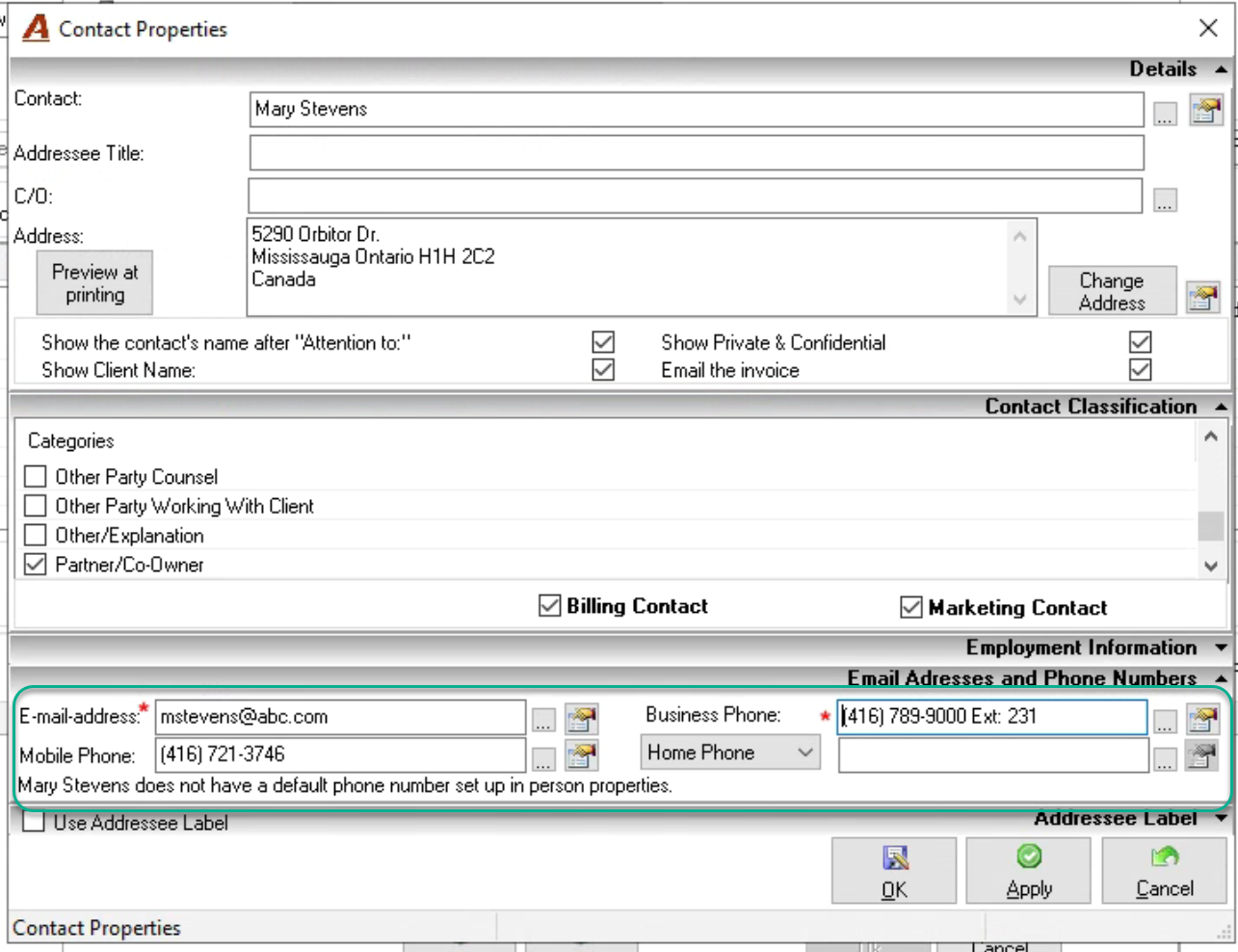
Add additional coordinates as needed, for example Business Phone, Mobile Phones, and Home Phones, and change the default owner owner to reflect an accurate picture. Press on OK to accept the new contact.
Contact Properties – Modifications or Changes
Modifications to contact properties implies modifying the contact categories and/or employment information in contact properties as well as to the properties of associated persons, address, phone, and email addresses included, as well as changes to the C/O. Modifications to contact properties may result in new relationships between contact, address, coordinates and/or relationship to the main person because the current structure is no longer an accurate representation.
Example of a Modification
During the invoice preparation process the incorrect spelling of the billing contact’s name is noticed. To correct the name, access the properties of the person, to return to invoice after responding to a series of decision points affected by the name change.
To start right-click on the billing contact information and select “Correction of Contact Properties”.
Once on the contact properties form, press on the properties button to the right of the person selected as the contact.
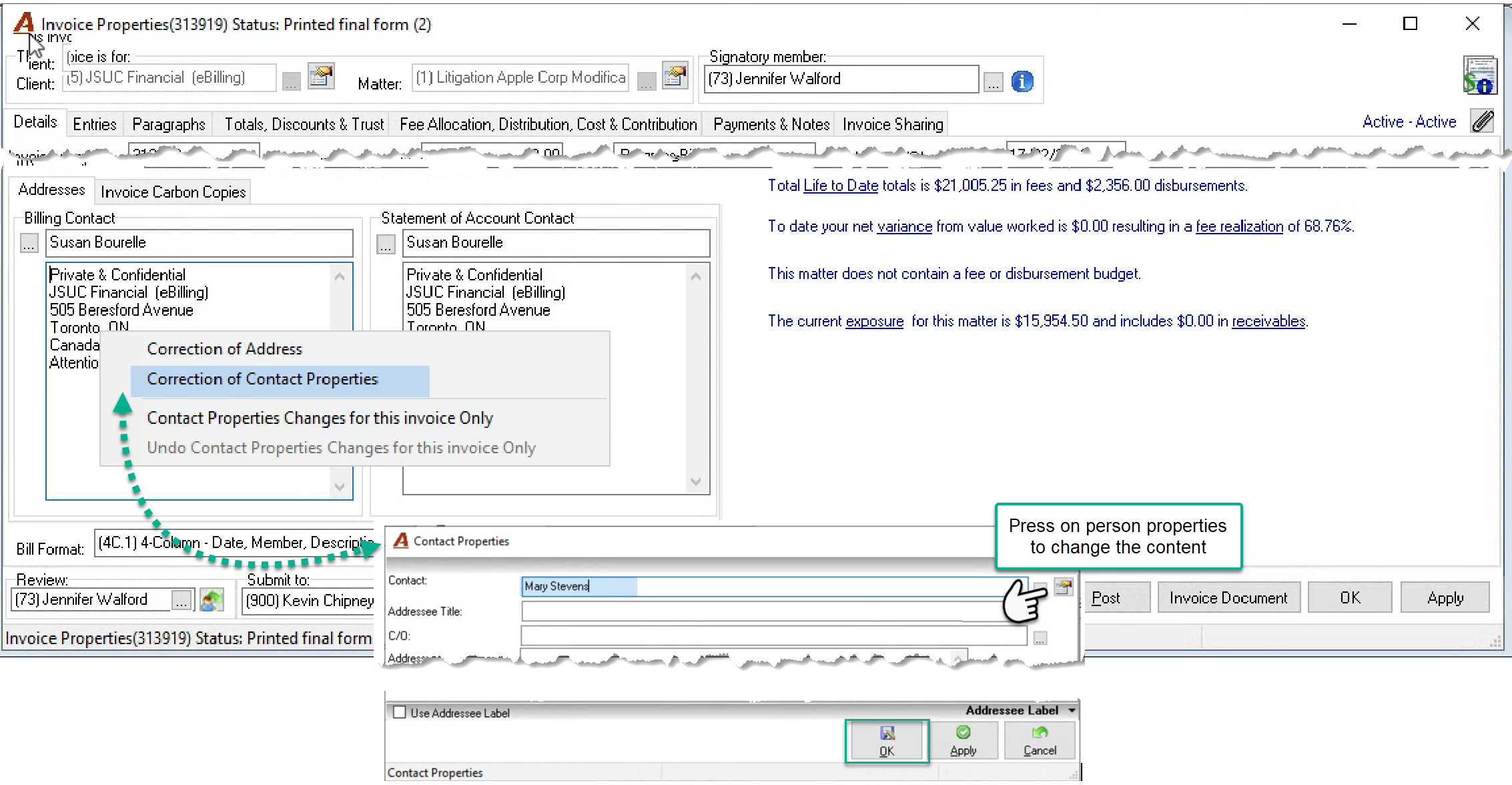
Complete the name correction within person properties, press OK to accept, and respond to the former name question.
Once back in contact properties, press OK to accept the change, respond to the conflict assessment related question, and respond to the statement of account contact questions.
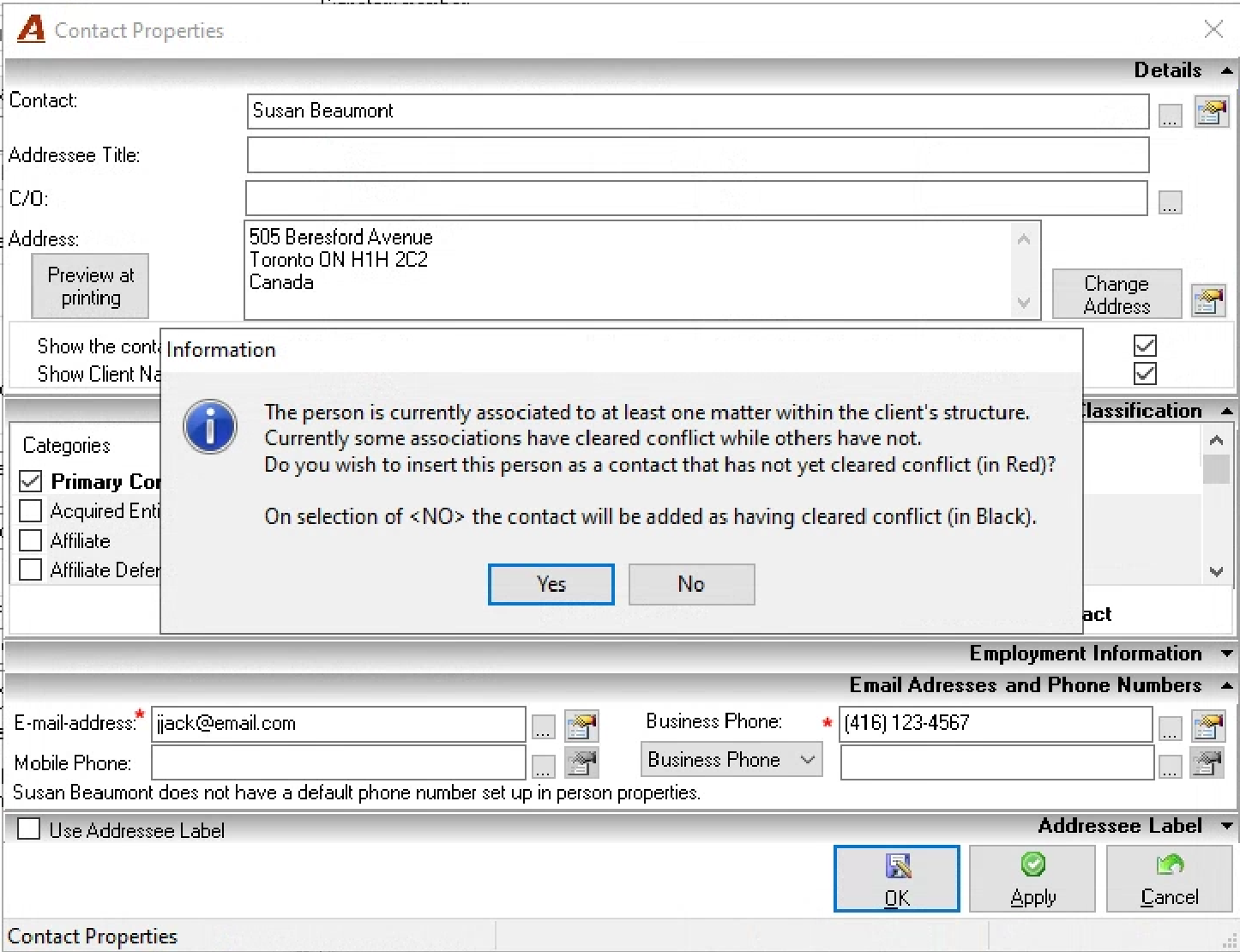
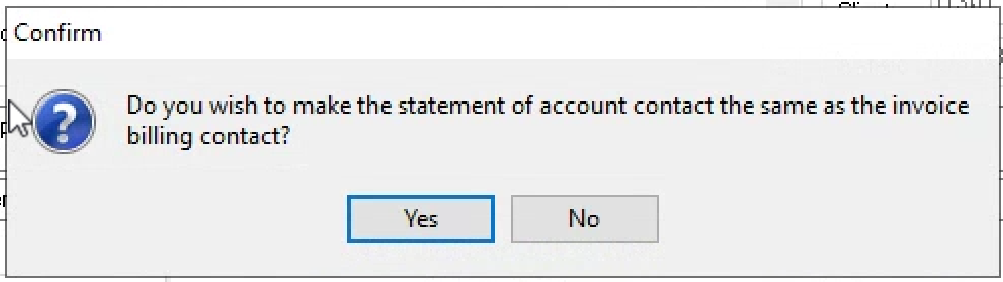
Follow the same process to change the address or other coordinates.
Changes
Changes to contact properties implies making new association because the current one is no longer valid.
For example, during the invoice preparation process a change of billing contact is needed. To make this type of change, access the properties of the contact, remove the contact and press on the ellipsis button to search for and select the new one.
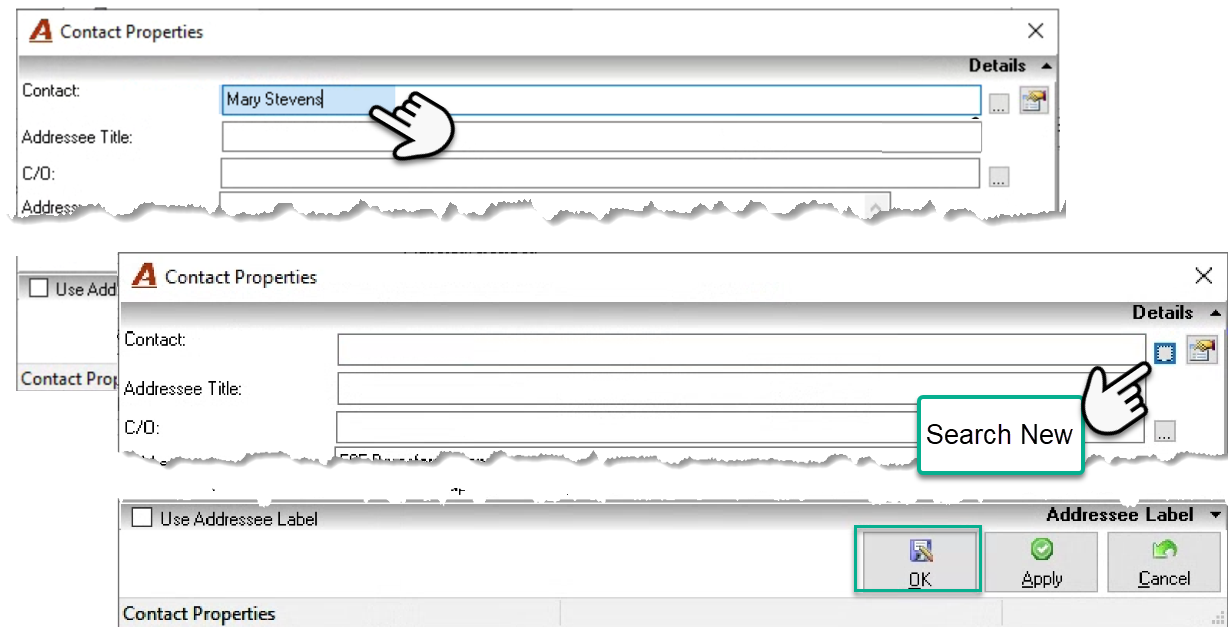
Address and Other Coordinates - Modifications or Changes
The process has less steps, but it is conceptually the same as for modifications or changes to person properties or contact.
RELATED DOCUMENTS:
Person, Address, Contact and Employment Information - Concept Guide