.png)
Scope and Purpose
The purpose of this document is to provide the options for creating clients that are groups of individuals in context of how the client will be billed.
The scope extends from what is required to bill the client by post or by email.
Learning Outcomes
-
Building the Client Name.
-
Completing the Client Coordinates in context of mandatory requirements, the physical context of the coordinate and the building the billing contact or contacts needed to invoice the client
-
Adding the individuals and their unique coordinates (email and mobile phone), use of the client address and landline or creating their address and landline.
-
Setting the default billing contact for the new matters.
-
Identifying the carbon copy to…
-
Adding the relevant client level contacts to the matter.
-
Completing the client or matter level invoice instruction with additional email. addresses to be used when billing through the client-matter dashboard.
-
Processing the invoice.
The Client
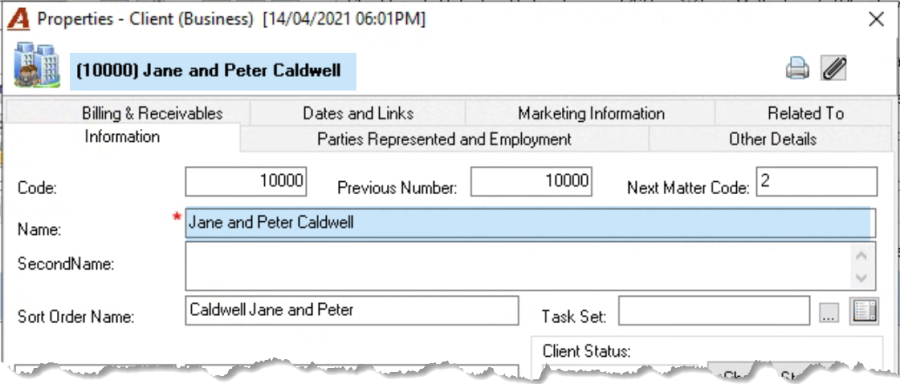
The client should be created as a Business/Unit with the following content.
Client Name
The name should be representative of the unit content. Depending on what has been decided this maybe the billing contact or not.
For example, a couple may be jointly responsible for the invoice, in which case the invoice would be sent to the unit. Alternatively, if each party is responsible for their portion of the invoice (i.e. a mediation file) then the participant of the shared (multiple payer) invoice would take precedence. This document focuses on the former.
If the individuals will share the invoice, create them first as individual clients (no matter) so they can be selected as participants on the shared invoice. In this case each will need a complete client profile. Use the checkbox "Do not allow the creation of new matters" as needed.
If the individuals participating in a shared invoice (participants) will each have their own pool of retained funds in trust, they will each need a trust-matter.
The Coordinates
Address
The address should be entered in context of ownership; therefore, it will determine where to start.
For example, if the client is a couple living at the same address, then it should be entered with the client as owner, in which case starting with the client is most effective.
However, if they each have a different address, the address should be entered within each of their individual profiles. In this case, as the client will also need an address, both addresses would be added to the client, making the client a user.
The above implies that you need to start by creating the individuals as basic persons – each with their own address before you create the client. Once the persons, each with their own address are created, create the client. Do not add other coordinates as you create the person profile. It is easier to process these through the main client. Instructions follow.
When it is time to add the address for the client you the addresses that you need with the correct ownership, to move on to the next page of the wizard.
Land-Line Phone Numbers
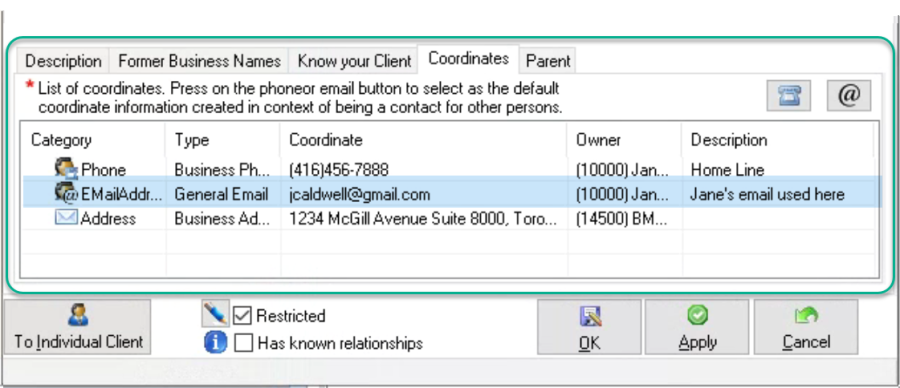
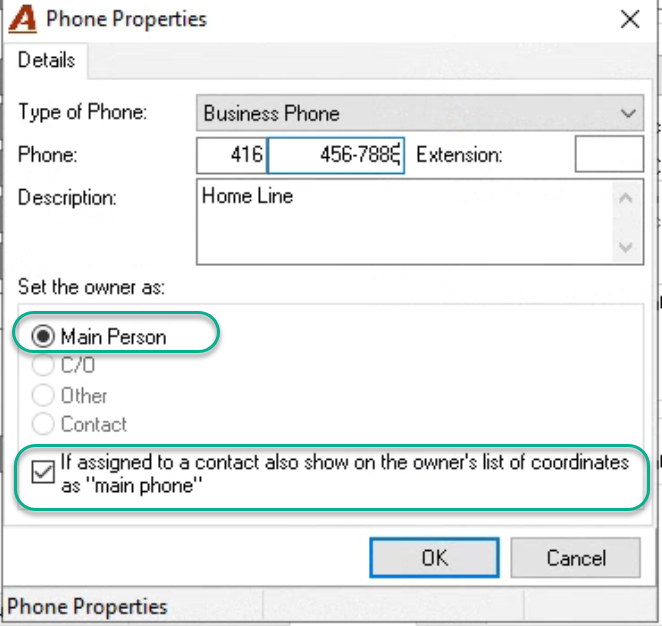
Only enter applicable land-line phone numbers for the client as mobiles are unique to individuals. If your firm makes a phone number mandatory for clients, when there is no common land line, it is best to create 999-999-9999.
As you will need to select this number for each contact to be considered also billing contact, checkmark the option below.
Email Address
As email addresses are typically unique, if the client will be the default billing contact (jointly responsible for the invoice), unless the group has an email address, you will need to add the email address of one the parties, to the coordinates of the client.
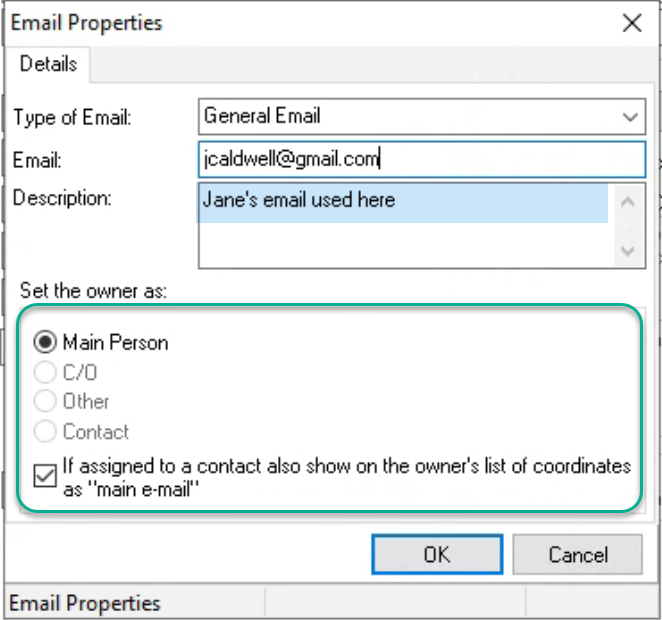
This Example of Client Coordinates
We are using the joint family home and landline as well as the email address for Jane Caldwell to update Jane and Peter Caldwell's billing contact profile as the default billing contact to receive the invoice via email.
The Client as a Contact
The client wizard will automatically create the client combined with the address as the primary contact, billing contact and unique AR contact. If you are keeping this contact as is (client is jointly responsible for the invoice) and want to update the intent to email the invoice, right-click properties and select the email address – the one added to the coordinates.
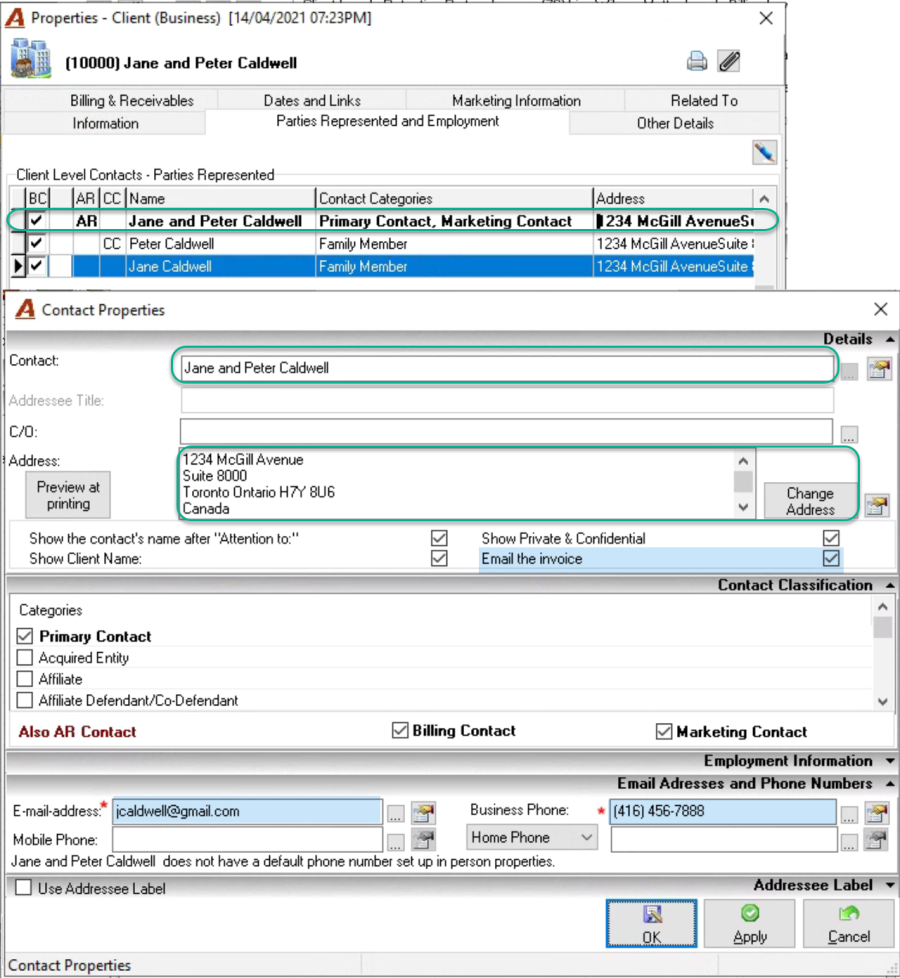
The Individuals
Right click to select "Add" and launch a contact properties form. Press on the ellipsis button to the right of the contact field to launch the "search Tool" and trigger the "Search" process. You will be guided to search for the person to select it if found.
If the person is found:
Double click or right-click to select and continue with the contact creation process.
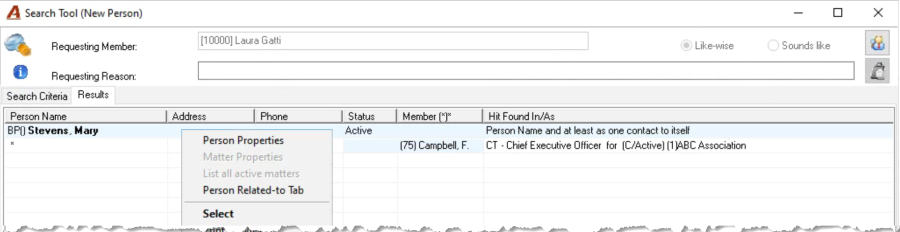
If the person is not found:
Expand the search as needed. Proceed to create the new individual person once you are satisfied it does not exist. Do not create the same person more than once as this would break the integrity of the database.
New Individual Person Wizard:
-
The name will be pre-populated using the values searched.
-
Correct the name, as a strong search implies the name searched was not precise.
-
Add an appropriate pre-fix.
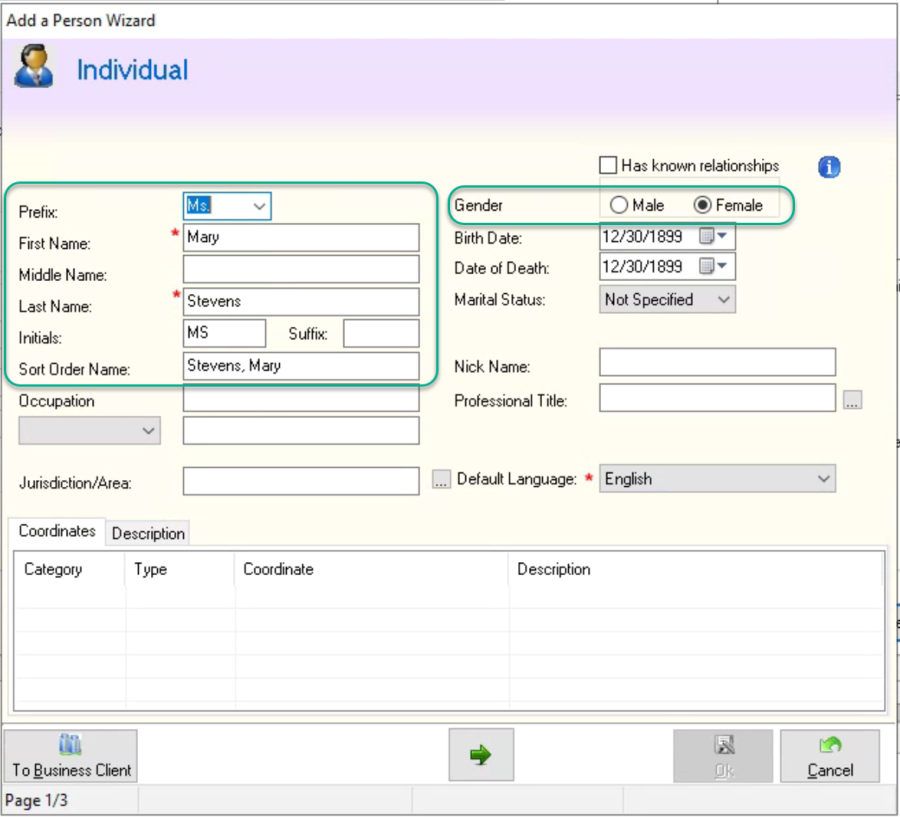
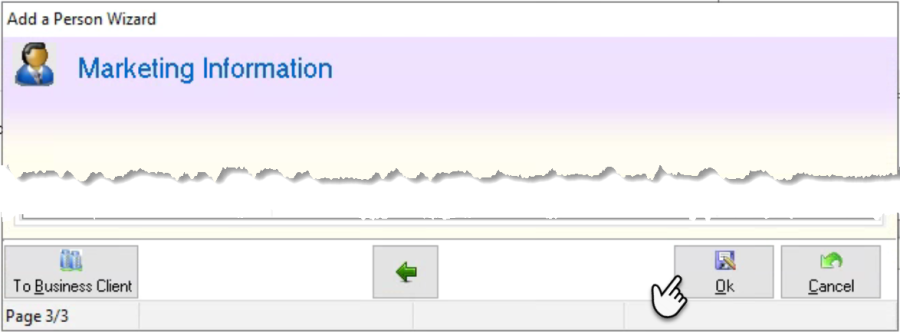
As the person is being created in context of being a contact for the client or matter, do not add any other information for coordinates. The only exception is if you are creating this person first because the client does not have an address, and will use the address of this person. Press OK to return to contact properties.
Contact Properties:
-
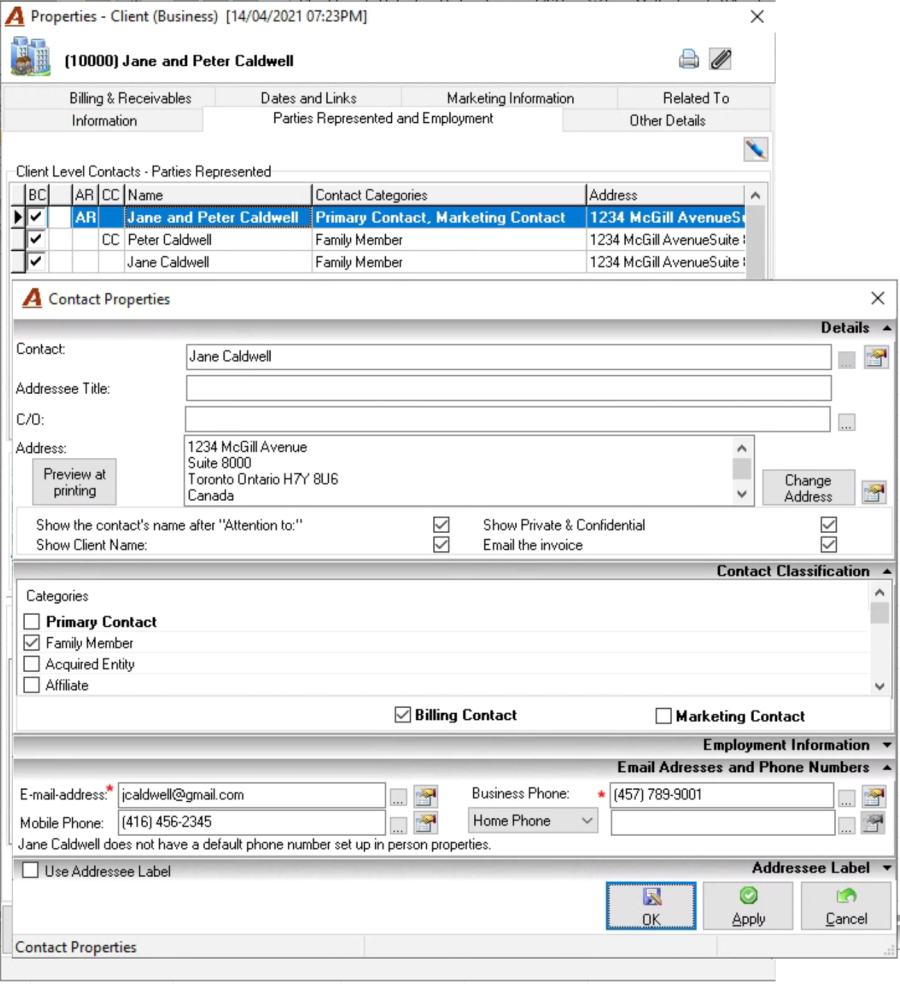
With the contact selected, press on "Change Address". The form will list all the addresses it has for the client and for the contact.
-
Select the contact category or categories that best represents the contact.
-
Set as a billing contact if the individual should be carbon copied when invoiced. This is an important step if the invoice will go out by email.
-
Add an email address, even if you added the same email address to the client. Select the owner as the "Basic Person" and checkmark the option below update the properties of the individual correctly.
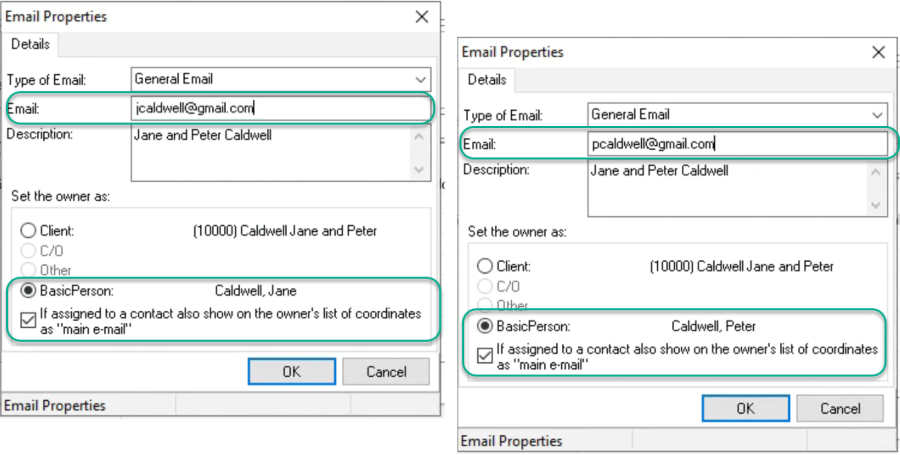
-
Add the contact's mobile phone number in the same way.
-
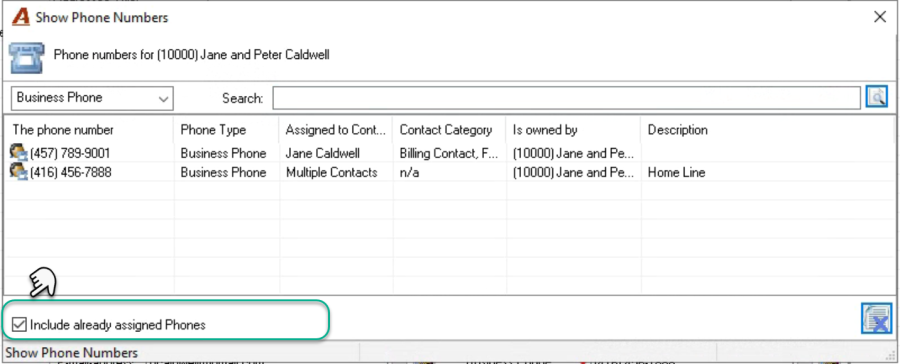
It maybe mandatory to select a phone number, in which case you can select the one you added to the client profile. Press on already assigned phones to see all your choices.
-
Right-click to set the carbon copy (CC)
The Matter
Parties Represented
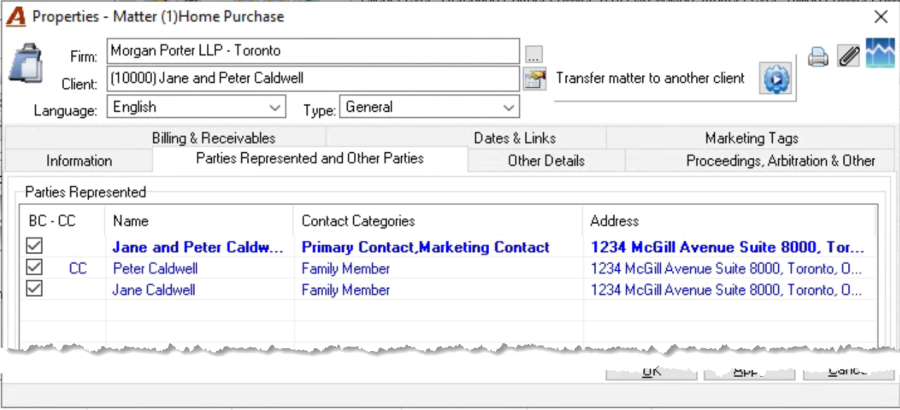
The matter wizard will automatically include the default billing contact. Right-click and select to "Client Contact" to add the individuals.
The Invoice Instruction
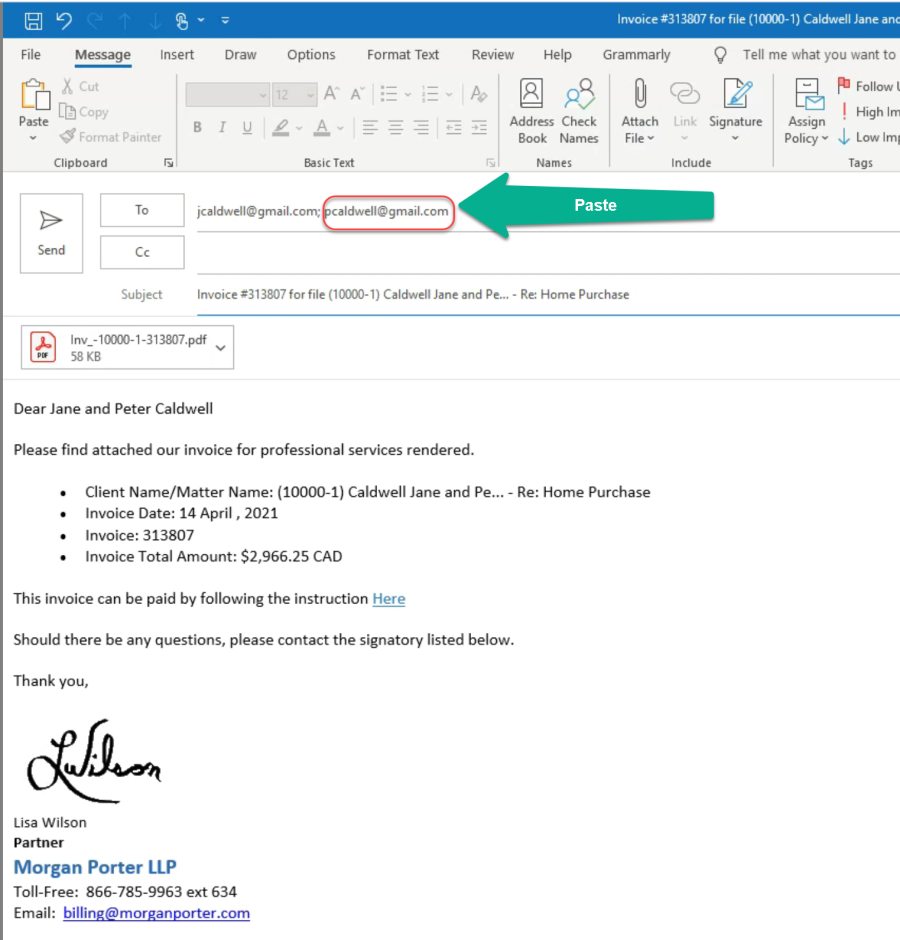
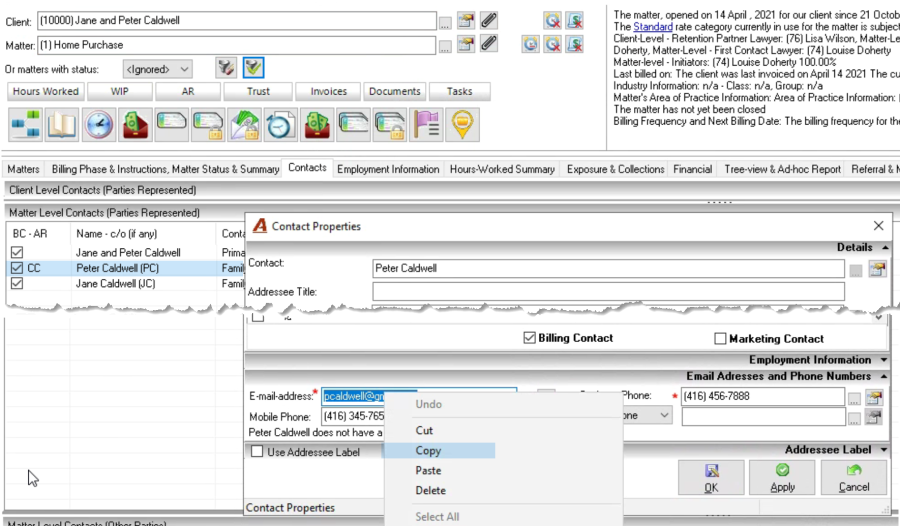
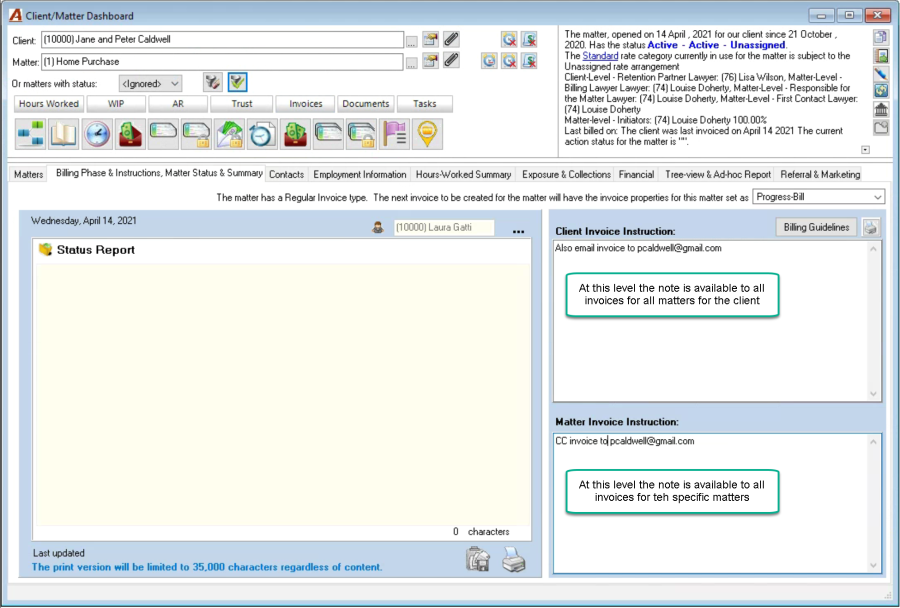
To capture the email address of the individuals to be emailed the invoice add them to a client or matter invoice instruction. From the client-matter dashboard copy the email address and paste it to the invoice instruction note. The content will be available during the invoice process.
The Invoice
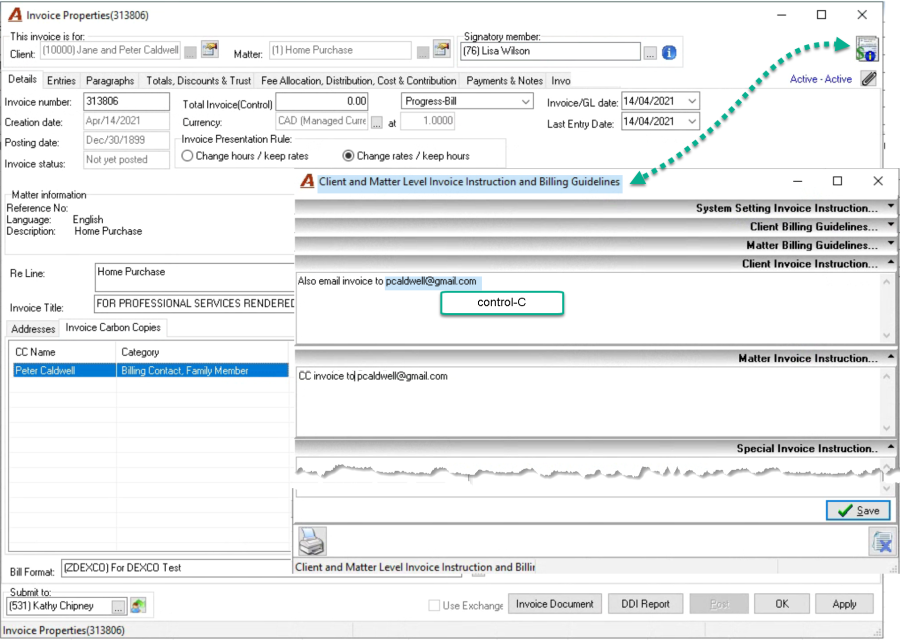
During the invoice preparation process you will be prompted with the invoice instruction. Once ready to email the final copy, capture the email address and paste in to or cc line.