.png)
Summary
Dates from an Excel upload may default to today's date if the date format in your spreadsheet does not match your computer's Windows regional settings.
Cause
The system relies on your computer's Windows regional settings to interpret dates that are formatted as text in an Excel file. When the format in the spreadsheet does not match what Windows expects, the system cannot understand the date and defaults to the current date as a fallback.
Step-by-Step Guide
To resolve this issue, you can either adjust your Windows settings or modify the format in your Excel file.
Method 1: Adjust Windows Settings
-
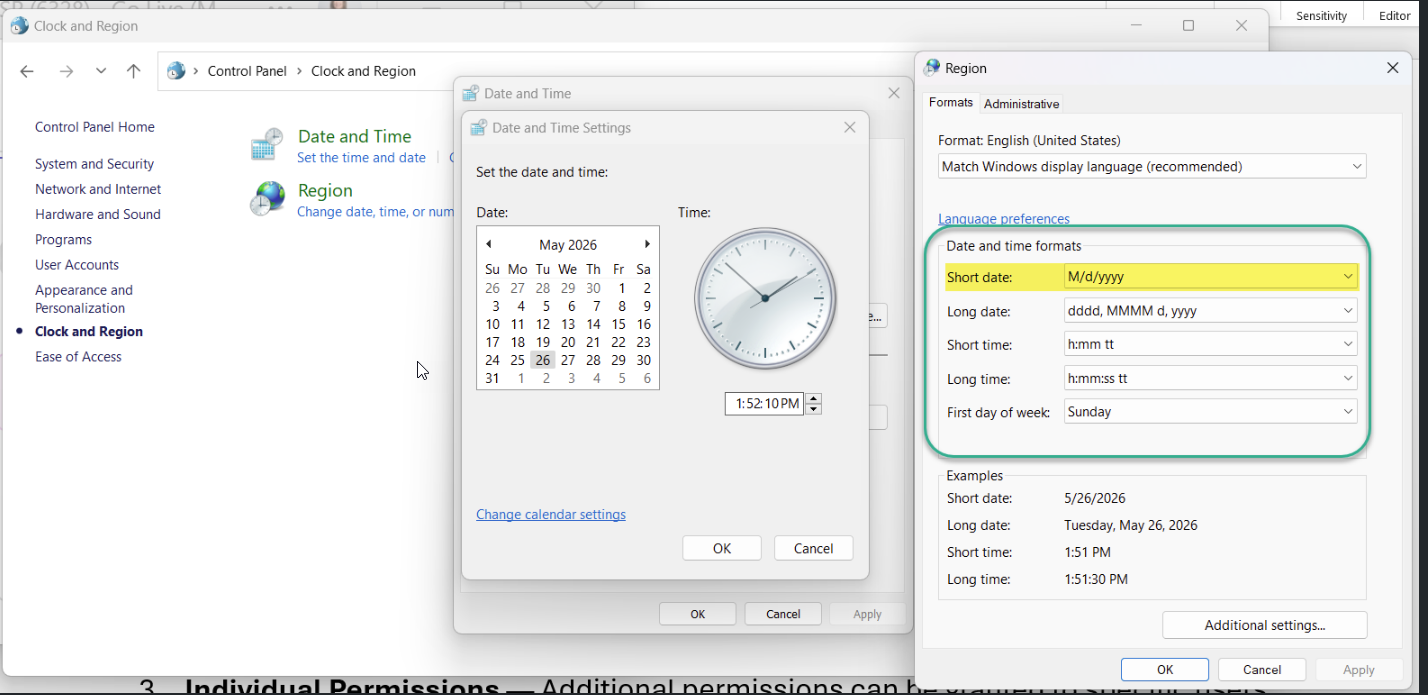
Open your computer's Windows regional settings.
-
Find the Short date format setting.
-
Change it to match the date format used in your Excel file.
Method 2: Change the Format in Excel
-
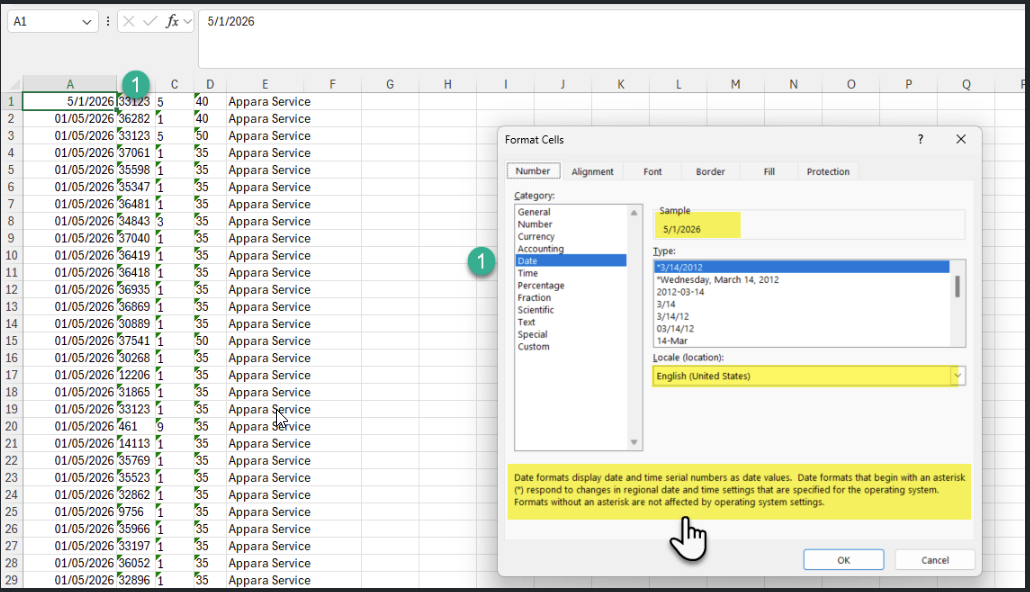
Open your spreadsheet in Excel.
-
Select the entire column that contains the dates.
-
Ensure the column is formatted as a true Date type, not as Text.
-
Use an unambiguous date format, such as
M/D/YYYY, to prevent misinterpretation.
Related Document:
Upload - Disbursement Upload Template in Excel - Setup and Import Steps