.png)
Summary
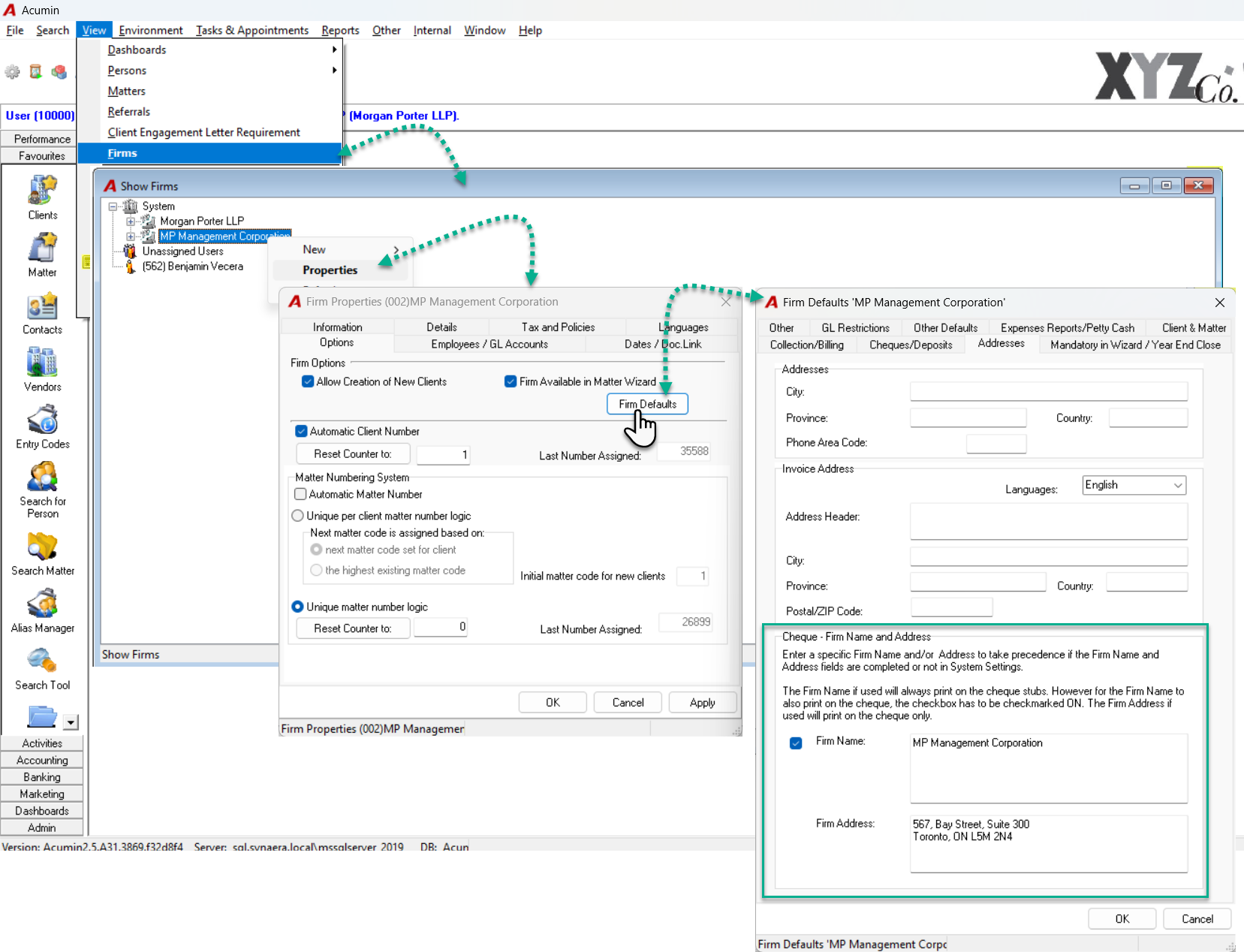
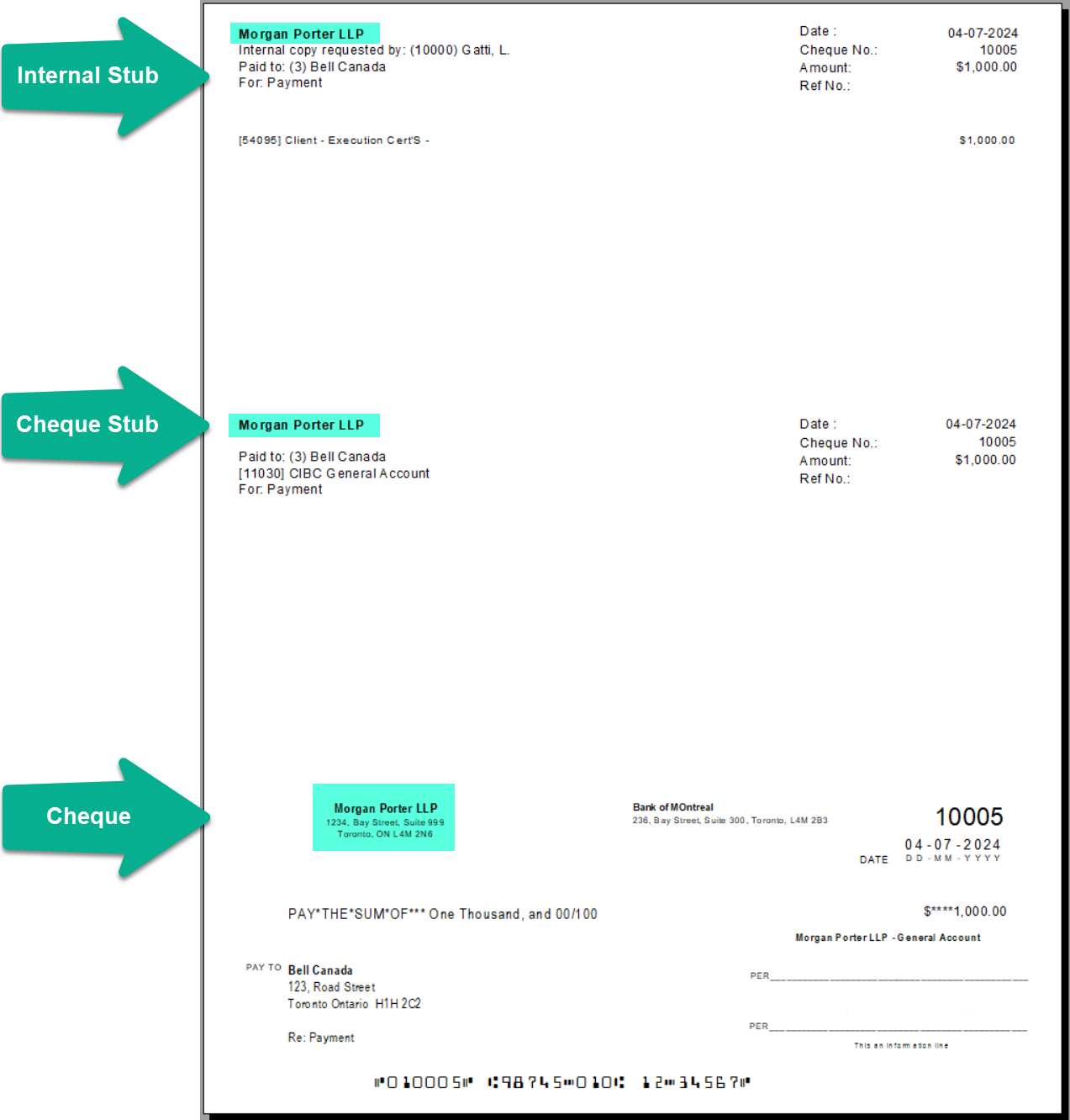
Update the firm name and address on cheques in System Settings if they are consistent across all firms. If they differ for one or more firms, update them in the specific firm’s properties. Firm-level settings override System Settings.
Step-by-Step Guide
Depending on your firm's setup, follow the appropriate set of instructions below.
For a Common Firm Name and/or Address Across Cheques for All Firms
-
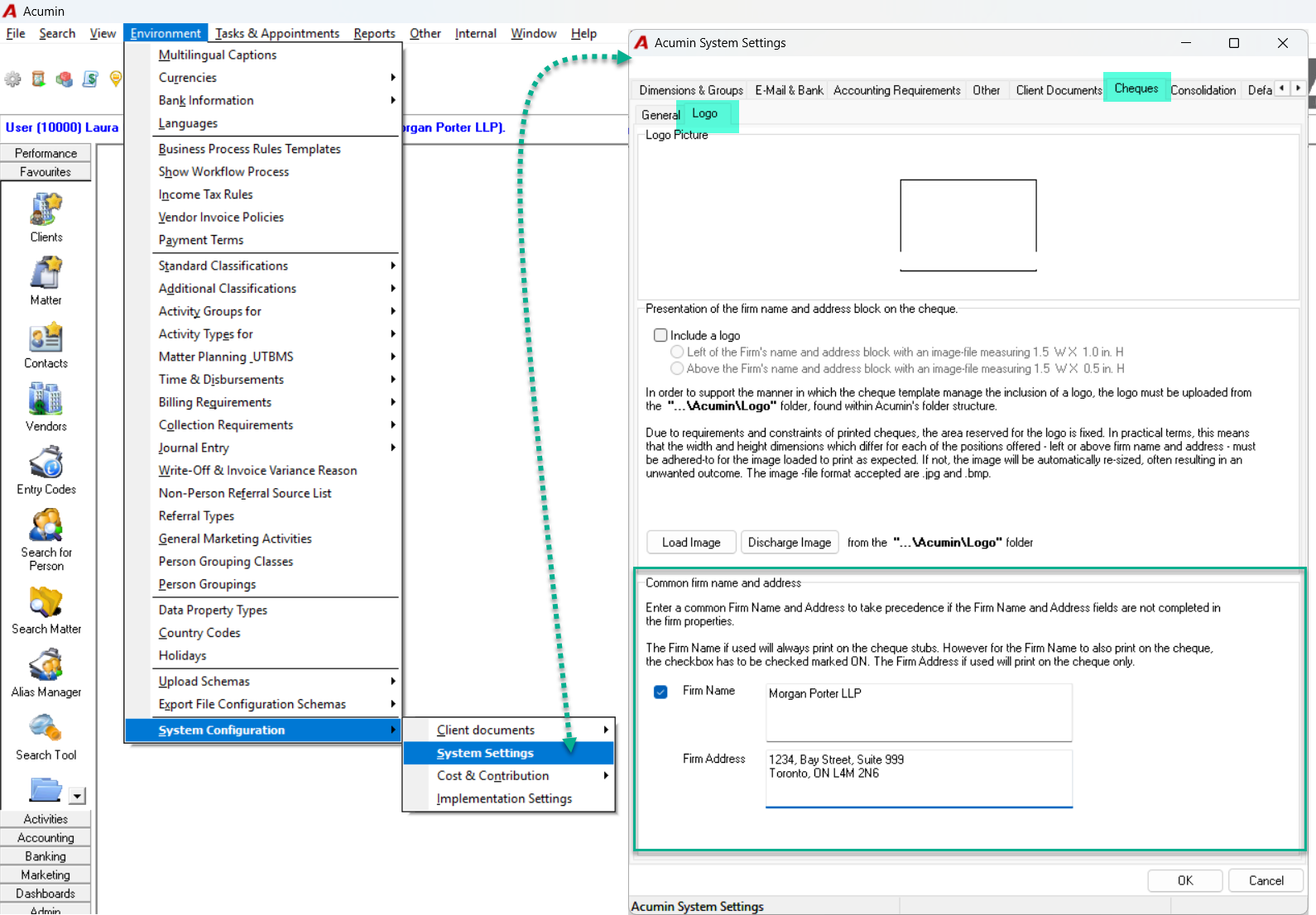
Navigate to Environment > System Configuration > System Settings.
-
Click on the Cheque tab.
-
Select the Logo sub-tab.
-
Review and update the text in the Firm Name and Firm Address fields, located within the Common firm name and address section.
-
Firm Name checkbox:
-
Select the Firm Name checkbox to print the contents of the Firm Name field on the upper-left side of the cheque.
-
Leave the checkbox unchecked if you do not want the firm name printed on the cheque. For example, if your logo is pre-printed on your cheque stock, this option should remain unchecked.
-
-
Firm Name: Enter the name of the firm.
Note that the firm name, if used, will always print on the cheque stubs. It will appear on the cheque only if the Firm Name checkbox is enabled.
-
Firm Address: Enter the firm address in the format you want it to appear on the cheque.
The firm name and/or firm address entered at this level will print on cheques for firms where the corresponding firm-level fields are empty.
For a Specific Firm's Name and/or Address
-
Navigate to View > Firms.
-
Select the desired firm from the list and click the Properties button.
-
In the new window, select the Options tab.
-
Click the Firm Defaults button.
-
Select the Addresses tab.
-
Review and update the text in the Cheque - Firm Name and Address section.
-
Firm Name checkbox:
-
Select the Firm Name checkbox to print the contents of the Firm Name field on the upper-left side of the cheque.
-
Leave the checkbox unchecked if you do not want the firm name printed on the cheque. For example, if your logo is pre-printed on your cheque stock, this option should remain unchecked.
-
-
Firm Name: Enter the name of the firm.
Note that the firm name, if used, will always print on the cheque stubs. It will appear on the cheque only if the corresponding checkbox is enabled.
-
Firm Address: Enter the firm address in the format you want it to appear on the cheque.