.png)
QUESTION:
I’d like to tidy up some of our records by addressing payments made on a single file but applied across multiple invoices. At the moment, these payments are not properly closing out individual invoices as intended.
Is there a way to reallocate these payments so that each invoice is correctly marked as paid?
RESPONSE:
You can proceed with the correction using what we refer to as a "0" amount deposit. Below are the detailed steps to guide you through the process:
-
Create the Deposit Request
-
Generate a general deposit slip request (yellow book) with a value of 0.00.
-
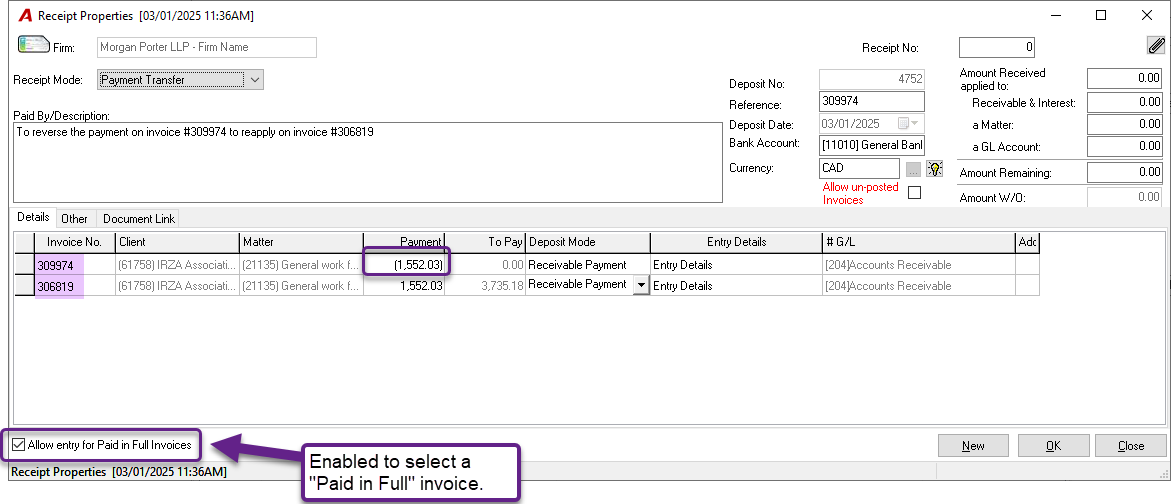
On the receipt form, check the option to allow the selection of a paid invoice (located at the bottom left) if needed.
-
-
Complete the Receipt Form
-
Fill in the upper section of the receipt form.
-
In the description field, include the reason for the payment reversal, and in the Reference field, enter the affected invoice number. This will make it easier to trace this transaction later.
-
-
Handle the Distribution
-
In the distribution section, enter the affected invoice number in the Invoice No. field.
-
Tab to the Payment field and input the refund amount as a negative value. When you tab out of this field, the amount will automatically appear in parentheses to indicate a negative value.
-
On the next row, input the new invoice number to which you'd like to reapply the payment as a positive value. Tab to complete this row.
-
Ensure that the total deposit amount remains 0.00.
-
-
Set the Correct Date
-
Choose a date that aligns with your intended outcome for this correction.
-
Please note: When converting this deposit request (yellow book) to a green book, the date will automatically update to today's date unless reenter another date.
-
Example