.png)
-
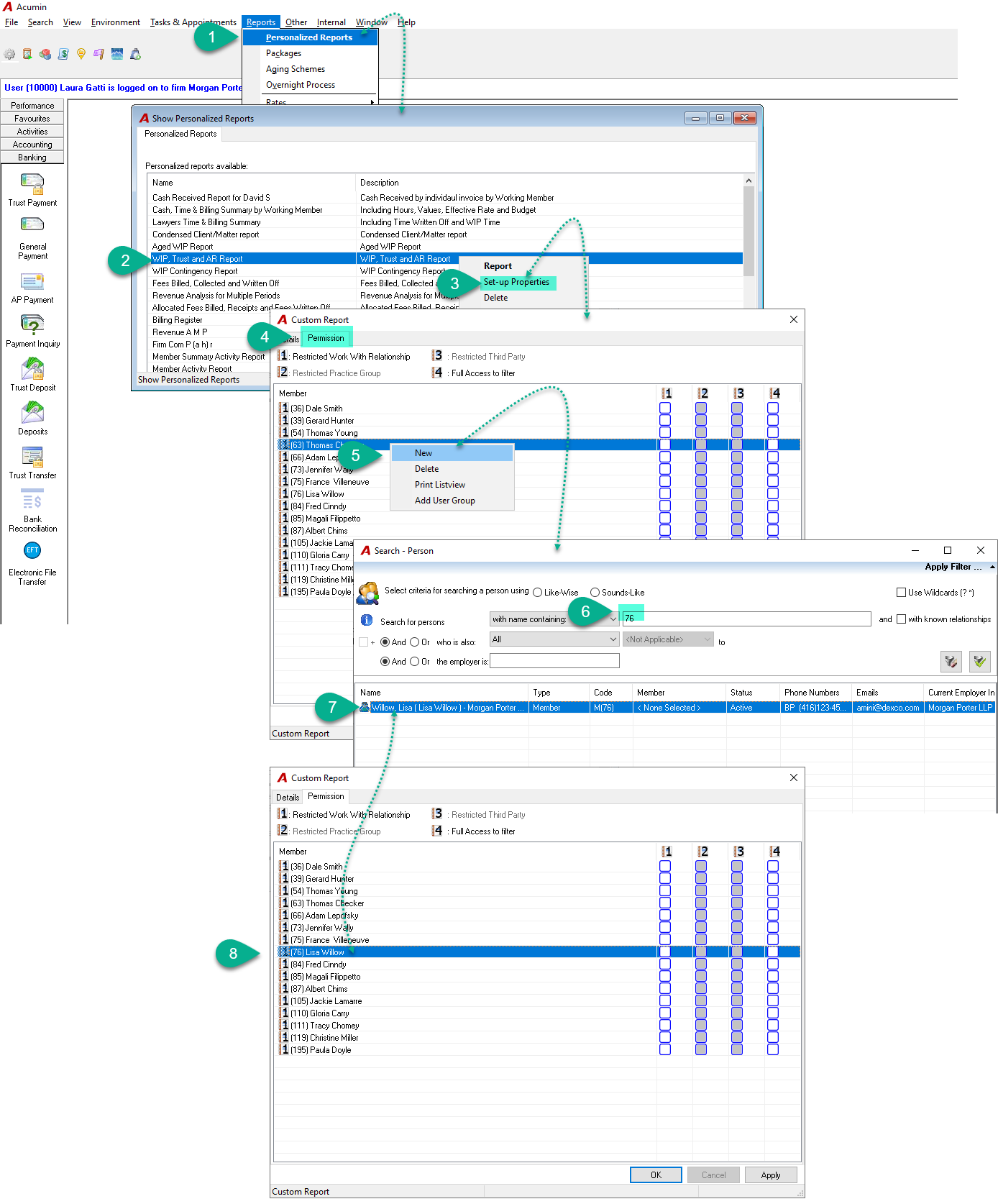
Under the Reports menu, select Personalized Reports.
-
In the Show Personalized Reports form, locate the desired report, then right-click to open the contextual menu.
-
From the contextual menu, choose Set-up Properties.
-
In the Custom Report form, navigate to the Permissions subtab.
-
Right-click within the tab to open the contextual menu, then select New.
-
In the Search - Person form, enter the code or name of the member you want to grant access to.
-
Double-click the member’s name from the search results to select them.
-
The selected member will now appear in the Permissions tab. You can adjust their permissions as needed.