.png)
Invoice Discounts or Premiums
Overview
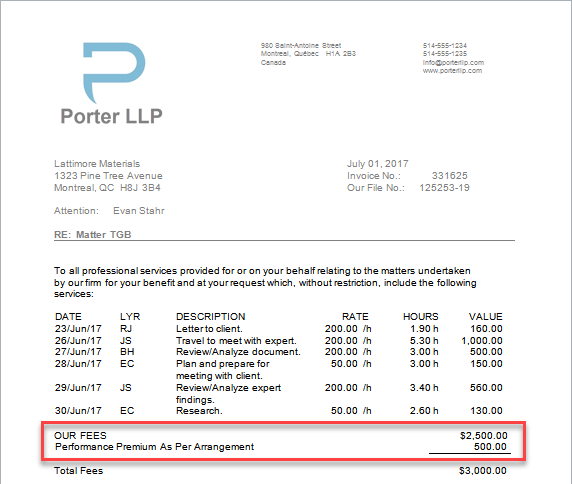
In addition to the invoice reduction through discount functionality, the application includes a second “Additional Discount or Premium” section available to firms working with the dynamic invoice engine within client, matter an invoice property forms.
Highlights
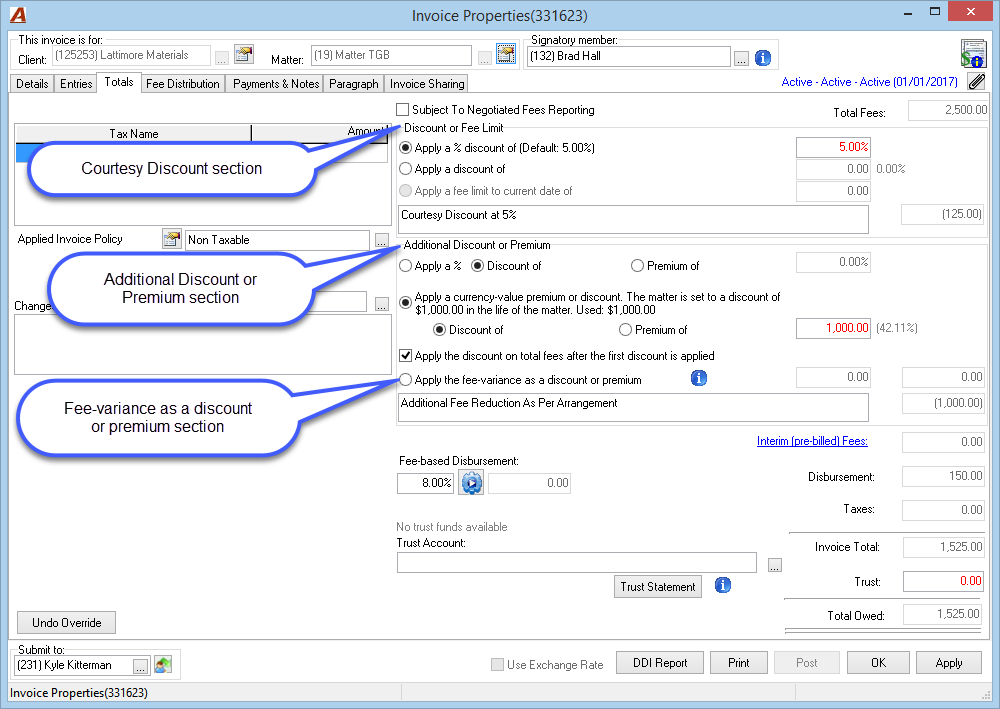
The discounts or premiums can be pre-set at the client or at the matter, however they are executed during the invoice preparation process. It is possible to modify pre-set discounts or set a new one from within invoice properties.
The label presented on the invoice is firm defined. The label set in system settings will be added as the default label on the totals, discount, and trust tab of the invoice properties.
Label exceptions can be set at the client or matter level from within the “Billing & Receivables” tab in the corresponding properties firm. During invoice creation, if there is a client or matter level label, it will be captured instead of the system level once.
Users can override the final label presented in invoice properties as part of the invoice preparation process.
Discounts and/or Premiums
Implementation Settings:
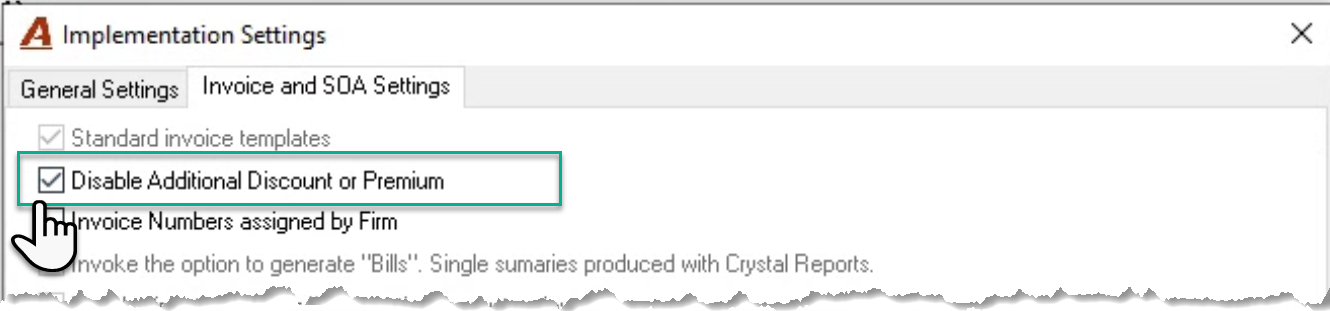
To enable the second discount or premium functionality, make sure that the checkbox option “Disable Additional Discount or Premium” found in “Implementation Settings – Invoice and SOA Settings” tab, is not check-marked.
System Settings:
The first and second default discount labels are set within the “Client Documents – MS Word – Other Invoice Labels – Main Documents & Summaries” subtab of the “Acumin System Settings” form.
The first discount label will always apply to only discounts; however, the second discount label can apply to the presentation of premiums. If you are using the second discount section, consider its most often use case to decide on the best default label. For example, a firm that uses this section mostly for premiums may choose a default label like “Alternate Fee Arrangement Premium”, whereas a firm that uses it for a second discount may choose a default label like “Additional Agreed to Discount”.
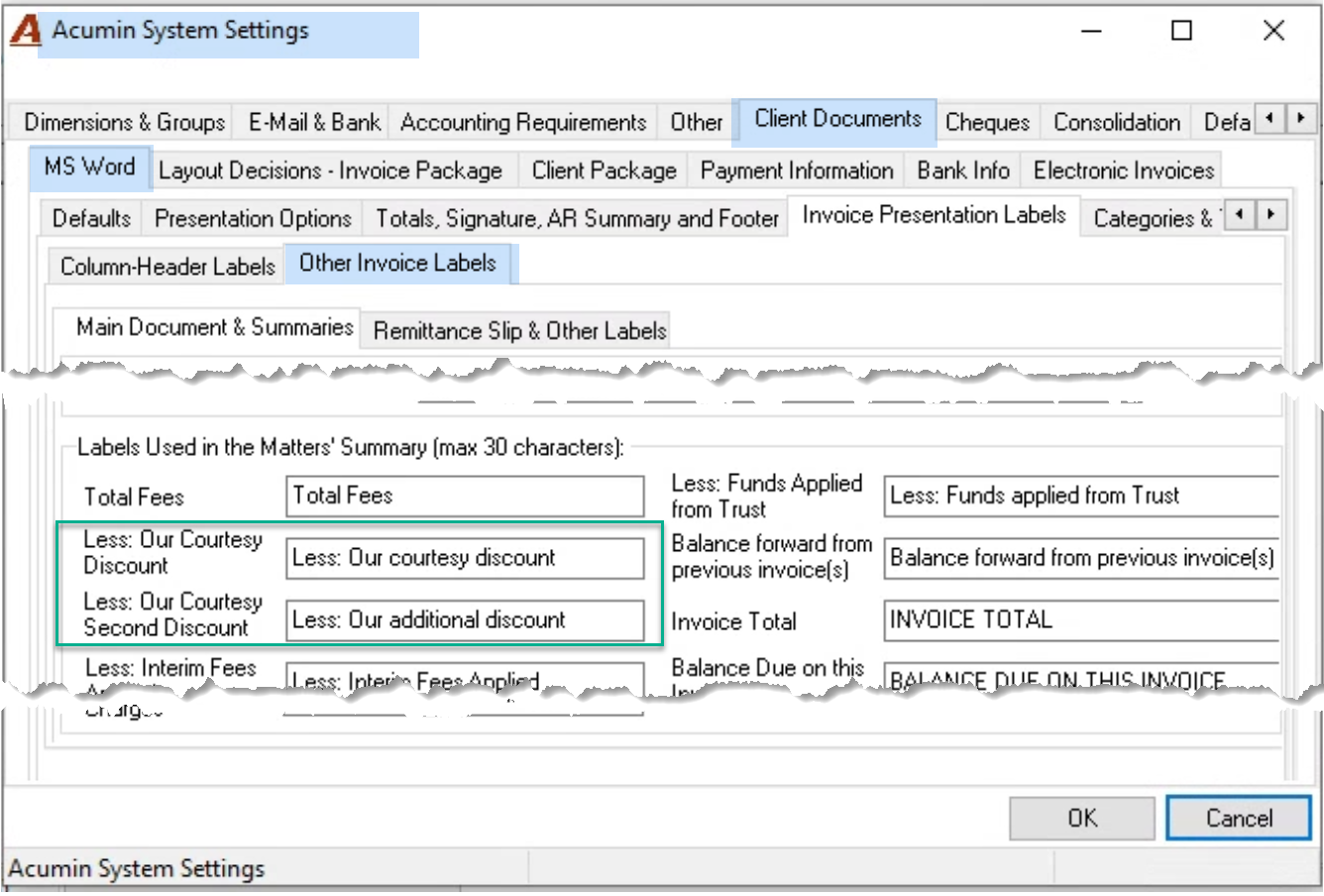
The label used as a default will be captured and presented in the “Totals, Discounts and Trust” tab of “Invoice properties”, unless a superseding label is found for the affected client or matter. The label presented during invoice preparation is available for modification.
Client Properties:
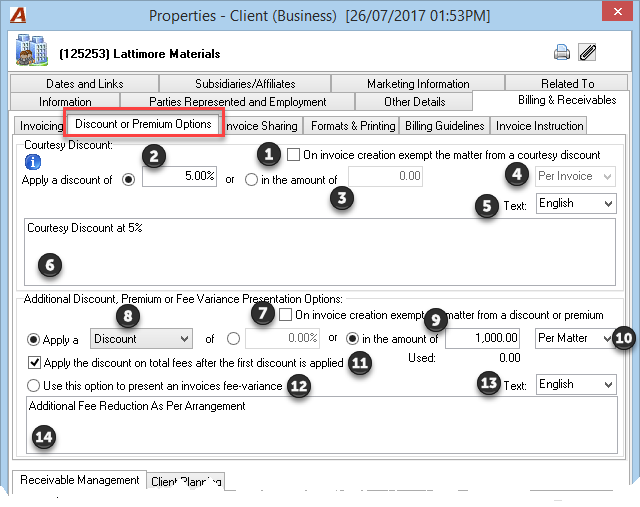
In addition to client specific discount and/or premium label options, the “Billing & Receivables - Discount or Premium Options” sub-tab in Client Properties, offers users the ability to pre-set discounts and or premiums to support billing guidelines agreed to with the client.
If set at the client level, the discount and/or premium will waterfall to all Matters, so they are captured and presented during invoice preparation on the “Totals, Discounts and Trust” tab of the corresponding “Invoice properties”.
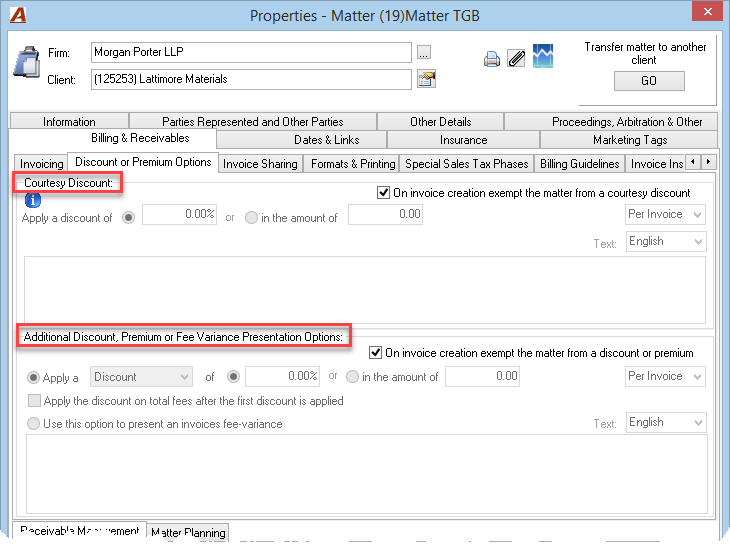
Courtesy Discount section
-
On Invoice creation exempt the matter from a courtesy discount:
Use this option to exempt new matters from having the client level discount as a default.
-
Apply a Discount of:
Use this option if you want the Discount to be calculated using a percentage “%”.
-
Or in the amount of:
Use this option if you want the Discount to be calculated using a fixed dollar value.
-
Per Invoice or Per Matter:
The percentage discount can only be applied on a percentage basis; however, the fixed dollar value can be applied to the matter.
-
Text:
This option defines the language for the text entered in the field below. When language selection changes, the text entered under the previous language will be saved.
-
Text field:
The Text entered will be displayed on “Totals, Discounts and Trust” tab of the corresponding “Invoice properties”, where it can be further modified for presentation on the invoice document. Use the variable (%) to show the discount as a percentage as part of the label.
Additional Discount, Premium or Fee Variance Presentation Options section
-
On invoice creation exempt the matter from a discount or premium:
Use this option to exempt new matters from having the client level discount as a default.
-
Apply a Discount or Premium:
Select between a Discount or Premium. The selection will apply to the second Invoice discount section on the invoice.
-
Of % or in the amount of:
Decide if the Discount or Premium option will be presented on the invoice as a percentage “%” or a dollar value.
-
Per Invoice or Per Matter:
The percentage discount can only be applied on a percentage basis; however, the fixed dollar value can be applied to the matter.
-
Apply the discount on total fees after the first discount is applied:
Use this option to calculate the second discount on the Fee Value minus the first Discount
-
Use this option to present an invoices fee-variance:
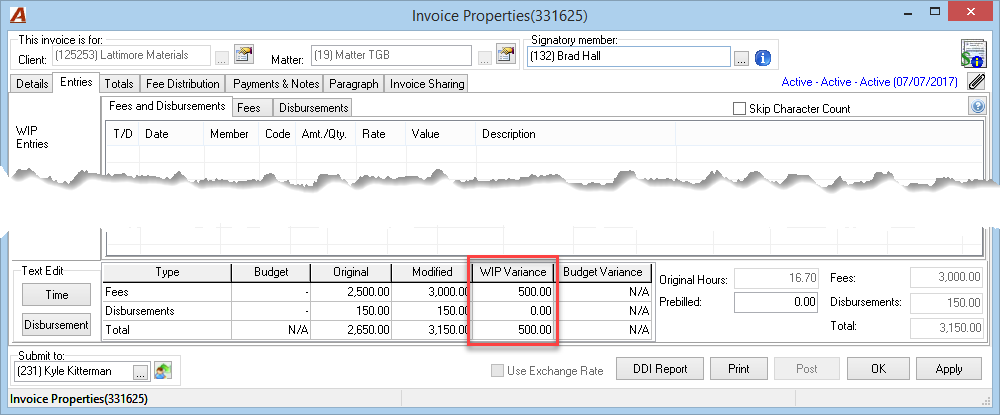
This option cannot be use in combination with the first discount. If used, it shows the Fee Variance from Entries tab as if it was a Discount or a Premium. It will be disclosed on the invoice presentation using the text captured in the field that follows.
-
Text:
This option defines the language for the text entered in the field below. When language selection changes, the text entered under the previous language will be saved.
-
Text field:
The Text entered will be displayed on “Totals, Discounts and Trust” tab of the corresponding “Invoice properties”, where it can be further modified for presentation on the invoice document. Use the variable (%) to show the discount as a percentage as part of the label.
Matter Properties:
The same options offered at the client level are offered at the matter level to facilitate matter outliers from client-based discount and/or premium decisions.
Deciding not to use these options at the matter level indicates that the settings selected at the client level will apply. If you want to have different configuration at the matter level, remove the checkmark for the Courtesy Discount and the Additional Discount, Premium or Fee Variance Presentation Options sections. You will then be able to set different criteria for the matter or leave it blank, which will void the configurations set at the client level.
Invoice Properties:
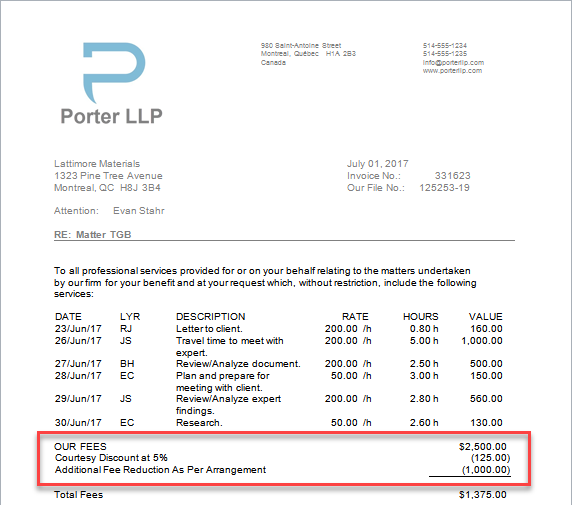
Invoice Presentation for Courtesy Discount and Additional Discount or Premium sections:
Applying the fee-variance as a discount or premium option:
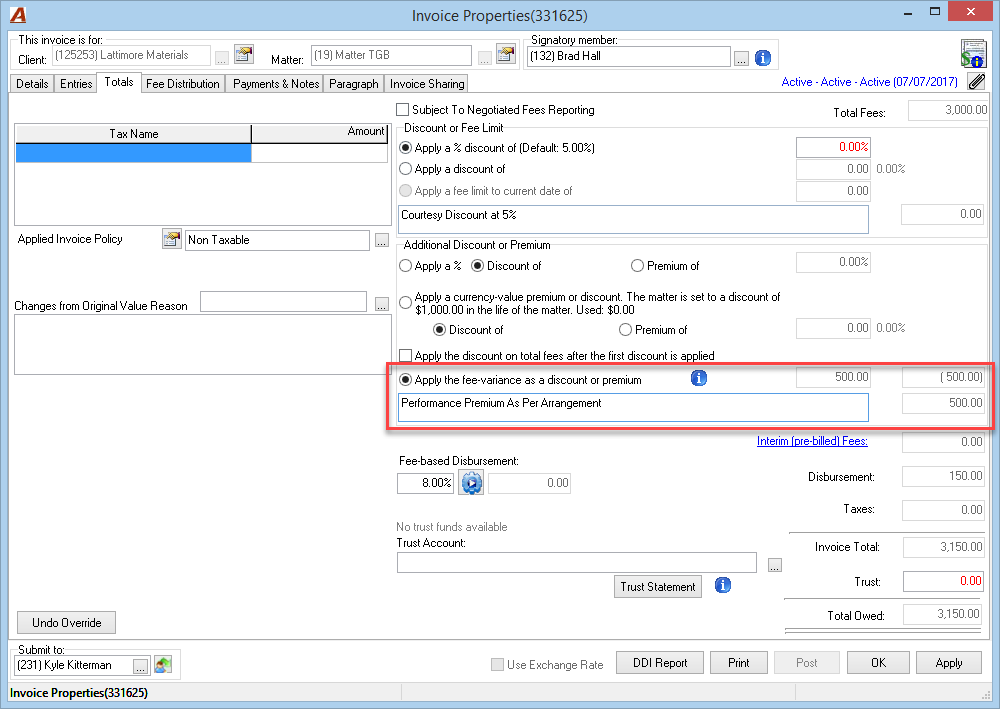
Invoice Presentation for the fee-variance option: