.png)
Scope and Purpose
The purpose of this document is to provide visibility of how-to workflow the use of the multi-matter invoice.
Its scope extends across the creation of a multi-matter invoice where not all matters have the same member as the member responsible for completing billing decisions – recipients of the E-WIP statement (to-bill tab) and DDI or DER reports where applicable.
Highlights
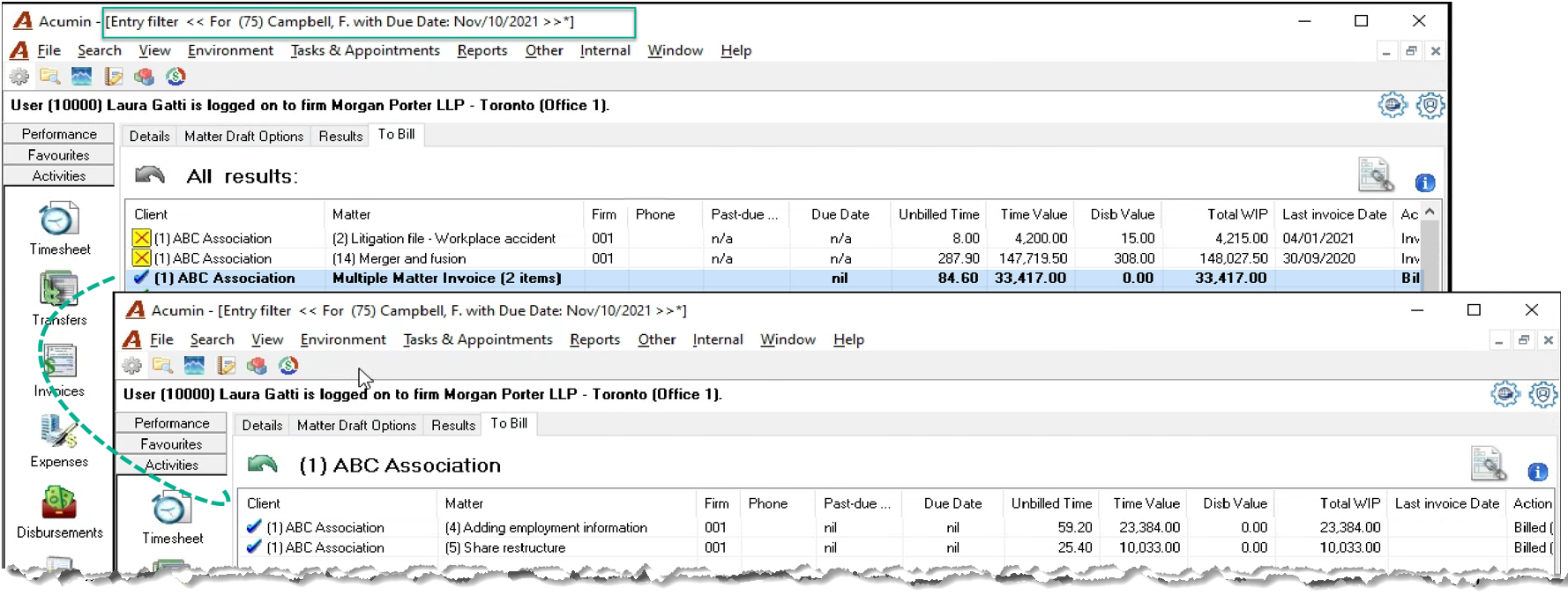
Matters to be included in a multi-matter invoice for a client, are grouped within clients presented in bold. To see the matters, the user should double click on the bolded client.
The E-WIP statement (to-bill tab) shows the matters set to be included in the multi-matter invoice within matter properties in bold. The matters for these clients are excluded from the WIP list report, so they can be reported on their own.
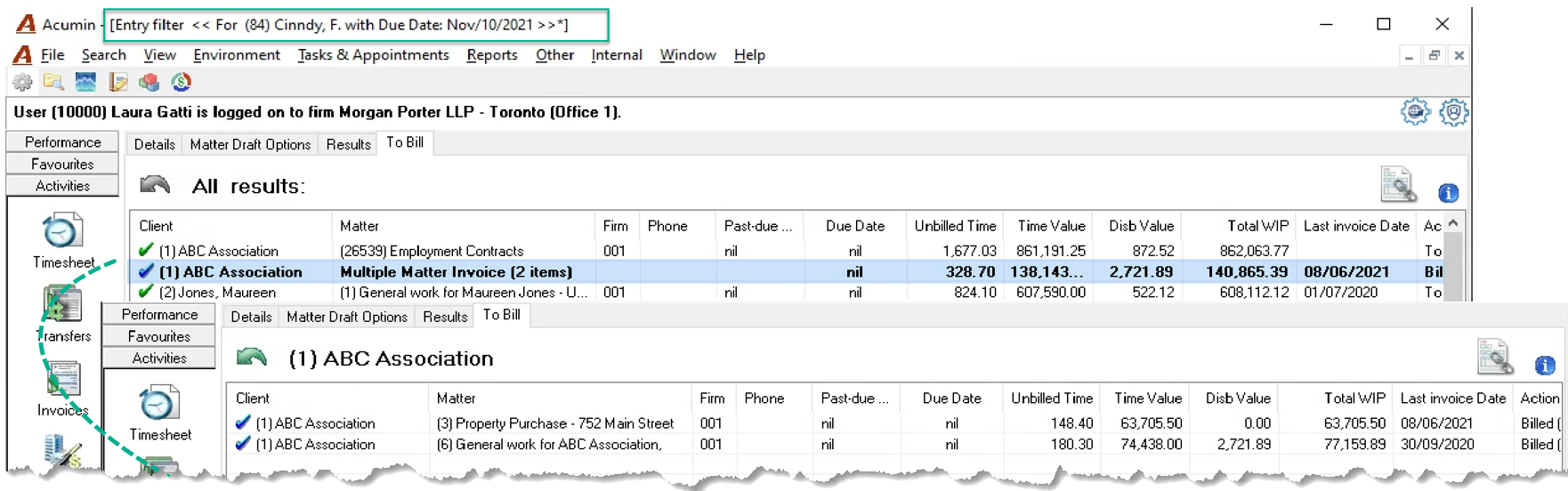
If some of matters to be included in the multiple matter invoice have different billing decision makers, then each E-WIP statement (to-bill tab) will show the corresponding matters for the client.
Where matters have different billing decision makers which then list on different E-WIP statement (to-bill tab), the invoice preparation process can be centralized per client if launched from the results tab of the entry details filter. Alternatively, the invoice preparation process can be kept decentralized in which case the multiple matter invoices created for the same client can be merged into one multiple matter invoice as a step prior to generating the invoice in final form, to then post and send.
If all matters to be included in the multiple matter invoice have the same billing decision maker, the multi-matter invoice (the envelope) should be created from the E-WIP statement (to-bill tab) by the invoice preparer working on that list.
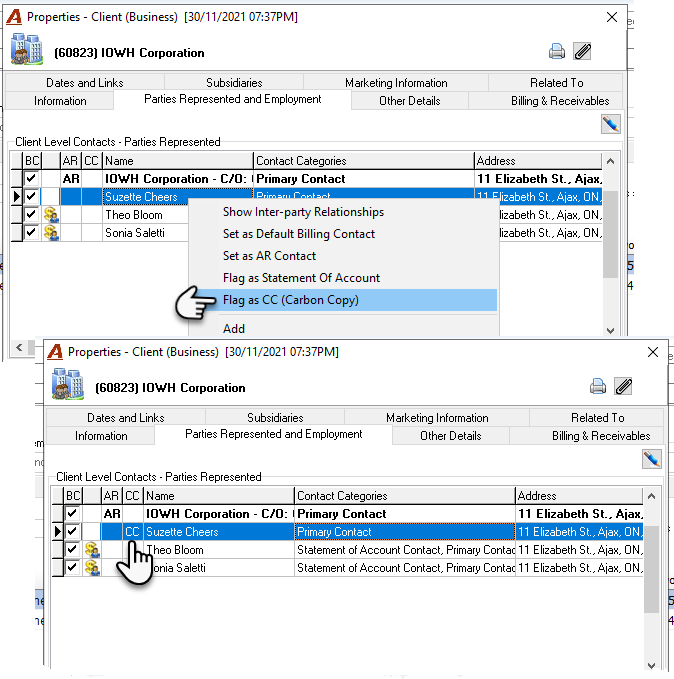
The contacts to be carbon copied should be added to the parties represented list of the client, as well as to the client-level supporting instructions for quick access when generating the email.
Matters set-up to be included in the multiple matter invoice within matter properties and listed within the E-WIP statement (to bill tab) or the details filter results tab will be grouped into a multiple matter invoice when selecting “Generate Invoices – as per invoice type”.
Alternatively, the option “Generate Invoices – Multiple Matter Regular” will group into a multi-matter invoice selected matters for the same client.
Workflow
Where some of the matters to be included in the multiple matter invoice have different billing decision role holders
WIP List and Invoice Preparation, Text Edits and Instructions Form: Multi-matter invoice content is presented separately from regular matter invoices, therefore double click on the bolded multi-matter invoice record to generate the WIP List for the matters that will be included in the multi matter invoice or to access the corresponding “Invoice Preparation, Text Edits and Instructions Form”. For firms using the DDI or DER reports to capture billing decisions, the WIP list becomes the cover page to the DDIs or DERs used for the matters that will be part of the multi matter invoice.
Once the member responsible for billing decisions completes the invoice requirements on the DDI, DER or the “Invoice Preparation, Text Edits and Instructions Form”, the invoice preparer generates the multi-matter invoice.
If all matters to be included in the multiple matter invoice have the same billing decision role holder, highlight the bolded client, and right click on the to-bill tab to generate the multi-matter invoice (the envelope).
If some of matters to be included in the multiple matter invoice have different responsible members,
Once the multiple matter invoice per billing decision maker is generated, use the merge option to combine them (see invoice merge option for unposted multi matter invoices – How to – document).
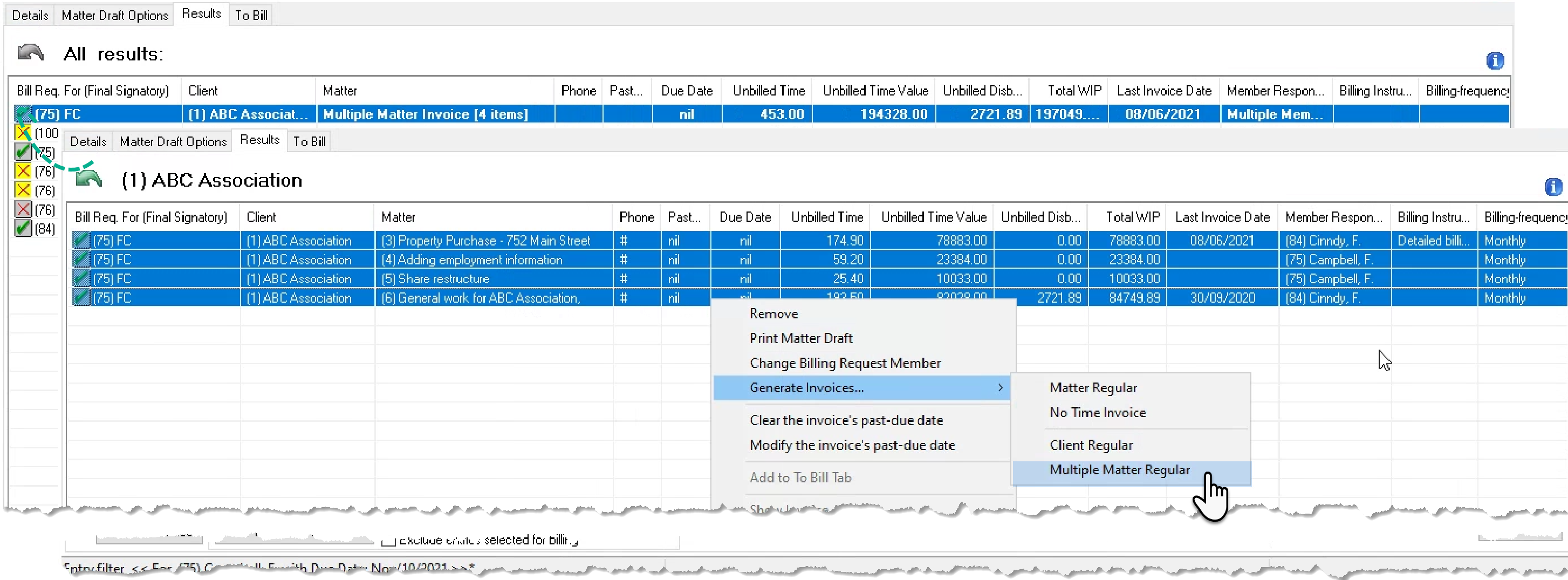
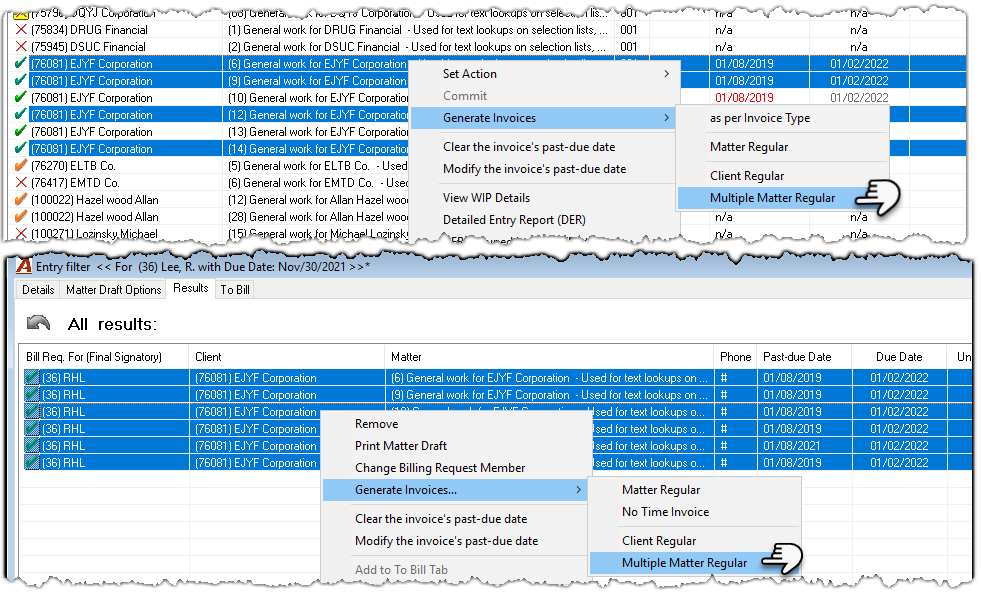
Access the entry-filter results tab and run the filtered results for the client. All the matters for all the members should be listed in the results tab. Multiple select and generate the multi-matter invoice (the envelope). Screenshot follows.
From the show invoice details form’s filtered results access the multi-matter invoice (the envelope) and update content based on the requests included on the corresponding DDIs, DER or “Invoice Preparation, Text Edits and Instructions Form” completed by the billing decision maker. If the holder of the envelope is not expected to complete the changes for all the matters included in the multi matter invoice, the envelope should be submitted to the next person(s) until all remaining content is finalized.
The last person in the invoice preparation workflow generates the invoice in PDF final form so it is saved before it is submitted to the person responsible for quality assurance and posting.
Accounting posts the invoice and sends the prepared email package (see details that follow).
Example - To-Bill Tab for Member (75) F. Campbell
Example - To-Bill Tab for Member (84) F. Cindy
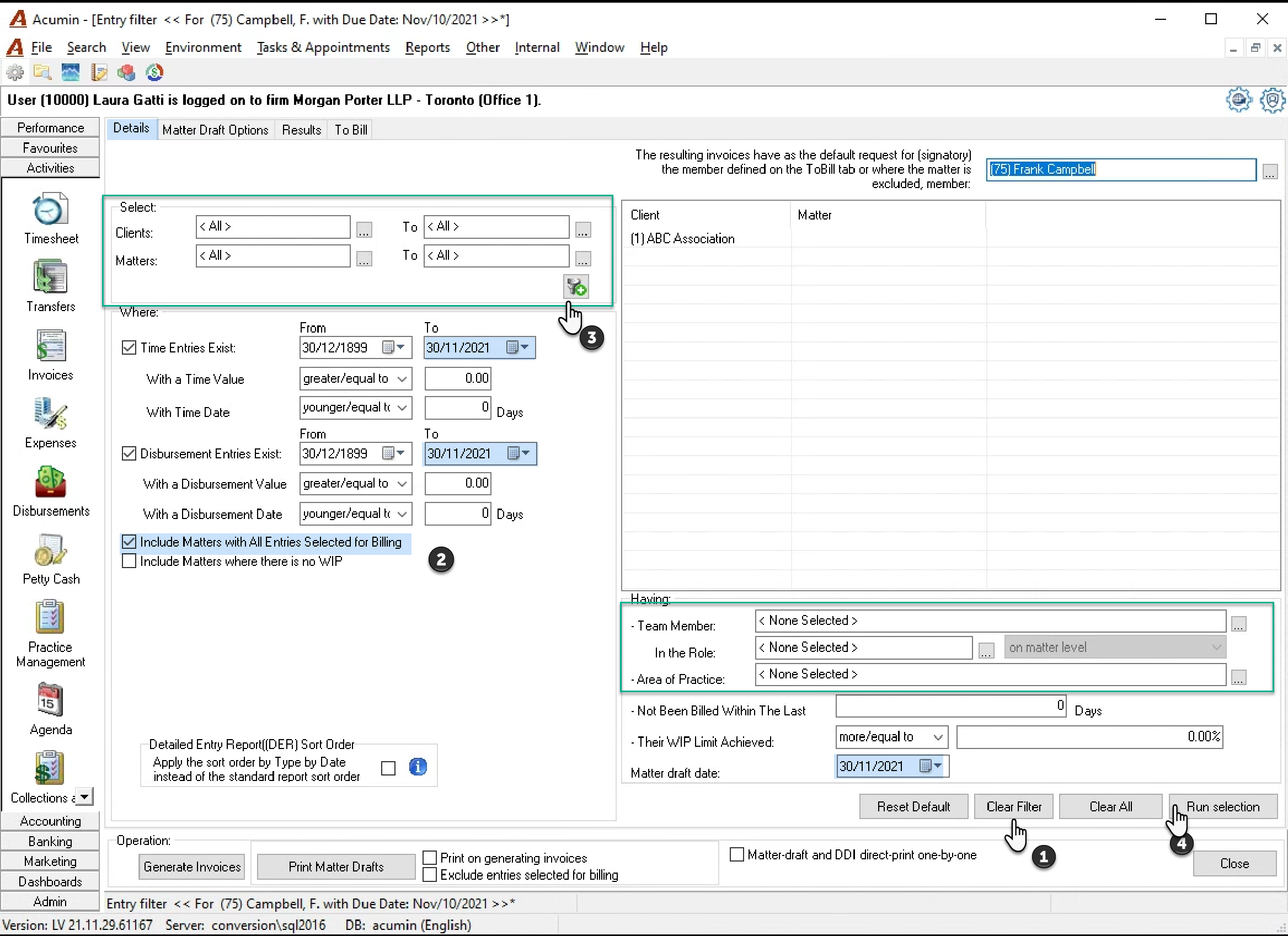
Details tab, used to filter for the Matters to be included in the Multi-Matter Invoice (the envelope):
-
Press the “Clear Filter” button.
-
Conform your dates and checkmark the option “Include Matters with all Entries Selected for billing”.
-
Add the client to the list.
-
Press on the “Run Selection” button.
Result tab, used to generate the Multi Matter Invoice
-
Highlight the matters listed.
-
Right click and select the Generate Invoices – Multiple Matter Regular option in the contextual menu.
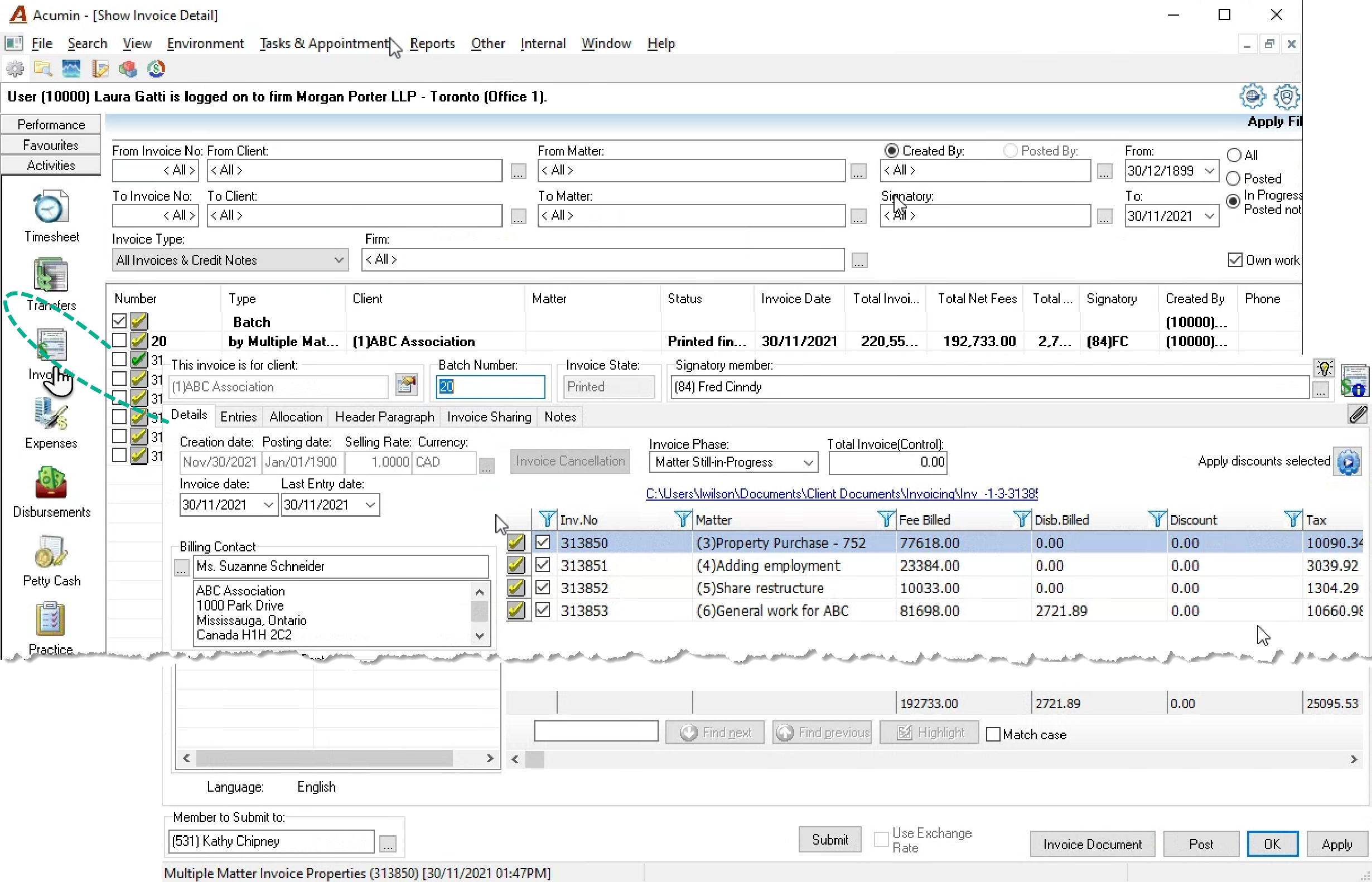
The “Batch Invoice Create” form will launch with details on the multiple matter invoice generated.
From the “Show Invoices” form, access the Multiple Matter Invoice to work on it and then print it as a final document.
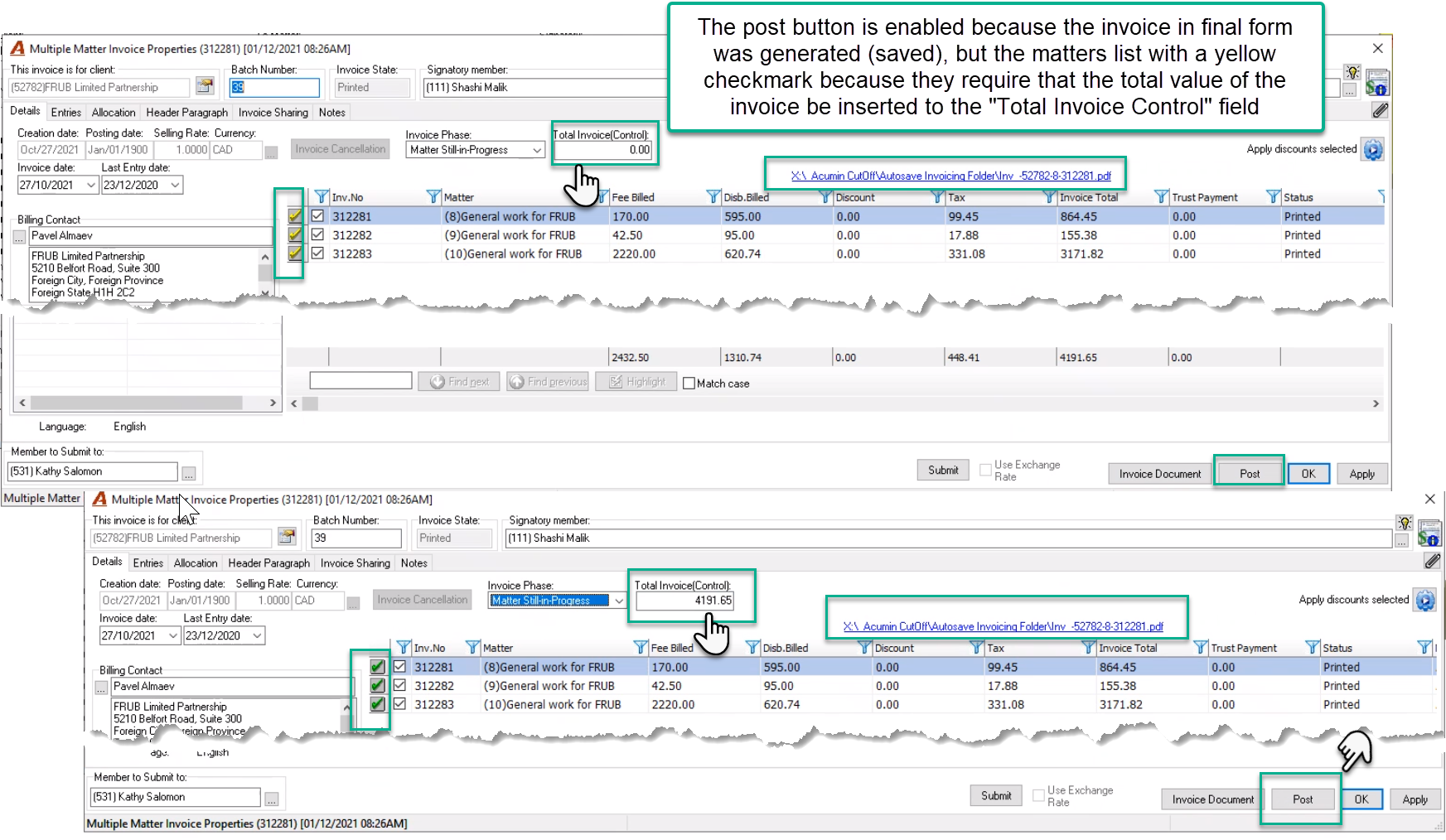
The review and invoice preparation and modification process can be completed using the options within the envelope without having to access each matter individually. Once the invoice preparation process is complete the PDF invoice in final form can be generated and saved and the invoice properties posted.
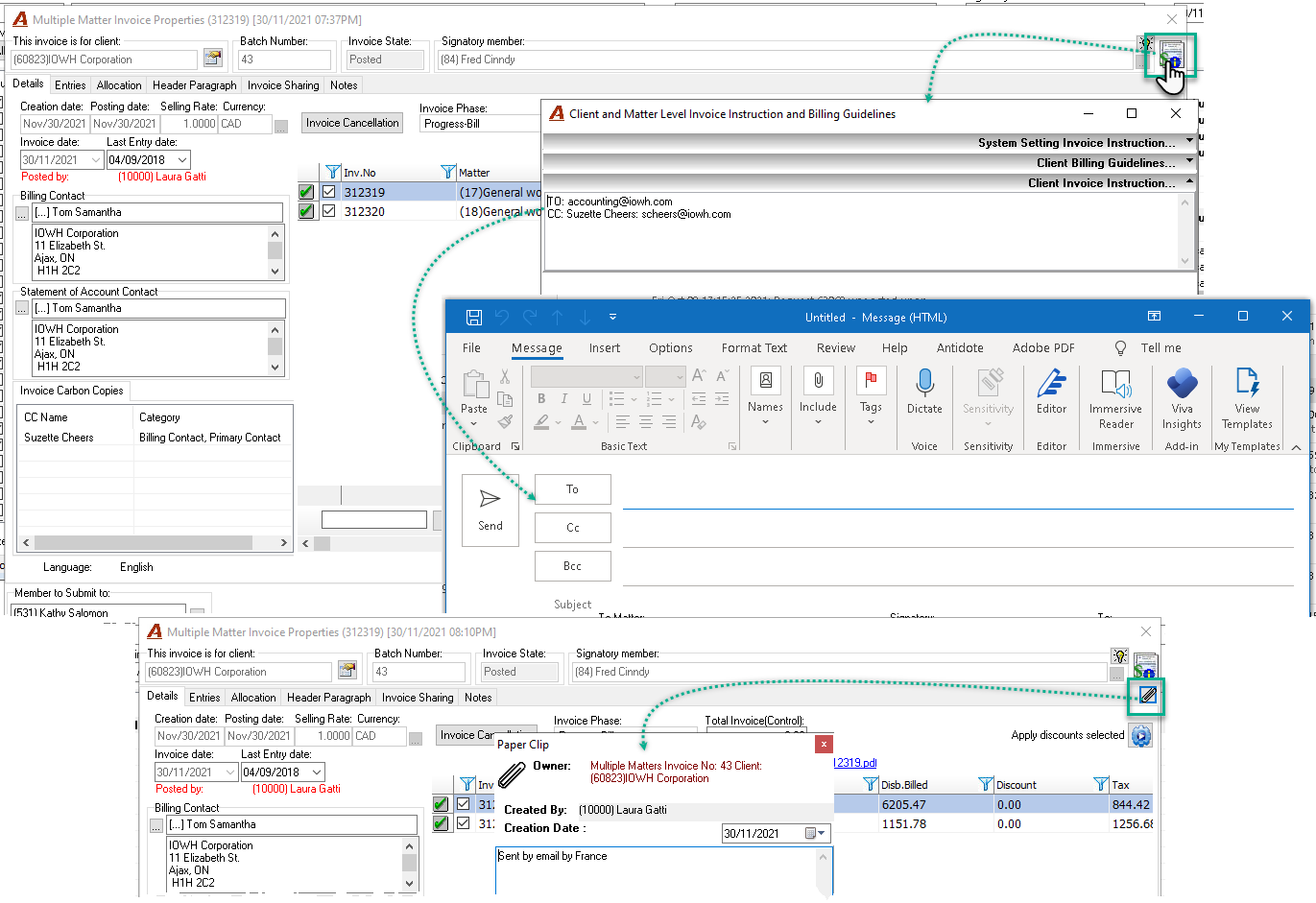
If the email option is not available, it is easier to send the invoice by email before it is posted.
To send the invoice by email, the person responsible launches the “Client and Matter level invoice and Billing Guideline” form along with a new email dialogue form. Copy/paste the email address of the main and carbon copied recipients, complete the email, and attached the invoice saved in the invoices folder. Once ready press sends and post or post and then send. Post the invoice, and once you are back on the show invoice list, flag the invoice as “Sent by email”.
Where all matters to be included in the multiple matter invoice have the same billing decision role holders
-
Double click on the bolded multi-matter invoice record to access the matters to be included in the multiple matter invoice that the member is responsible for to generate the WIP List as a cover page to the DDI or DER if applicable.
-
Right click on the multi-matter invoice to generate the multiple matter invoice envelope directly from the to-bill tab.
-
From the show invoice details filtered results access the multi-matter envelope to complete the invoice preparation process and generate and save the invoice in PDF final form so it is ready for posting.
-
Accounting posts the invoice and sends the prepared email package (see previous)
Example:
To-Bill Tab for Member (84) F. Cindy
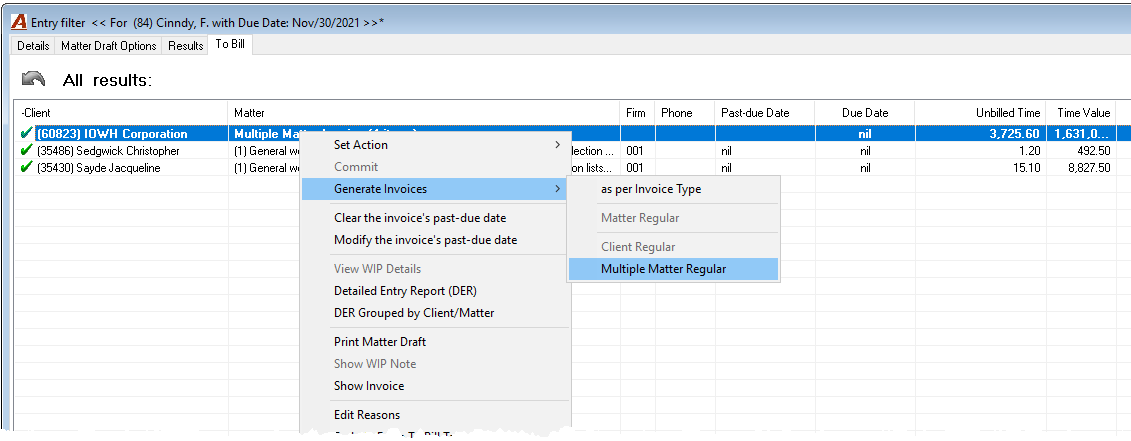
How to create a multiple matter invoice without an envelope from the To-Bill and Results tab
From the To-bill or the Result tabs:
-
Multiple select individual requests of the same client using the Shift or CTL key.
-
Select the Generate invoices – Multiple Matter regular option.
How to set contacts as Carbon copy
From the Client level Contacts - Parties Represented section at the client level for the multiple matter invoice, highlight the contact and select the “Flag as CC (Carbon Copy)” option.
When creating the Multiple matter invoice, the CC contact will list in the Carbon Copied section.
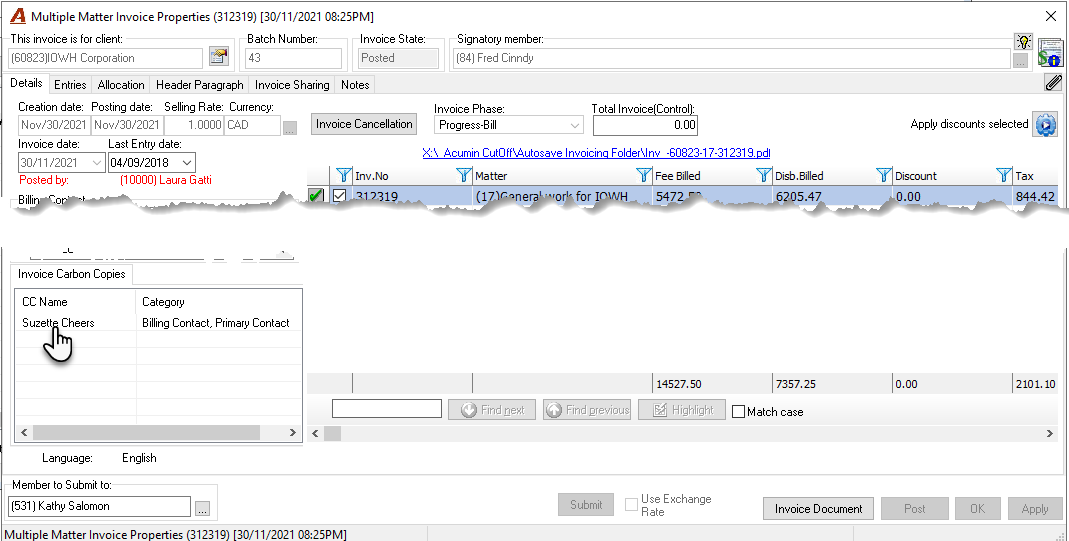
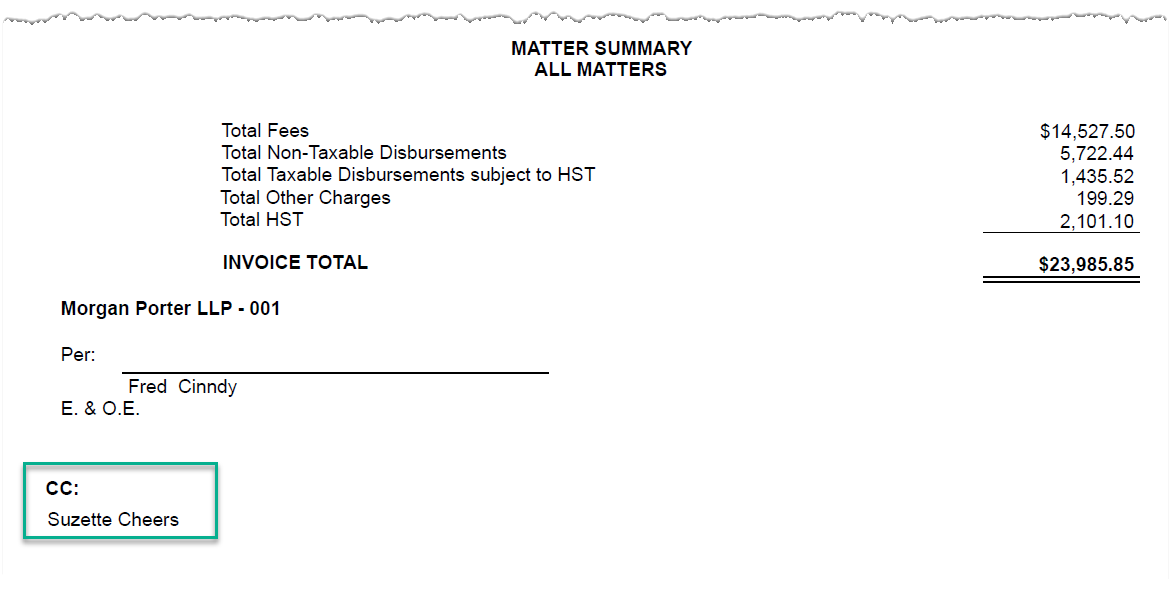
When generating the multiple matter invoice document, the carbon copied contact will list at the end of the Matter Summary document. Future releases will also include the cc in the cc line of the email dialogue box.