.png)
Scope & Purpose
This guide provides users with clear instructions on how to use Acumin’s Matter Draft/Invoice Selection Filter, including the Details and Results panels, as well as available reporting options. It explains how to filter matters, interpret billing information, understand system‑generated statuses, and generate draft or final invoices. By following this guide, users can accurately manage billing cycles, identify matters ready for invoicing, and produce the necessary reports for review and billing completion.
Section 1 – Key Definitions
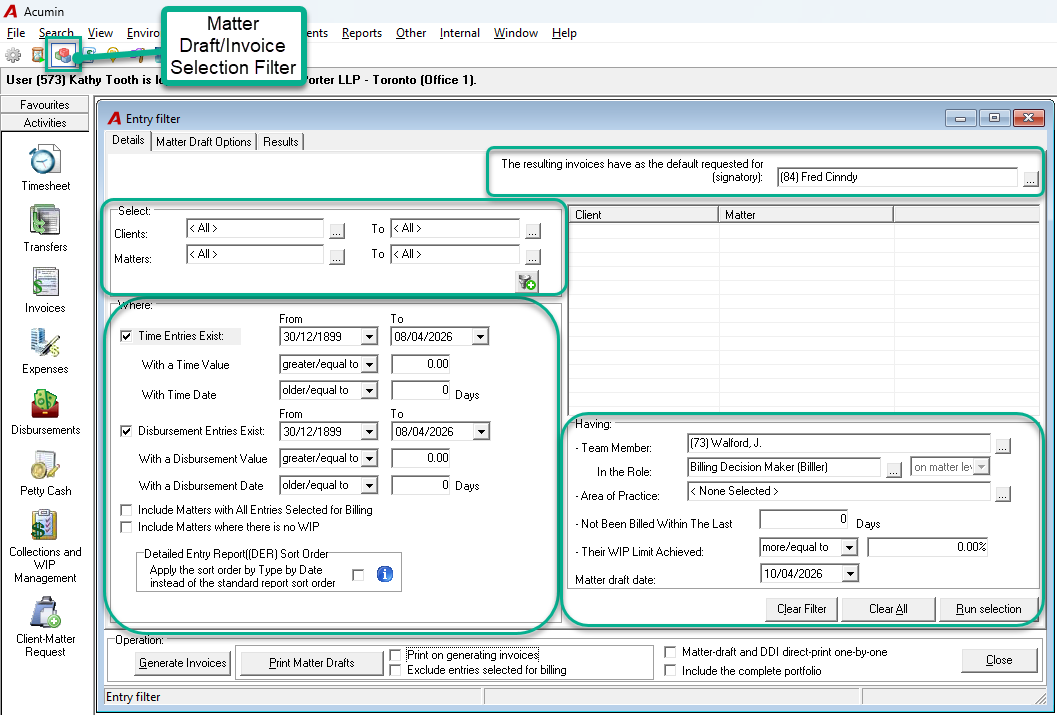
Details Tab: Filter Options
-
Client / Matter or Member Selection
At least one client, matter, or member must be selected to run a billing request. -
Entry Date Range and Value
Defines the From/To period and the value criteria used to determine which time entries and disbursements will be included in the invoice selection. -
Include Matters with All Entries Selected for Billing
When enabled, matters that already have WIP included in unposted invoices will also be displayed. -
Include Matters Where There Is No WIP
When enabled, matters with no time entries are included, allowing users to generate No Time invoices. -
Clear Filter button
Resets all filters to their default values. -
Clear All button
Clears all entries currently listed in the Results tab.
Note: The Results tab is cumulative and retains entries until manually cleared. -
Run selection button
When pressed, the system will display the result based on the filter into the Result tabDisplays the results in the Results tab based on the filters currently applied.
Results Tab
-
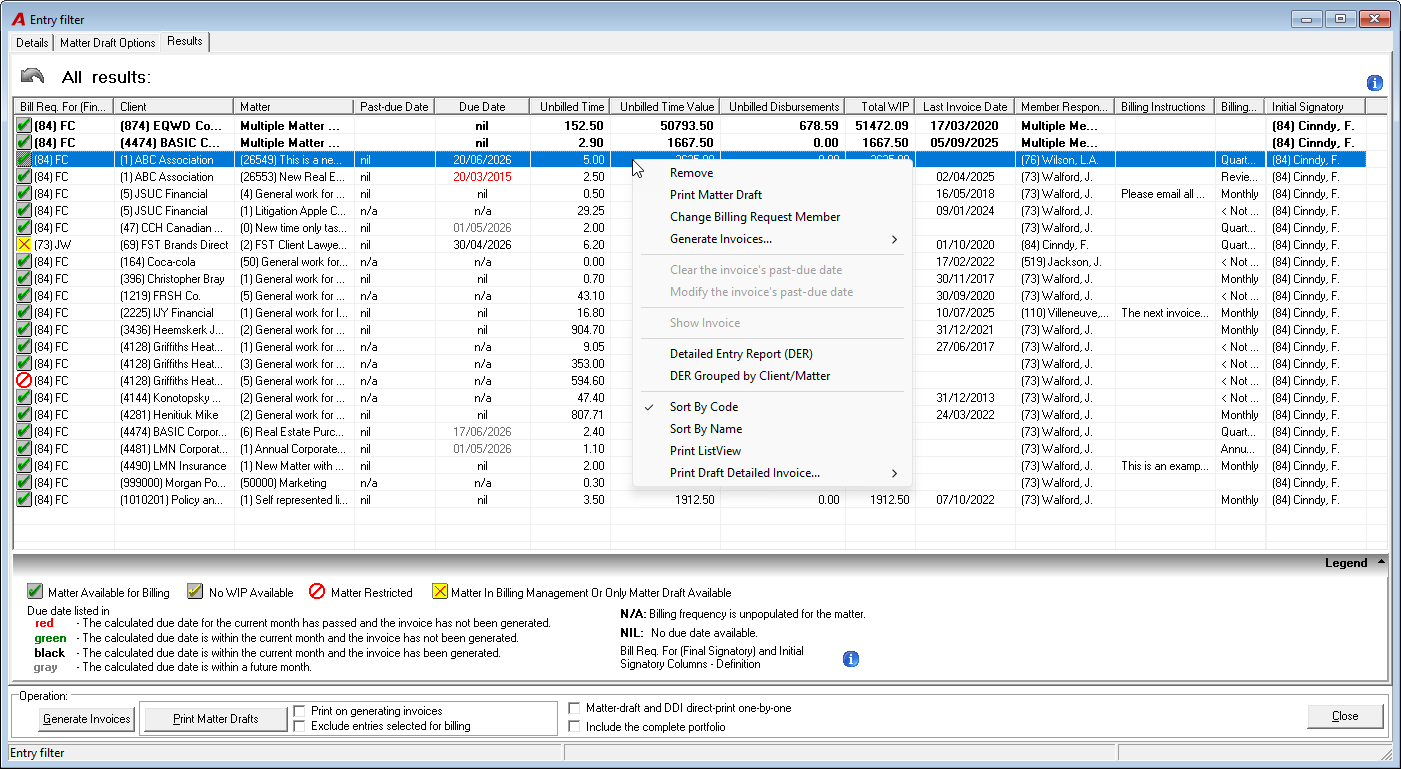
Due Date
The calculated invoice due date determined by the matter’s billing frequency and due day. -
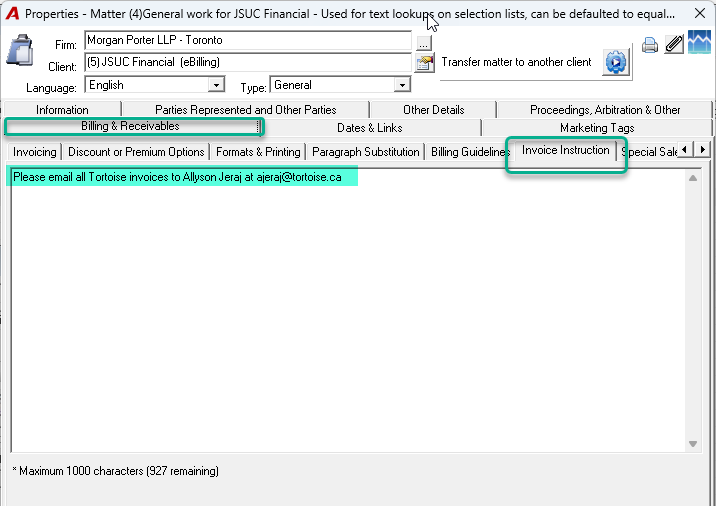
Billing Instructions
Instructions defined in Matter Properties that appear in the Results tab.
-
Grouped Matters
Matters grouped by invoice type (multiple matter or client invoice) and by common billing frequency due date and/of portfolio.
Legend Panel


|
The matter is ready for invoice generation. |

|
Appears only when the “Include Matters where there is no WIP” option is enabled. |
|
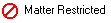
firewall is in place. Users can generate invoices only after authenticating with a password. |

|
An invoice is already in progress for the matter. |
|
red |
Due date is within an open fiscal month; invoice not yet generated. |
|
green |
Due date is in the current month; invoice not yet generated. |
|
black |
Due date is within an open fiscal month and the invoice has been generated. |
|
gray |
Due date is in a future month. |
|
N/A |
Billing frequency not set for the matter |
|
NIL |
No due date (Due Day = 0). |
Operation panel

-
Generate Invoices
Will generate all invoices in the Result Tab regardless of any selection -
Print matter Drafts
Will print the Matter Draft report based on the selection made into the Matter Draft Option tab for all entries in the Results regardless of the selection made. -
Print on generating invoices
It is used in conjunction with the Generate Invoice button. When the user press the Generate Invoice button, the system will print at the time the Matter Draft report for the -
Exclude entries selected for billing
Will exclude entries selected for billing
Section 2 – Processes and Workflows
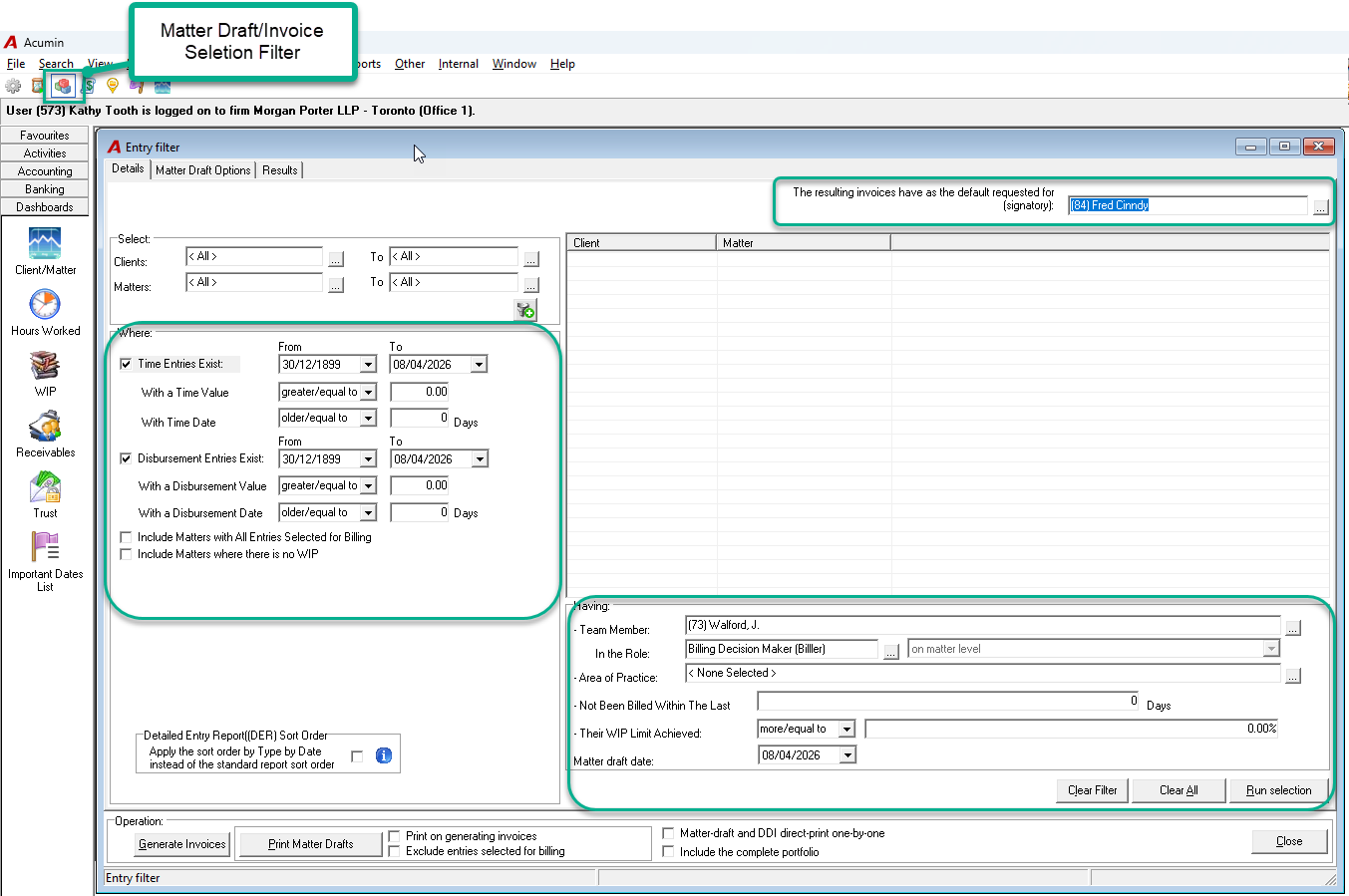
Details Tab – Setting Filters
-
Select the client, matter, or member.
-
Choose the From/To date range.
-
Enable additional options as needed:
-
Include Matters with All Entries Selected for Billing
-
Include Matters Where There Is No WIP
-
-
Click Run Selection to load the filtered matters into the Results tab.
Generating Billing Requests (Member‑Based)
-
Select the requested-for/signatory member.
-
Define which entries should be included (date, value, etc.).
-
Select the member role if applicable.
-
Select the Matter Draft Date (becomes the invoice transaction date).
-
Click Run Selection.
Generating Billing Requests (File‑Specific)
-
Select the requested-for/signatory member.
-
Define which entries should be included (date, value, etc.).
-
Enter the client/matter and add them to the list.
-
Click Run Selection.
The filter will save the last infomation selected including the dates unitl you clear the filter.
Section 3 – Results Tab
Features
-
Shows the list of matters that meet the selection criteria set in the filter tab.
-
The list cumulates the results from the filters selected until the user use the “Clear All” button to empty the Result Tab list.
-
Matters may be grouped by invoice type (Multimatter and/or Client invoice), Due date and/or portfolio.
-
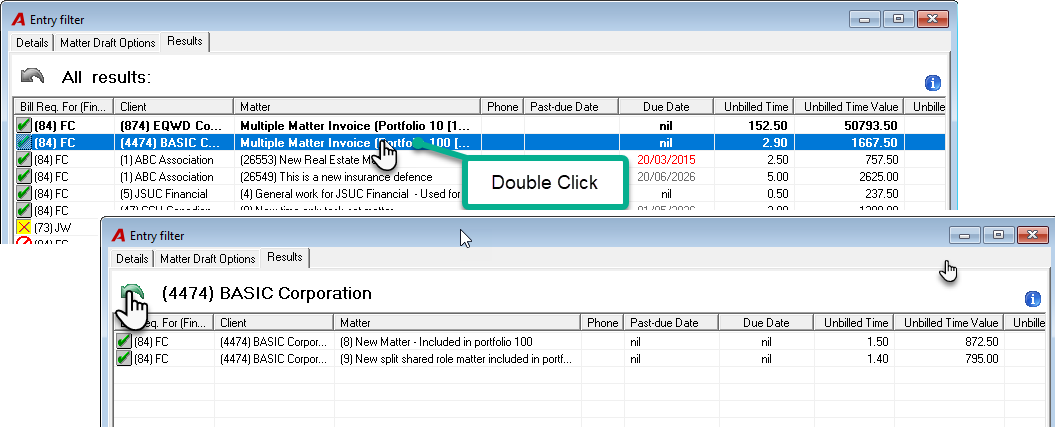
Group lines (Multimatter and/or Client invoices) appear in bold and show the number of matters within each group.
-
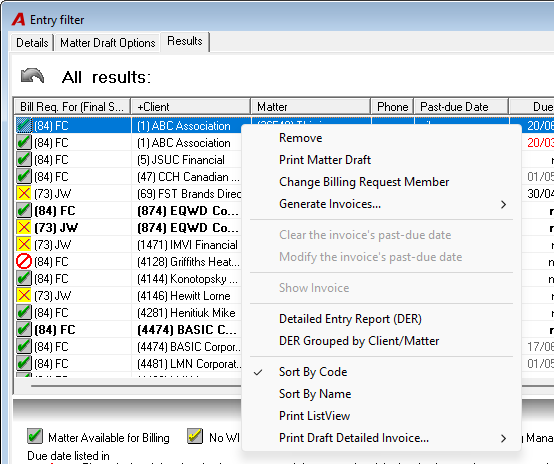
Right‑click menu options vary depending on whether the line is grouped or individual.
-
Double‑click a group to expand and view individual matters. Use the back arrow to return.
User Options
-
Sort by clicking column headers (e.g., Unbilled Time Value to prioritize highest values).
-
Remove selected requests using the Remove command.
-
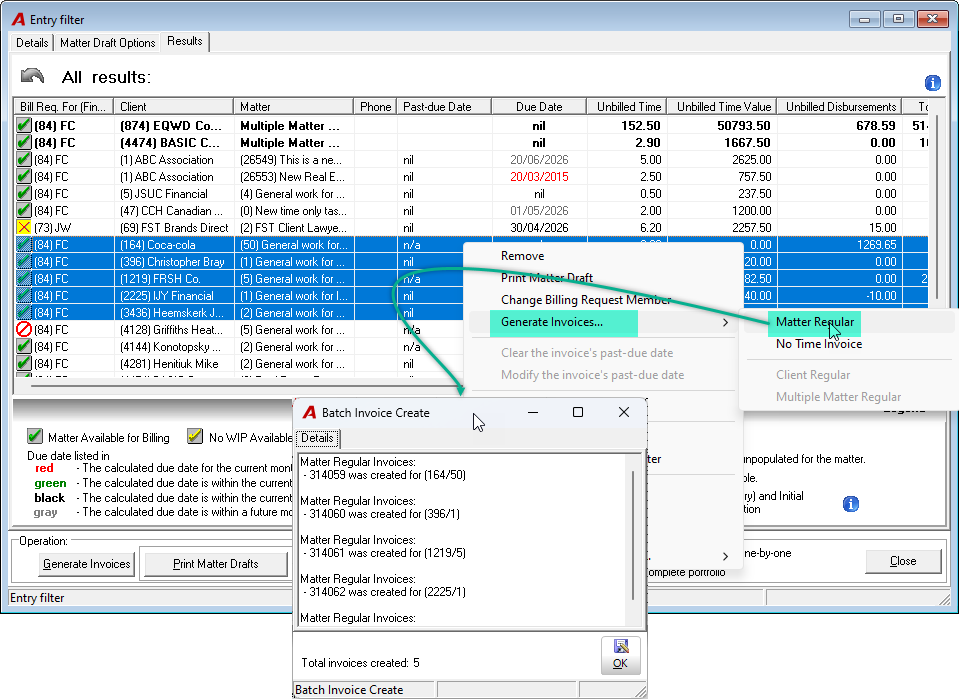
Generate invoices:
-
For the entire list using the Generate Invoices button
-
For a selected matter using the appropriate invoice type
-
-
After invoices are generated, they disappear from the Results list.
-
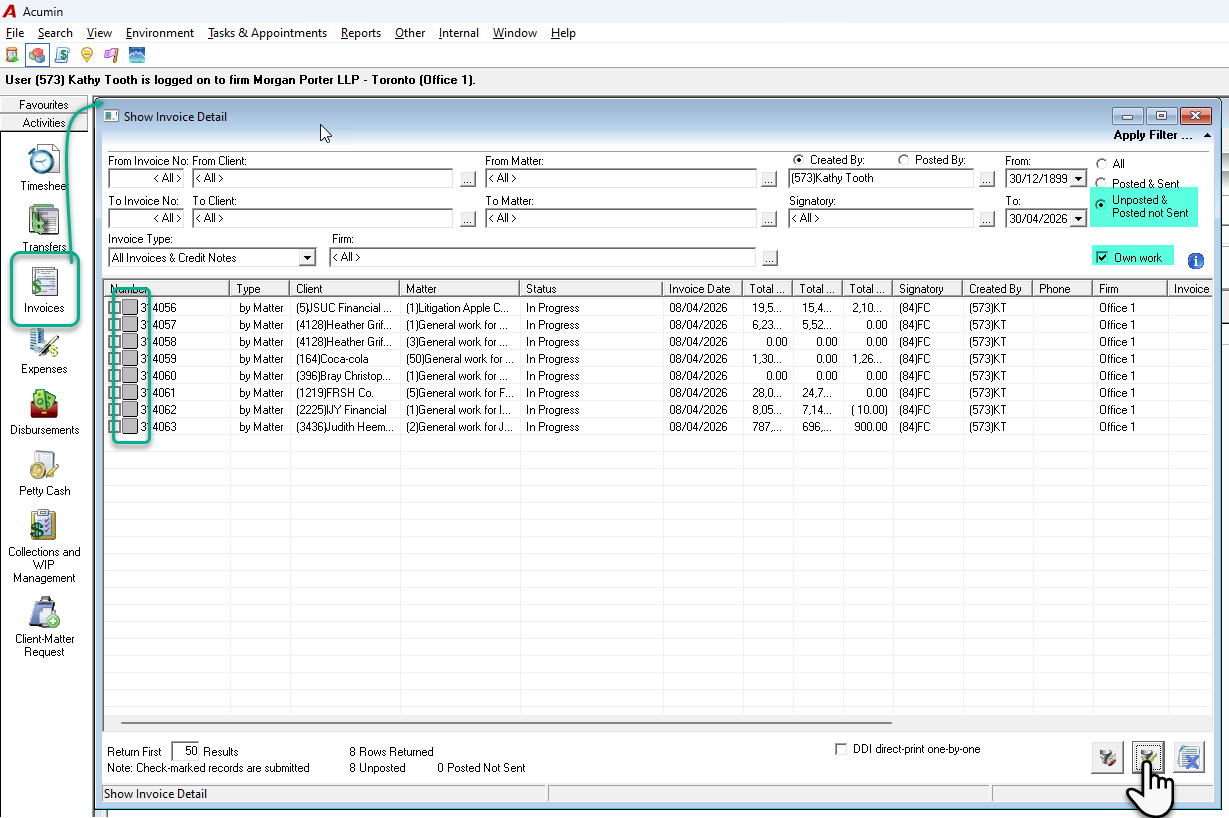
View created invoices in Activities > Invoice > Show Invoice Details.
-
The window opens with Unposted & Posted Not Sent and Own Work selected
-
Click Apply Filter to see invoices generated from the Matter Draft/Invoice Selection Filter.
Section 4 – Reporting Options
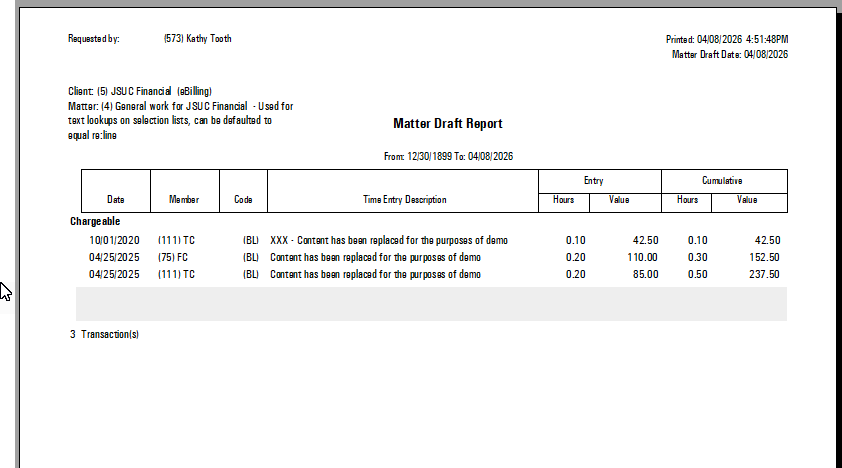
Matter Draft Report
-
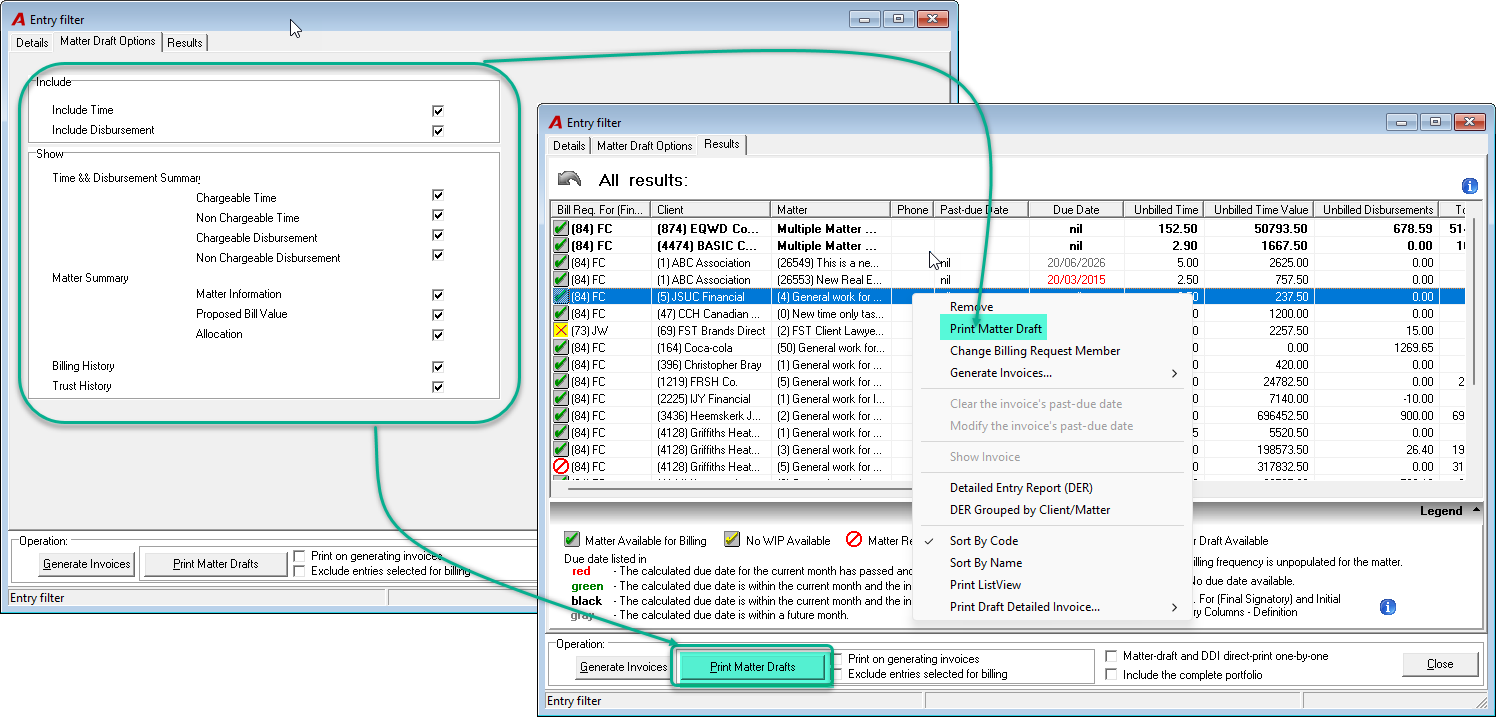
Configured via the Matter Draft Options tab (user preferences are saved).
-
Can be printed for a selected item or for all entries by clicking on the Matter Draft button.
-
Accessible via right‑click menu or Print Matter Drafts at the bottom of the window.
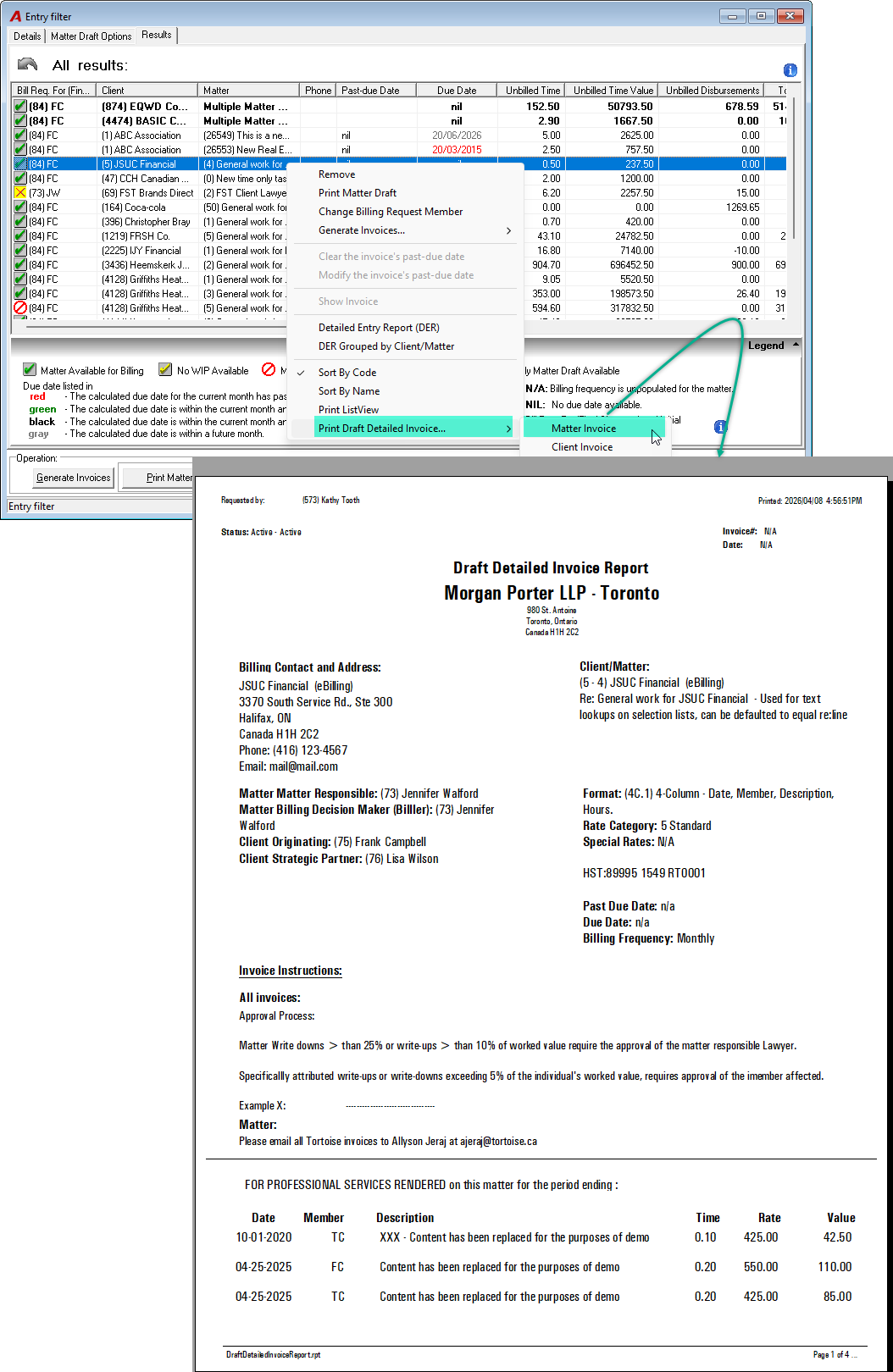
Draft Detailed Invoice (DDI) Report
-
Can be run for a selected matter or for the full list.
-
Accessible via the right‑click menu.